Automatic translation gets your store into another language. It rarely gets your product names right.
The text editor is where you take over. It lets you change the translation of any text in any language on your store by hand, so the wording matches how you actually talk about your products instead of how a machine translated them. You work section by section, with the default language on one side and your own wording on the other. In this guide, you'll learn how to open the text editor, translate a section, and handle the special cases.
The text editor lets you rewrite the translation of any text in your store by hand. Open Store settings, click Languages, open the text editor for the language you want, pick a section such as products, and type your own wording beside the default language.
📌 Article overview
- How to translate your store manually with the text editor
- Frequently asked questions
For more answers, see frequently asked questions about languages.
👣 How to translate your store manually with the text editor
1. From the dashboard side menu, click (Store settings).

2. From Store settings, click (Languages).
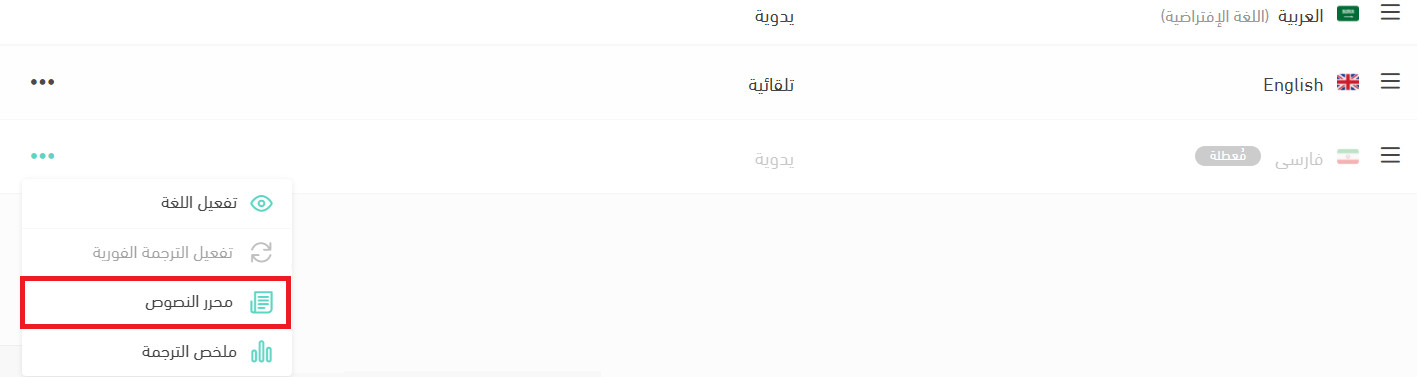
3. On the languages page, click the (...) button next to the language you want.

Then click (Text editor) for that language.
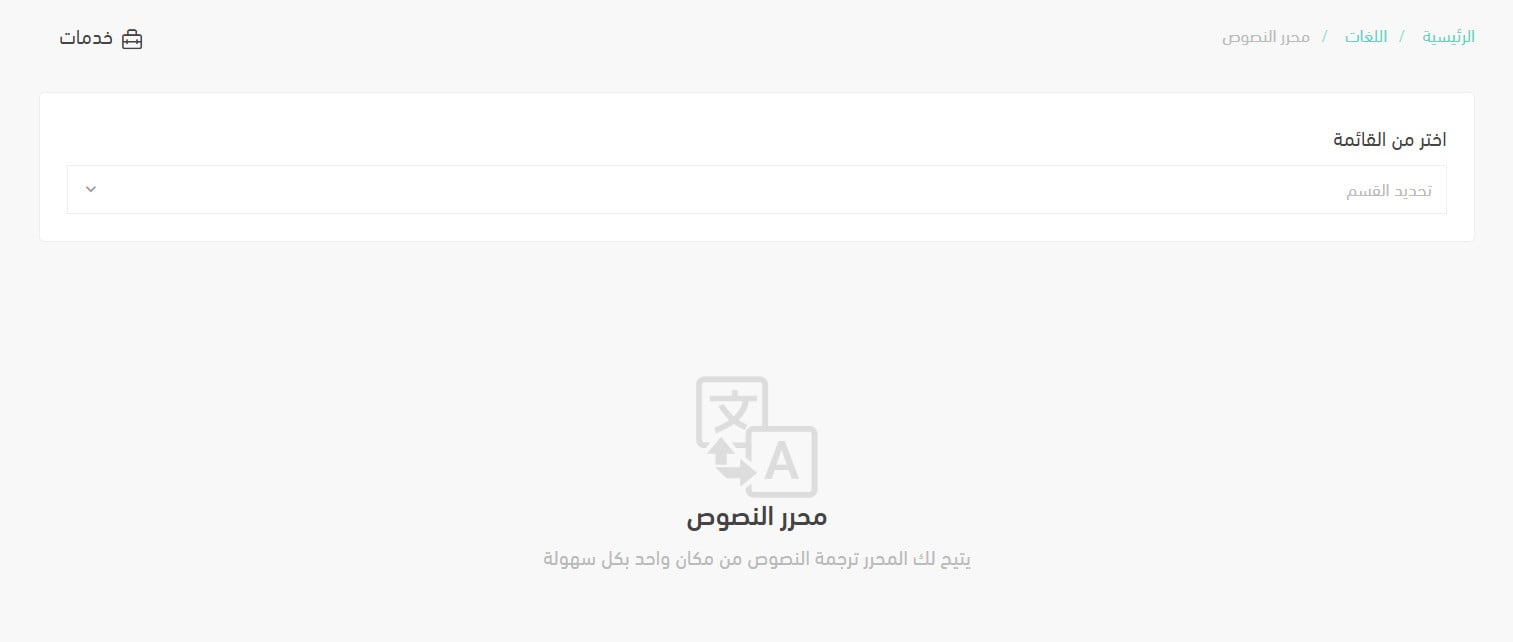
Or open the services menu and click (Text editor).

The text editor page opens like this.
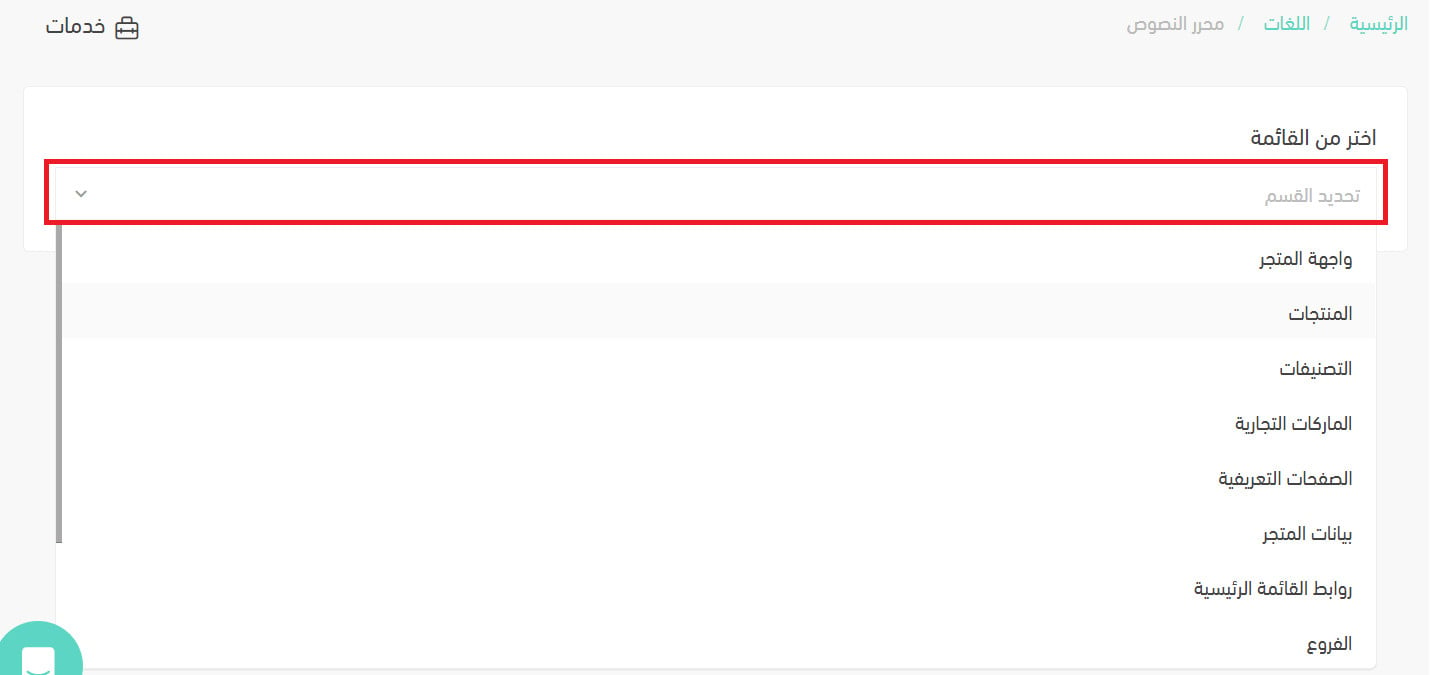
4. Choose the section whose translation you want to change. In this example, (Products).
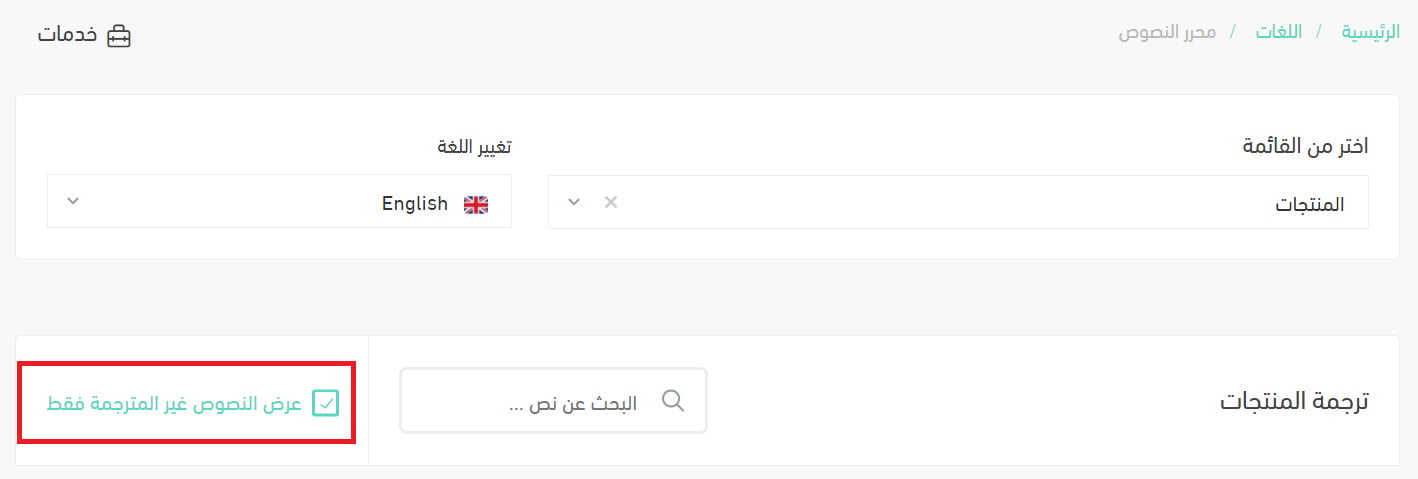
5. Switch on (Show untranslated text only) if that suits you, or leave it off to see every product in your store, translated and untranslated alike.
6. Read the product data in your default language, shown on one side as the basis for the translation. In this example, Arabic is the default language.
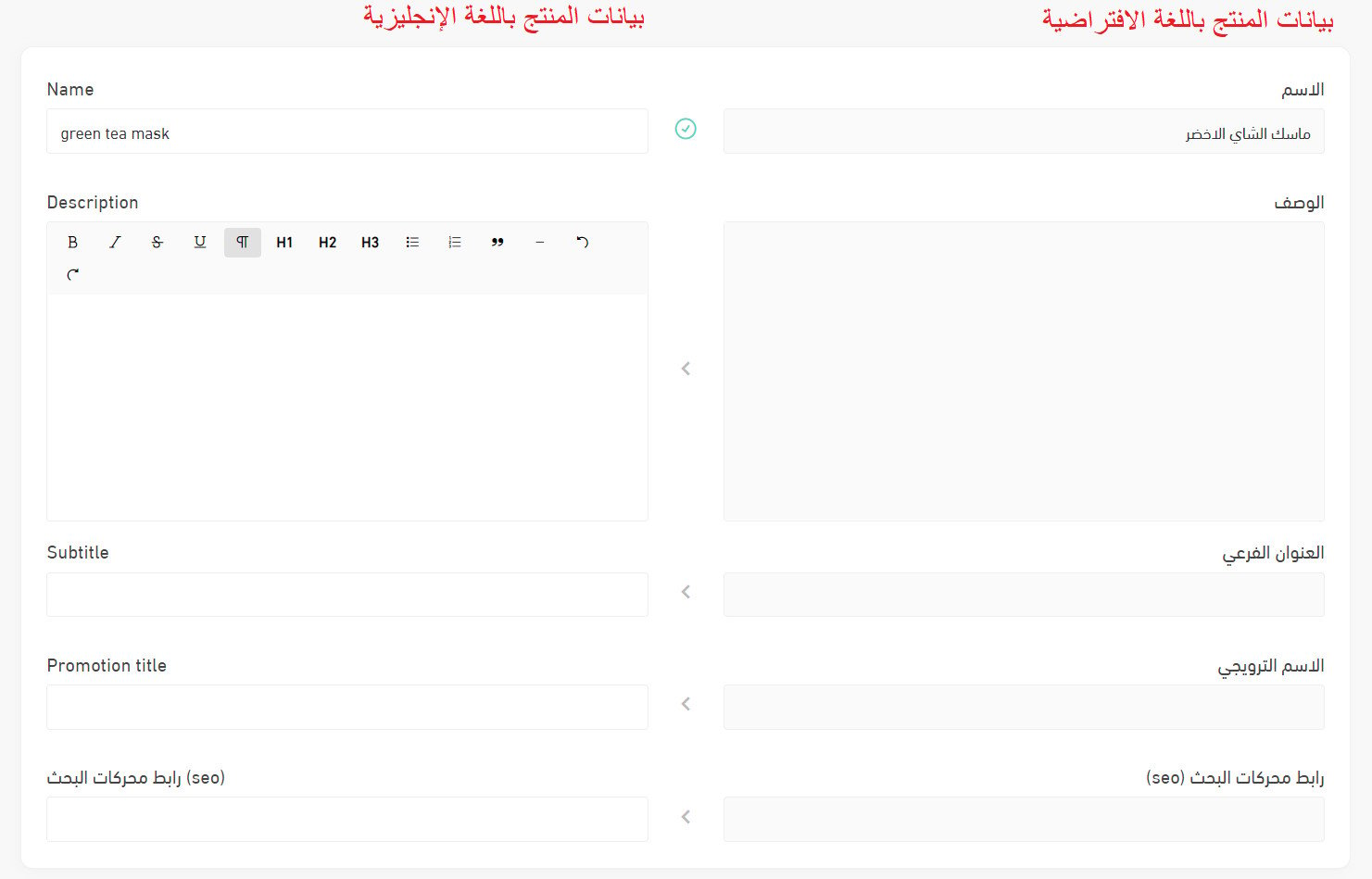
Enter the product data in English on the other side. In this example, English is the language set to manual translation in the earlier steps.
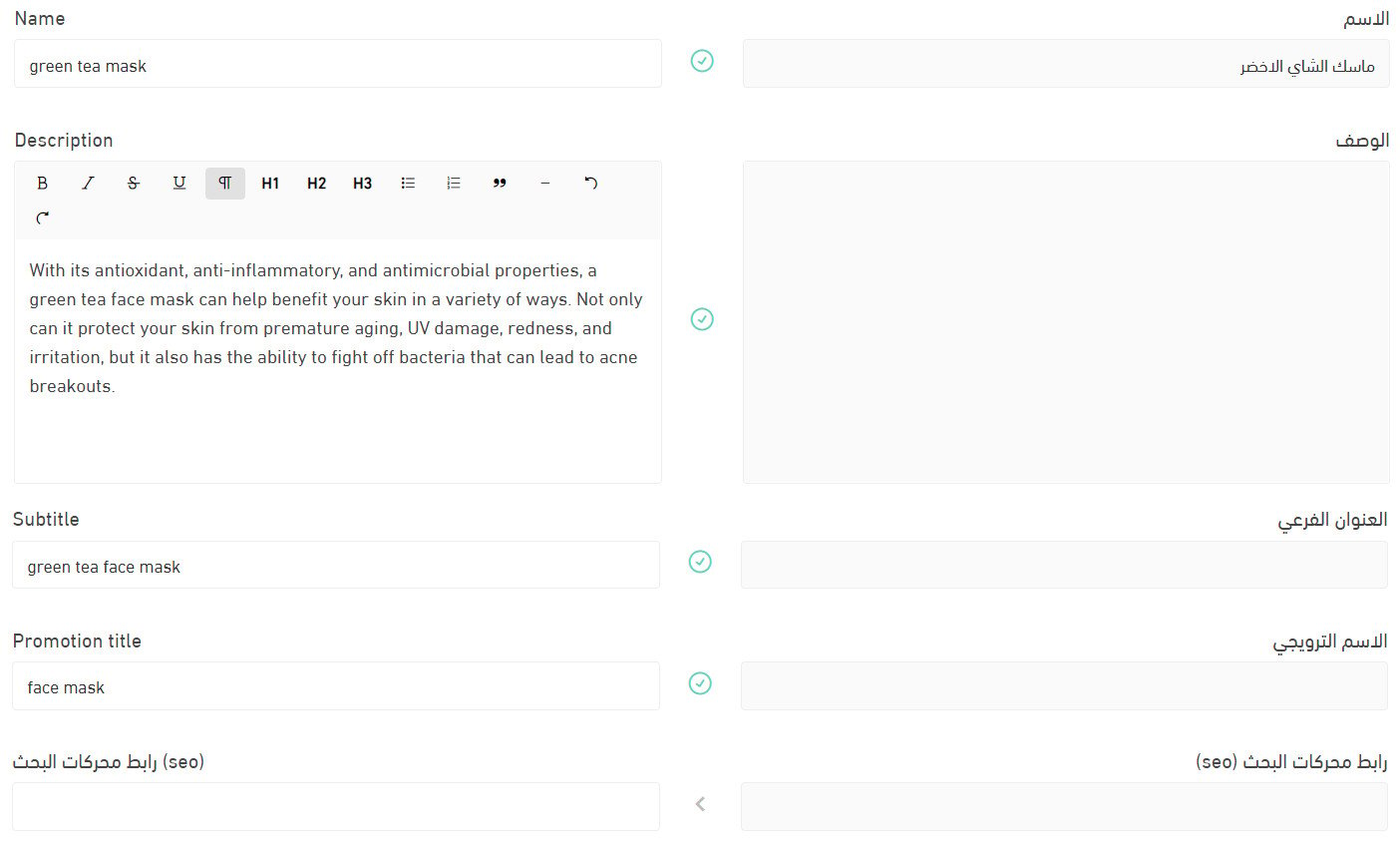
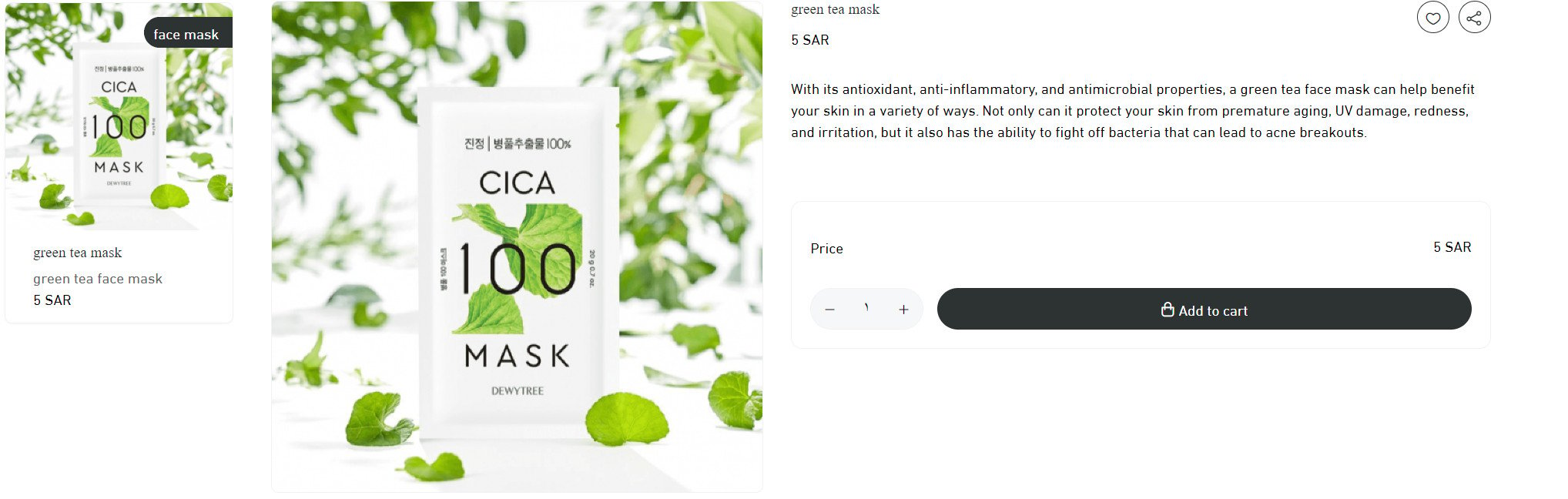
The product then appears in the default language like this.

And in English like this.
❓ Frequently asked questions
Does the translated text have to be a translation of the default language?
Not necessarily. Write whatever suits your needs and your audience in the target language.
Can I search for a specific piece of text to translate?
Yes, using the search box in the text editor.
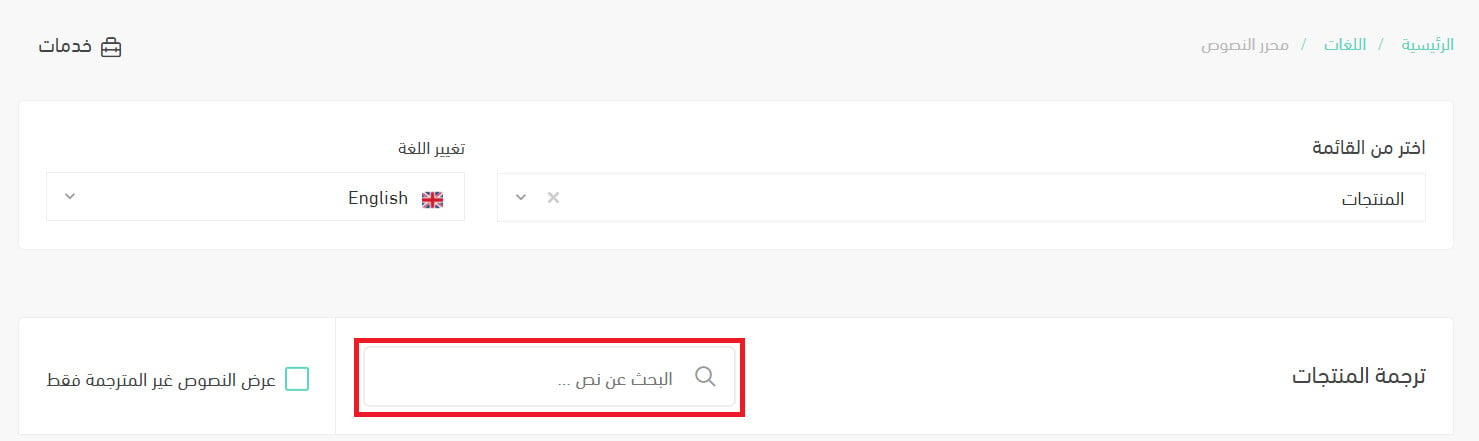
The search runs across the default-language text in every translatable field. Searching within product translations, for example, covers the name, the description, the subtitle, the promotional title, and the rest.
Can I edit the data in the default language?
No. To change content written in the default language, go back to the page it belongs to and edit it there. To change a product's default-language details, for example, open the product page and edit them from there.
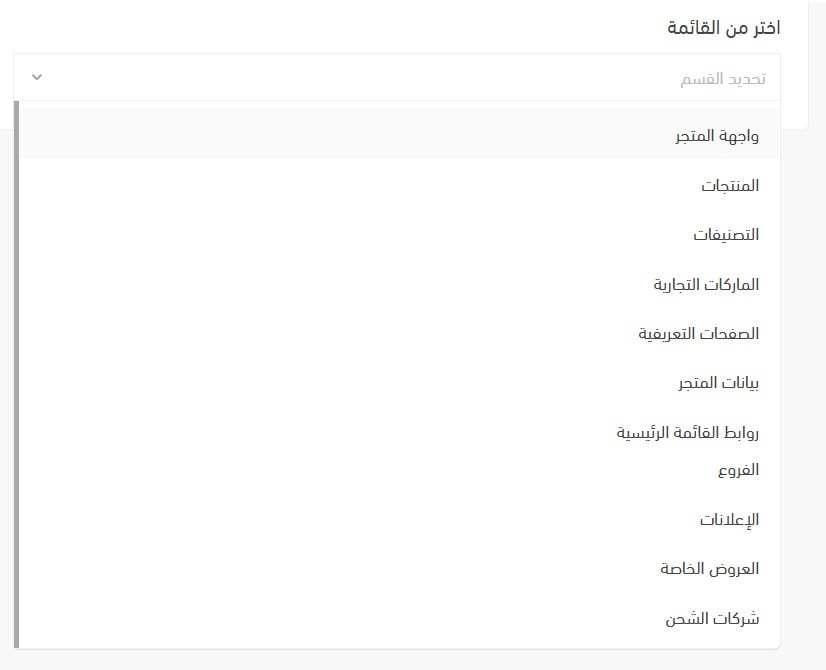
Which sections can I translate manually?
Every section of your store that customers see:
Can I translate one section into all my store languages before moving to the next section?
Yes. Choose the section you want to translate, then choose the language from the language list.
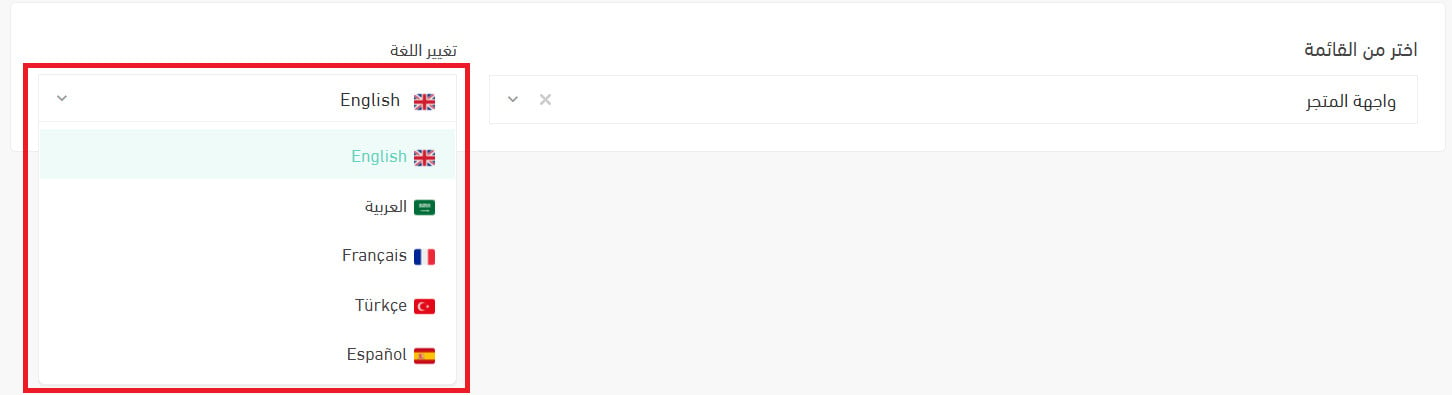
Translate the section's content, wait for it to save automatically, then pick the next language and repeat.
How do I translate the storefront manually?
From the text editor page, choose the (Storefront) section and the language you are translating into.

Select the elements you want to translate. You can select more than one.
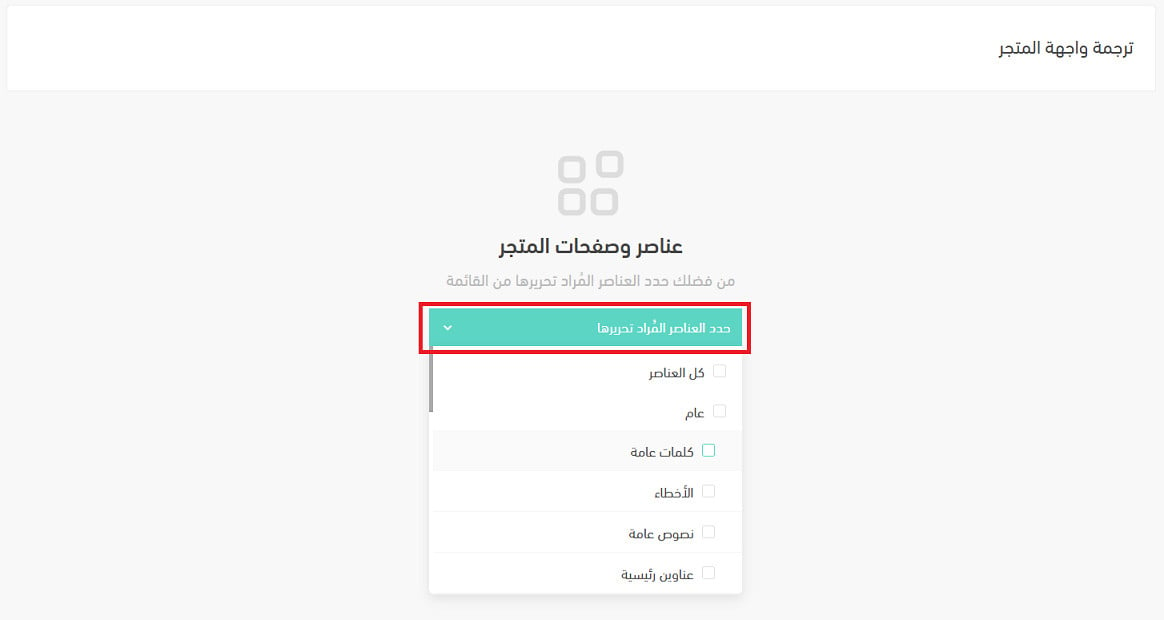
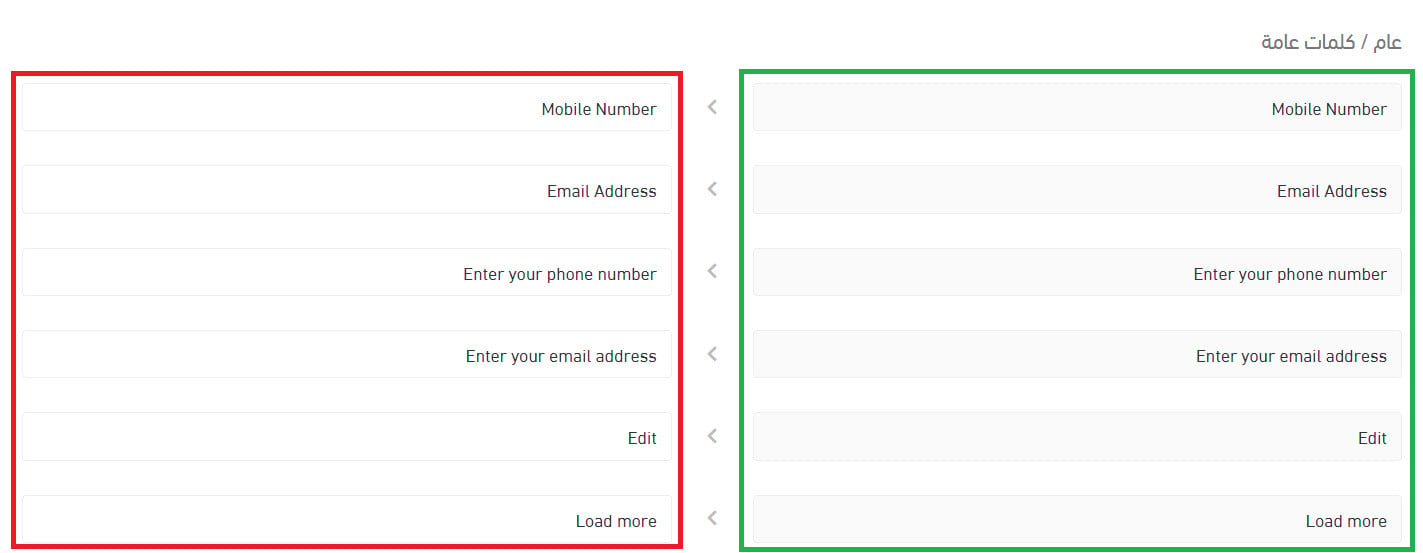
The text in the green box is Salla's own approved translation for store elements and pages. You change it in the red box.
What do I do with the special symbols and tags inside some strings?
Some strings, such as those in page and review translations, contain code fragments like </span>.

They are formatting code that controls how the message or the text is displayed. Leave them exactly as they are and translate only the words around them.
📝 Important notes
Translations save automatically as you work, so you can move between sections and languages without a save step.
Manual translation is slower than the instant kind, and it is the only way your store sounds like you in every language it speaks. Start with the pages a shopper reads before they buy, and work outward from there.