A customer visits your online store, but the menus feel cluttered or unclear, within seconds, they feel lost and leave.
This is where header and footer customization makes a real difference. A well-structured header and footer improve navigation, reinforce your brand, and help customers find what they need quickly. In this guide, you’ll learn how to customize these areas to create a cleaner, more professional storefront that enhances user experience and boosts engagement.
📌 Article overview
- How to access header and footer customization
- Customizing header elements
- Customizing footer elements
How to access header & footer customization
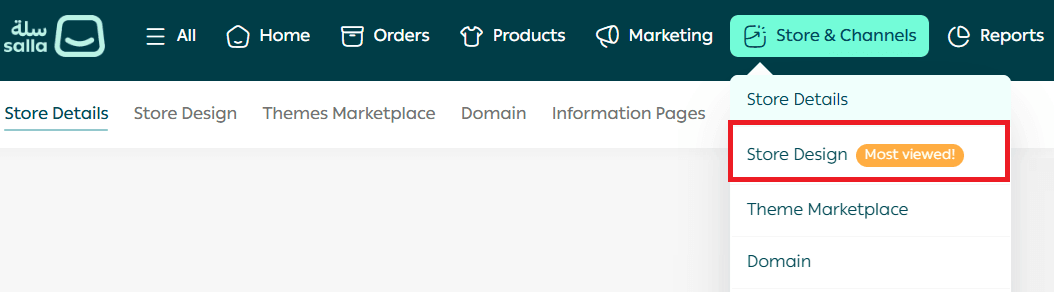
- From the main menu, click Store & Channels, then select Store Design.
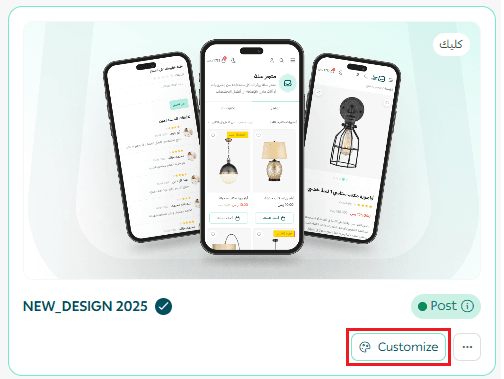
2. On the Store Design page, locate your active theme and click Customize.
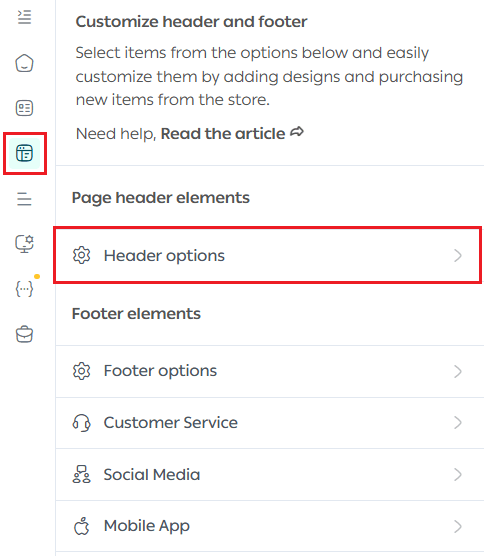
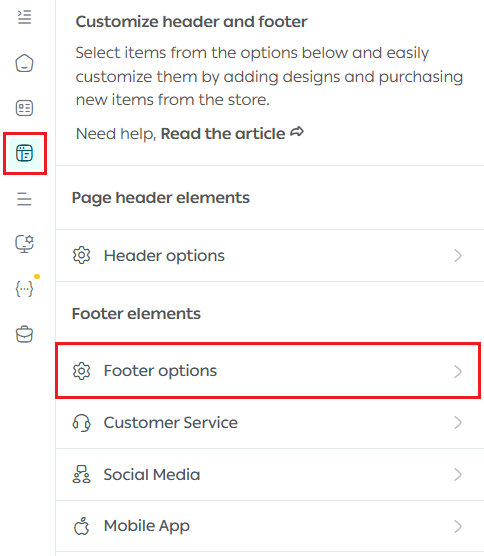
3. Open the Header & Footer Customization tab.

Customizing header elements
Header menu
To customize the navigation menu in the header, click Header Settings.
- Choose an existing menu
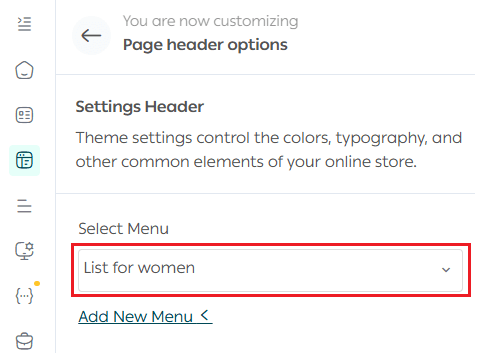
Or
- Create a new custom menu.
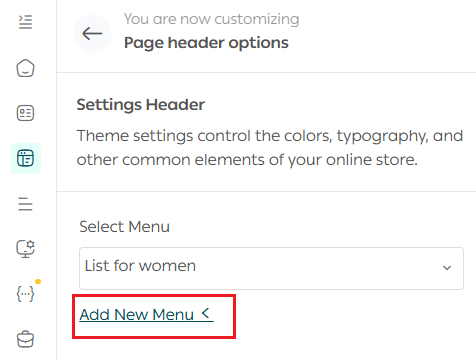
✨ Tip: Don’t rely only on default menus. Creating a custom menu allows you to reflect your store’s structure, categories, and brand identity more accurately.
Once saved, the selected menu will appear in your store’s header.

Customizing footer elements
The footer contains several essential components that support trust, navigation, and communication:
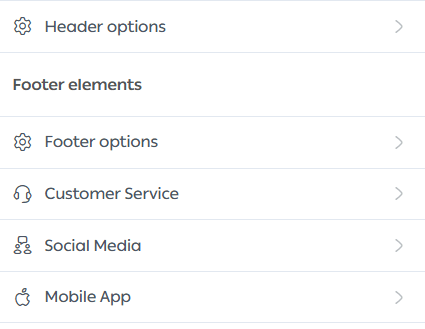
Footer Settings
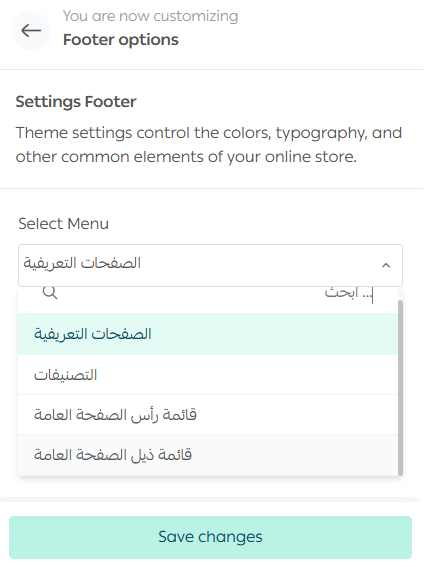
You can display key categories within the footer menu.
Select the menu you want to show in the footer, such as:
- Product categories
- Informational pages
- Main or custom menus
Note: The options shown here are examples from a leading theme. Available elements may vary depending on the theme you are using.
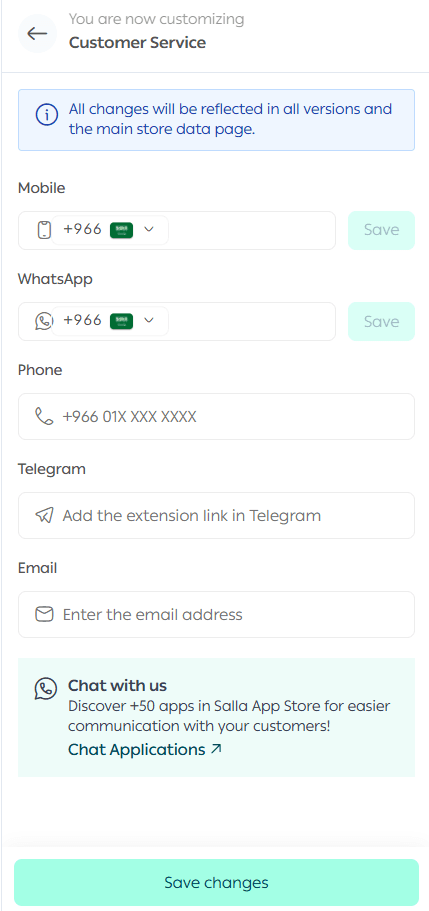
Add customer support channels

You can display customer support contact methods directly in the footer.
Note: Updating this information may require OTP verification.
Add business platform verification badge
Important note: This option is available only for stores in Saudi Arabia.

Note: OTP verification may be required to update this information.

Add social media accounts

Display links to your store’s social media profiles in the footer to strengthen brand presence and customer trust.
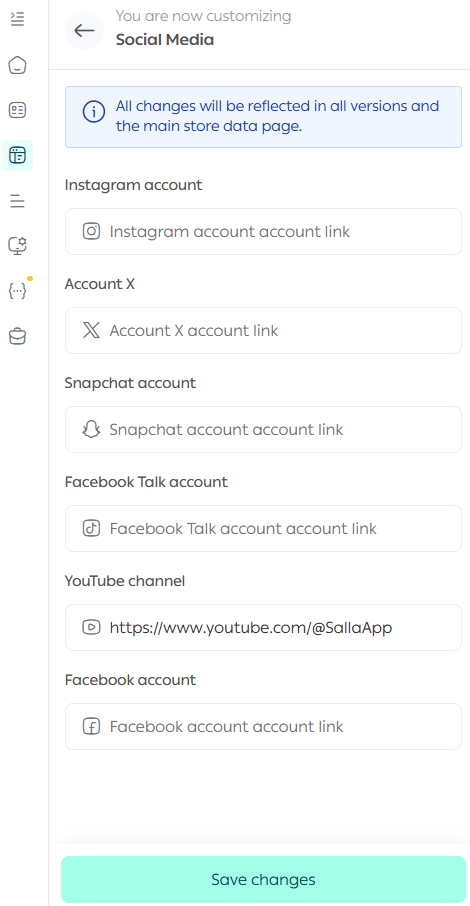
Note: OTP verification may be required.
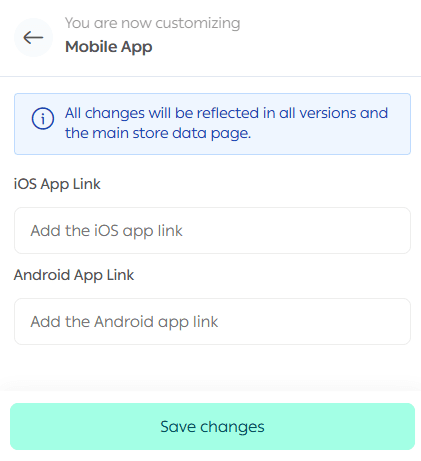
Add store app links

You can add direct links to your mobile store applications in the footer.
By thoughtfully organizing your header and footer, you create a smoother browsing experience, improve discoverability, and reinforce credibility, all without overwhelming your customers.