Your store has an Arabic page and an English page. How does Google know which one to show which shopper?
When the same page exists in more than one language or is aimed at more than one region, search engines have to guess which version belongs in front of which visitor — and they often guess wrong. hreflang annotations remove the guesswork. They tell Google, page by page, that these URLs are alternates of each other and which language or country each one serves. You can add them to every page of your store through Google Tag Manager, without touching your theme code. In this guide, you'll learn how to build the variables, write the tag, publish it, and generate hreflang tags with a free tool if you prefer not to write a script.
hreflang tags tell Google which language or regional version of a page to show each visitor. Set them up through Google Tag Manager in three steps: build a DOM Element variable for each language URL, add a Custom HTML tag that writes the annotations, then publish the container.
📌 Article overview
- What hreflang does and what it looks like
- Step 1: pull each language URL into a Google Tag Manager variable
- Step 2: create the tag that writes the hreflang annotations
- Step 3: publish the tags
- Generate hreflang tags without writing a script
- Frequently asked questions
🎯 What hreflang does and what it looks like
Say your home page exists in two languages:
- English: https://yourwebsite.com/en/
- Arabic: https://yourwebsite.com/ar/
Each version needs to point at the other, so Google treats them as alternates rather than duplicates. The annotations look like this:
<link rel="alternate" href="https://yourwebsite.com" hreflang="ar">
<link rel="alternate" href="https://yourwebsite.com" hreflang="en">
Each annotation carries the URL of the version it describes, so the Arabic line points at the Arabic page and the English line at the English page.

🚀 How to set up hreflang through Google Tag Manager
The walkthrough below uses a store that runs in Arabic and English, with these URLs:
- https://mozdan-sa.com/ar
There are three steps:
1. Pull the internal link for each language or country version into a variable.
2. Create a tag that uses a short script to write the hreflang annotations.
3. Publish the tags.
Step 1: pull each language URL into a DOM Element variable
Google Tag Manager has a variable type called DOM Element that reads information straight out of a page's HTML. You'll create one variable per version of your store.
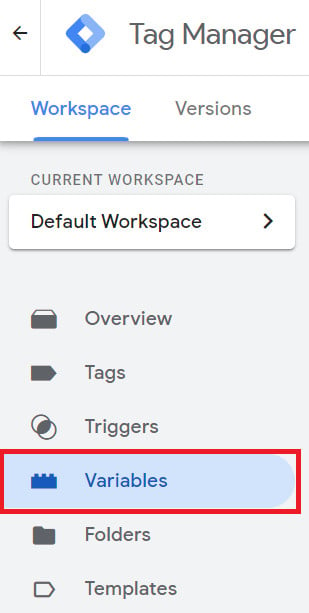
1. Sign in to your Google Tag Manager account and click (Variables).
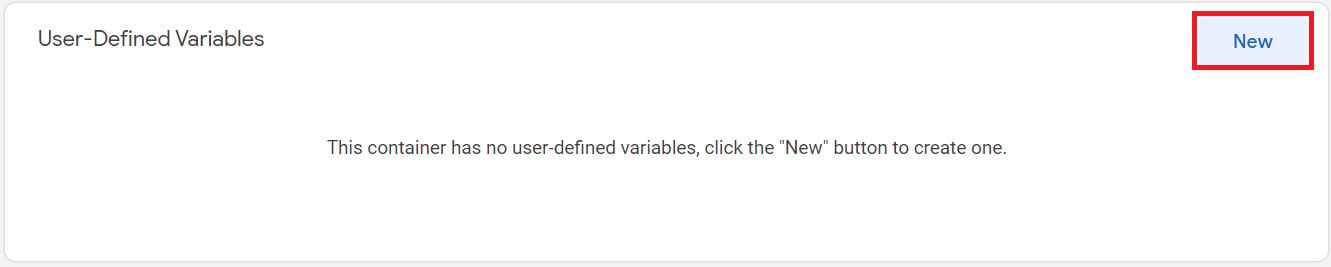
2. Scroll down to (User-Defined Variables) and click (New).
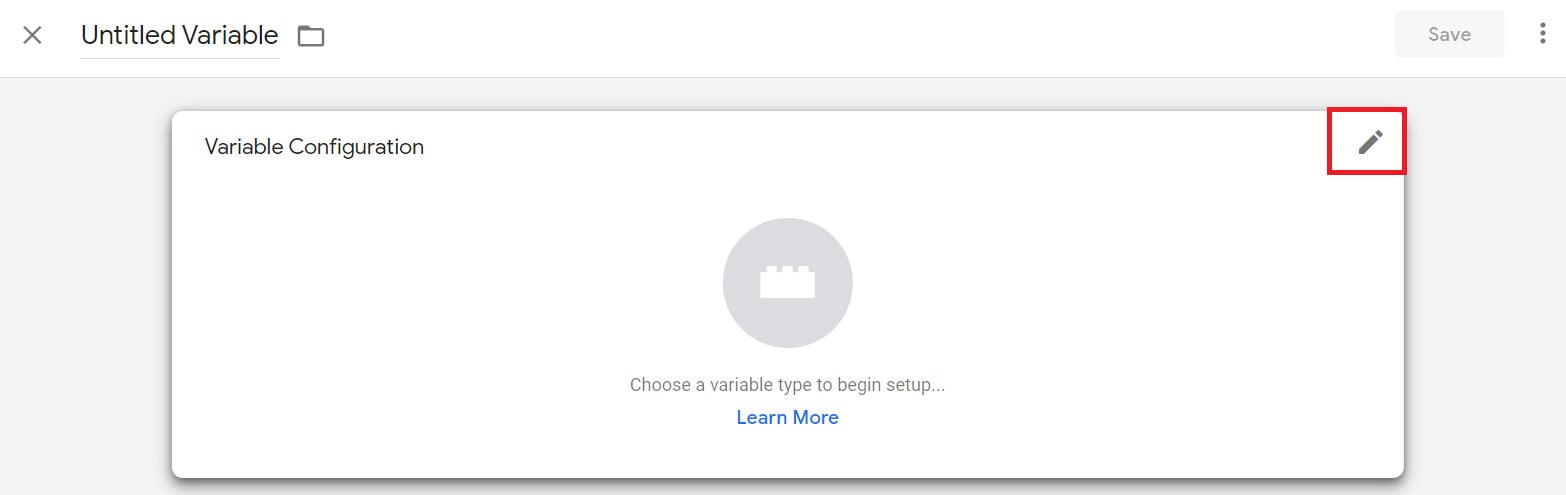
3. Click (Configuration).
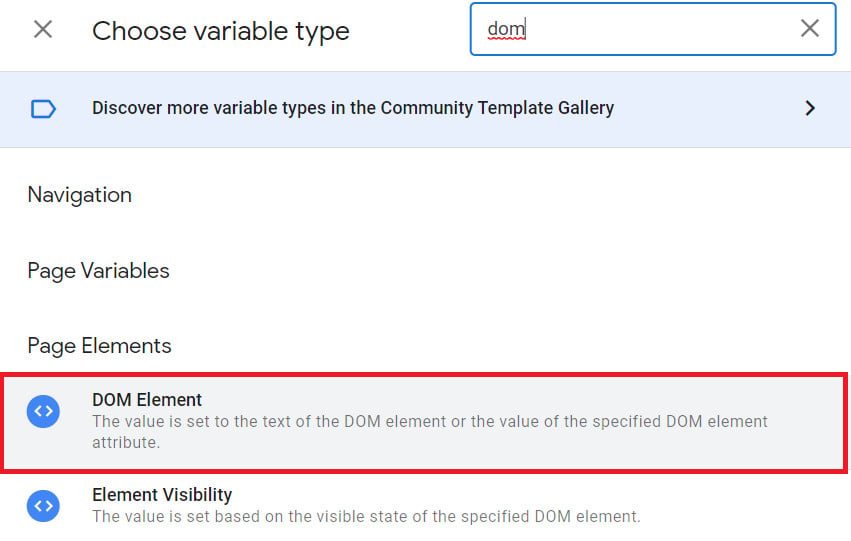
4. Set the variable type to (DOM Element).
5. Name the variable after the language or country version you are starting with. The name field sits at the top of the page, marked in red in the screenshot below. In this example we start with the Arabic version, so the variable is called (Link to Arabic version).
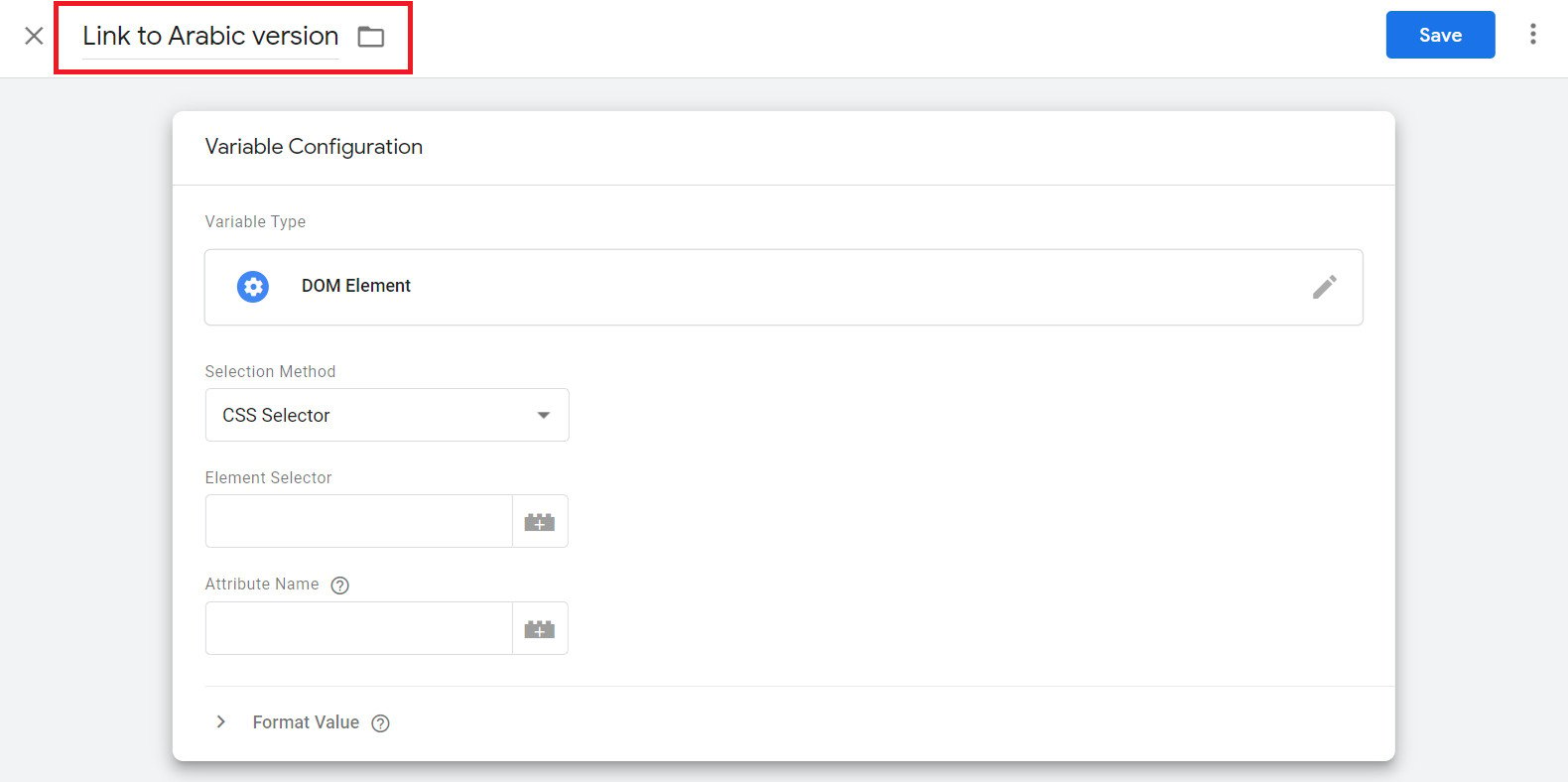
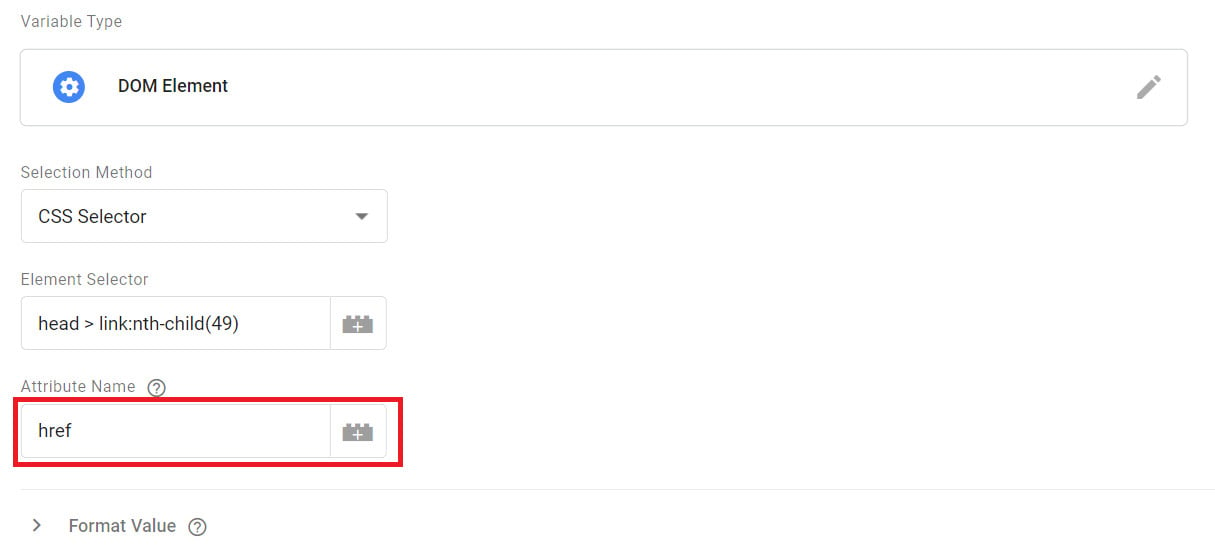
6. Choose a selection method. DOM Element offers two, (ID) and (CSS Selector). Pick (CSS Selector).

That covers the name and the type. Two fields are left: Element Selector and Attribute Name.
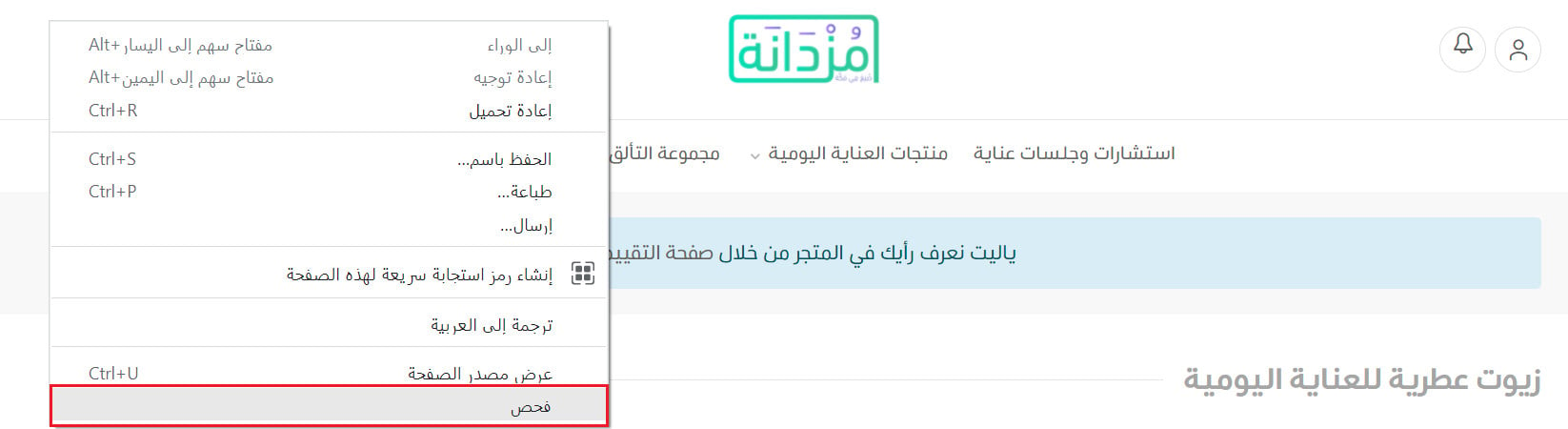
7. Find the CSS selector for the language link. The Element Selector is the fiddliest part of the whole setup, and the quickest way to fill it is to let Chrome do the work: open your store page (here, https://mozdan-sa.com/ar), right-click the language link, and choose (Inspect).
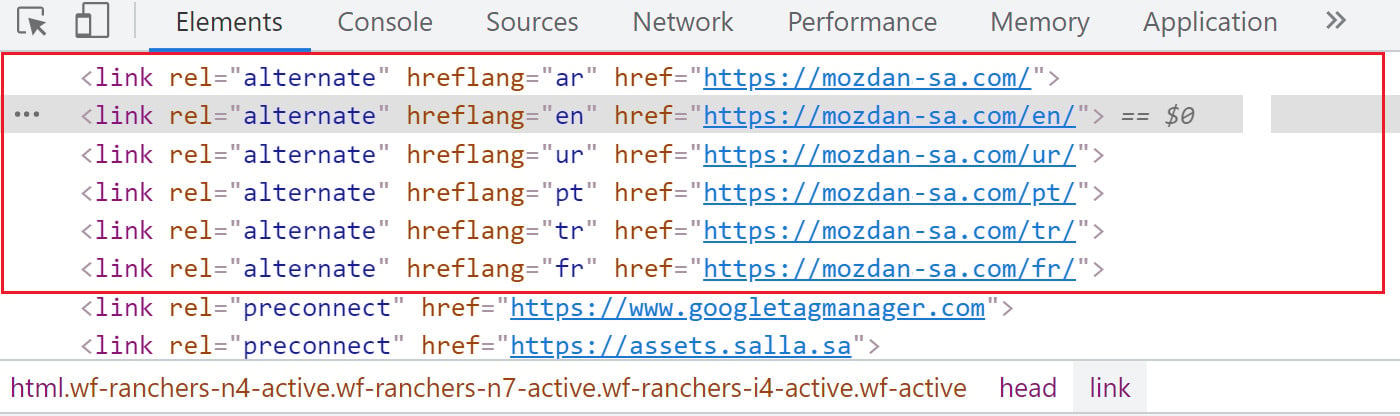
8. Chrome DevTools opens on the (Elements) tab with the link's HTML already highlighted, showing the languages defined on your store.
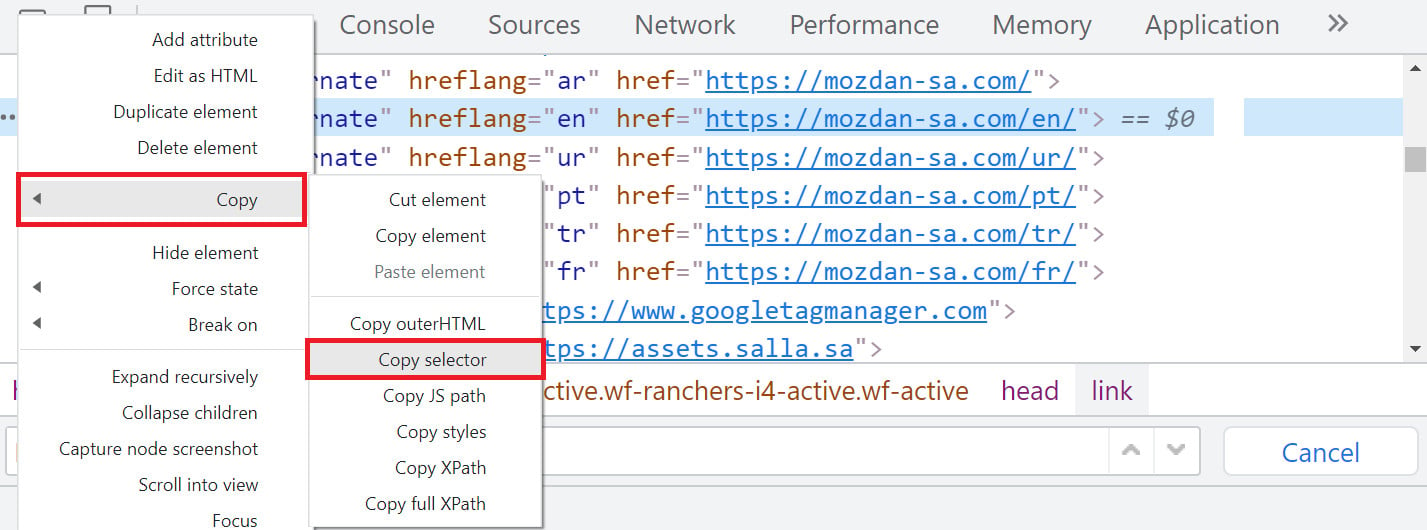
9. Click the (...) button next to the language you want, choose (Copy), then click (Copy selector).
10. Paste the copied value into the (Element Selector) field.

11. Type href into the (Attribute Name) field, then click (Save).
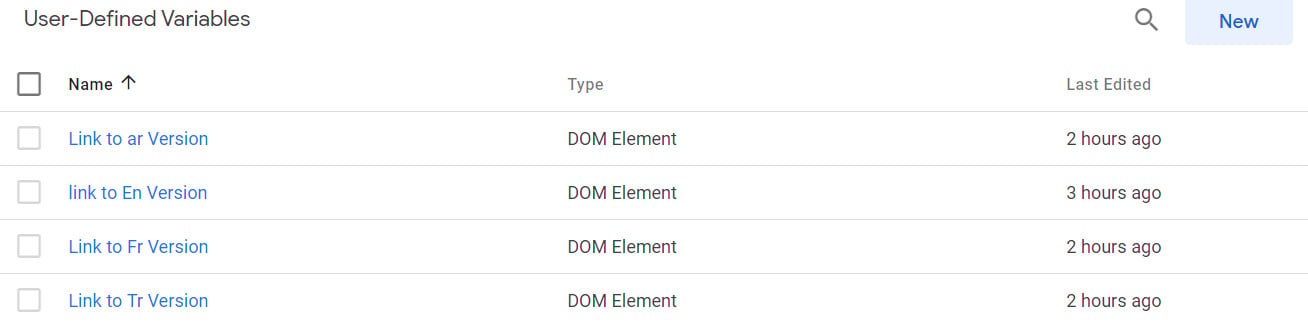
12. Repeat the process for every other language or country version on your store, naming each variable after the version its link points to. The example below ends up with four variables: Arabic, English, Turkish, and French.
📝 Important notes
If you take the time to learn how CSS selectors work, you'll find tidier ways to fill this field. For now, the basic selector Chrome hands you does the job.
Step 2: create the tag that writes the hreflang annotations
Now that Google Tag Manager holds a variable for each language URL, you need a tag that turns those URLs into hreflang annotations on your pages.
1. Copy the script that adds hreflang to the Arabic version of every page on your store.
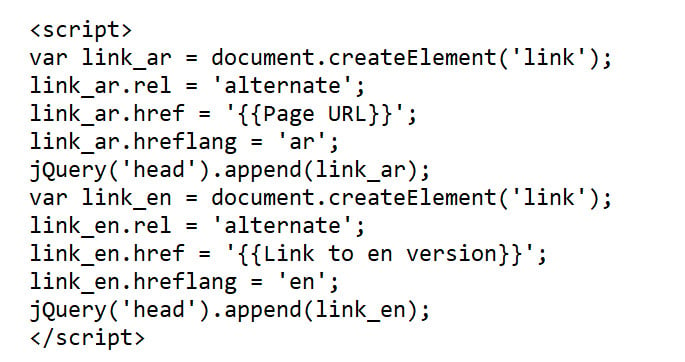
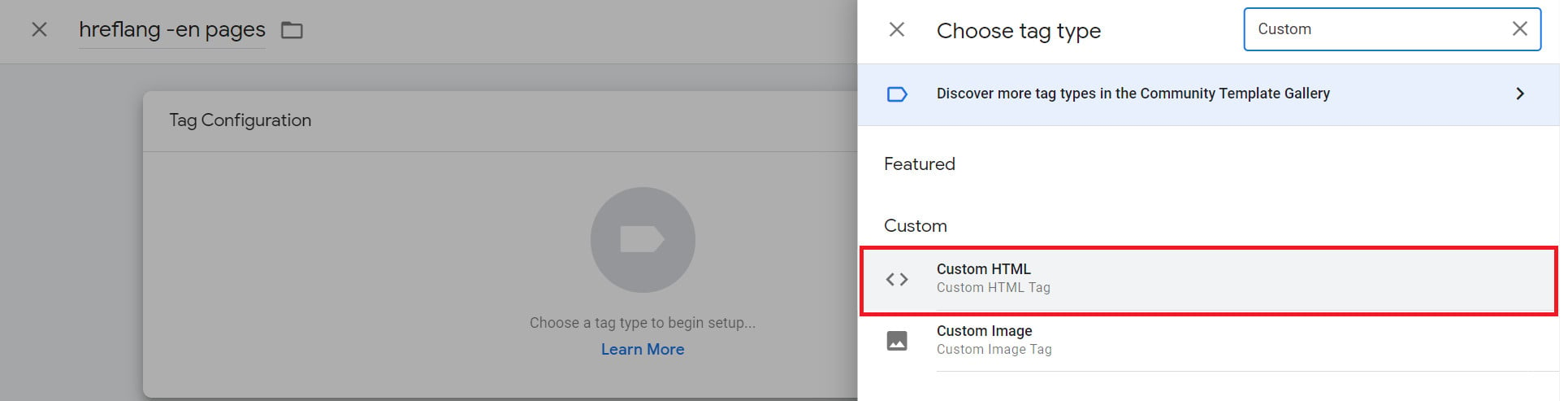
2. Paste it into a (Custom HTML) tag in Google Tag Manager.
3. Set the trigger so the tag fires on all Arabic pages.
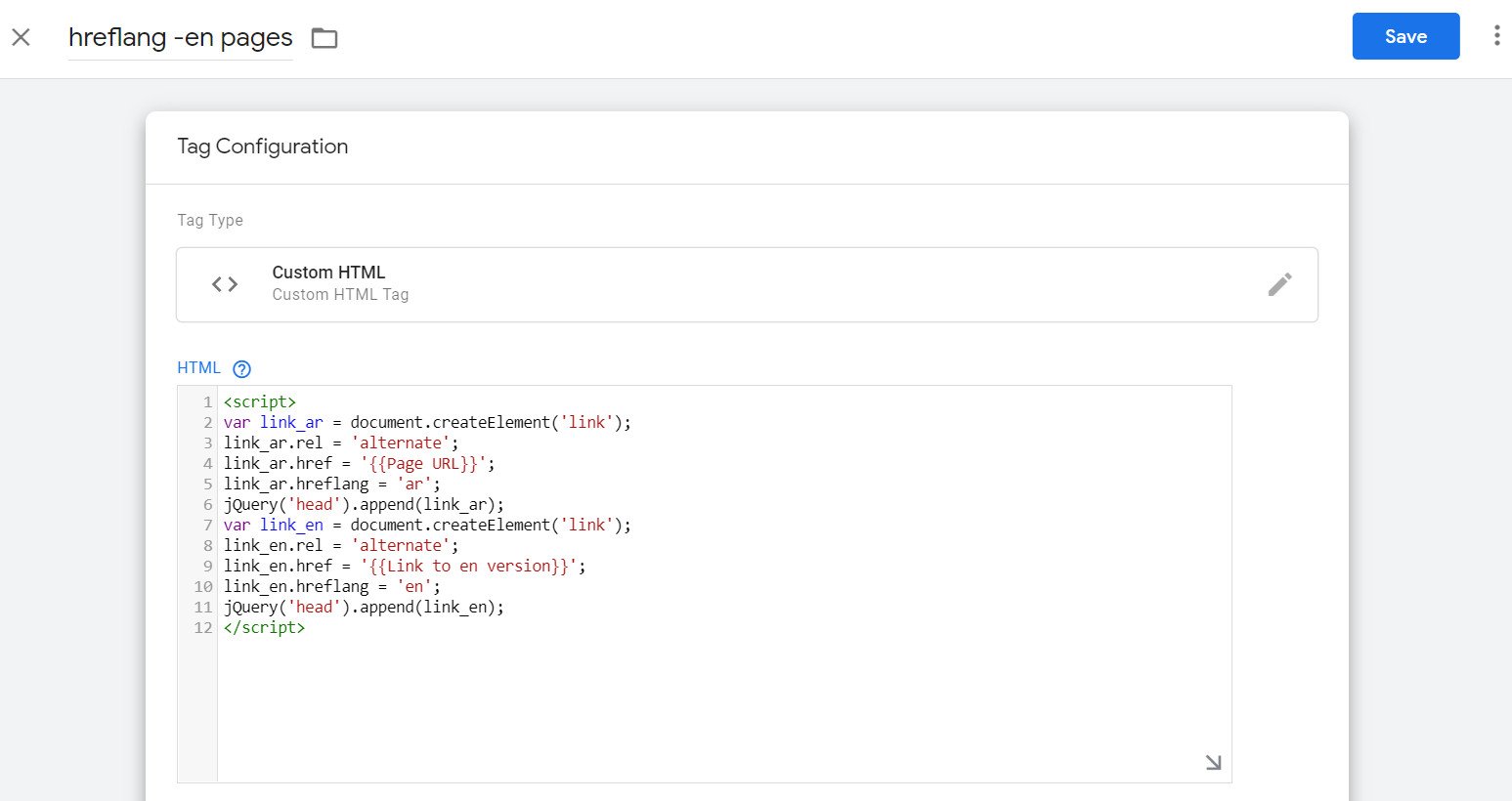
4. Repeat the step for every other version of your store. Here is the same tag built for Turkish.
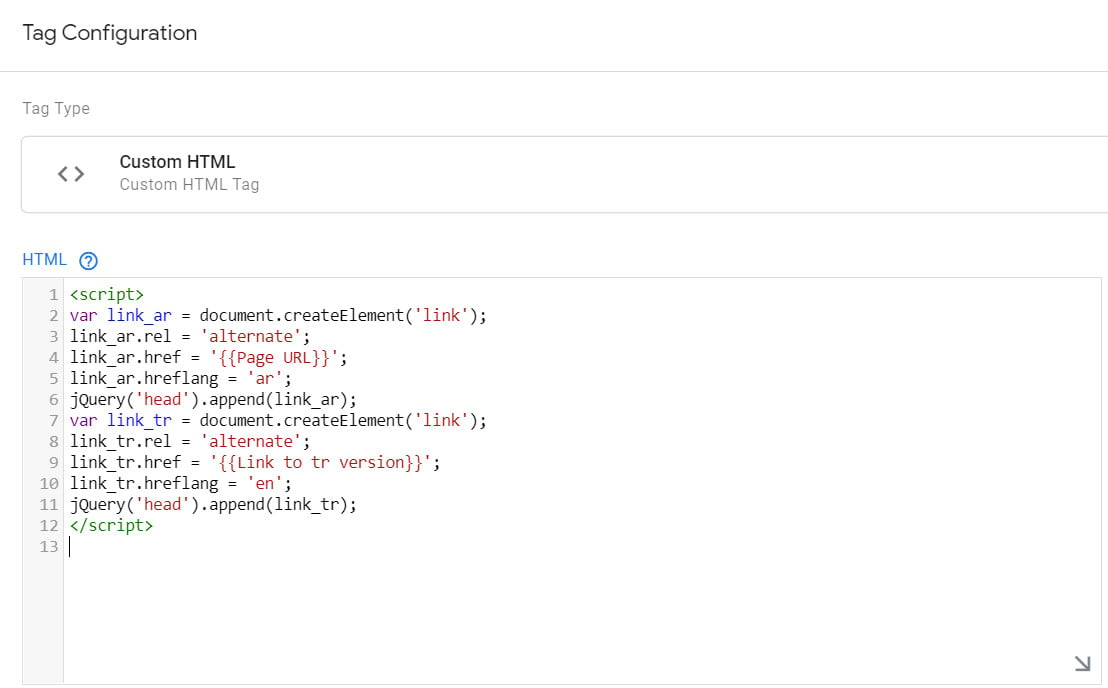
Your tag list ends up looking like this:

Step 3: publish the tags
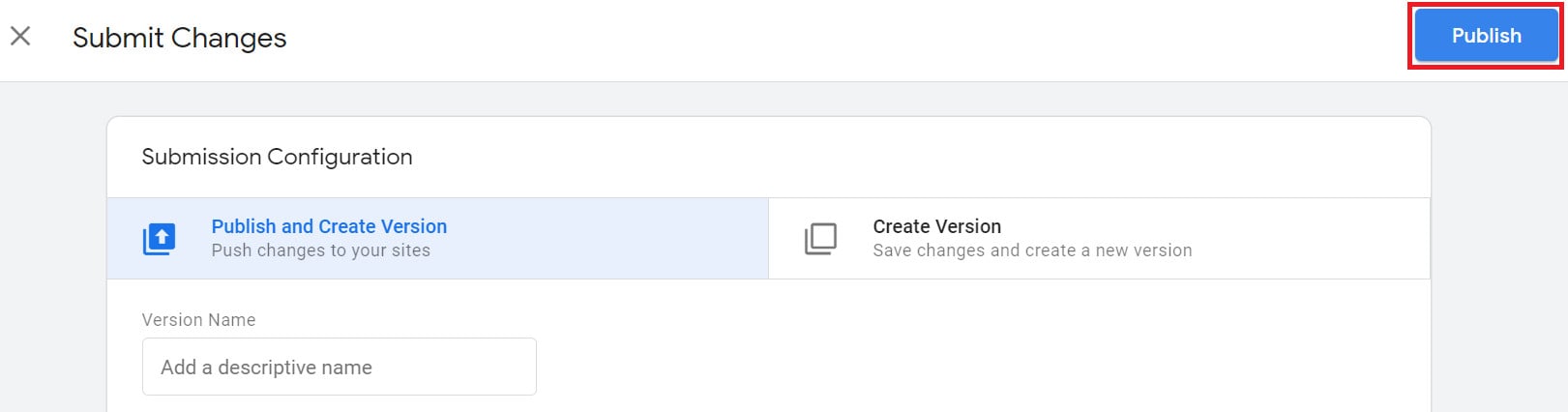
1. Click (Submit).

2. Click (Publish).
💡 Generate hreflang tags without writing a script
If you would rather not build the script yourself, several free tools will generate the annotations for you. One of the best known is the hreflang tags generator tool. Open it and work through the steps in order.

1. Upload your URLs in bulk. If you have a lot of links to label, put them in a single-column CSV file, up to 50 links.
2. Or add the links one at a time in the field provided, choosing the language and the region for each one. In this example, the home page link is set to Arabic with the region left as (Default).

You can also pair a language with a specific market, such as English for the United Kingdom.

3. Add another language or country URL with (+ ADD AN ADDITIONAL LANGUAGE/COUNTRY URL VERSION), or clear everything and start over with (REMOVE ALL AND START CLEAN).

4. Choose the output format: tags for the head area of your pages' HTML, or attributes for an XML sitemap.
5. Click (GENERATE THE HREFLANG TAGS FOR THESE URLS), then click (COPY THE HREFLANG TAGS CODE) to copy the result and paste it where you need it.
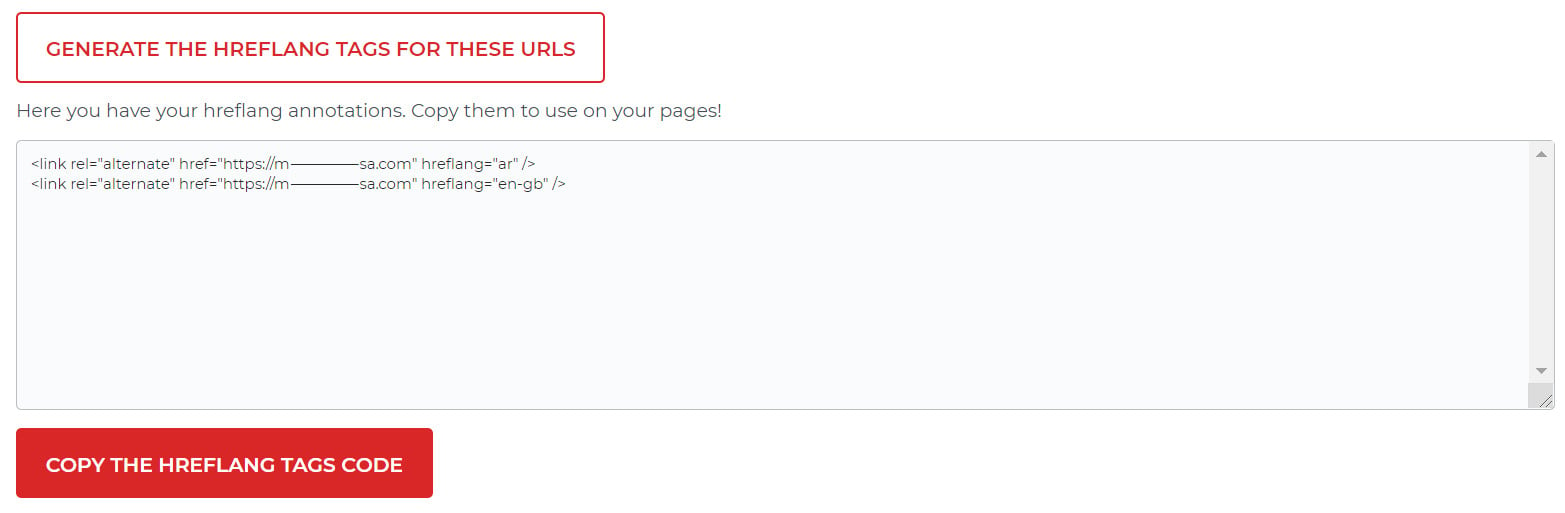
Then create tags from that code and publish them to your store.
❓ Frequently asked questions
Does my store have to be connected to Google Tag Manager?
Yes. The whole setup runs inside your container, so the connection has to be in place first. For the full walkthrough, see connecting your store to Google Tag Manager.
When should I point Google at alternate pages?
Google may find alternate-language versions of your pages on its own, but it is usually better to name them explicitly. Cases where that is worth doing:
- You keep the main content in one language and translate only the template, such as navigation bars and the footer. This is common on pages built from user-generated content, like forums.
- Your content is broadly the same in one language with small regional differences. English content, for example, might target the United States, the United Kingdom, and Ireland.
- Your site is fully translated into several languages, such as an Arabic and a Persian version of every page. Translated versions are not treated as duplicates unless the main content is left untranslated.
Is there a tool that generates hreflang tags for me?
Yes. Several tools do this, and the hreflang tags generator tool linked above is among the most widely used. You paste in your URLs, pick a language and region for each, and it returns ready-to-use code.
Multilingual stores earn their traffic twice: once by having the content, and once by making sure the right shopper lands on the right version. hreflang is what closes that second gap, and it is a one-time setup that keeps paying off with every page you add.