What do you do when your products or services do not have a fixed price until you have spoken to the customer?
Most online shopping works one way: the customer picks a product with a set price and pays. But plenty of businesses price by the job — a custom painting, a printed shirt, a logo design. In those cases you agree the details first, then send a price quote from your store so the customer can pay for exactly what they asked for. In this guide, you'll learn the two ways Salla lets you do this and when to use each one.
Salla gives you two ways to quote a price. Create a manual order, set it as unpaid, and Salla sends the customer a payment link by SMS. Or add a made-to-order product with extra service fields, so the price builds itself from the options the customer chooses on the product page.
📝 What made-to-order means
Made-to-order products and services cannot be priced up front. The final price is set after you talk to the customer. They fall into two groups:
- Made-to-order products: printing on fabric or t-shirts, home cooking, handicrafts such as painting and crochet, and similar work.
- Made-to-order services: design work such as logos and ad creative, writing, marketing, research, and so on.
📌 Article overview
- Method one: create a manual order and send the price from your store
- Method two: quote by customer need using a made-to-order product
- Frequently asked questions
🚀 Method one: create a manual order and send the price from your store
This is the method most stores use for services a customer asks for that are not in your product list.
Take a store that sells custom paintings as an example. The customer sends their request through social media or WhatsApp, and from there you can do the following.
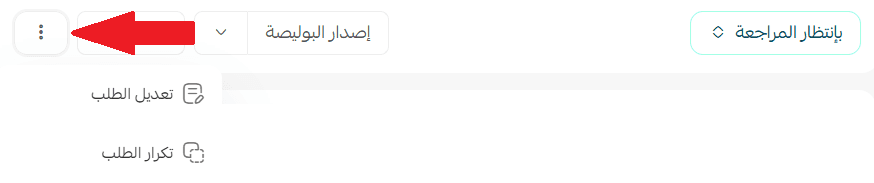
1. Create a new order manually. For more detail, see adding a new order manually. When you reach the payment section, click (Edit), as shown:
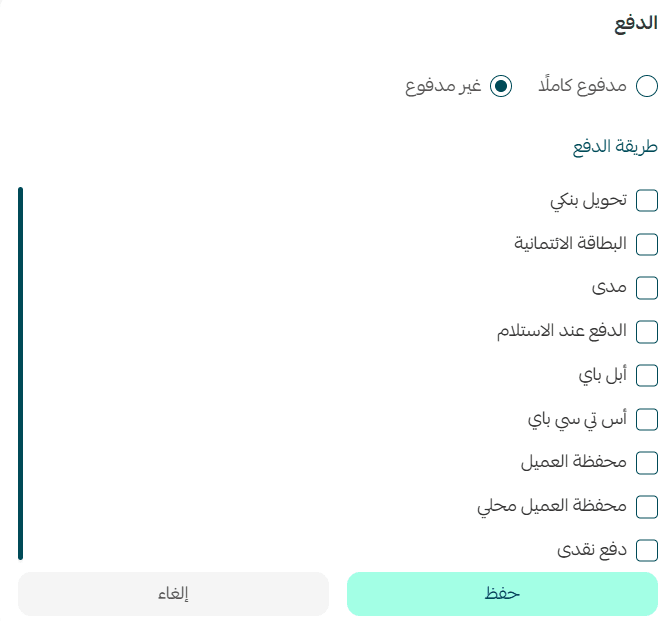
2. On the payment details page, choose (Unpaid), select one of the available payment methods, then click (Save).
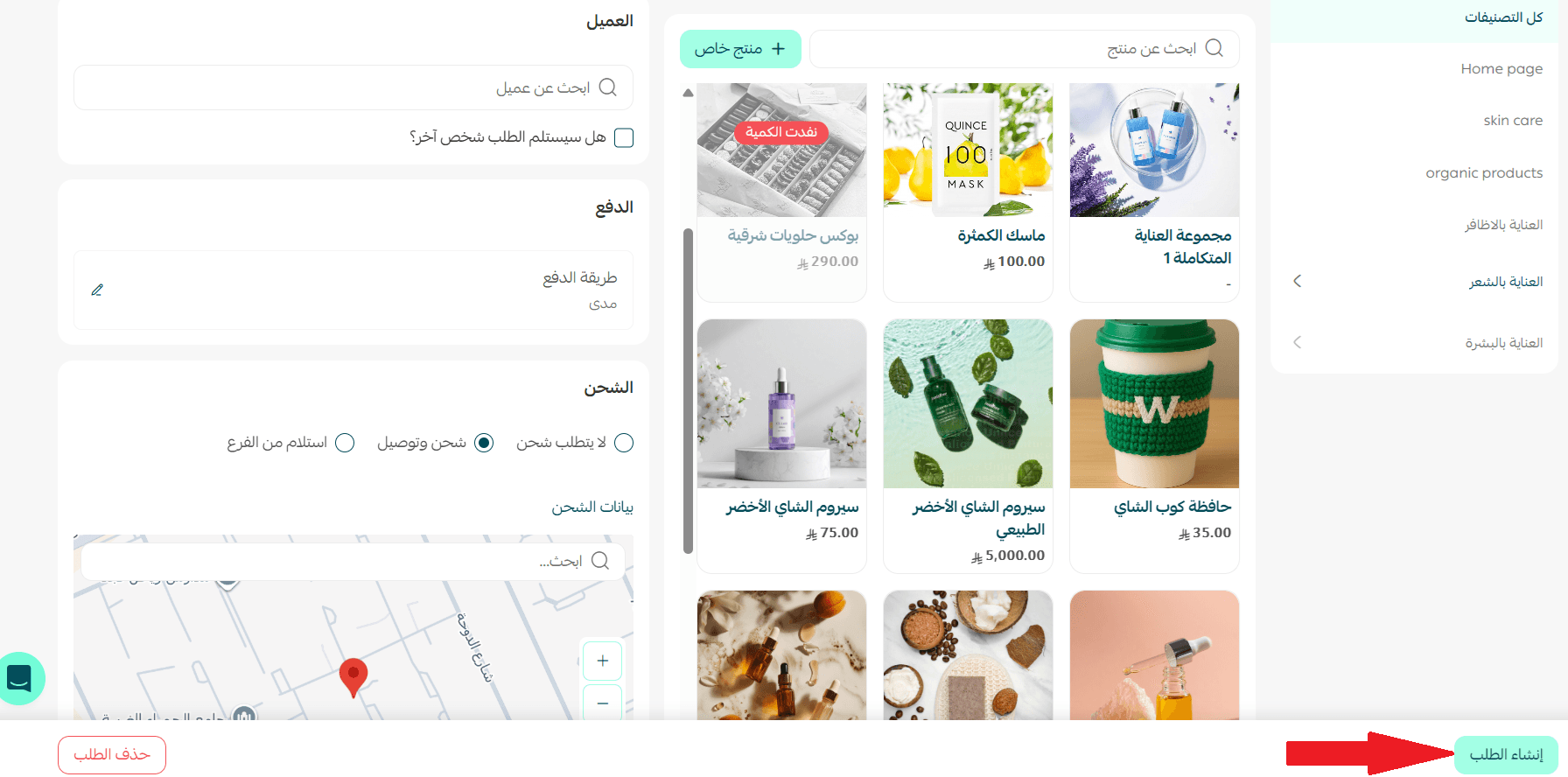
3. Once you have entered the products, click (Create order) below the order total.
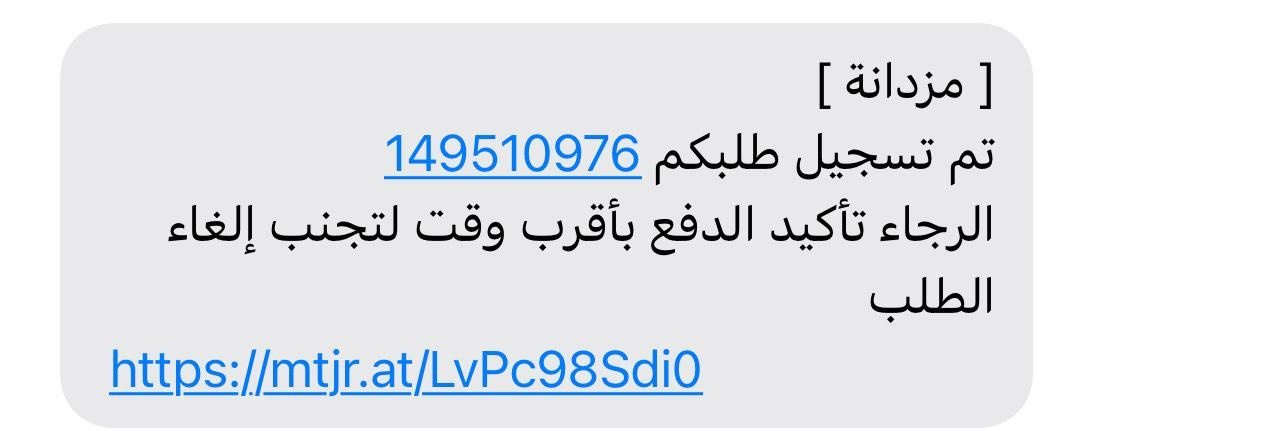
A few minutes later, the order price is sent to your customer automatically by text message, and the message includes the payment link.
📝 Note: to share the payment link some other way, open the order you created, and from the payment section choose (Send payment link), or click (Copy link) and share it however suits you.

4. When the customer clicks the payment link, they see the confirmation step, complete the payment, and finish the order, like this:
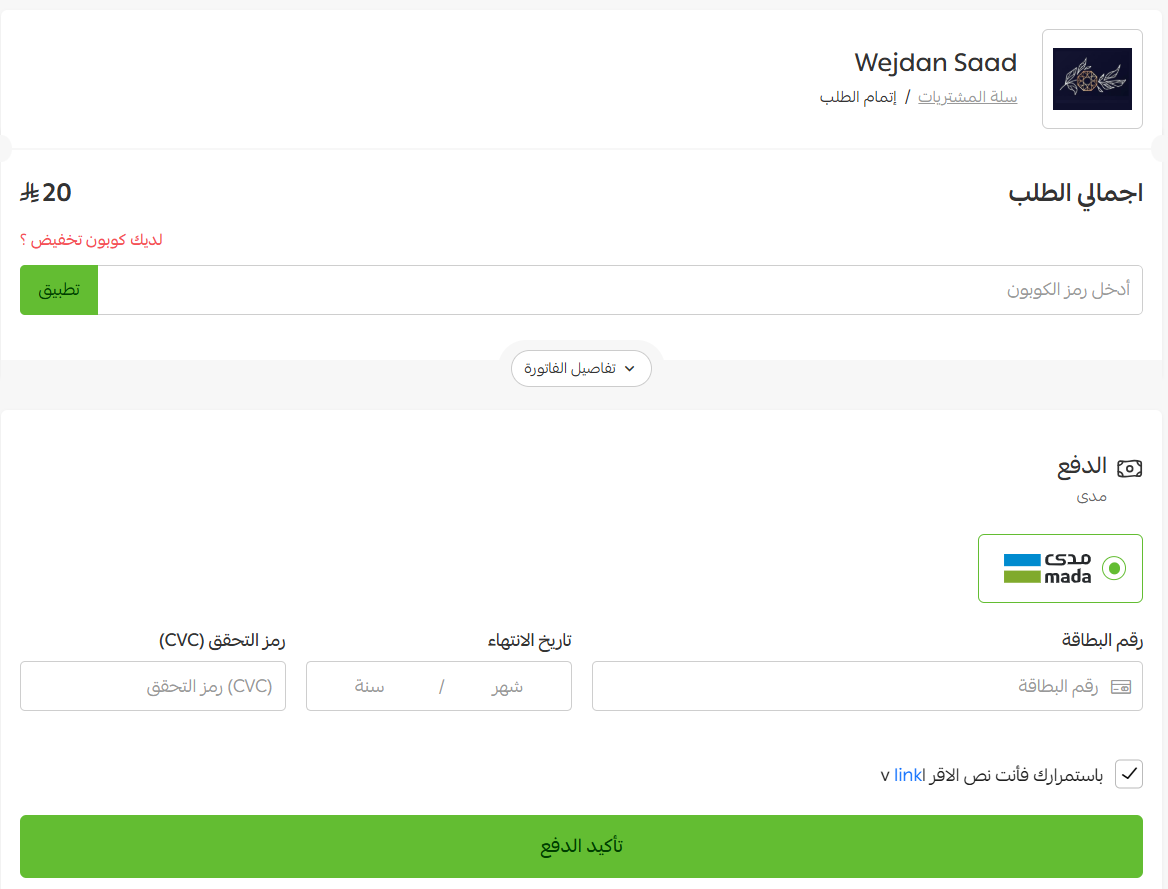
📝 Note: if no shipping option is selected, cash on delivery is not available.
🚀 Method two: quote by customer need using a made-to-order product
1. Add a made-to-order service or product. For more detail, see adding a made-to-order service.
Once the service or product is added, you can set its price to SAR 0. The price is then calculated automatically for each service the customer asks for.
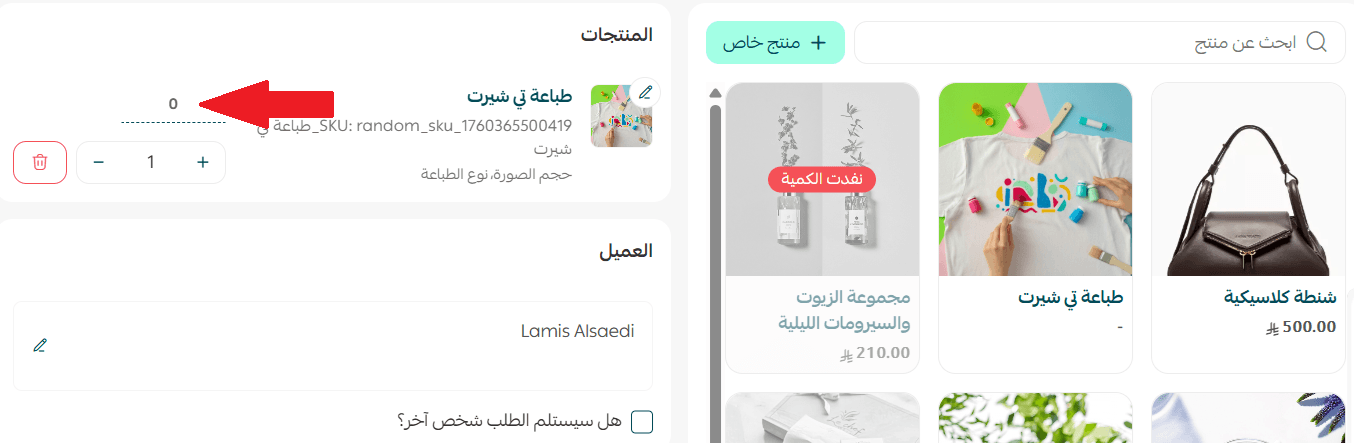
2. Add fields for the extra services on that product or service.
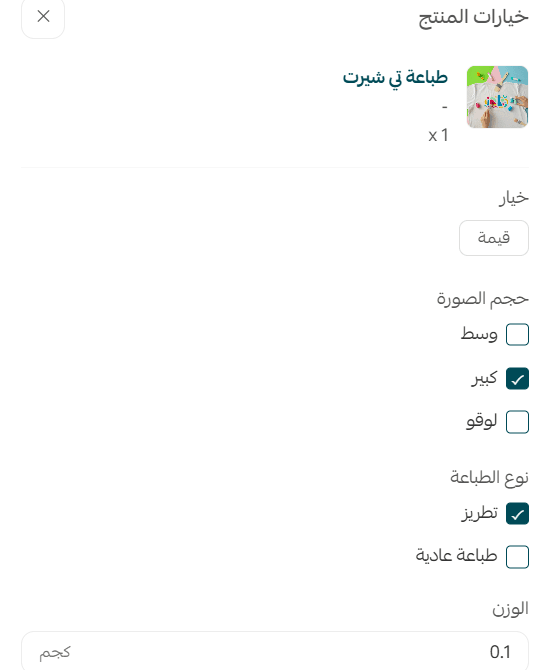
For more on building and customizing the form the customer fills in, see adding a made-to-order service. [Verify: the Arabic then says "the product page can appear to the customer like this" but no screenshot follows — the example image is missing from the source.]
📝 Note: you can add more than one field and more than one service, and make any of them optional by turning off (Required field for the customer), as shown:
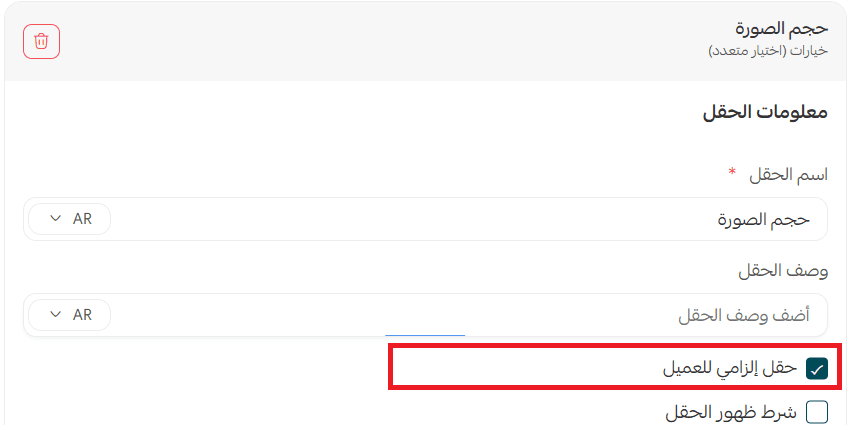
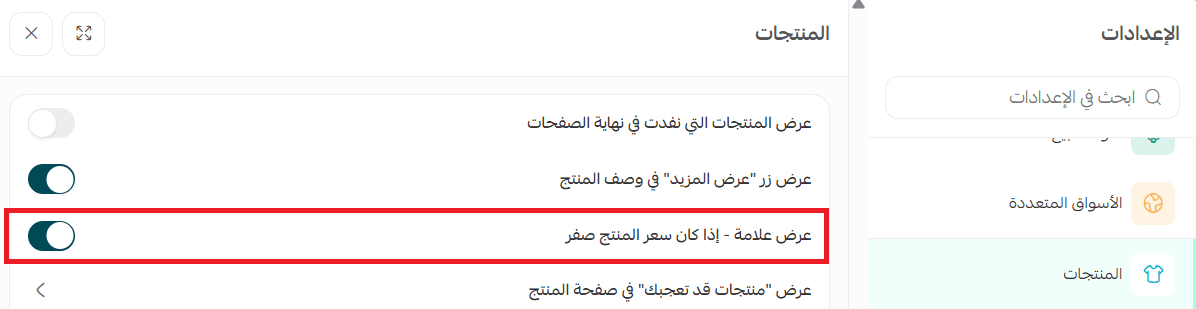
The price the customer sees is the total of the services they selected plus the base price of the product or service. To set this up, go to Products, then product settings, and turn on the option (Show a dash when the product price is zero), as shown:
📝 Important notes
- You do not have to price a made-to-order product at SAR 0. You can give it a fixed base price and add a price for each extra service the customer asks for. The price of every service the customer selects is added to the base price.
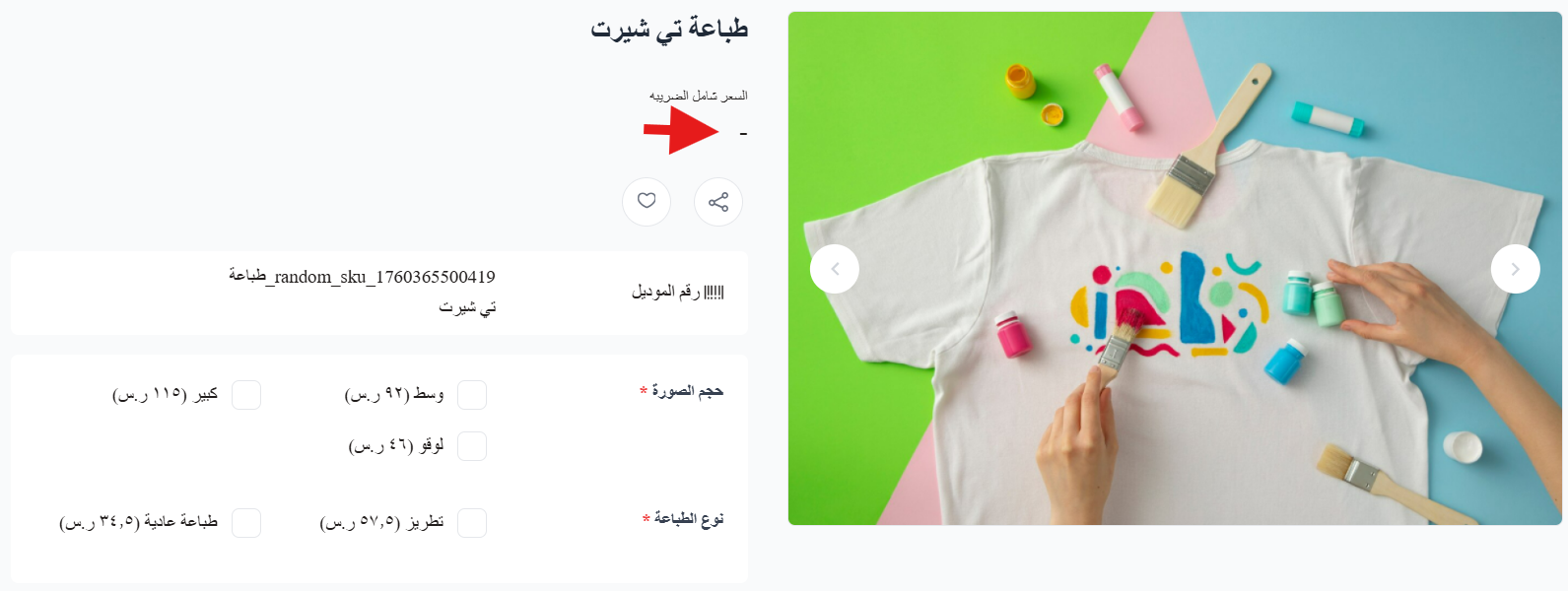
- If you would rather not show SAR 0 as the price, Salla lets you display a dash (-) instead.
The product page then looks like this to the customer:
For more detail, see setting up product options.
❓ Frequently asked questions
How does the customer receive the price I quoted?
With a manual order, Salla sends a text message a few minutes after you create the order, and the message contains the payment link.
Can I send the payment link myself instead of waiting for the SMS?
Yes. Open the order, and from the payment section choose (Send payment link), or click (Copy link) and share it through any channel you like.
Why can't my customer choose cash on delivery?
Cash on delivery is not available when no shipping option has been selected on the order.
Do I have to set the made-to-order price to SAR 0?
No. A fixed base price works too, with each extra service adding its own amount on top.
Can a customer skip one of the extra service fields?
Yes, if you turn off (Required field for the customer) on that field.
Quoting inside your store keeps the whole conversation in one place: you agree the details, the customer gets a payment link, and the order lands in your dashboard like any other sale.