Do search engines misread your store's content — seeing something different from what your pages actually say?
A big part of the fix is schema markup — structured data that tells search engines exactly what type of content each page holds and the details behind it. With schema markup in place, Google stops guessing what your store's pages mean and can show richer, more accurate results. It may look complicated at first, but taken step by step it's very manageable. In this guide, you'll learn what schema markup is and how to implement it on your store using Google Tag Manager.
Schema markup is code that identifies the elements of a page's content for search engines. To add it to your store, generate the markup with a schema generator, paste it into a custom HTML tag in Google Tag Manager, fire the tag on all page views, publish, then validate it with Google's structured data testing tool.
📌 Article overview
- What is schema markup?
- How to implement schema markup with Google Tag Manager
- Frequently asked questions
🎯 What is schema markup?
Schema markup is a type of code that identifies the different elements of a page's content. It never appears on the page for the end user, but search engines use it to understand what's on the page far better.
For example:
Imagine you publish a recipe page on your site. A human instantly recognizes it as a recipe — it probably has an ingredient list, instructions, maybe prep time, cooking time, or nutrition facts. Search engines aren't human, so schema markup is what tells them this content is a recipe.
🚀 How to implement schema markup with Google Tag Manager
The workflow:
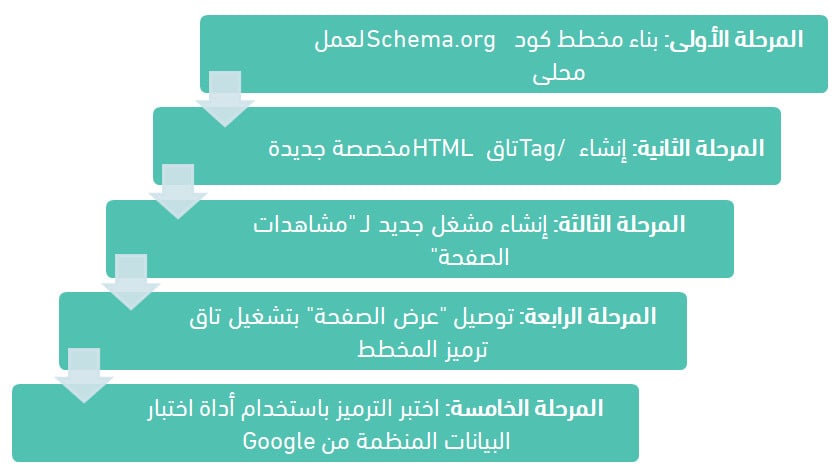
Stage one: build the Schema.org code for a local business
The first step in creating semi-dynamic schema code in Google Tag Manager is drafting the outline of the code itself. Once that exists, you can decide which pieces of information stay constant across your business (where possible) and which need to change per location.
One of the fastest ways to do this is with a helper tool. A structured data markup generator lets you enter the details for the Schema.org type you want (in this case LocalBusiness) and outputs the code for you.
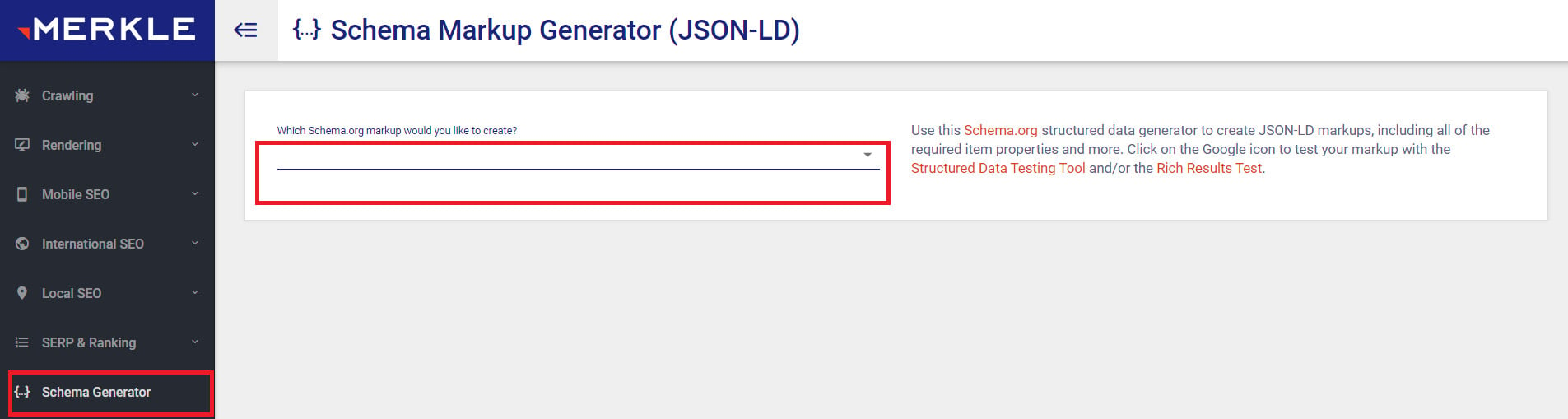
In this example we'll use the Merkle schema markup generator.
1. To build a new markup, click (Schema Generator), then pick the type you want to build markup for from the list.
2. Enter all the information the type requires (our example builds markup for a local business).
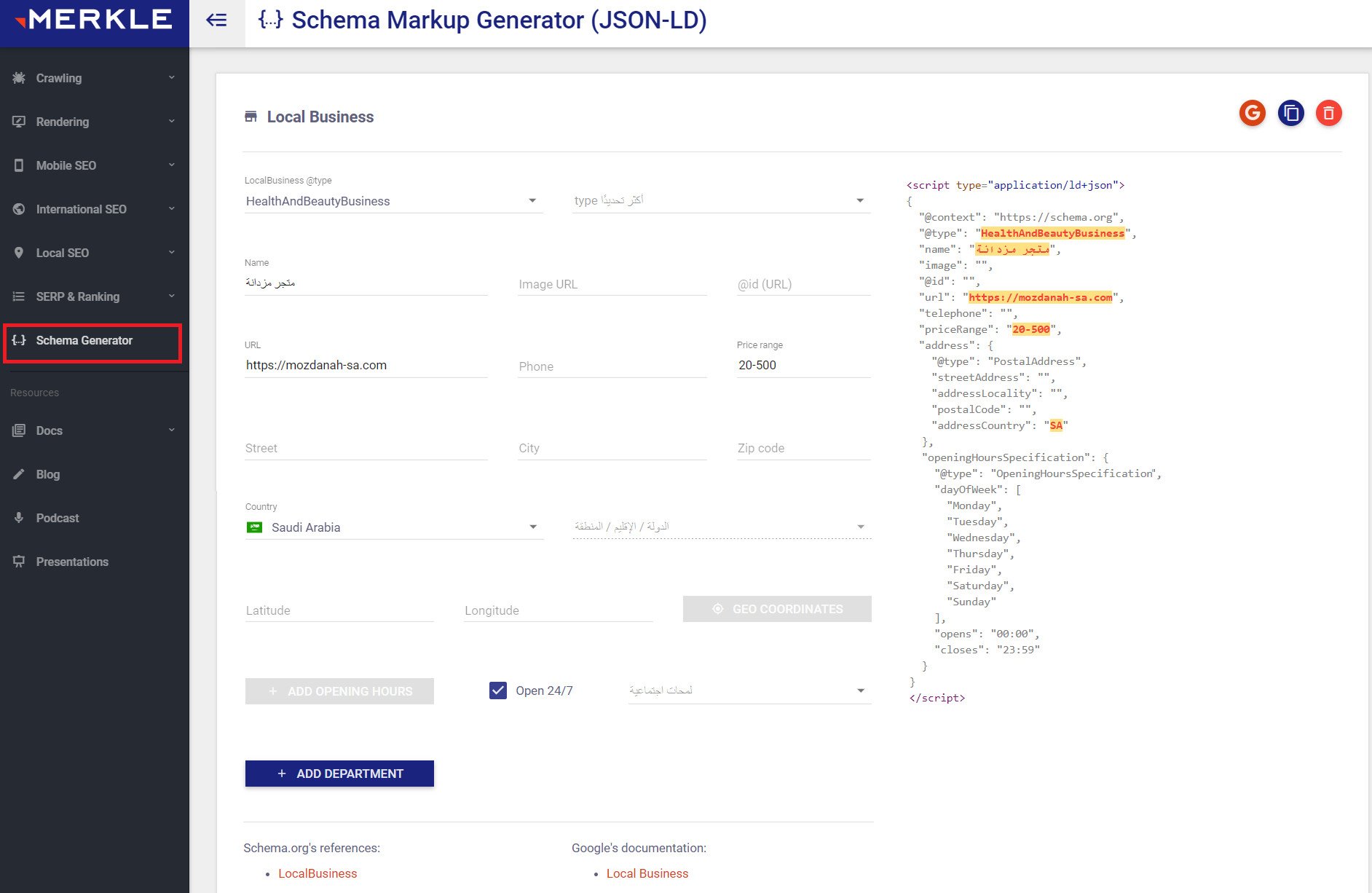
📝 Important note: pay attention to the image URL field — to clear the error shown in the screenshot above, add your store logo as a URL. It's also best to enter a phone number so validation runs later without errors.
3. Click (Copy) to copy the markup.

Stage two: create a new custom HTML tag
1. Open the Google Tag Manager account linked to your store, then create a new custom HTML tag in Google Tag Manager.
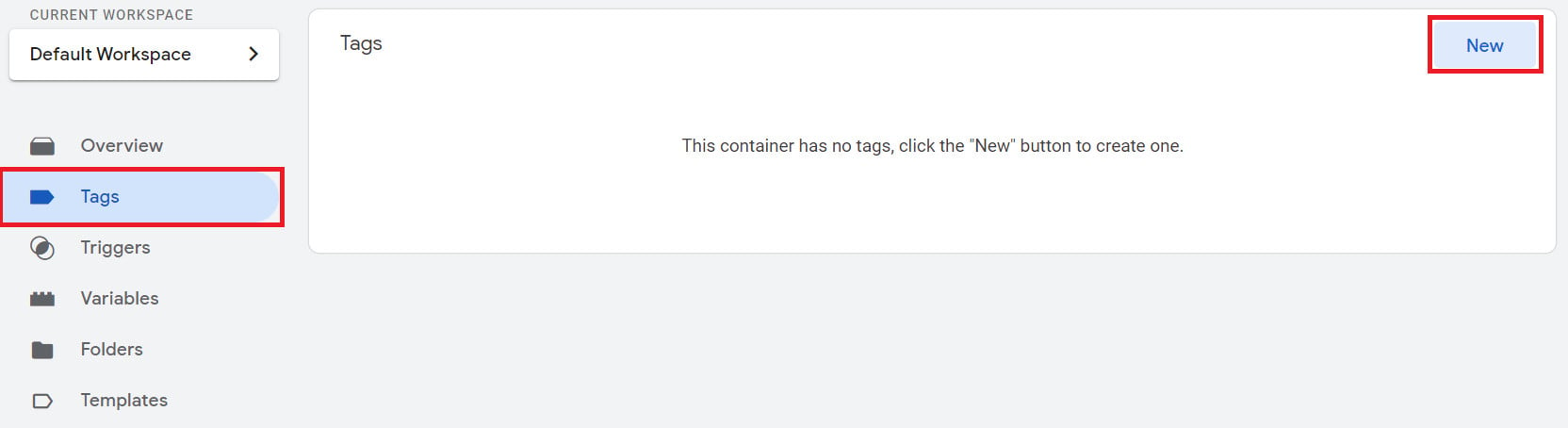
Give it a descriptive name, such as "Local_Business".
2. Choose (Custom HTML) as the type of the new tag.

3. Paste the markup you copied in stage one into the custom HTML box.
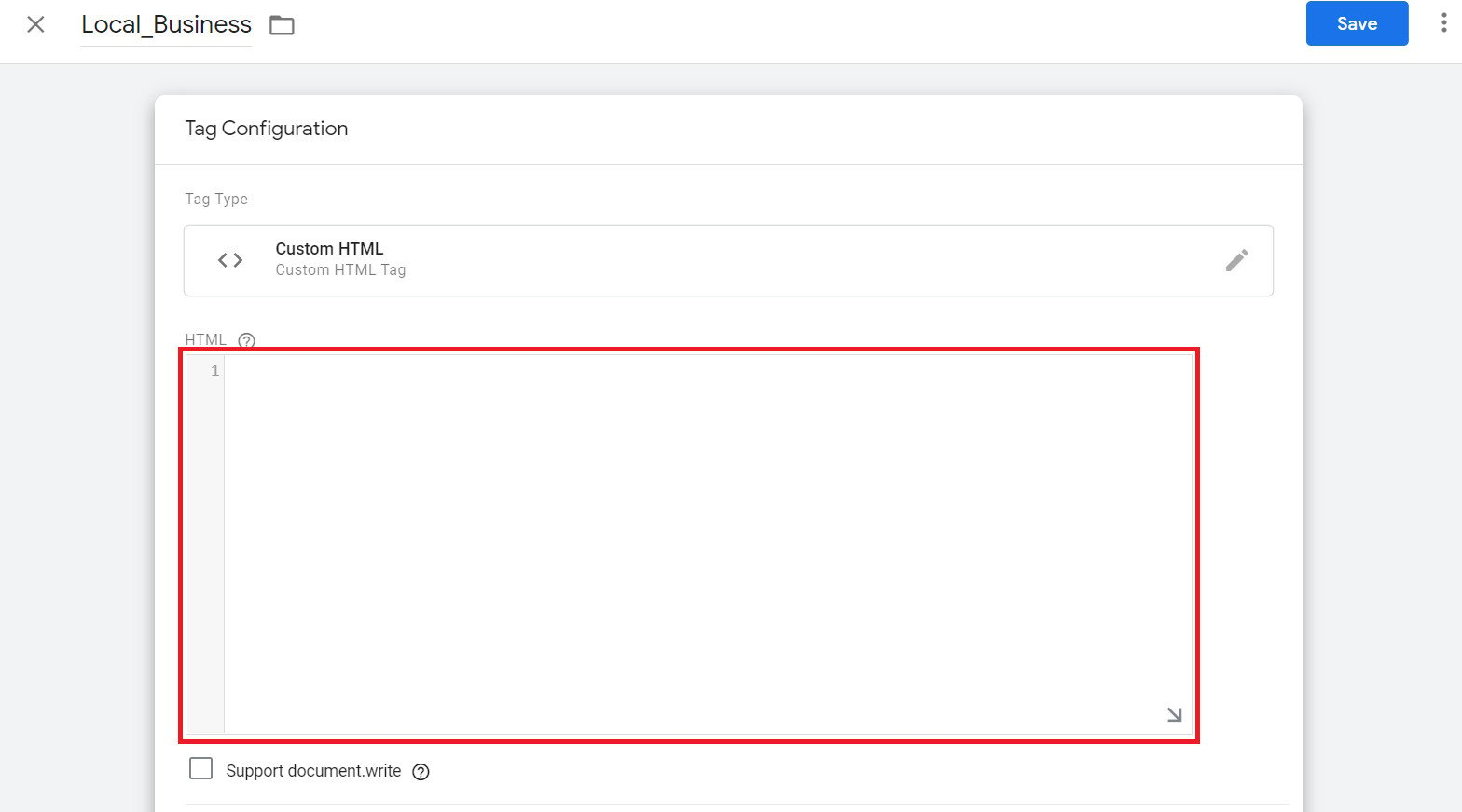
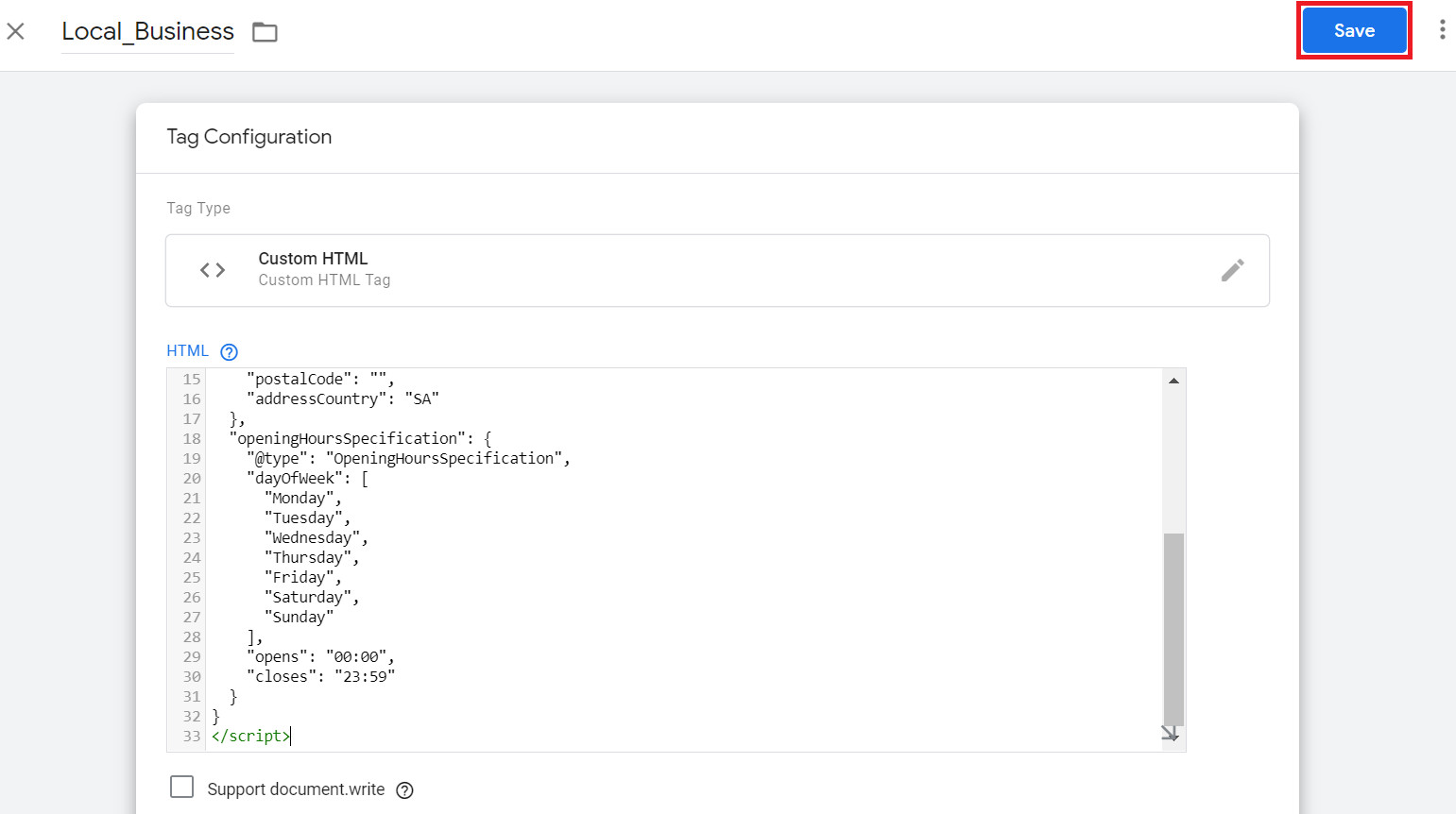
4. Save the custom HTML tag — click "Save" in the top corner of your screen.
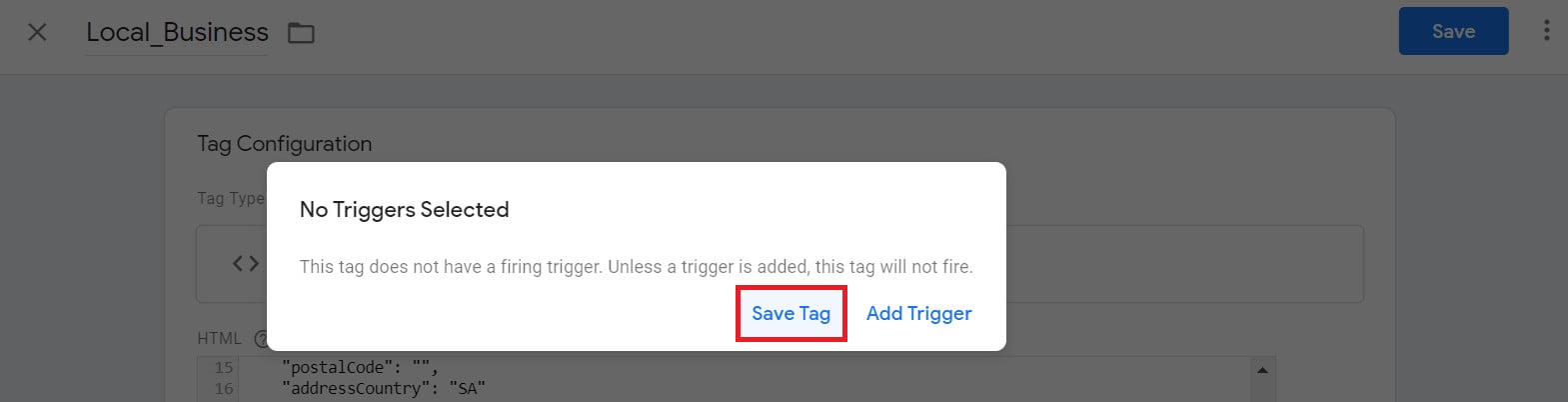
A popup will warn that "no triggers have been selected" — go ahead and click (Save Tag) anyway.
Stage three: create a new page view trigger
Next, you'll create a new trigger to fire the tag you built in stage two.
📝 Important note: you can reuse this trigger for other tags too (any tag that fires on page views).
1. From the Google Tag Manager side panel, click (Triggers), then click (New).

2. Type the trigger name, then click the pencil icon, as shown:
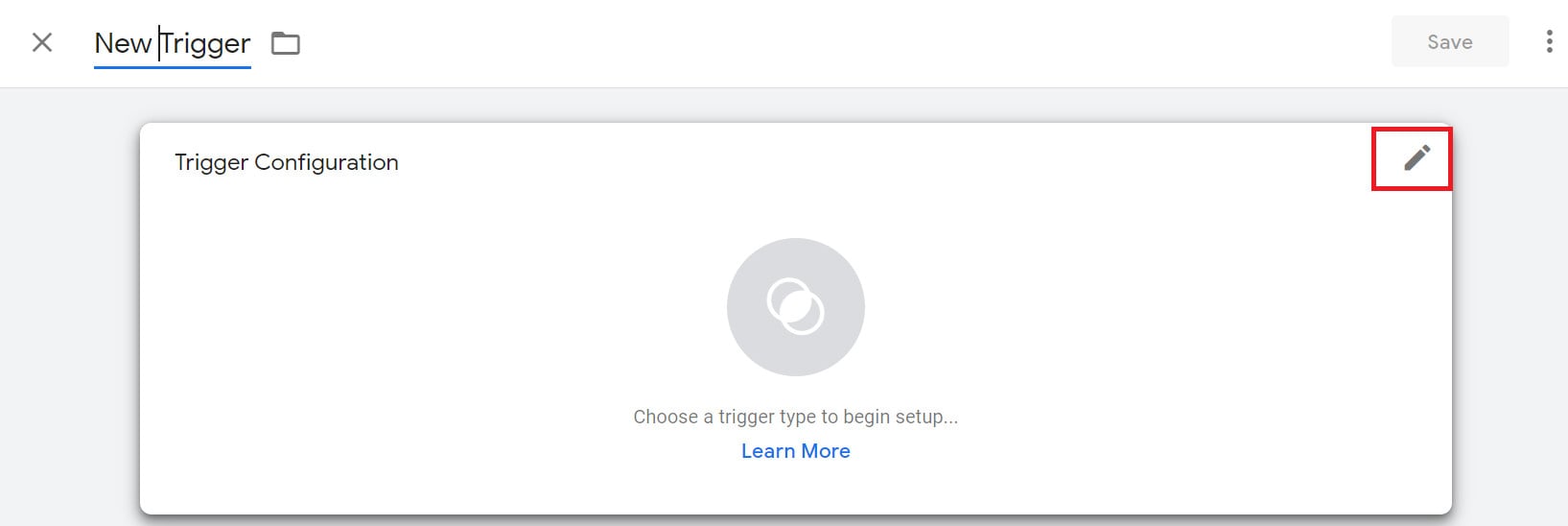
3. Select (Page View) as the type of the new trigger.
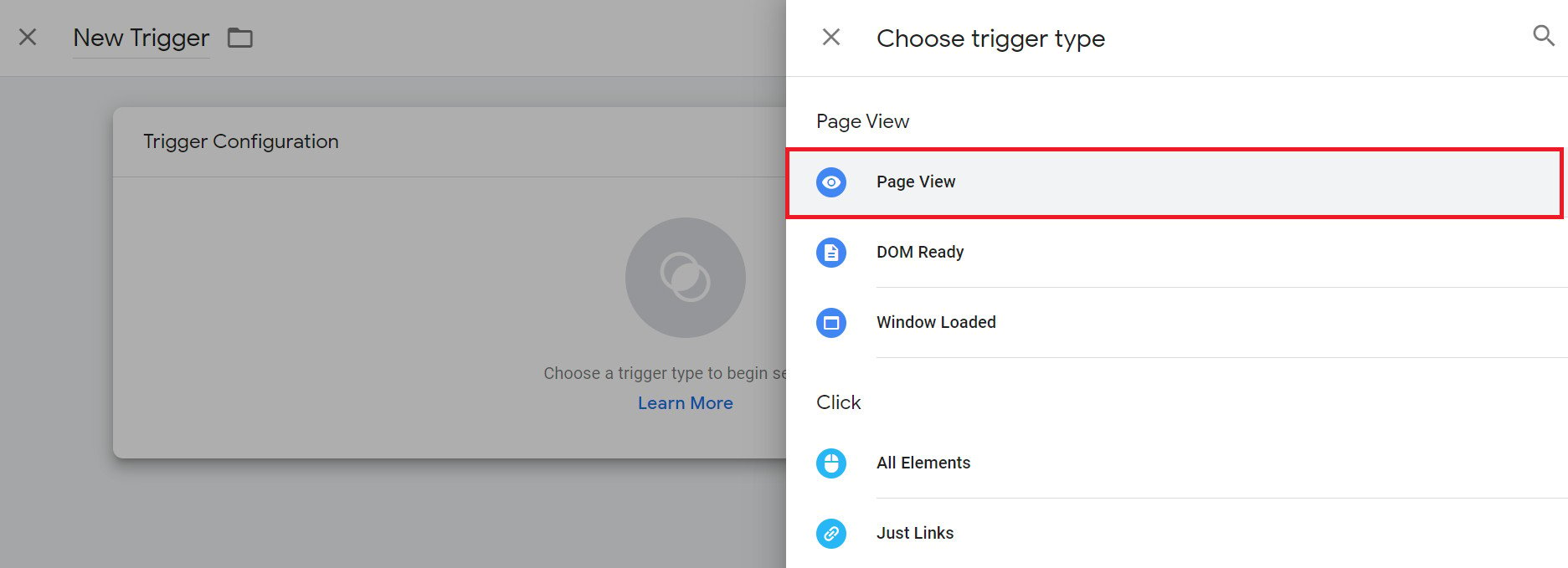
4. Configure the page view trigger you just created to fire on all page views, then click (Save).
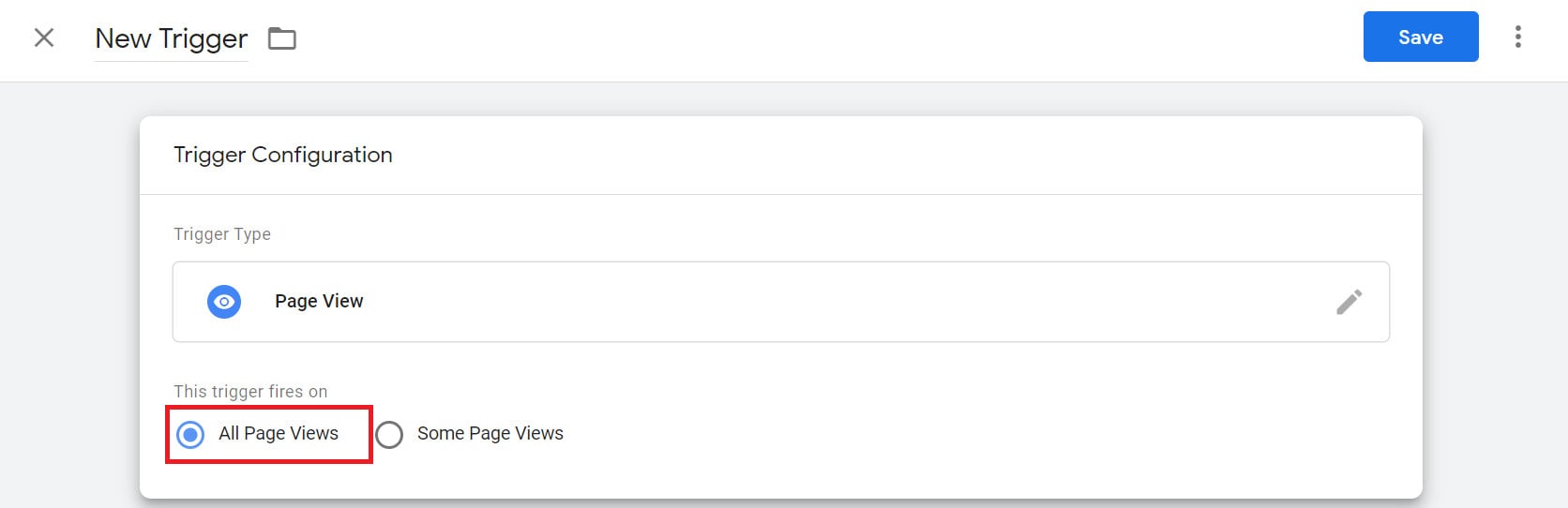
Stage four: connect the page view trigger to the schema markup tag
1. From the Tags page, click the tag you created in stage two.
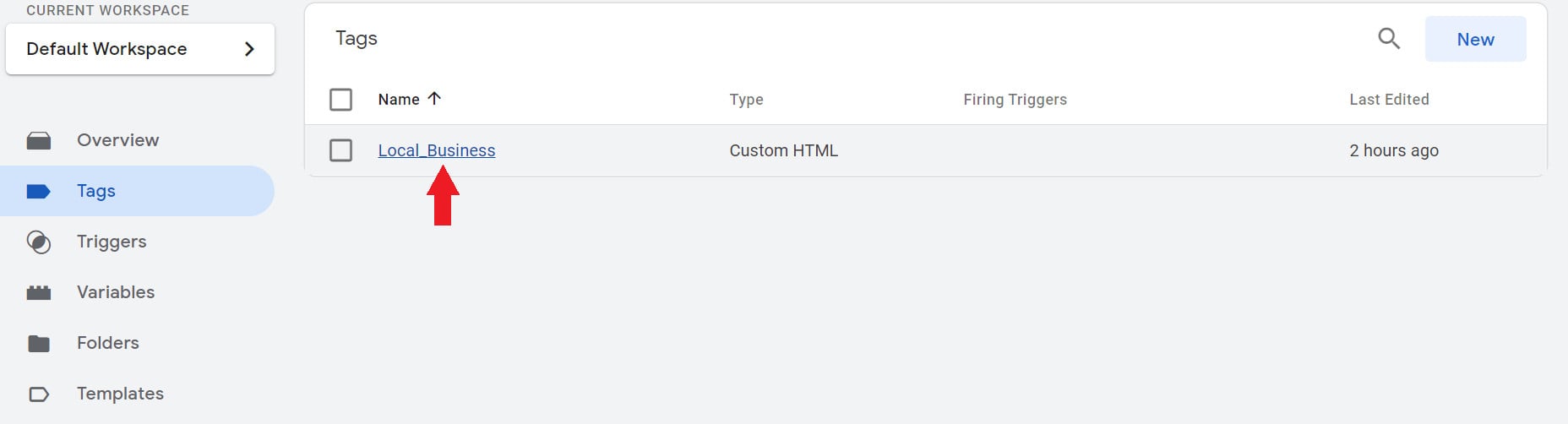
2. From the Triggers section of the open tag, click the pencil icon.
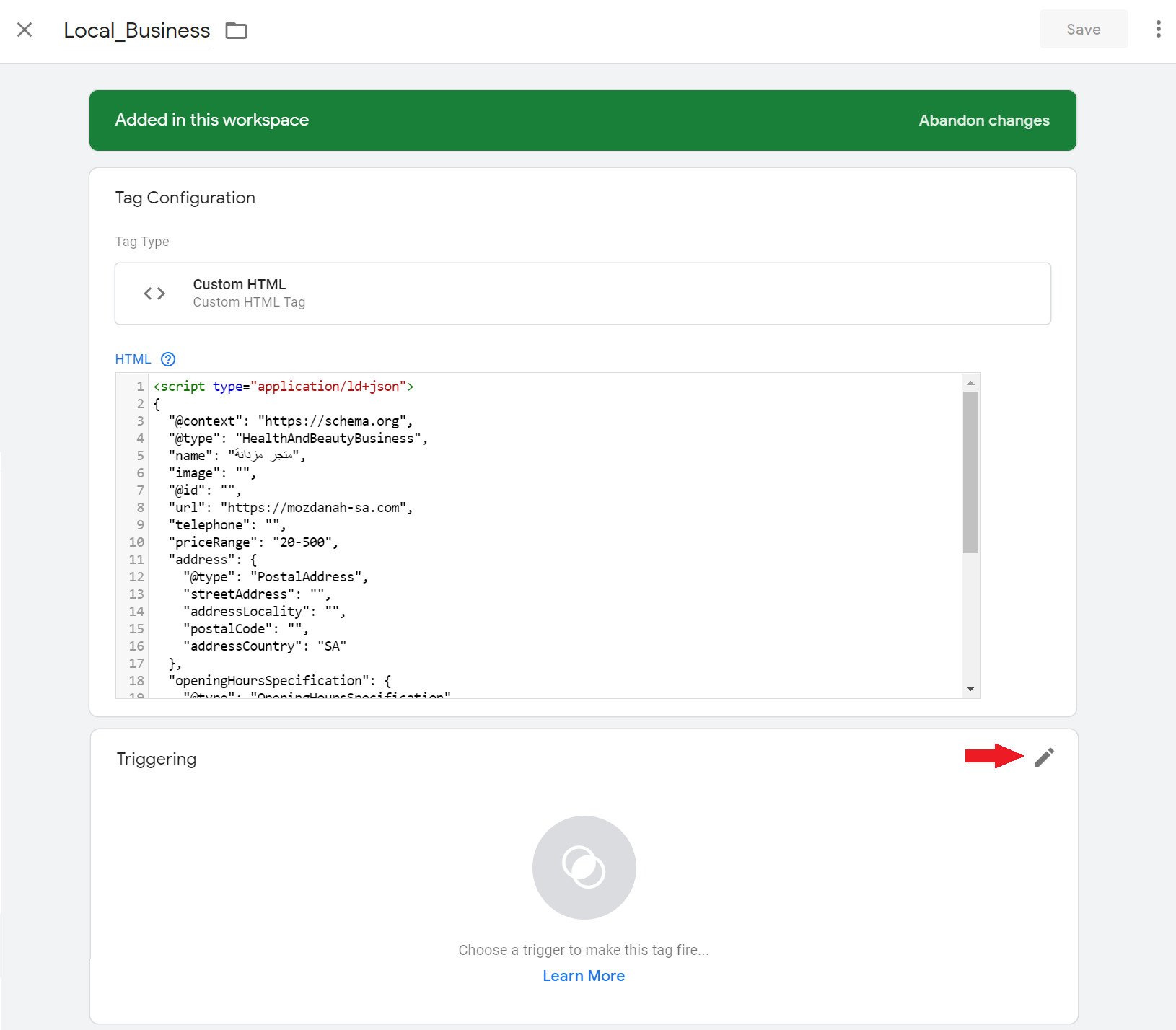
3. Select the trigger you created in stage three.
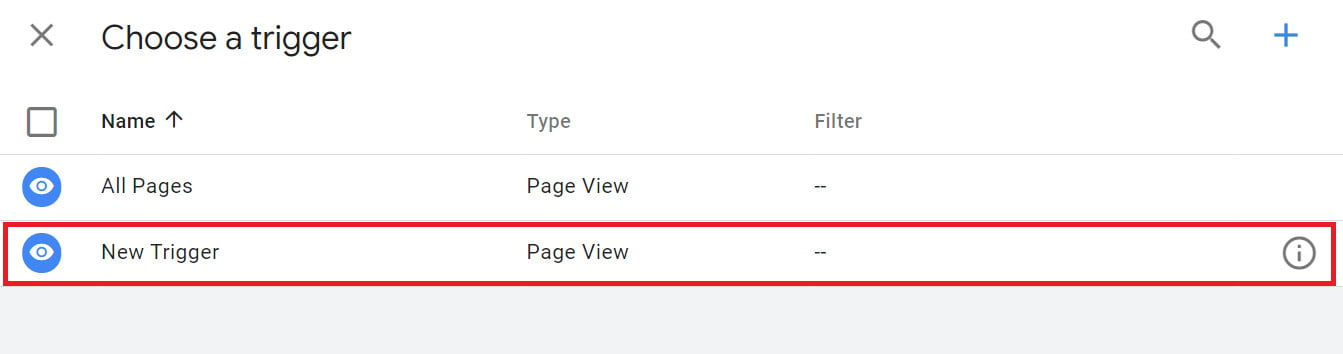
4. Confirm the trigger now appears in its box, then click (Save), as shown:
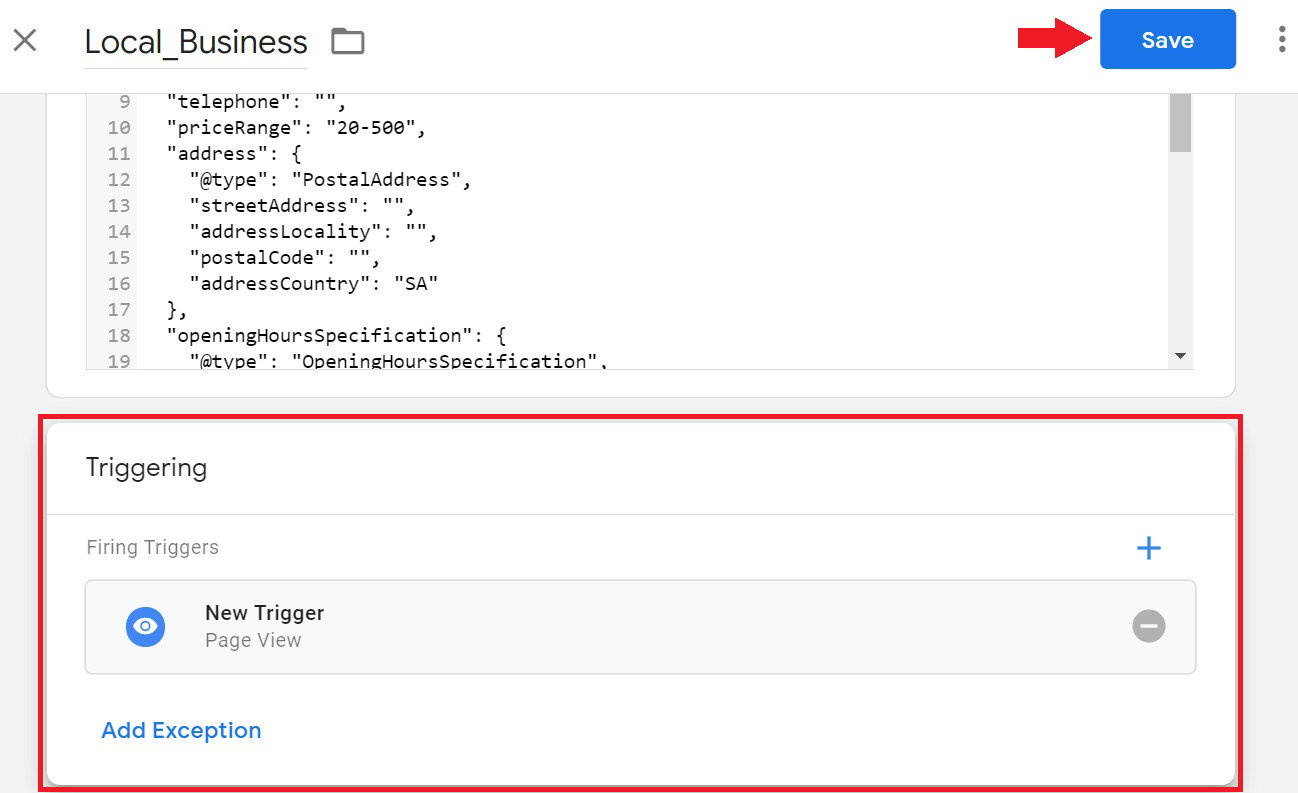
5. From the Tags page, click (Submit).
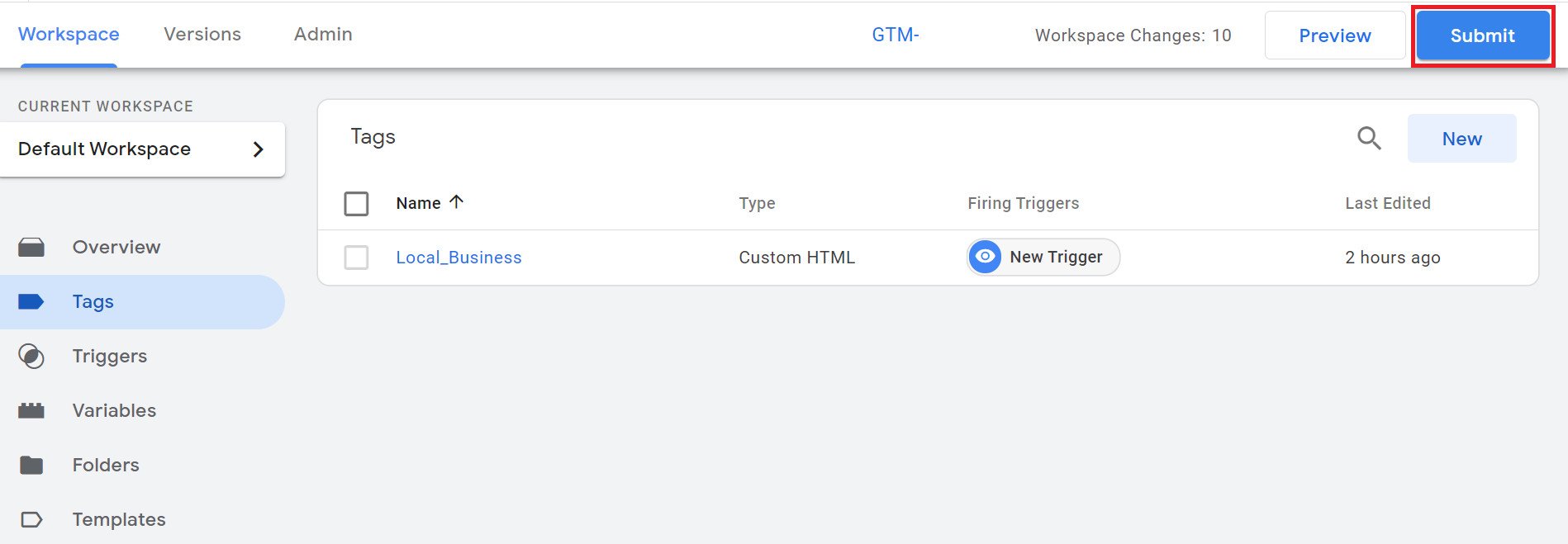
6. From the tag publishing page, click (Publish).
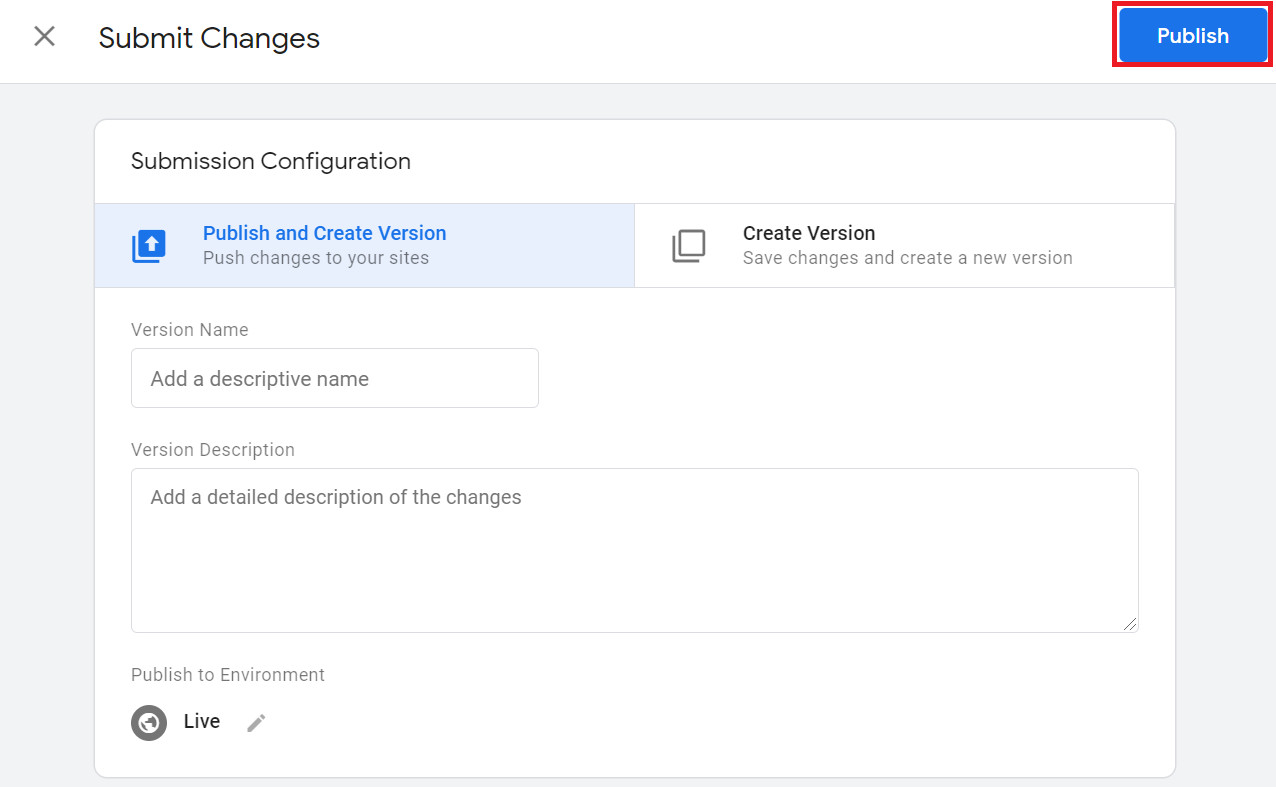
7. Add a description for the new version of the tag, then click (Continue).
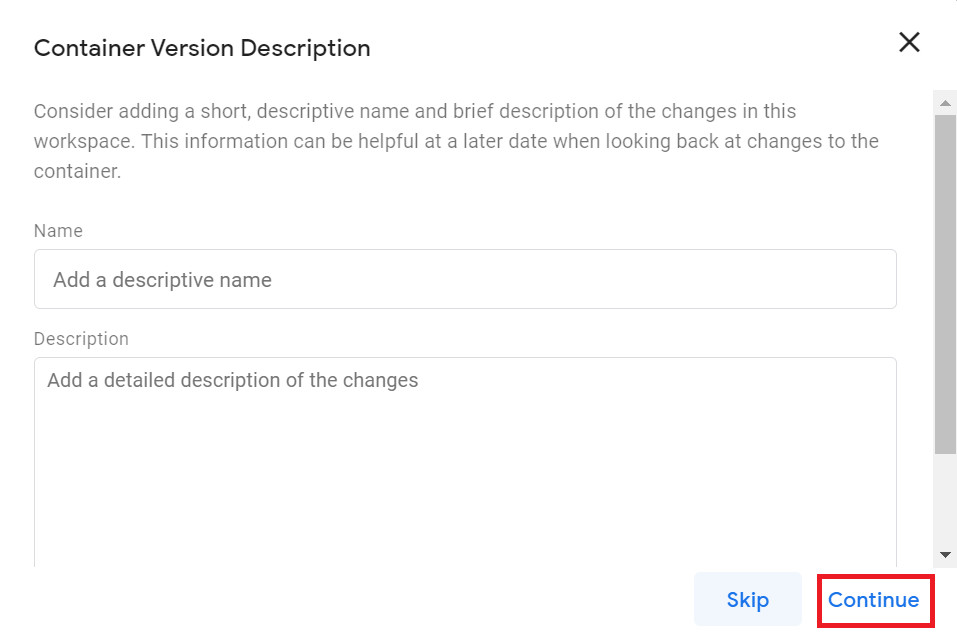
The new tag then appears like this:

Stage five: test the markup with Google's structured data testing tool
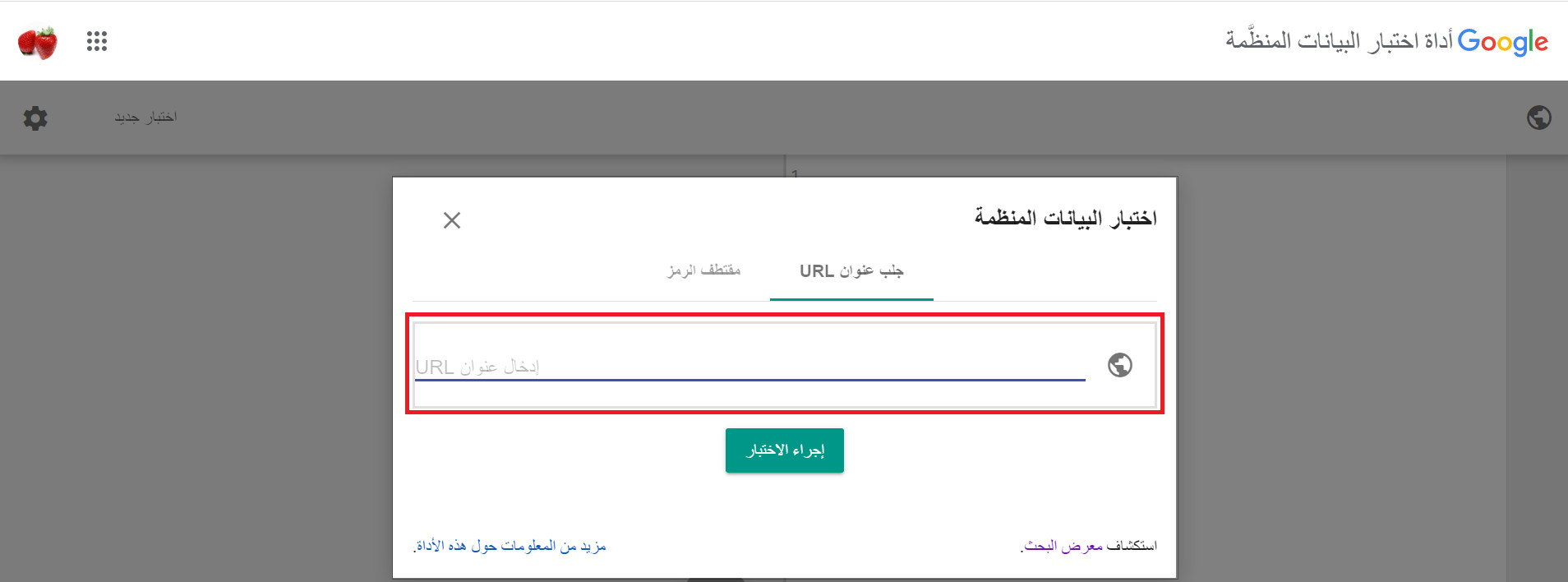
Finally, test your schema markup with the structured data testing tool to make sure it's valid.
❓ Frequently asked questions
We'll answer the following questions:
- What are the key terms to know?
- Why does schema markup matter?
- What types of schema markup are there?
- What does schema markup look like?
- Which search engines use schema?
- Is there only one tool for generating markup?
- What kinds of errors can the testing tool show?
What are the key terms to know?
Before we start, a quick look at some essential terminology:
- Structured Data
The code you place on your website to help search engines return more useful results to users.
- Schema
A type of structured data that defines entities, actions, and relationships on the internet.
Why does schema markup matter?
Without schema markup in place, the information on a web page is left open to Google's interpretation. By not marking up your data, you risk search engines misunderstanding your page's content.
For example:
If the name "Chris Evans" appears on a web page, search engines can read the name but may struggle to know which person you mean. "Chris Evans" could be the English TV presenter and radio DJ, or the Hollywood actor famous for playing Captain America. Another example is "Harry Potter" — the books, the films, or the character? Implementing schema lets you tell the search engine exactly what kind of information you're providing.
For more detail, see the schema markup FAQ.
What types of schema markup are there?
- Organization
An organization such as a school, an NGO, a corporation, a club, and so on.
- Local business
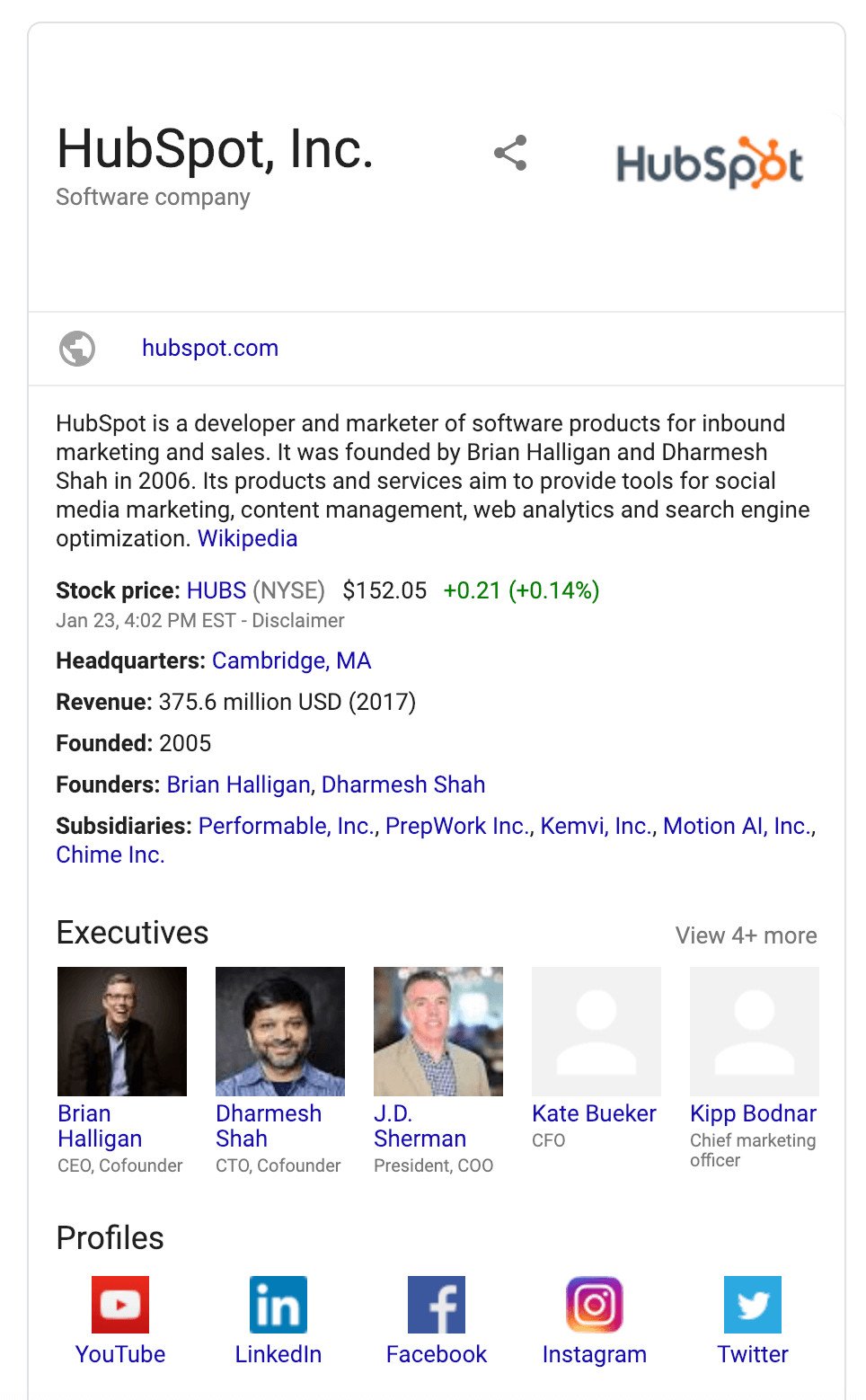
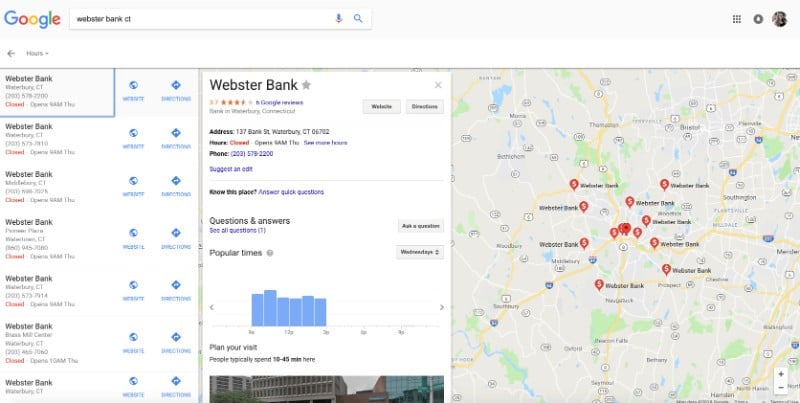
A physical business or a branch of an organization. LocalBusiness examples include restaurants, restaurant chain branches, bank branches, medical practices, clubs, and more.
- Product
Any product or service on offer. For example: a pair of shoes, concert tickets, a car rental, a haircut, and so on.

- Breadcrumb
A set of links that helps users understand and navigate a website's hierarchy.
- Person
Fairly self-explanatory: a person (alive or dead, real or fictional).

- Article
An article, such as a news article or a piece of investigative reporting. Newspapers and magazines carry many different kinds of articles, and this type is meant to cover them all.

- FAQ page
An FAQ page is a web page that presents one or more frequently asked questions. FAQ schema can power voice actions.
- How-to
Instructions that explain how to achieve a result by completing a series of steps. This can surface results on virtual assistants such as Google Home.

- Event
An event happening at a specific time and place, such as a concert, a lecture, or a festival. It can be extended with ticket information through the offers property.

- Job posting
A listing that describes an open position at a given organization.
- Recipe
For dietary restrictions covered by a recipe, some common restrictions can be declared through the diet property, and the keywords property can add further detail.

What does schema markup look like?
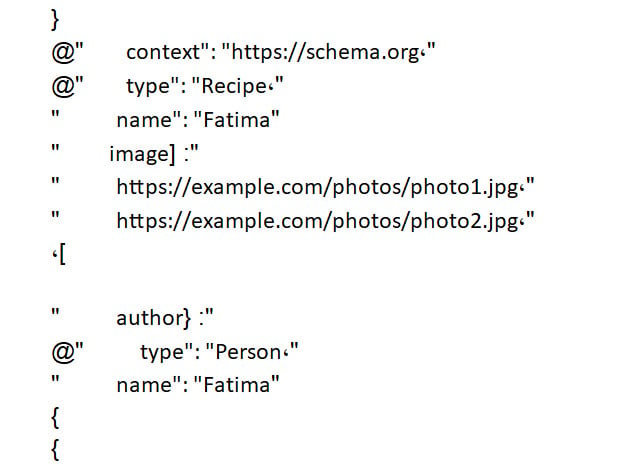
In this recipe markup example, you can see how the structured data vocabulary (schema) is declared as the context, the content type (Recipe) is declared under "@type", and the recipe's component parts — name, image, and author — are each labeled:
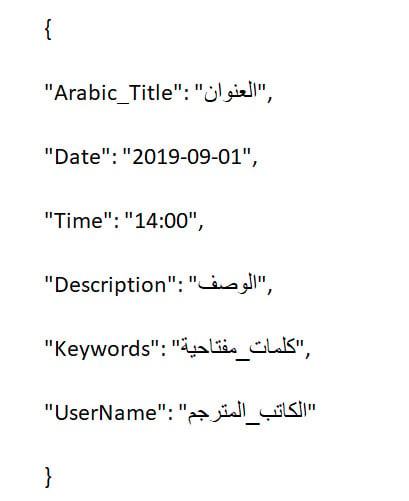
And here is another example, for article markup:
Which search engines use schema?
Schema is recognized (and its vocabulary maintained) by Google, Bing, Yahoo!, and Yandex. It isn't clear whether other search engines use this markup to change how they display search results.
Is there only one tool for generating markup?
There are plenty of other tools that help you generate your schema markup — and validate it too.
Markup generators
Validators and testing tools
- Yandex Structured data markup
- Yandex Structured data validator API
- Structured Data Testing Tool
- Google Search Console Rich Cards
- Google Rich Results Tester
- Bing Webmaster Tools Markup Validator
What kinds of errors can the testing tool show?
Two kinds of issues can appear:
- A warning, shown in orange, when data is missing from fields that are recommended but not required.
- An error, shown in red, when data is missing from required fields.

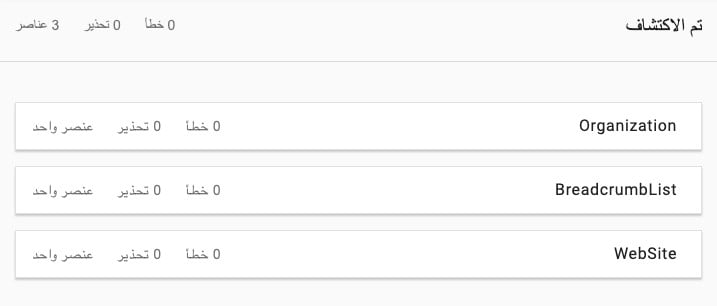
If there are no errors, the validation window appears like this:
Marking up your store is one of those rare SEO tasks you do once and benefit from on every search: clearer signals for search engines today, and richer results for your store tomorrow.