Do shoppers who land on your store have any reason to trust it before they buy?
Store ratings are one of the strongest signals a new customer has: real opinions from people who already bought from you and dealt with your service. They work for you too — the rating settings show you what your store does well, so you can build on it, and what frustrates customers, so you can fix it. In this guide, you'll learn how to set up ratings for your store and what each option changes for your customers.
Rating settings live under (Store settings) in your Salla dashboard. From there you decide whether reviews publish automatically, whether customers can attach photos, edit their review, or stay anonymous, where reviews appear, which order statuses trigger a review request, and which channels the request is sent through.
📌 Article overview
- How to open the rating settings
- The rating settings, one by one
- Frequently asked questions
👣 How to open the rating settings
1. From the side menu of your dashboard, click (Store settings).

2. Click (Rating settings).

3. Set each option the way it suits your store, then click (Save).
The rating settings, one by one
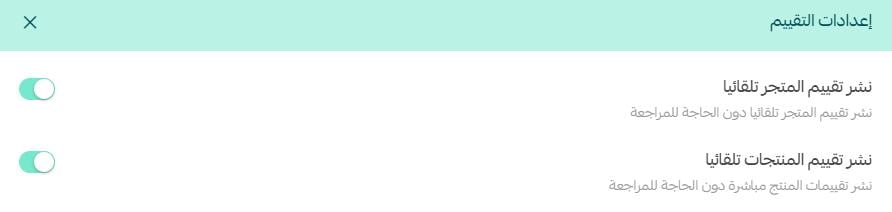
1. Publish store and product reviews automatically
Turn this on to publish reviews as soon as they are submitted, without reviewing them first.
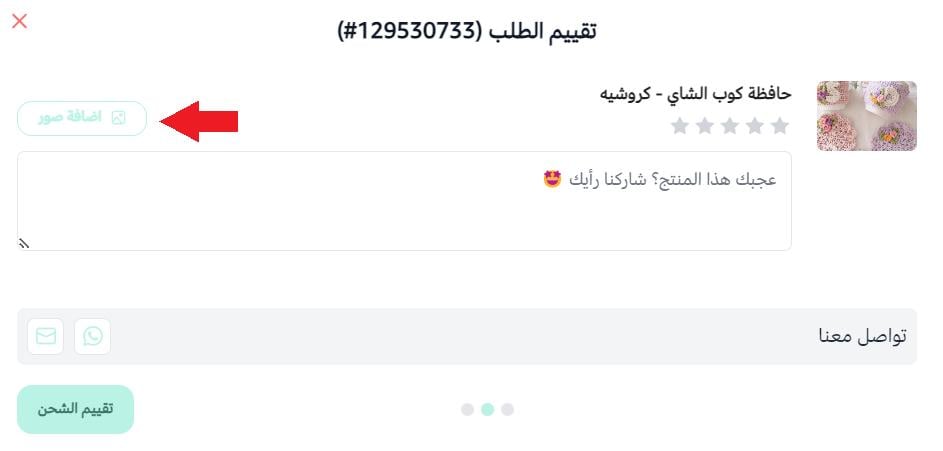
2. Allow up to 3 photos with a product review

An attach button then appears for the customer:
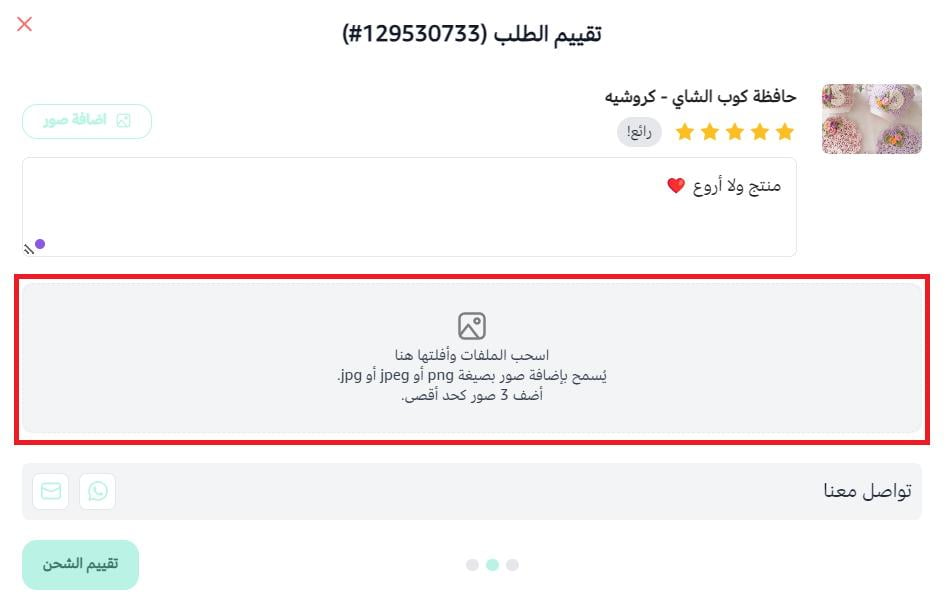
Photos can be dragged and dropped or uploaded from the customer's device:
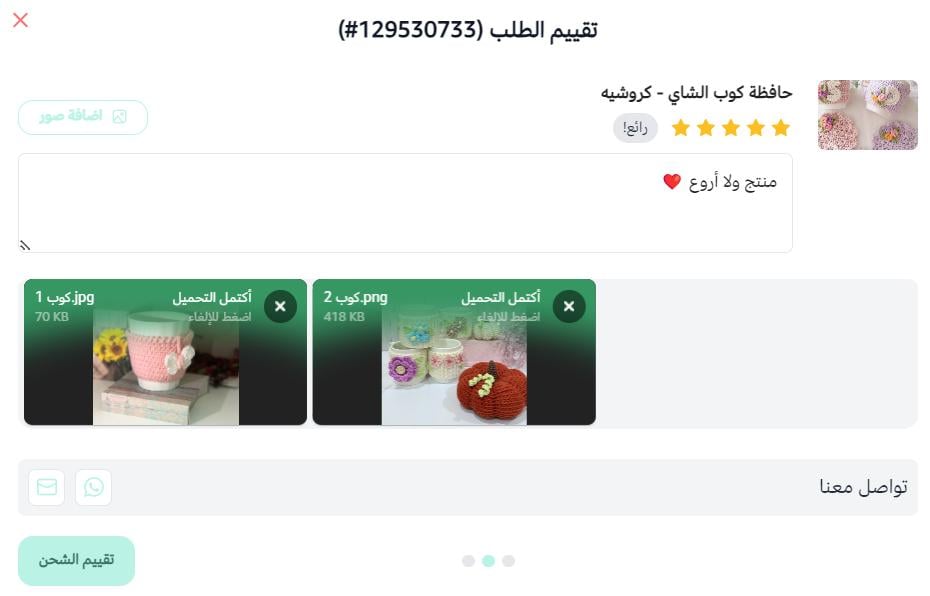
Once the photos are uploaded, the page looks like this:
And other customers see the photos alongside the review:
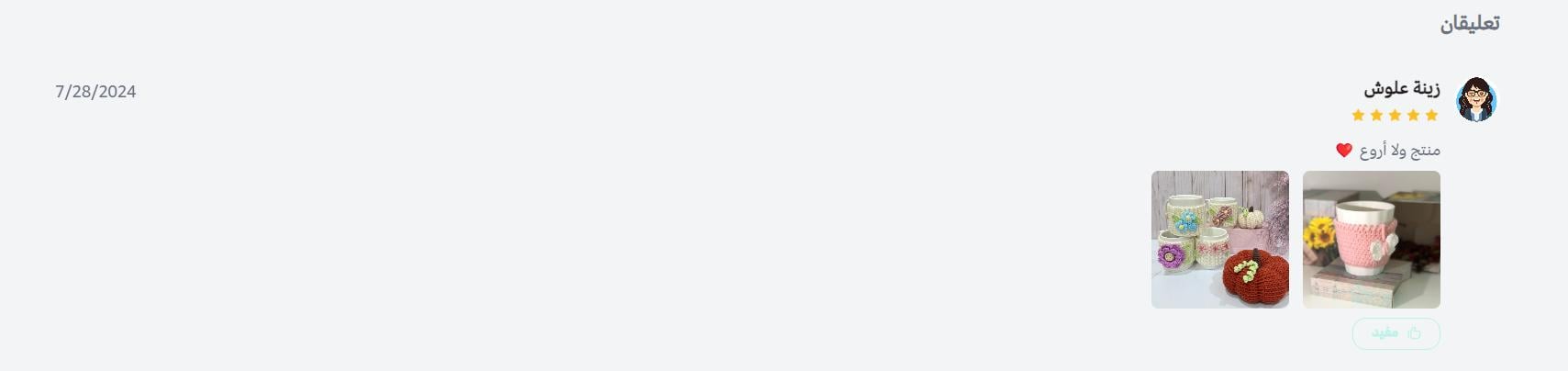
3. Let customers mark a review as helpful
This adds a like button so customers can flag another customer's review as useful.

The like button then shows on reviews in your store:
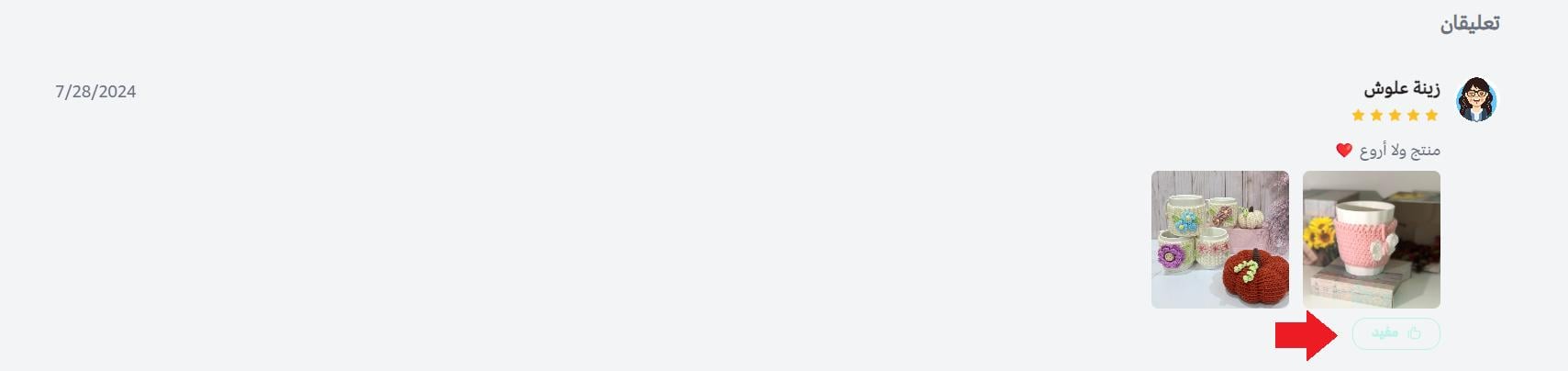
Anyone reading the reviews on a product page can see how many people backed each one:

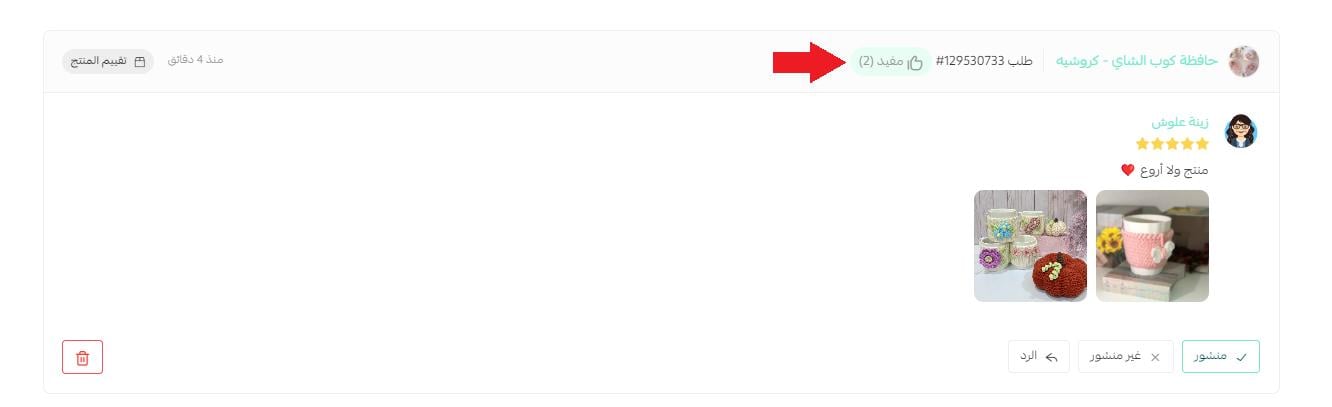
And your dashboard shows how many customers found a review helpful:
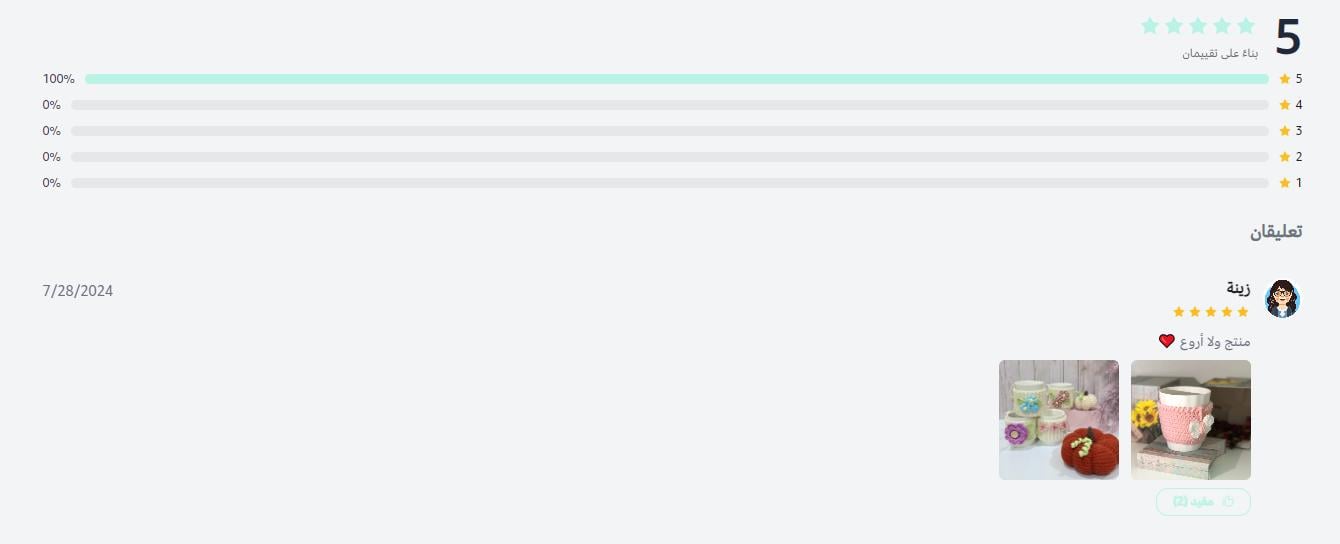
4. Show the overall product rating

The rating then appears on the product page like this:
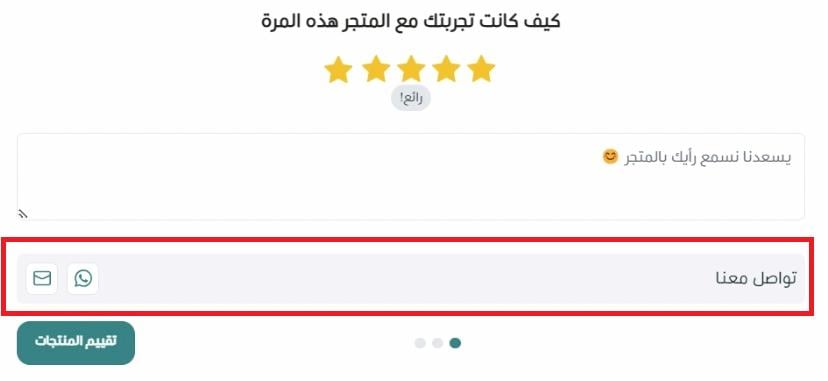
5. Offer a way to contact customer service
Turn this on to collect the customer's feedback directly instead of only through a public review.

This is what the customer sees:
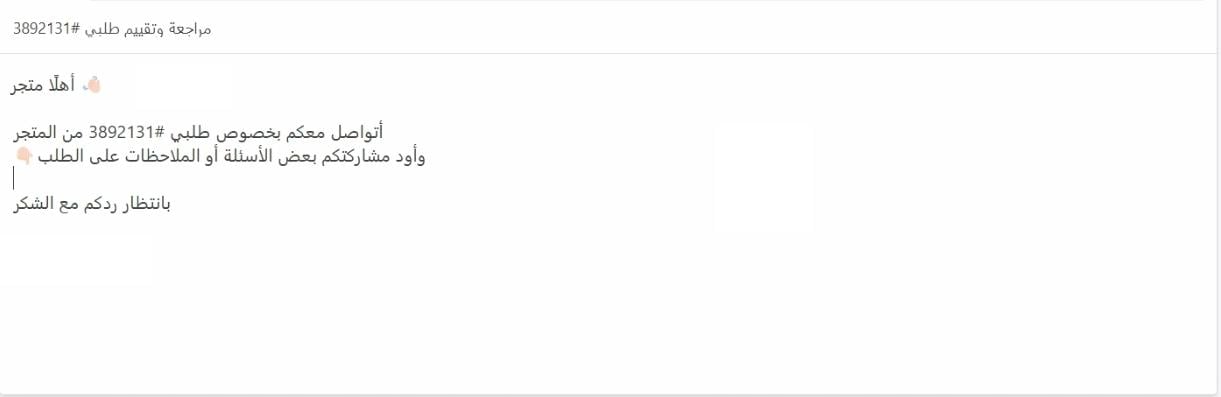
When the customer contacts your support by email, a default message is prepared that they can edit and add to.
6. Allow customers to edit and delete their review
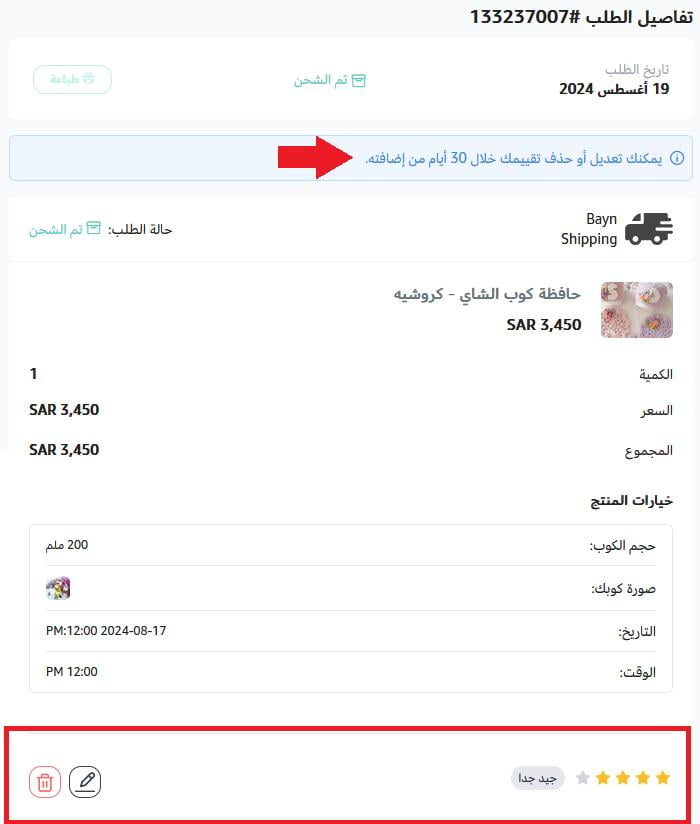
Turn on (Edit and delete rating) to let a customer change or remove a review they already submitted, and set how many days they have to do it — up to 999 days.

Edit and delete buttons appear next to the review, with a note about how long the customer has:
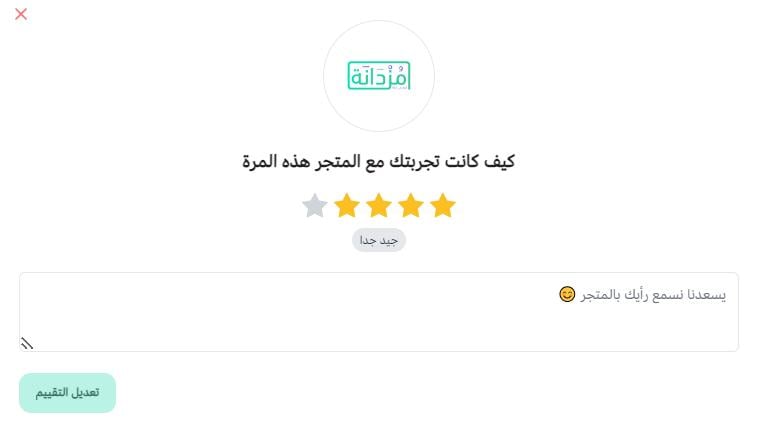
The customer updates the product, store, or shipping company rating, then clicks (Edit rating).
7. Ask customers for a review
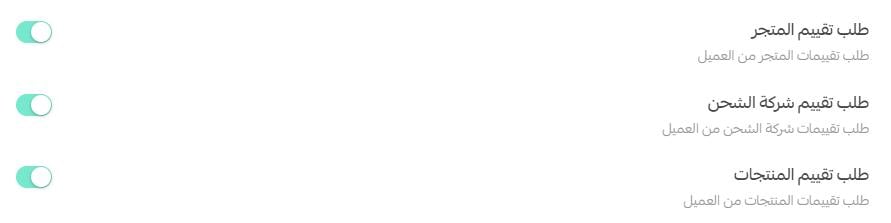
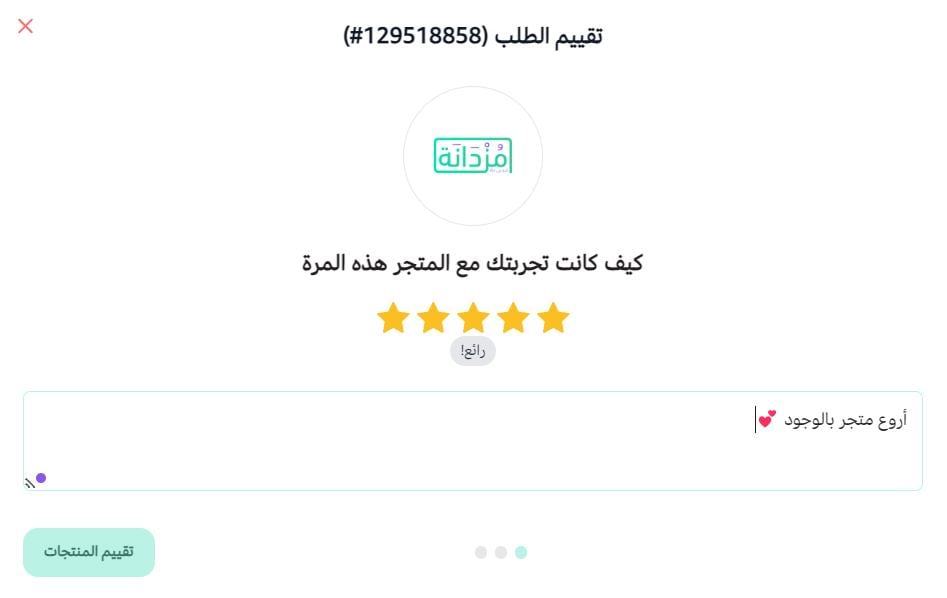
The customer is asked to rate the buying experience overall, which builds confidence in your store and encourages repeat orders. This is how the request looks:
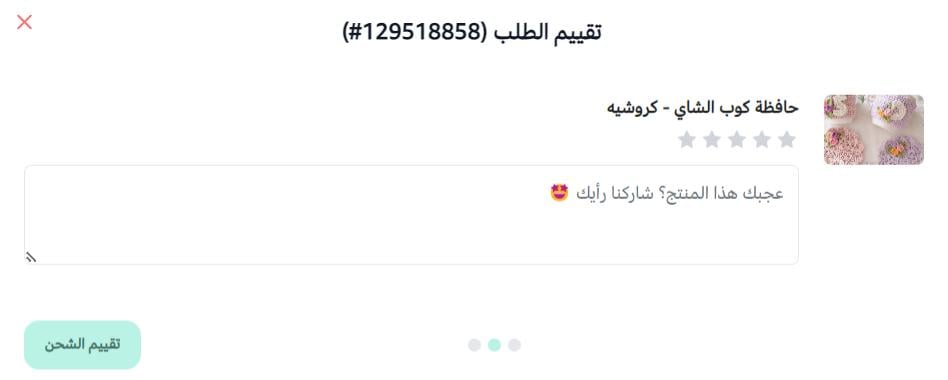
Next, the customer is asked to rate your products. Product reviews attract potential buyers, and a product that keeps getting reordered signals a store people trust.
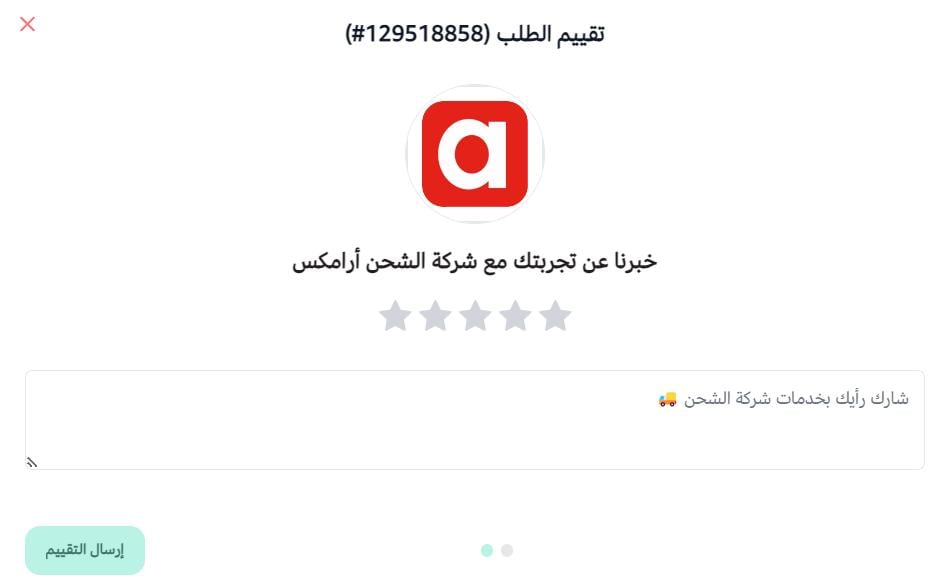
Finally, the customer rates the delivery experience with the shipping company, which helps you keep service quality up.
8. Hide the customer's name in reviews and questions
Hiding the name takes two steps:
- Step one, on your side: turn the option on in your store settings.

- Step two, on the customer's side: the customer turns it on from their (My account) page.
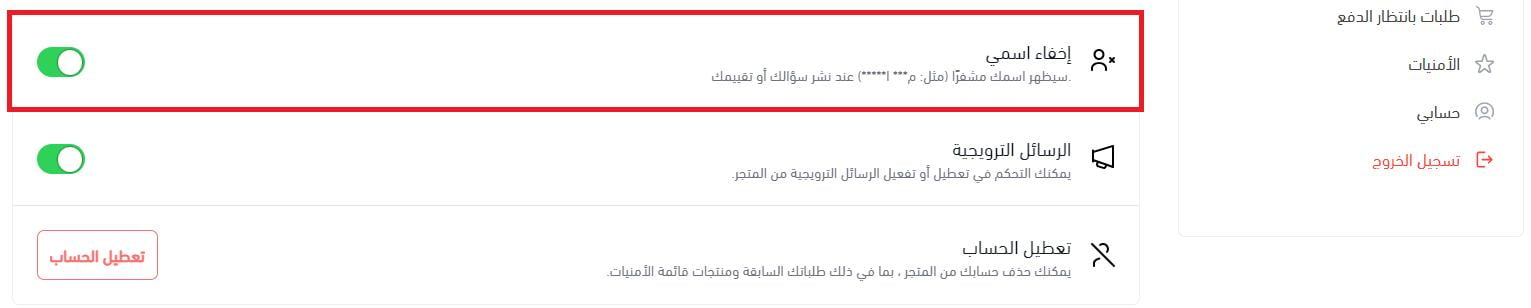
The name then appears in reviews and questions like this:

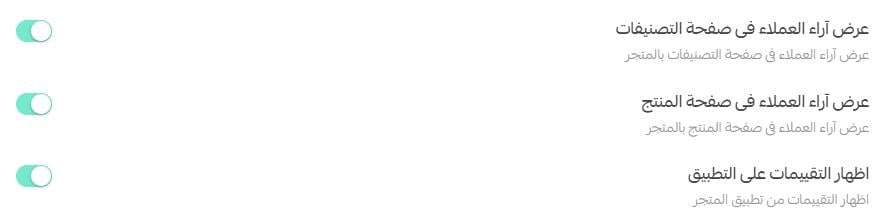
9. Choose where customer reviews are shown
Pick the places reviews appear: the categories page, the product page, and your store app.
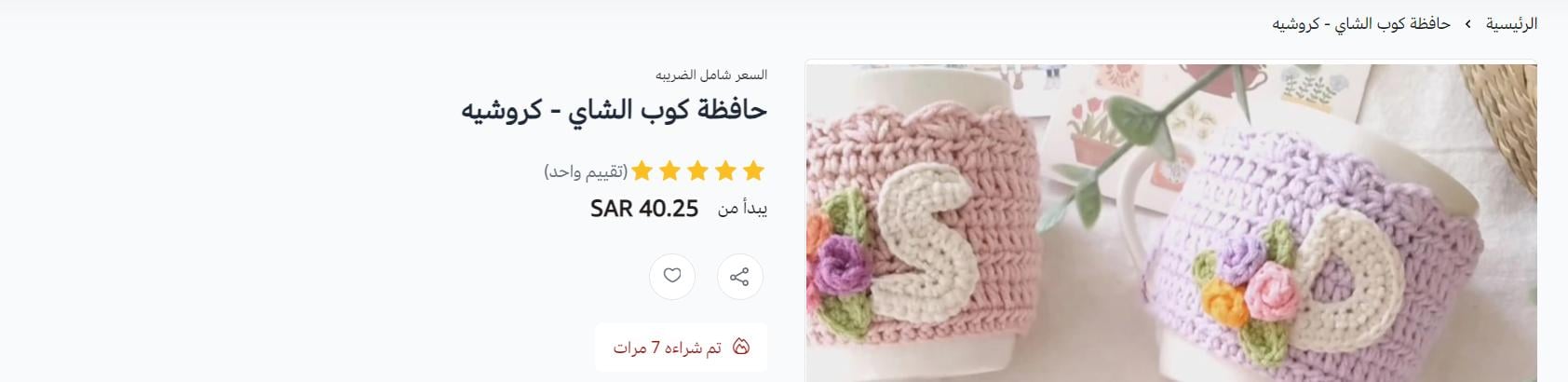
💡 Example: this is how a product rating appears on the product page:
10. Set the order statuses that trigger a review request
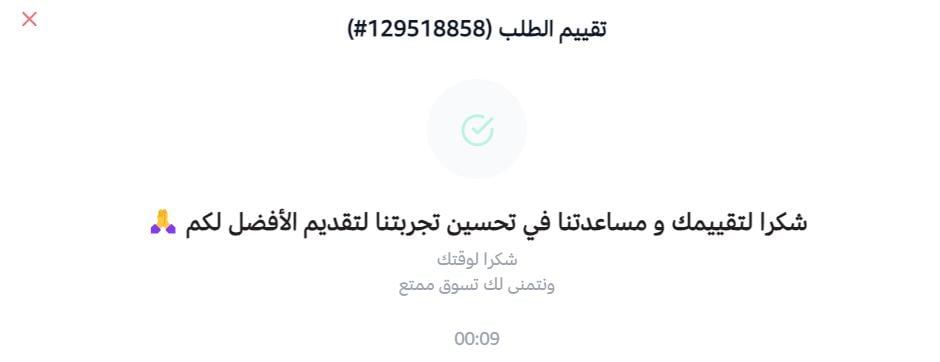
Choose which order statuses send the review message, and write the thank-you note customers see after they submit a review.
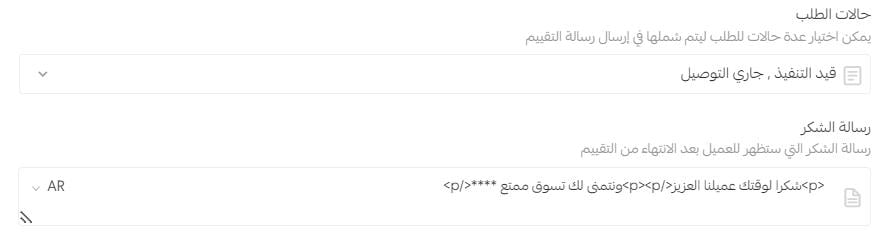
The thank-you message appears once the review is finished:
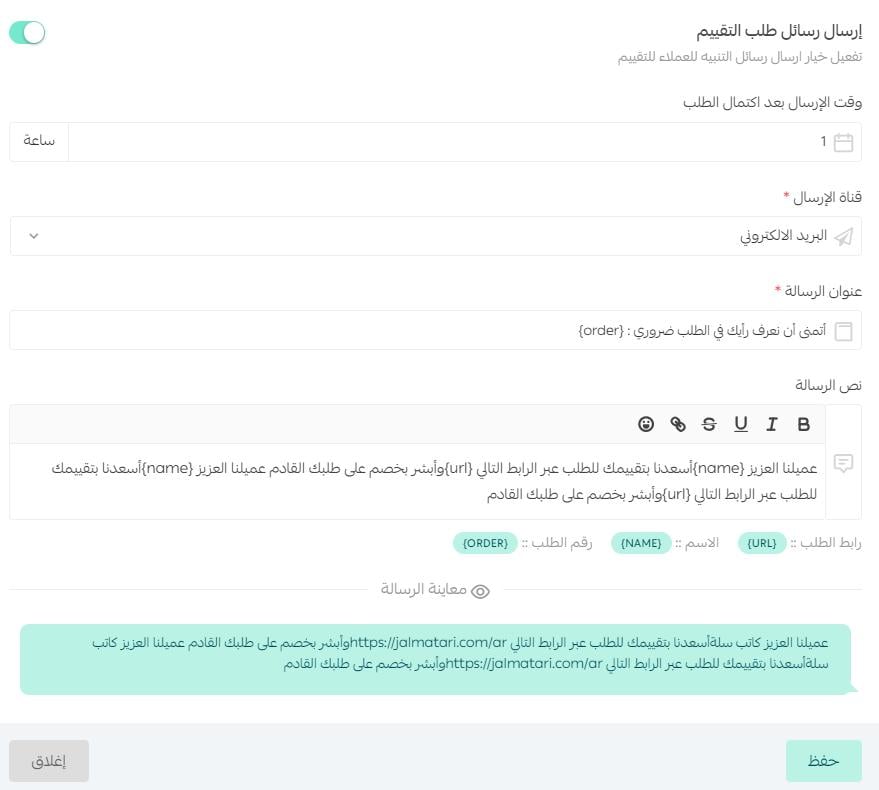
11. Set the timing, channels, and wording of the request
Decide how long after the order the review request is sent, choose the channels it goes out on (email, SMS, WhatsApp), and write the message itself. You can insert fields for the customer's name, the order number, and the order link, so the message reads as if it were written for that customer.
❓ Frequently asked questions
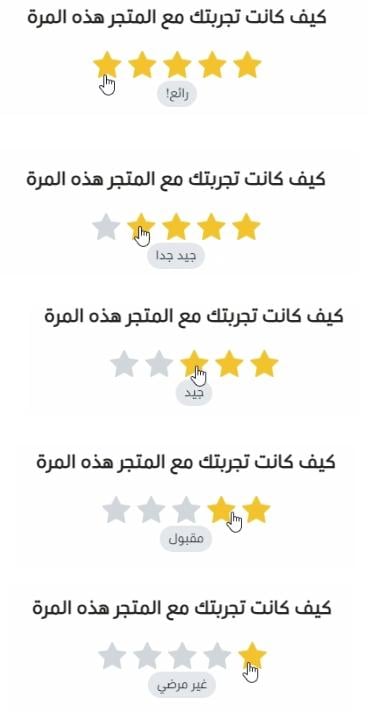
How does a customer know their star rating says what they mean?
As the customer points at the stars, a short label appears explaining what that rating means.
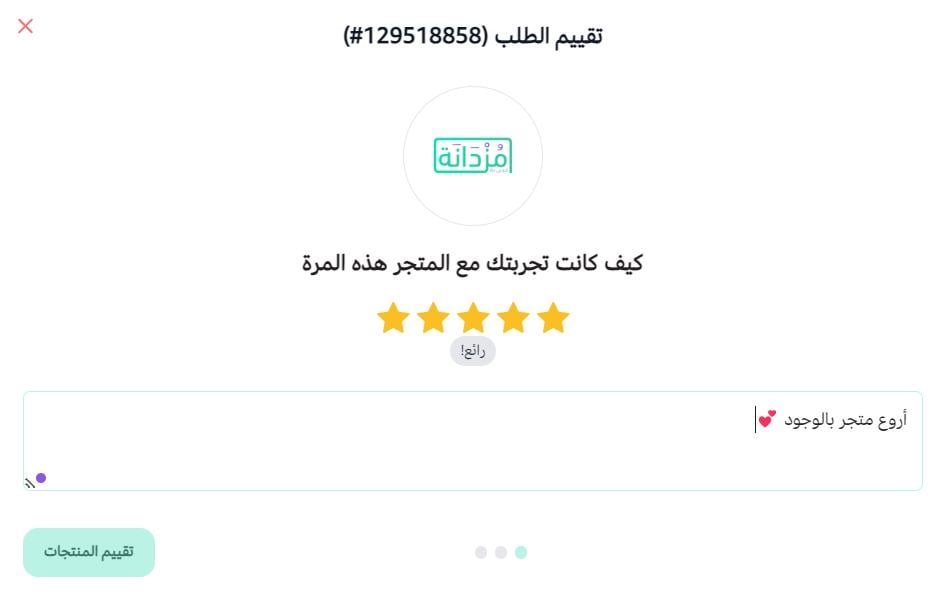
Can customers add emojis to a review?
Yes. They appear like this:

Does the review request show up in the store app?
Yes, if the customer has your store app installed. It appears in the app like this:
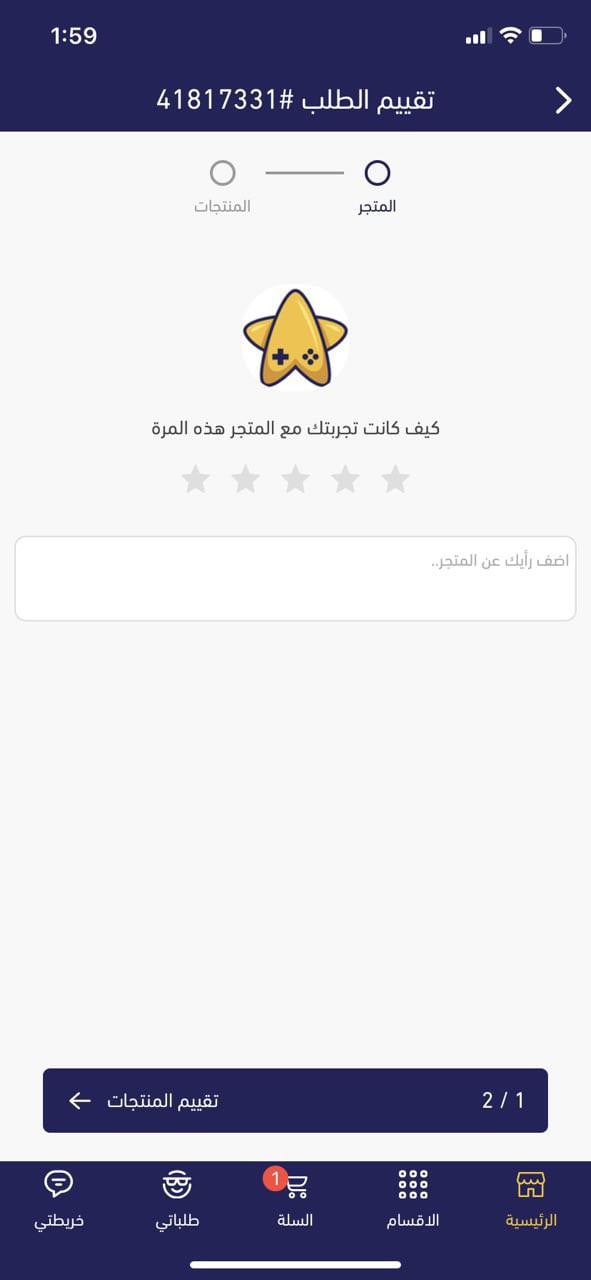
The customer can rate the store, the products, and the shipping company:
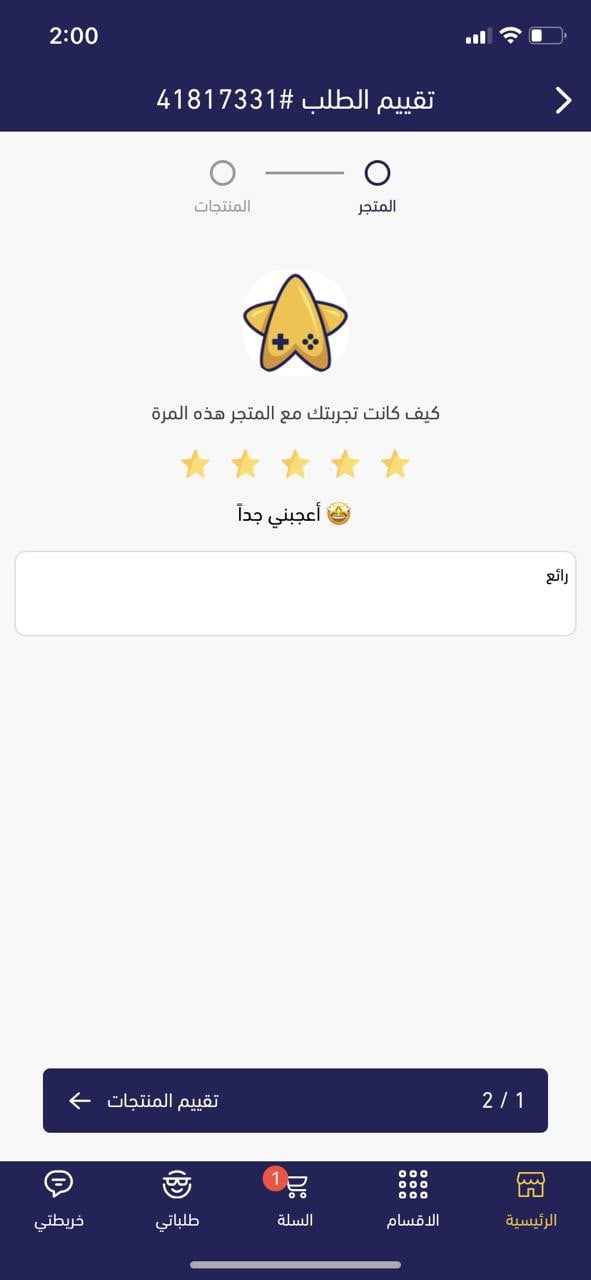
And the review can be previewed from the store and product ratings page.
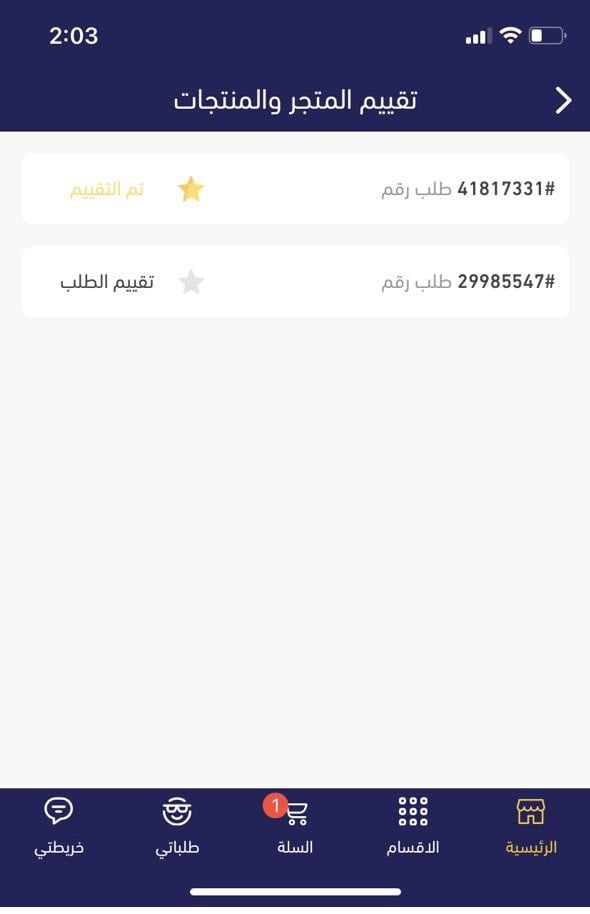
Where do I review what customers have written?
From the side menu of your dashboard, click (Questions and ratings).

From there you can publish a review or keep it unpublished, reply to it, or delete it.
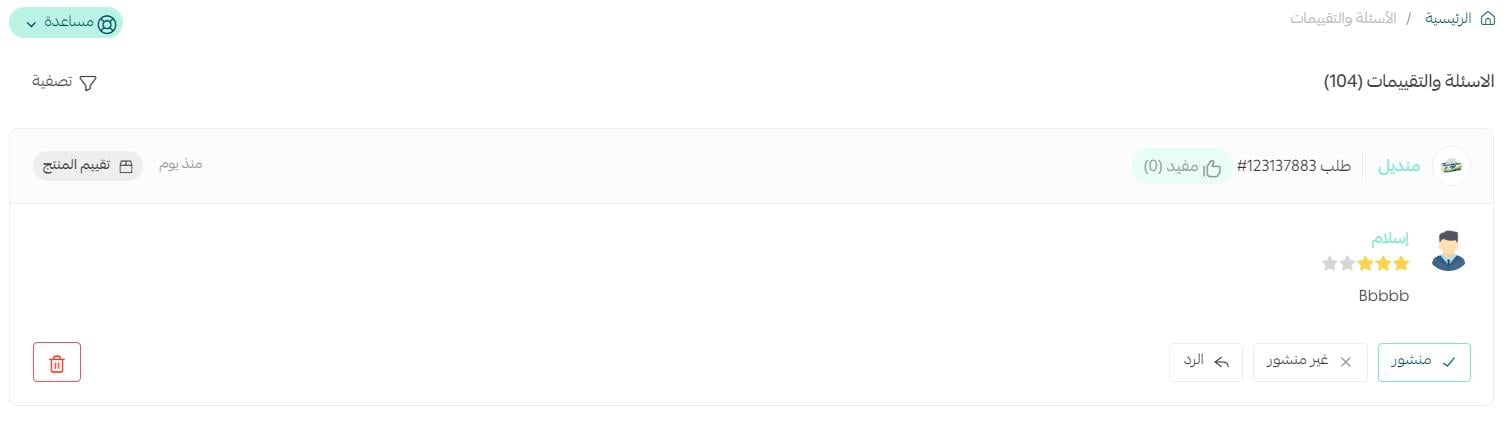
For more detail, see Questions and ratings.
How is the customer notified to leave a review?
Through the channels you enabled (email and SMS). On the order details page the customer sees (Rate product), and clicks (Rate order) for any order they haven't rated yet.
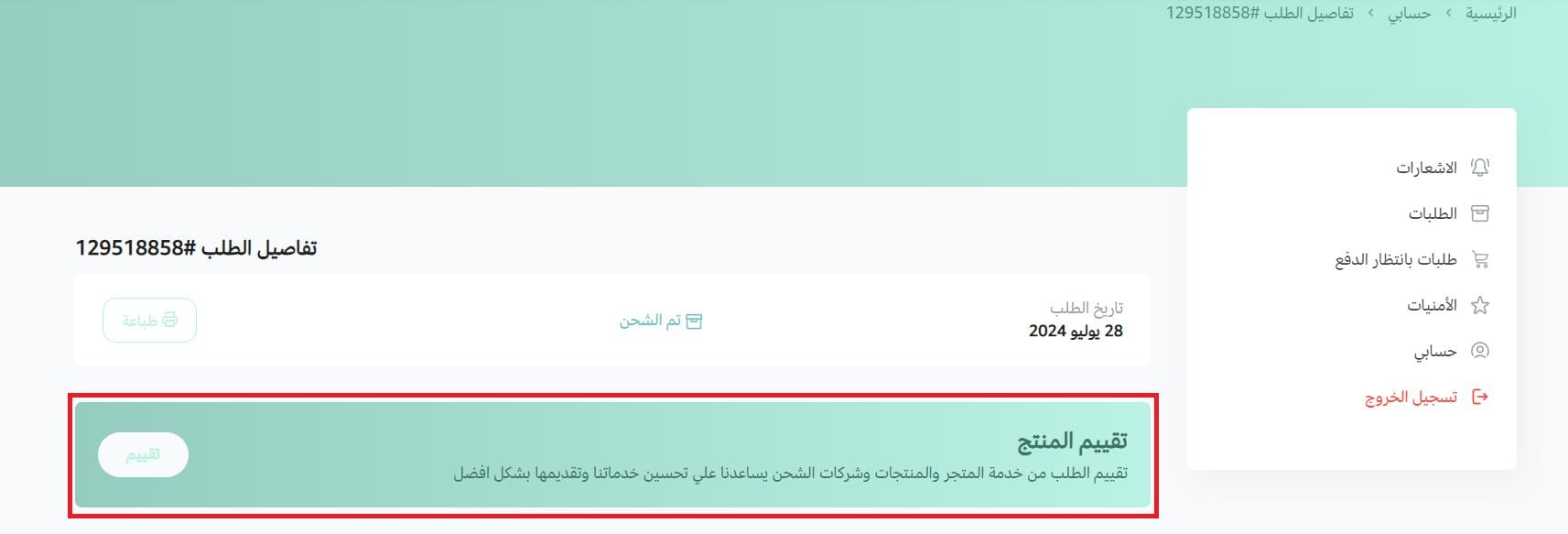
They then rate the store, the products, and the shipping company.
Can a customer edit or delete a review later?
Yes. Customers can edit or delete their review, and you control how long they are allowed to do it.
