Have you ever watched a customer fill a cart, see the shipping cost, and disappear?
Shipping cost and the choice of shipping options both affect whether a customer finishes the order, and the trade-off is a hard one: road shipping is the most cost-effective but the slowest, air freight is fast and pricey, and international air freight is pricier still. Product weight sits underneath all of it. In this guide, you'll learn how product weight pushes shipping cost up or down, and how to manage weights across your store.
Product weight drives shipping cost whenever your rates are set by weight: double the quantity in the cart and the shipping charge scales with it. On Salla you control weights three ways — set store-wide units and a default weight, edit a single product's weight, or update many products at once.
📌 Article overview
- How product weight affects shipping cost
- How to manage product weights in your store
- Frequently asked questions
🎯 How product weight affects shipping cost
Say you've set your shipping prices by weight:
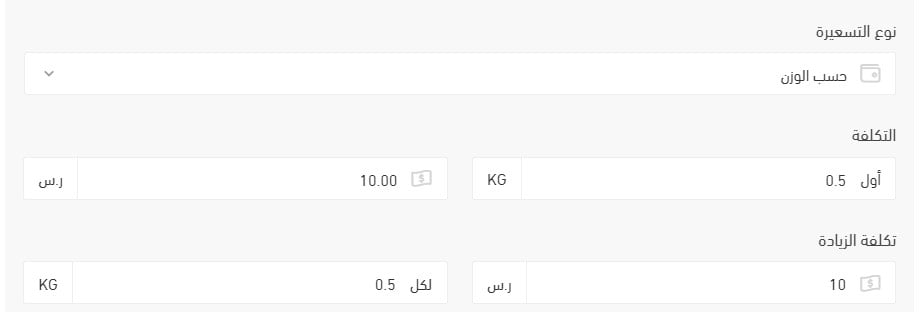
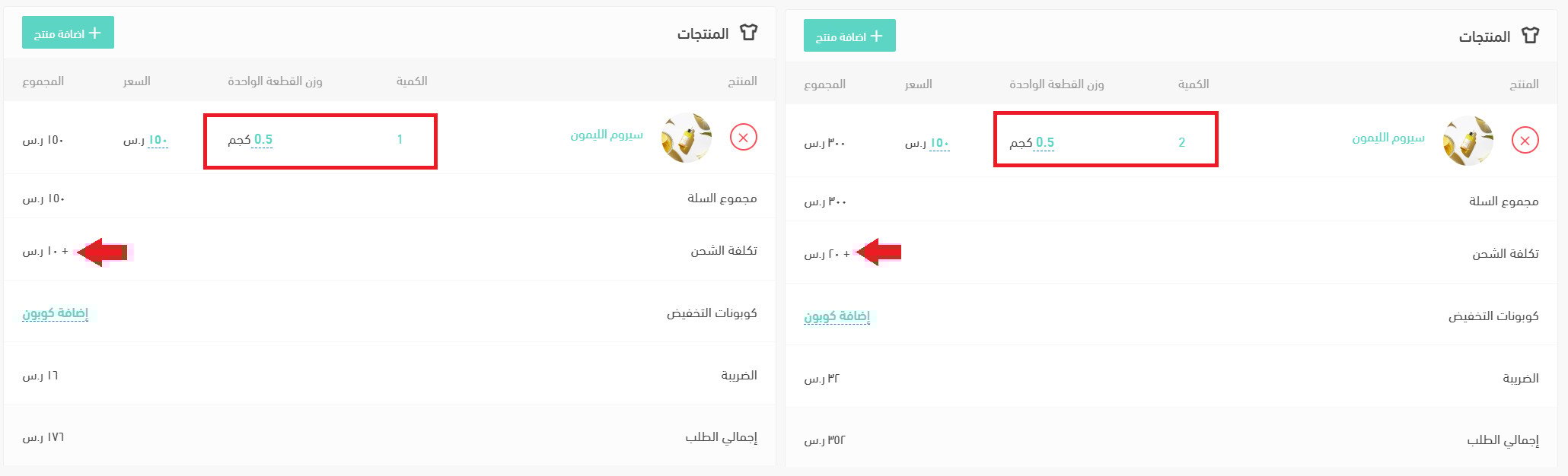
Add more units of the product to the cart and the shipping charge multiplies with them. In this example, the product weighs 0.5.
⚖️ How to manage product weights in your store
Salla gives you three ways to control product weights:
1. Set the store's units of measurement and a default weight for your products.
2. Edit the weight of a single product.
3. Edit the weight of several products at once.
Set units of measurement and a default product weight
1. From the side menu of your dashboard, click (Store settings).

2. Click (Store options).

3. On the store options page, under the product options, set the option (Show weight in the product details and cart page).

4. To set a default weight for your products, enter the default weight and choose its unit.
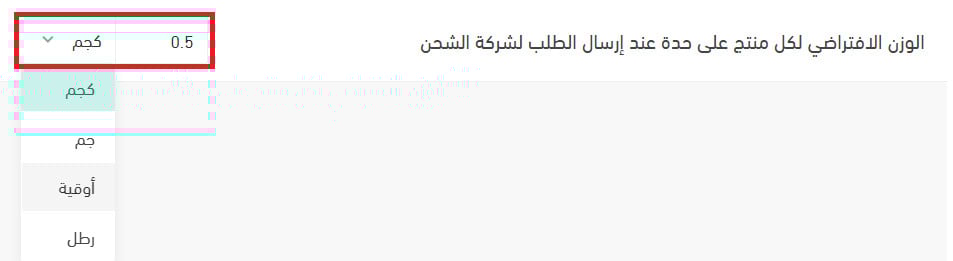
For more detail, see Setting up product options.
Edit the weight of a single product
To make shipping your orders straightforward, weigh every product you sell and keep that number up to date. Knowing it gives you a clear picture of your total costs and lets you quote accurate prices to your customers.
1. From the side menu of your dashboard, click (Products).

2. Open the product card.
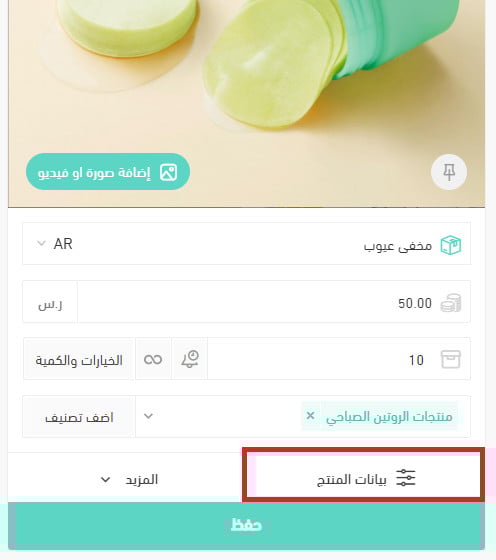
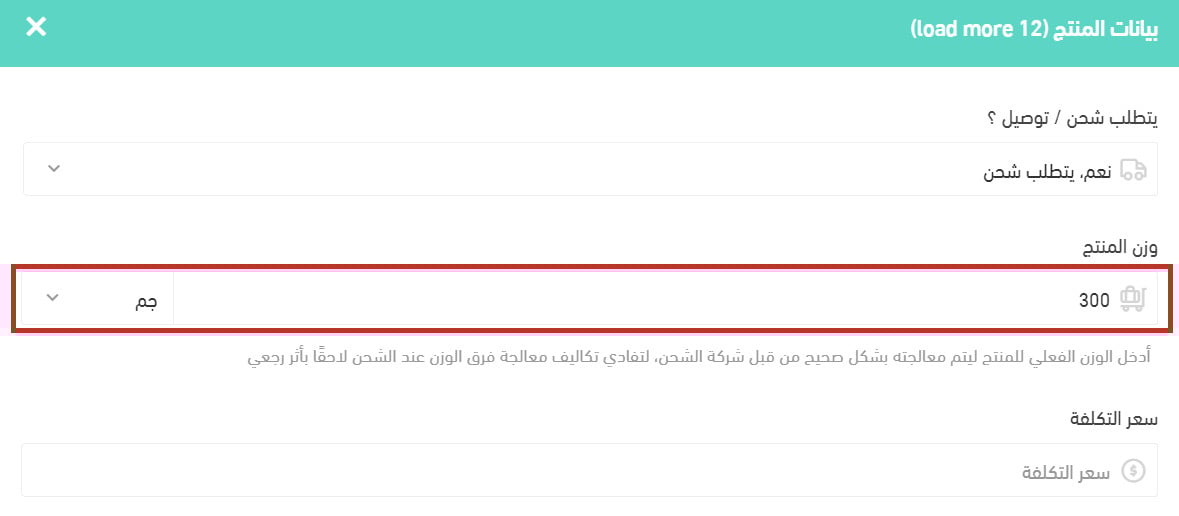
3. Enter the product weight and choose the unit of measurement.
The weight is calculated in the unit you choose, and some shipping companies require it because they price by weight.

For more detail, see Setting up product options.
Edit the weight of several products at once
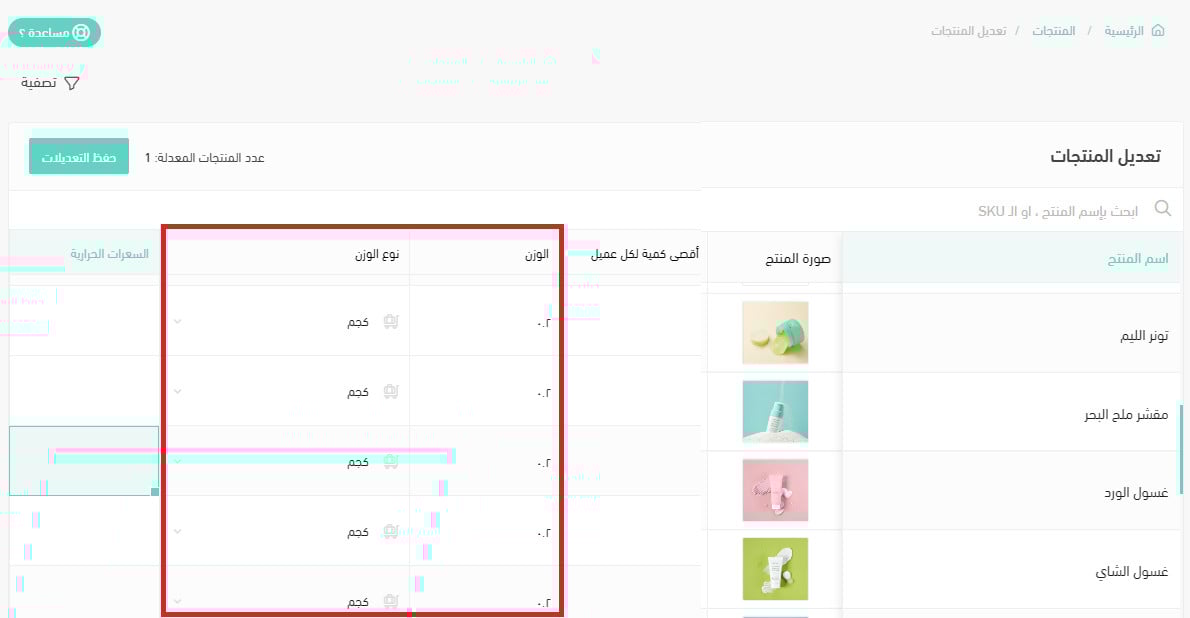
To update weights only: from the products page, open the (Services) menu, choose the bulk edit option, and update the values you need. [Verify: the Arabic names the 'edit quantities' menu item here, inside a section about weights — the correct menu item needs confirming.]
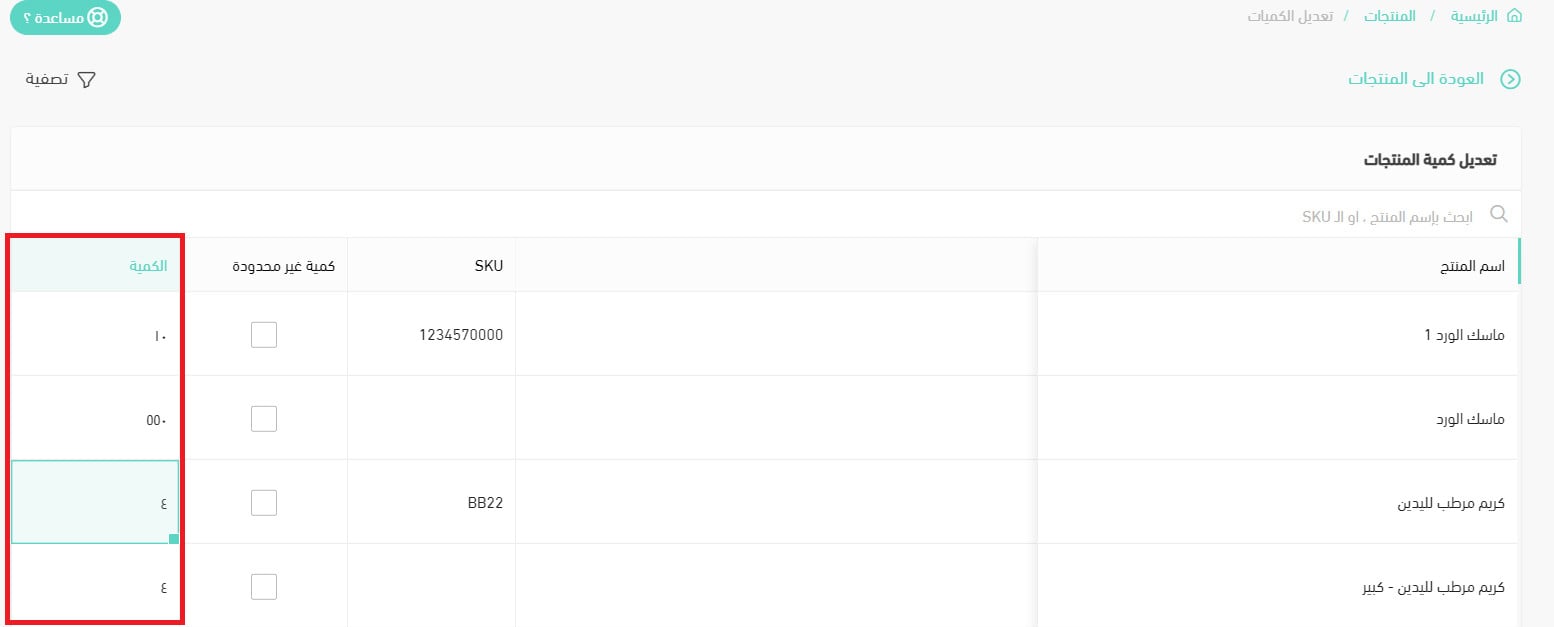
To update both the weight and the unit for several products: go to (Store settings), then (Import data). This runs in two stages:
1. Export your current products to an Excel file.
2. Import the file again once you've updated it.

For more detail, see Updating your store's products.
❓ Frequently asked questions
Where do the weight and its unit appear, for me and for my customer?
The weight shows up in several places:
1. In your storefront, when a customer is browsing:

2. On the order page, as the customer sees it:

3. On shipping waybills:
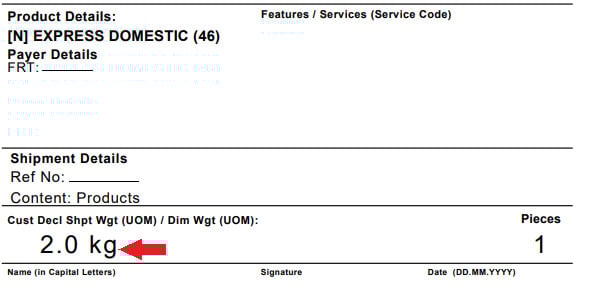
4. On the order page in your dashboard:
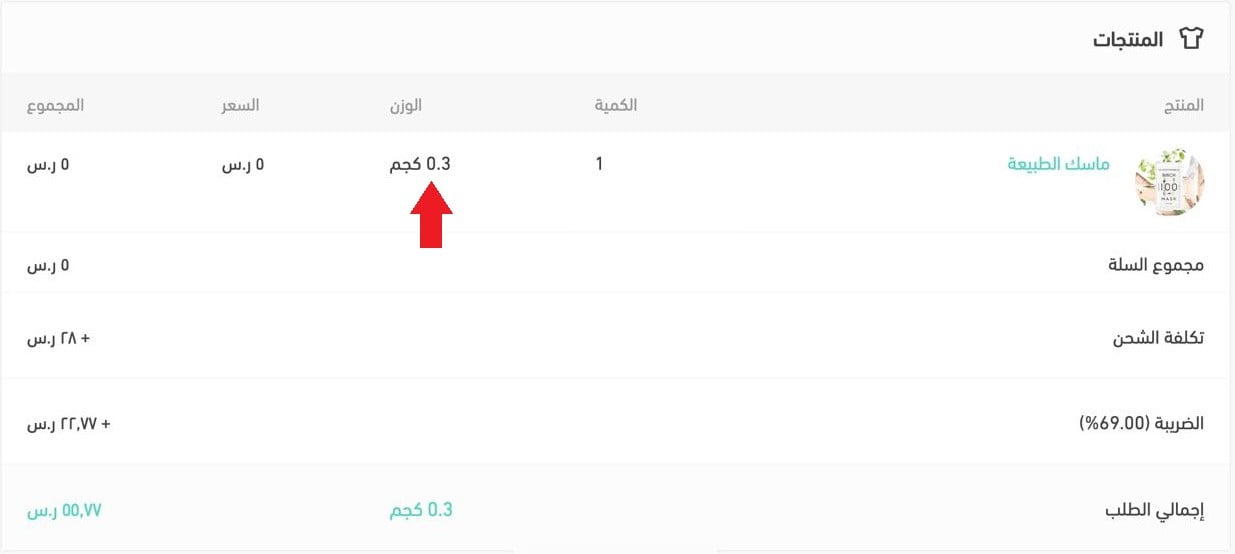
5. On the order summary and the invoice:
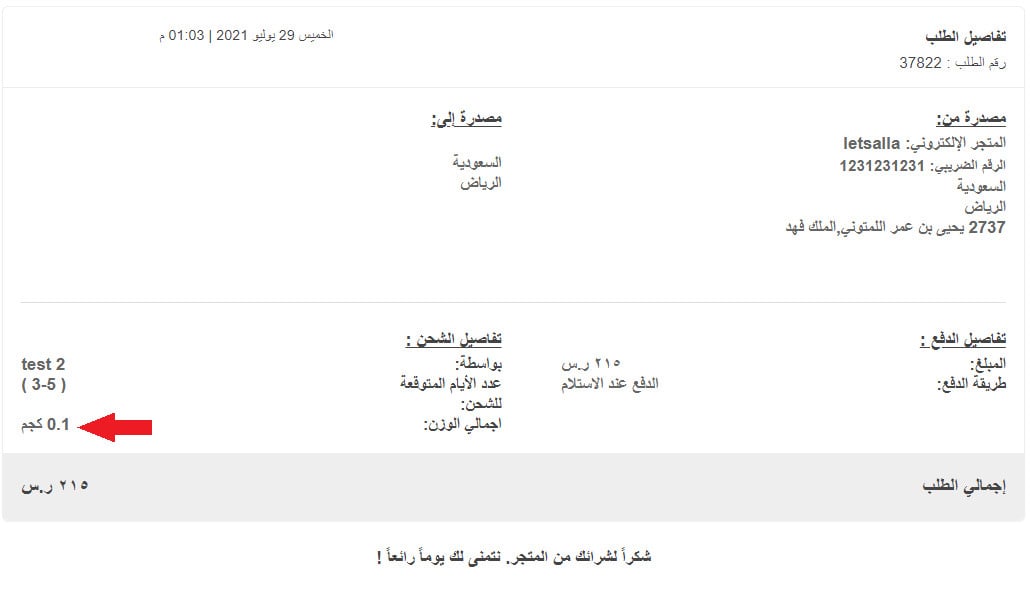
Is a weight of zero accepted for a product?
No. A zero weight is not accepted, so the default weight is applied automatically to every product you haven't given a weight of its own.
Does turning the weight display option on affect the whole store?
No — weights still appear even when the option to show product weight in the product details and cart is switched off. [Verify: this contradicts the setup step above, which presents that option as what makes the weight visible.]
Does the unit I choose for a product appear everywhere in the store?
No. In the order summary, the cart, invoices, and waybills, the weight is always shown in kilograms.
How do I edit a product's weight and unit?
There are two places to do it.
From the products page, open the product's details page and edit the weight and unit there.
Or, from the products page, open the (Services) menu and click (Edit products). Update the weights and units, then click (Save changes).
How do I set shipping cost to be calculated by weight?
1. From (Store settings), click (Shipping and delivery options).

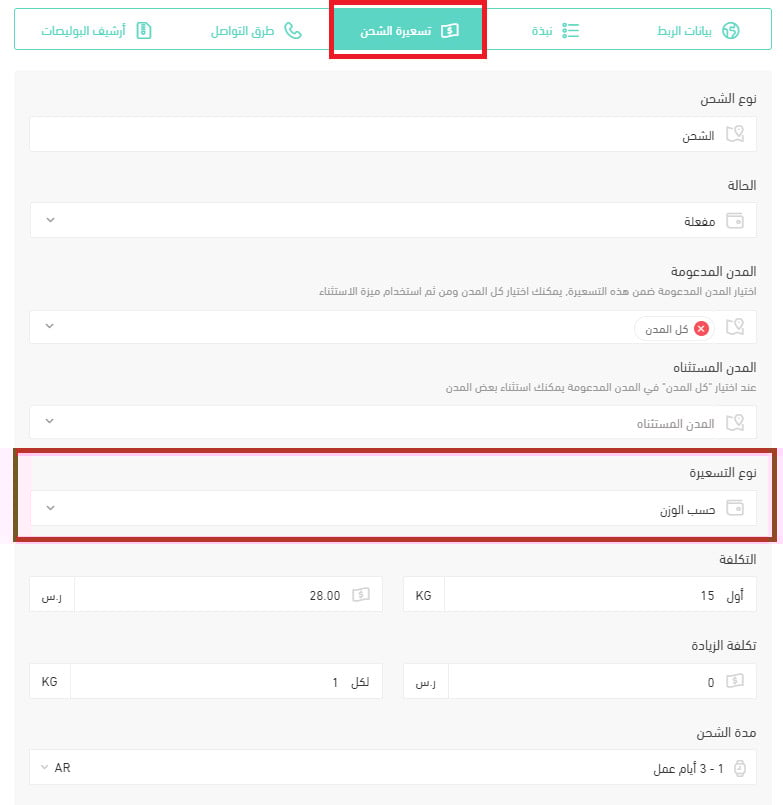
2. Click the shipping company you want to price by weight — SMSA, for example — then open the (Shipping rates) tab, set the rate type to (By weight), fill in the rest of the rate details, and click (Save).
How are ecommerce shipping prices calculated?
Every shipping company prices on a mix of factors, including:
1. Package size.
2. Package weight and load weight.
3. Origin address.
4. Destination address.
5. Extra shipping options such as tracking numbers and insurance.
Comparing carriers like for like is genuinely hard: each offers slightly different options and each has its own variables.
For more detail, see Volumetric weight in shipping and how it is calculated.
Accurate weights are quiet work with a direct payoff: your shipping quotes stop guessing, your margins stop leaking, and customers stop being surprised at checkout. Weigh your products once, keep the numbers current, and let the rates take care of themselves.