Are your customers finding the payment method they actually want to use at checkout?
This guide covers how to activate and customize payment methods in your store — from switching on electronic payments and adding bank accounts to connecting buy now, pay later providers like Tabby and Tamara. The goal is a checkout that feels easy and secure for every customer. In this guide, you'll learn how to reach the payments page, tune your electronic payment settings, and connect the wallets and providers your customers prefer.
Open Store settings, then Payment methods. From there you activate electronic payments, set your payout cycle, choose which cards and methods your store accepts, add payment restrictions and fast checkout, connect digital wallets and buy now, pay later providers like Tabby and Tamara, and add your bank accounts.
📌 Article overview
- How to reach the payment methods page
- Customize electronic payments
- Digital wallets
- Buy now, pay later methods
- Bank accounts
- Frequently asked questions
👣 How to reach the payment methods page
1. From the dashboard side menu, click (Store settings).
2. From the store settings page, click (Payment methods).

The electronic payments page looks like this:
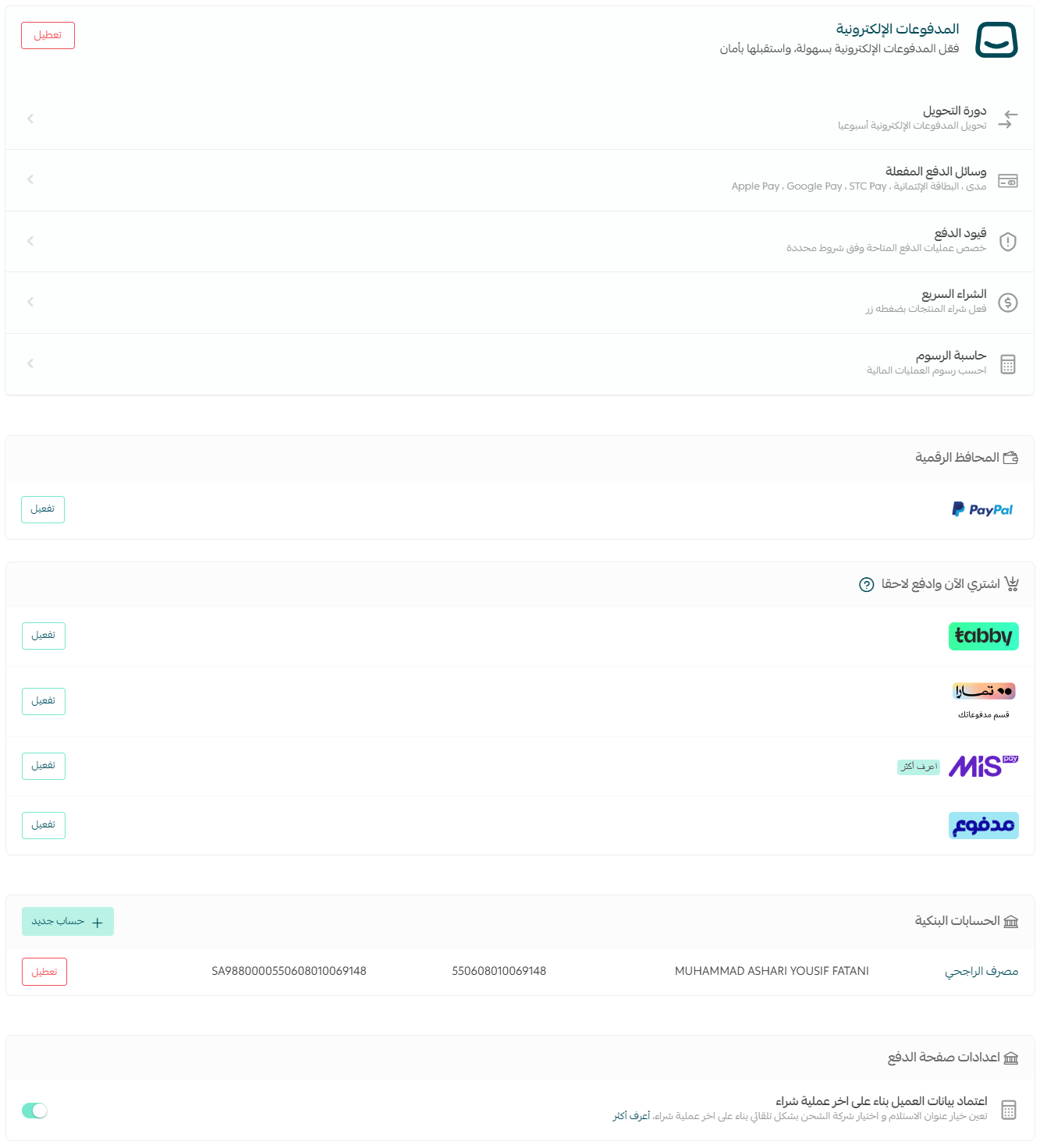
The payments page has these sections:
- Electronic payments — the most secure and the easiest to activate.
- Digital wallets, such as PayPal and stc pay.
- Other payment gateways (Moyasar and HyperPay).
- Buy now, pay later methods, such as Tabby and Tamara.
- Bank accounts.
🚀 Customize electronic payments
Electronic payments is a Salla service that processes payments in your store directly, settling transactions with banks and your approved payment methods automatically.
How to activate electronic payments
1. On the payment methods page, in the electronic payments section, click (Activate).

2. Read the (Sales policy), then click (I agree to the sales policy).

Electronic payments are now ready.
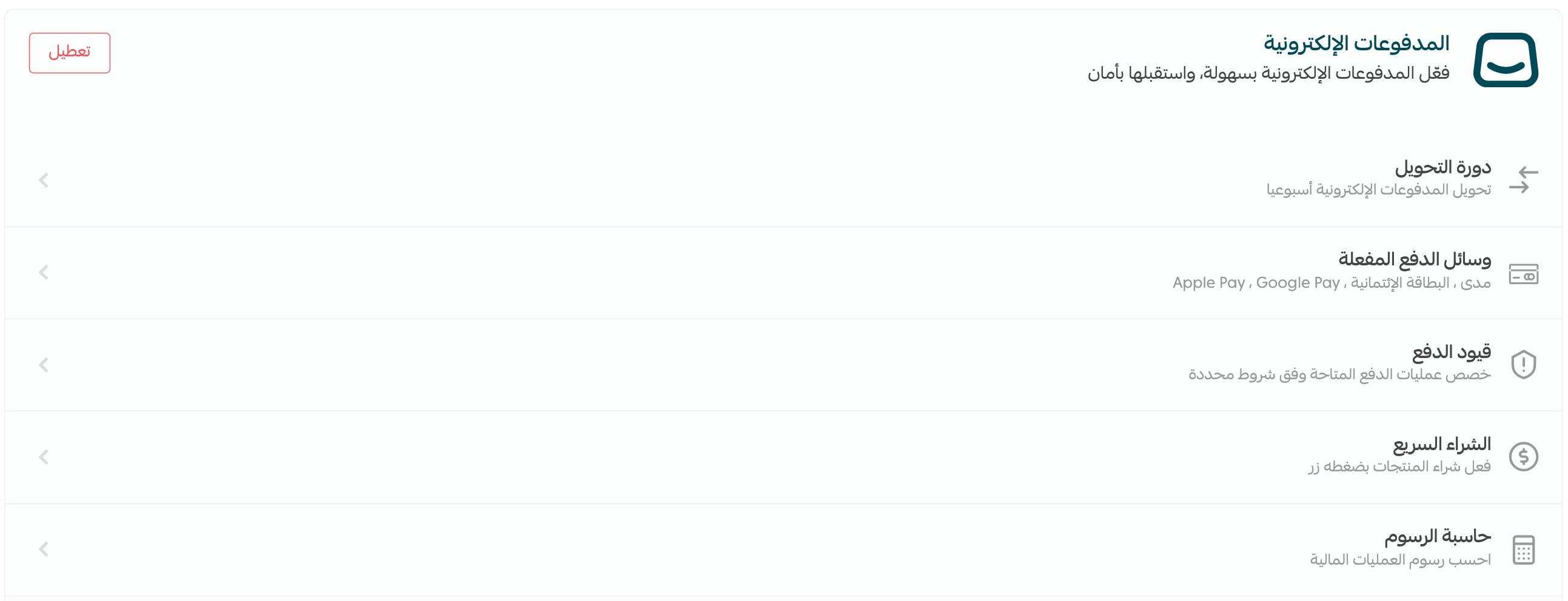
There are six settings to configure for electronic payments.
1. Payout cycle
Your payout cycle is how often the money you've earned through electronic payments on your store's orders is transferred to your bank account.
📝 Important notes
The minimum total that can be transferred to a merchant is SAR 100.
1. On the payment methods page, in the electronic payments section, click (Payout cycle).
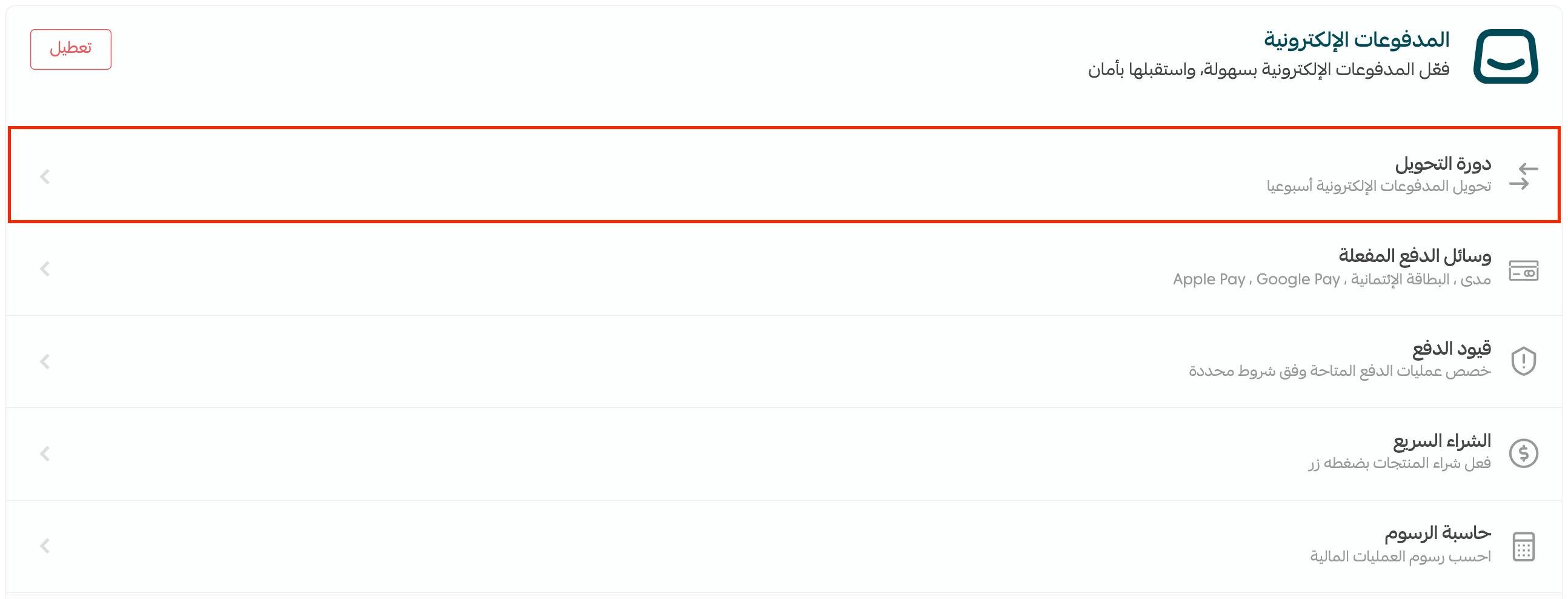
2. Choose your payout cycle, then click (Save).
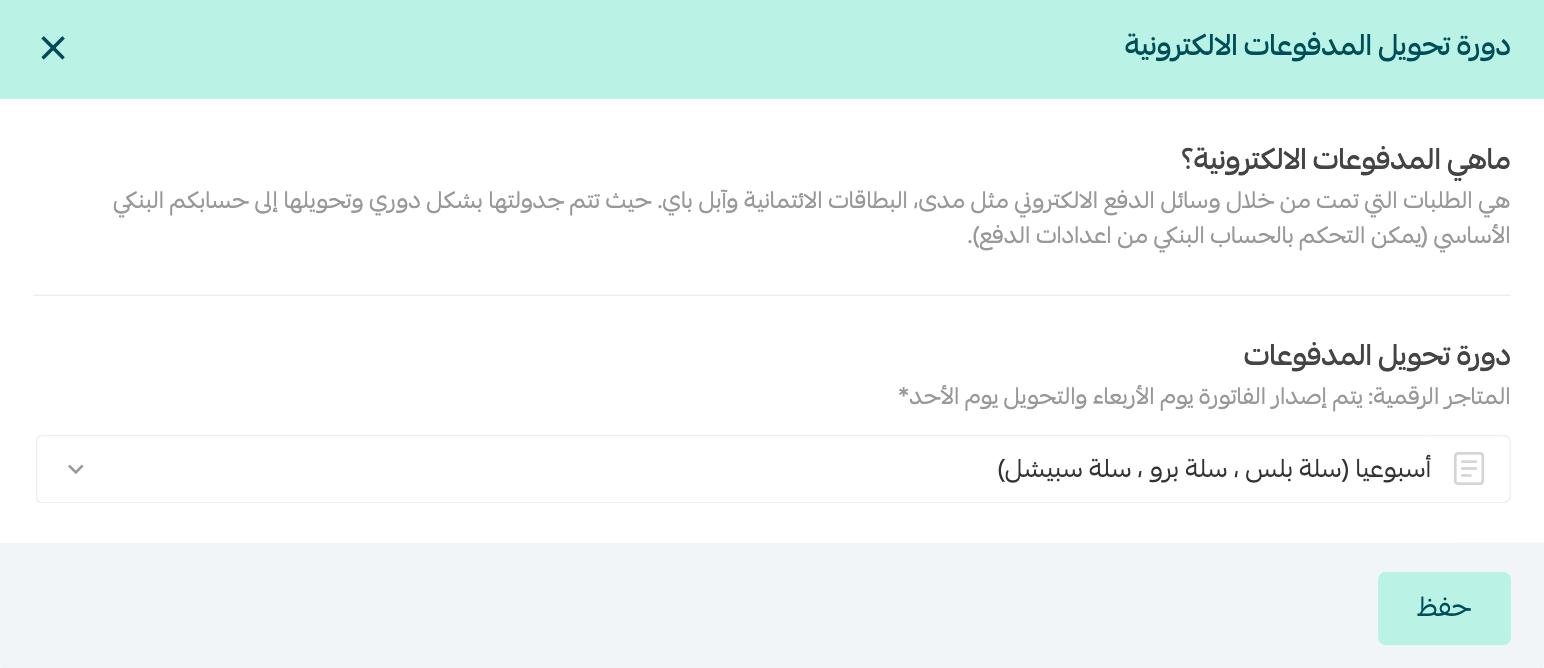
These are the available payout cycle options:
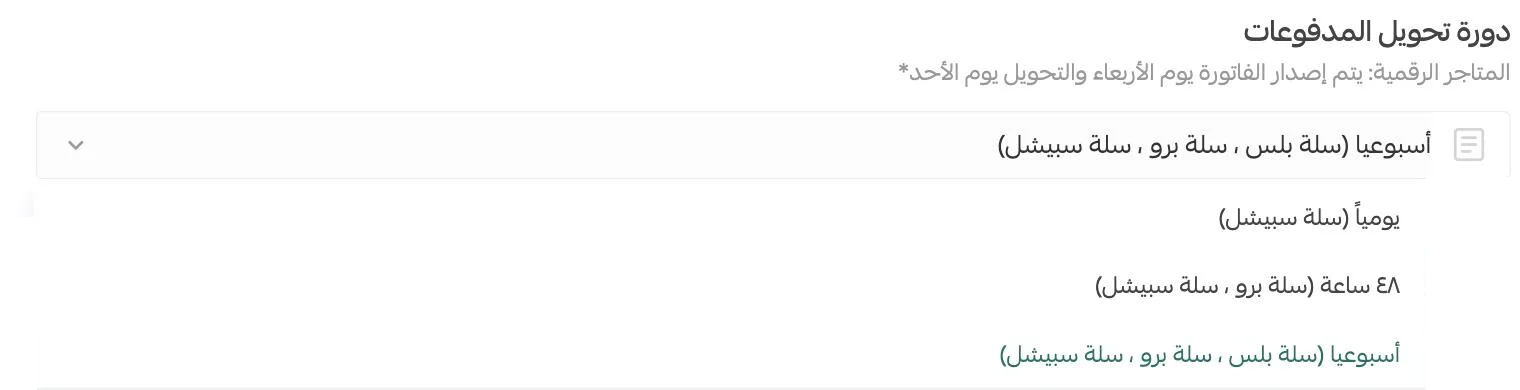
📝 Important notes
When you activate the Salla payment gateway, all payments are received in SAR.
For more details, see the electronic payments payout cycle.
2. Active payment methods
1. To activate electronic payment methods, click (Active payment methods).
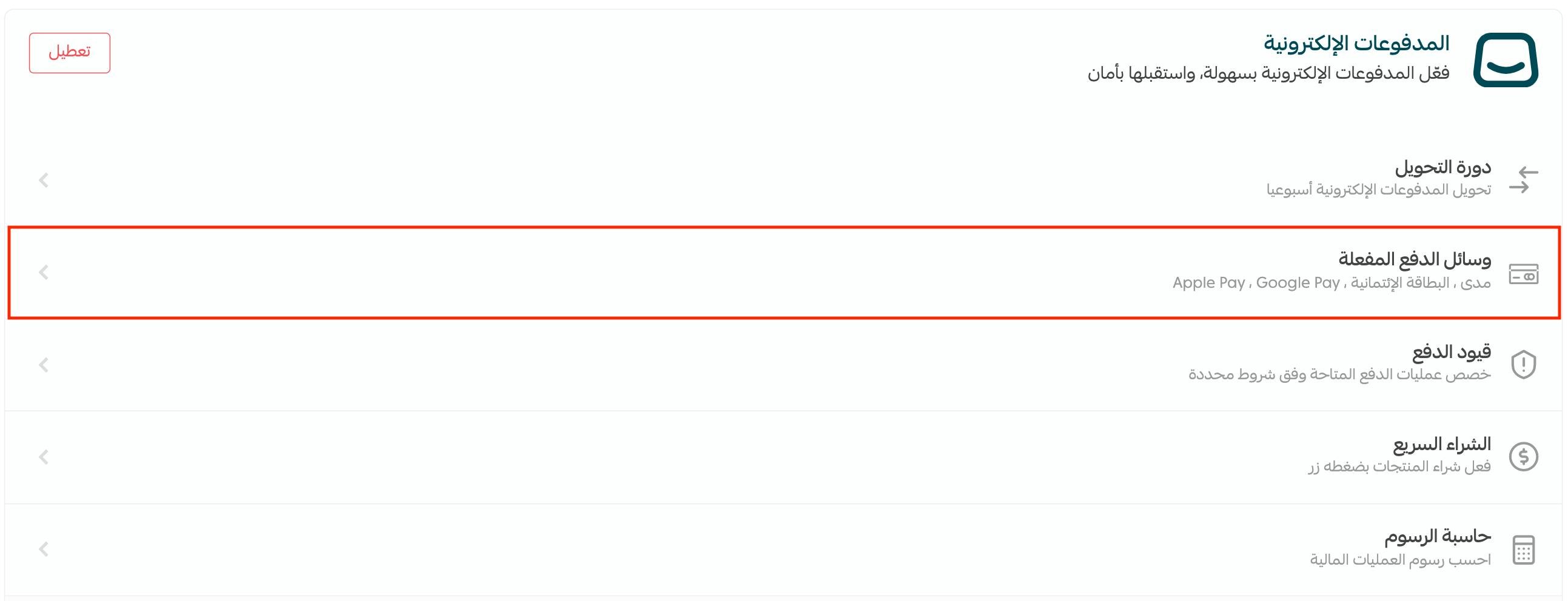
2. Turn on the electronic payment methods you want in your store, then click (Save).
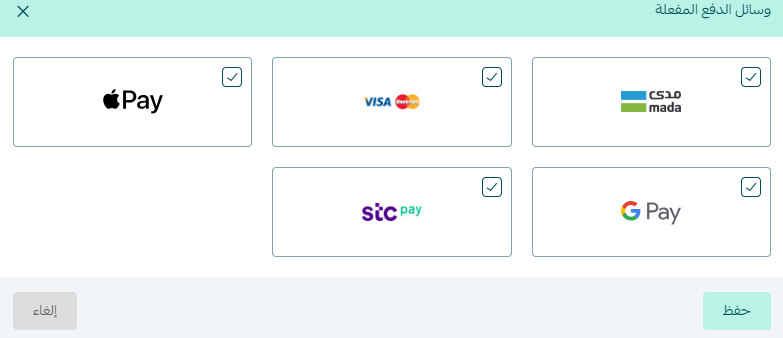
📝 Important notes
As soon as you activate mada and Visa, Apple Pay is activated automatically.
Your payment methods then appear like this:
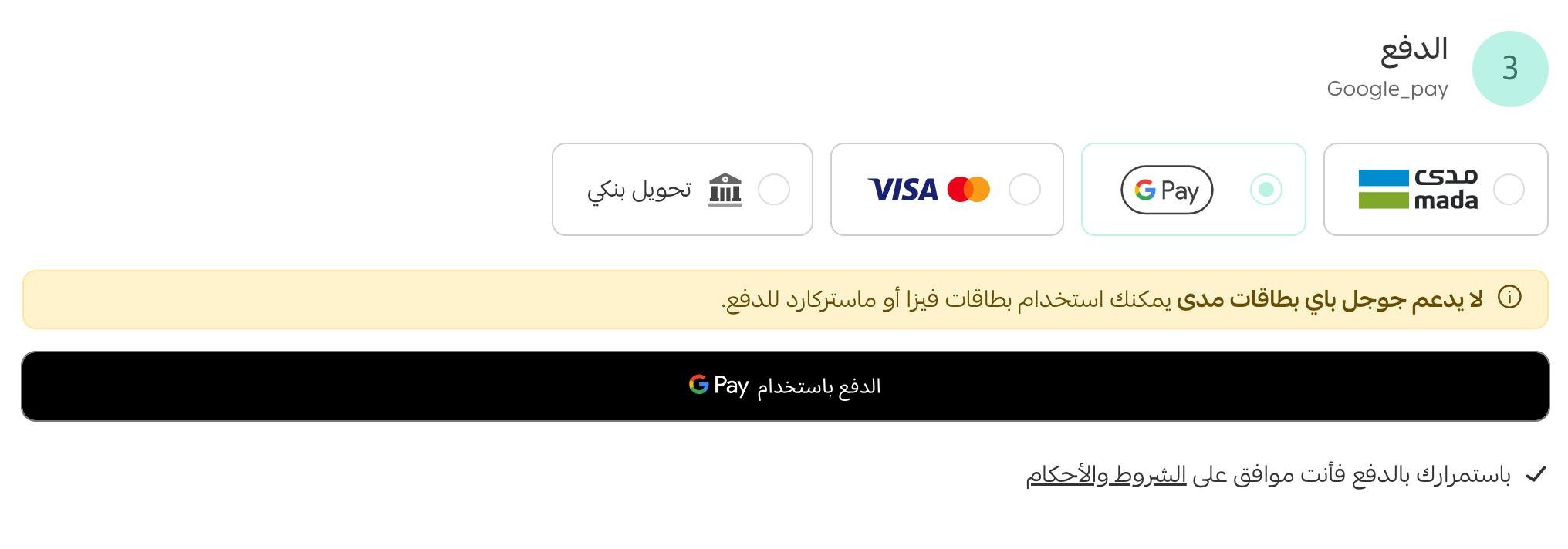
You can also disable electronic payments temporarily by clicking (Disable).

3. Payment restrictions
Payment restrictions let you set conditions on how payment methods behave — showing specific methods only when the cart contains products from certain categories, hiding cash on delivery from new customers, and similar rules.
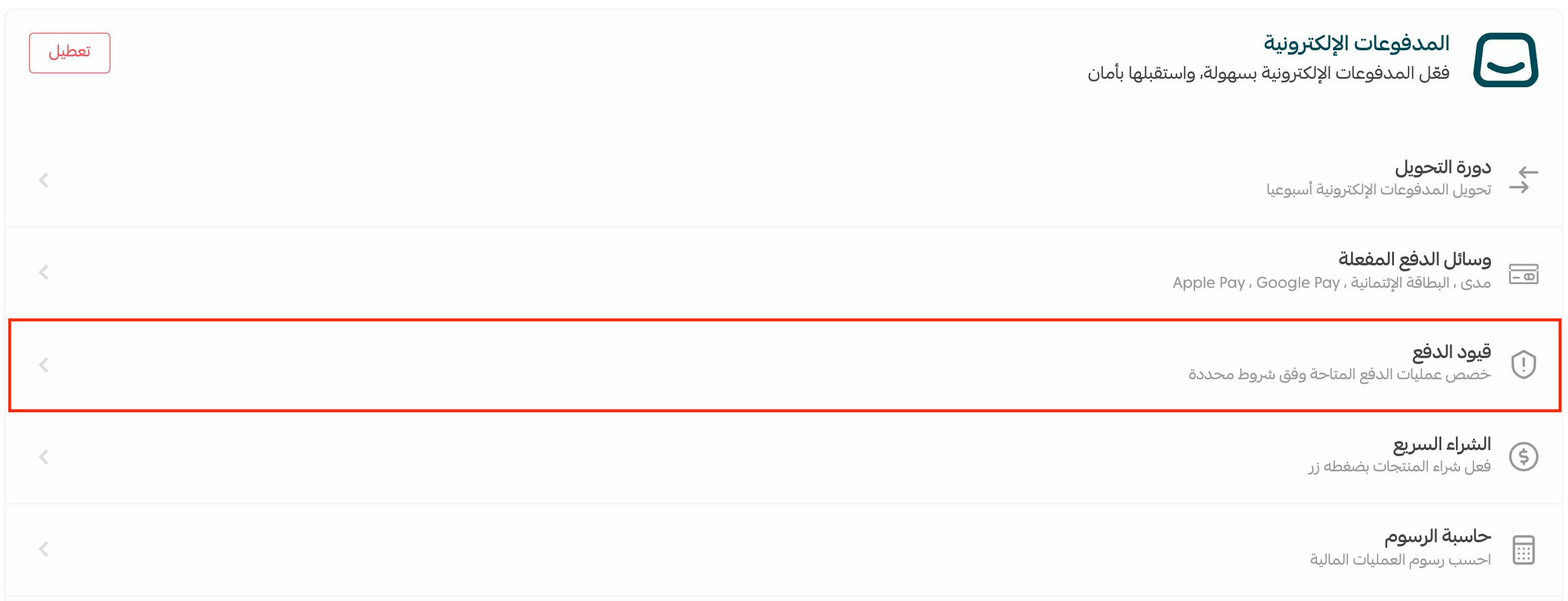
1. Turn on the restrictions you want, or create a new one by clicking (Add new restriction).
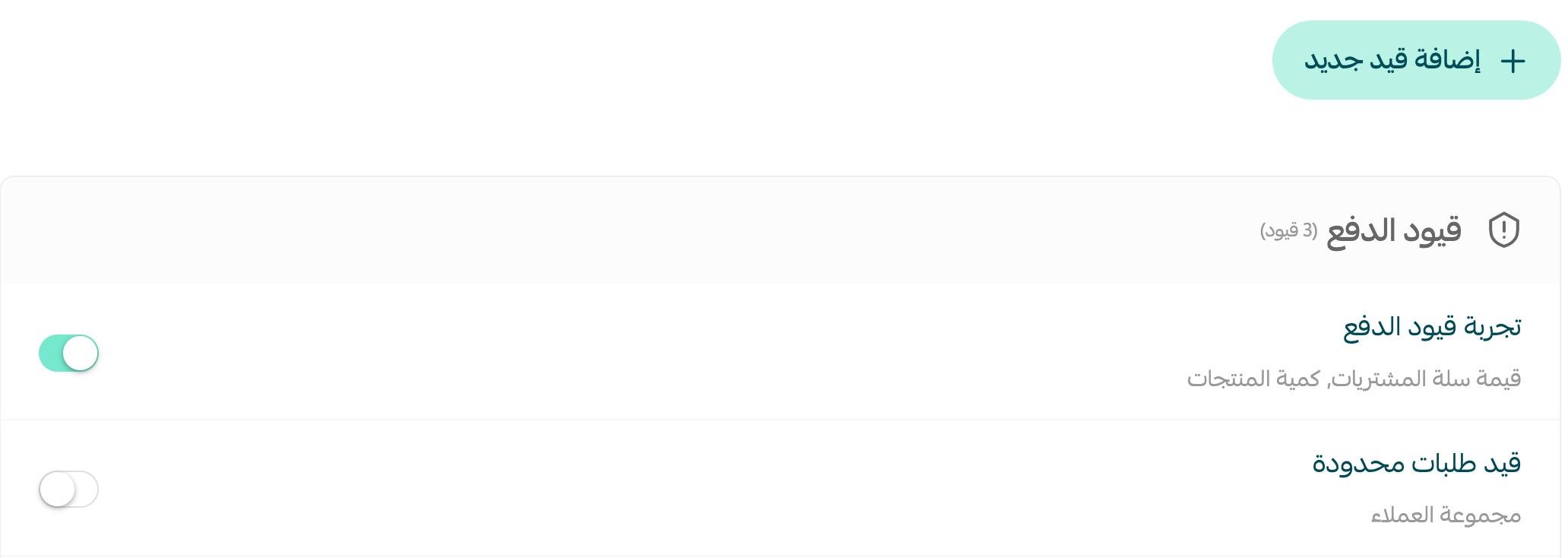
2. Set up the restriction you want, then click (Save).
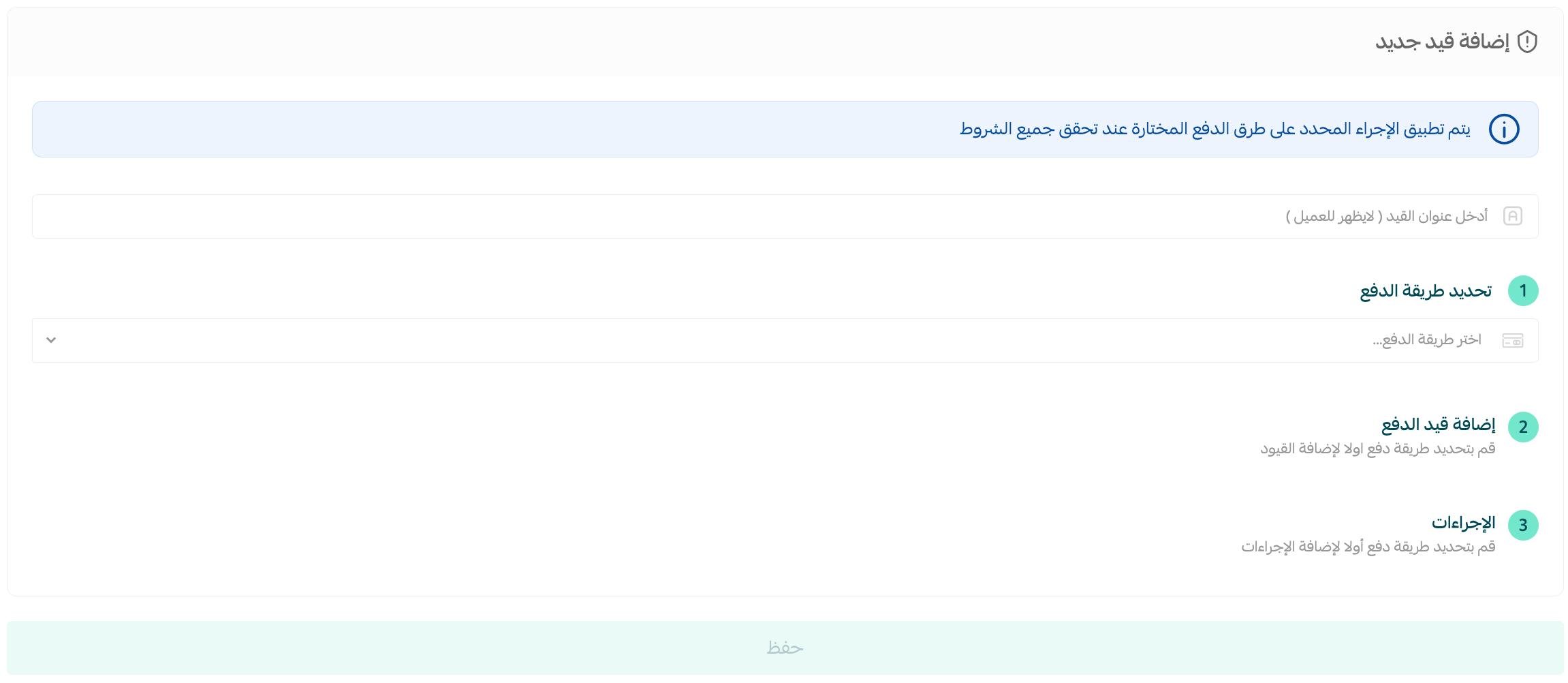
For more details, see payment restriction settings.
4. Fast checkout
Turn on fast checkout so customers can complete a purchase without going through the shopping cart.
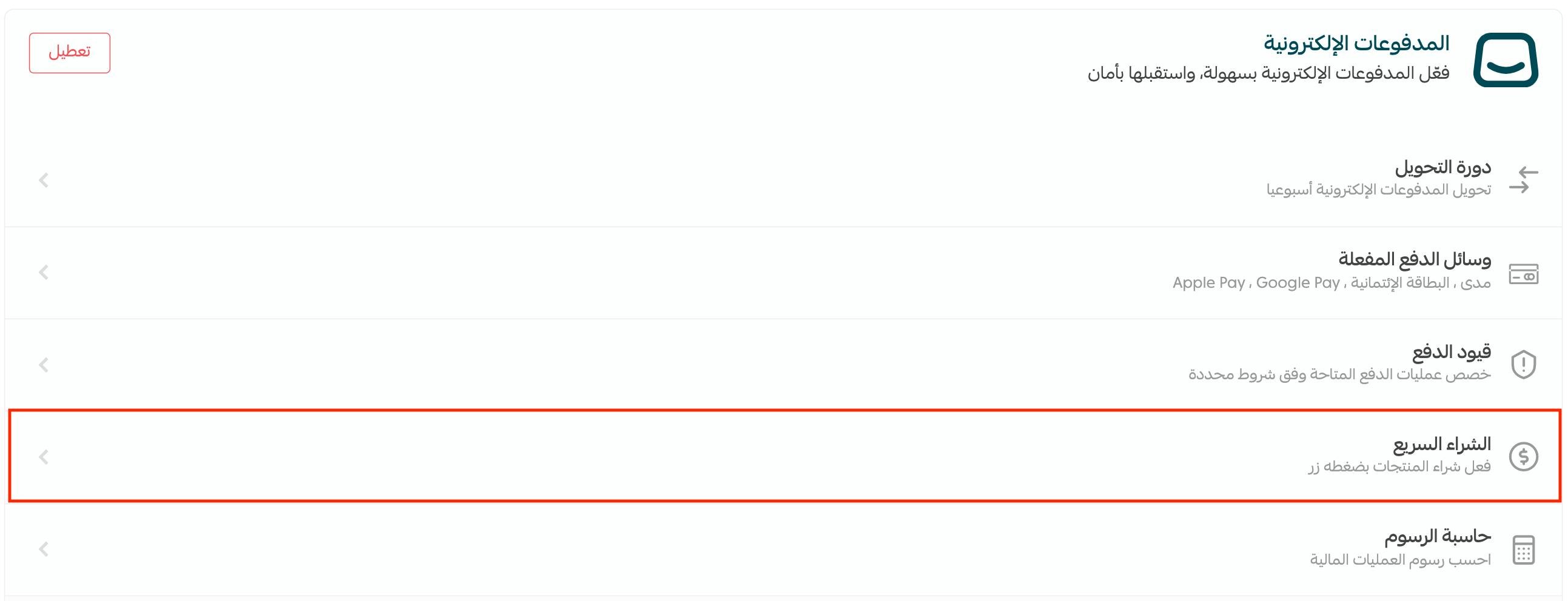
Turn the fast checkout option on, then click (Save).
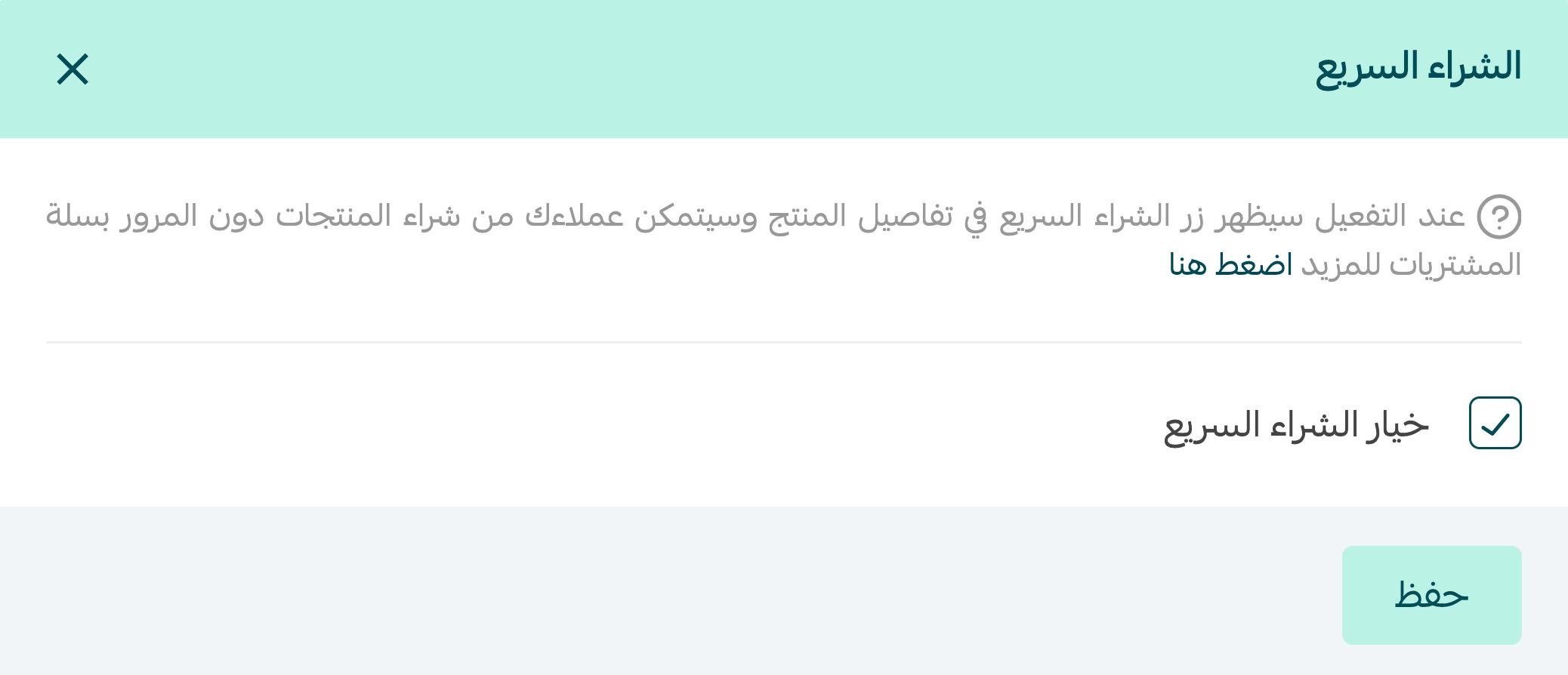
For more details, see activating fast checkout.
5. Apple Pay
When you activate mada and Visa/Mastercard, Apple Pay is activated automatically.
Charity stores activating Apple Pay go through these steps instead: [Verify: the Arabic sentence introducing this case is cut off mid-thought, so the exact scope of the charity-store route could not be confirmed.]
1. Get the required files from the payment gateway.
2. Set up an Apple developer account to accept Apple Pay.
3. Attach the required information and files in your Salla dashboard.
4. Activate the Apple Pay service.
For more details, see activating Apple Pay with external payment gateways for charities.
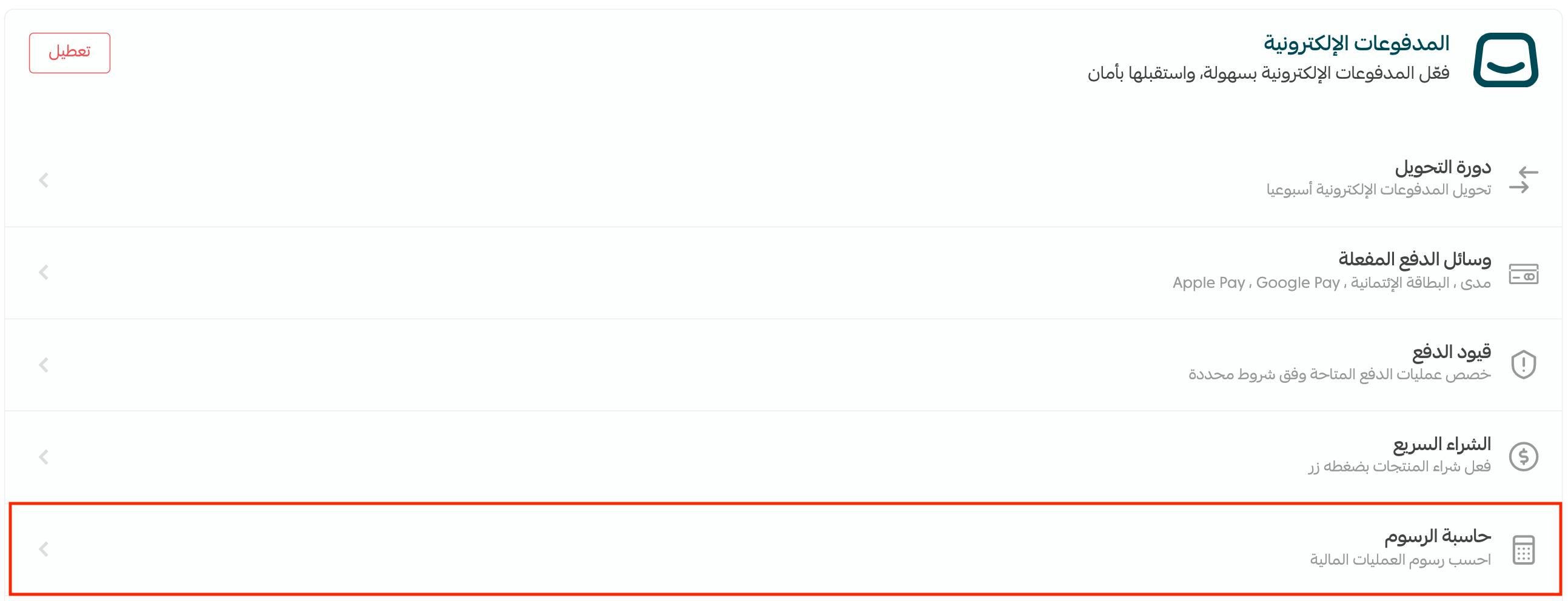
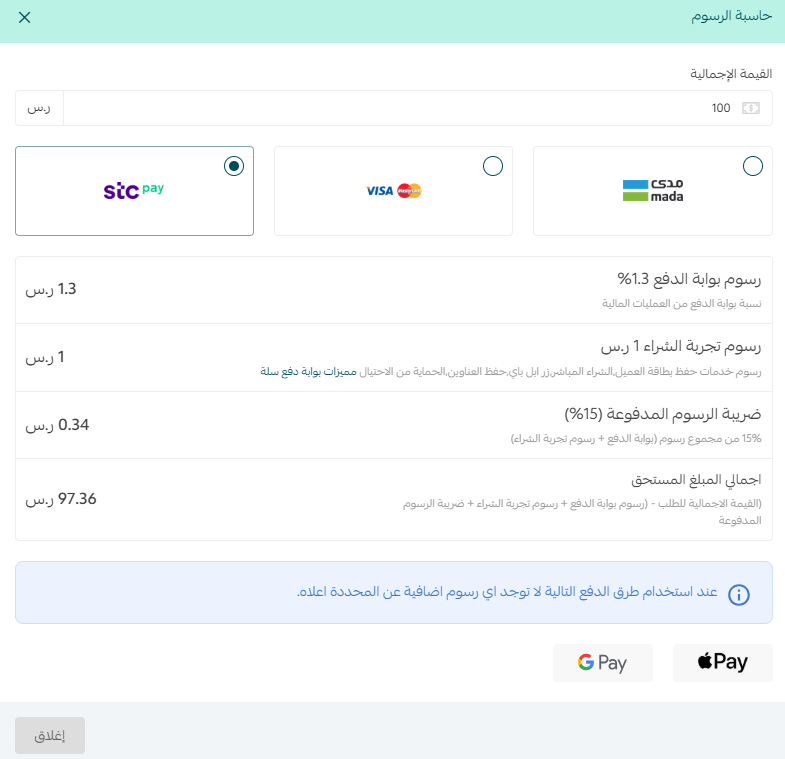
6. Fee calculator
You can work out the fees on an order here:
Enter the order value in the field, choose the payment method, and the fees for that order appear:
Digital wallets
Salla supports a range of digital wallets. To activate one, click (Activate) and enter the required details.

For more details, see managing digital wallets.
Buy now, pay later methods
Make it easy for customers to buy now and pay later in instalments — a safer option than cash on delivery. Salla supports these providers:
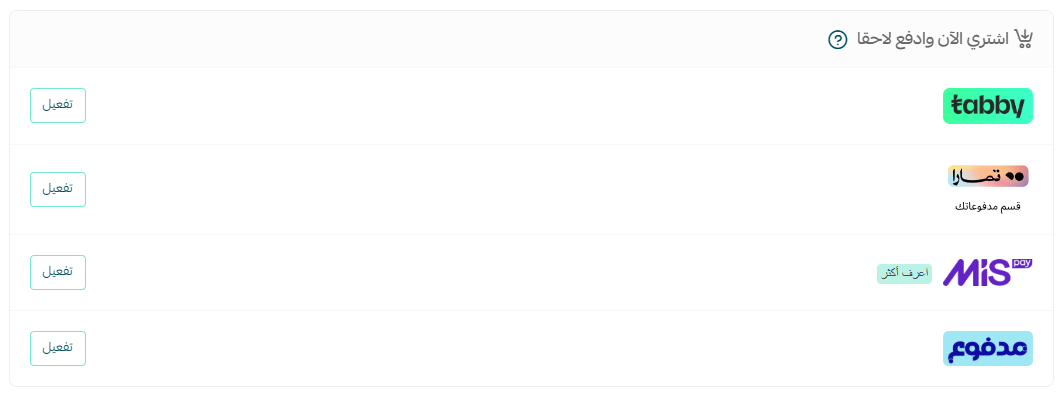
Clicking (Activate) is all it takes to offer any of them to your customers.
For more details, see:
Bank accounts
You can add more than one bank account to your store.
1. On the payment methods page, in the bank accounts section, click (+ New account).

2. Enter the required details, then click (Save).
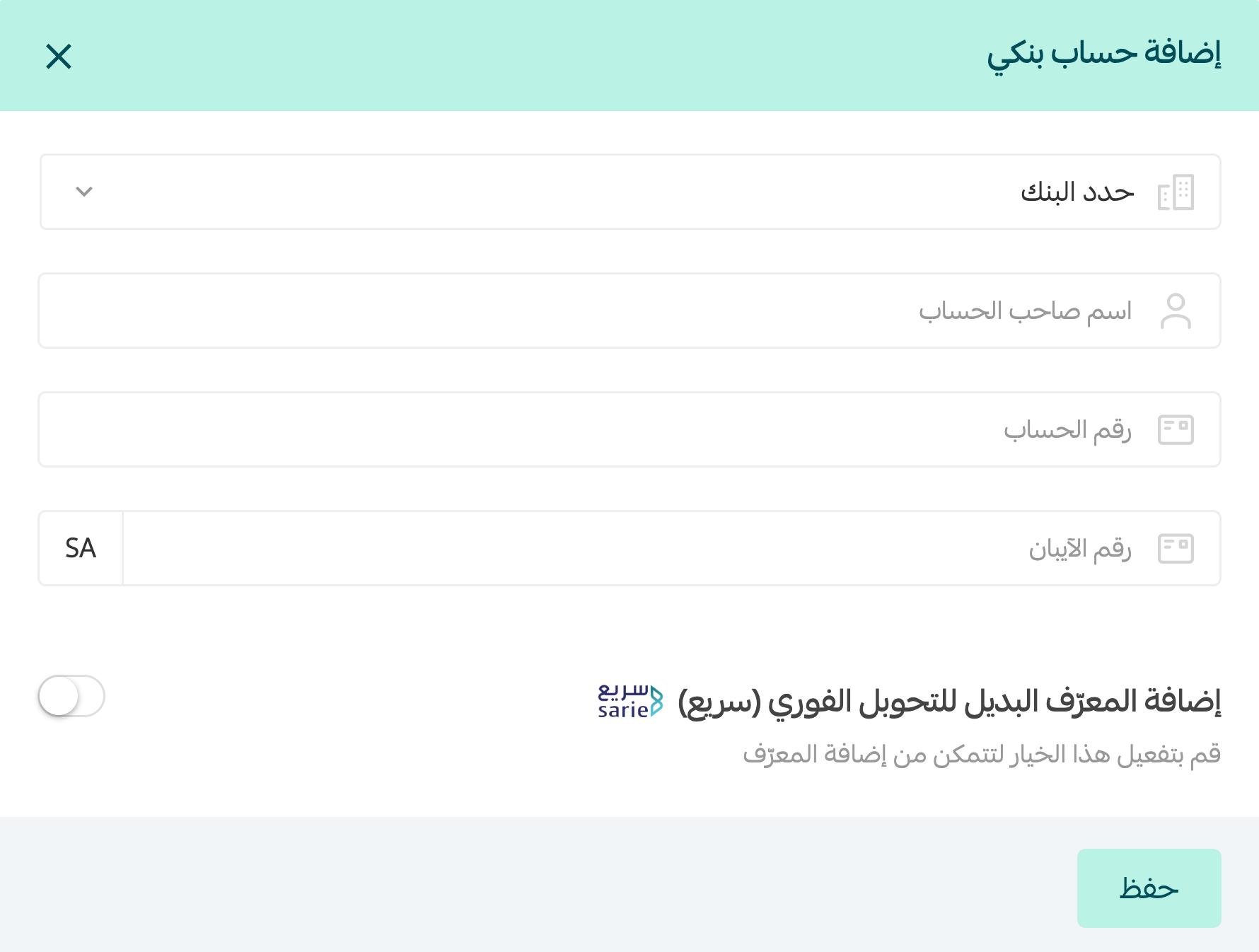
For more details, see setting up your bank account.
❓ Frequently asked questions
When is money deposited into my account?
It depends on your plan and its payment cycle:
- Plus plan: once a week. The invoice is issued every Wednesday, then the money is transferred to your bank account.
- Pro plan: every 48 hours, then the money is transferred to your bank account.
- Salla Special plan: daily.
How does the payout process for merchants work now?
The payout process has changed: amounts under SAR 100 are no longer transferred straight to your account. They stay in your merchant account until the total reaches the minimum required for a transfer.
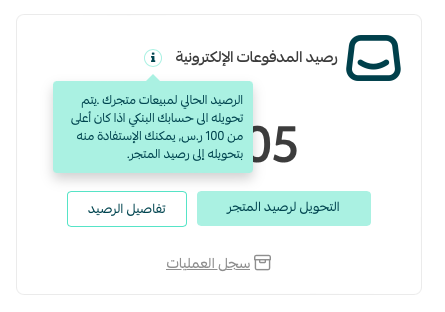
What is the minimum amount that can be transferred to a merchant?
SAR 100.
What happens if the total is less than SAR 100?
It isn't transferred to you right away. The amount stays in your merchant account until the total reaches the minimum required for a transfer.
Can I still move small amounts into my wallet?
Yes. You can still move small amounts into your wallet to use them or withdraw them whenever you want.
Can I withdraw the money in my wallet?
Yes. You can withdraw what's in your wallet at any time, and use it however you need.
Does this change affect other ways of transferring money?
No. It affects the daily payout process only. You can still use the traditional transfer methods or work through the electronic wallet as needed.
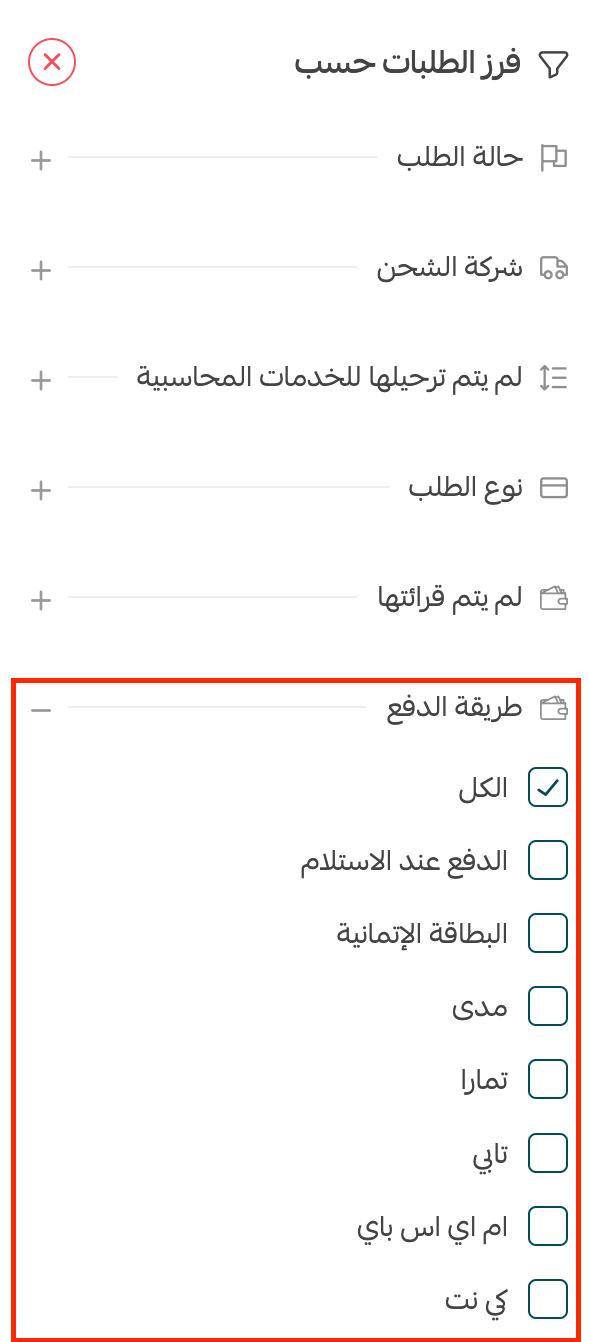
Can I view orders by payment method?
Yes.
1. From the orders page, click (Filter).

2. Choose the payment methods whose completed orders you want to see.
Support services
If you need a hand activating payment methods or connecting payment gateways to your store, or with other work such as opening a Tabby or Tamara account for your store, get in touch with the merchant services team — they cover everything a merchant needs.
Set your payout cycle once, switch on the methods your customers actually reach for, and the payments side of your store largely runs itself.