Do you want to give your product page more flexibility and full control over its content and elements through the theme editor?
Now, with the product page design customization feature, you can add new elements to the product page and control the settings of page elements directly from within the theme editor.
📌 Main topics of the article:
- About the product page customization feature
- Steps to customize the product page design
- Suggested elements from "Mushammar"
- Manage product page elements
- Frequently asked questions
🔍 About the product page customization feature
This feature gives you greater flexibility in designing the product page and managing its content to suit your store's needs. You can easily add new elements, whether from template elements, purchased additional elements, or by generating custom elements using artificial intelligence. You can also fully control the arrangement of elements within the page and reorganize them.
What the product page design customization feature offers
🎨 Greater customization for the product page: Add new elements and easily control where they appear within the product page.
⚙️ Manage settings from within the editor: Control product details, customer reviews, and related products settings directly from within the page elements.
🎯 Customize elements by products: Ability to display elements for all products or customize them for specific products only.
✨ More flexible design experience:Manage product page components from one place in a more organized and easier way.
Steps to customize the product page design
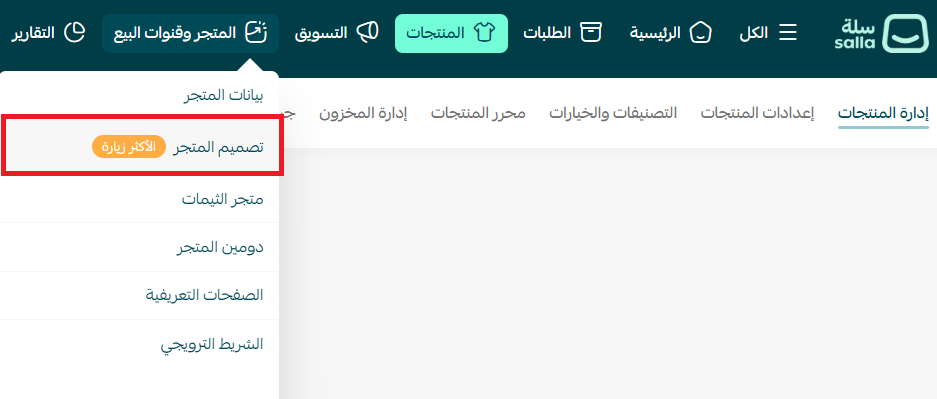
1. From the main menu, click (Store and Sales Channels), then click (Store Design).
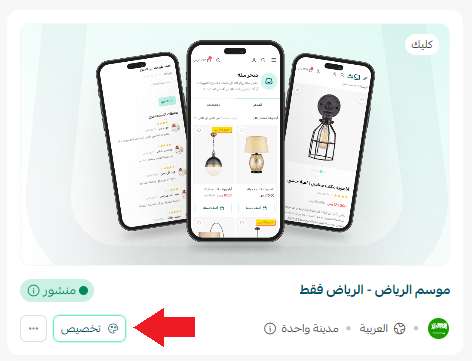
2. To customize the appearance and design of the theme version, from the Store Design page, click (Customize).
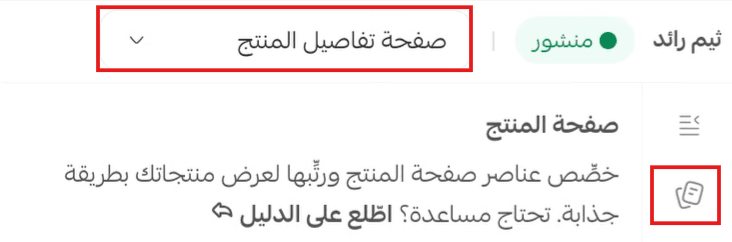
 3. From the (Page Elements) tab, select (Product Detail Page).
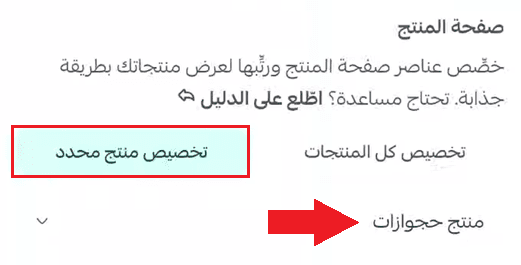
4. Choose the type of customization (Customize all products or Customize a specific product):
- Customize all products: Changes are applied to all store products.
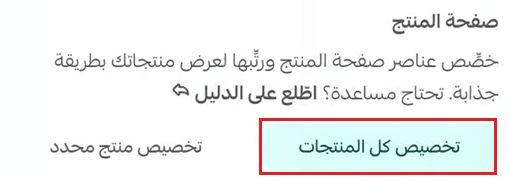
- Customize a specific product: Customization is applied only to the selected product page.
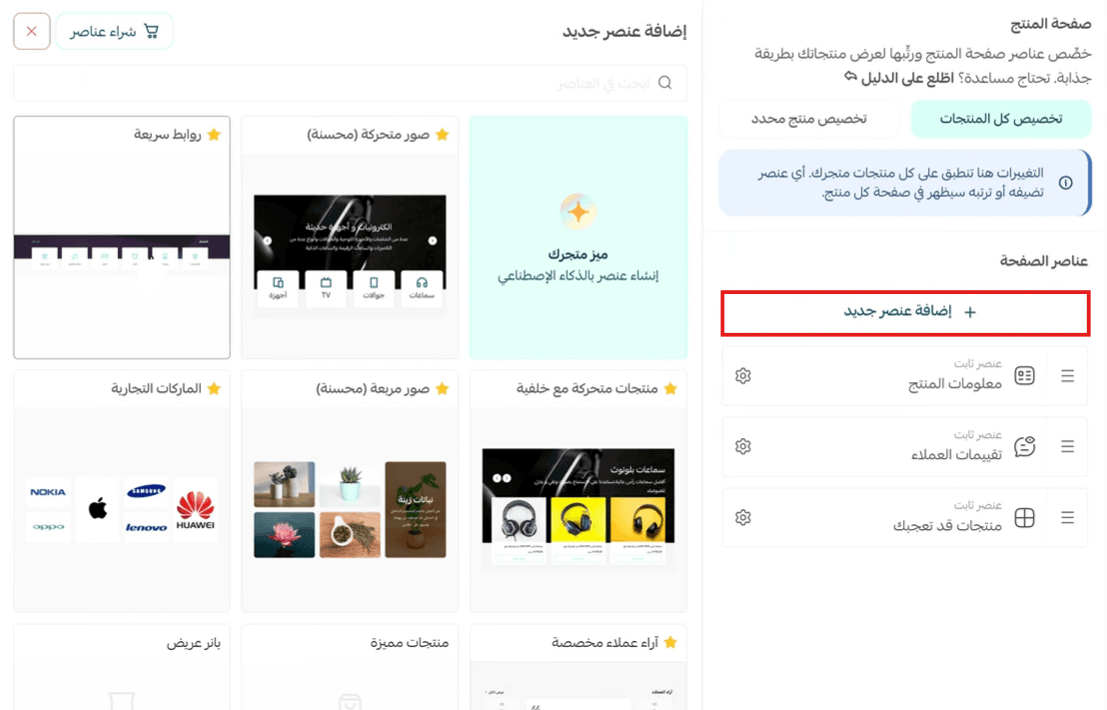
5. Click (+ Add New Element) then choose the element you want to add from the displayed elements.
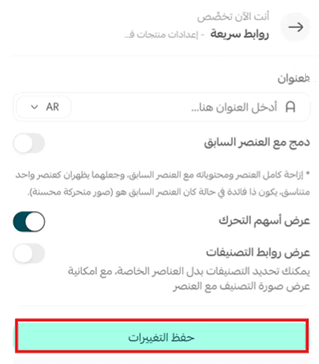
6. Select the element you want to add and customize it, then click (Save Changes).
Suggested elements from "Mushammar"
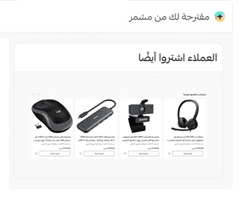
You can also add smart suggested elements from "Mushammar" to this page to provide a smarter and more personalized display experience within your store.
For more details about Mushammar's suggested design elements.
Manage product page elements
- Fixed elements
These are elements automatically added to the product page. They cannot be deleted or rearranged.
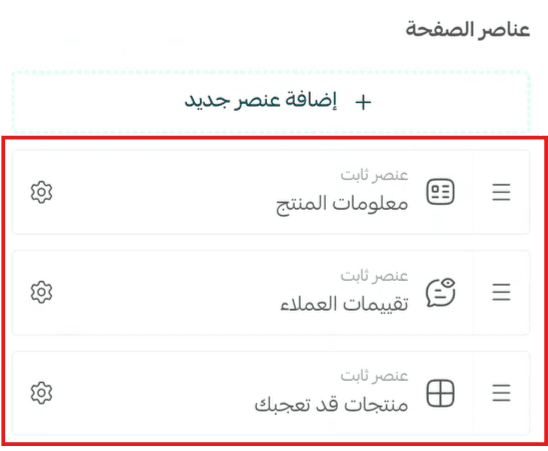
- Customize element (Product Information)
1. You can edit the product information element through the (Settings button).

2. Customize the element, then click (Save Changes).
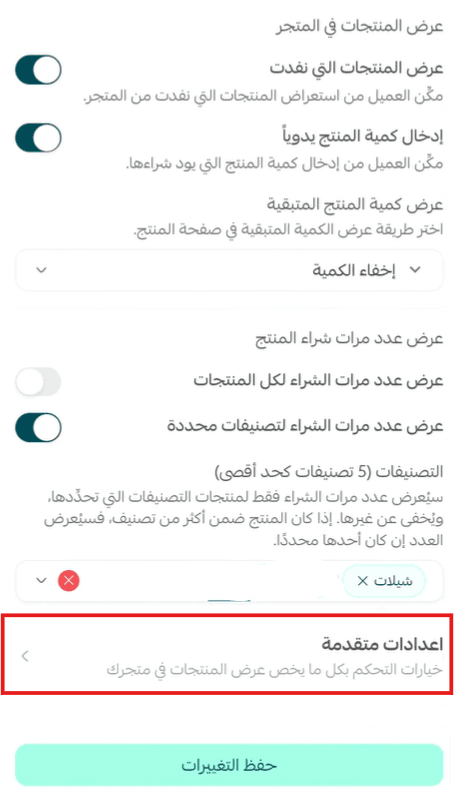
🔔 When you click (Advanced Settings), you will be directed to the Product Settings page.
For more details about Product Settings.
- Customize element (Customer Reviews)
1. You can edit the element through the (Settings button).

2. Customize the element, then click (Save Changes).
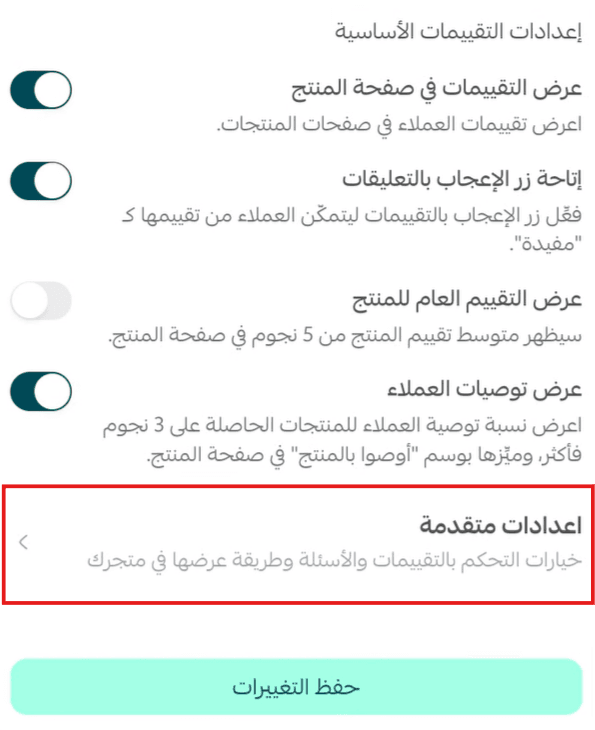
🔔 When you click (Advanced Settings), you will be directed to the Feedback Settings page.
For more details about Feedback Settings.
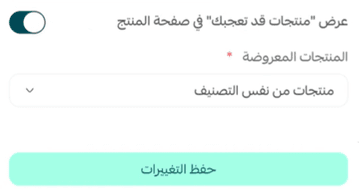
- Customize element (Products You May Like)
1. You can edit the element through the (Settings button).

2. Customize the element, then click (Save Changes).
- Additional elements
These are elements manually added to the product page. You can change their order or delete them.
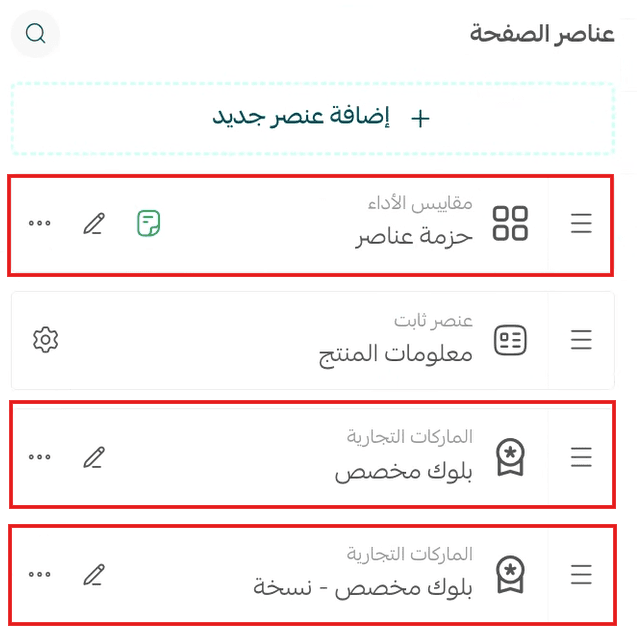
- Customize the additional element
You can customize the added element through the (Edit button).

- Order additional elements
You can change the order of additional elements through drag and drop.

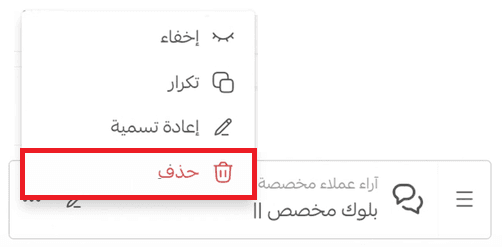
- Delete additional elements
You can delete the added element by clicking the three dots in front of the element, then choose (Delete).
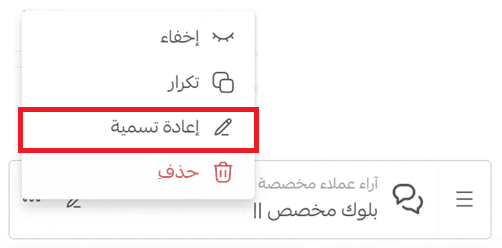
- Rename additional elements
You can rename the added element by clicking the three dots in front of the element, then choose (Rename).
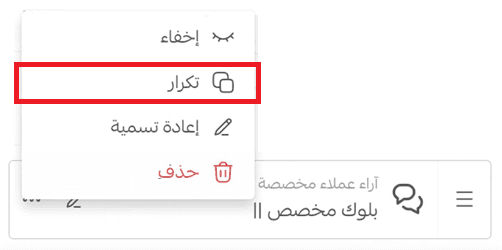
- Duplicate additional elements
You can duplicate the added element by clicking the three dots in front of the element, then choose (Duplicate).
- Hide additional elements
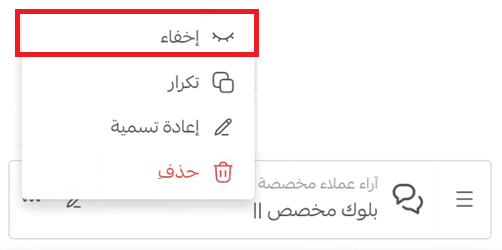
You can hide the added element by clicking the three dots in front of the element, then choose (Hide).
Frequently asked questions
❓ Do product details, customer reviews, or related products settings link to the design version?
No, changes to these settings are not linked to a specific design version and will be applied to all their current appearances in the store.
❓ Can fixed elements on the product page be hidden or deleted?
No, the essential fixed elements of the product page are always available to ensure the page functions correctly.
❓ Can the order of fixed elements be changed?
No, the order of fixed elements cannot be changed, and an error message will appear if you try to rearrange them.

💪 Give your product pages more flexibility in design and management!
Try the product page design customization feature and enjoy greater control over page elements and settings, providing a more professional and organized shopping experience for your customers. 🚀