Your customers’ buying decisions are shaped by two things: what you offer, and how you present it.
Homepage elements, layout, and easy navigation play a major role in whether a visitor completes an order or leaves. That is why your homepage should be designed carefully to create a smooth, enjoyable shopping experience.
📌Article overview
- Add a new homepage element
- Customize homepage elements
- Control and manage homepage elements
Add a New Homepage Element
You can customize your store homepage to match your business needs by following these steps:
- From the main menu, click Store & Channels, then click Store Design.
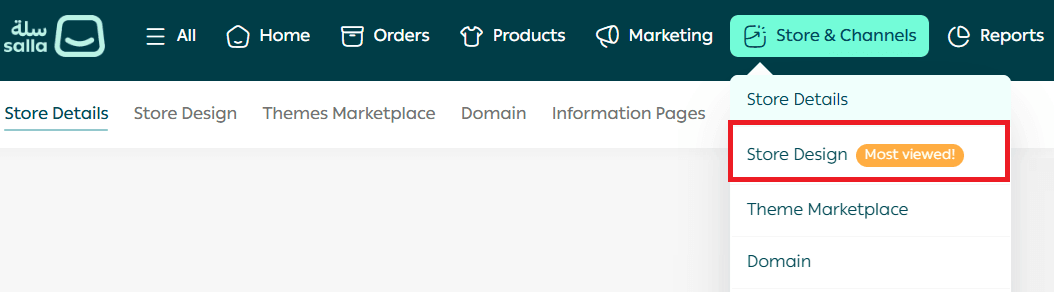
- On the Store Design page, you will see all activated themes.
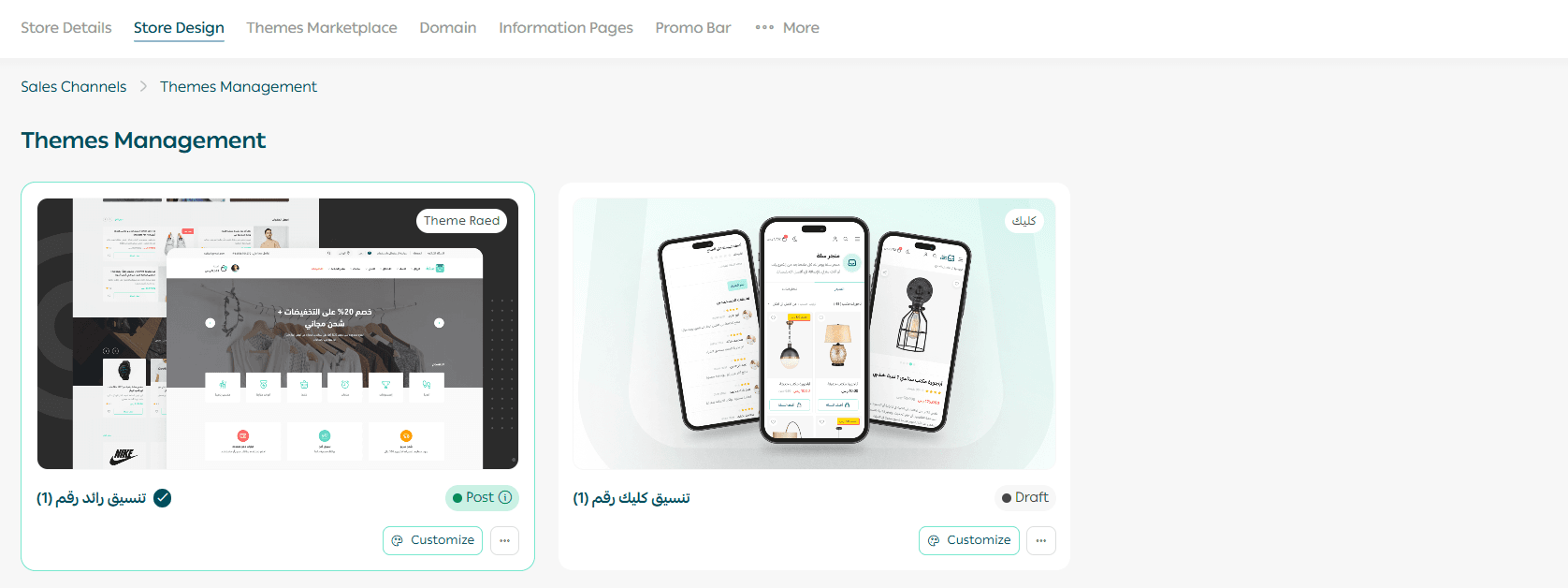
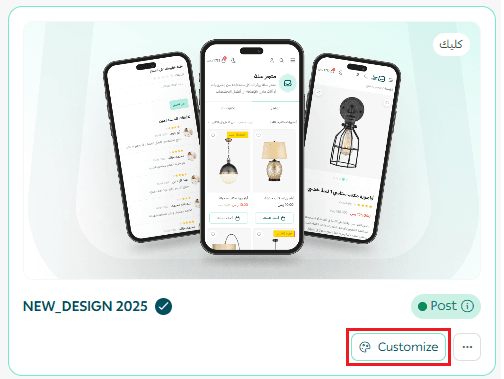
- To customize the look and design of a theme version, click Customize.
- Click the Homepage Elements tab.
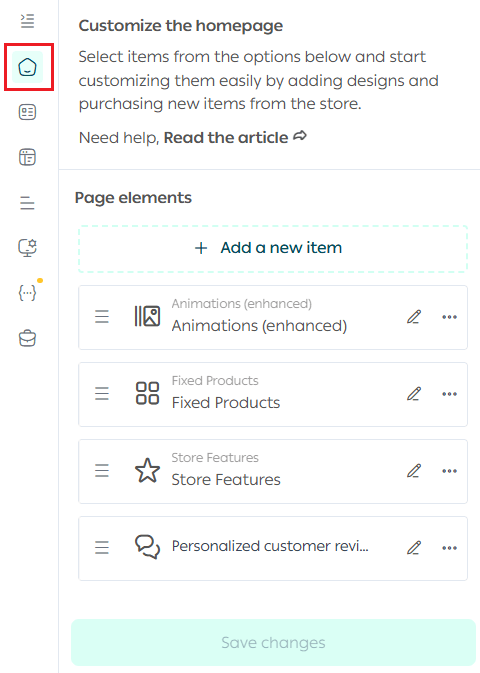
- Click Add new item.
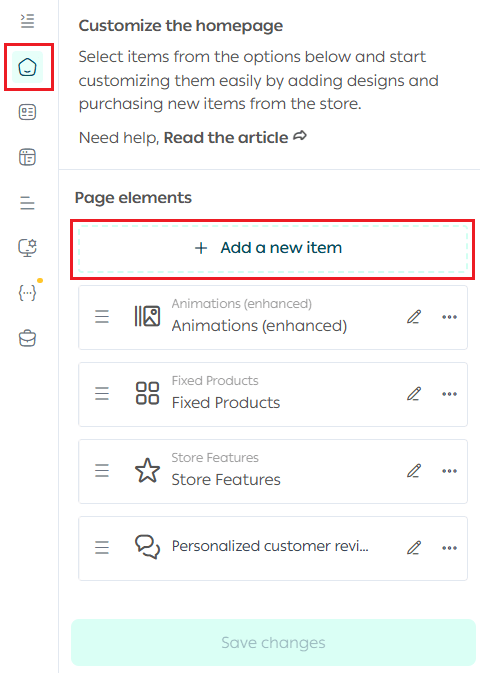
- Choose elements from the available list and start customizing them by adding them to the design.
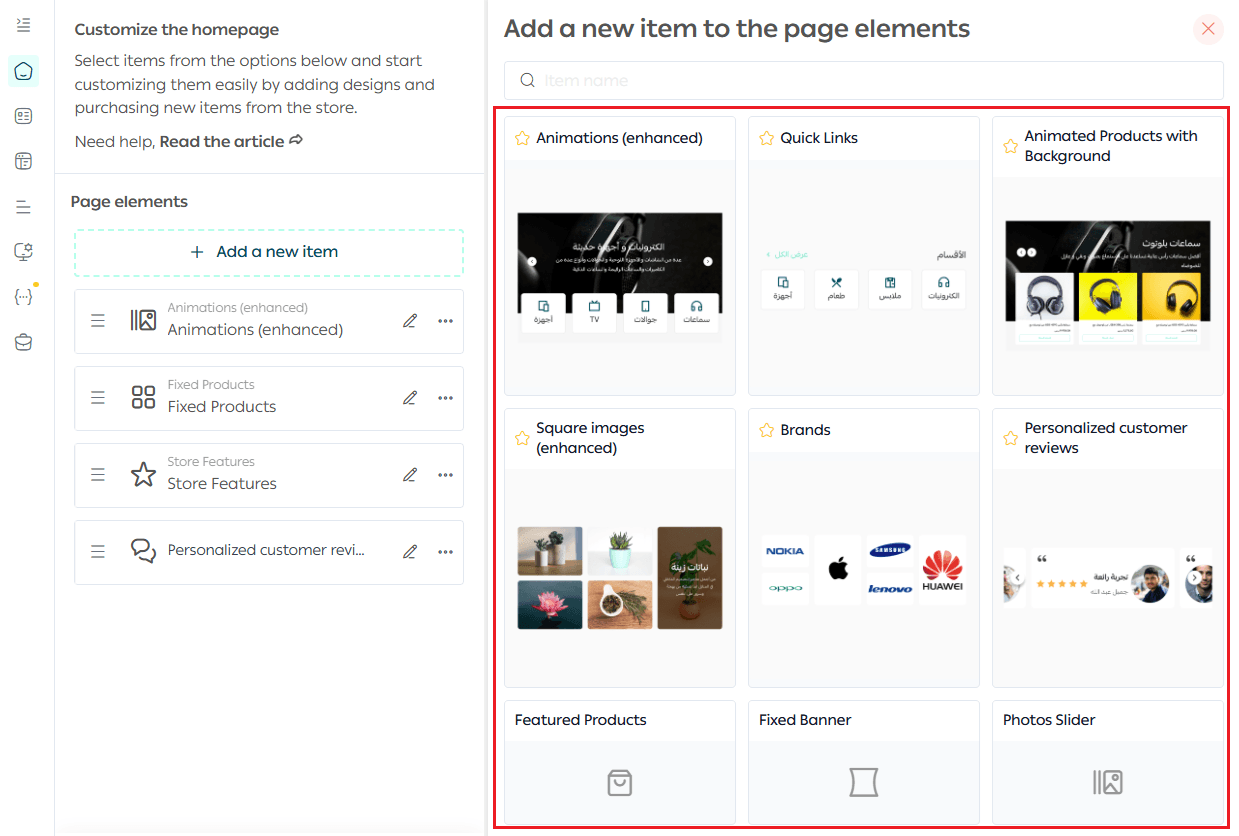
Important note: The options and elements shown here are examples from the “Raed” theme and may differ from one theme to another.
Customize Homepage Elements
Below are the homepage elements you can add and customize.
Enhanced Animated Images
Add up to 10 animated images by uploading:
- An image sized 900 × 600
- A main title
Additional text that appears in a smaller font under the main title
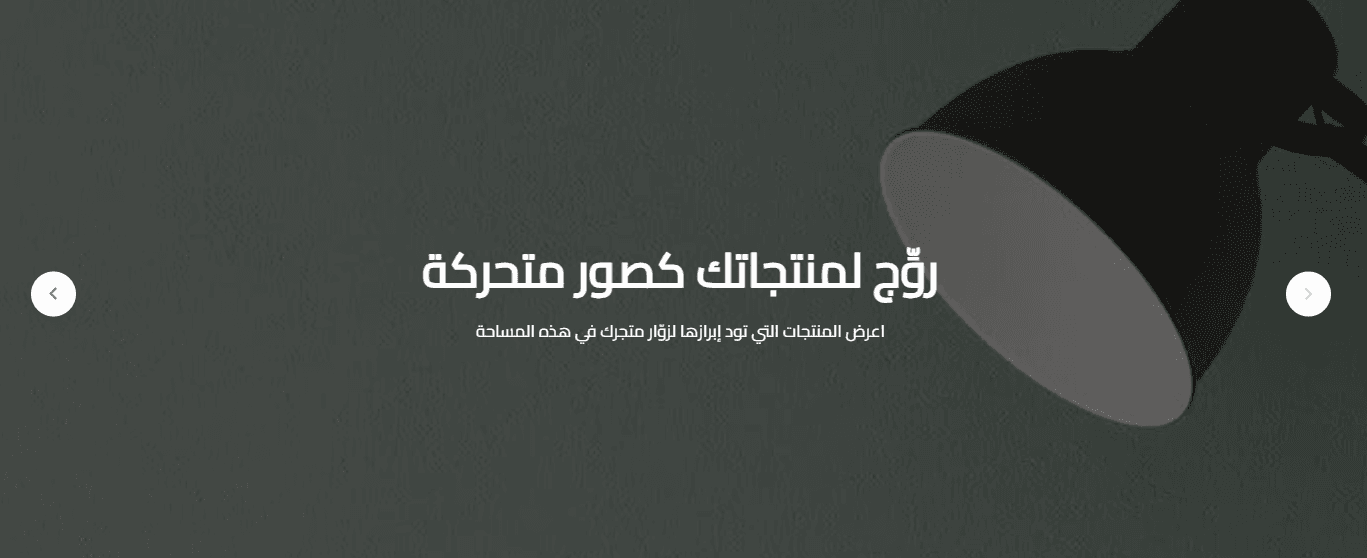
Extra tip: This element is not ideal for full banner display. If you want the banner image to appear fully, use Animated Images instead of Enhanced Animated Images.
Quick Links
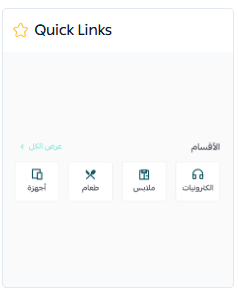
Choose a link icon, write the title, and select the link type. You can add more than 50 links.
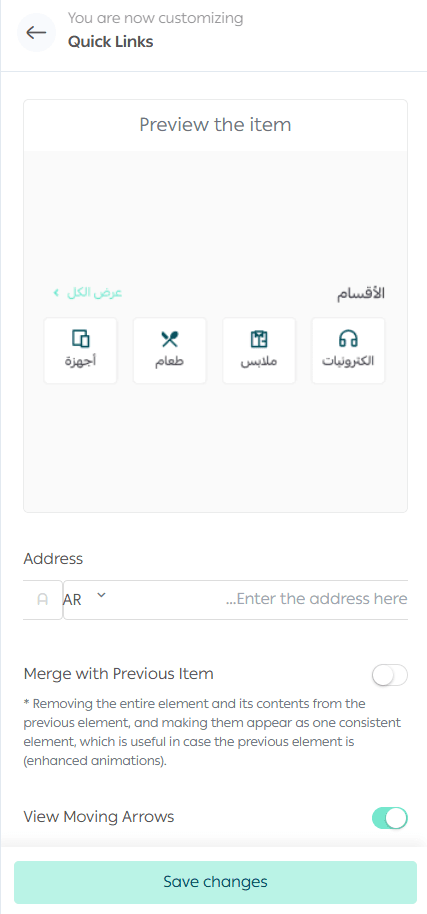
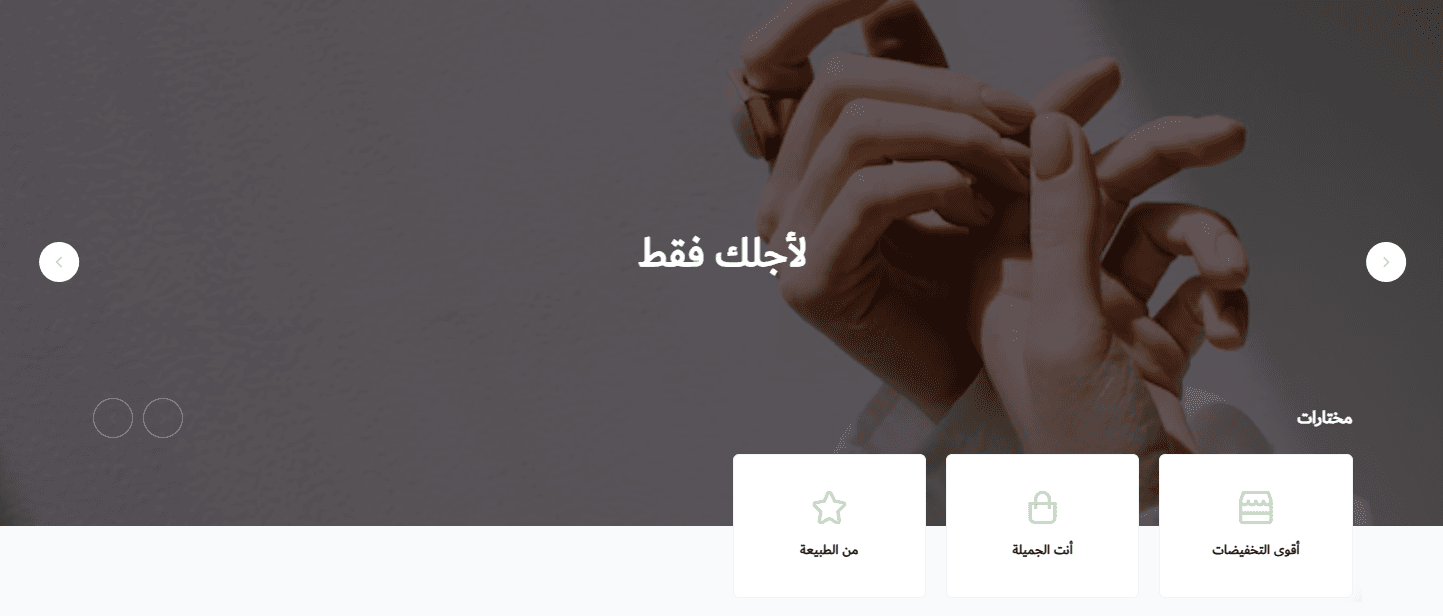
You can also enable the option to merge enhanced links with the previous element, such as Enhanced Animated Images. When enabled, links appear slightly overlaid on the images.
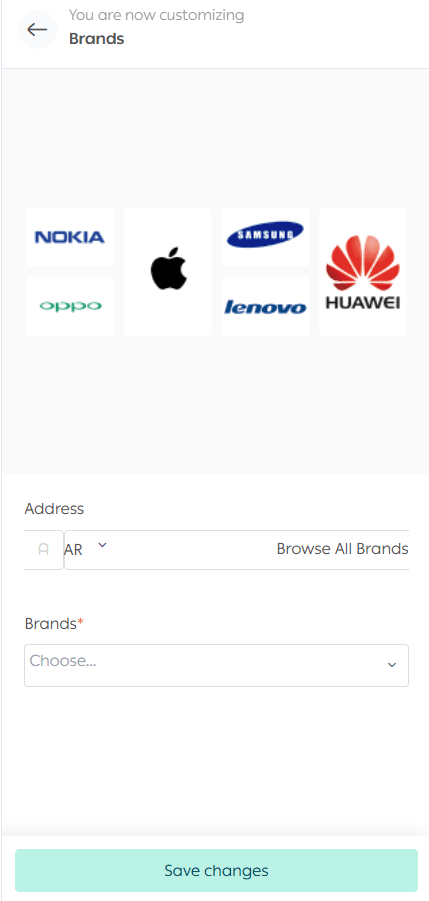
Brands
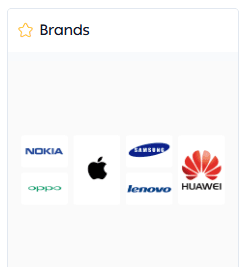
Enter an element title, then choose which brands you want to display.
Enhanced Square Images
Choose the image and where it should link to when clicked, then add:
- Image title
- Subtitle that appears in a smaller font
To add another image, click Add.
Featured Products
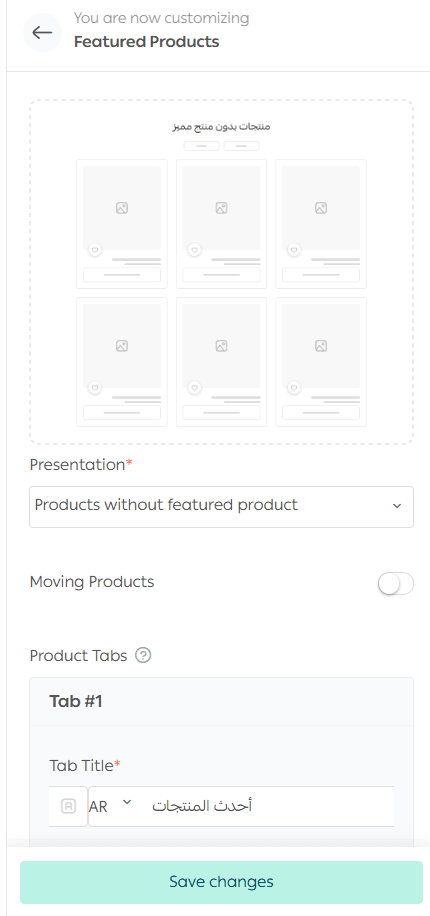
Featured Products includes multiple customization options, such as:
- Display layout
- Selecting the featured product
- Product selection rules for what appears
Fixed Banner
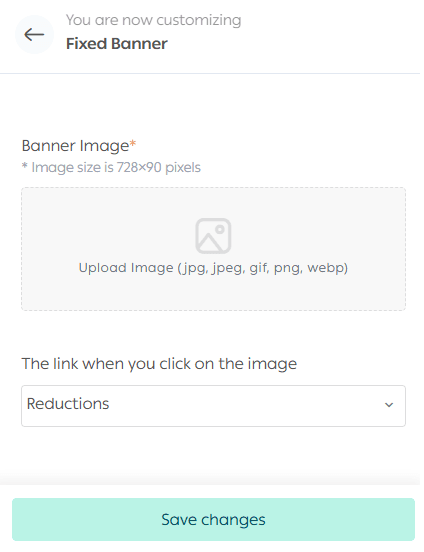
Add a fixed banner to the homepage with dimensions 728 × 90 pixels, or any dimensions you prefer.
You can link it to:
- A product
- A category
- A special offer
- An informational page
- A specific brand
- Any other available link type
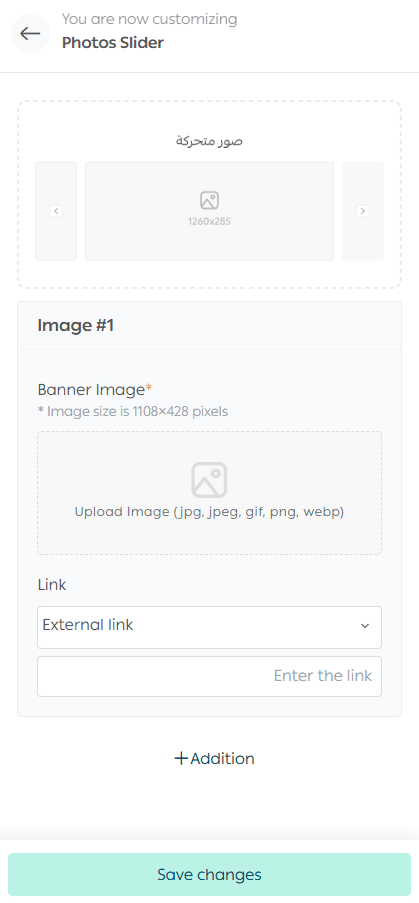
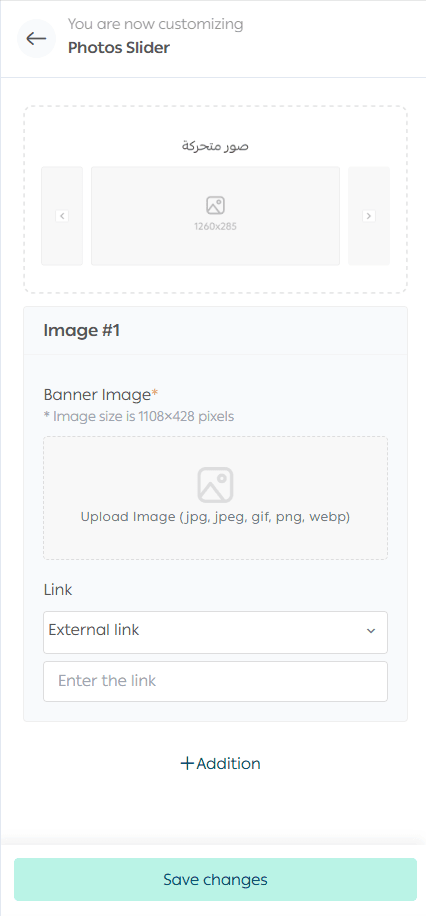
Photos Slider
Upload the banner image and add its link. You can add up to 10 images.
Customer Reviews
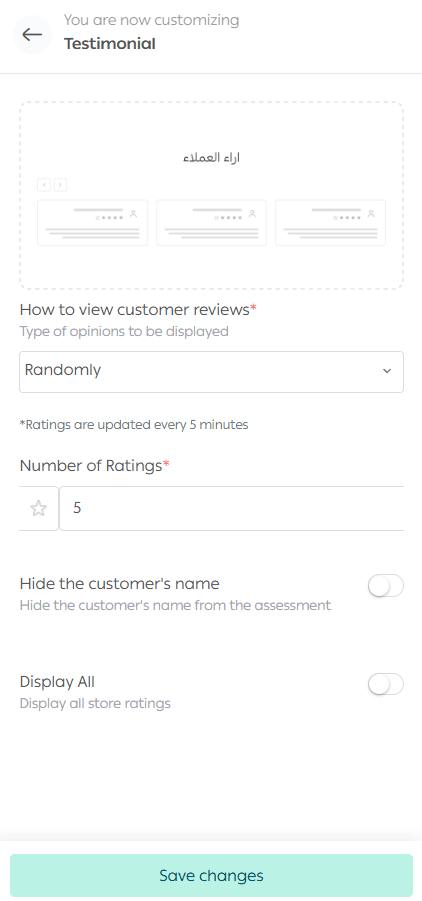
Add the element and choose which reviews to show:
- Latest reviews
- Highest rated
- Random
Choose how many reviews to display. You can show up to 30 reviews, then select where it appears on the homepage.
For more details, refer to the guide on questions and ratings.
Store Highlights
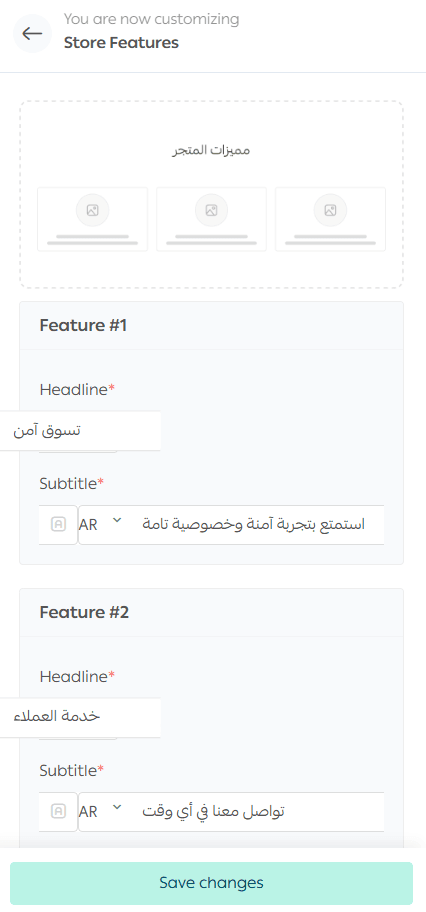
Choose an image plus the main and secondary text for up to three store highlights.
YouTube Video
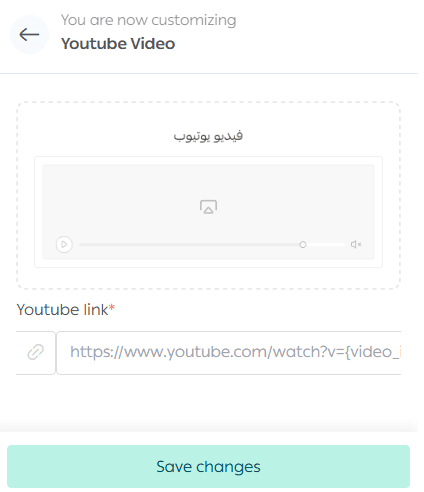
Paste the video share link into the designated field.
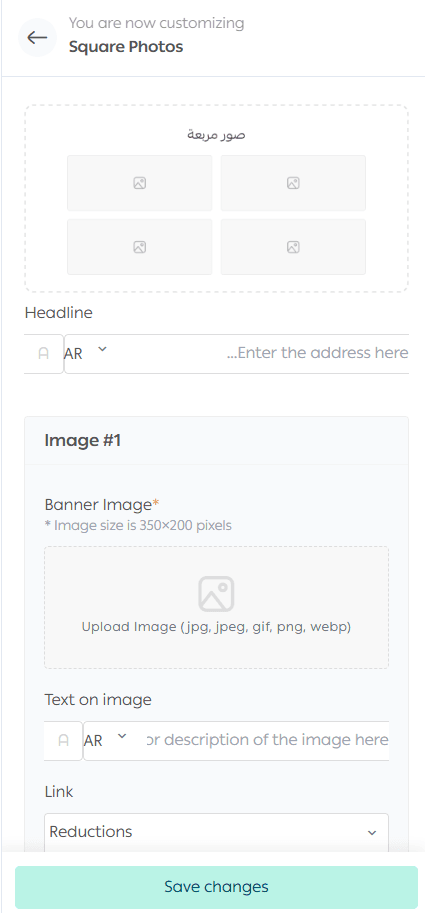
Square photos
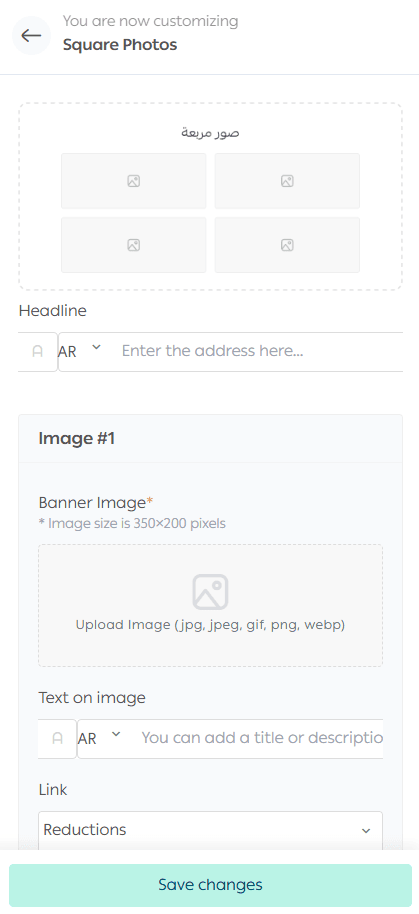
Highlight important items as square images. Clicking an image takes the customer to the link you choose.
Fixed Products
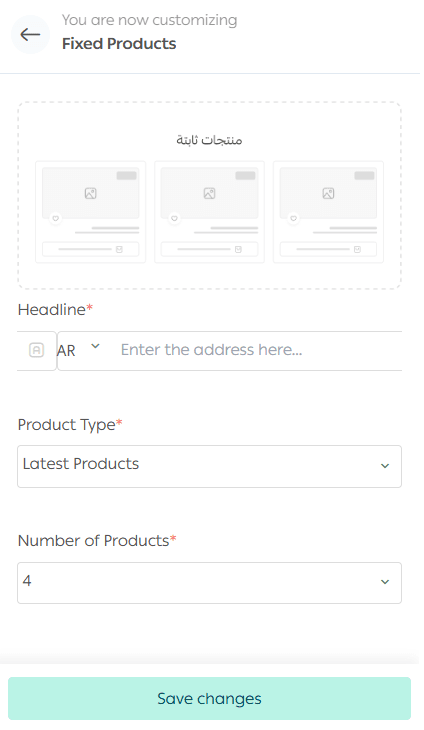
Fixed products display in a grid layout. Set:
- Main title
- Product type to display
- Number of products
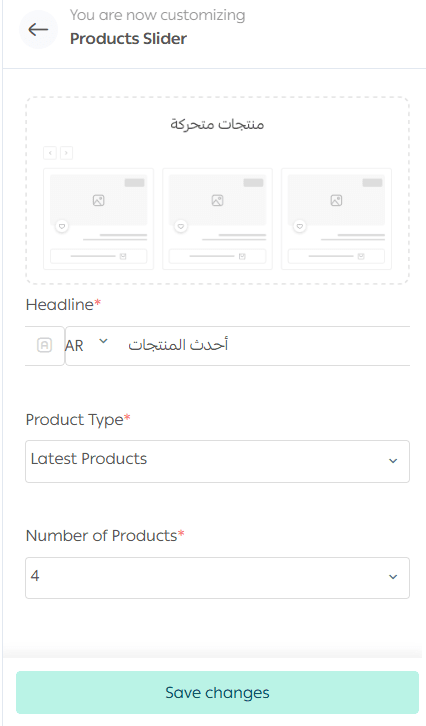
Moving Products
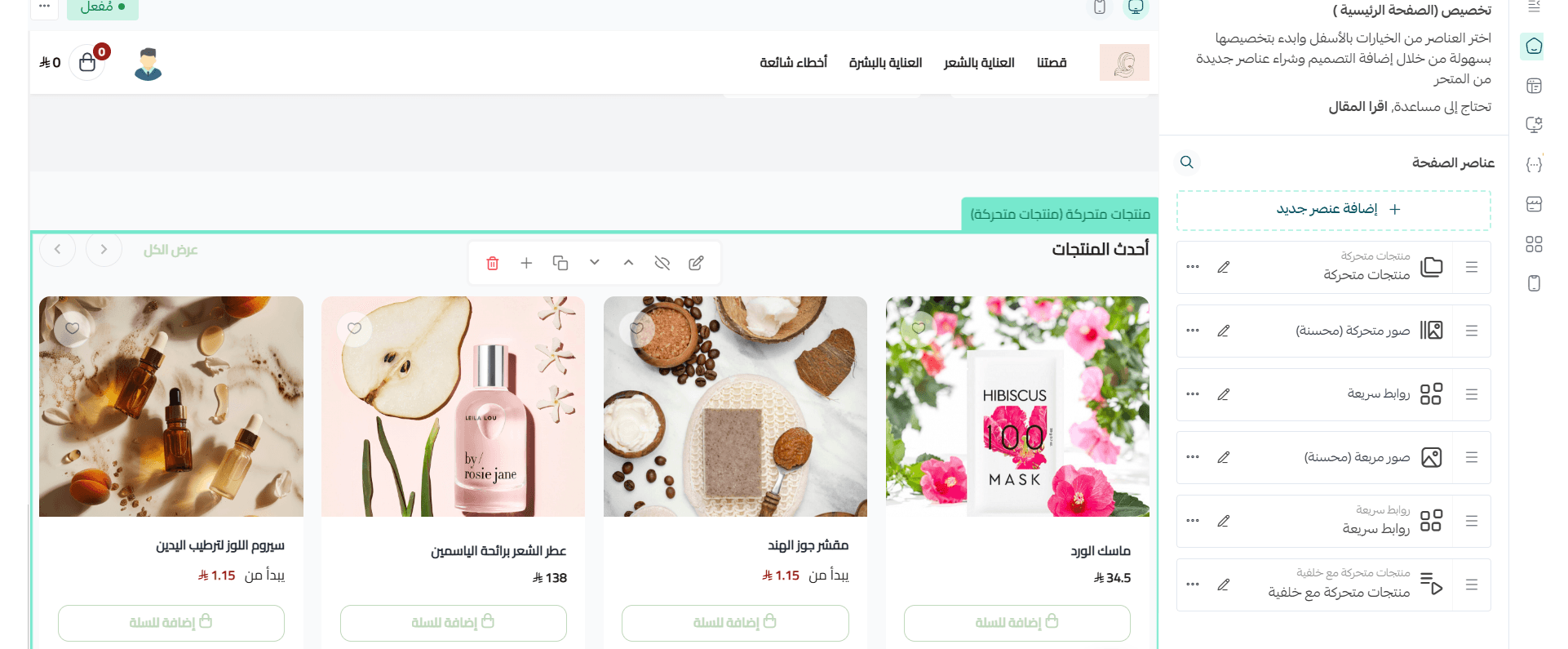
Moving products display in a scrollable strip. To customize:
- Enter a main title
- Choose the product type shown
- Select the number of products
Moving Products with Background
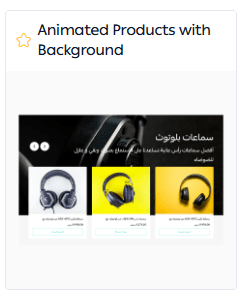
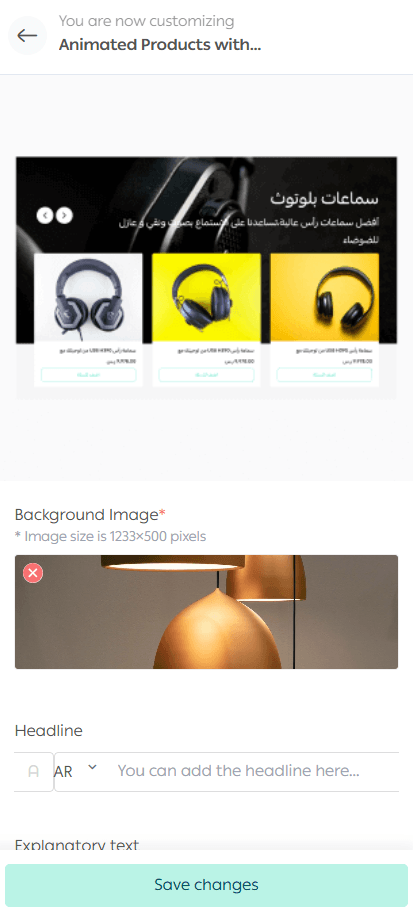
Choose a fixed background image and enter:
- Main title
- Subtitle
Then select the product set to display inside the element.
Promotion
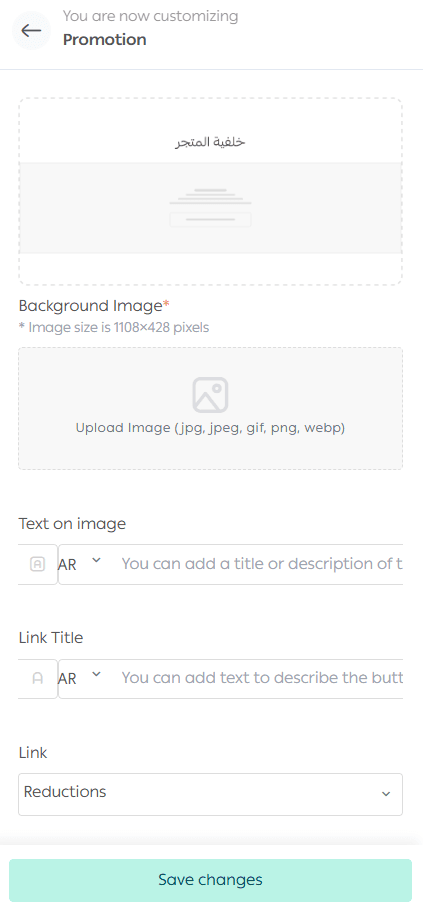
A store background is an image section that includes:
- A headline
- A call to action button such as Explore More
- A link destination
You can link it to:
- A product
- A category
- A special offer
- An informational page
- A brand
- An external link
- Any other available option
Blog
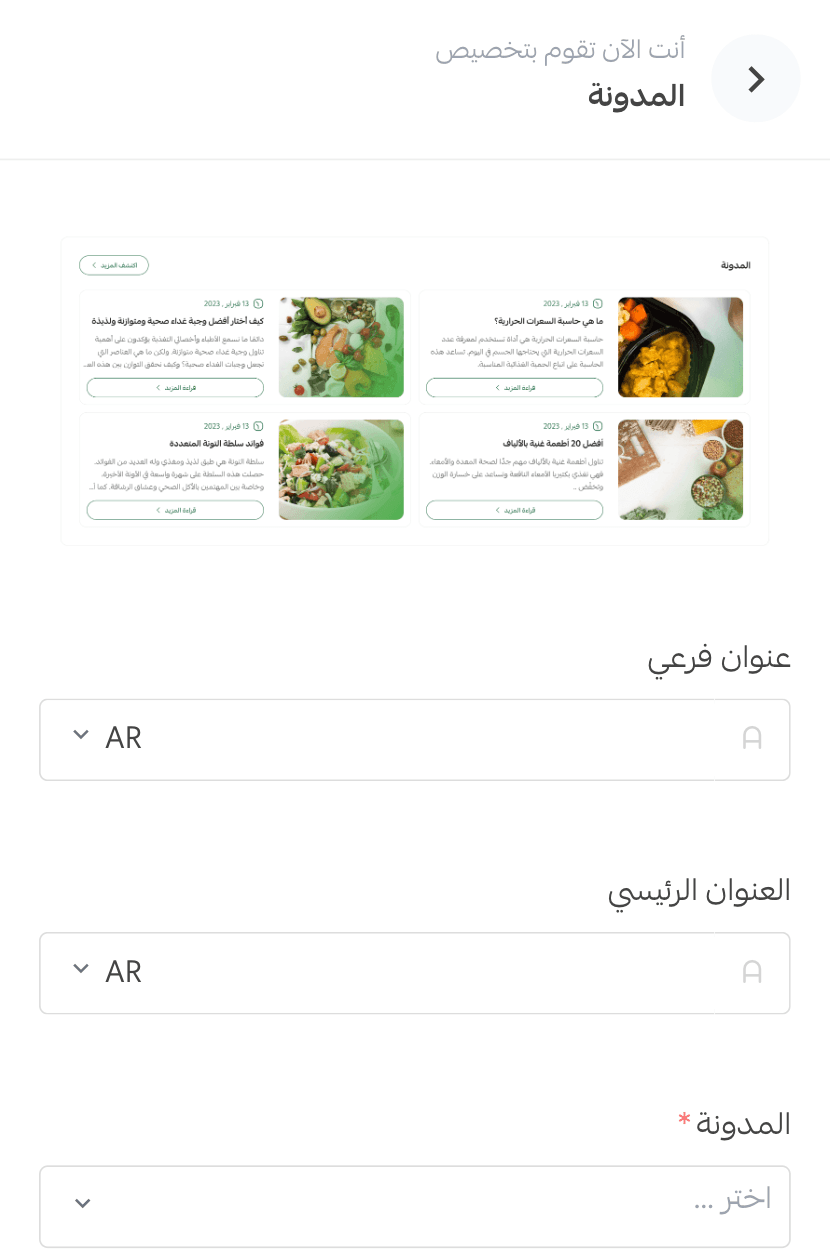
The blog element allows you to display articles inside your store, improving visitor experience and increasing engagement.
You can control which articles appear, supporting your content strategy and helping improve search visibility for SEO.
Features Grid
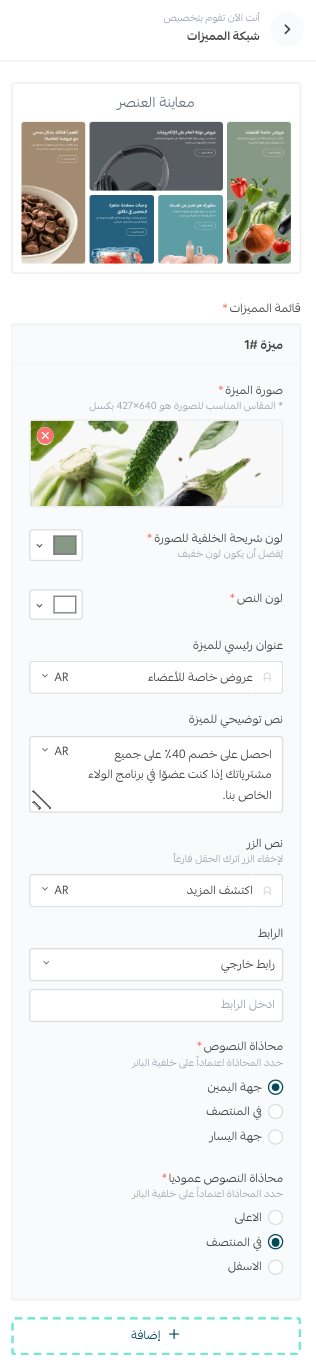
Display store or product strengths in an organized, attractive grid. You can customize layout, content alignment, and text alignment to match your store style.
Deals and Deal of the Day
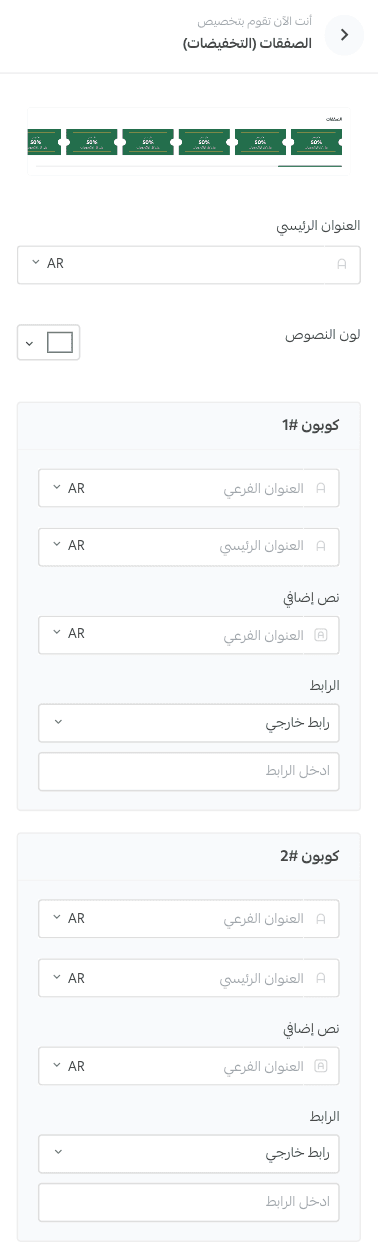
The discounts element lets you display up to 10 discount coupons inside a dedicated deals section.
You can customize the main title, create multiple sections, and link them to store categories or external links to guide customers directly to targeted offers.
Statistics
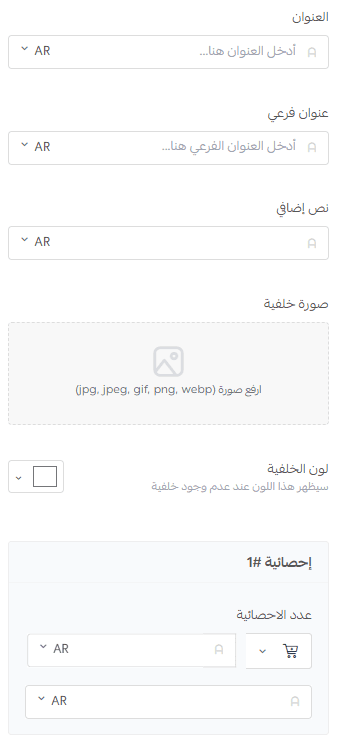
Show key numbers in a visually engaging way that improves store credibility.
Customize:
- Title and subtitle
- Supporting text
- Background
- Icons and their colors
- Numbers and labels that highlight achievements or services
Slider
Show multiple slides in an interactive homepage slider.
Each slide can include:
- Background color or image
- Main title
- Description
- Image beside text
- Button with a custom link
- Advanced layout controls to match your design
Frequently Asked Questions
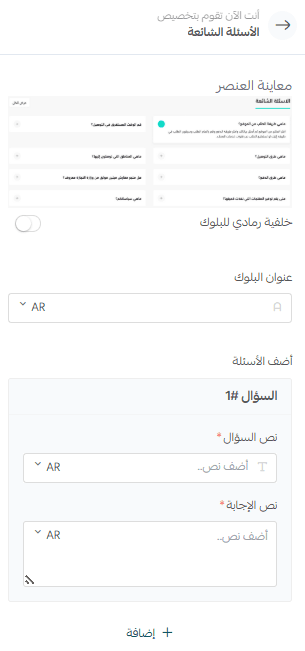
Display common customer questions and answers in a clear, organized way.
Customize the section title, then add your FAQ list to reduce repeated support questions and make the shopping experience smoother.
Card Gallery
Highlight key benefits or values in a fast, visual format.
Add for each card:
- Icon or thumbnail image
- Short title
- Supporting text
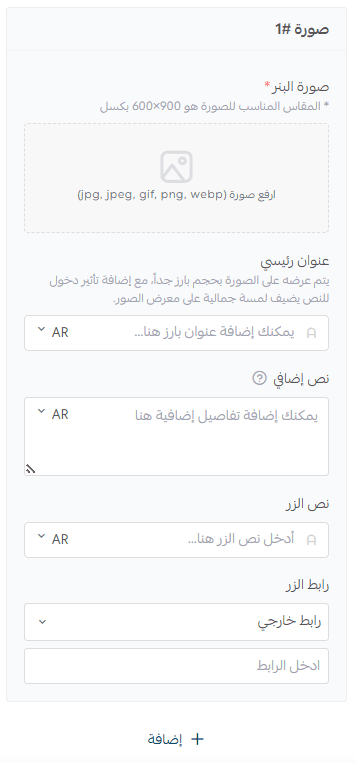
This helps customers understand your value quickly.
Enhanced Card Gallery
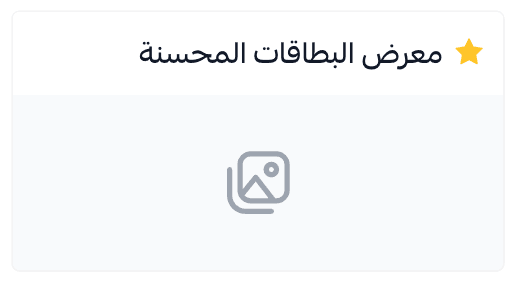
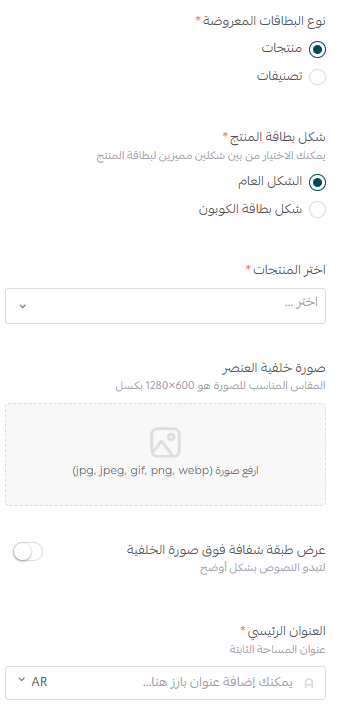
Display products or categories in a structured, attractive card layout.
When displaying products, you can choose a card style such as coupon card or standard card, then select the products list.
When displaying categories, you select the categories list.
You can display 1 to 8 cards, and enable Show All Cards for a more flexible browsing experience.
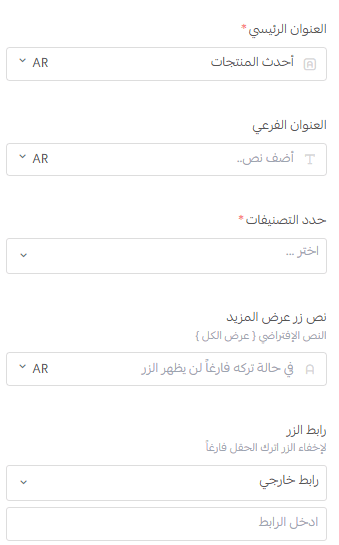
Enhanced Categories
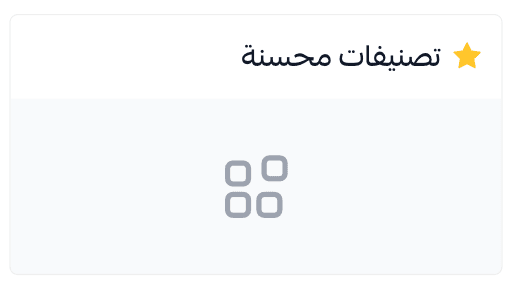
Display up to 30 categories in a structured, card-like layout. This makes it easier for visitors to browse and reach sections quickly.
Short Videos Gallery
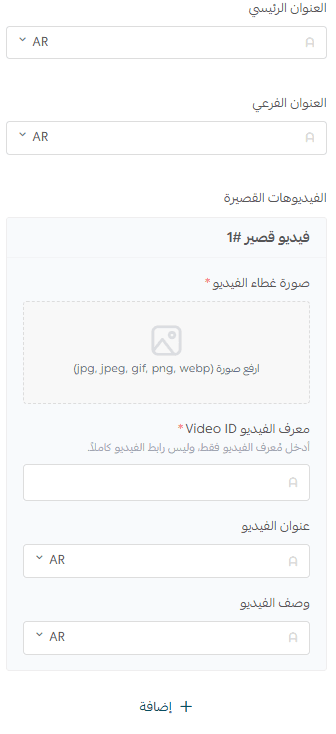
Display short videos in a clean, engaging layout.
You can add:
- Section title and subtitle
- Up to 10 videos
- For each video, a preview image and a YouTube ID
- Optional title and subtitle per video for clarity
Enhanced Banner
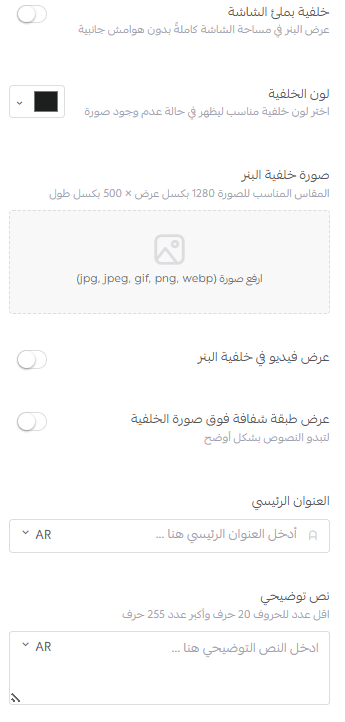
Show a promotional banner with:
- Optional expiry date
- Main title and subtitle
- Optional button with link
Supports customization for:
- Text color
- Background color
- Background image
- Text alignment
- Optional white button styling
- Full screen background mode for maximum visual impact
How to Use Cards
Present information using visual cards in a structured way.
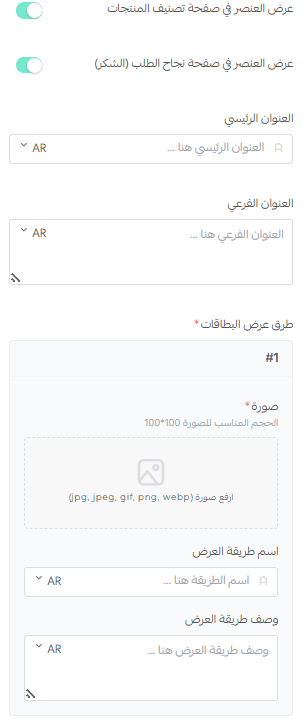
You can add a collection with more than 3 cards. Each card requires an image, with optional main and secondary titles.
Control Homepage Elements
To manage any added element, open the element options menu, then choose what you want to do:
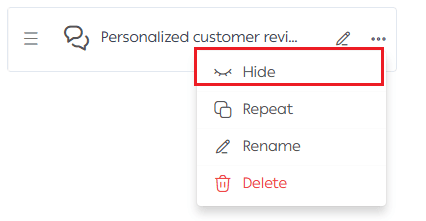
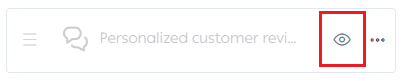
1. Hide an Element
You can show it again by clicking Show Again.
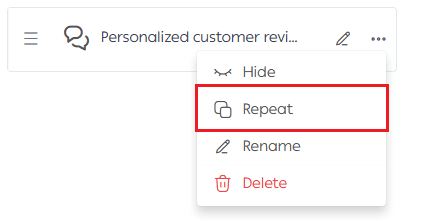
2. Duplicate an Element
Duplicates the element with all the same settings.
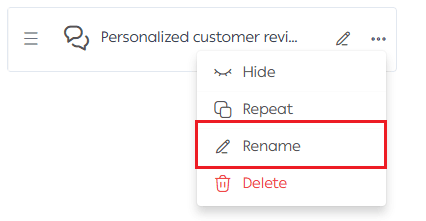
3. Rename an Element
Rename the element with a label that clearly describes its purpose or content.
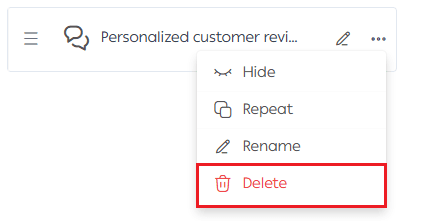
4. Delete an Element
A confirmation message will appear before deletion.
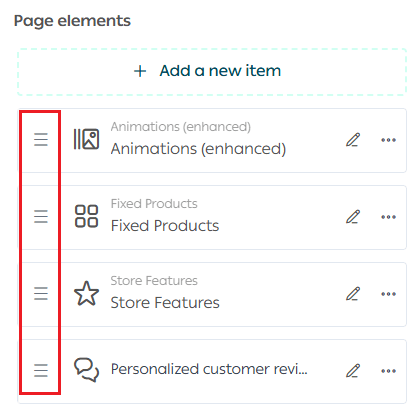
Reorder Elements
Reorder elements by dragging and dropping the element handle.
Edit an Element
To edit an element’s settings, click the element name or click Edit.

Support Services
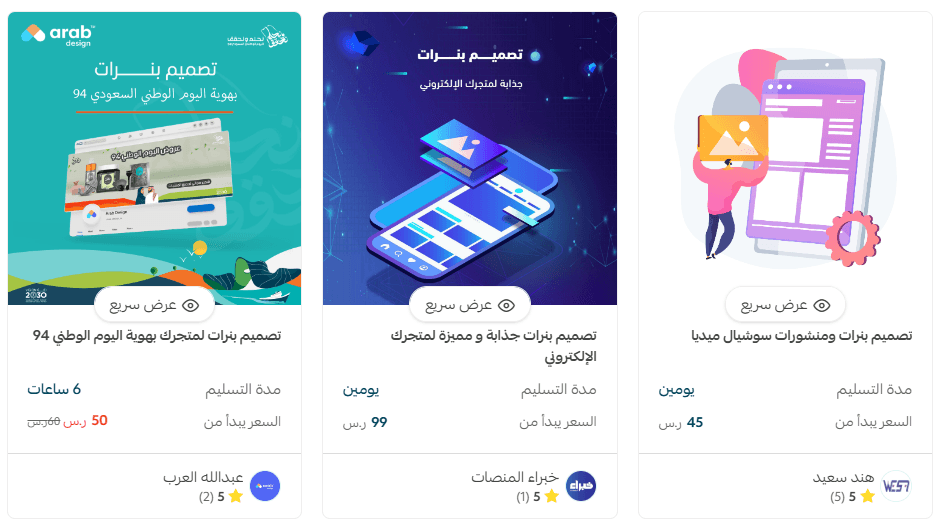
If you need help designing your store, you can use Merchant Services, which offers professional services such as:
- Logo design
- Banner and divider design
- Color coordination
These services are provided by trusted Salla service providers to help you build a professional store.