Are long product URLs making your campaigns harder to read and share?
Salla custom links replace long, unclear URLs with memorable paths you control. They are easier to use in SMS messages, social posts, promotions, product recommendations, and retargeting campaigns. In this guide, you'll learn how to create a custom link, choose its destination, manage existing links, and import links in bulk.
To create a Salla custom link, open Store settings, select Custom links, and add a new link. Give it a short descriptive name, choose the destination type and page, enter a path without spaces, then save. You can later copy, disable, edit, delete, or bulk-import links.
📌 Article overview
- Why use Salla custom links?
- How to create a custom link
- How to manage custom links
- How to import links in bulk
- Frequently asked questions
🎯 See how to create custom links in the new dashboard.
🎯 Why use Salla custom links?
Custom links can help you:
1. Make your brand and destination easier to remember, improving the customer experience and supporting conversion.
2. Capture link-performance data such as click-through rates.
3. Add interactive destinations to SMS campaigns and connect them with customer analytics.
4. Encourage customers to engage, purchase, or open the information you want to share.
🚀 How to create a Salla custom link
1. From the dashboard side menu, click (Store settings).

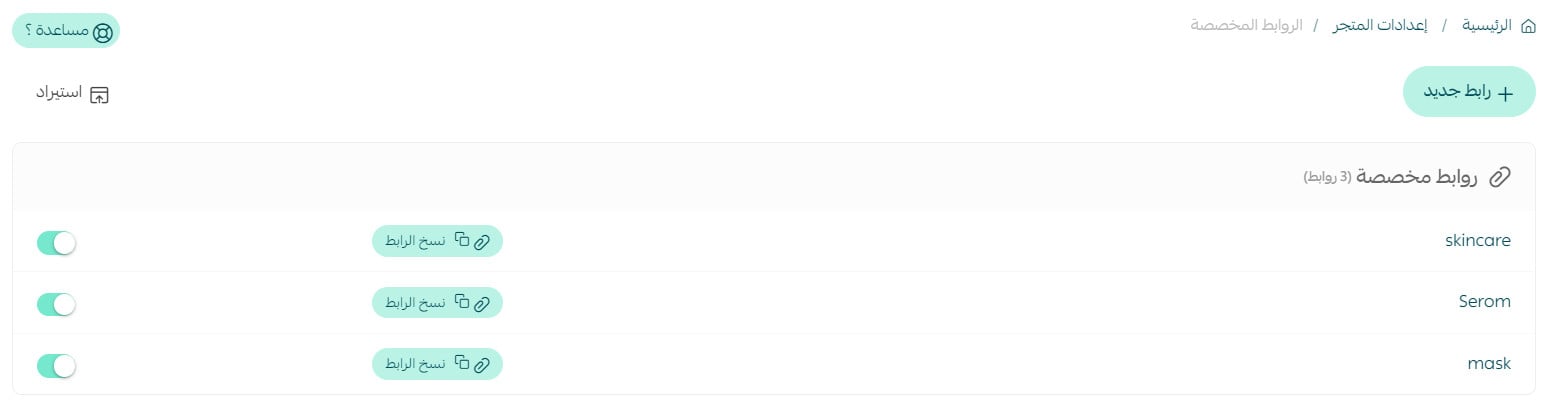
2. Click (Custom links).

3. On the custom links page, click (+ New link).
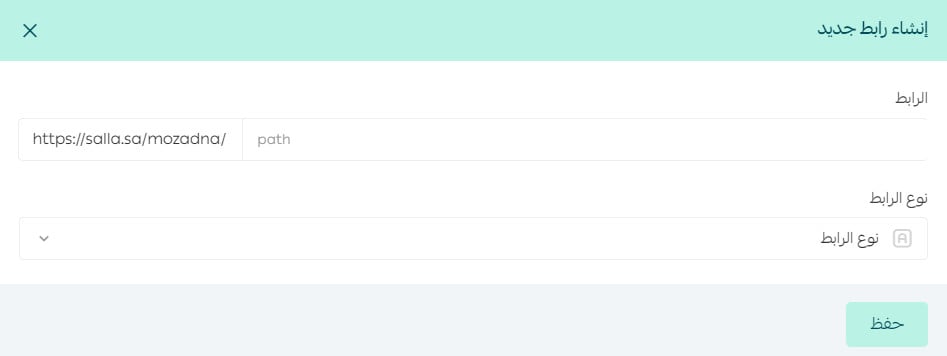
4. Enter the link details, then click (Save).
📝 Important notes
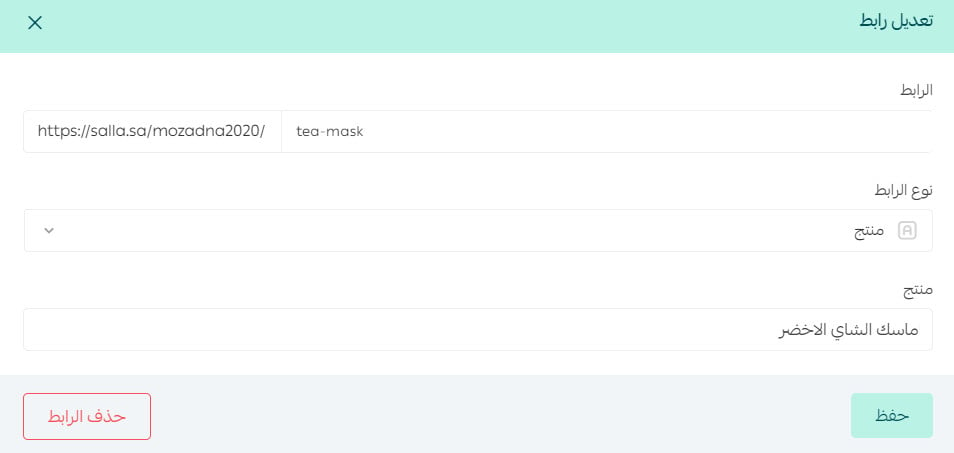
The account or page path can use Arabic or English letters, but it cannot contain spaces. Use a hyphen (-) to separate words. The source later says a slash (/) is also allowed as a path separator.
The required details are:
- Link name: Keep it short, descriptive, and easy to remember.
- Link type: Choose one of the available destination types.
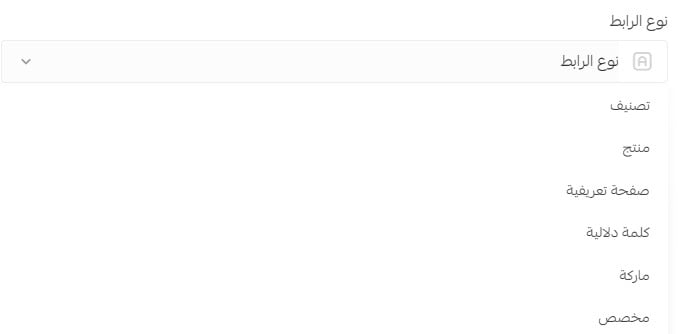
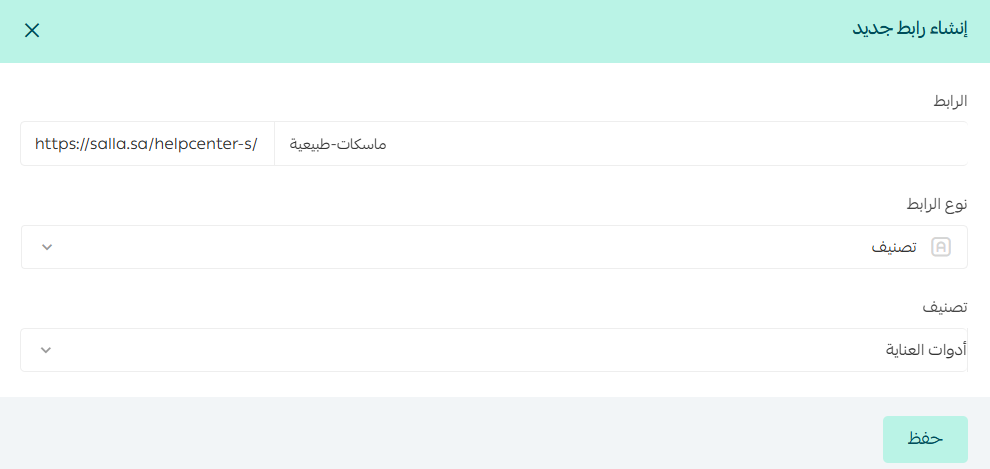
After choosing a type, select the product, category, information page, or other destination that should open when a customer clicks the link.
💡 Example: If the link type is (Category), search for the category you want the link to open, such as (Care tools).
✅ How to manage Salla custom links
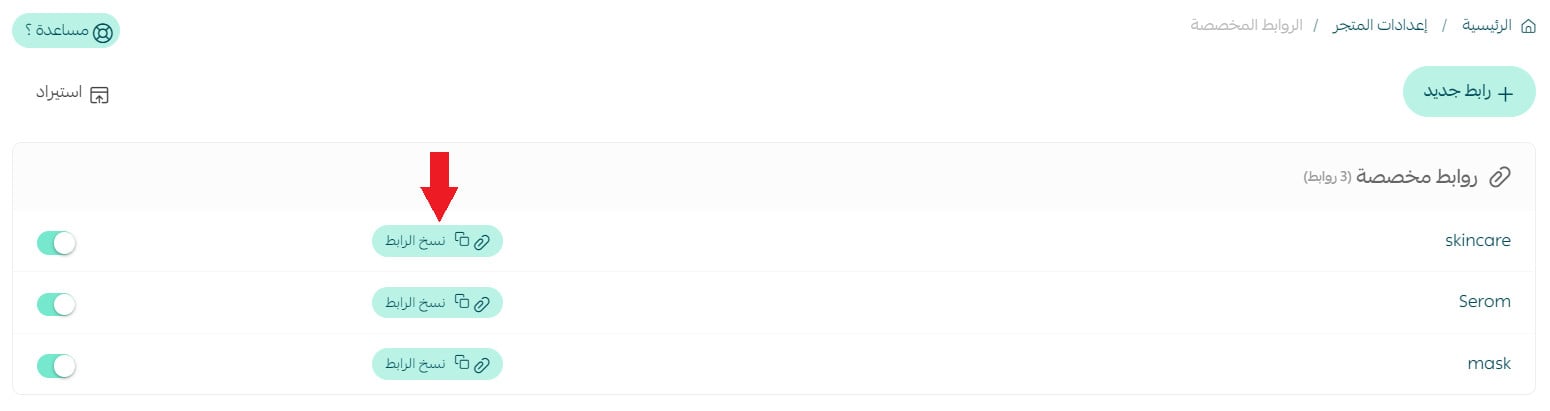
Copy a custom link
On the custom links page, click (Copy link) beside the link you want to share.
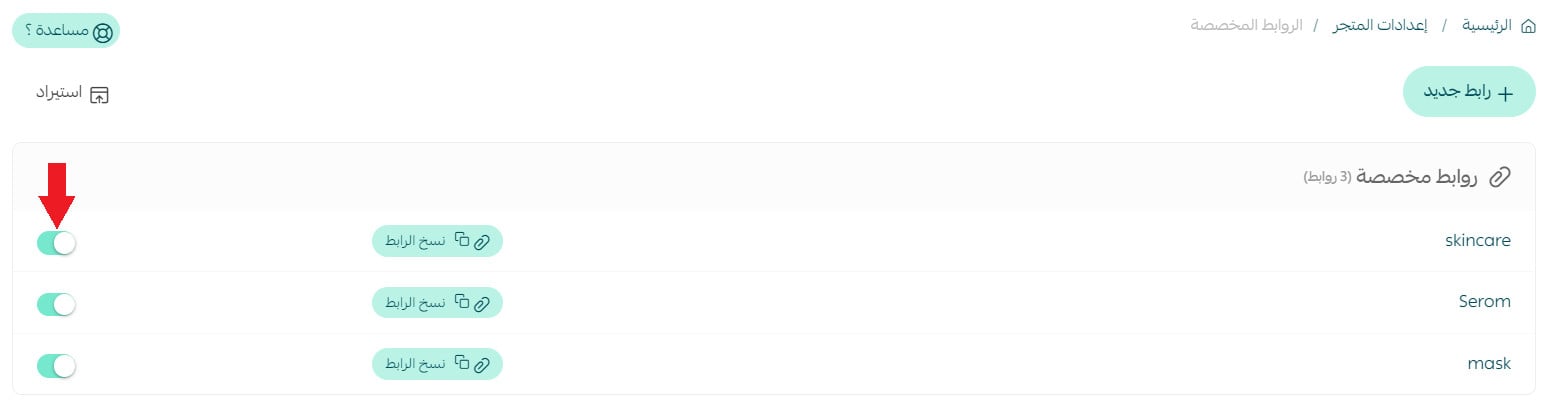
Enable or disable a custom link
On the custom links page, click (Enable/Disable) for the link you want to change.
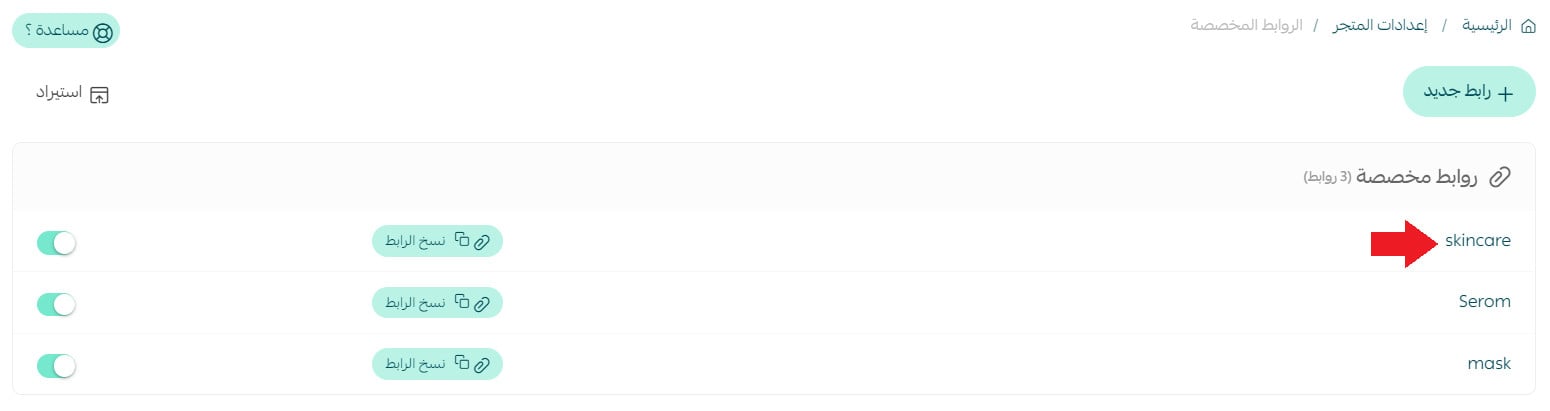
Edit a custom link
On the custom links page, click the name of the link you want to edit.
Update the link details as needed.
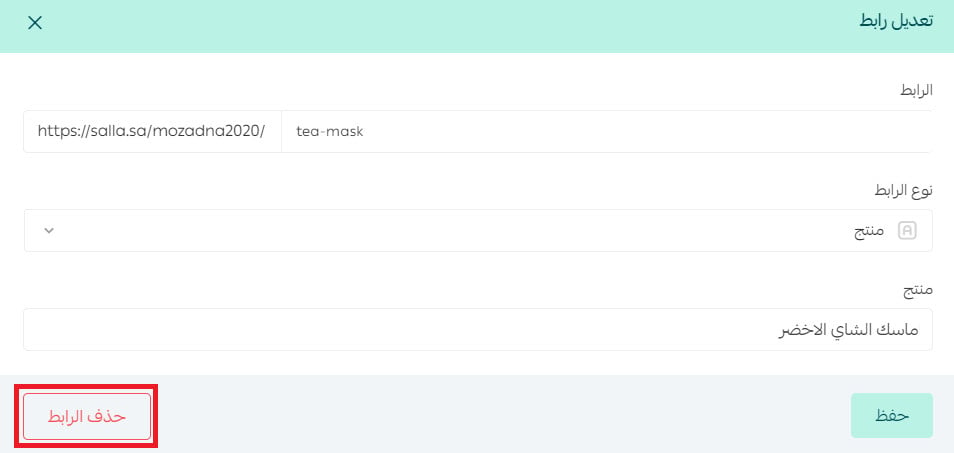
Delete a custom link
Open the custom link you want to remove, then click (Delete).
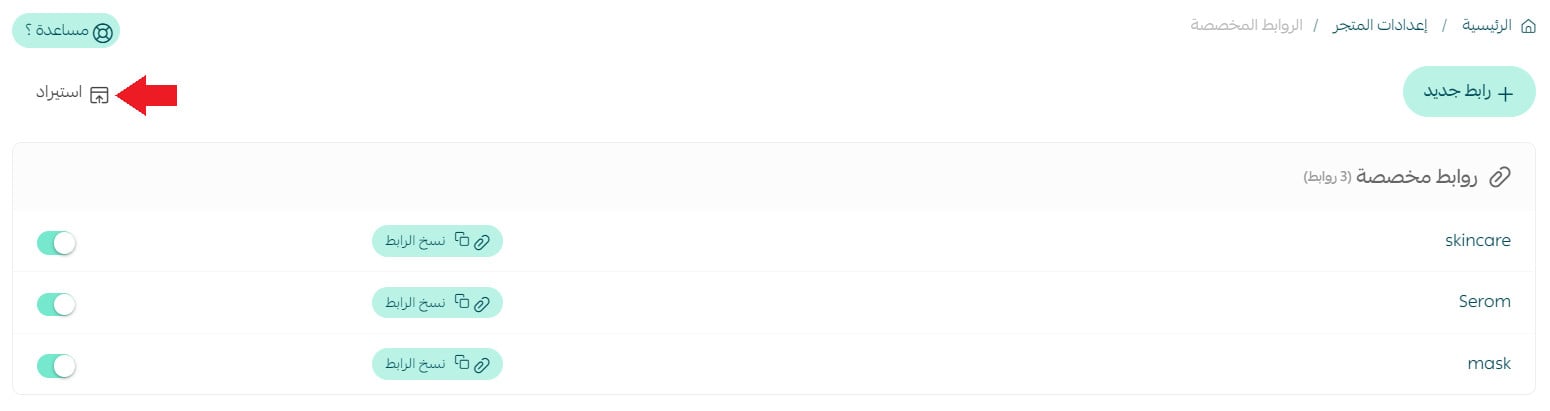
👣 How to import custom links in bulk
1. On the custom links page, click (Import).
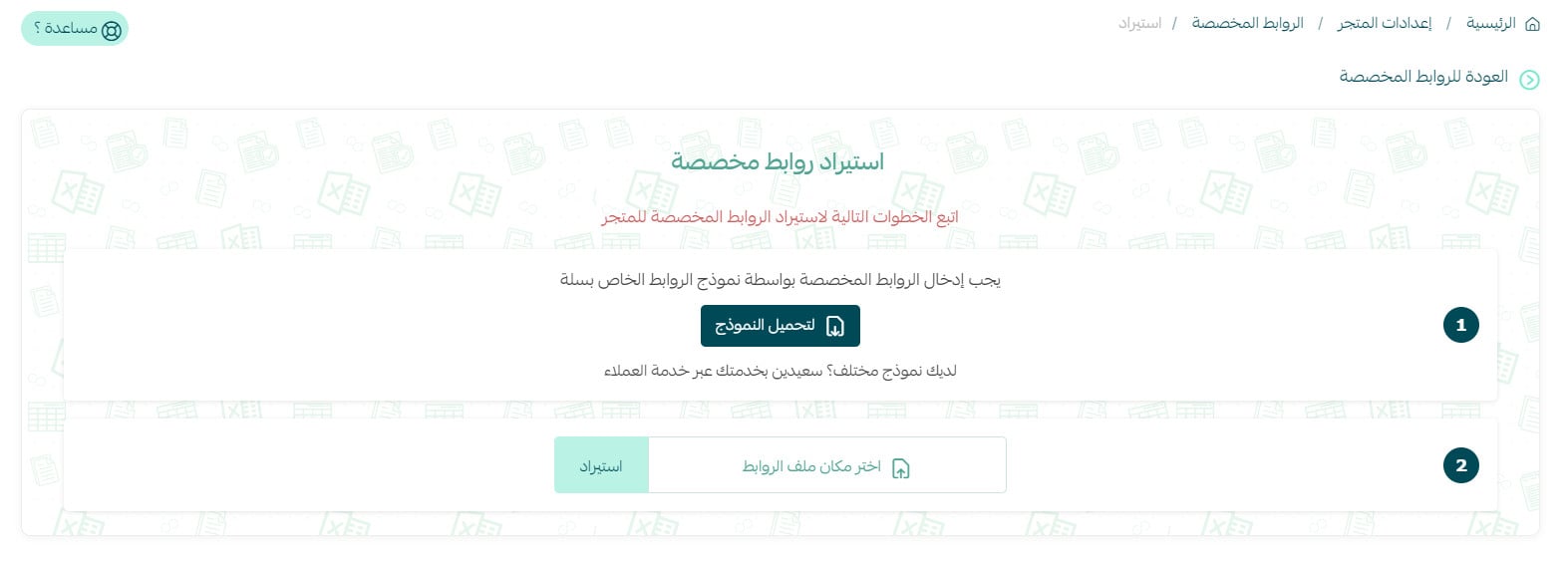
2. On the import links page, click (Download template).
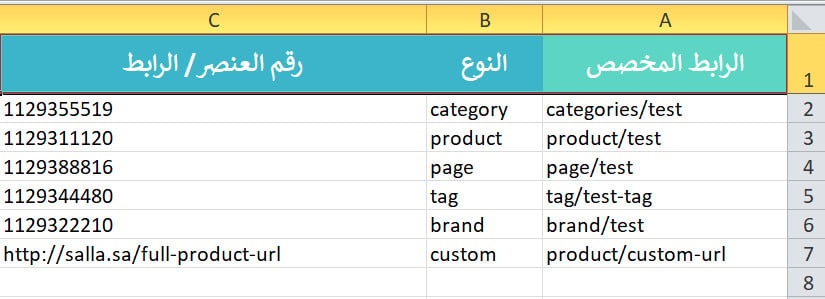
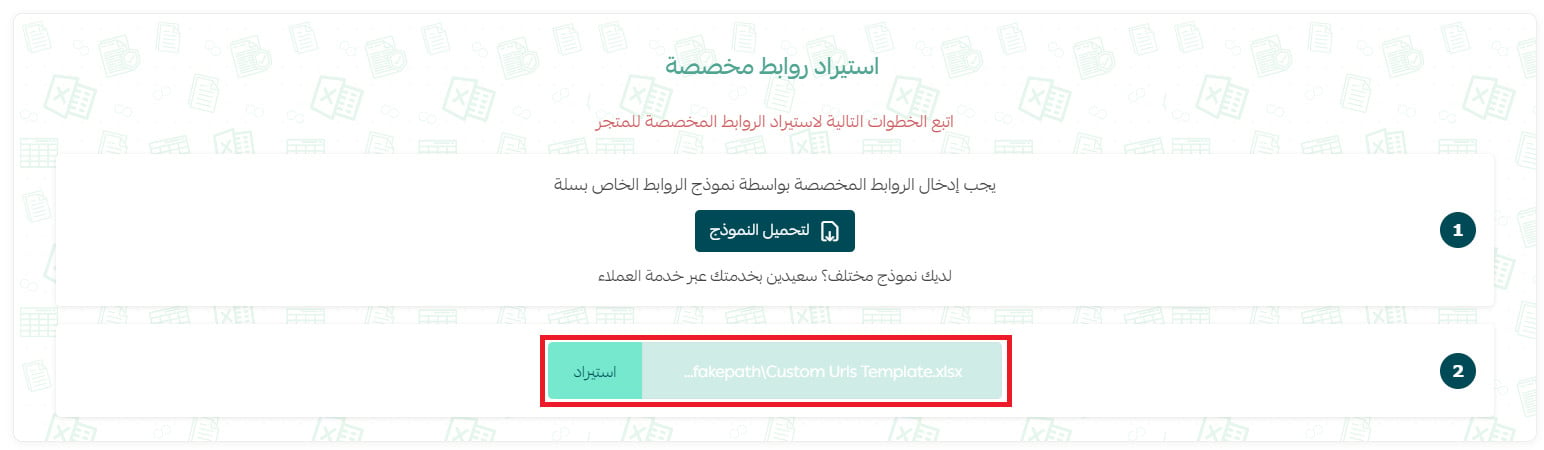
3. Open the downloaded template and add or update the links you need.
4. Select the completed links file, then click (Import).
❓ Frequently asked questions about Salla custom links
Why is sharing a custom link useful?
A memorable link can improve the customer experience, strengthen brand recall, support conversion, provide click-through data, and make SMS or social campaigns easier to understand.
What condition applies when the link type is Product?
The product must have available inventory before Salla can connect the custom link to it successfully.
Where can I use custom links?
Use them in promotions, product recommendations, customer-retargeting messages, SMS campaigns, social posts, and other customer communications.
Which characters can a custom path contain?
The path can contain Arabic or English letters, numbers, slashes (/), and hyphens (-). Spaces and other special characters are not allowed.
Correct: /offers/care-product
Incorrect: /personal@care
What can I do with an existing custom link?
You can copy it, enable or disable it, edit its details, or delete it from the custom links page.
Can I import several custom links at once?
Yes. Download the import template, add or update your links, then upload the completed file from the import page.
A clear custom path tells customers where they are going before they click. Keep names short, match each destination carefully, and disable links you are not currently using.