Need dozens of discount coupons for a campaign without setting each one up by hand?
The coupon groups feature lets you create a whole batch of coupons at once, all sharing the same coupon settings, so you never have to re-enter the same details over and over. In this guide, you'll learn how to create a coupon group, what each field means, and how to manage the coupons inside a group.
To create a coupon group on Salla, go to (Marketing tools) from the dashboard's side menu, click (Discount coupons), then (Add) and (Coupon group). Enter the group name, how coupons are added, and how many coupons you want, complete the remaining details, and click (Save).
📌 Article overview
- How to create a coupon group in one batch
- Coupon group settings explained
- Frequently asked questions
👣 How to create a coupon group in one batch
1. From the side menu of your dashboard, click (Marketing tools).

2. From the marketing tools page, click (Discount coupons).
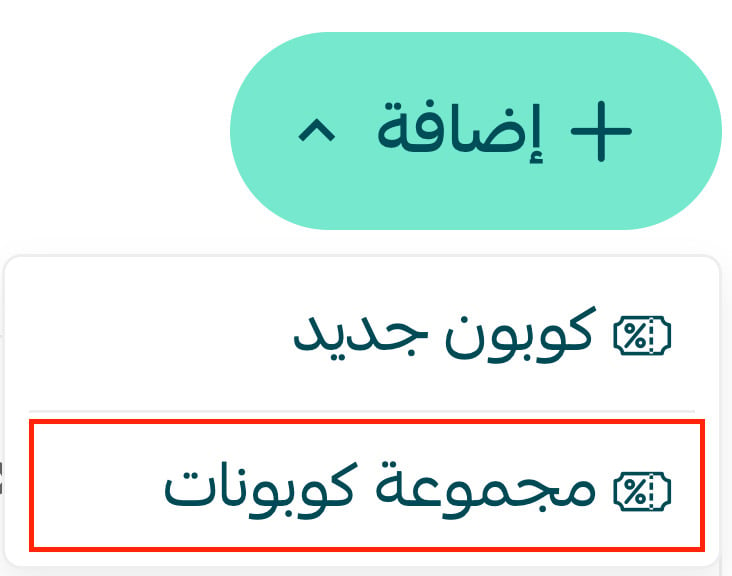
3. From the marketing tools page, click (Add), then (Coupon group).
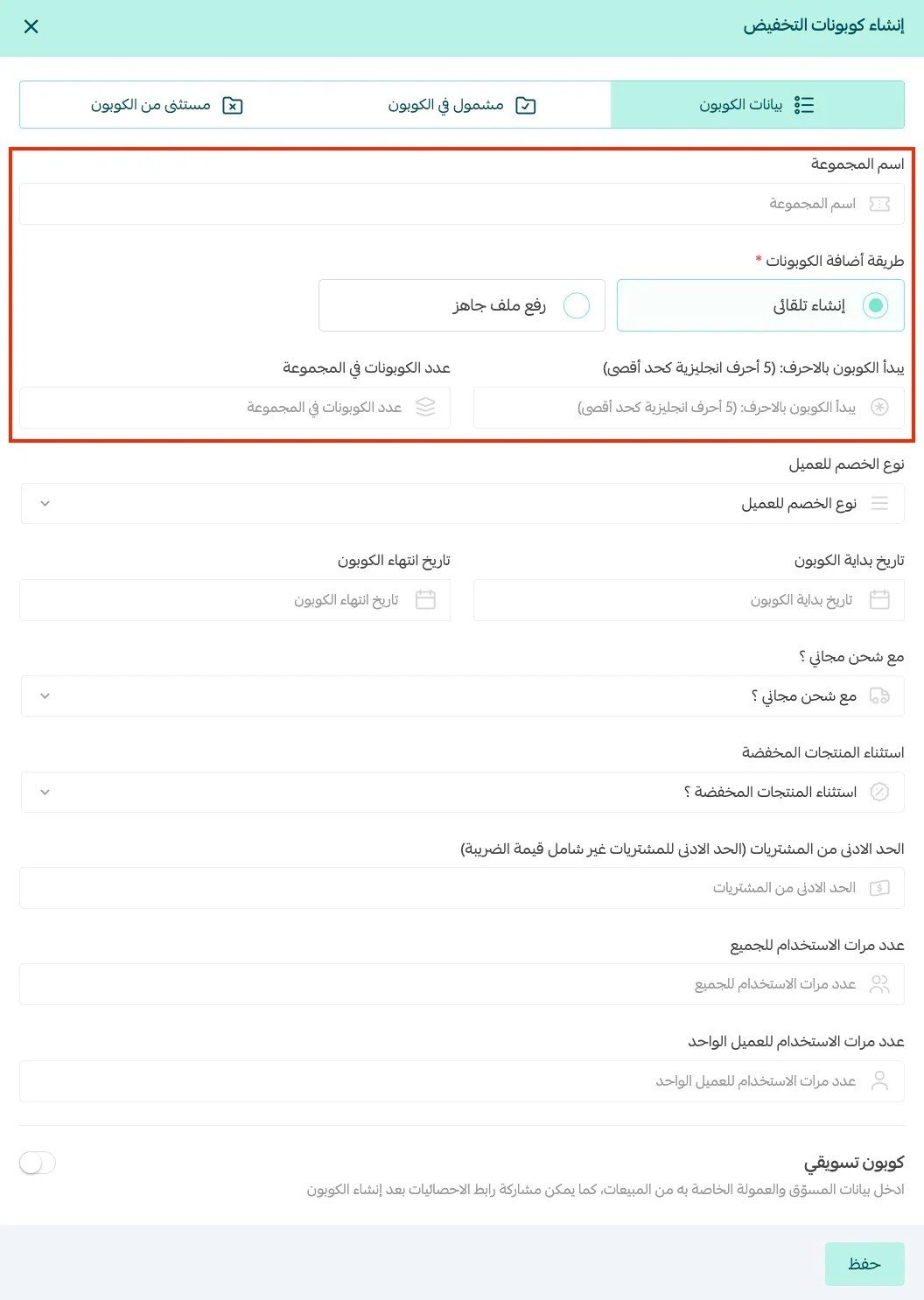
4. Enter the required coupon details, including the coupon group name, how the coupons are added, and how many coupons the group contains. Complete all the required details, then click (Save).
Coupon group settings explained
- Enter a coupon group name that is simple and clearly describes its purpose.
- Choose how the coupons are added: automatic generation or uploading a ready file.
- Enter the coupon name prefix — up to five characters, in English letters.
- Enter the number of coupons in the group. Set this carefully, as it cannot be changed after the group is saved.
- Total number of uses: caps how many times the discount can be used overall, regardless of how many customers hold a coupon.
- Uses per customer: how many times a single customer can use the same coupon.
You can also specify whether the coupon is a marketing coupon or not.
For more details, see discount coupons.
❓ Frequently asked questions
What are the most common uses of the coupon groups feature?
The feature has a wide range of uses, including for example:
- A school-uniform store contracts with a school and offers a coupon group to its students, so everyone holding a coupon gets a set discount or a free product.
- A trainer creates a coupon group for a course, giving each member one personal coupon for a set discount on their next course registration — one coupon per person rather than a single shared coupon.
Can I import a set of coupon codes from a ready file?
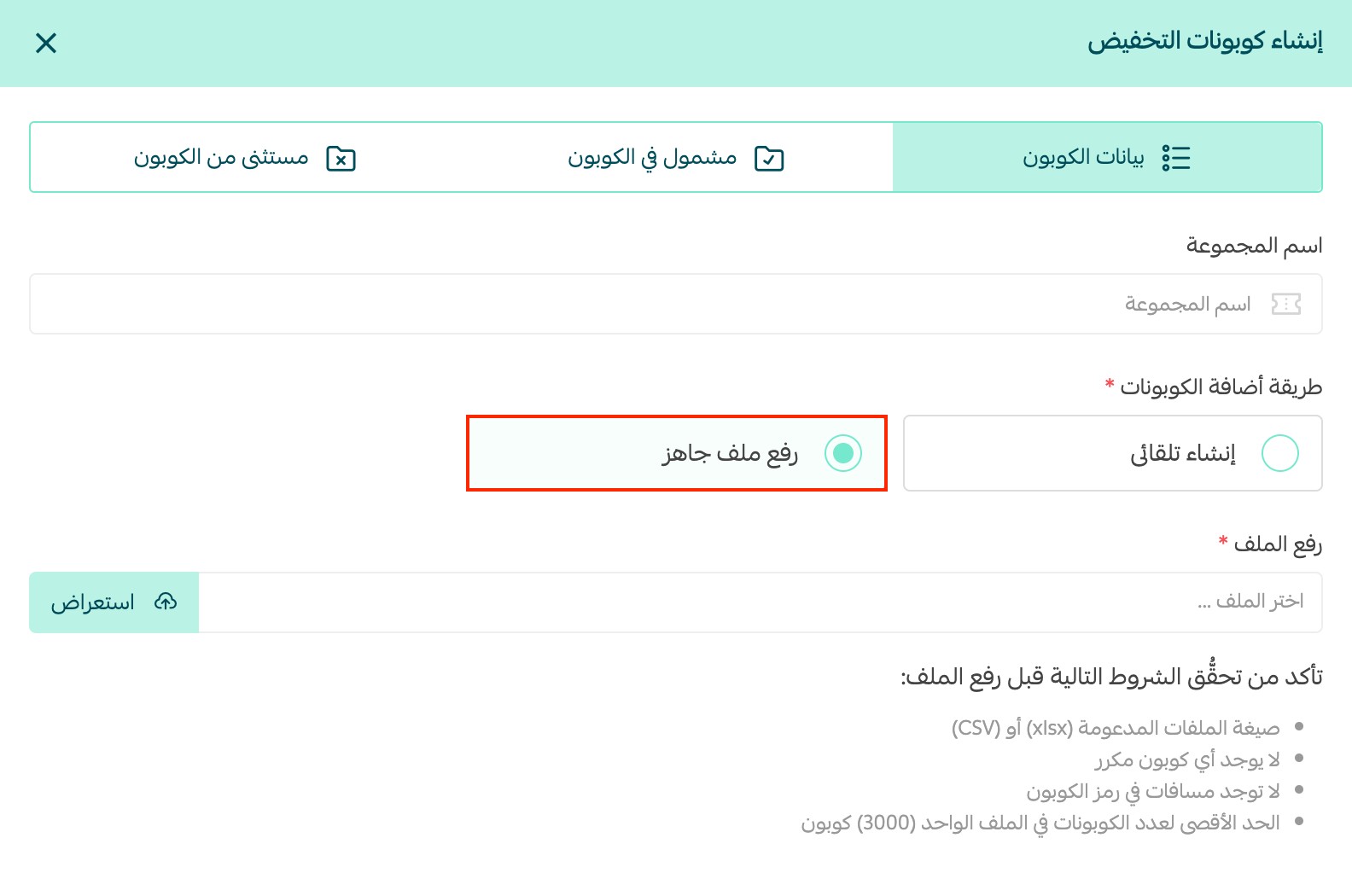
Yes — this option is exclusive to stores on the Special plan.
1. From the marketing tools page, click (Add), then (Coupon group).
2. Enter the required coupon details, set the coupon-adding method to (Upload a ready file), attach the import file, and click (Save).
How do I view the coupons inside a coupon group?
From the discount coupons page, click the coupon count (the gray badge next to the group name), as shown:

The group's coupons then appear like this:

Notice how all the coupons in the group start with the same letters.
Can I disable one of the group's coupons?
Yes. Open the coupon group, then toggle off any coupon you want to disable, as shown:

How do I disable an entire coupon group?
From the discount coupons page, toggle off the coupon group, as shown:
