Do you know exactly how many units of each product are sitting in each of your branches?
Once your store sells from more than one location, a single stock number is no longer enough. Salla lets you control product quantities in branches so each branch shows what it actually has, whether you are updating one product, a whole catalogue, or every variant of a product separately. In this guide, you'll learn the four ways to set which branches carry a product and how much stock each one holds.
Salla gives you four ways to control stock by branch: choose which branches carry a product from its product data page, edit quantities in bulk from the products page, set a single product's quantity per branch, and set the quantity of each product option per branch.
🔔 This feature is available only to stores on the Special plan.
📌 Article overview
- Choosing the branches a product is available in
- Editing product quantities in branches in bulk
- Editing one product's quantity per branch
- Setting the quantity of each product option
- Frequently asked questions
🚀 How to control product quantities in branches
1. Choose the branches a product is available in
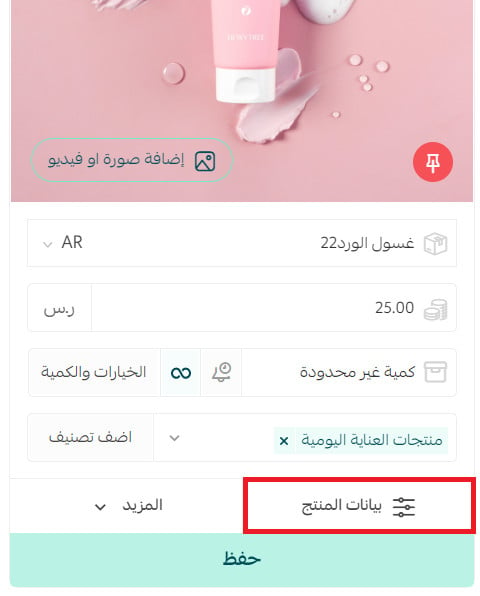
1. From the product card, click (Product data).
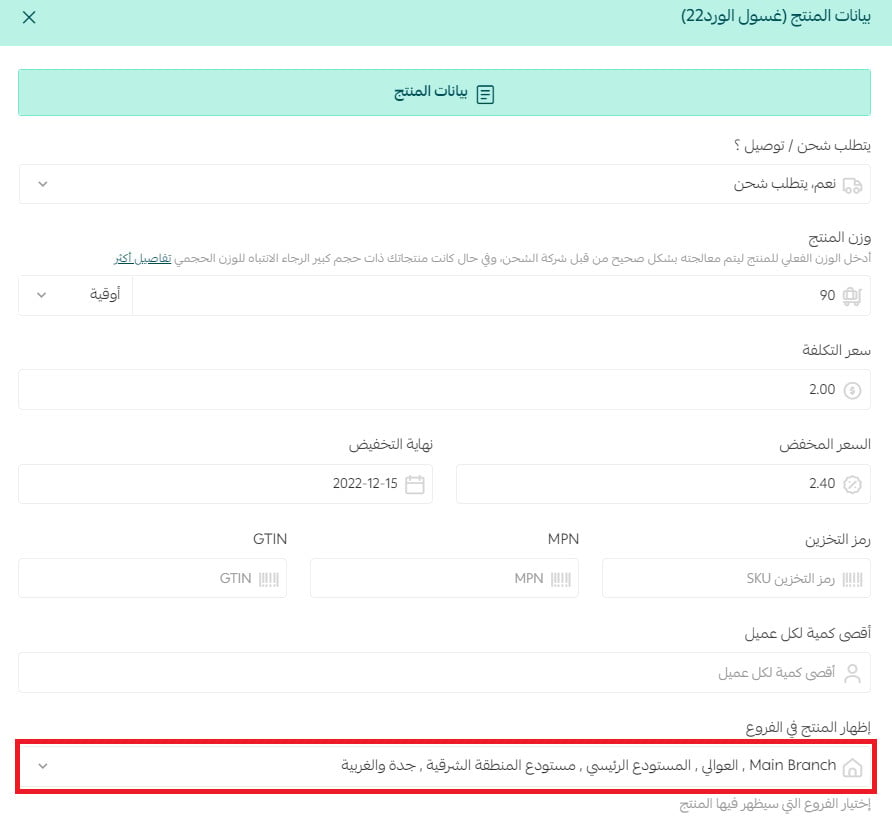
2. On the product data page, pick the branches that carry this product from the list of branches defined in your store, then click (Save).
For more on setting up your store's branches and warehouses.
2. Edit product quantities in branches in bulk
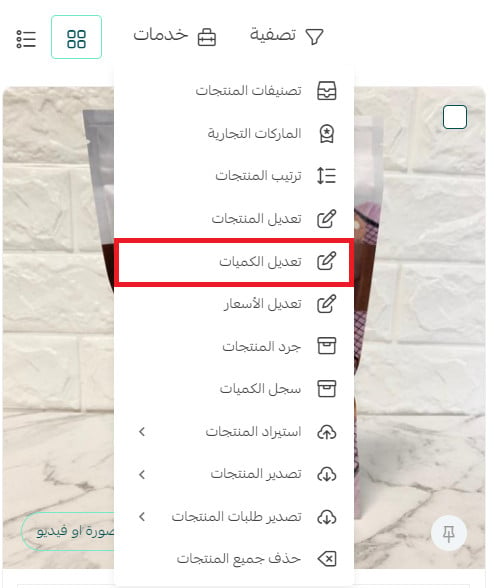
1. From the products page, click (Services), then click (Edit quantities).
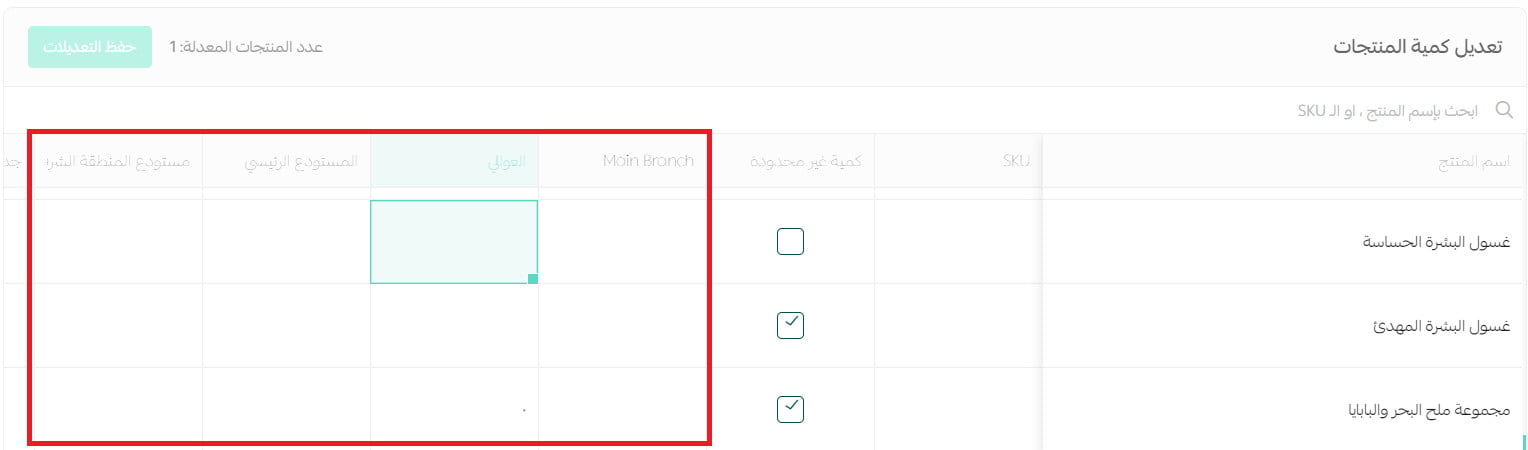
2. Enter the product quantities for each branch, then click (Save).
For more on bulk editing products.
3. Edit one product's quantity per branch
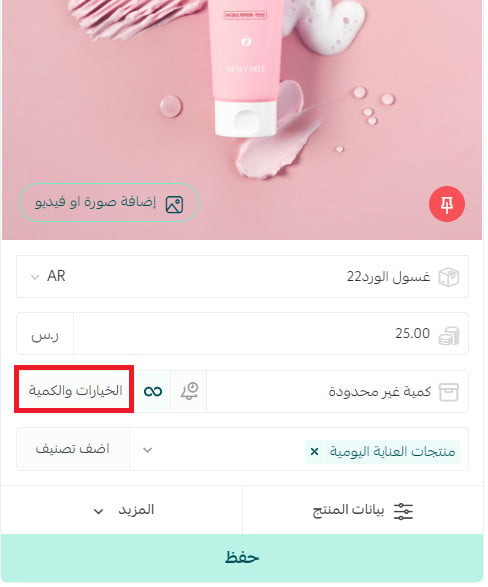
1. From the product card, click (Options and quantity).
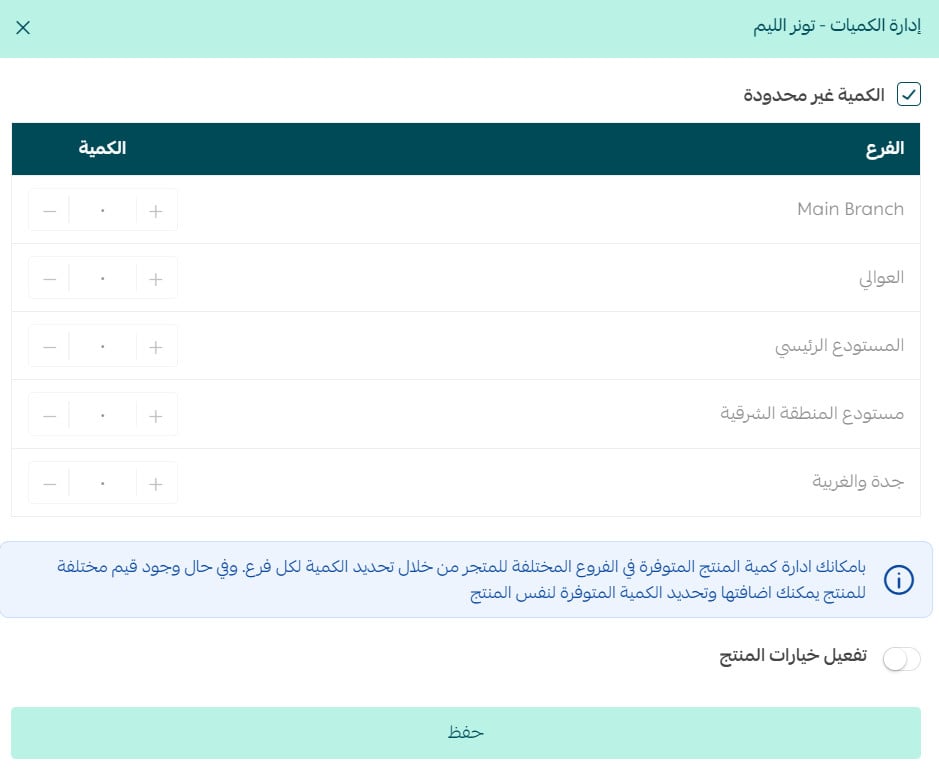
2. Enter the quantity held in each branch, then click (Save).
4. Set the quantity of each product option
If the product has options, you can set how many units of each option are held in your store's branches and warehouses.
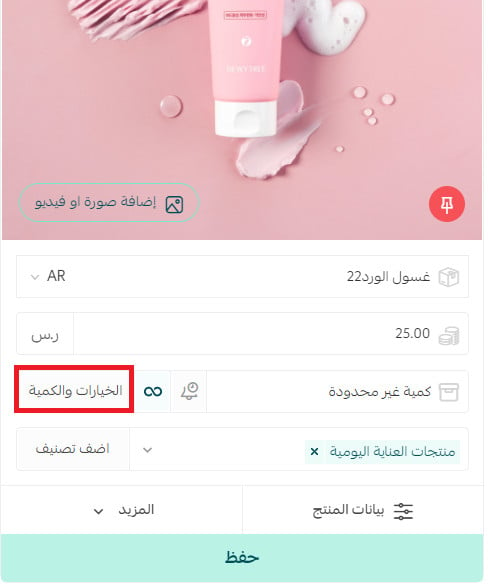
1. From the product card, click (Options and quantity).
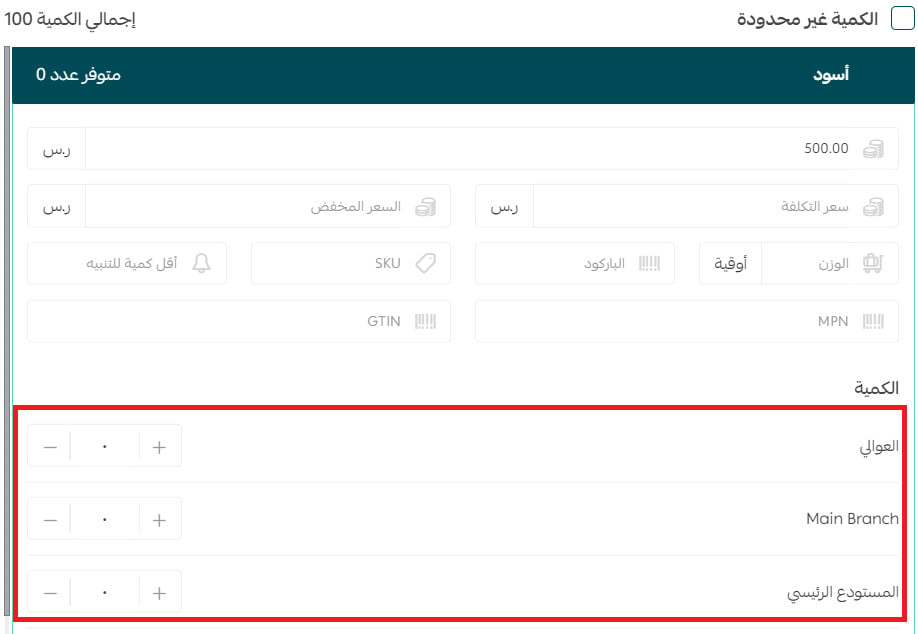
2. Enter the quantity available for each product option, then click (Save).
📝 Important notes
A product only appears in a branch's stock once that branch is selected on the product data page, so start there before entering any quantities.
Use the bulk quantity editor when you are updating many products at once, and the product card when you are correcting a single item.
❓ Frequently asked questions
Which plan do I need to control product quantities in branches?
This feature is available only to stores on the Special plan.
How do I stop a product from showing in one of my branches?
Open the product card, click (Product data), and leave that branch unselected in the list of branches, then click (Save).
Can I update quantities for many products at once?
Yes. From the products page, click (Services) then (Edit quantities), enter the quantities for each branch, and click (Save).
Can each product option have its own quantity per branch?
Yes. Open the product card, click (Options and quantity), and enter the quantity available for each option across your branches and warehouses.
Accurate branch-level stock is what keeps customers from ordering something the nearest branch cannot actually hand them — it is worth spending a few minutes on before a busy season.