How quickly do your customers hear from you after they place an order?
A text message still lands faster than anything else. Taqnyat is an SMS service you can connect to your Salla store to send order and marketing messages to your customers. It serves businesses across education, retail, healthcare and other sectors, helps you build a customer base you can reach directly whenever you need to, and keeps that customer data secure. In this guide, you'll learn what Taqnyat offers, how to install the app on your store, and how to activate it and set it as your default messaging app.
Taqnyat is an SMS service you can connect to your Salla store to send text messages to your customers. Install the app from the App Store, activate it with your Taqnyat account details, then open (Settings) and (Customize) to set it as your store's default app for local text messages.
📌 Article overview
- Why use Taqnyat for SMS
- How to install the Taqnyat app
- How to activate the Taqnyat app
- Frequently asked questions
✅ Why use Taqnyat for SMS
Taqnyat covers the parts of SMS that usually cost merchants time and money:
- Flexible top-up packages at competitive prices.
- Pay up front or on account, and pay for what you actually use.
- Wide-scale delivery systems that get your messages to customers quickly.
- Direct connections to telecom carriers in Saudi Arabia, for better privacy, security and delivery speed.
- A fast, secure API that works with any programming language or stack.
- No extra installation or setup needed to start using the API.
- Customizable reports, so you can see how a campaign is performing.
- Immediate delivery status for outgoing SMS, either directly or through a webhook or request response.
🚀 How to install the Taqnyat app
1. From the main menu, click (All), then under helpful tools, click (App Store).

2. Search for the app using the search field.

3. On the Taqnyat app page, click (Install).
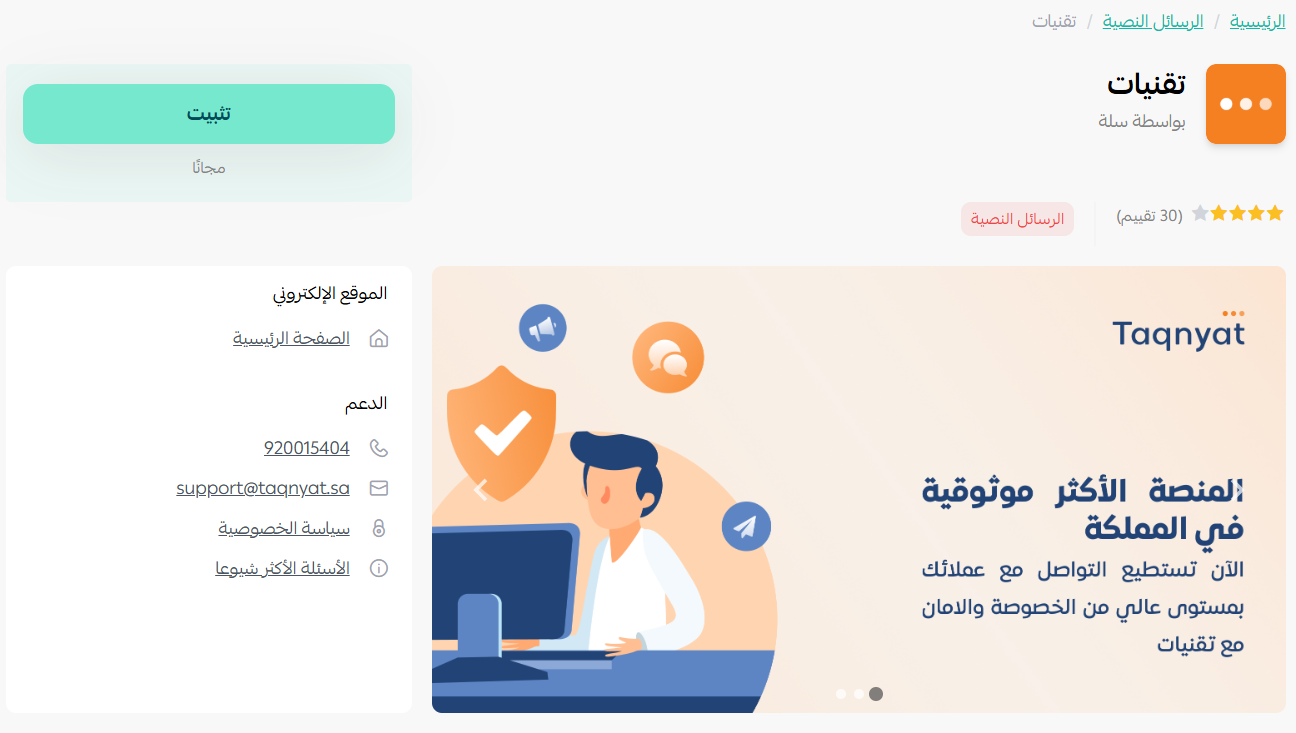
Taqnyat is now installed on your store.
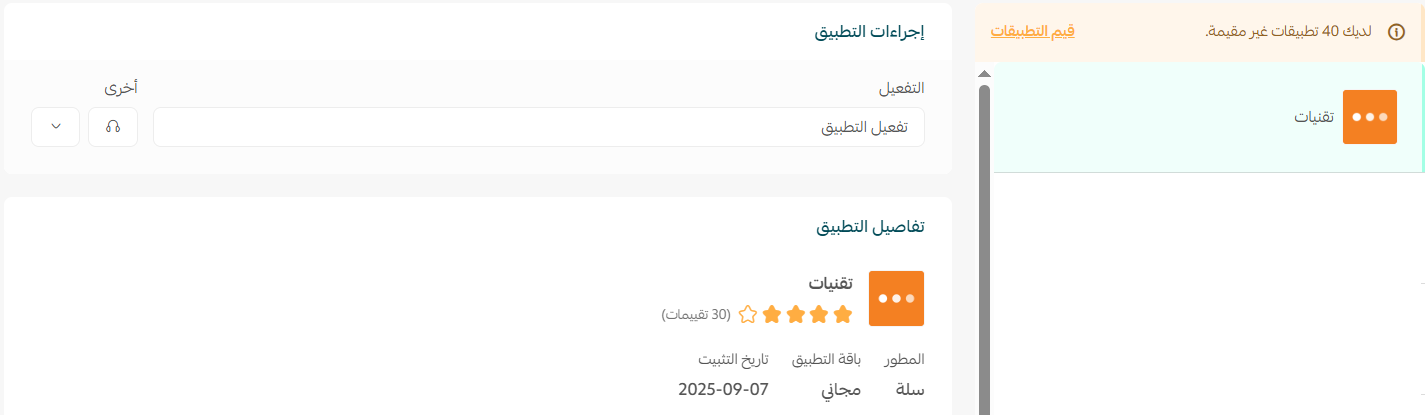
🚀 How to activate the Taqnyat app
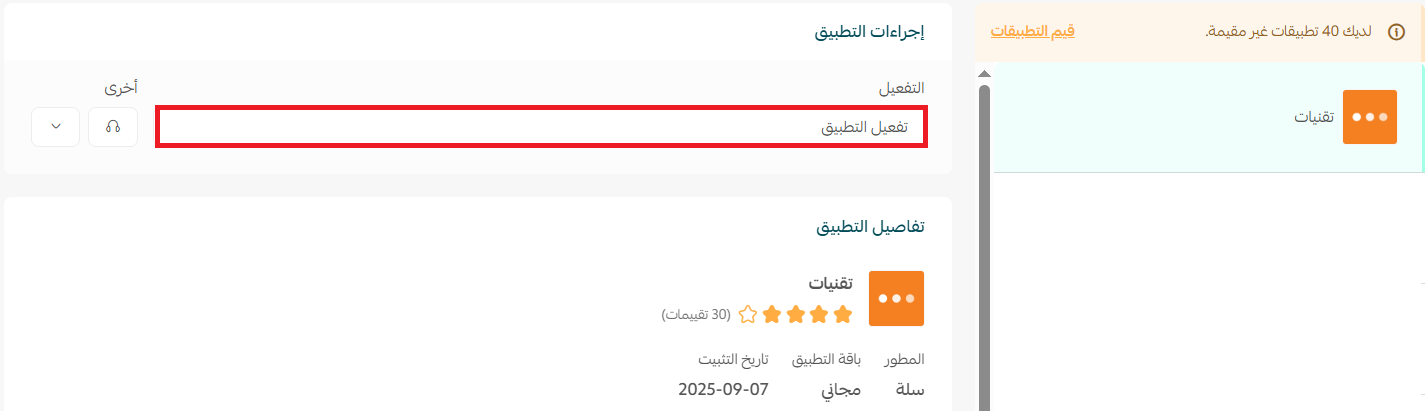
1. From the (Taqnyat) app page, click (Activate app).
2. Enter the details of your account with the service provider.
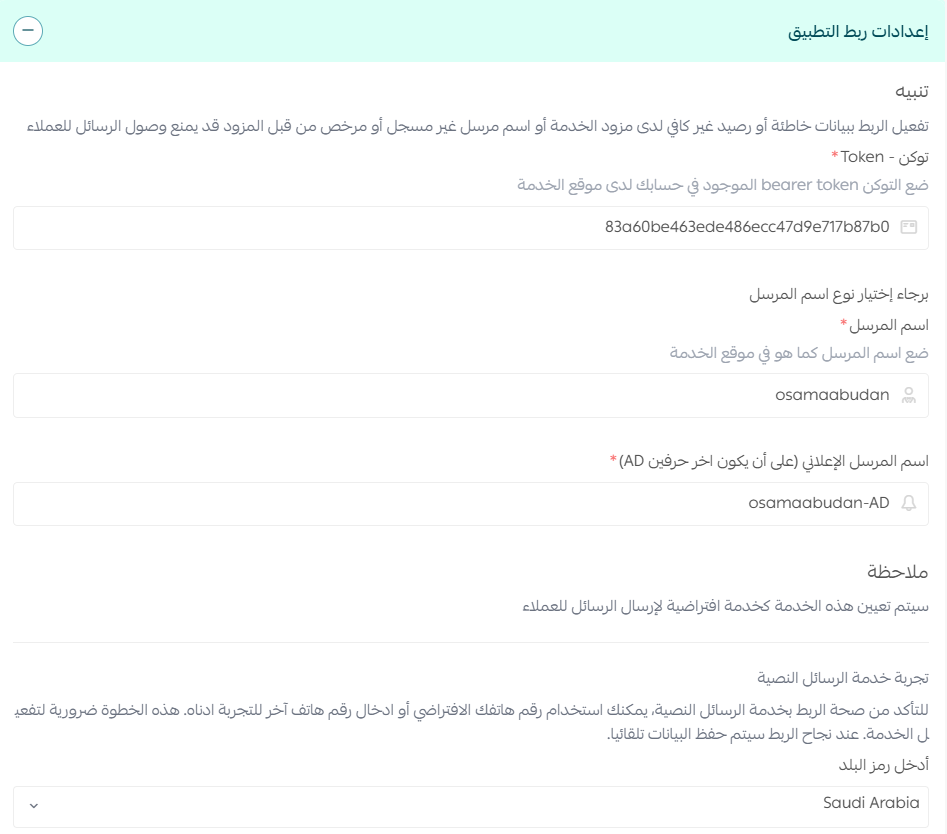
3. Once your account details are saved, go to (Settings), then click (Customize).
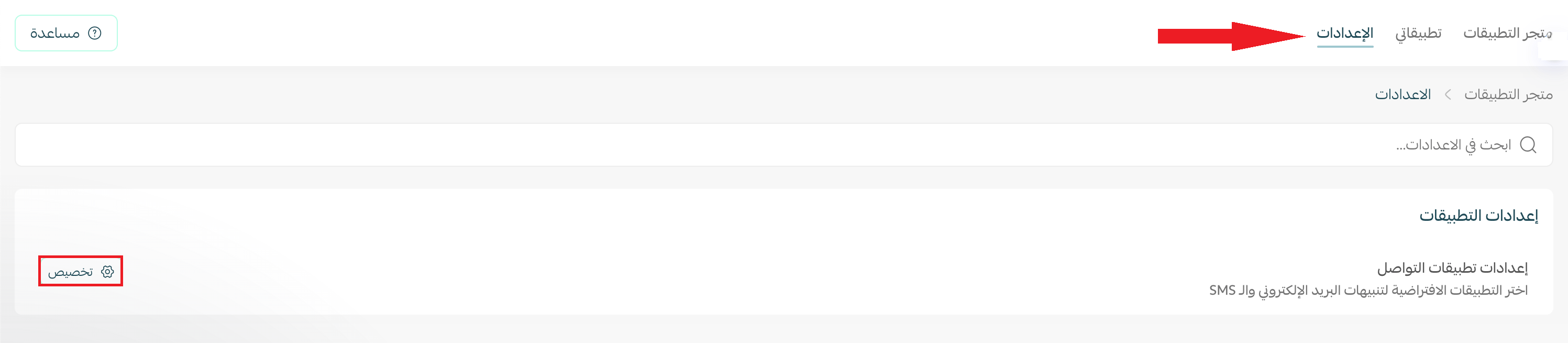
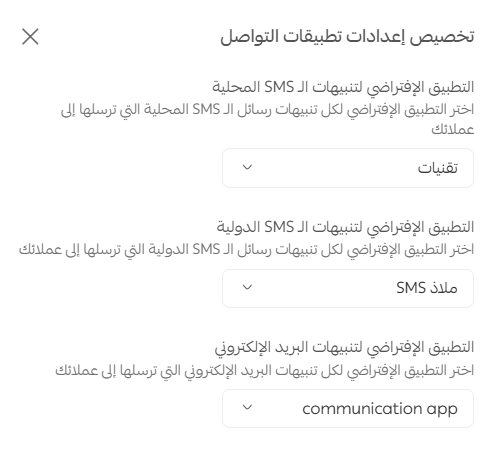
4. The communication app settings open. Choose your default app for local text messages, international notifications, and email notifications.
📝 Important notes
The default app option for email notifications only appears if you have an email notification app activated.
Frequently asked questions
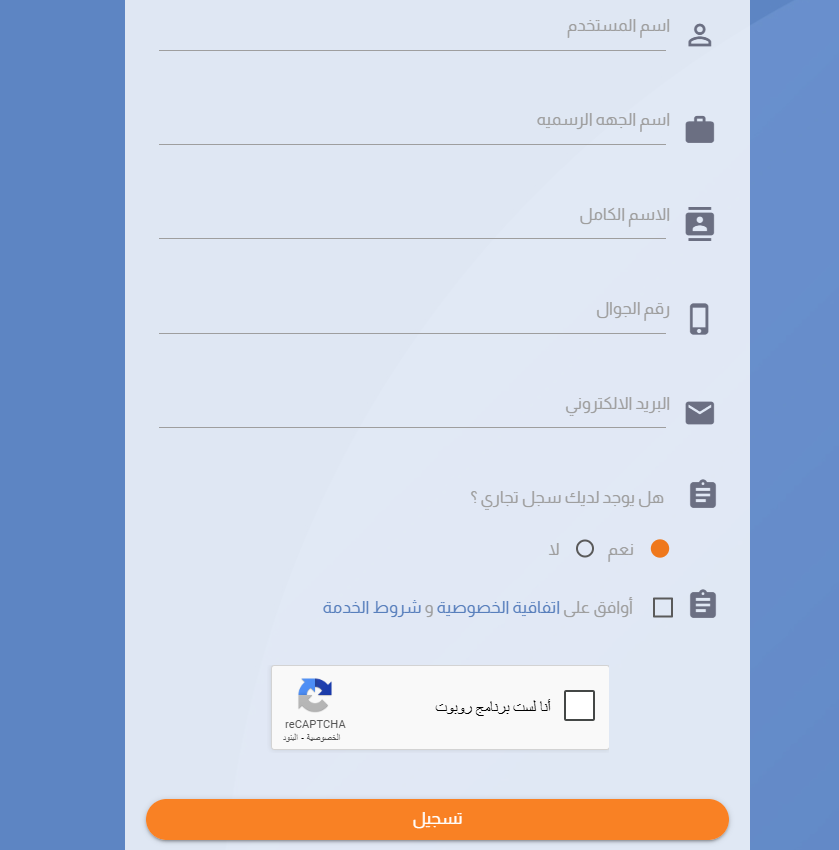
❓ How do I create a Taqnyat account?
From the Taqnyat sign-up page, enter the required details, then click (Register).
❓ How do I make Taqnyat my store's default SMS app?
Go to (Settings), click (Customize), then choose Taqnyat as the default app for local text messages.
❓ Why can't I see the email notifications option?
That option only shows once an email notification app is activated on your store.
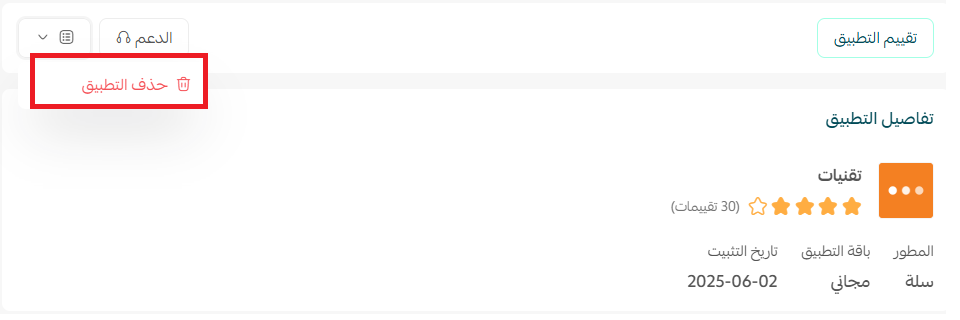
❓ How do I remove Taqnyat from my store?
Open the Taqnyat app, click ( ), then click (Cancel subscription).
SMS is the channel customers actually read. Connect it once, set it as your default, and every order update reaches them without you lifting a finger.
For more details, see the Taqnyat website.