Your products are ready to sell — but can anyone find them when they search Google?
Google Merchant Center is where that changes. It is the platform that carries your store's products to millions of Google users, so they can discover them and buy them easily, and it gives you several ways to put the right product in front of the right customer across Google's surfaces. In this guide, you'll learn what you need before you start, how to install the Google Merchant Center app on your store, and how to set up your Merchant Center account and upload your product feed.
Google Merchant Center stores your product information and shows it across Google. Connecting it to your store takes two stages: install the Google Merchant Center app on Salla and copy your product feed link, then create a Merchant Center account, verify your business and website, set up shipping, and add your products from that link.
📌 Article overview
- What Google Merchant Center is
- What you need before you connect
- How to connect your store to Google Merchant Center
- Frequently asked questions
🎯 What is Google Merchant Center?
Google Merchant Center is a platform that puts your store's products in front of millions of users, so they can browse and buy them easily. It also gives you several ways to show the right products to the right customers across all of Google's platforms.
The benefit
With Google Merchant Center, your store and your products become visible to customers searching on Google — in ordinary search results and in Google Shopping. The tool also complements Google Ads, making it easier to advertise your products and reach your target audience.
What you get from Google Merchant Center
- Advertise your products through Google Shopping.
- Store the core product information used to build and serve ads to potential customers.
- Have your products appear in Google Search results and Google Images.
How do my products show up on Google?
Once your product information is enabled across Google platforms, such as Shopping ads and Shopping Actions, customers see your products everywhere on Google — in paid and unpaid search results, and in Google Images.
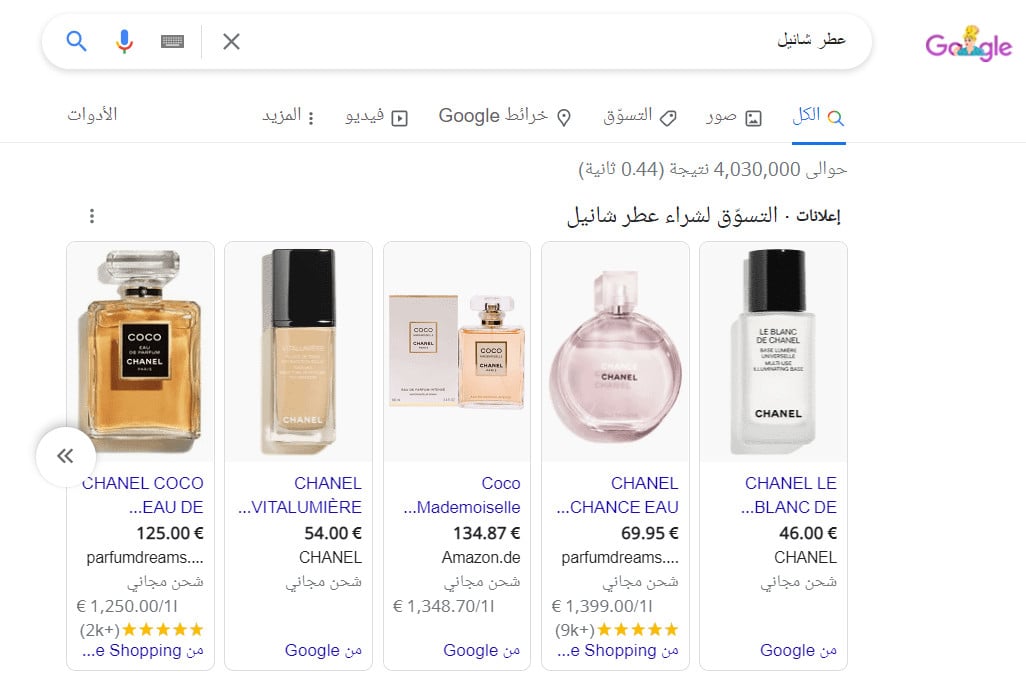
💡 Example: when someone searches for "Chanel perfume", the first results come from Shopping ads and Google Search results, and the shopper can go straight to that product's page in your store.
What you need before you connect
1. A custom domain for your store. For more details, read managing your store's domain on Salla.
2. Completed site ownership verification. For more details, read verifying site ownership with Google Site Verification.
To use Google Merchant Center and its programs, you also need to follow Google's policies and meet certain requirements.
For more details, read the Shopping requirements and policies.
🚀 How to connect your store to Google Merchant Center
The connection happens in two stages:
1. Connect your Salla store to Google Merchant Center.
2. Register your Google Merchant Center account.
Stage one: connect your Salla store to Google Merchant Center
1. From the main menu, click (All), then under helper tools, click (App Store).

2. Search for the app using the search field.

3. On the Google Merchant Center app page, click (Install).
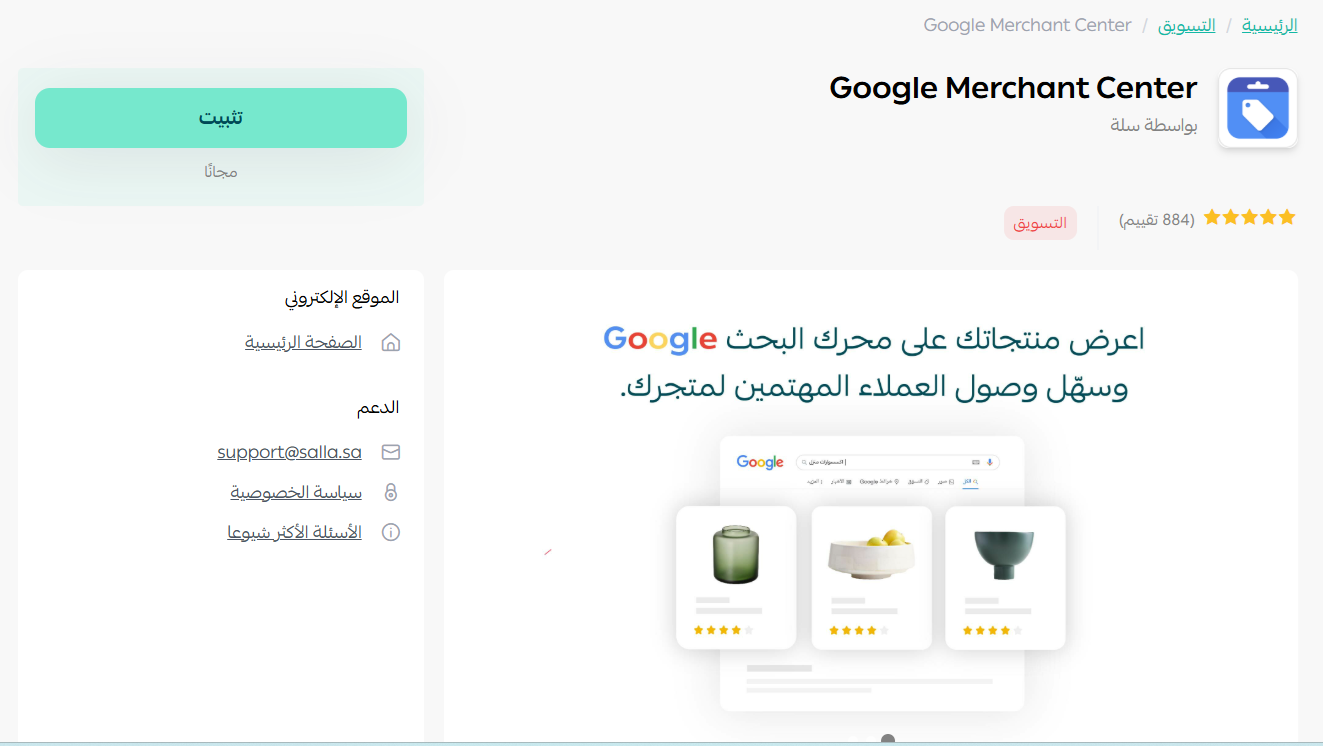
4. From the My apps page, open the Google Merchant Center app.

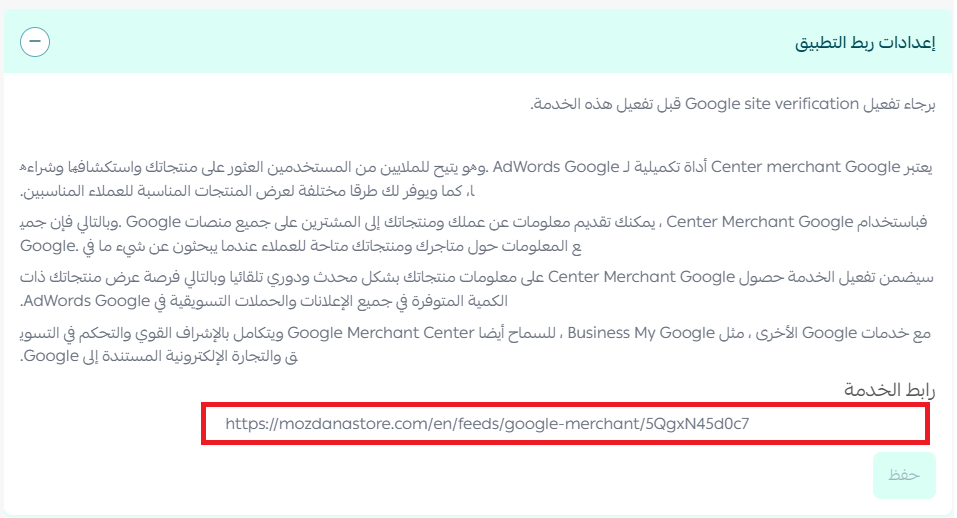
5. Click (Copy link). You'll paste this link into your Google Merchant Center settings in stage two.
Stage two: register your Google Merchant Center account
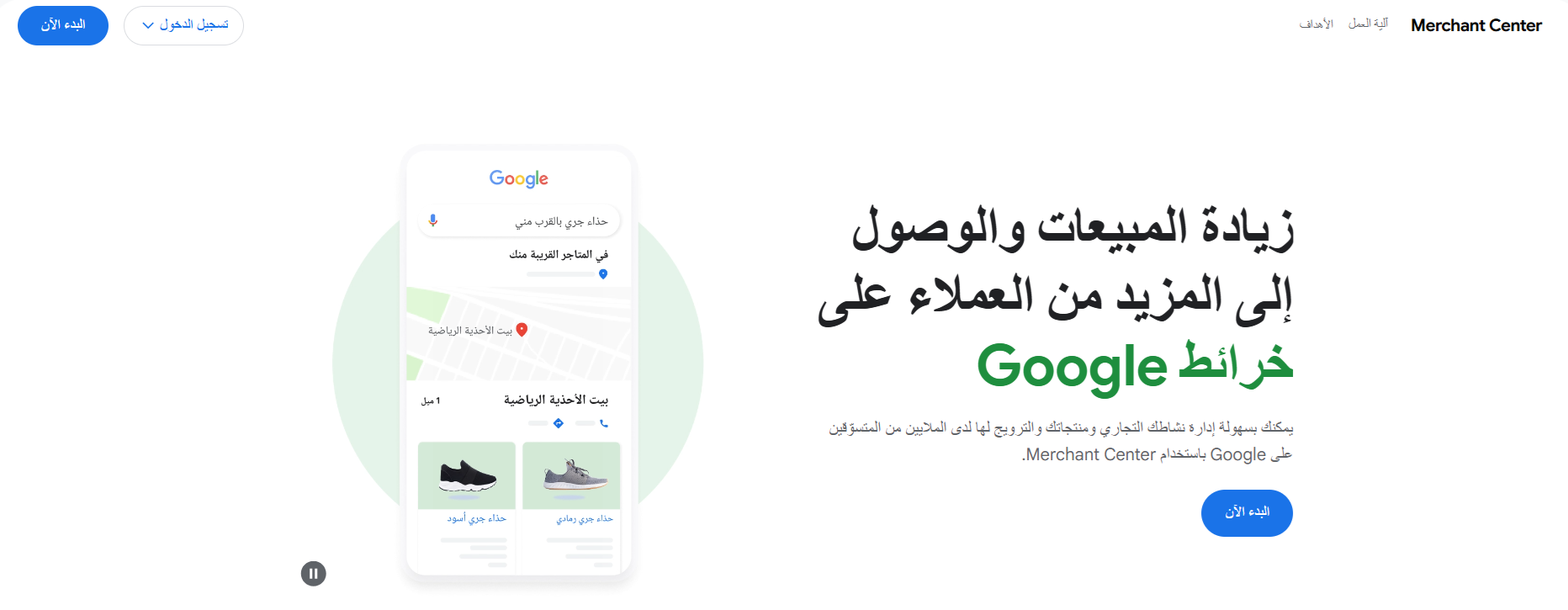
1. Open Merchant Center, and on the Google Merchant Center home page click (Get started).
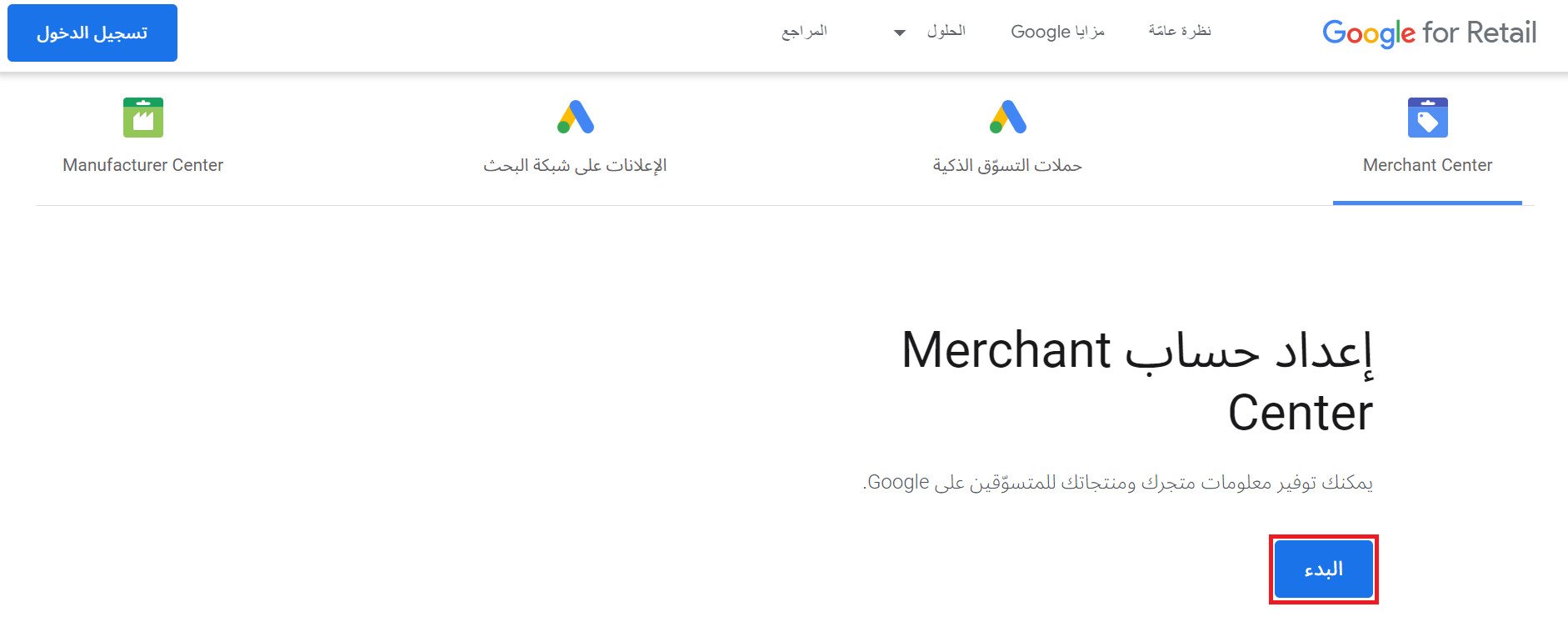
2. On the Merchant Center account setup page, click (Get started).
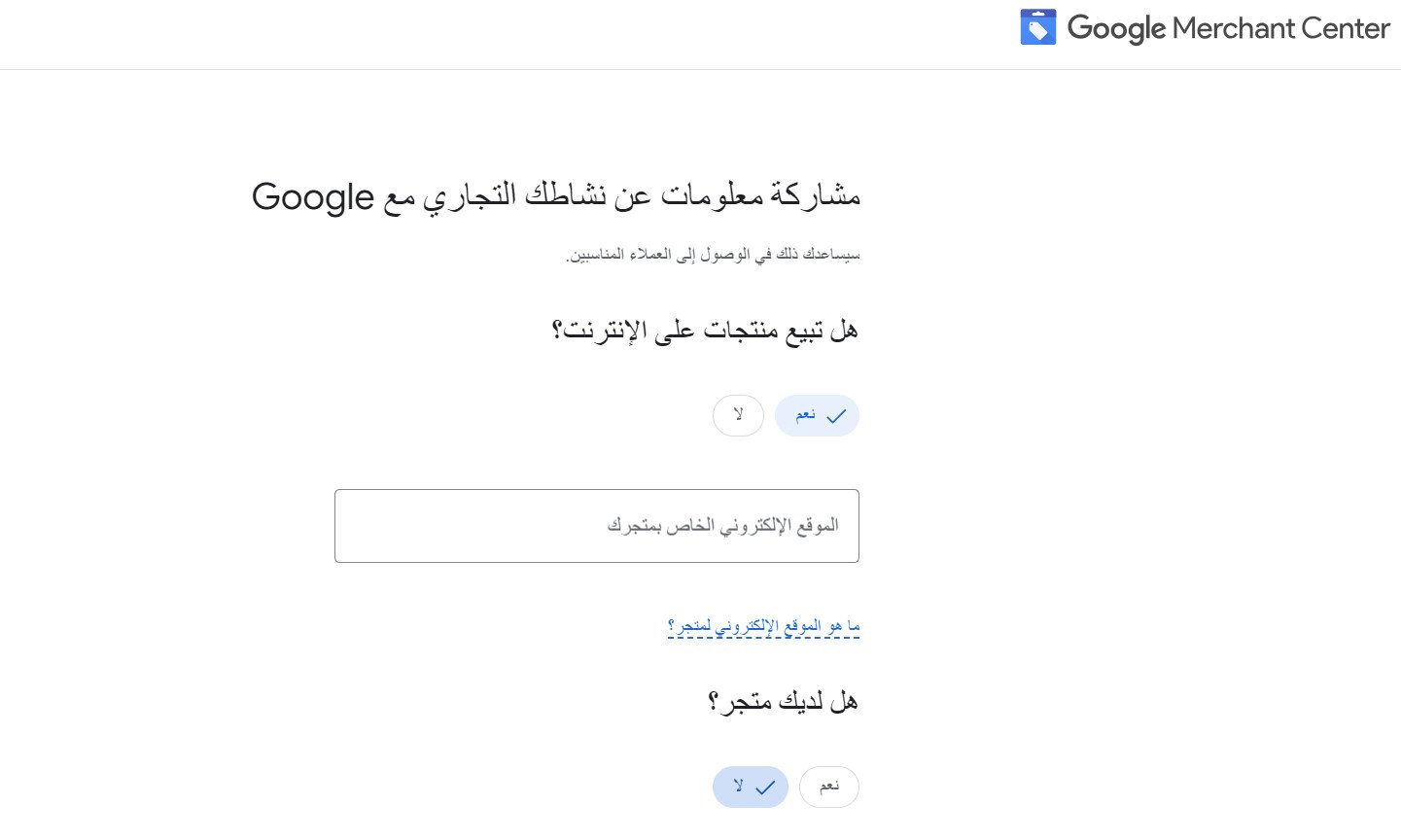
3. Share some information about your business: do you sell products online, and do you have a physical store?
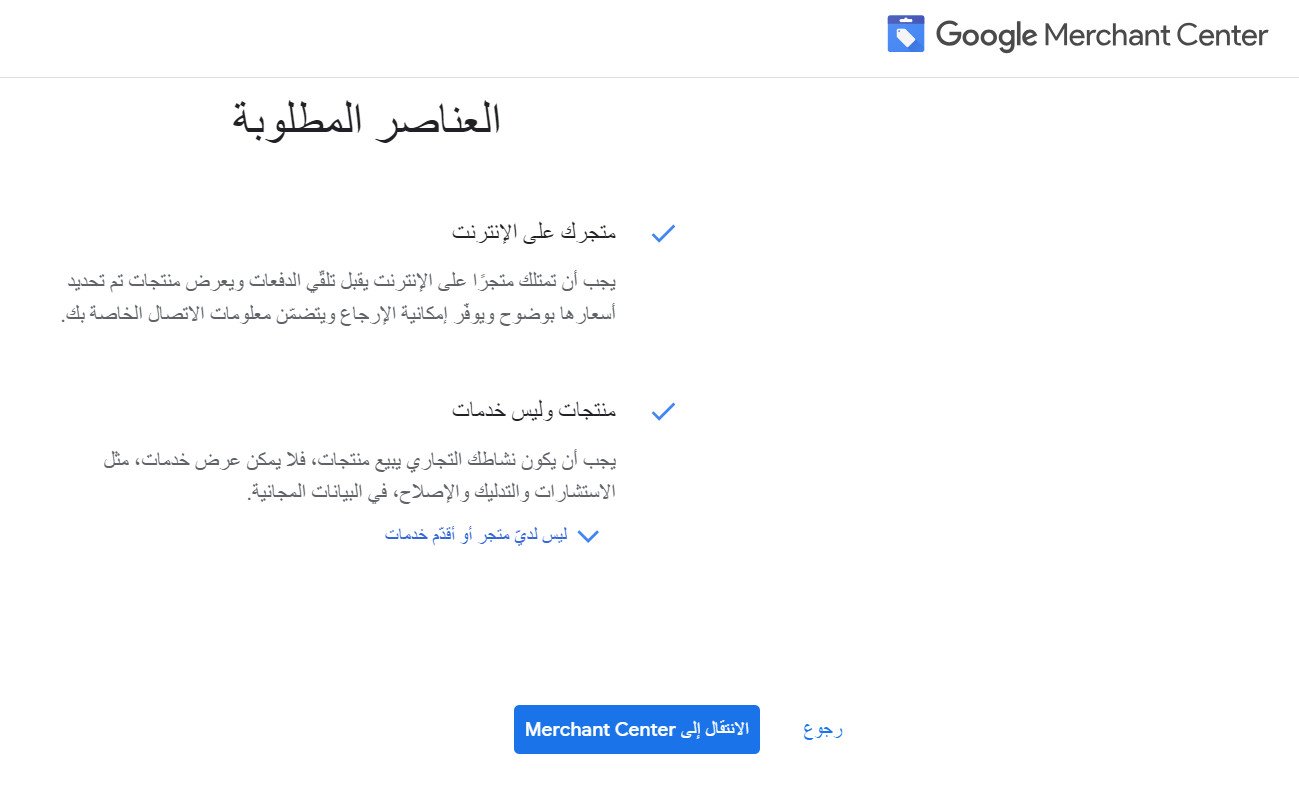
Then click (Go to Merchant Center).
4. Enter your business name and country of registration, then click (Go to Merchant Center).
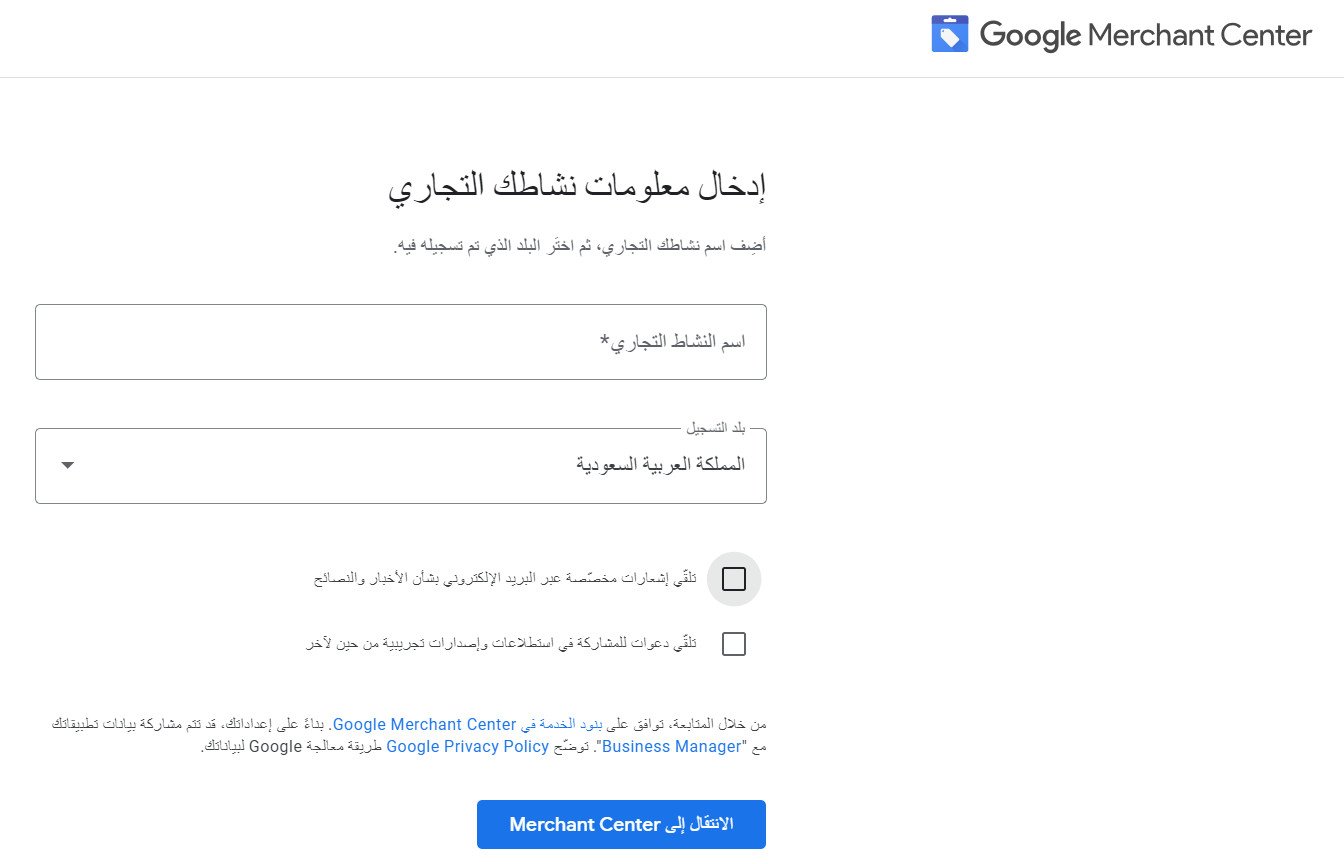
Then click (Get started).
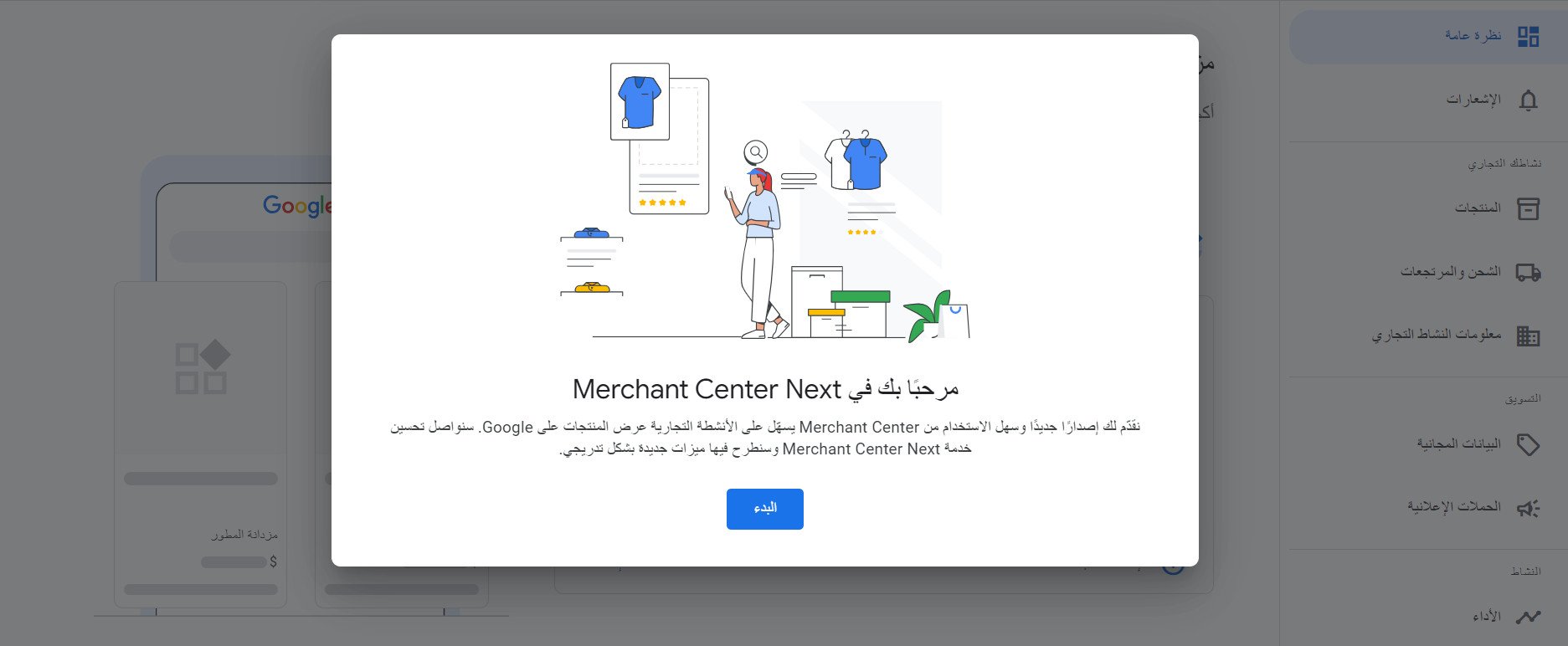
5. Add your business details step by step.
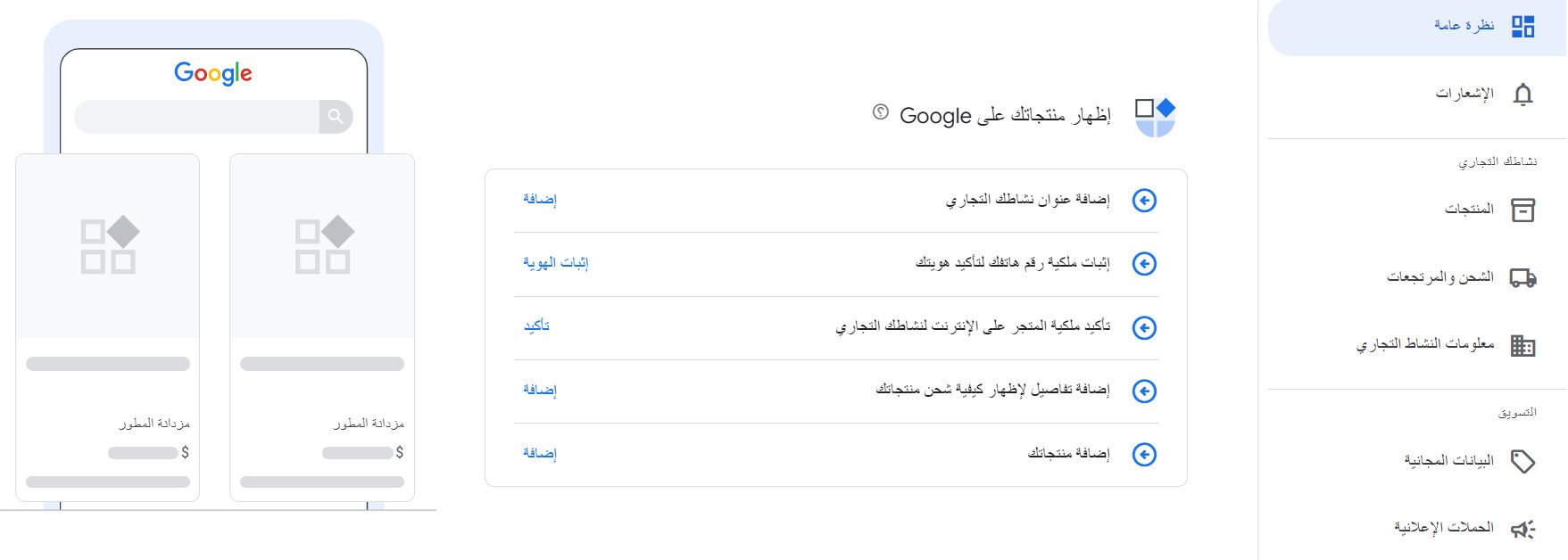
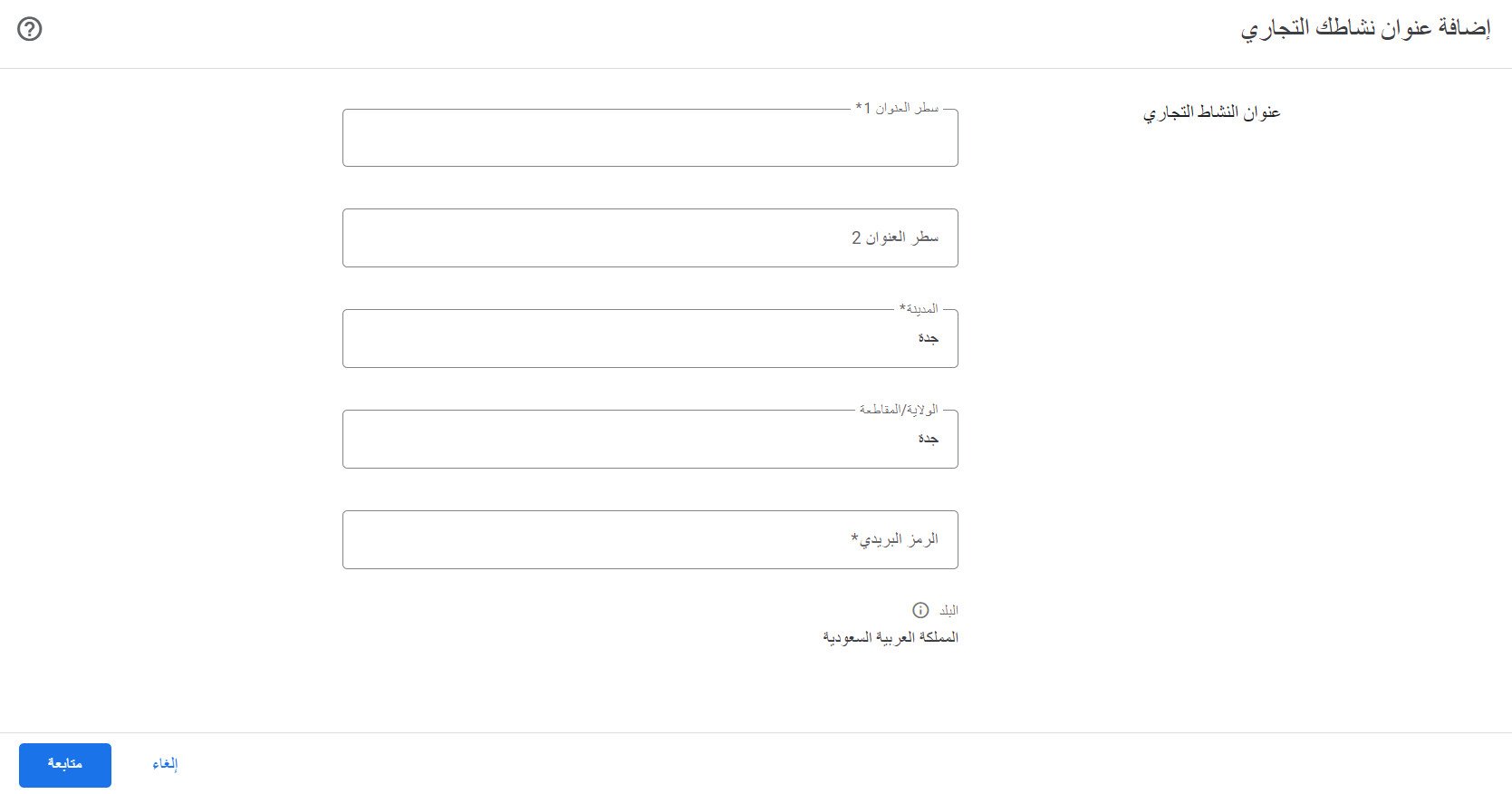
First. Add your business address — street address, city and postal code — then click (Continue).
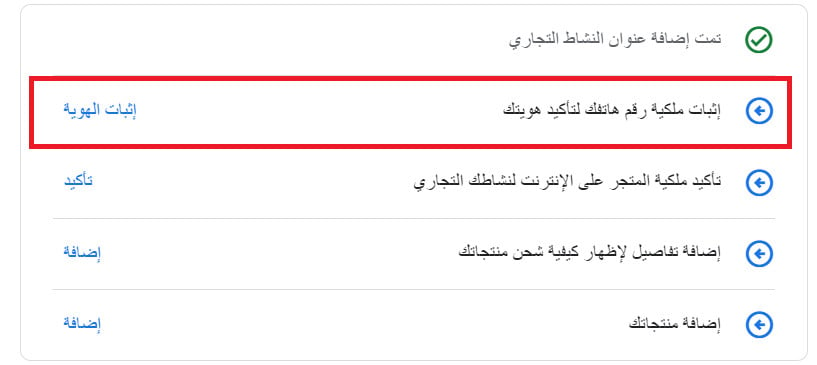
Second. To prove you own your phone number, click (Verify identity).
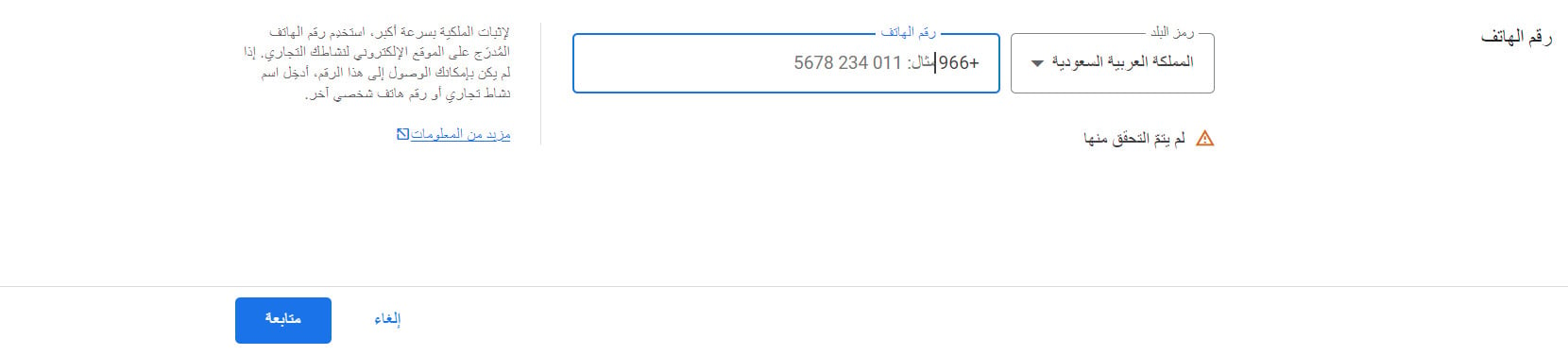
Enter your store's phone number — a personal number works too — and click (Continue).
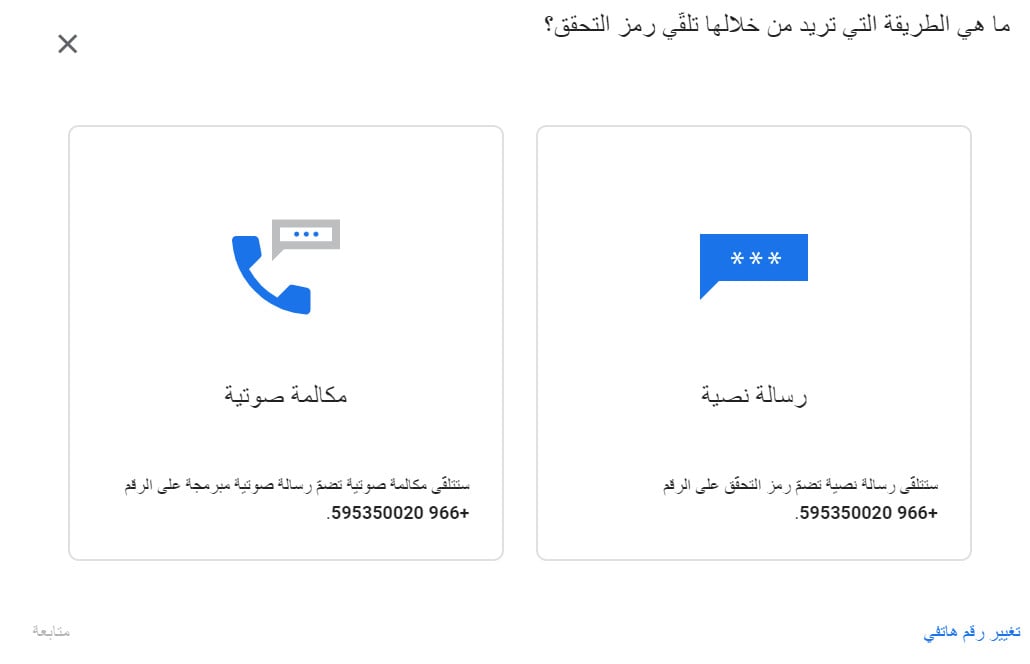
Choose how you want to receive the verification code.
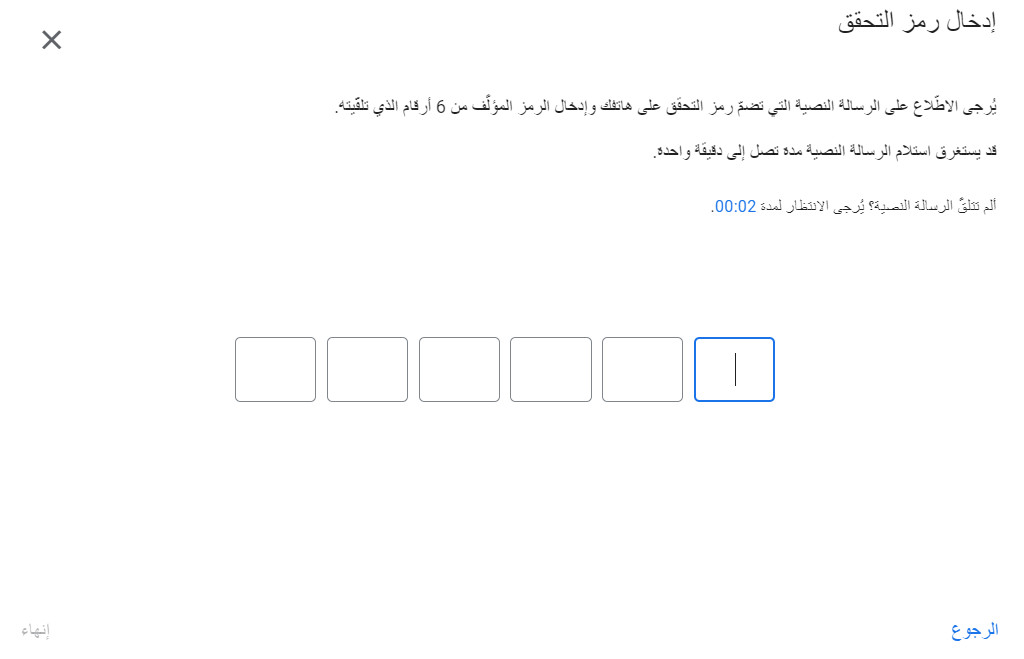
When the code arrives, enter it in the fields provided.
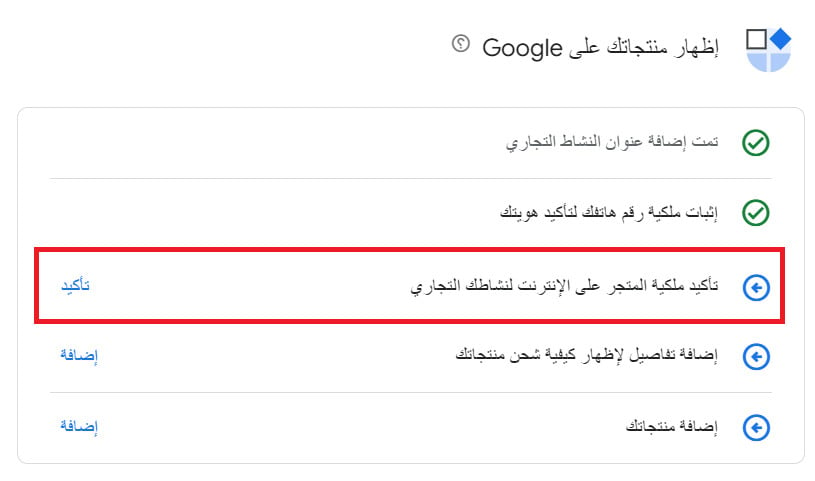
Third. To confirm that you own the online store, click (Confirm).
Enter your store URL and click (Claim your online store).
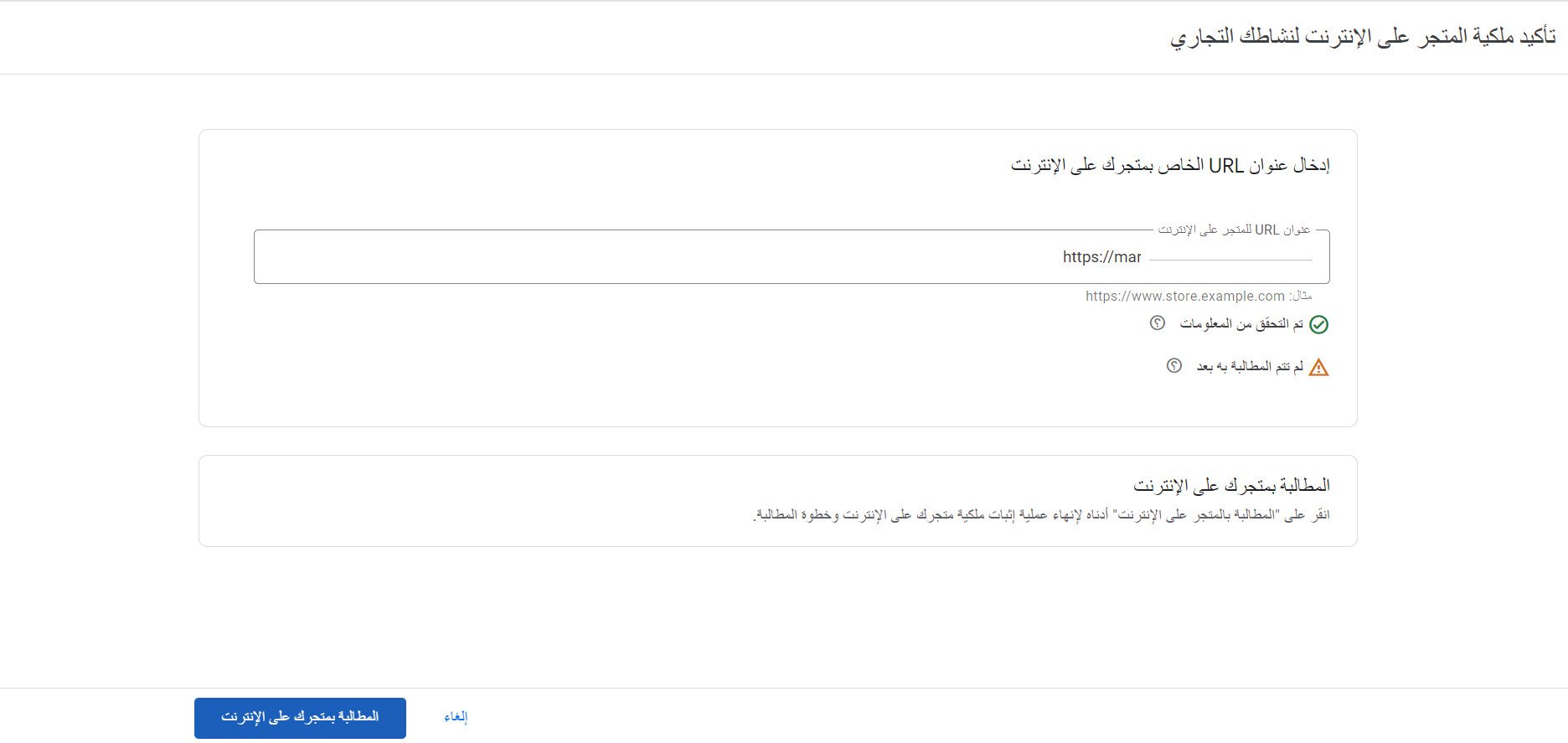
Before you start connecting to Google Merchant Center, you must complete site ownership verification with Google Site Verification.
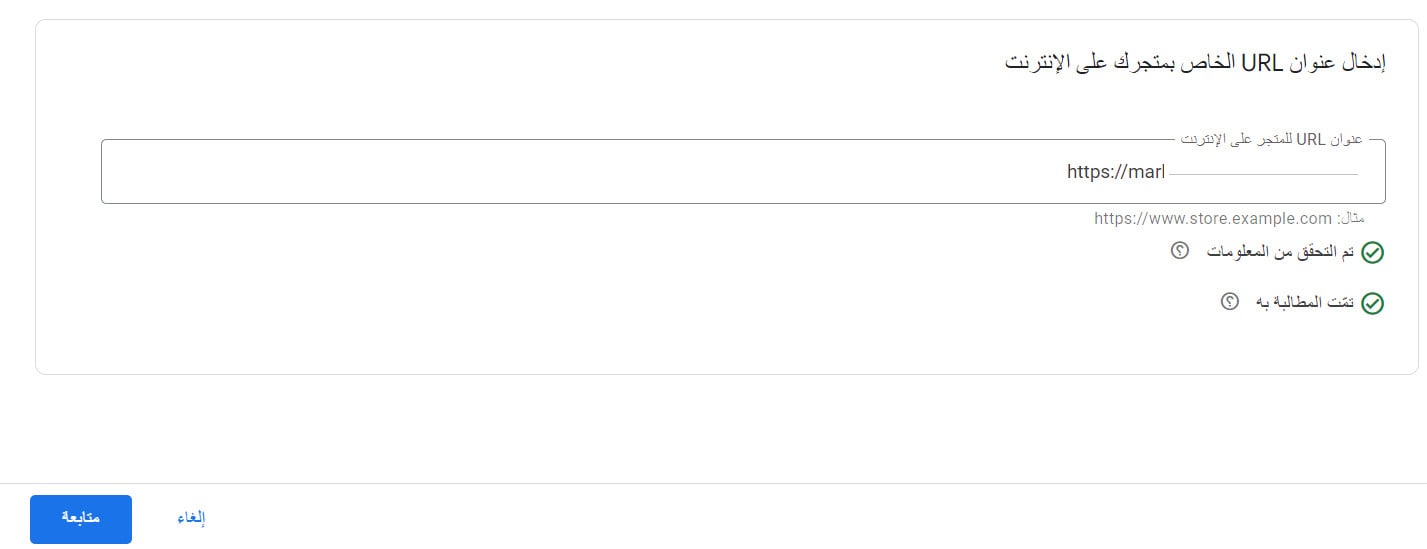
Once verification and claiming succeed, click (Continue).
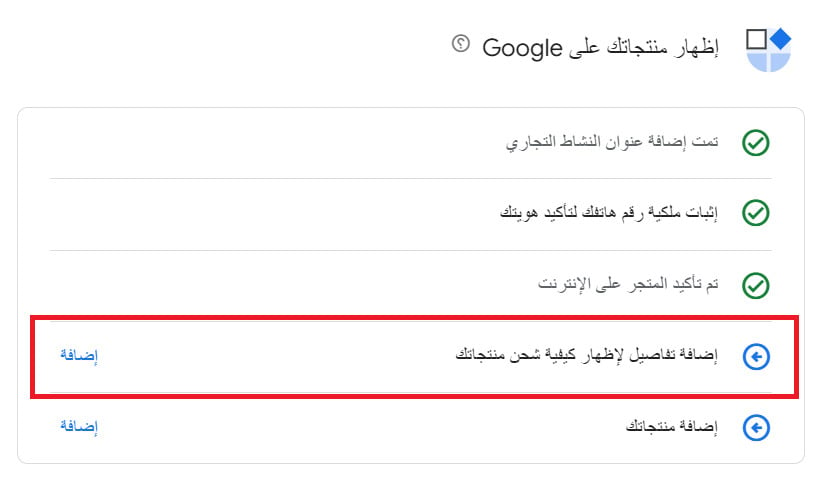
Fourth. To set up your shipping settings, click (Add).
Add the countries your store can ship to.
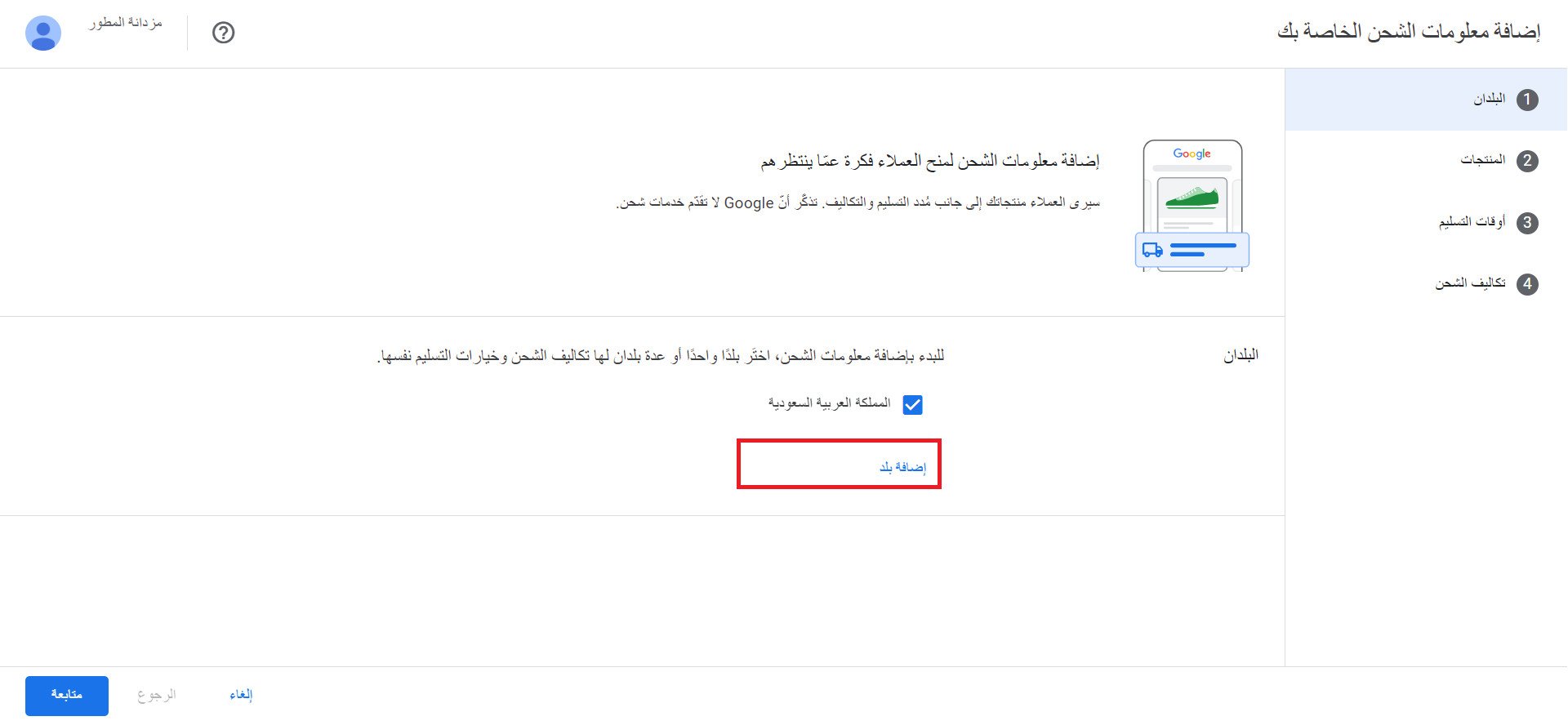
Choose which products have shipping costs, then click (Continue).
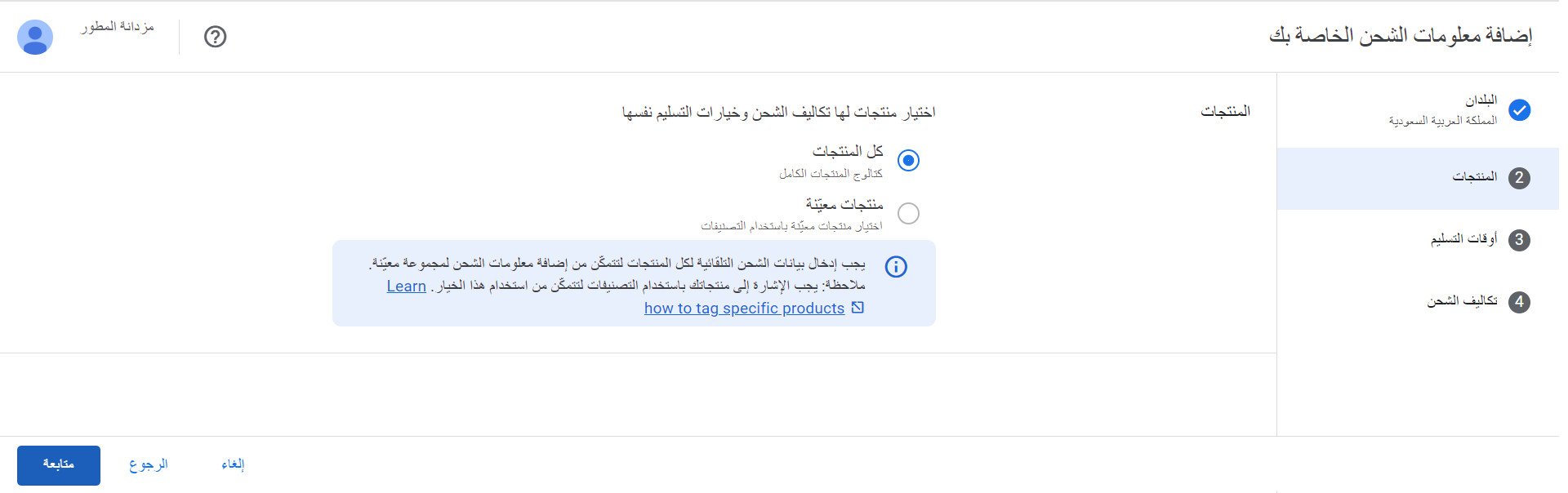
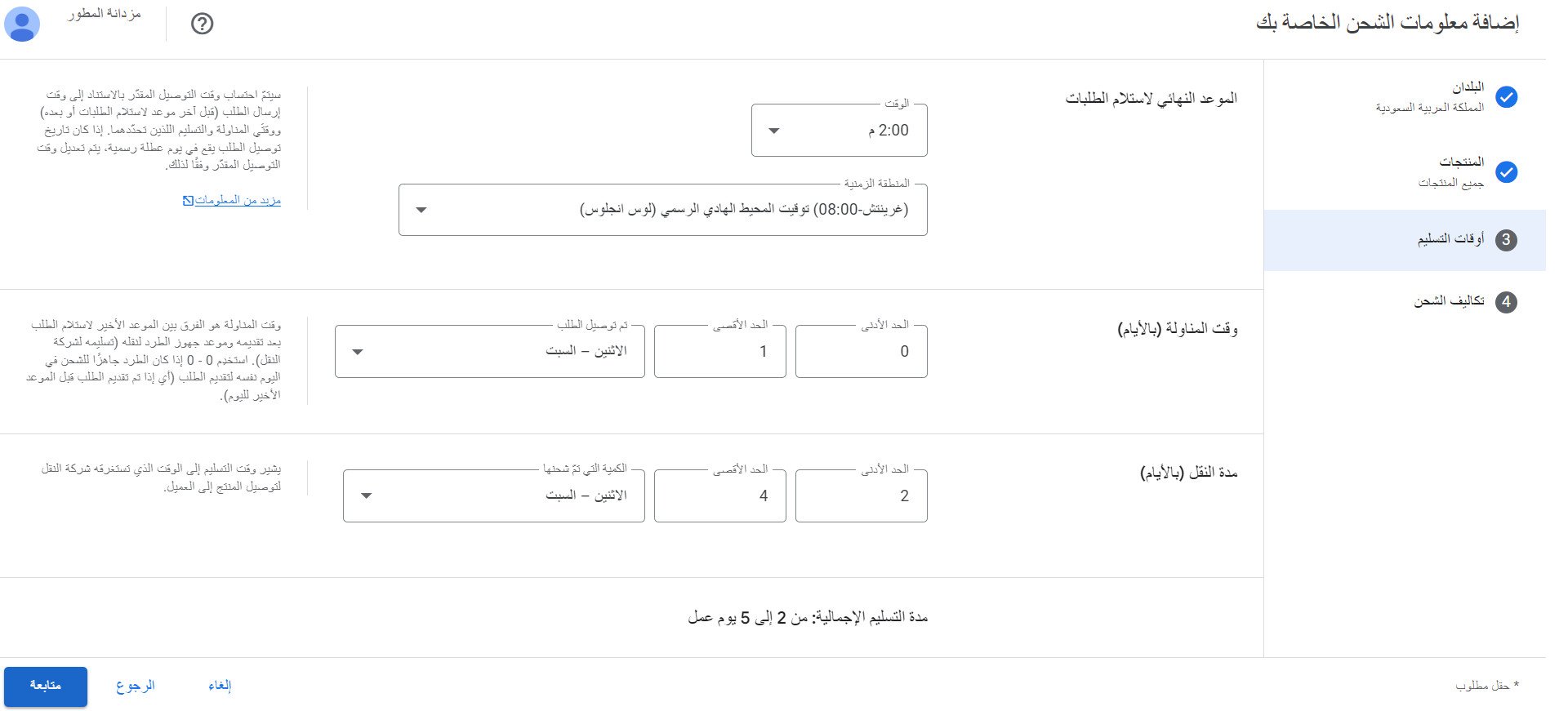
Set your delivery times.
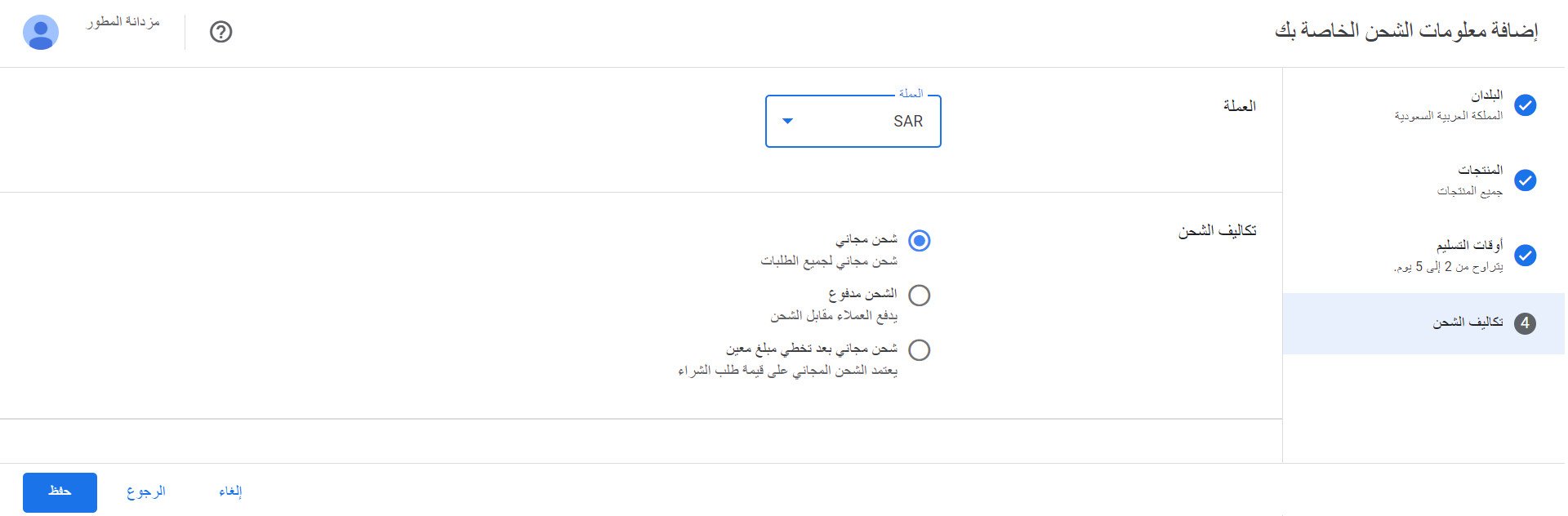
Set the shipping costs for your products, then click (Save).
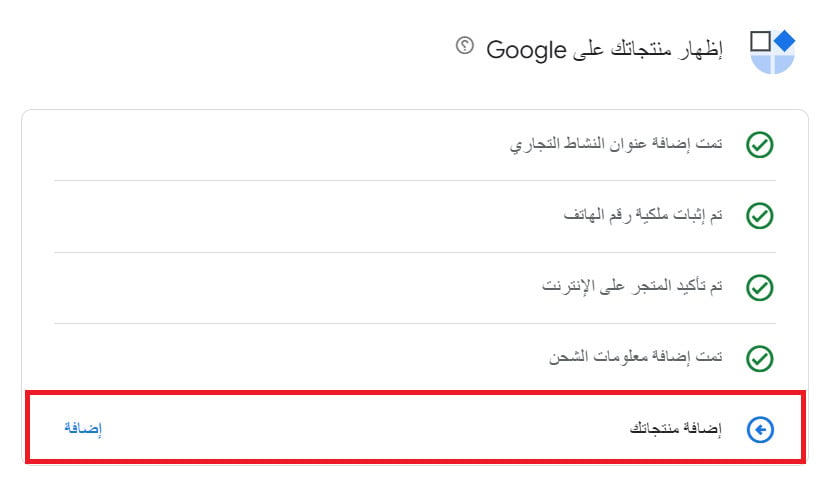
Fifth. To add your store's products to Merchant Center, click (Add).
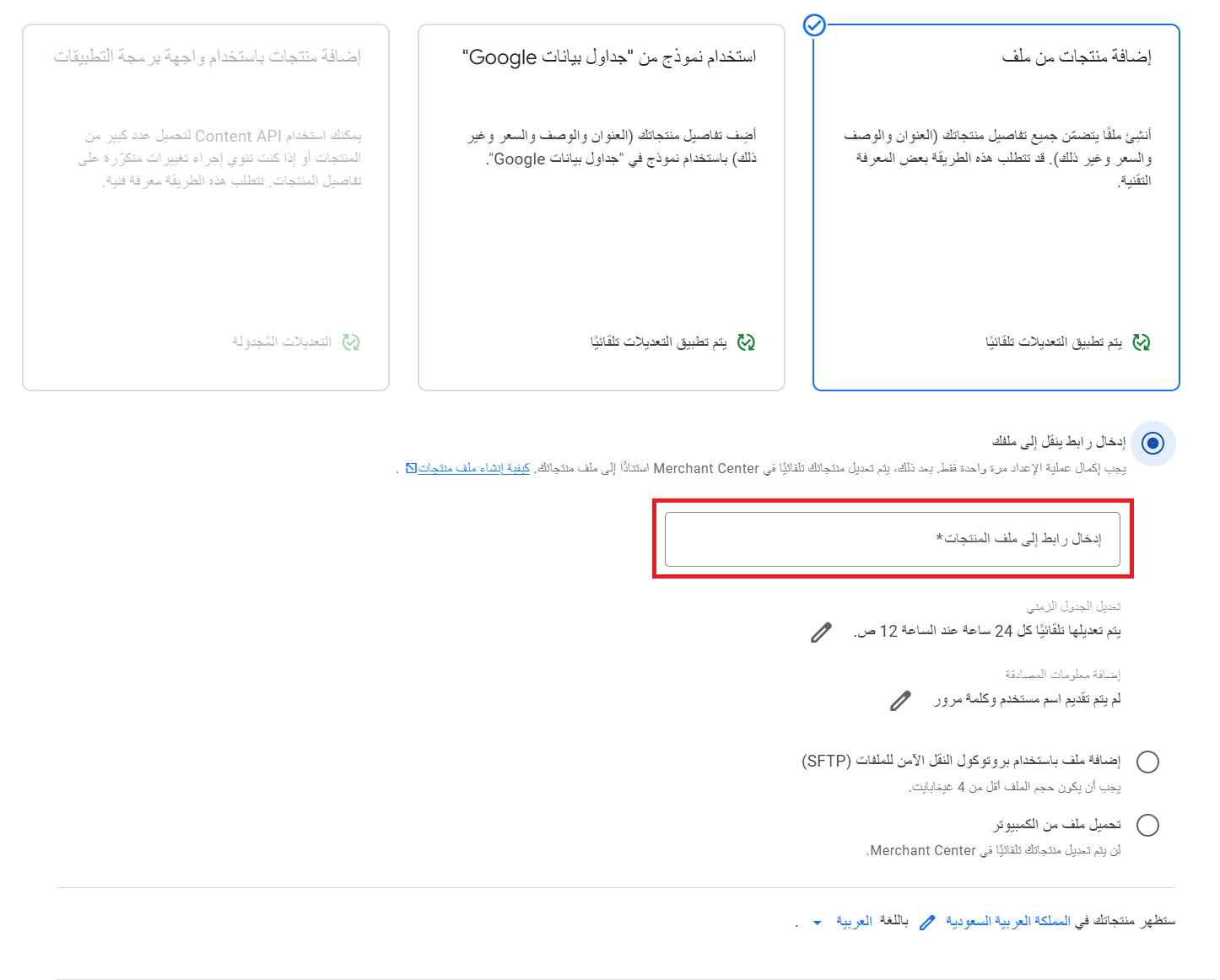
Select the first option (Add products from a file), then choose (Enter a link to your file). Paste the link you copied from the Google Merchant Center app settings on your installed apps page into the (Enter a link to your product file) field, then click (Continue).
Be patient here — adding products can take a while, depending on how many you have.
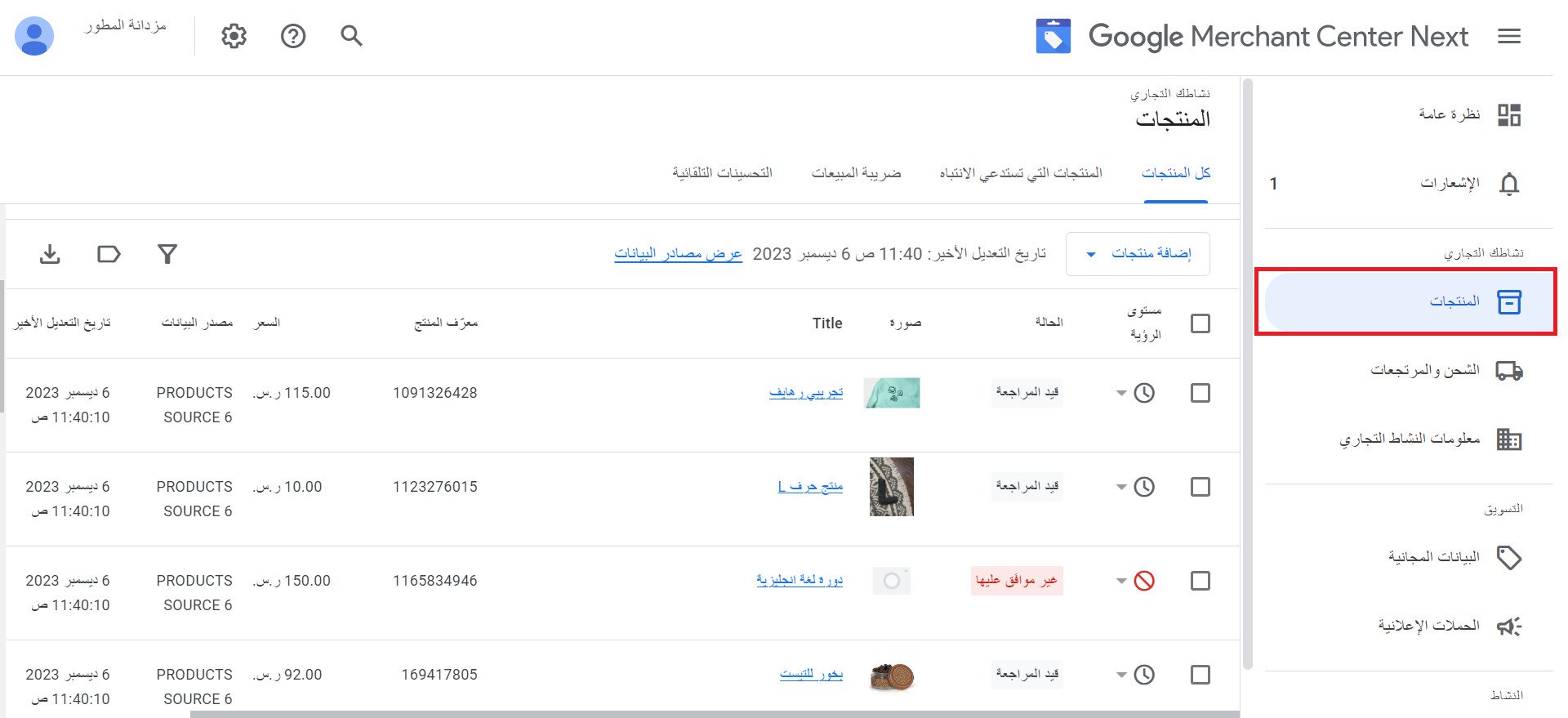
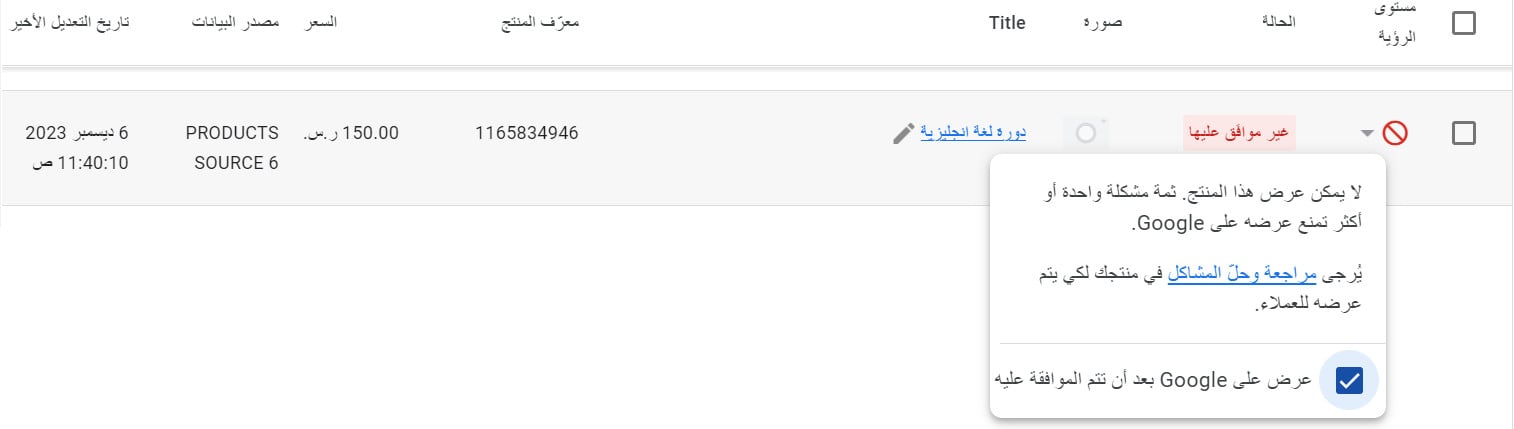
Check the status of the products you added (under review, disapproved, or approved). To find out why a product was rejected, open the menu next to it and click (Review and fix issues).
🔔 Important notes
- Every product carries one of three statuses: under review, disapproved, or approved.
- Use (Review and fix issues) to see exactly why a product was rejected.
- Product review can take a few days, depending on how many products you submitted.
For more details, read Merchant Center account creation problems and how to solve them.
❓ Frequently asked questions
What do I need before connecting to Google Merchant Center?
Two things: a custom domain for your store, and completed site ownership verification. You also need to meet Google's Shopping requirements and policies.
How do my products get into Merchant Center?
Through the product feed link. Copy it from the Google Merchant Center app in your store, then in Merchant Center choose (Add products from a file), select (Enter a link to your file), and paste it in.
Why is one of my products disapproved?
Open the menu next to the product and click (Review and fix issues). Google shows the reason for the rejection there.
How long does product review take?
It can take a few days, depending on how many products you submitted.
Where do my products appear once they're approved?
Across Google — in paid and unpaid search results, in Shopping ads, and in Google Images.
Supporting services
Make use of the merchant services section, where experts step in to help you with whatever you need — connecting to Google Merchant Center, getting your products visible on Google and surfaced in the shopping portal, and other services that take work off your plate so you can focus on growing.