Are you still copying every Salla order into your accounting system by hand?
Manual bookkeeping is where small mistakes turn into unbalanced books. Qoyod is a cloud accounting platform, and when you connect Salla with Qoyod your orders, customers, and products move across on their own. In this guide, you'll learn what Qoyod does, how to create a Qoyod account, how to link it to your Salla store, and how order and inventory syncing works once the connection is live.
Qoyod is a cloud accounting platform. Connecting it to Salla takes two stages: create a Qoyod account, then open the Qoyod app in your Salla dashboard, enter your Qoyod API key, and activate the connection. Orders and accounting data then sync between the two systems automatically.
📌 Article overview
- What Qoyod is and what it does
- How to connect your Salla store to Qoyod
- What the connection options mean
- What transfers with each order
- How orders sync between Salla and Qoyod
- How products are recorded in Qoyod
- Frequently asked questions
🎯 What Qoyod is and what it does
Qoyod is a cloud accounting program that runs entirely in your browser, so there is nothing to download or install on a computer. It lets you:
- Track purchase orders and quotations.
- Turn them into invoices in one click.
- Run accounting entries automatically.
- View up-to-date financial reports at any moment.
🎥 Want the bigger picture first? Watch this interview on how Qoyod simplifies day-to-day business.
🚀 How to connect your Salla store to Qoyod
The connection happens in two stages: first you register on Qoyod, then you link that Qoyod account to your Salla store.
Stage one: register on Qoyod
1. Go to the Qoyod platform, then click (Subscribe now) to register, or click (Start your free trial) to test the platform first.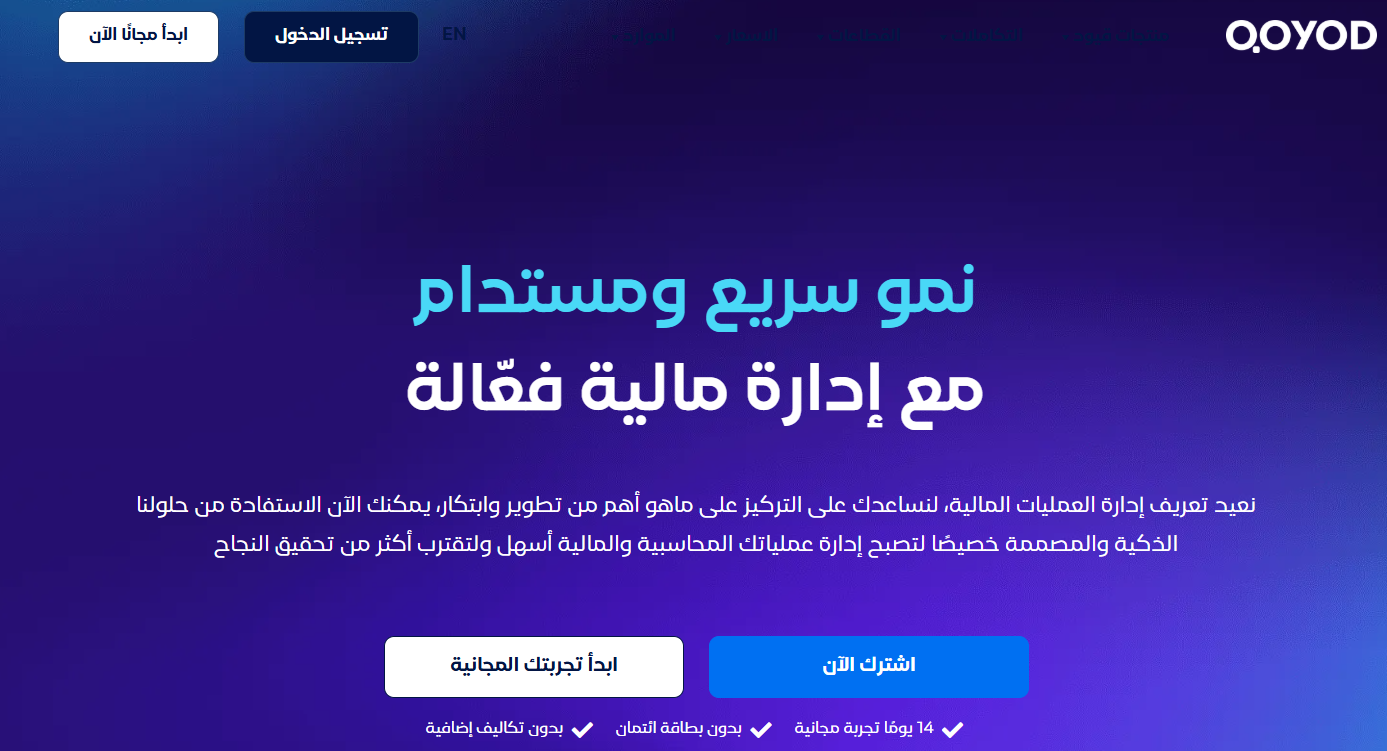
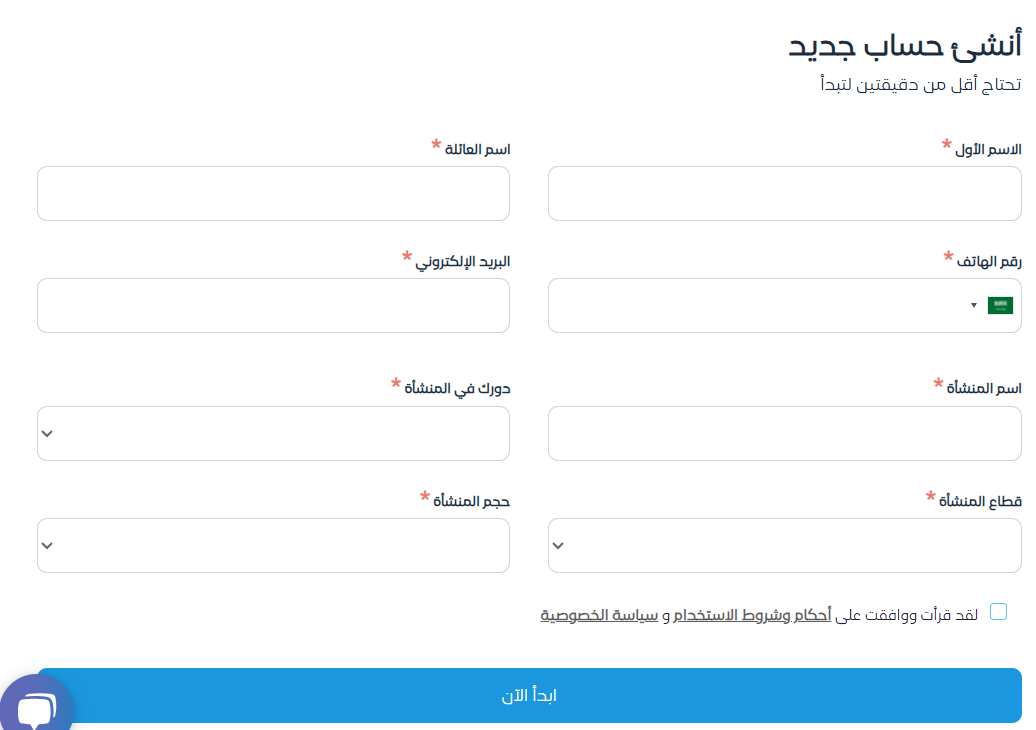
2. Enter your basic details, then click (Start now).
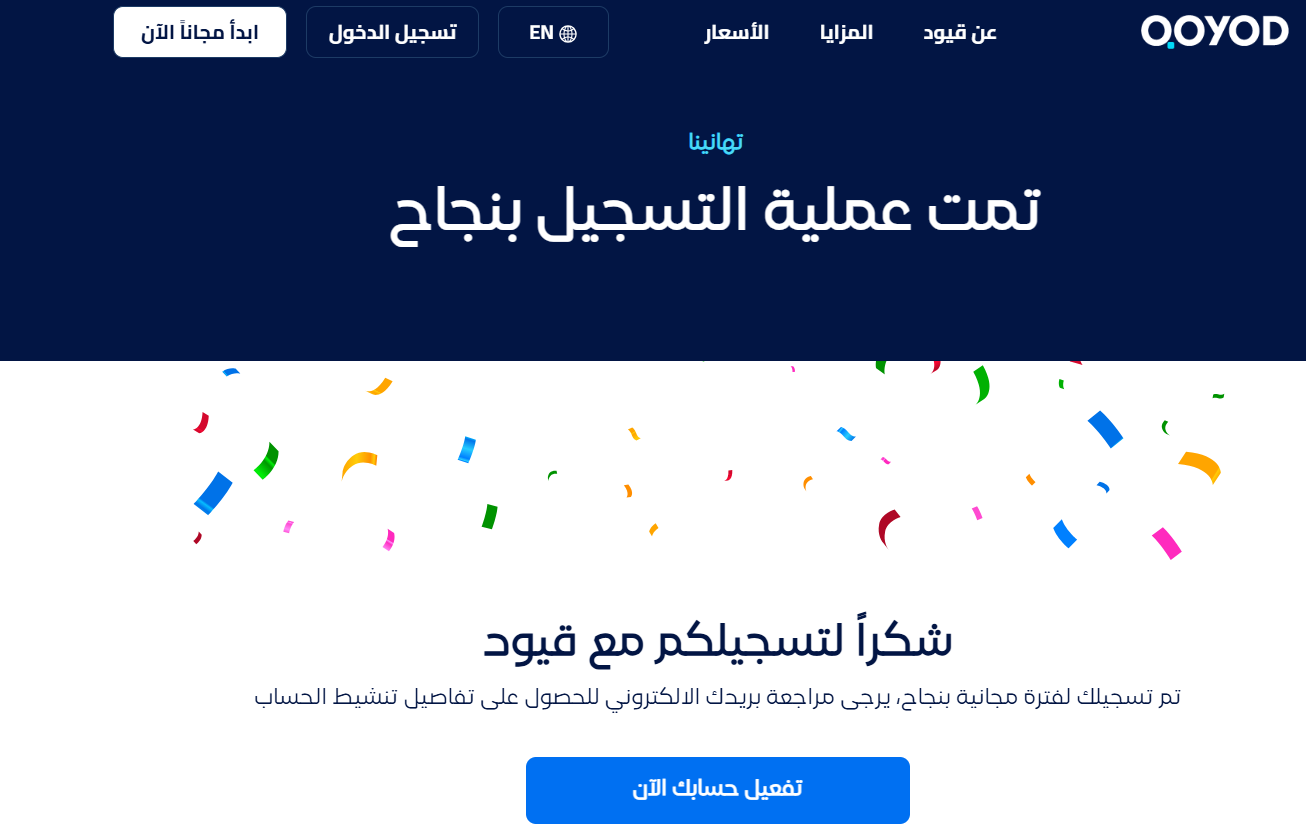
3. A confirmation message appears once your registration goes through.
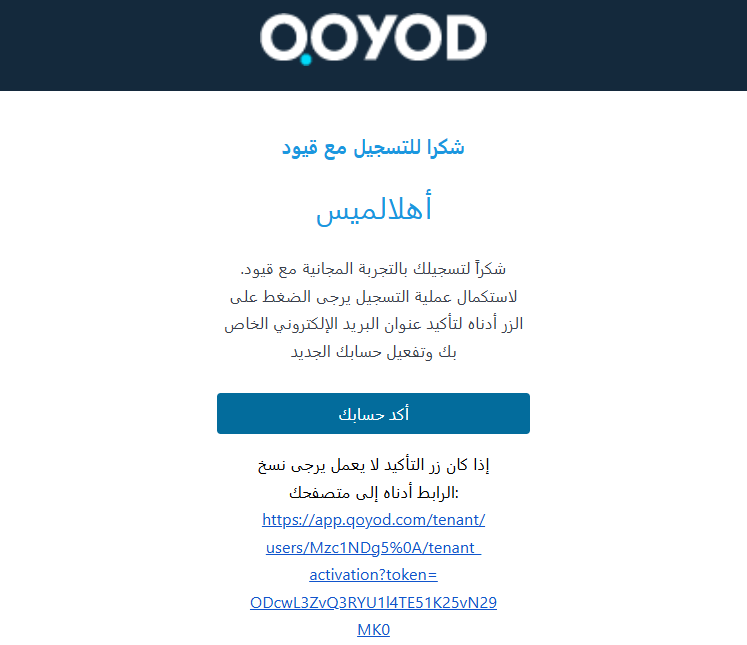
4. Activate your account from the email Qoyod sends you, then click (Confirm account).
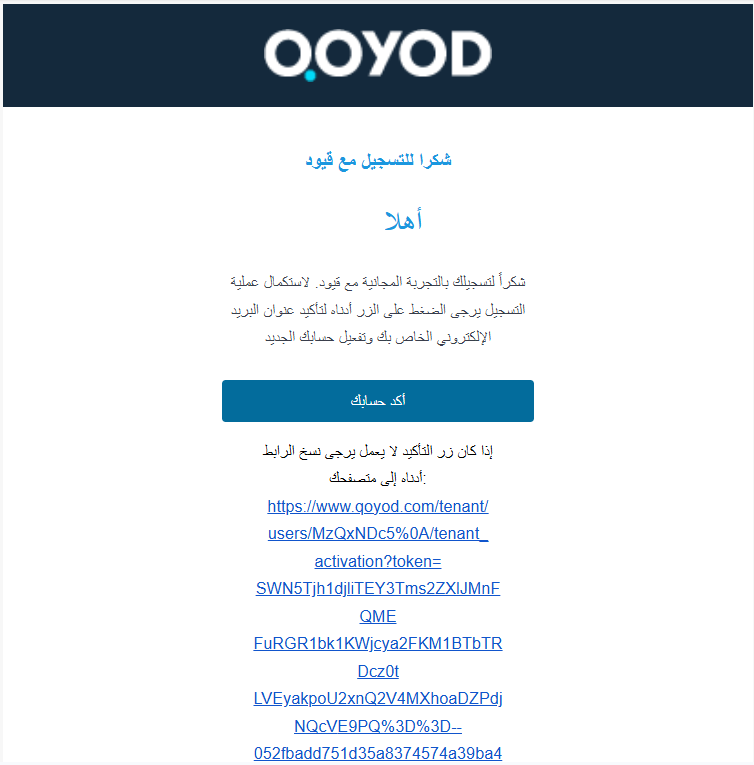
💡 Note: The activation email does not always land in your inbox. Check your spam folder before contacting Qoyod support.
5. Set your new password.
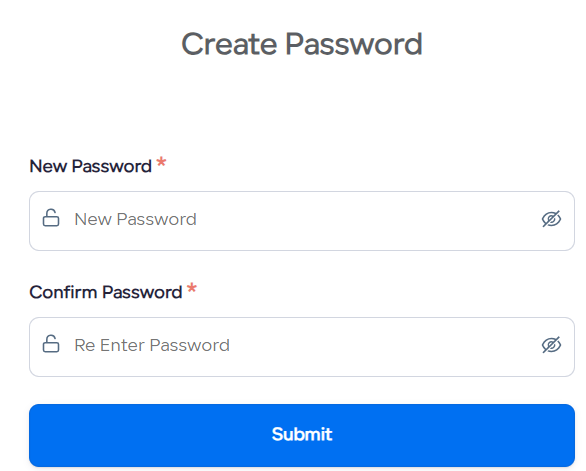
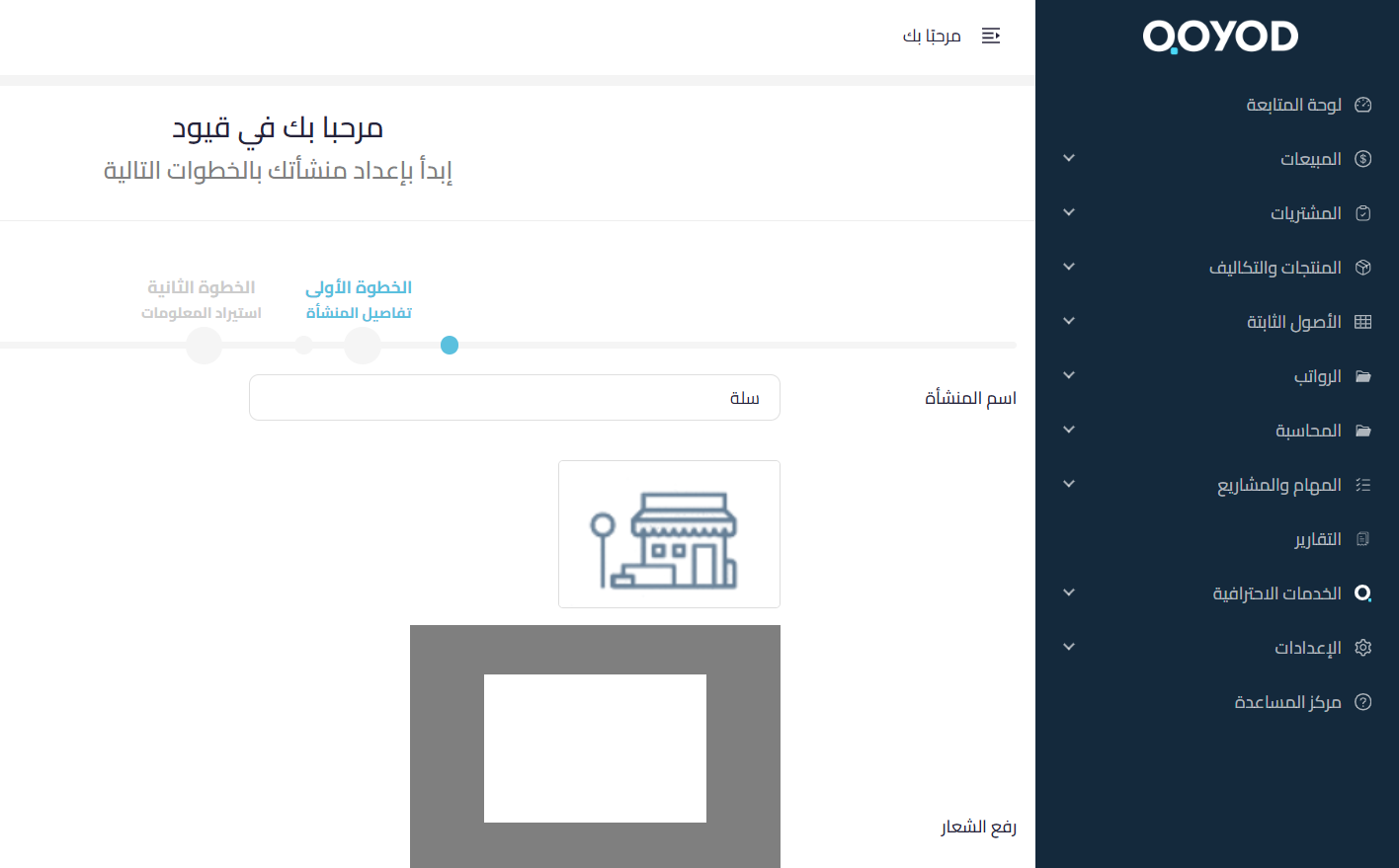
6. Finish setting up your Qoyod account, or click (Complete later).
7. You can now start managing your account and adding your core data.
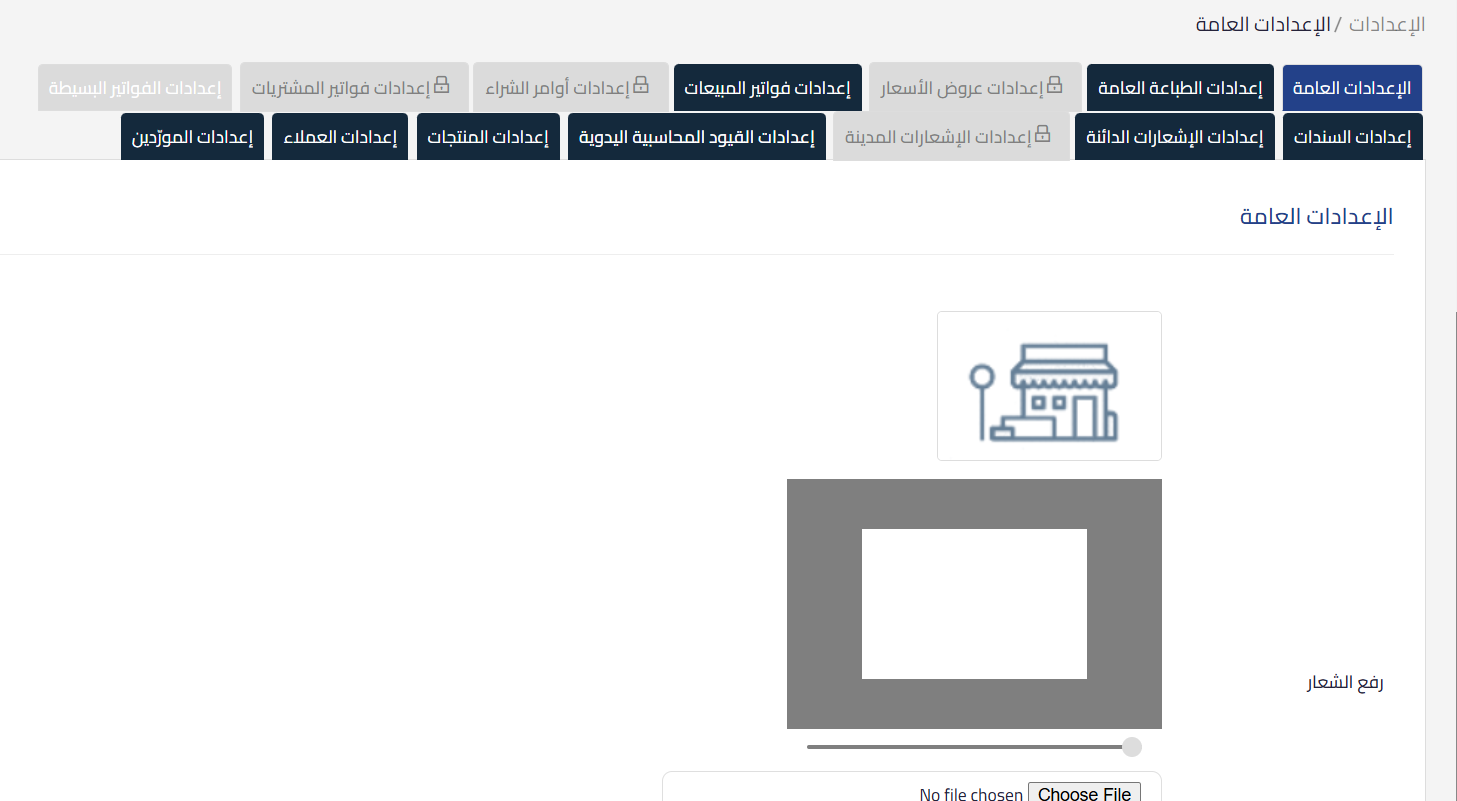
🔗 For more detail on Qoyod itself, see the Qoyod help content.
Stage two: link your Qoyod account to your Salla store
1. From the main menu, choose (My apps).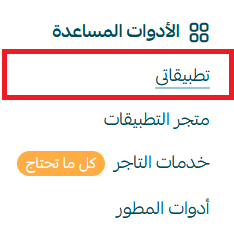
2. On the Qoyod app, click (App settings).
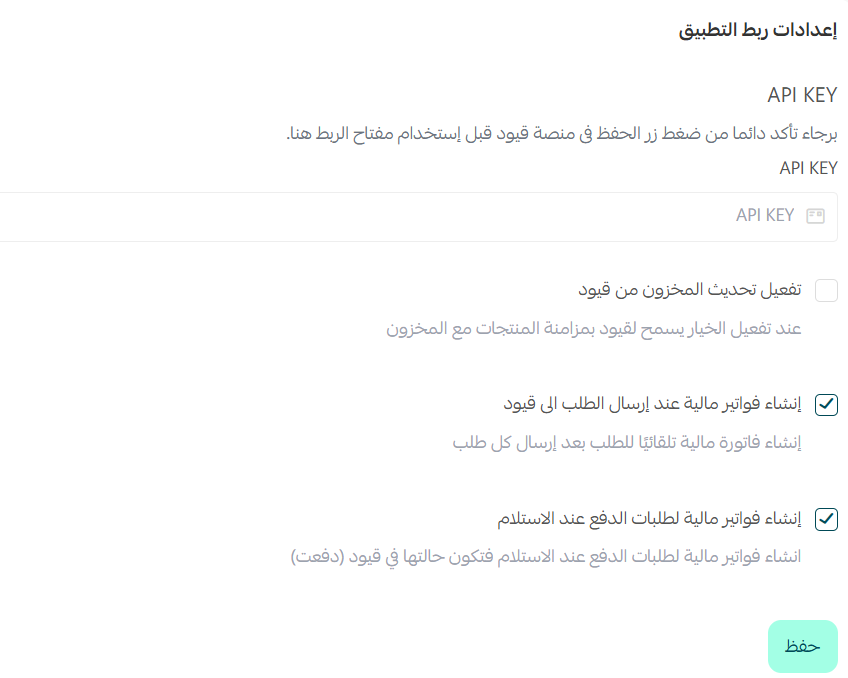
💡 Note: You get your API key from your account on the Qoyod platform.
⚠️ If the app is not installed in your store yet, install it first. See how to install an app from the Salla App Store.
3. Open the connection data tab, paste the API key you copied from Qoyod, then click (Activate connection).
Once the connection is active, your Qoyod account is linked to your Salla store and order and accounting data start syncing automatically.
⚙️ What the connection options mean
Two options are available when you activate the connection with Qoyod.
Update inventory from Qoyod
This syncs in one direction only, from Qoyod to Salla. Stock levels in Qoyod update the stock in your Salla store; changes made in Salla do not travel back to Qoyod.
You also choose which warehouse sold quantities are deducted from, and that warehouse is the one the sync runs against. The warehouse list only appears after the connection is active.
Create financial invoices when an order is sent to Qoyod
- With the option enabled, the order transfers and a financial invoice is created for it in Qoyod, showing the status (Paid).
- With the option disabled, the order transfers on its own with no invoice, and shows the status (Approved) in Qoyod.
📝 Important notes
When you connect to Qoyod, every product category in your Salla store transfers across, and Salla's default accounts (sales account, expenses account, and so on) are created in Qoyod.
📦 What transfers with each order
Every order sent from Salla to Qoyod carries:
- Customer details.
- Product details.
- The quantity ordered.
- The VAT rate applied to your store's items.
- The warehouse the items are deducted from.
🔄 How orders sync between Salla and Qoyod
Orders reach Qoyod in one of two ways.
Automatic sync
An order only syncs on its own when its status is (Completed). If you move an order from (In progress) straight to (Shipped) without passing through (Completed), it will not sync.
Manual sync
1. From the orders page, select the orders you want to send to your Qoyod account.
2. From the (Quick edit) menu, click (Send order to), then choose (Qoyod).
3. Check the order numbers you are about to send, then click (Yes).
📝 Important notes
Syncing normally takes a few seconds, but it can take several minutes when the system is under load. Wait for a failure notification, with its reason, before sending the same orders again — repeating the command early duplicates order records in your Qoyod account.
🗂️ How products are recorded in Qoyod
Products get into Qoyod in two ways:
1. You add them yourself. Make sure the product data you enter in Qoyod matches the data in your Salla store, especially the SKU.
2. Salla registers them as orders transfer, so each ordered product is recorded as it comes through.
The automatic path works like this: the order is sent from Salla to Qoyod, the products in it are checked, any new product is registered, and only then does the transfer complete. For a product that is new to Qoyod, the product data from the order is recorded and, following guidance from Qoyod's technical support, its quantity is transferred by running a stock count for it.
📝 Important notes
- If any single product fails to register, the whole order fails to transfer.
- If a product's stock in Qoyod is zero, the whole order fails to transfer.
- Salla only runs a stock count for a new product, once, at the moment it is registered. It never edits data for a product already recorded in Qoyod, whether you added it or Salla did.
❓ Frequently asked questions
What should I do when an order fails to send to Qoyod?
Check that the product's SKU is identical in Salla and in Qoyod. Any difference in the code can cause the transfer to fail. Update the SKU so it matches in both systems, then try again.
How do I confirm whether an order transferred successfully?
Open the order you want to check and review the order log at the bottom of the order page. When a transfer fails, the log states the reason.
Do orders placed before the connection sync automatically?
No. Orders that predate the connection are not synced automatically — you need to sync those manually.
What happens to already-transferred orders if I disconnect and reconnect?
Orders transferred before you disconnected are not transferred again automatically. Be careful about re-sending them manually, because doing so can duplicate them in your Qoyod account. If that happens, contact Qoyod technical support to sort it out.
How are shipping fees and cash-on-delivery fees handled?
They are recorded as a separate product, listed alongside the products in the order.
Connecting Salla with Qoyod removes the re-typing step between your storefront and your books. Get the SKUs aligned before you switch it on, and the rest of the sync takes care of itself.