How many of your WhatsApp replies are the same answer, typed again?
Order status questions, delivery times, campaign follow-ups: most of what a store sends on WhatsApp is repetitive, and it still eats your team's day. The Javna WhatsApp AI bot connects your Salla store to WhatsApp and handles that traffic for you, sending order updates, running campaigns and answering common questions automatically, with no technical setup on your side. In this guide, you'll learn how to install the Javna WhatsApp AI bot, activate it on your store, sign in to the Javna platform, and connect your WhatsApp number.
Javna is a WhatsApp automation app for Salla stores. Install it from the Salla App Store, choose a plan and complete the payment, then click (Activate app) and save your Javna account details. Javna emails your login details, and from its platform you connect your WhatsApp number and switch on the automations you need.
📌 Article overview
- What the Javna WhatsApp AI bot does for your store
- How to install the Javna app
- How to activate the app on your store
- How to sign in and connect your WhatsApp number
- How to delete the app
- Frequently asked questions
🎯 What the Javna WhatsApp AI bot does for your store
Javna turns WhatsApp into an automated channel between your store and your customers.
- Send order updates to customers automatically as their orders progress.
- Run marketing campaigns over WhatsApp.
- Reply to customer questions with smart, automated answers.
- Manage all of it without any technical knowledge.
🚀 How to install the Javna app
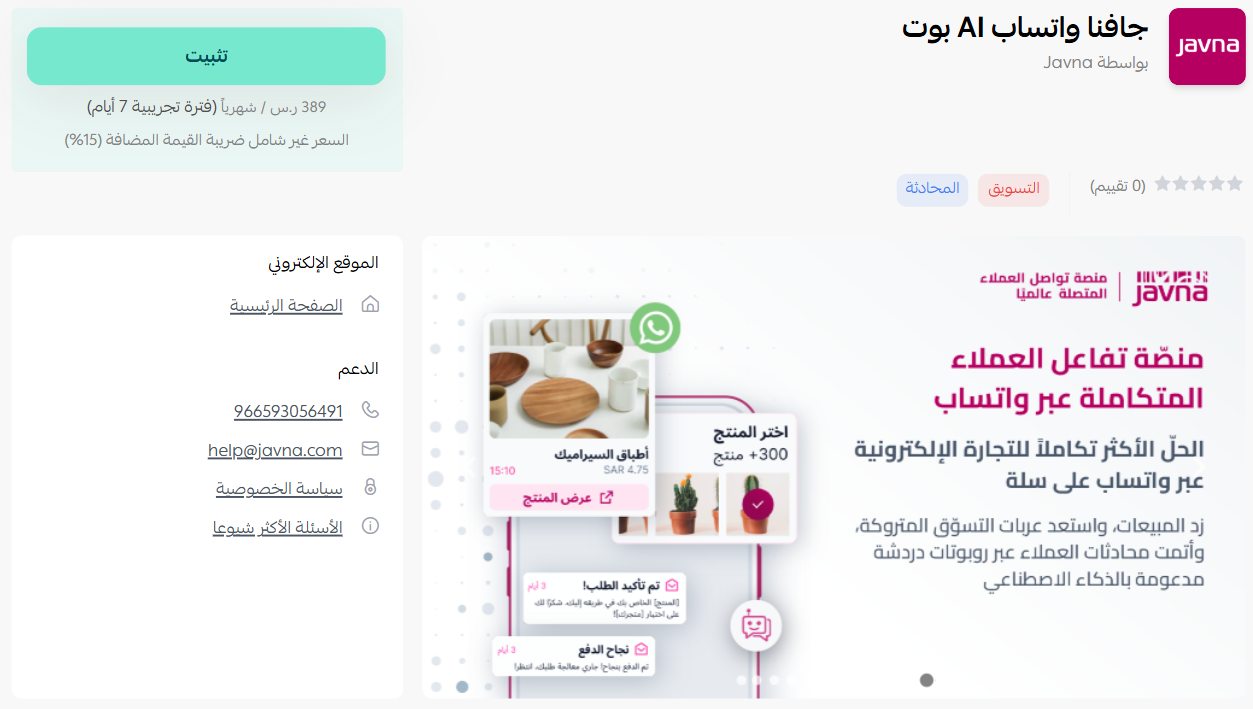
1. From the main menu, click (All), then under helper tools, click (App Store).

2. Search for the app using the search field.

3. On the Javna WhatsApp AI bot app page, click (Install).
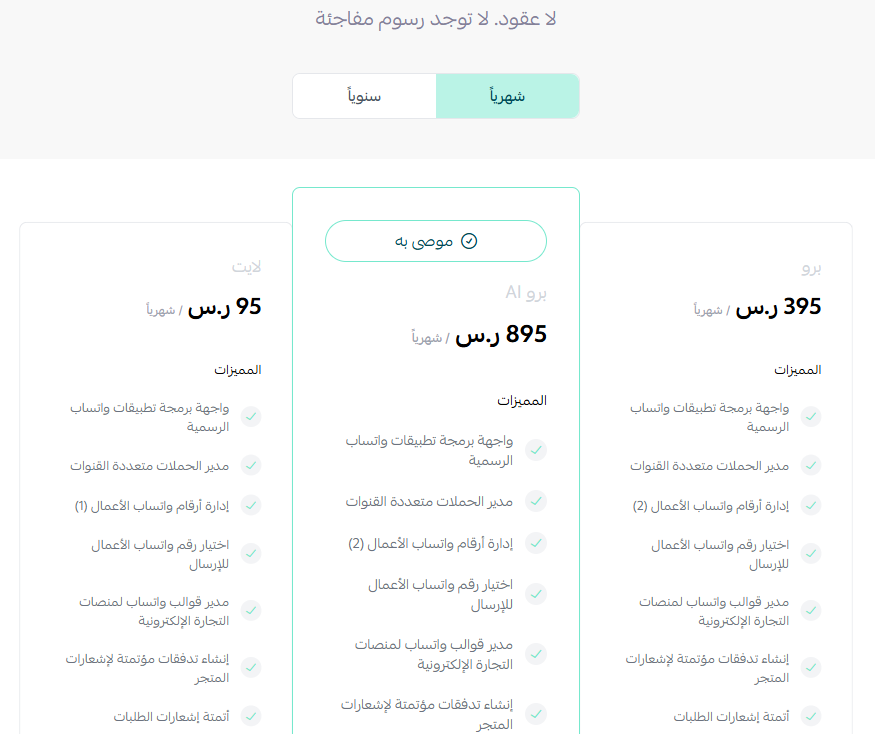
4. Choose the plan that suits your business to continue with the installation.
5. Complete the payment to unlock the app's features.
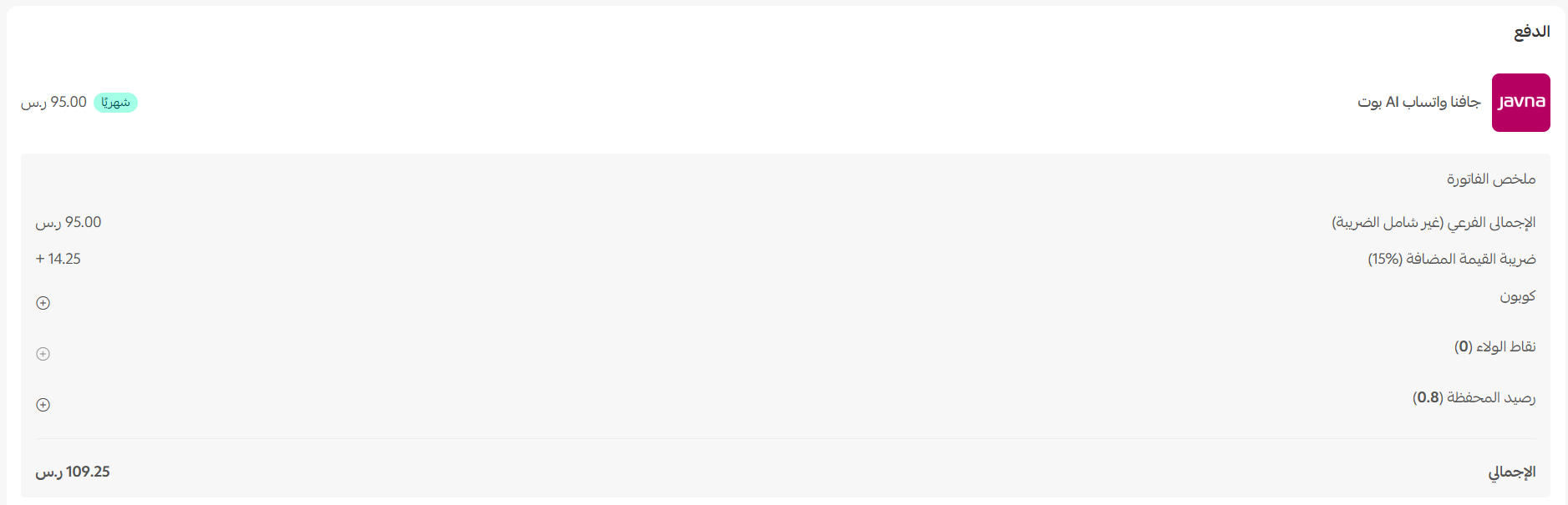
6. Once the payment goes through, the app is installed on your store.
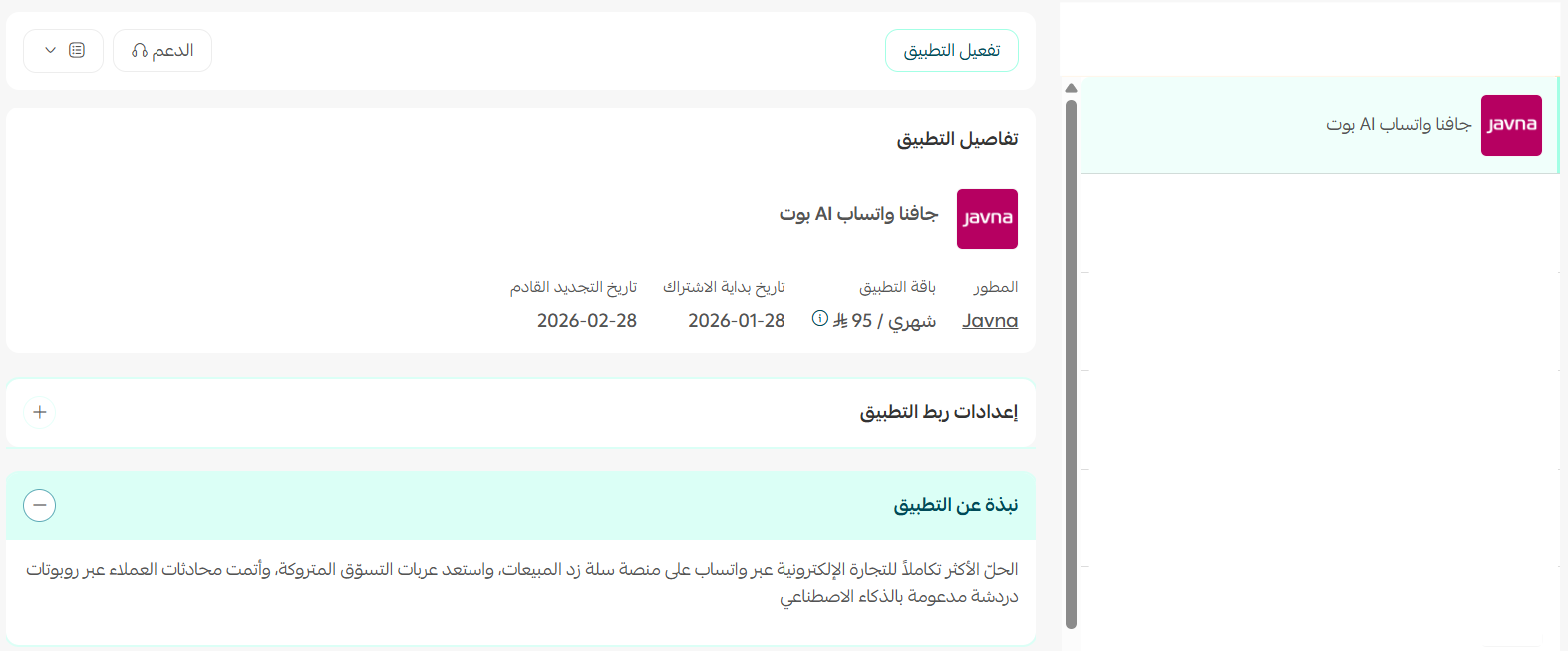
🚀 How to activate the app on your store
1. On the app page, click (Activate app).
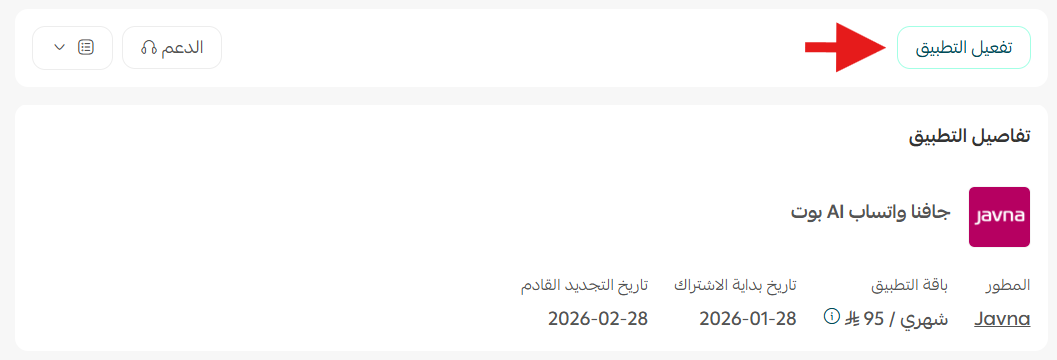
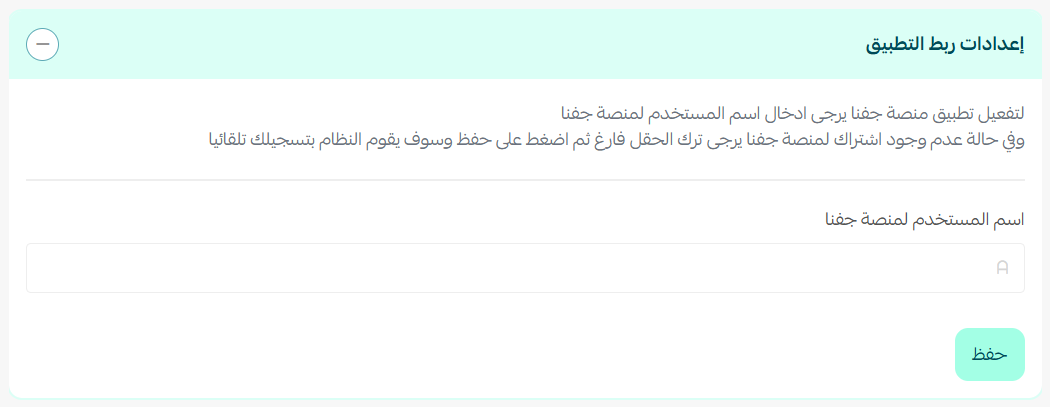
2. If you already have a Javna subscription, enter your Javna username. If you don't, leave the field empty. Then click (Save).
👣 Manage the Javna app
Sign in to the Javna platform
Javna emails you the login details for its platform.
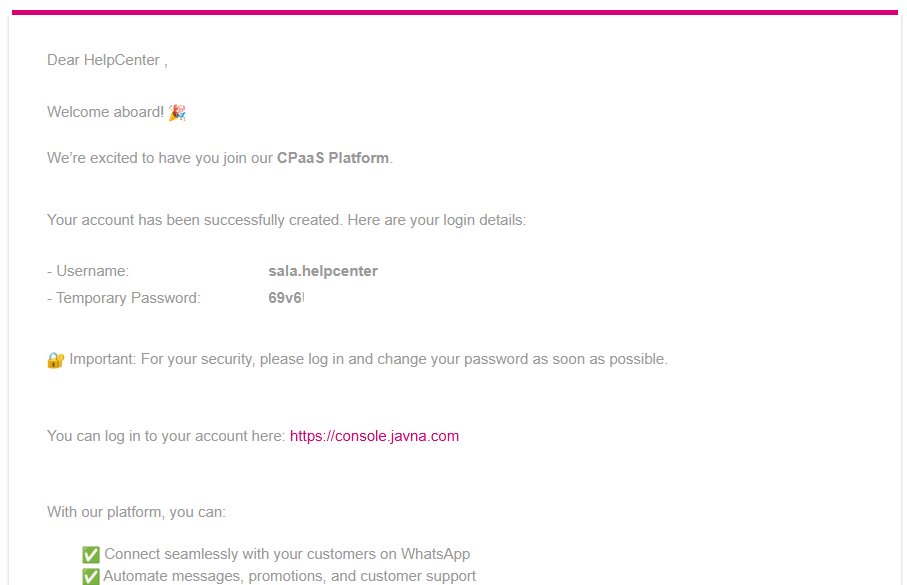
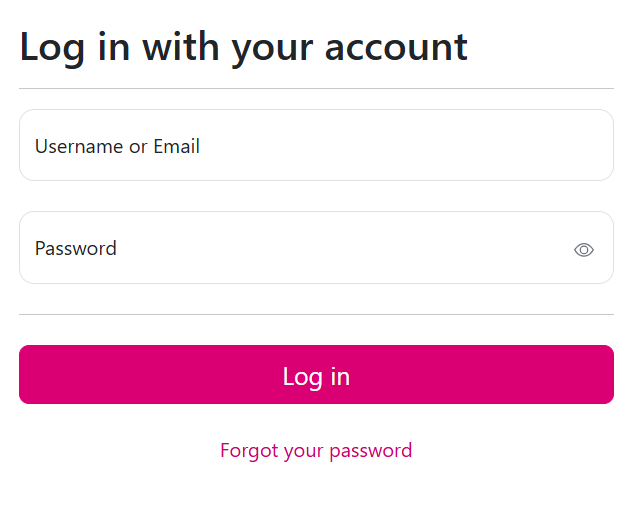
1. Sign in to the Javna platform using the login details sent to your email.
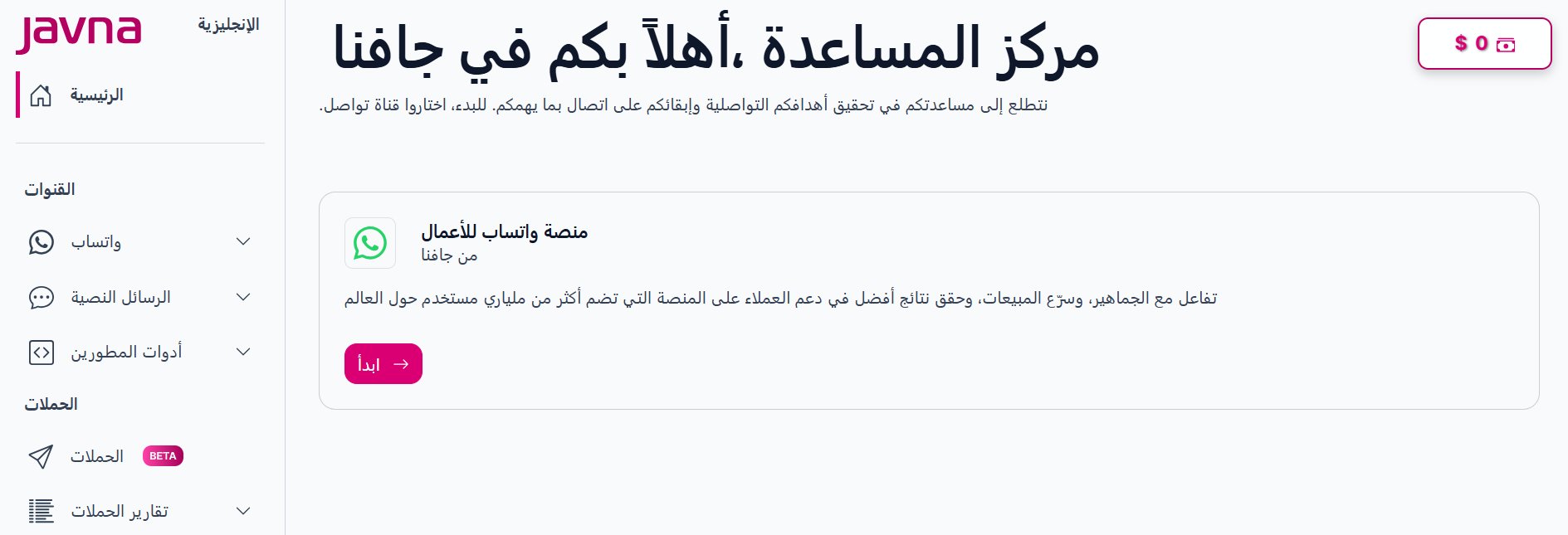
2. You land on the Javna home page. Click the feature that matches your goals to add it to your store.
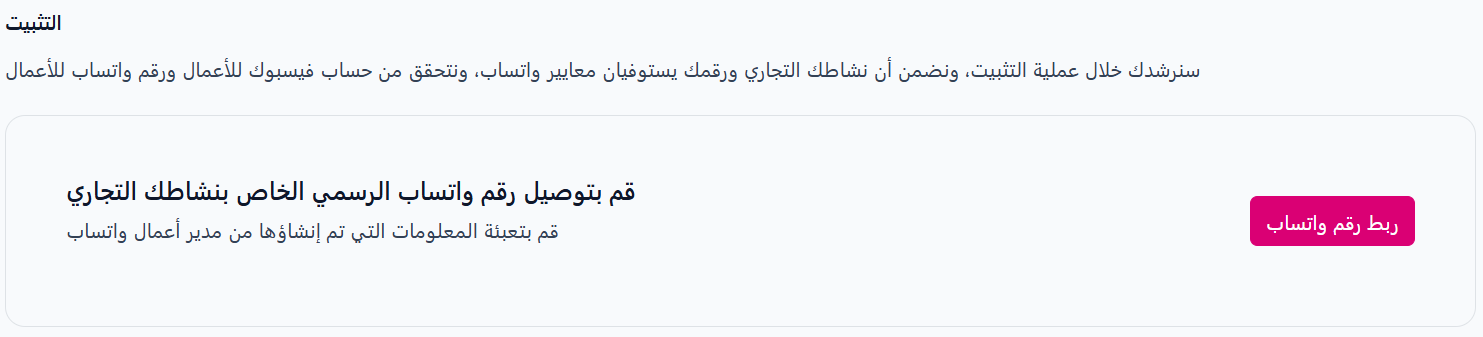
3. Connect your WhatsApp number to start using the Javna features.
Delete the app
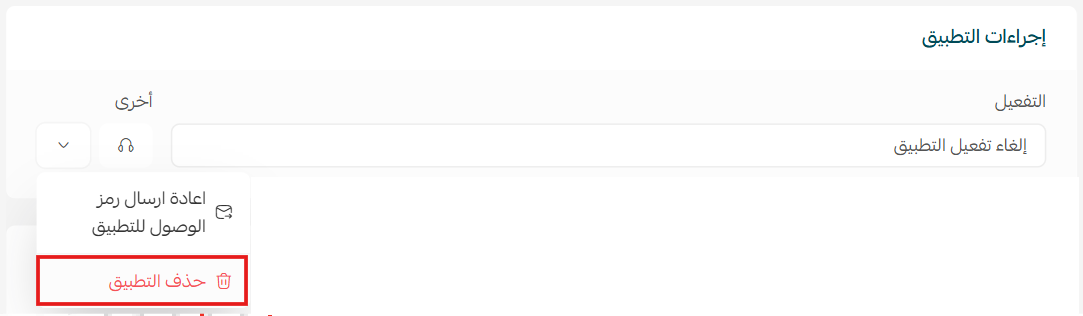
Open the Javna app from your installed apps, click (App options), then click (Delete app).
📝 Important notes
Javna is a paid app. You choose a plan and complete the payment before the installation finishes.
Installing the app is not the same as activating it. After payment, click (Activate app) and save your details.
The automations themselves live in the Javna platform, not in your Salla dashboard.
❓ Frequently asked questions
Do I need a Javna account before I install the app?
No. If you already have one, enter your Javna username during activation. If you don't, the app creates your account and emails your login details.
Do I need technical skills to use it?
No. Order updates, campaigns and automated replies are all set up from the Javna platform without any development work.
Where do I connect my WhatsApp number?
In the Javna platform, after you sign in with the login details sent to your email.
How do I remove Javna from my store?
Open the app from your installed apps, click (App options), then click (Delete app).
For more details, see the Javna support center.