Can your store pinpoint exactly where a customer wants their order delivered?
Connecting HERE location services with Salla lets your store show maps, search for a specific place, and return that location's details with high accuracy — which is what turns a vague address into a deliverable one. HERE offers several subscription plans at competitive prices, including a free tier of more than 250,000 requests per month. In this guide, you'll learn how to install the HERE app, create a HERE account, generate your App Key, and activate the connection.
To connect HERE location services with Salla, open (Installed apps) in your dashboard, browse the Salla App Store, and install the HERE app. Then click (App options) followed by (App settings), enter the App Key from your HERE developer account, and click (Activate connection).
📌 Article overview
- What are HERE location services?
- How to connect HERE location services with your store
- Frequently asked questions: creating a HERE account and getting your App Key
🎯 What are HERE location services?
HERE is a service that displays maps and lets you search for a specific location, then returns all of that location's data with high accuracy. It has several subscription plans at competitive prices, and a free plan that gives you more than 250,000 requests per month.
For more details, see HERE service pricing.
🚀 How to connect HERE location services with your store
1. From the side menu of your dashboard, click (Installed apps).

2. On the Salla App Store banner, click (Browse the Salla App Store).

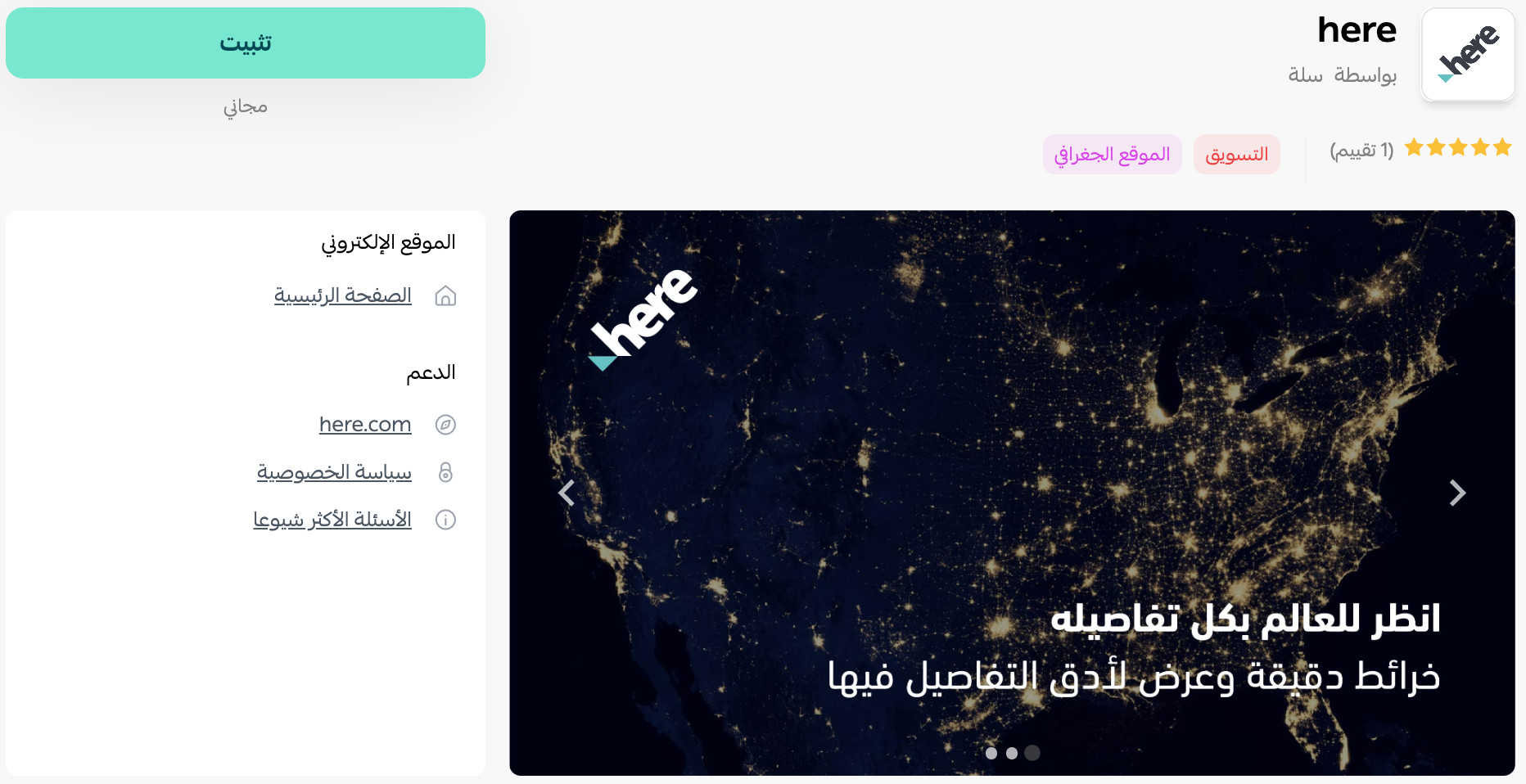
3. On the Here app page, click (Install).
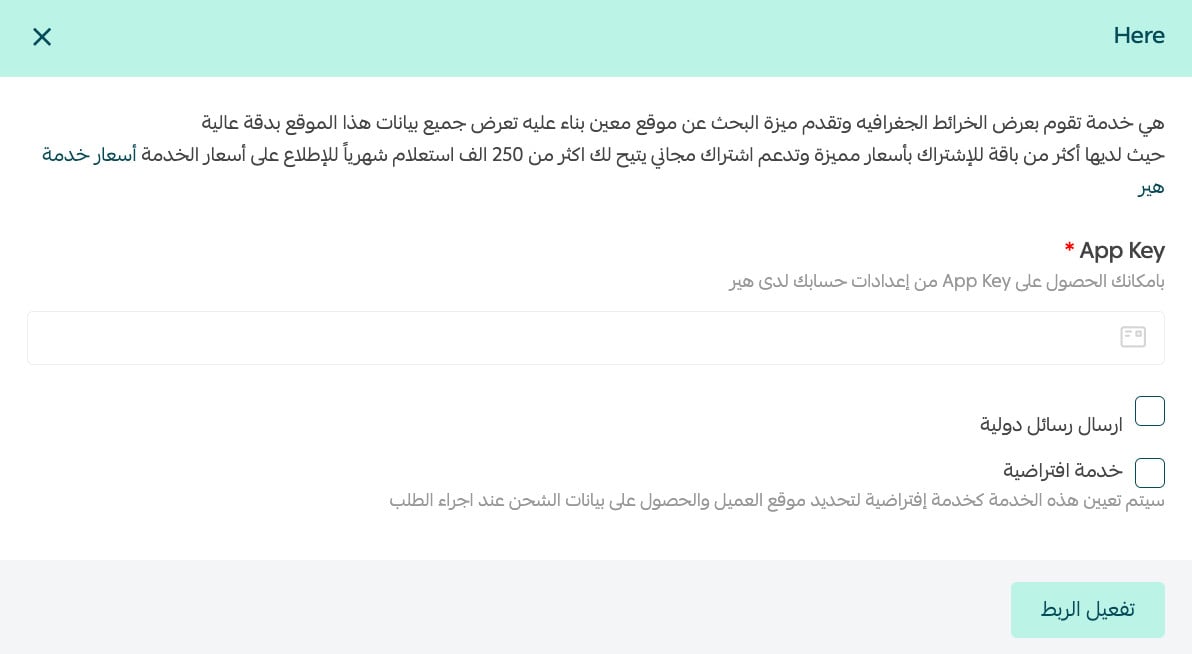
4. To activate the app, click (App options), then click (App settings).

5. Enter the App Key you got from your HERE account settings, then click (Activate connection).
📝 Important notes
You can set HERE as your default service for pinpointing the customer's location and pulling shipping data when an order is placed.
You'll need a HERE account and an App Key before step 5. If you don't have them yet, follow the two questions below first.
❓ Frequently asked questions
How do I create a HERE account?
1. Go to the HERE sign-up page and enter the details it asks for.

These are:
1. First name.
2. Last name.
3. Company email address.
4. A password for your HERE account.
5. Country or region.
6. The verification code shown at the bottom, retyped.
2. Once everything is filled in, click (Register for a HERE account) to finish signing up, then confirm your registration by email.
📝 Important notes
You can also register your HERE account with another sign-in method, such as your Facebook account. [Verify: the Arabic names a second sign-in provider (transliterated 'firmi') that does not match any known HERE option.]
3. Enter your company name and phone number — both optional — tick the box accepting the terms of use, then click (Start coding).

Give it a moment while the registration finishes:

Your account page then looks like this:

How do I get the App Key from my HERE account?
1. After signing in to HERE, go to the HERE integration services from the landing page. In the JAVASCRIPT section, click (Generate App), as shown here:

2. Click (Create API key) to create the key.

You can now see the API key you created, along with its creation date and current status (enabled or disabled). The page looks like this:

3. Manage your API key from here by clicking the (Settings) button to the right of STATUS.

To copy the key, click (COPY):

You can then go to the HERE settings in your store and paste the key.
For more details, see getting your APP KEY.