Want order handling to match your store's capacity and fulfillment workflow?
Salla order options bring together settings for order intake, reordering, cancellation, checkout acknowledgments, invoice content, customer notifications, and digital-product delivery.
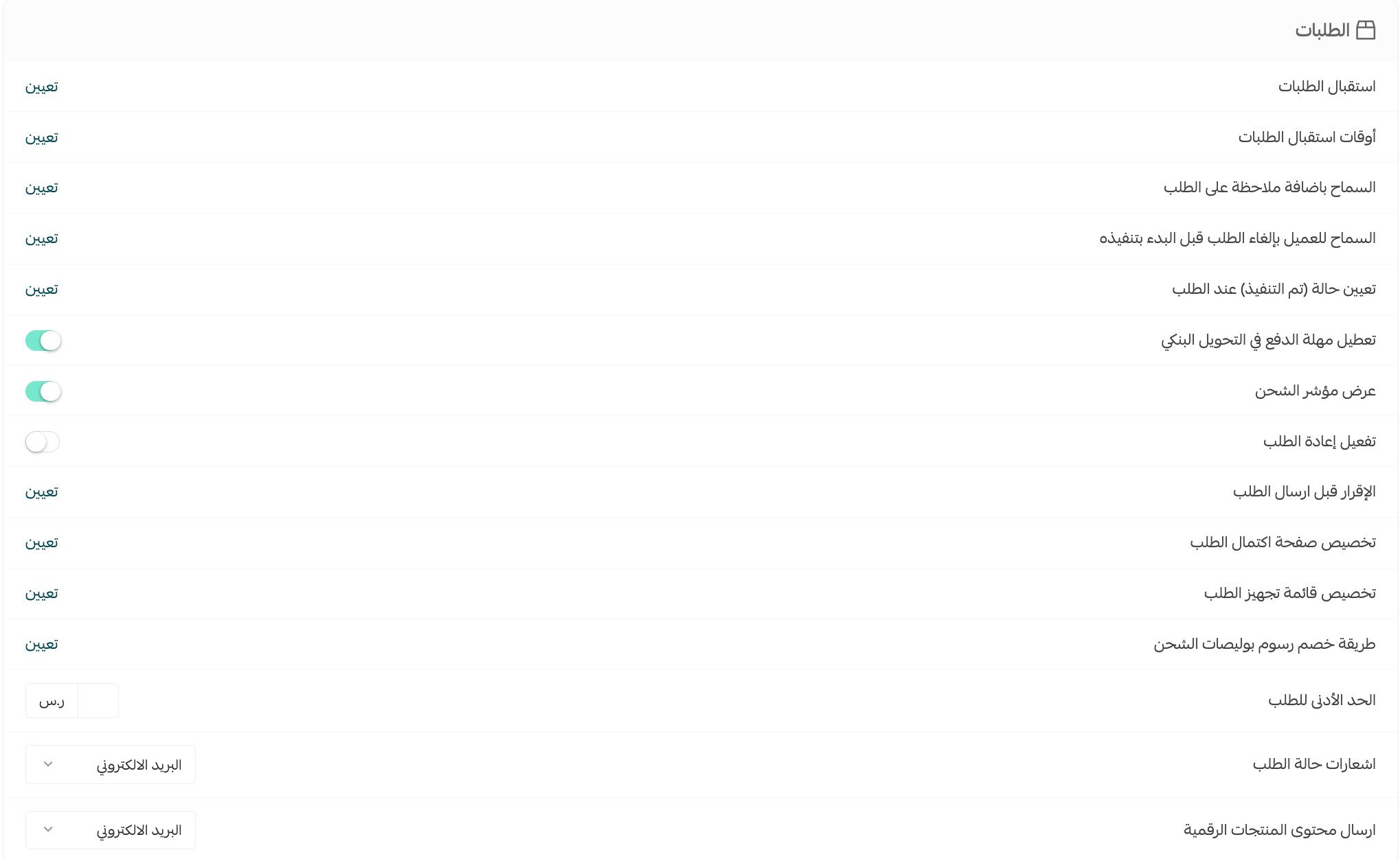
To configure Salla order options, open Store settings, select Store options, and use the Orders section. You can set shipping-label fee deductions, order intake limits and schedules, reordering, customer notes and cancellation, checkout acknowledgments, invoice text, minimum order value, notifications, digital-content delivery, and the order-completion page.
📌 Article overview
- Open the Orders settings
- Configure fees, intake, and schedules
- Enable reordering, notes, and cancellation
- Configure checkout, invoices, and notifications
- Frequently asked questions
How to configure Salla order options
1. From the dashboard side menu, click Store settings.

2. Click Store options.

3. On the Store options page, configure the settings you need under Orders, then click Save.
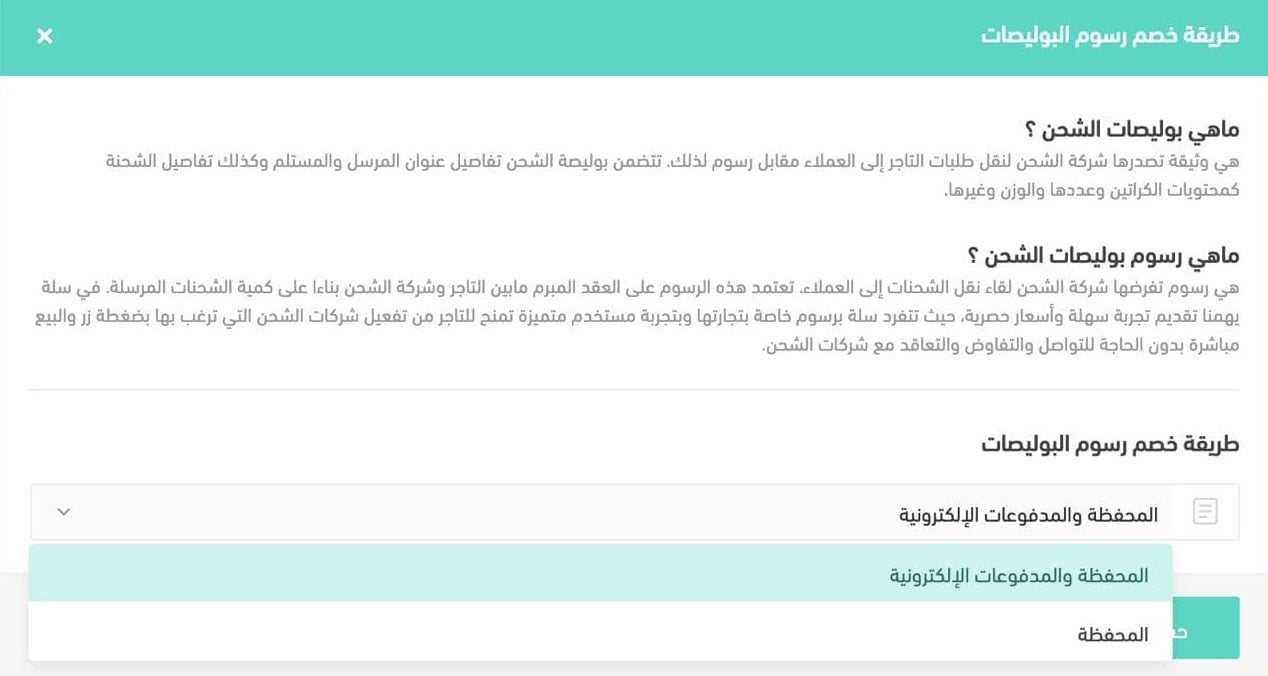
Choose how shipping-label fees are deducted
1. Under Orders, click Set for the shipping-label fee deduction method.

2. Choose Wallet and electronic payments or Wallet only, then click Save.
For the separate rules that assign Completed status to orders, see Set the automatic Completed order status.
Control order intake and schedules
You can temporarily limit incoming orders when your store has a high order volume or is being reorganized.
Set a daily order limit
1. Under Orders, click Set for order intake.

2. Enter the number of orders you can receive each day. Write the message customers will see when the daily limit is reached, preview it in the same window, then click Save.

Let customers reorder products
Reordering saves customers from searching for the same products again. When a customer clicks Reorder, the products from that order appear in the cart, where the customer can make any needed changes.
Under Orders, click Set for the reorder feature.

The customer opens the account menu, selects Orders, and opens the order they want to place again.
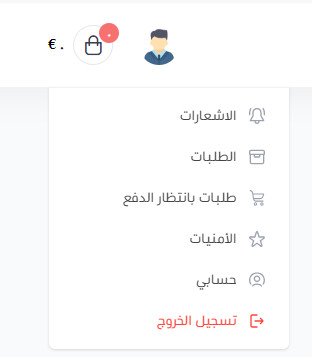
To add its products to the cart, the customer clicks Reorder.

Set order intake days and times
Use an order intake schedule for seasonal products, your available working hours, or the time required to produce the needed quantities.
1. Under Orders, click Set for order intake.

2. Select the days and times when the store accepts orders, then click Save.

Allow customer notes and order cancellation
Customer order notes
1. Under Orders, click Set for the option that allows a note on the order.

2. Enter the note-field title and the supporting text shown to customers, then click Save.

Customer order cancellation
1. Under Orders, open the setting that allows customers to cancel an order before fulfillment begins.
1. من صفحة خيارات المتجر، قسم الطلبات، اضغط (تعيين) السماح بإضافة ملاحظة على الطلب.
📝 Important note: The unchanged source media above names the add-order-note setting even though this section describes cancellation. The content owner should confirm the current UI label.
2. Enable cancellation before fulfillment begins, set how many hours the customer has to cancel, then click Save.

Configure checkout and payment options
Payment options
Salla provides payment-option settings that you can adjust for your business. The source shows the available controls in the following screenshot.

For more information about cash on delivery, watch the source video.
Customer acknowledgment before order submission
1. Under Orders, click Set for the acknowledgment shown before the customer submits an order.

2. Choose whether the acknowledgment always appears, appears when cash on delivery is selected, or remains hidden. Enter wording that fits your store policies, then click Save.

Customize order completion and invoice details
Order-completion page
1. Under Orders, click Set for the order-completion page.

2. Enter the prominent heading and the explanatory messages for each order status, then click Save.

[Verify: The Arabic source lists fulfillment-list customization but provides no instructions or answer.]
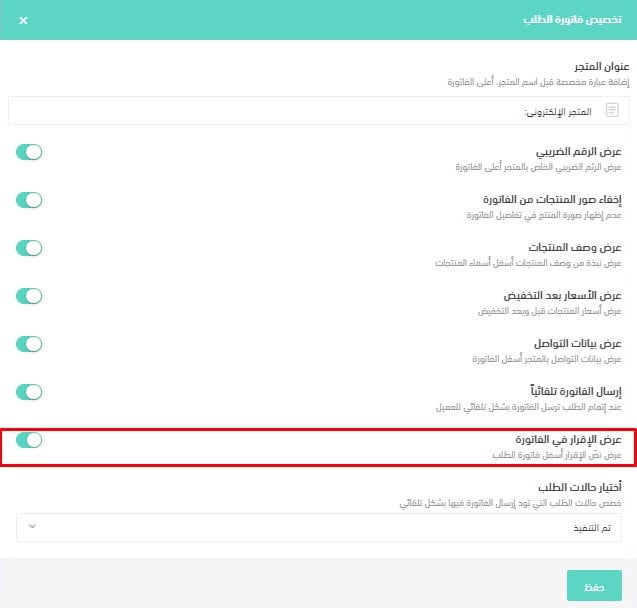
Order invoice acknowledgment
1. Under Orders, click Set for order invoice customization.
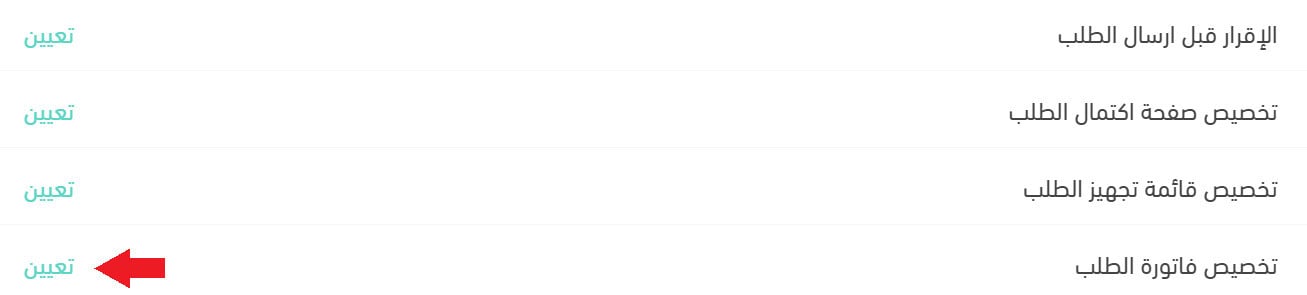
2. Enable the option to show the acknowledgment on the invoice, then click Save.
Minimum order value
Under Orders, enter the minimum order value as a shopping-cart amount.

Choose notifications and digital-content delivery
Order status notifications
Under Orders, use the order status notifications setting to choose the notification channel.
من صفحة خيارات المتجر، قسم الطلبات، اشعارات حالة الطلب. حدد قناة إرسال الإشعارات.
Digital product content
Choose whether digital product content is sent to the customer's email address or by SMS to the customer's mobile number.

Frequently asked questions
Can I limit the number of orders accepted each day?
Yes. Enter a daily order limit and write the message customers see when the store reaches that limit.
Can customers reorder a previous purchase?
Yes. With reordering enabled, a customer can open a previous order, add its products to the cart, and make changes before ordering again.
Can customers add a note to an order?
Yes. Enable order notes, then set the field title and the explanatory text displayed to customers.
Can customers cancel before fulfillment starts?
Yes. Enable the cancellation option and define the number of hours during which cancellation is available.
How can digital product content be delivered?
The source documents email and SMS as the delivery channels.
Review these settings together so order intake, customer communication, and fulfillment match the way your store operates.