Need invoices that match your brand and work in both languages?
Salla invoice settings let you control how invoices are issued and sent, adjust their colors and typography, add a watermark or stamp, and create an English copy. You can use Salla's invoice format or connect an external provider. In this guide, you'll learn how to configure the invoice editor and use each major option.
To configure Salla invoice settings, open Store settings, select Store invoice settings, and choose the control and design options that fit your store. Save the changes when finished. You can preview the invoice as a PDF, restore defaults, enable English copies, and add a watermark or stamp.
📌 Article overview
- How to configure Salla invoice settings
- Choose Salla or an external invoice provider
- Customize the invoice design
- Preview, reset, translate, and brand invoices
- Frequently asked questions
🚀 How to configure Salla invoice settings
1. From the dashboard side menu, click (Store settings).

2. Click (Store invoice settings).

3. Configure the invoice options for your store, then click (Save).
🎯 Choose how invoices are issued
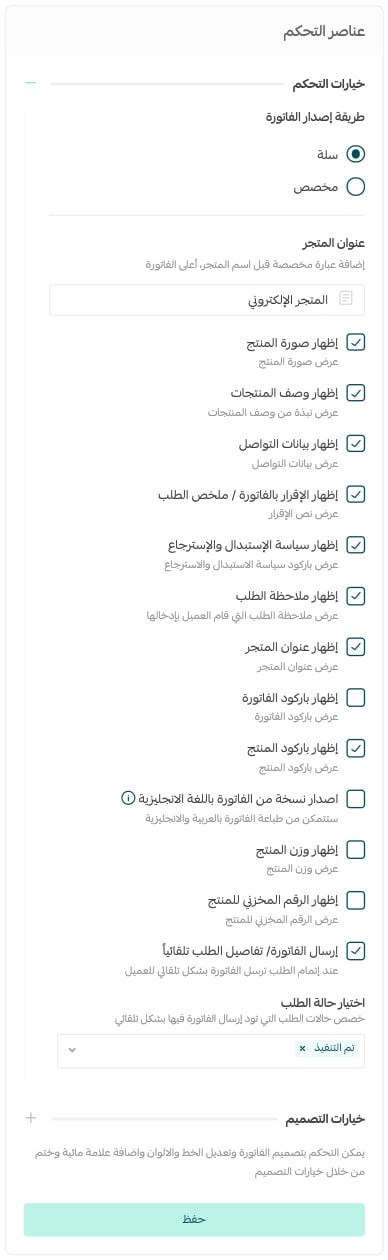
The control options determine how invoices are created and sent.
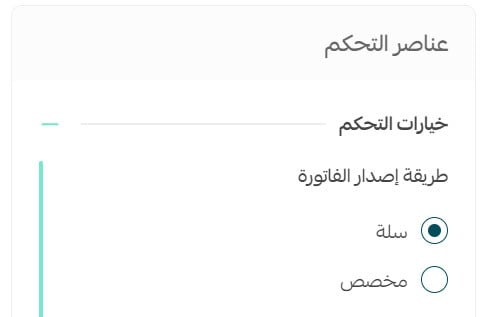
Use Salla invoices
Choose (Salla) to issue invoices with Salla's standard format and customize them with the options available in the editor.
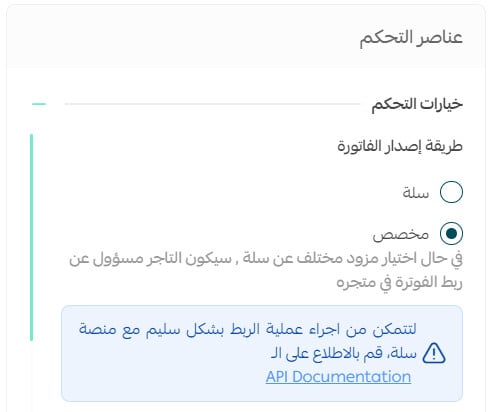
Use a custom invoice provider
Choose (Custom) to issue invoices through an external service provider connected to your store.
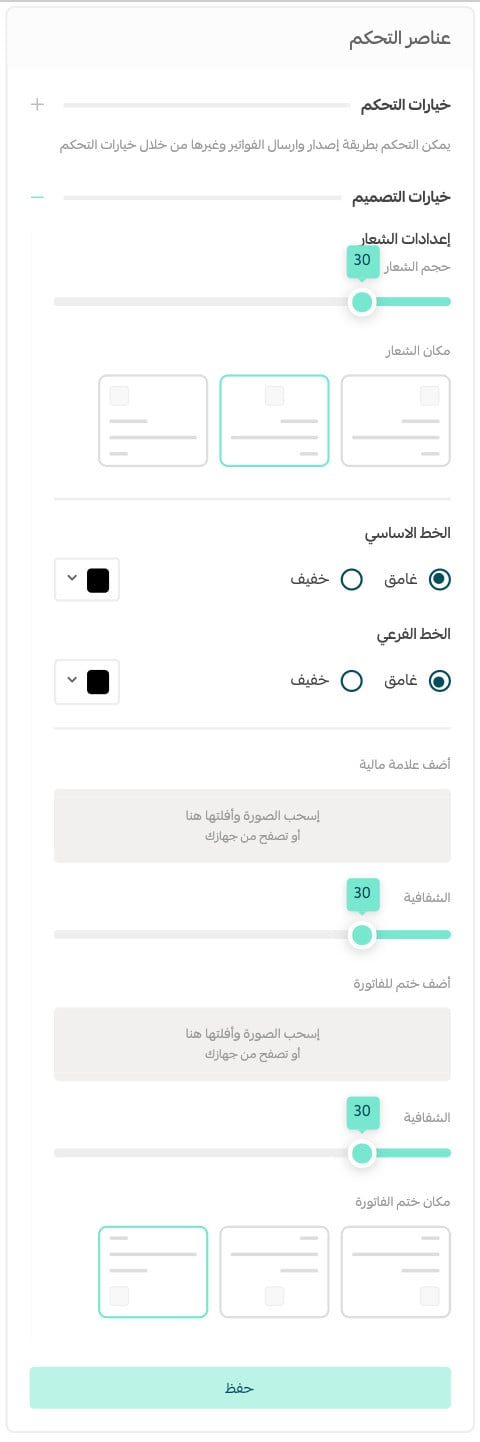
✅ Customize the invoice design
The design options let you change the font and colors and add a watermark or stamp.
❓ Frequently asked questions about Salla invoice settings
How can I preview an invoice before printing it?
Export the invoice as a PDF to see how it will look on paper:
1. From the dashboard side menu, click (Store settings).

2. Click (Store invoice settings).
3. At the top of the invoice page, click (Export PDF).

How do I restore the default invoice settings?
1. From the dashboard side menu, click (Store settings).

2. Click (Store invoice settings).
3. At the top of the invoice page, click (Restore default settings).

How do I issue an English copy of an invoice?
Before you start: Enable store translation and translate your content so the English invoice displays correctly. See enabling multiple languages in your store.
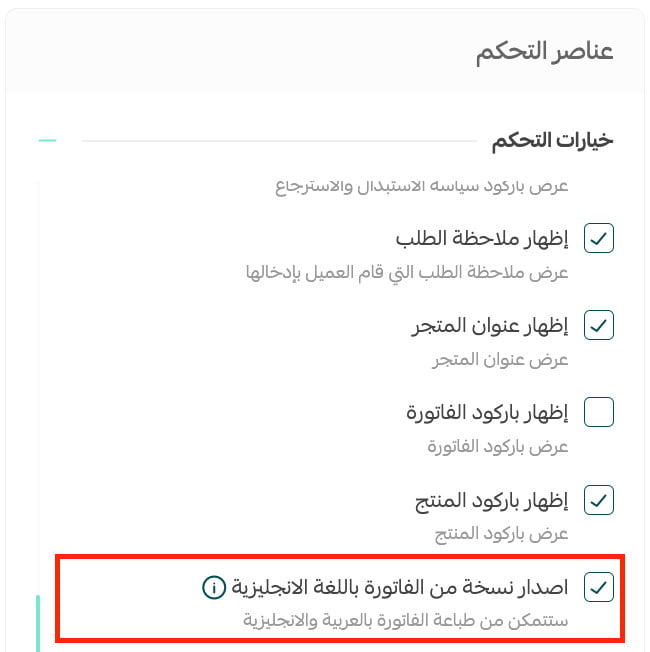
1. On the invoice page, under the control options, turn on (Issue an English copy), then click (Save).
📝 Important notes
You only need to enable this setting once. It applies to every order invoice.
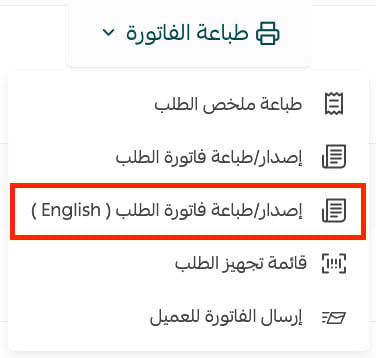
2. Open the order whose invoice you want, click (Print invoice), then select (Print order invoice — English).
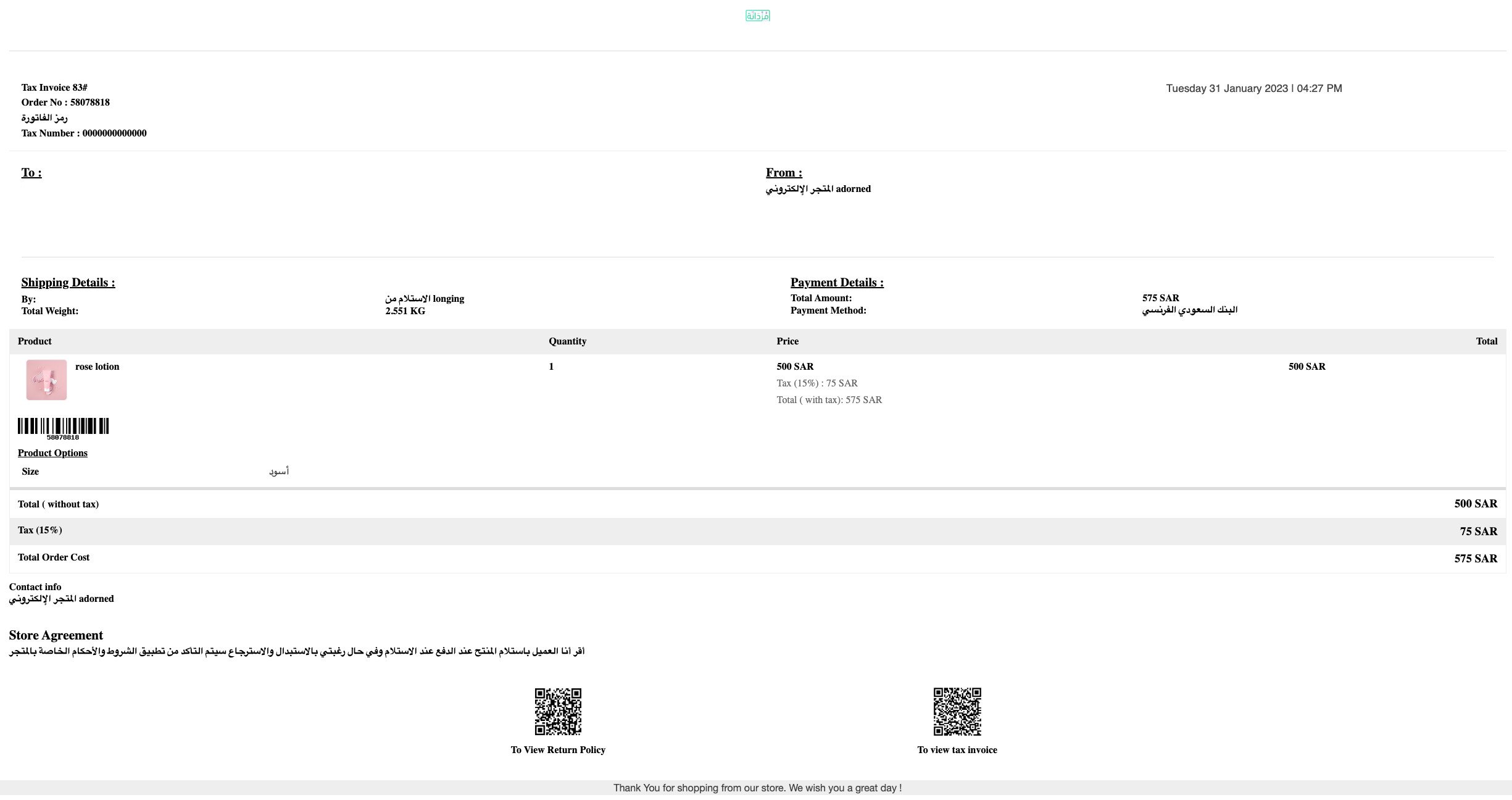
The English invoice is generated in this format:
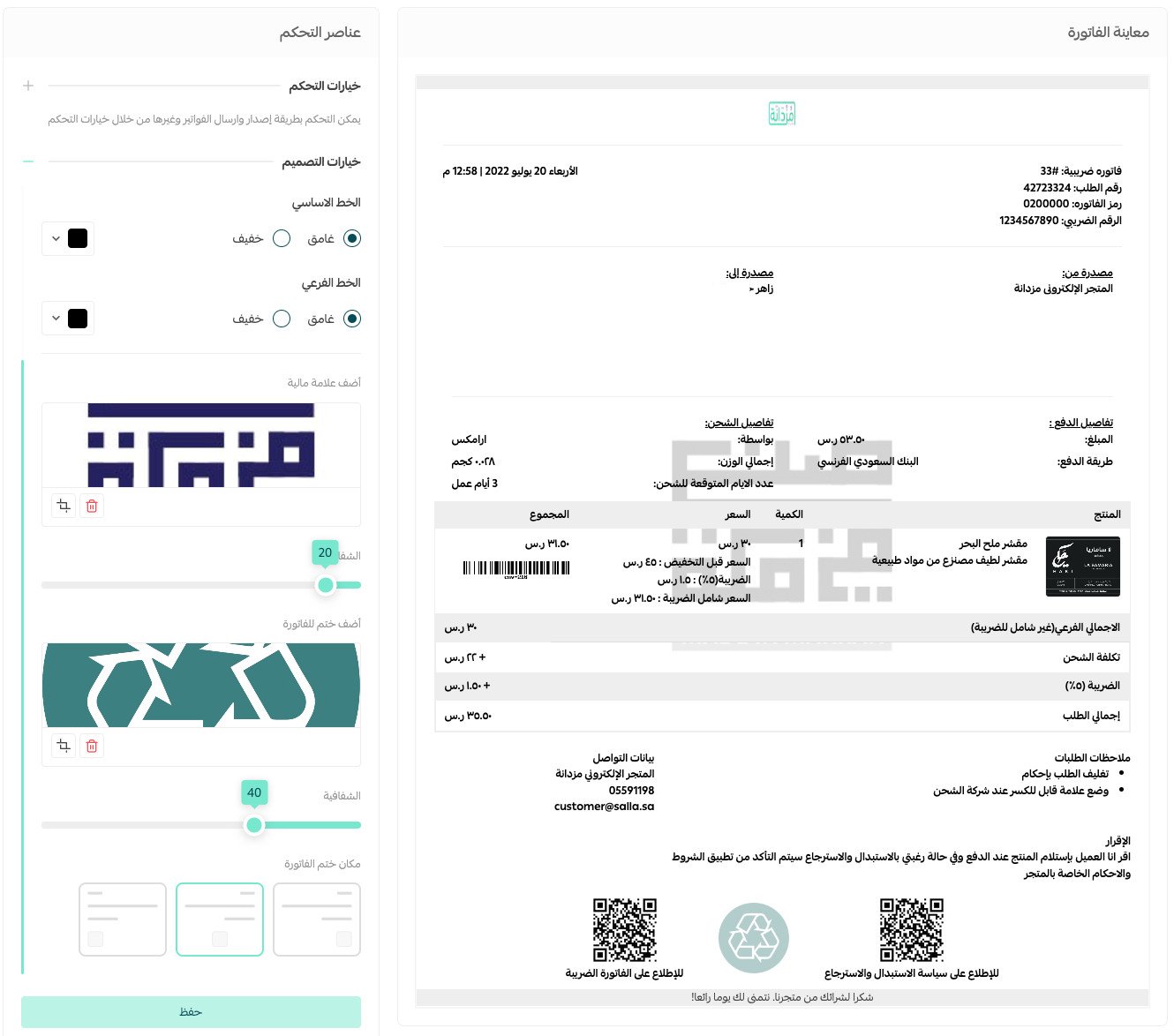
How do I add a watermark to an invoice?
1. Under the design options, open (Add watermark).
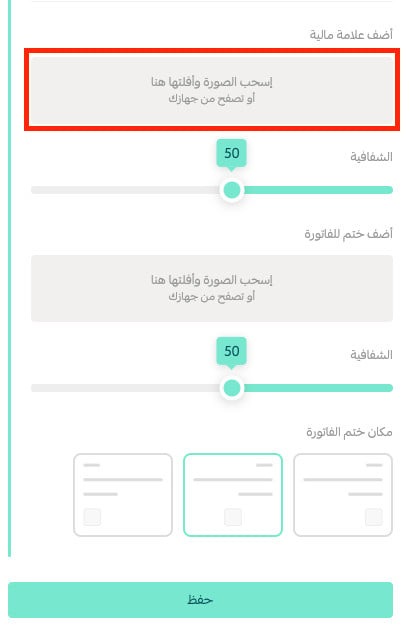
2. Upload the image, then click (Confirm).

3. Set the opacity, then click (Save).
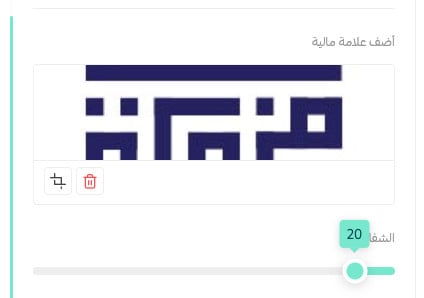
You can preview the result on the right side of the page.
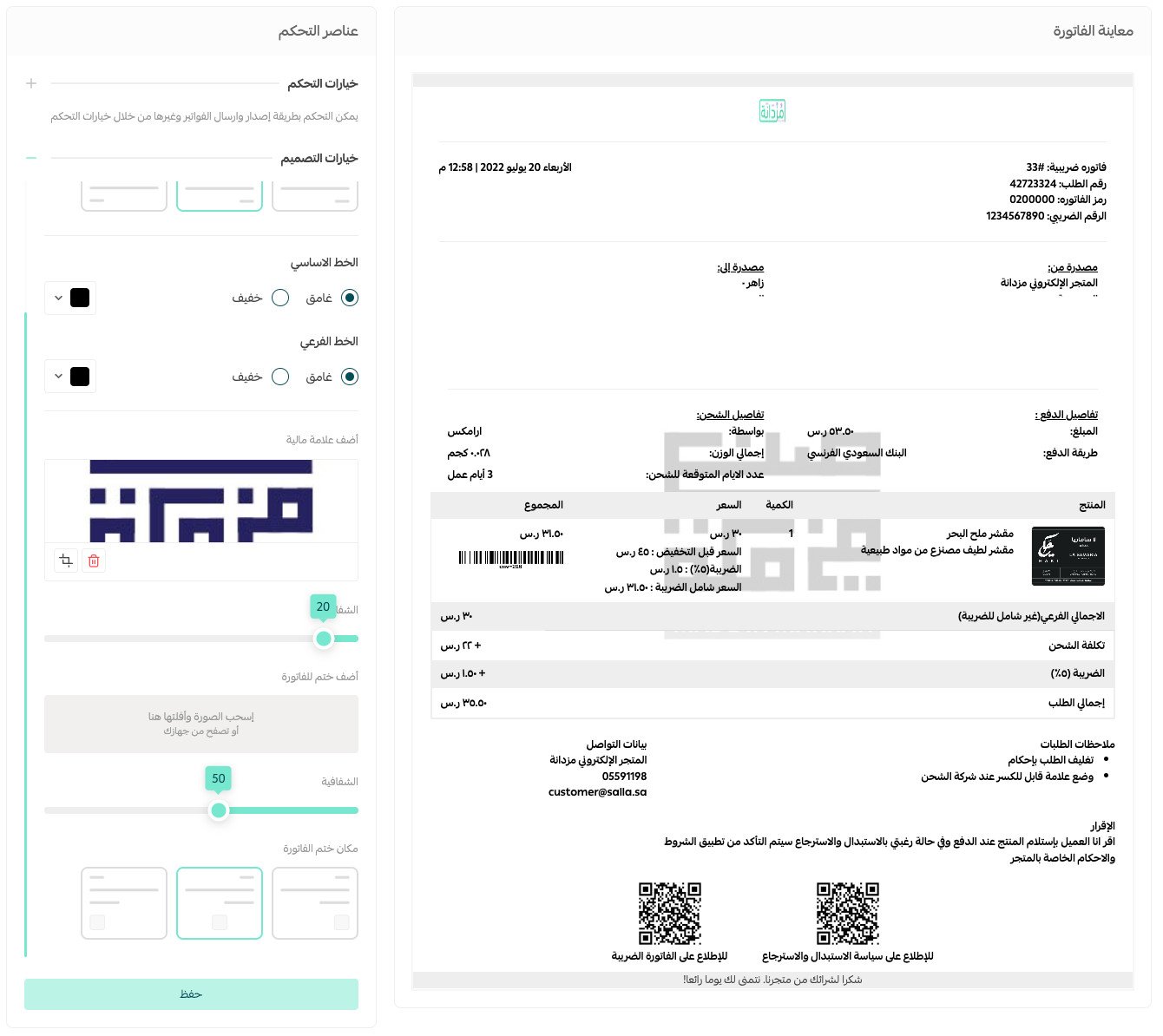
How do I add a stamp to an invoice?
1. Under the design options, open (Add invoice stamp).
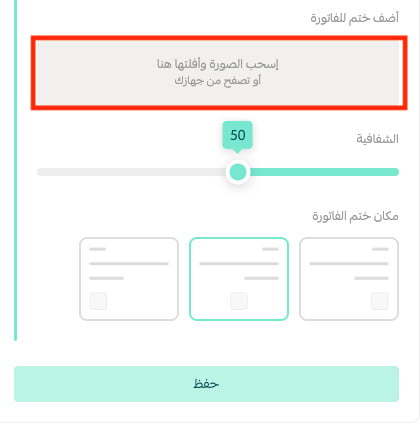
2. Upload the image, then click (Confirm).
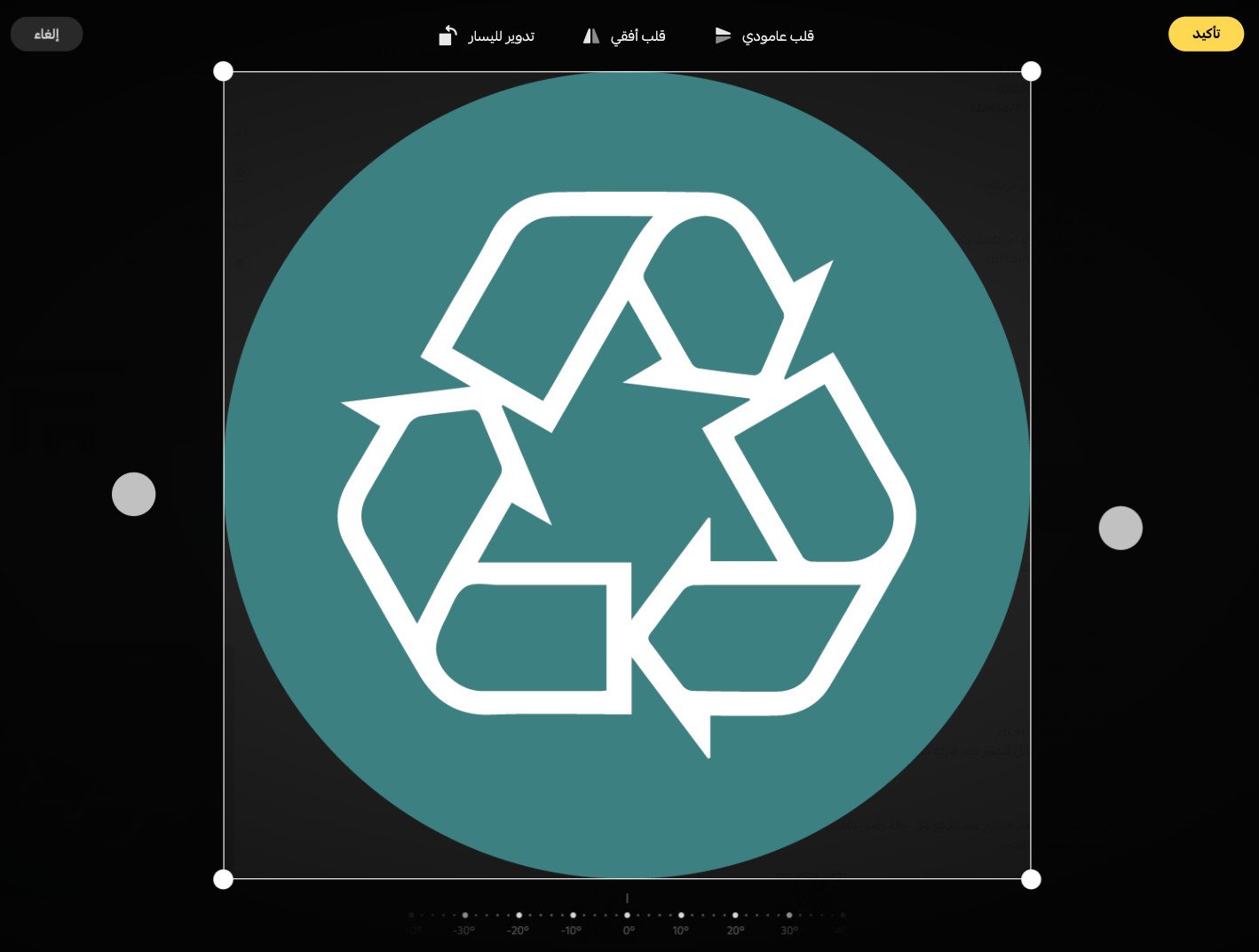
3. Set the opacity and stamp position, then click (Save).
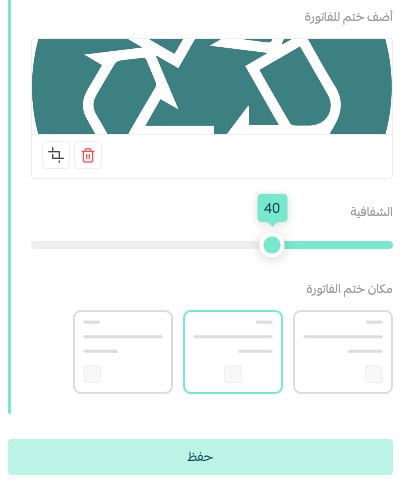
You can preview the result on the right side of the page.
Why are product names missing in English invoices?
Add English translations for the product names before printing an English invoice. See setting up invoice issuance.
How do I issue invoices through an external provider?
Under the control options, choose (Custom) to connect an external invoice provider. [Verify: the source lists this question but does not provide the provider-specific connection or setup steps.]
Configure the invoice once, preview the output, and translate product data before relying on English copies. A consistent invoice saves time for your team and gives customers a clearer record of every order.