Has your mobile app been live for a while — and now its name, icon, or screenshots need a refresh?
The app data update service in Salla's App Builder lets merchants who already have a published, launched app change the locked details that were entered when the app was first published: the app icon, its name, the name shown on the phone, the subtitle, the description, the keywords, the privacy and support page links, and the screenshots designed for the app stores. In this guide, you'll learn what the app data update service is, the conditions for it to appear, and how to buy and apply an update.
To buy an app data update, open (App Builder) from your store dashboard. When your app's status is launched, an update button appears at the bottom of the page next to (Save settings). Complete the payment, update the data you want changed, save it, then click (Publish app) to send it through review.
📌 Article overview
- What the app data update service is
- Conditions for the app data update package to appear
- How to buy an app data update
- Frequently asked questions
🎯 What is the app data update service?
App data update is a service shown to merchants who have an app that is published or launched on the app stores. It lets you change the (non-editable) details entered when the app was published: the app icon, the app name, the app name on the phone, the subtitle, the app description, and the keywords — as well as the privacy and support page links, and the screenshots you designed for the app on the stores.
Are there conditions for the app data update package to appear?
Yes, there are two:
- The app subscription must be active.
- The app must already be launched.
After you buy the app data update, edit the notifications or any other data, save it, and click (Publish app), the app goes through the normal cycle — from review to launch.
👣 How to buy an app data update
1. From the sidebar of your store dashboard, click (App Builder).
2. From the App Builder page, once your app's status is launched, the update button appears at the bottom of the page next to (Save settings).

3. Choose the payment method that suits you. If you have a Salla Store discount coupon, enter the coupon details and click (Apply).
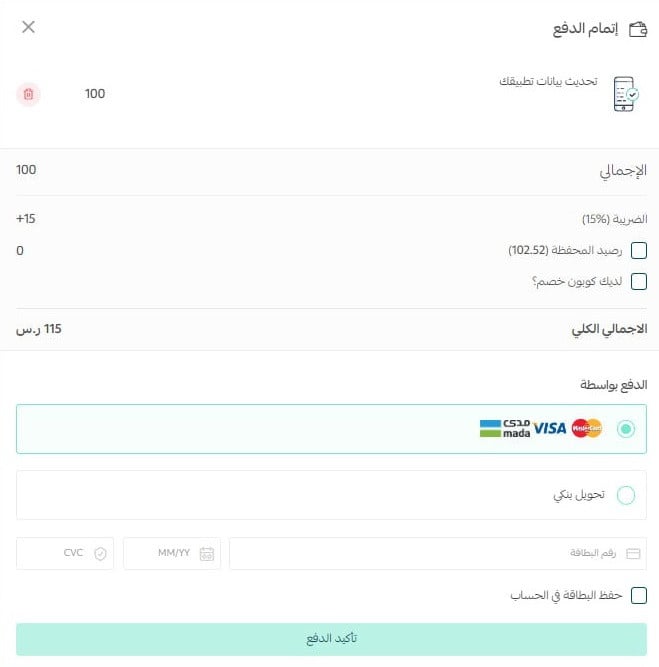
After completing the payment details, you can start updating your app's data from stage 1.
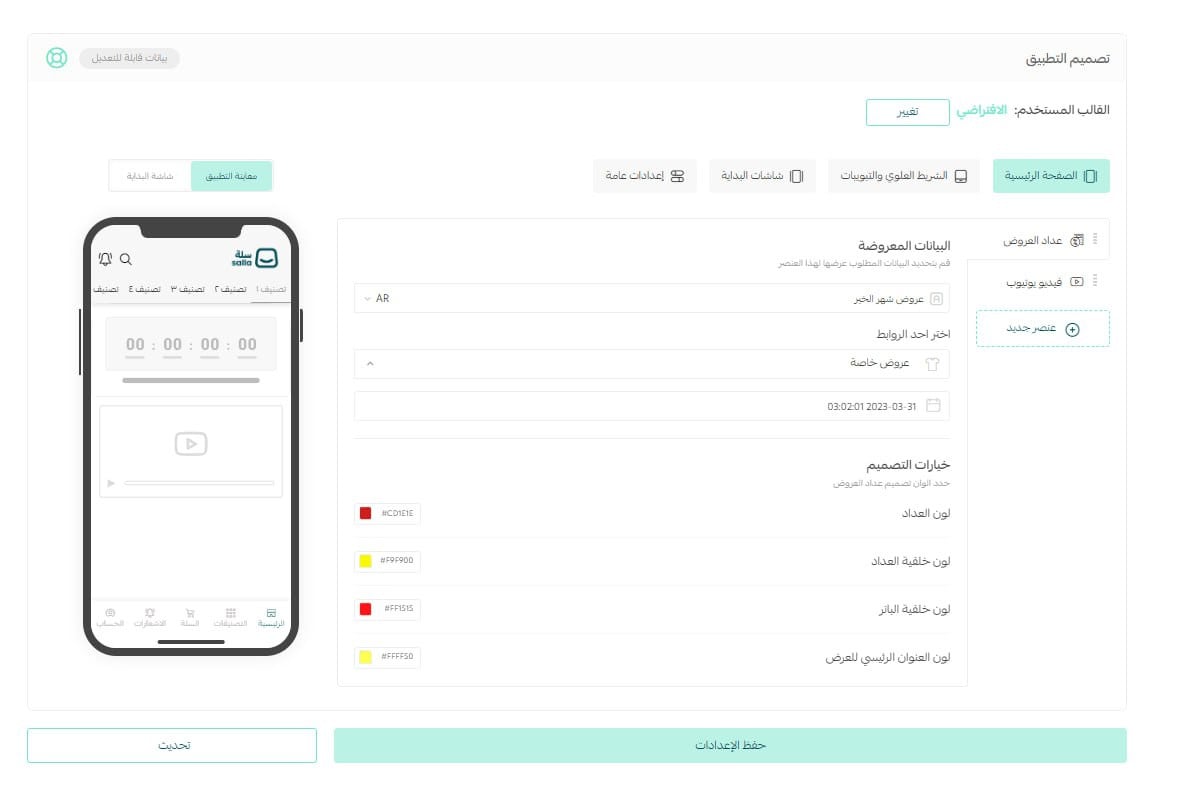
You can now update the app data exactly as you did when entering it for the app's first publish.
For more details on stage one: designing the app.
For more details on stage two: entering the app data.
For more details on the store wallet.
For more details on how to order and buy from the Salla Store.
Frequently asked questions
We'll answer the following questions:
- Does the update request go through the same stages as the app's original purchase?
- Will I need to enter the data again after buying the app data update service?
- Can the submitted updates be rejected?
❓ Does the update request go through the same stages as the app's original purchase?
Yes, absolutely. The Salla team verifies the submitted data and contacts the merchant if anything violates the guidelines, then the app goes through the Apple and Google review stage, and finally the launch stage.
❓ Will I need to enter the data again after buying the app data update service?
Yes. Enter the data you want to change — and make sure to update the icon if you want it changed — then click (Save data), followed by (Publish app).
❓ Can the submitted updates be rejected?
Yes. The data update goes through the same stages as publishing the app, and the updated data can be rejected for being identical to the old data — which happens when (Save data) was not clicked before clicking (Publish app).