Selling gift cards or top-up codes, and losing sales because the customer cannot find the right country or the right value?
A digital card product in Salla - a top-up card, a gift card, an account for sale - lets you load your codes once, organized by the country the account belongs to and the value the card is sold at. Customers then pick the combination they need from a single product page and get their code the moment they pay. In this guide, you'll learn how to add a digital card product, load its codes, and control how it is sold.
A digital card is a product type in Salla for selling codes. You create the product, click (Manage codes), enable product options, then set the account countries, the prices the card is sold at, and the codes belonging to each country and price combination. Customers see only the combinations that actually have codes loaded.
📌 Article overview
- How to add a digital card product
- How to manage digital card options and codes
- Customizing the digital card product's data
- Controlling the product from the (More) button
- Frequently asked questions
🚀 How to add a digital card product
1. From the side menu of your dashboard, click (Products).

2. On the Products page, click (New product).

3. Choose (Digital card) as the product type.
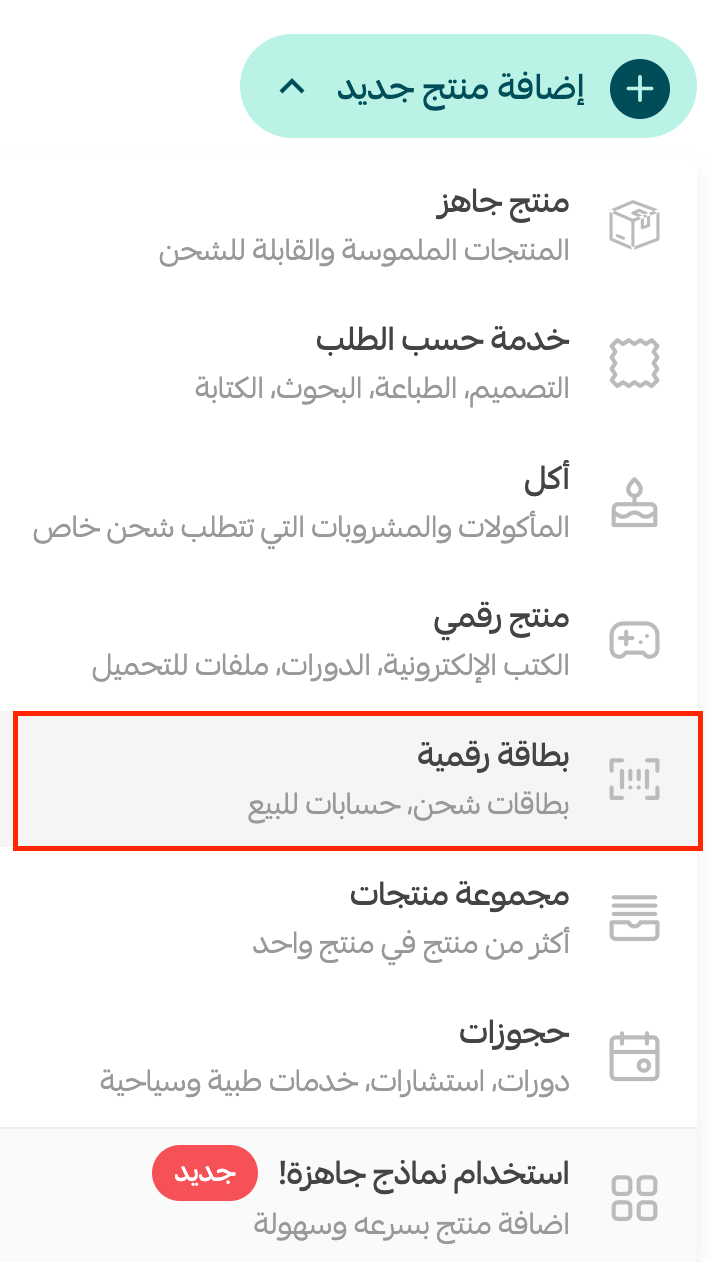
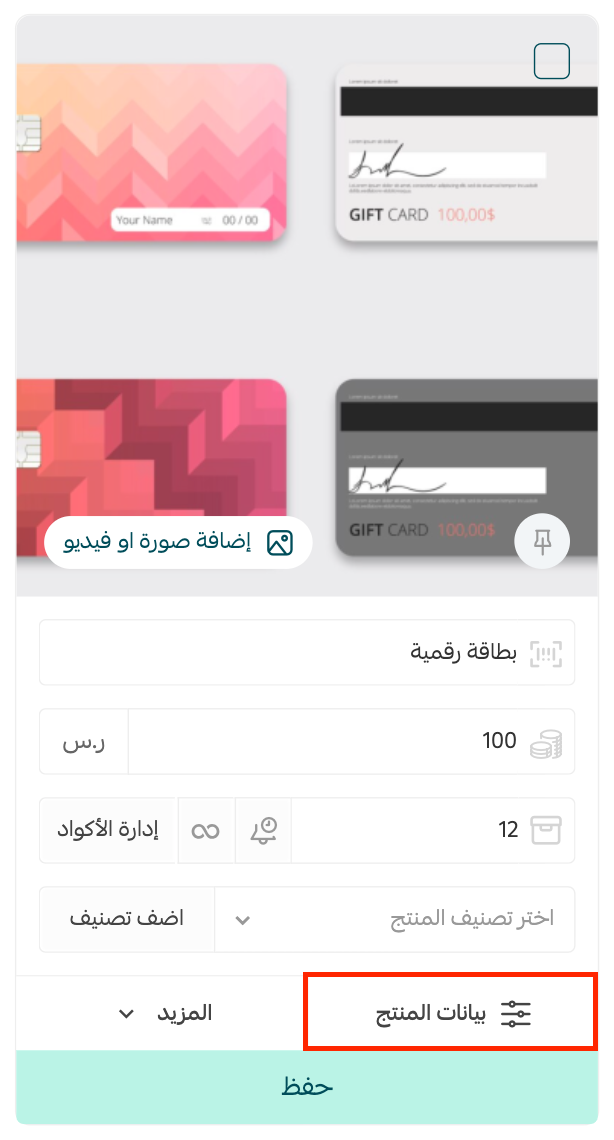
4. Enter the product's basic details, then click (Save).
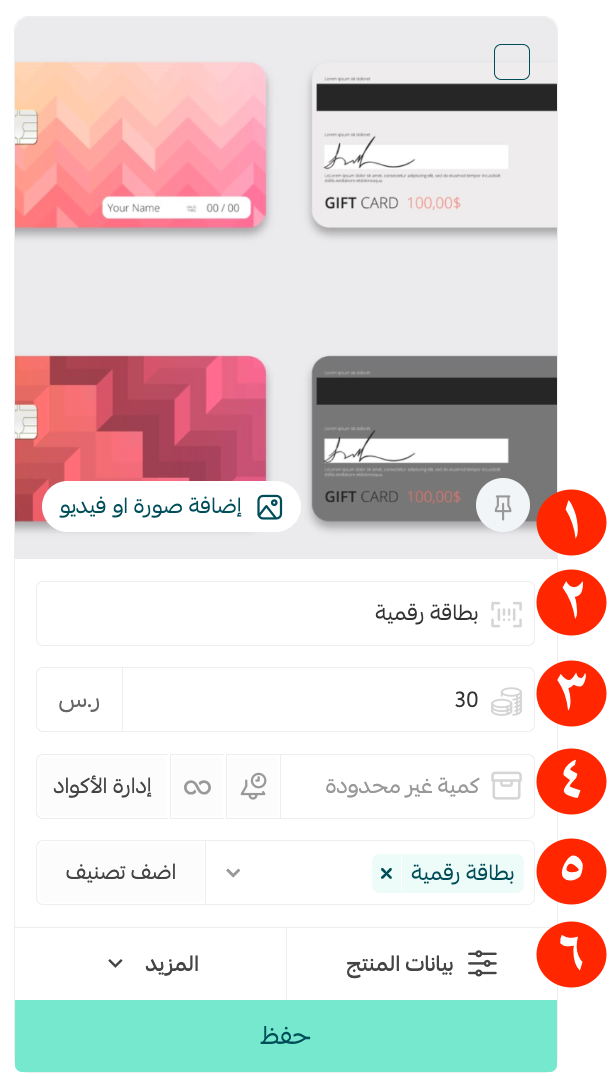
1. Product image - add one or more images. For more on uploading product images and videos.
2. Product name - the name customers will see.
3. Product price - the price the card sells for.
4. Product quantity - how many are available, alongside the (Manage codes) button, where you load the card codes across as many options as you need.
5. Product category - used for how products are displayed, product reports and more. For more on managing product categories.
6. Product data - quantity, price, barcode and the rest of the product's specifics.
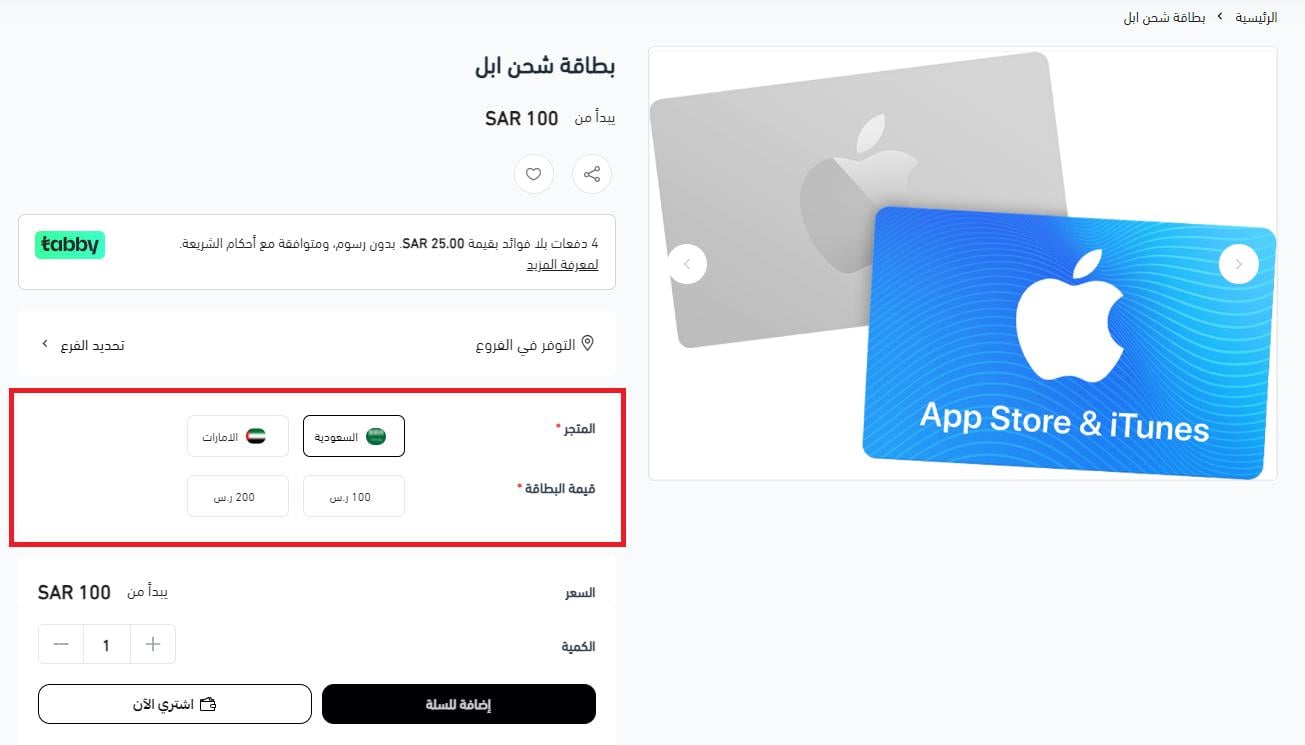
This is how the digital card product looks to a customer browsing your store:
And in the shopping cart:
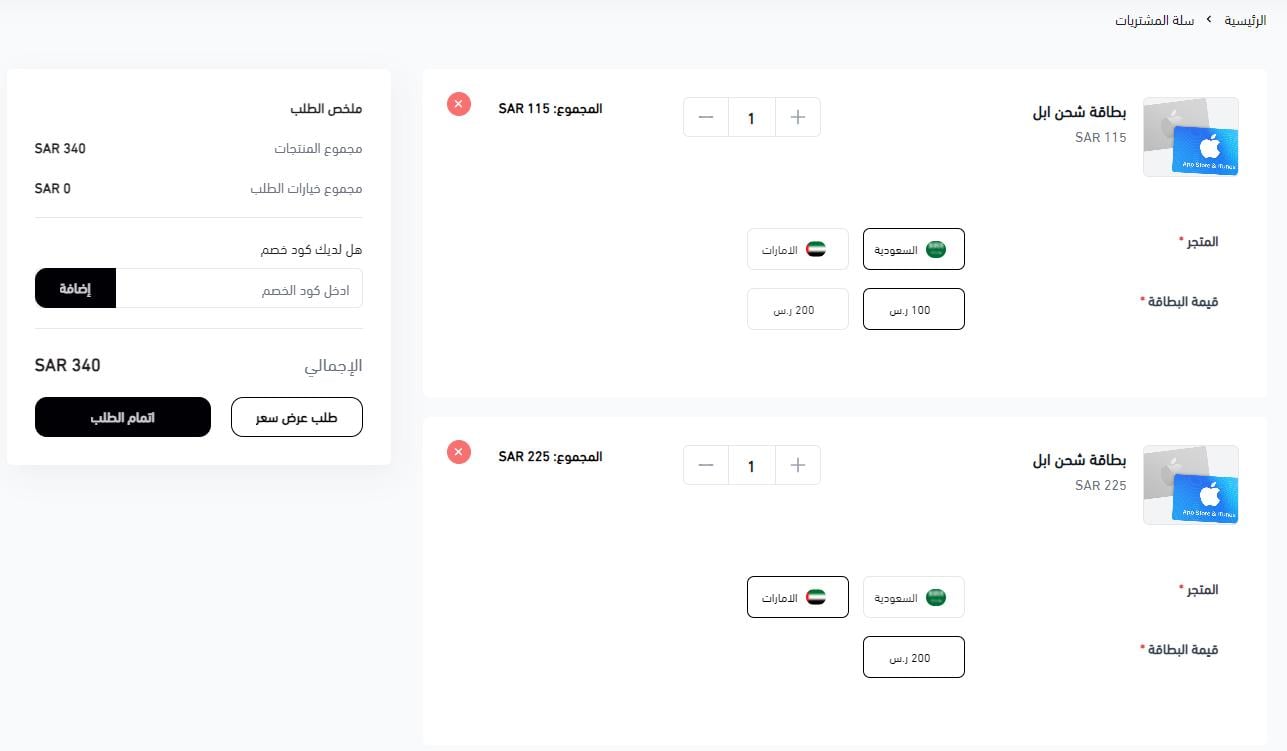
📝 Important note
Product options are not currently supported in the app builder. Support for Salla store apps is coming.
👣 How to manage digital card options and codes
You can load your card codes across several options at once.
1. From the digital card product, click (Manage codes).
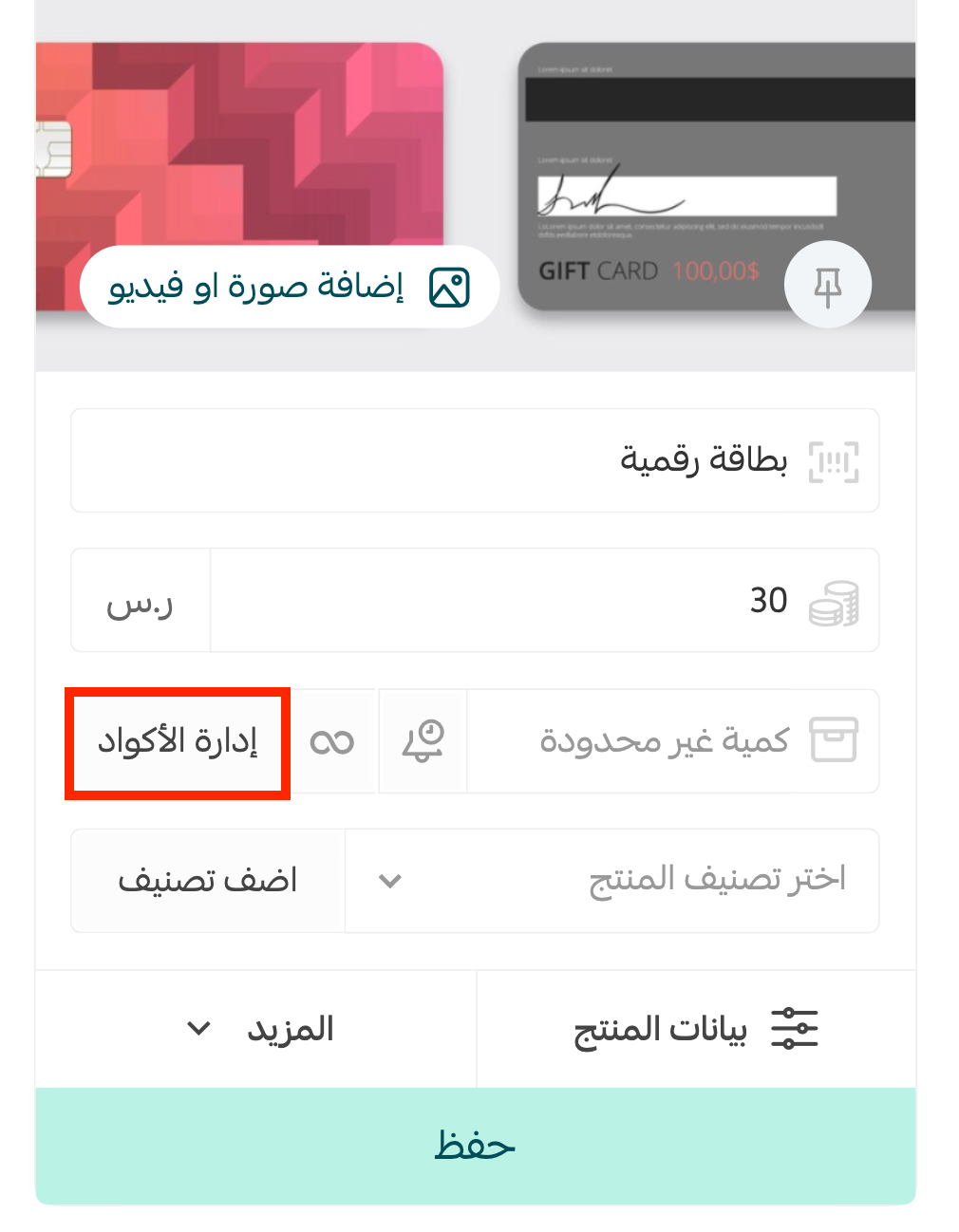
2. Turn on (Enable product options).
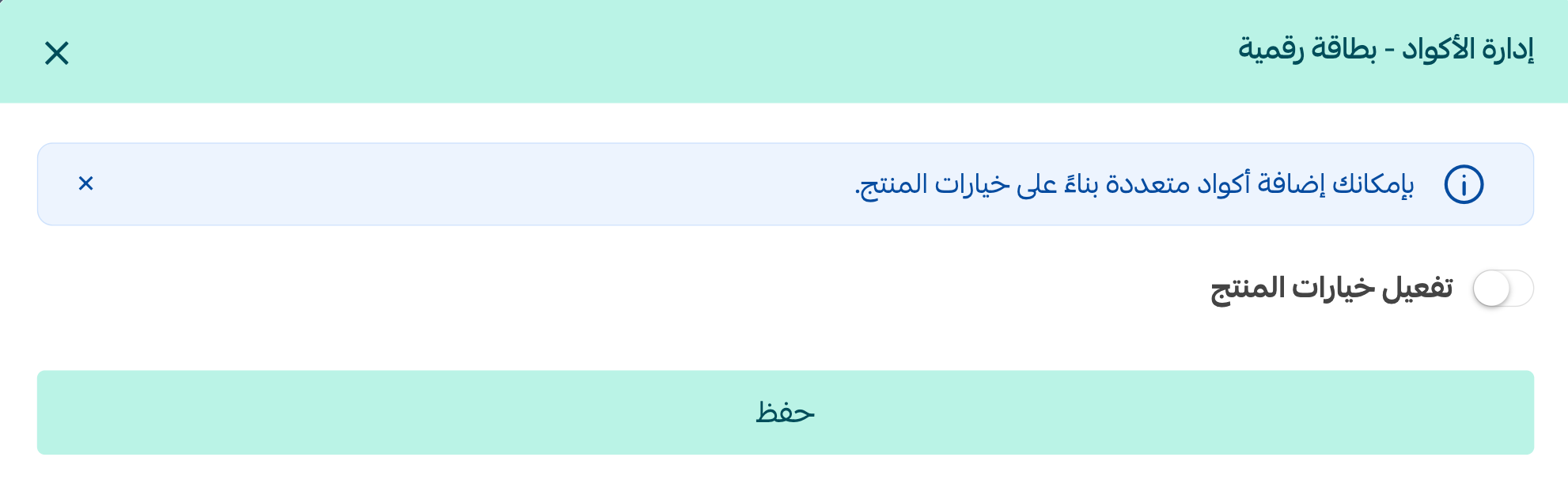
The Manage codes page then looks like this:
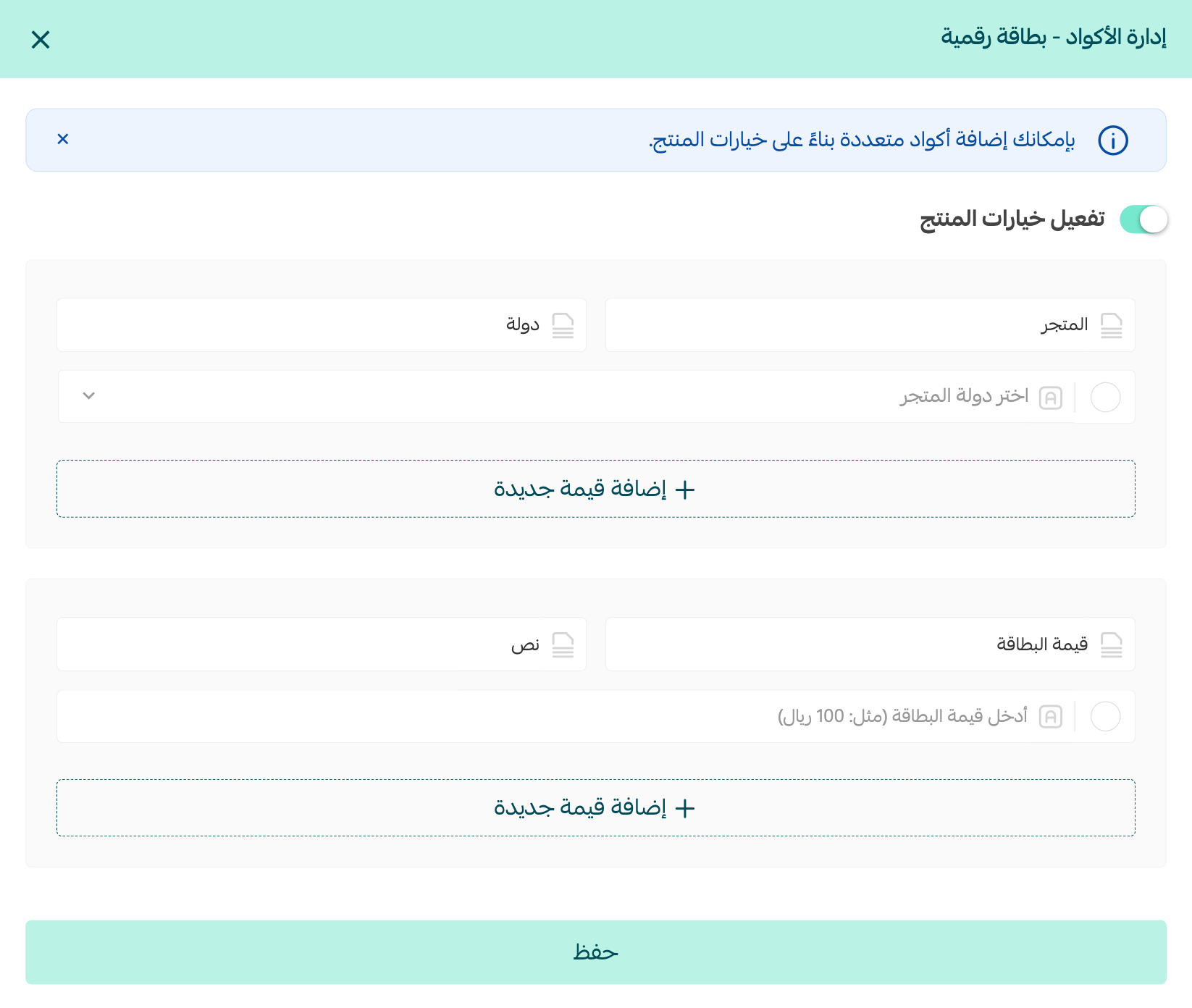
3. Enter the card codes by account country.
Step one: choose the card's account countries
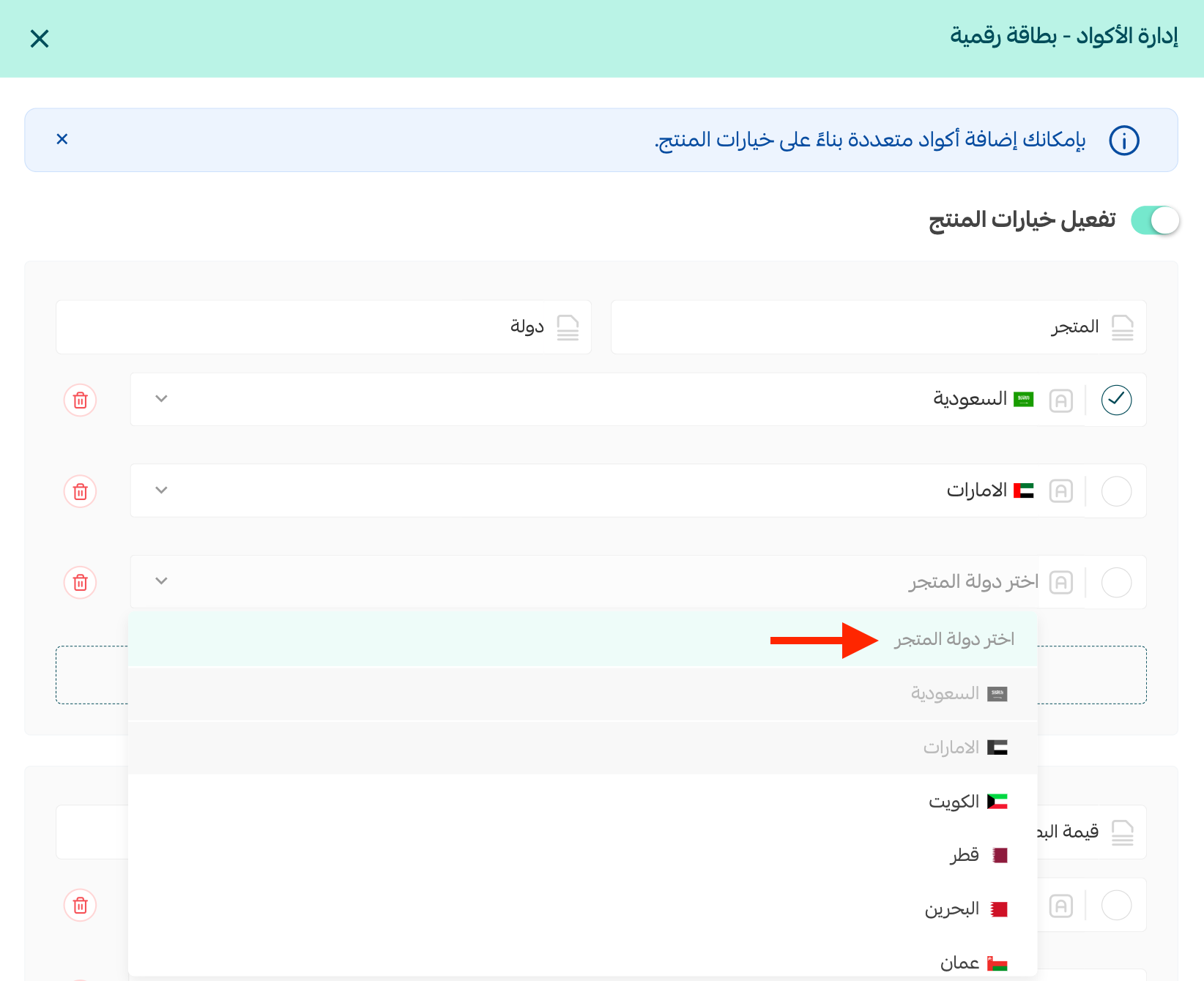
Step two: enter the prices the card is sold at
Enter every price the card is sold at, regardless of country. These are the general prices.
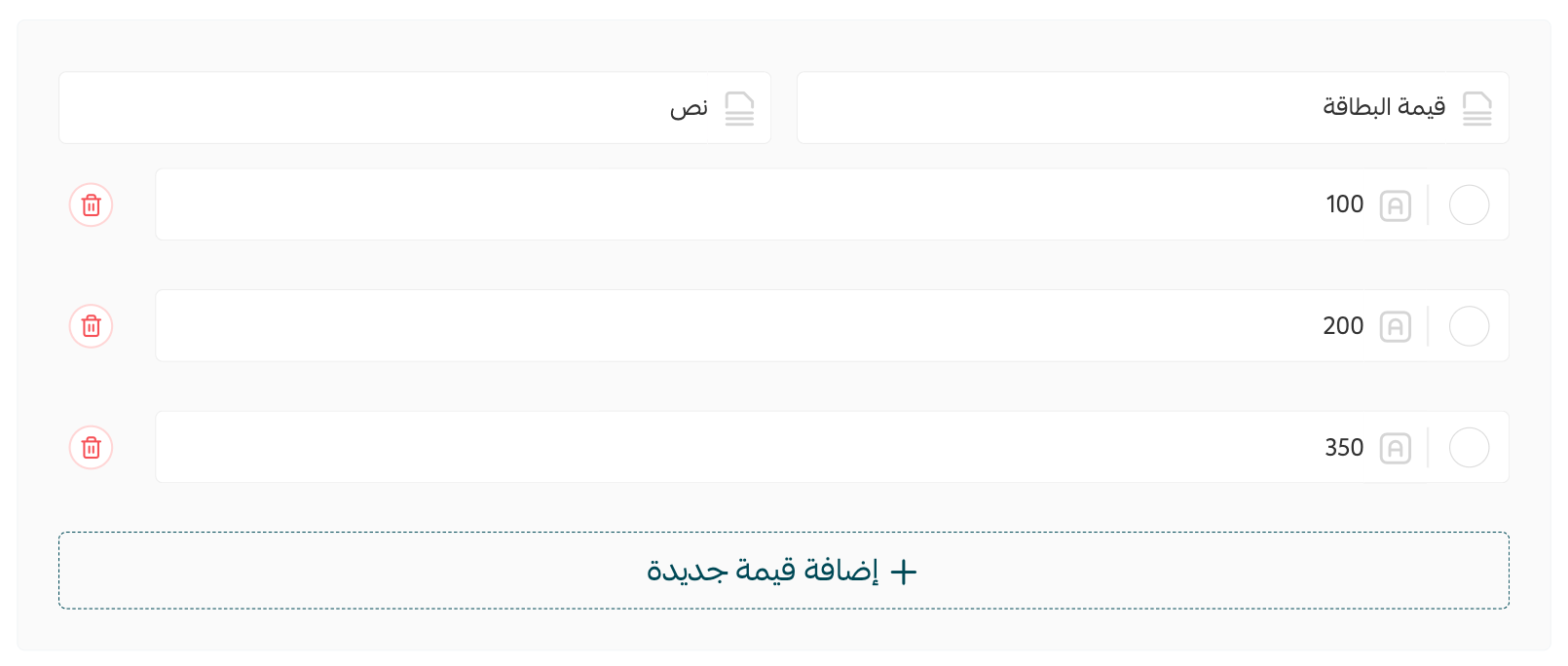
You can also mark one card as the default option shown to the customer:
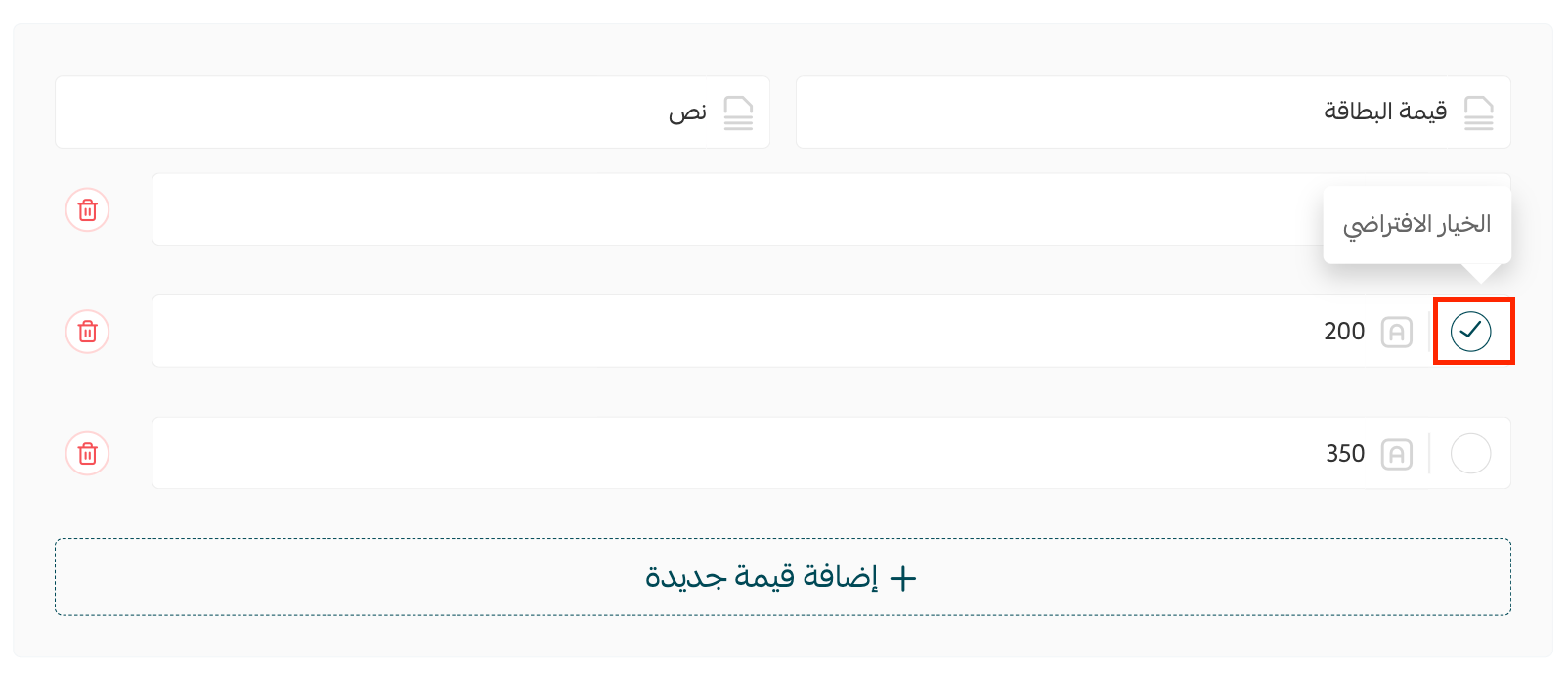
Step three: enter the codes for each country and each price
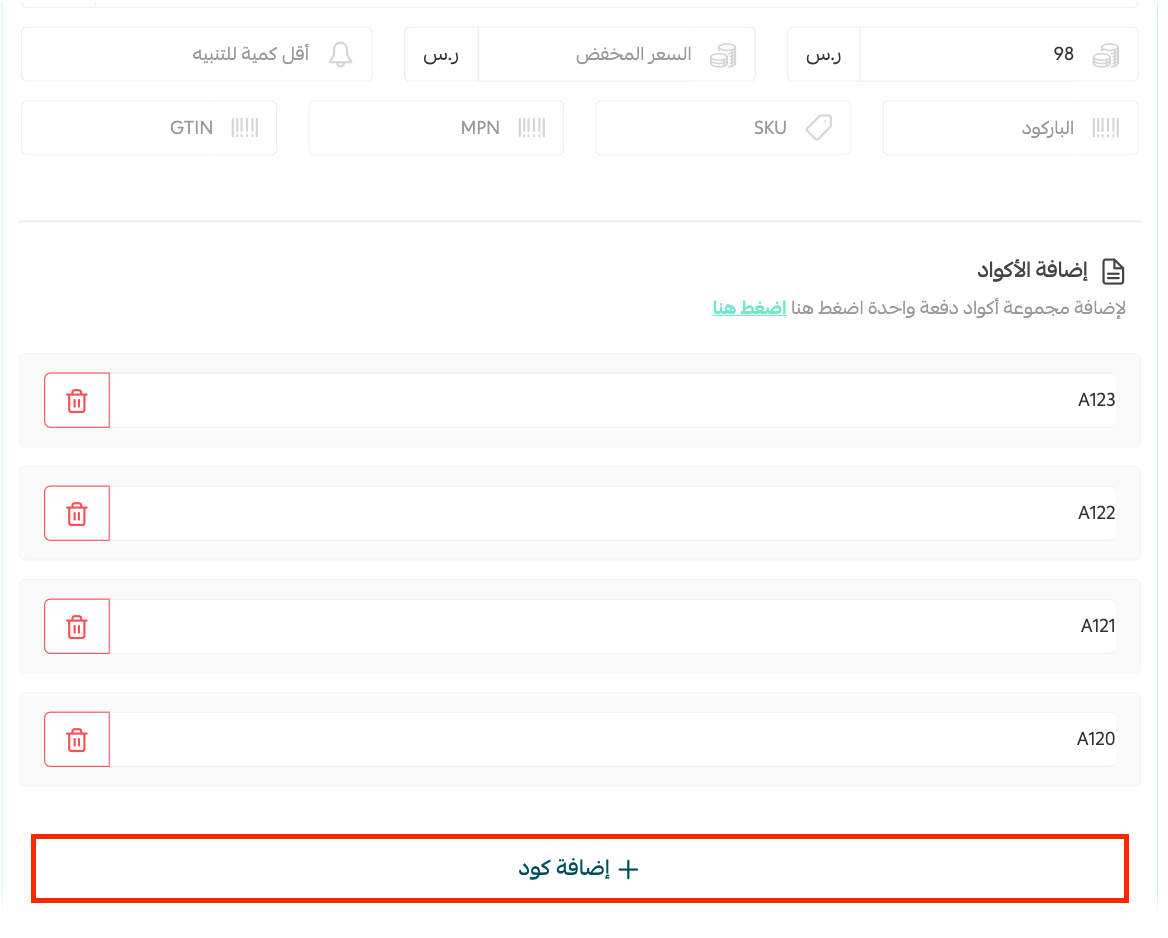
💡 Example: to add the codes for cards priced at SAR 100 that belong to Saudi accounts, scroll to the bottom of the Manage codes page and click (Saudi Arabia - 100).
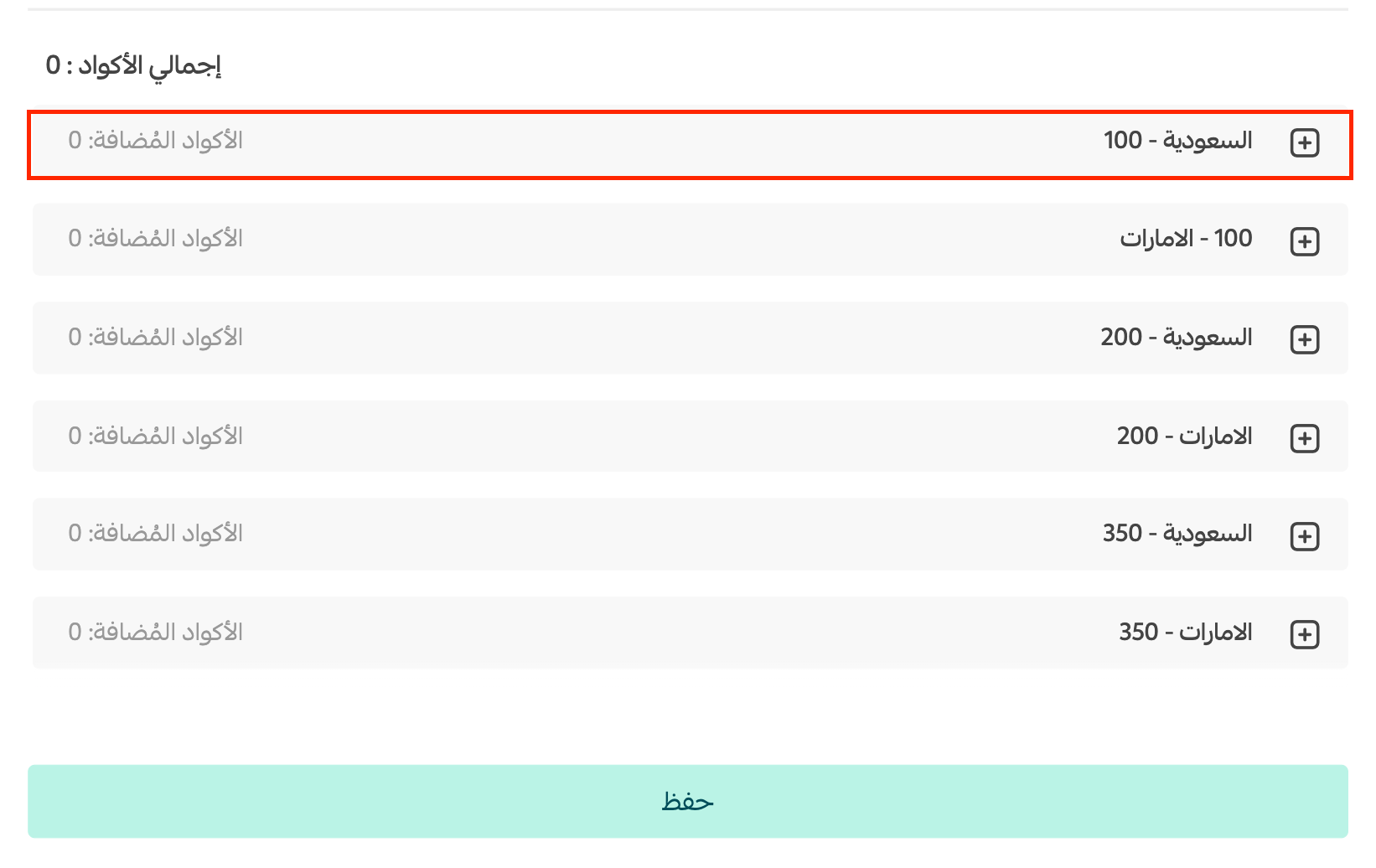
Then add the codes:
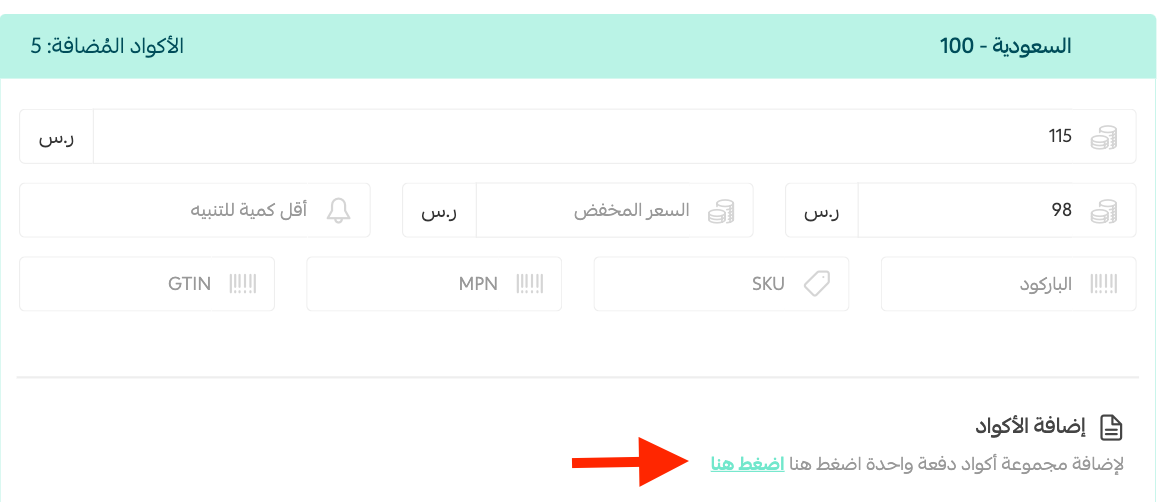
To add a batch of codes to one country's card in one go, click (click here) in the add codes section.
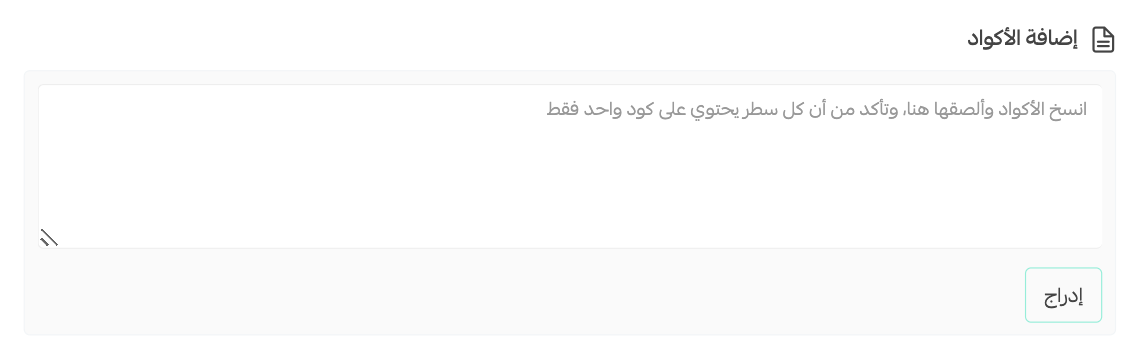
Then paste or type the codes into the field, one code per line, and click (Insert).
To delete a code, click the delete button next to it.

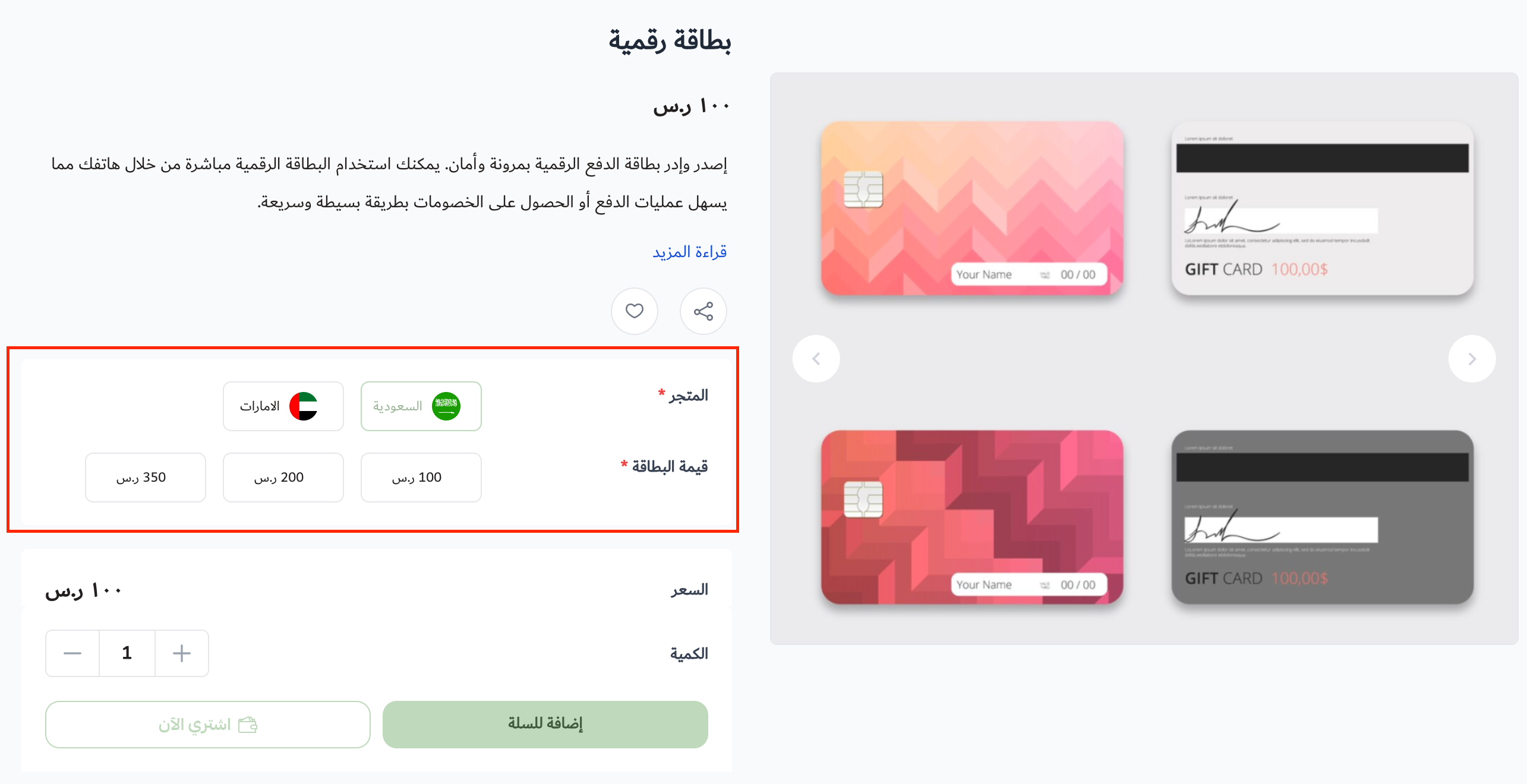
The product then appears in your store like this:
🛠️ Customizing the digital card product's data
From the digital card product, click (Product data).
Fill in the details you need, including the cost price, the sale price, the brand, the sub-warehouse, the product description, the display channels (store and app), the product tags, and the SEO settings.
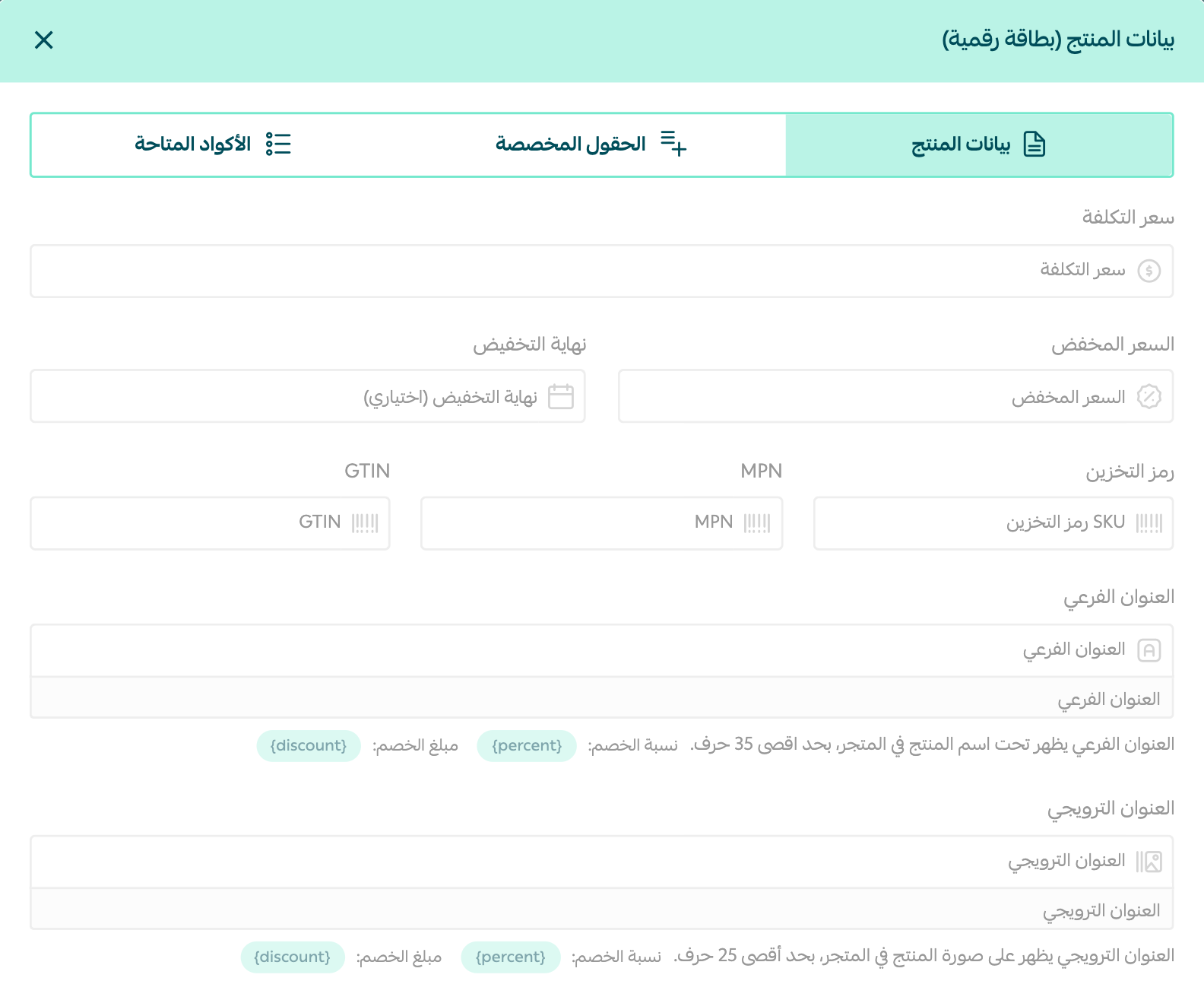
For more on entering and customizing product data.
✅ Controlling the product from the (More) button
From the digital card product, click (More). The button lets you control the product's display channels, review its orders, see statistics about it, and reach a range of other controls.
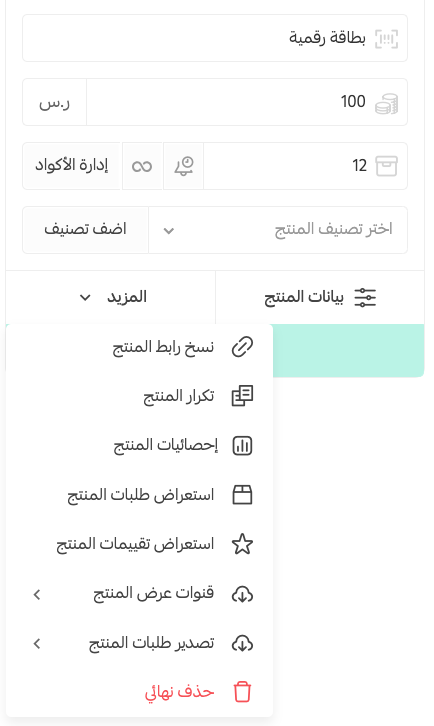
For more on the (More) button on the product page.
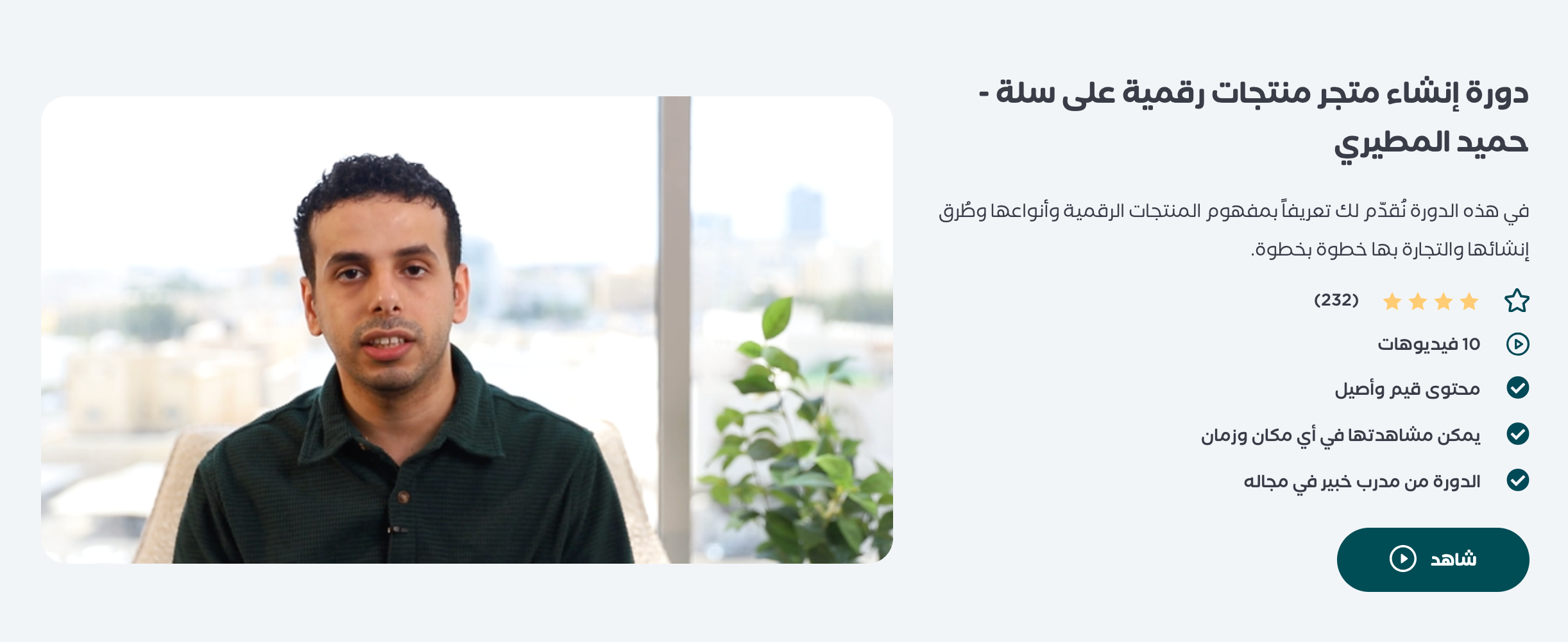
To build a digital presence that pulls customers toward your digital products, learn the strategies behind it in the building a digital products store course at Salla Academy.
❓ Frequently asked questions
Will customers see every country and price the card is sold in?
No. Customers only see the combinations that have codes loaded. If a country or a price has no codes under it, it does not appear on the product page.
Can I see which codes have been sold?
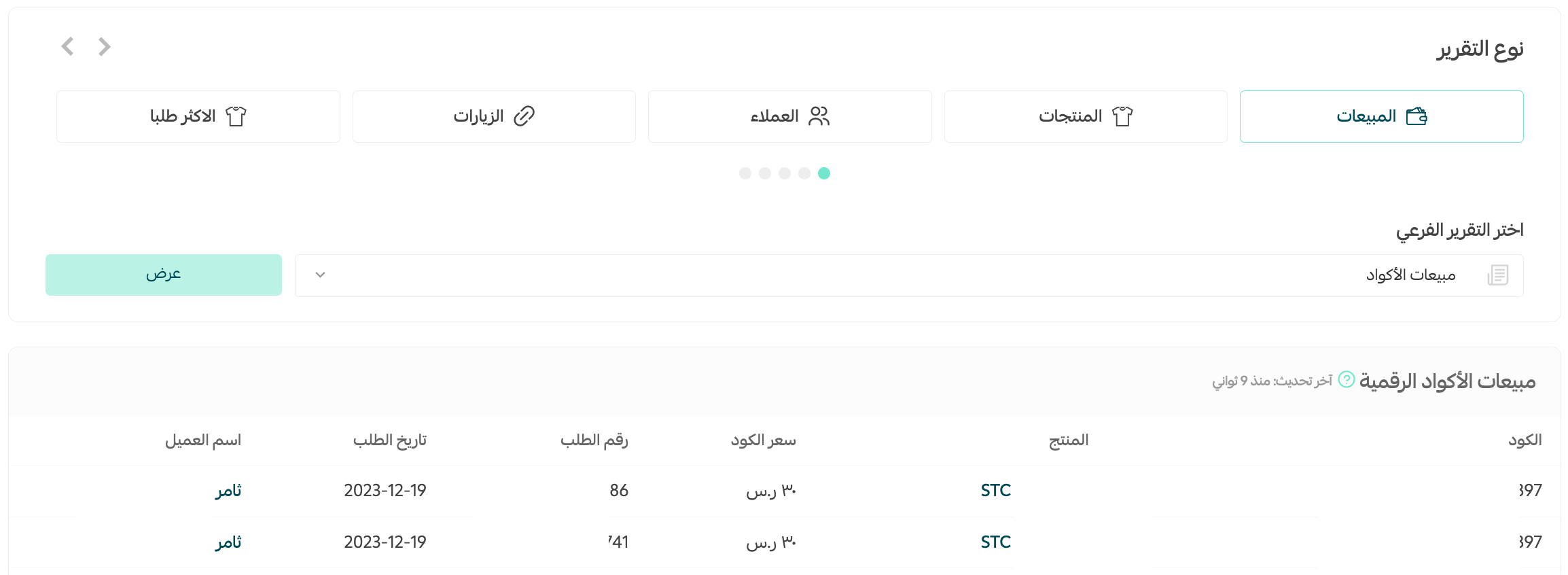
Yes. Go to the Reports page, open the Sales tab, and choose the (Code sales) report type.
When can the customer copy the code they bought?
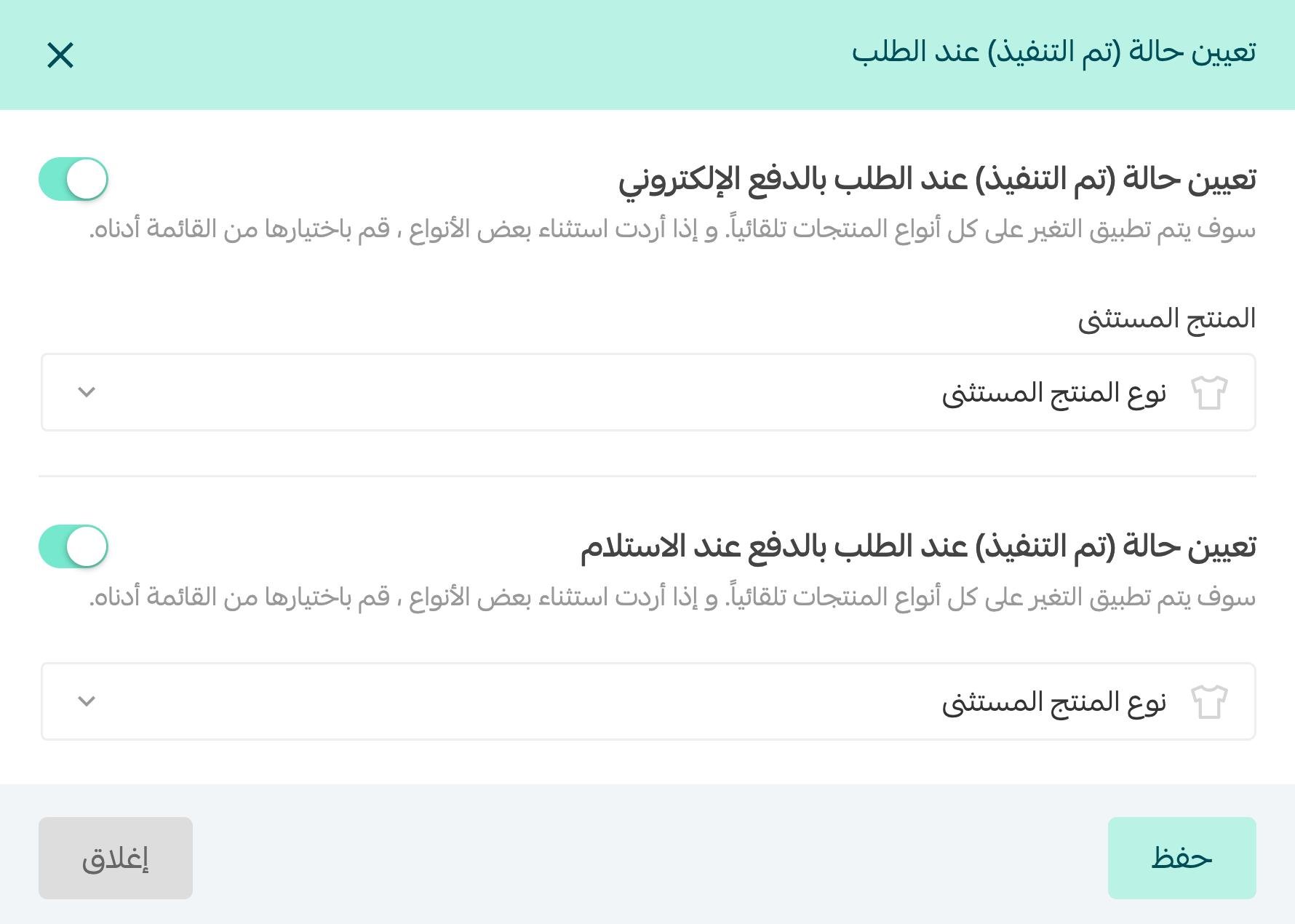
As soon as the order is set to (Completed) automatically. To turn that on:
1. From the side menu of your dashboard, click (Store settings).

2. Go to the (Store options) page.

3. In the Orders section of the Store options page, click (Set) next to setting the Completed status on order.

4. Turn on the Completed status for orders paid electronically, choose any product types you want to exclude, then click (Save).
The customer can then copy the code once payment is complete:
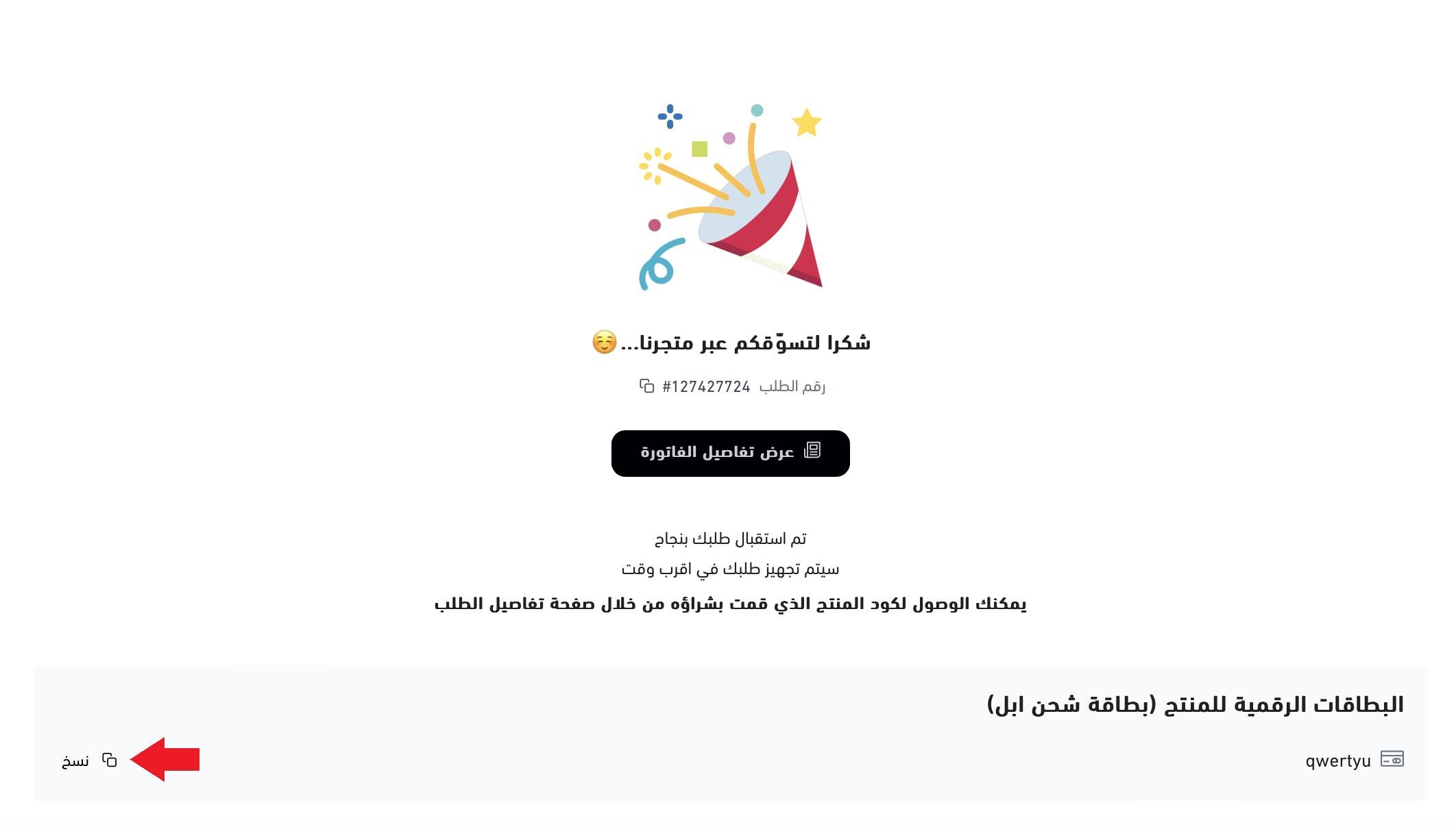
The code is also sent to them by SMS and by email.
Do I have to organize codes by country?
Only if the codes differ by country, which is the case for most top-up and account cards. You choose the account countries first, then the prices, and load codes into each country and price combination.
Can I load many codes at once?
Yes. In the add codes section click (click here), then paste your codes with one code per line and click (Insert).
🛠️ Supporting services
If adding your products is proving difficult, external providers can add products and services to your Salla store for you.
Other services are available too, such as image design, product descriptions and product photography.