Your store answers the same customer questions every week — why not let an article answer them for you?
A store blog is the cheapest way to bring people to your store before they are ready to buy. Writing a blog article on Salla takes one page in your dashboard: a title, a short promotional line, the body text, a cover image, categories, tags, and the SEO fields that decide how the article shows up in search. You can save it, preview it, and publish it when it is ready. In this guide, you'll learn how to create a new article, what each field on the page does, and how to preview and publish it.
To publish a blog article, open (Marketing tools) in your Salla dashboard, click (Blog) under content marketing, then click (+ New article). Add a title, promotional text, and body of up to 6,000 characters, choose a cover image, author, categories, and tags, then click (Publish).
📌 Article overview
- How to create a new blog article
- What each field on the new article page does
- How to save, preview, and publish
- Frequently asked questions
🚀 How to create a new blog article
1. From the side menu of your dashboard, click (Marketing tools).

2. Under the content marketing section, click (Blog).

3. From the blog page, click (+ New article).
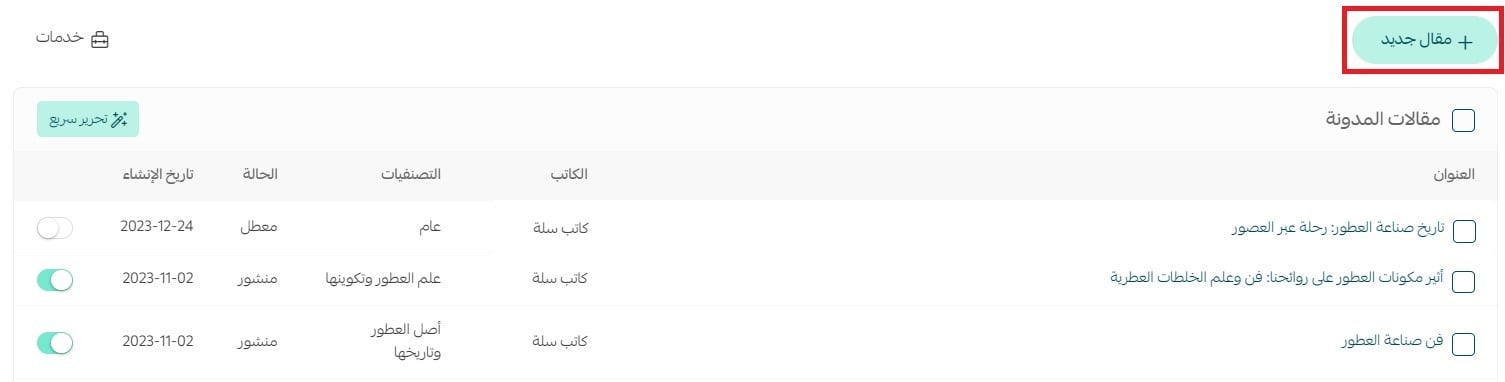
The new article page then looks like this:
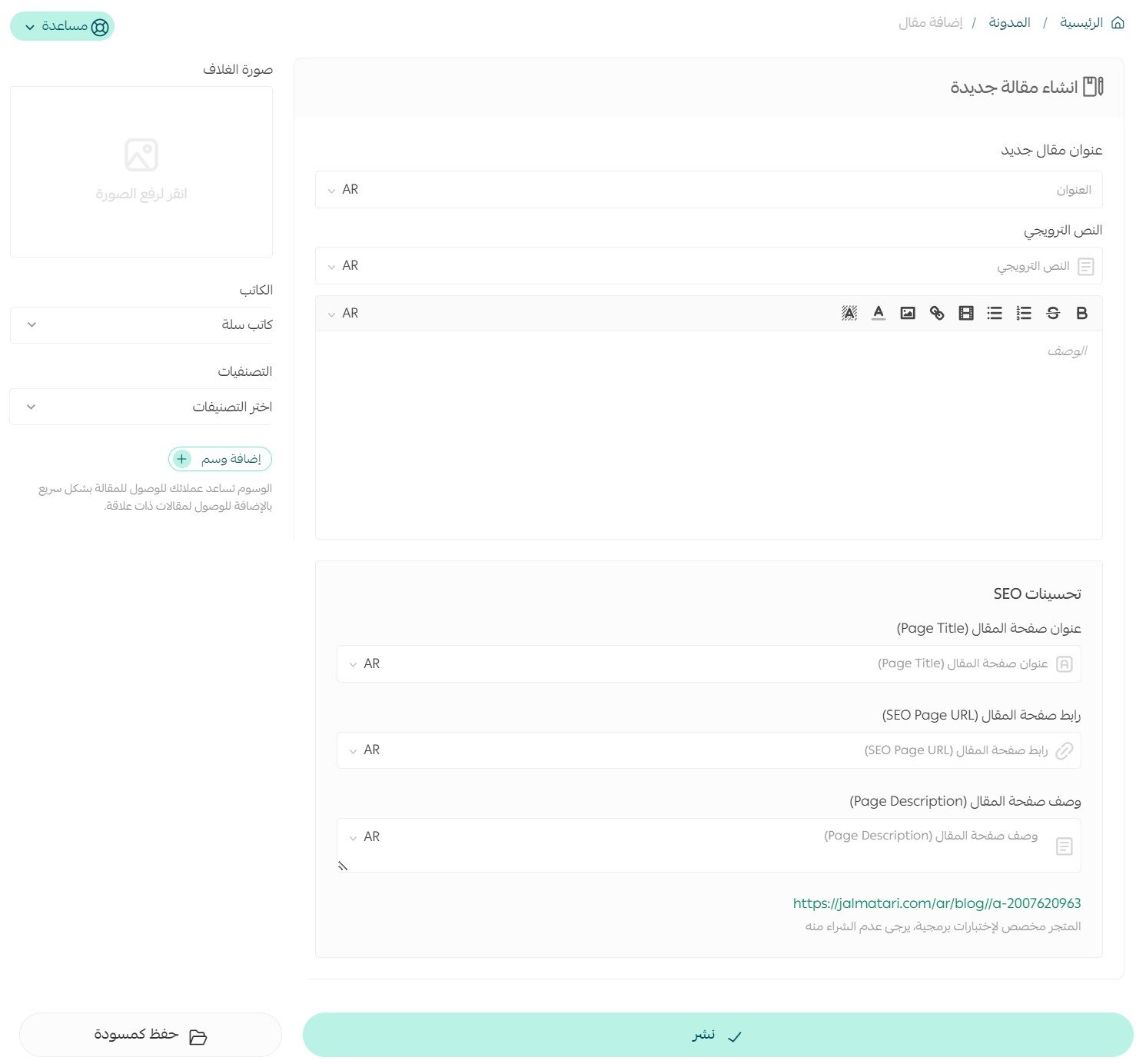
📝 What each field on the new article page does
Article title
Write a short, appealing title that says what the article is about.

Promotional text
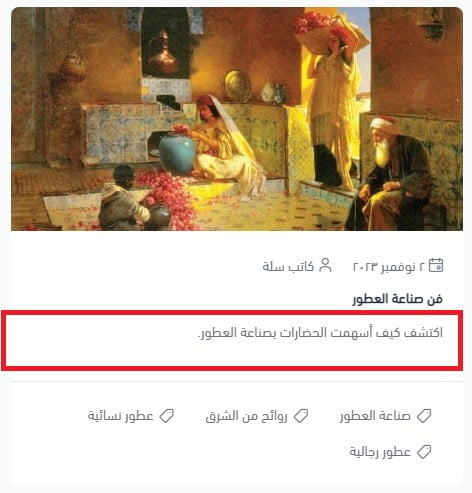
Write a brief line about what the reader gets out of the article, or the problem it solves for them, and make it inviting.

The promotional text appears under the article title like this:
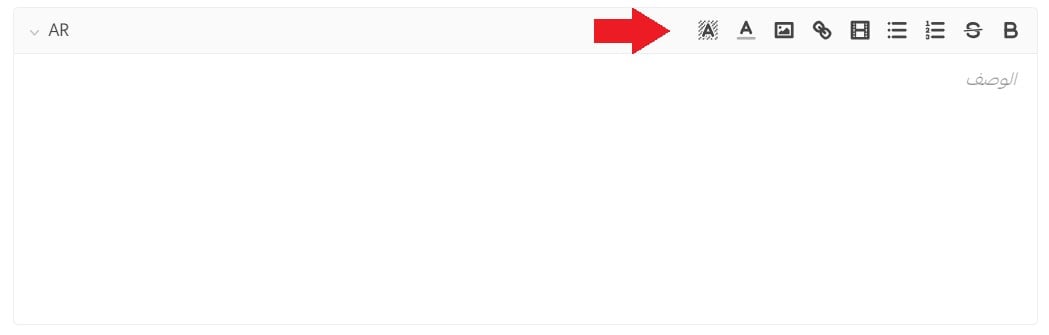
Description
Write the body of the article, up to 6,000 characters. You can format the text and add video, images, and links from the formatting toolbar.
Cover image and author
Choose a cover image that reflects the article's subject and content.
Choose the author's name from the writers list, which holds the staff members whose permissions let them add a new article to the blog.

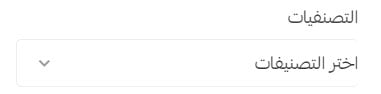
Categories
Choose the categories the article belongs to. These categories are managed from the services list on the blog's main page.
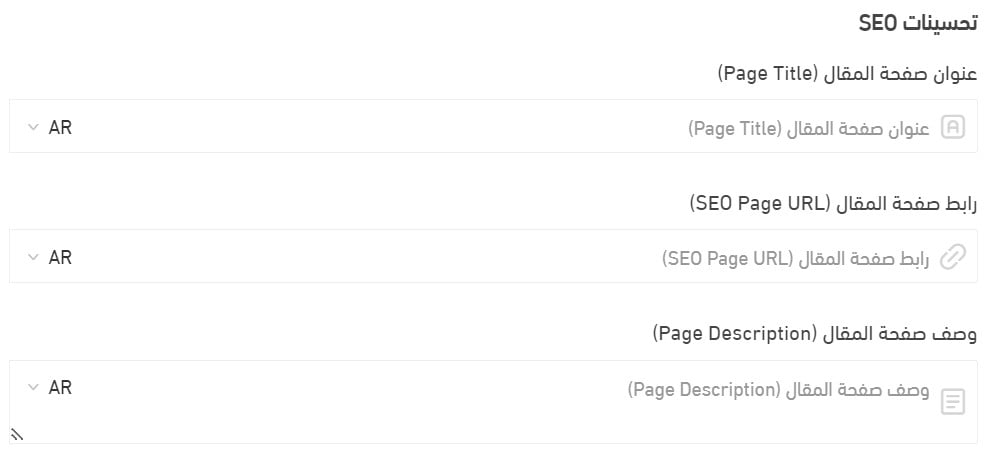
SEO improvements
Add the article's page title and description, and work in the keywords that matter most for the article's subject and for what your store sells.
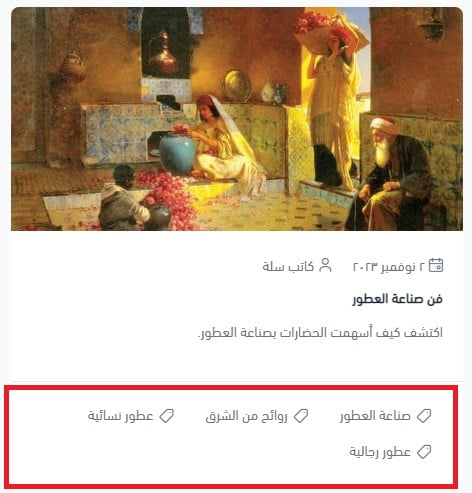
Tags
Add tags that help customers find the article quickly.

The article's tags appear underneath it, like this:
👣 Save, preview, and publish the article
Click (Save) to save the article for the first time without publishing it.

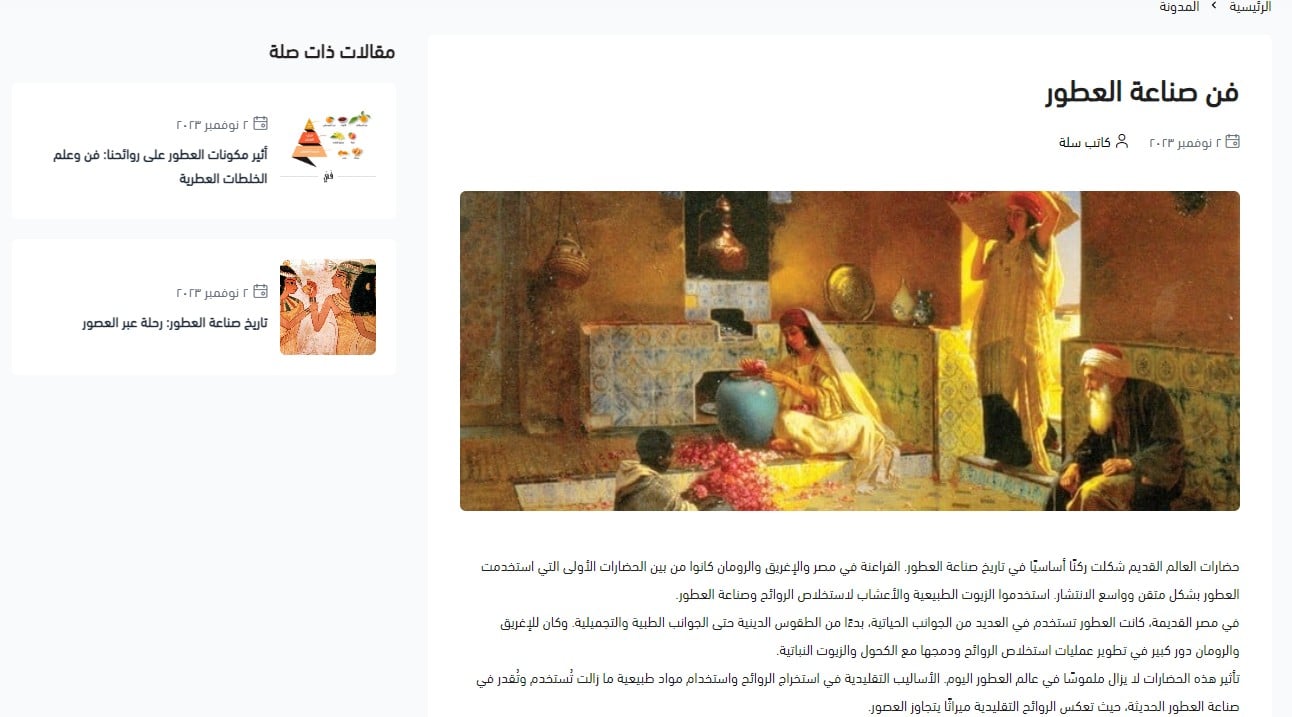
Click (Preview) to see the article before you publish it.

The preview opens in a new browser tab, so the article page stays open:
Click (Publish) to publish the article on your store's blog page.

For more details, read managing your store blog on Salla.
❓ Frequently asked questions
How long can a blog article be?
The description field holds up to 6,000 characters.
Can I add images and video inside the article?
Yes. The formatting toolbar in the description field lets you format text and insert video, images, and links.
Who can I choose as the article's author?
The writers list holds the staff members whose permissions allow them to add a new article to the blog.
Can I save an article without publishing it?
Yes. Click (Save) to keep the article without publishing, and click (Publish) when it is ready to go live.
Where do the article categories come from?
Categories are managed from the services list on the blog's main page, and you pick from them on the article page.
The best store blogs answer the questions your customers already ask you. Write those articles first, tag them well, and let search do the rest of the work.