How many visitors leave your store without buying anything or leaving an email address?
A well-timed popup is one of the simplest ways to catch a shopper before they close the tab. Wisepops is a popup app you can connect to your Salla store to build newsletter signups, promotional offers, and exit-intent messages, then control exactly who sees them and when. In this guide, you'll learn how to create a Wisepops account, how to install the Wisepops app on your Salla store, and how the two are linked with an installation code.
Wisepops is a popup tool you connect to your Salla store. You create a Wisepops account, copy the installation code from its dashboard, install the Wisepops app from the Salla App Store, and paste the code to activate the link. You can then design, target, and schedule popups on your storefront.
📌 Article overview
- What you can do with Wisepops
- How to create a Wisepops account
- How to install the Wisepops app on your Salla store
- Frequently asked questions
🎯 What you can do with Wisepops
- Design popups from a range of ready templates, or build your own layout.
- Target a specific geographic area or a specific audience segment.
- Optimize how your popups display on mobile devices.
- Win back hesitant shoppers by showing them a promotional offer in a popup.
- Control when a popup appears and what triggers it, such as mouse movement or an attempt to leave the page.
🚀 How to create a Wisepops account
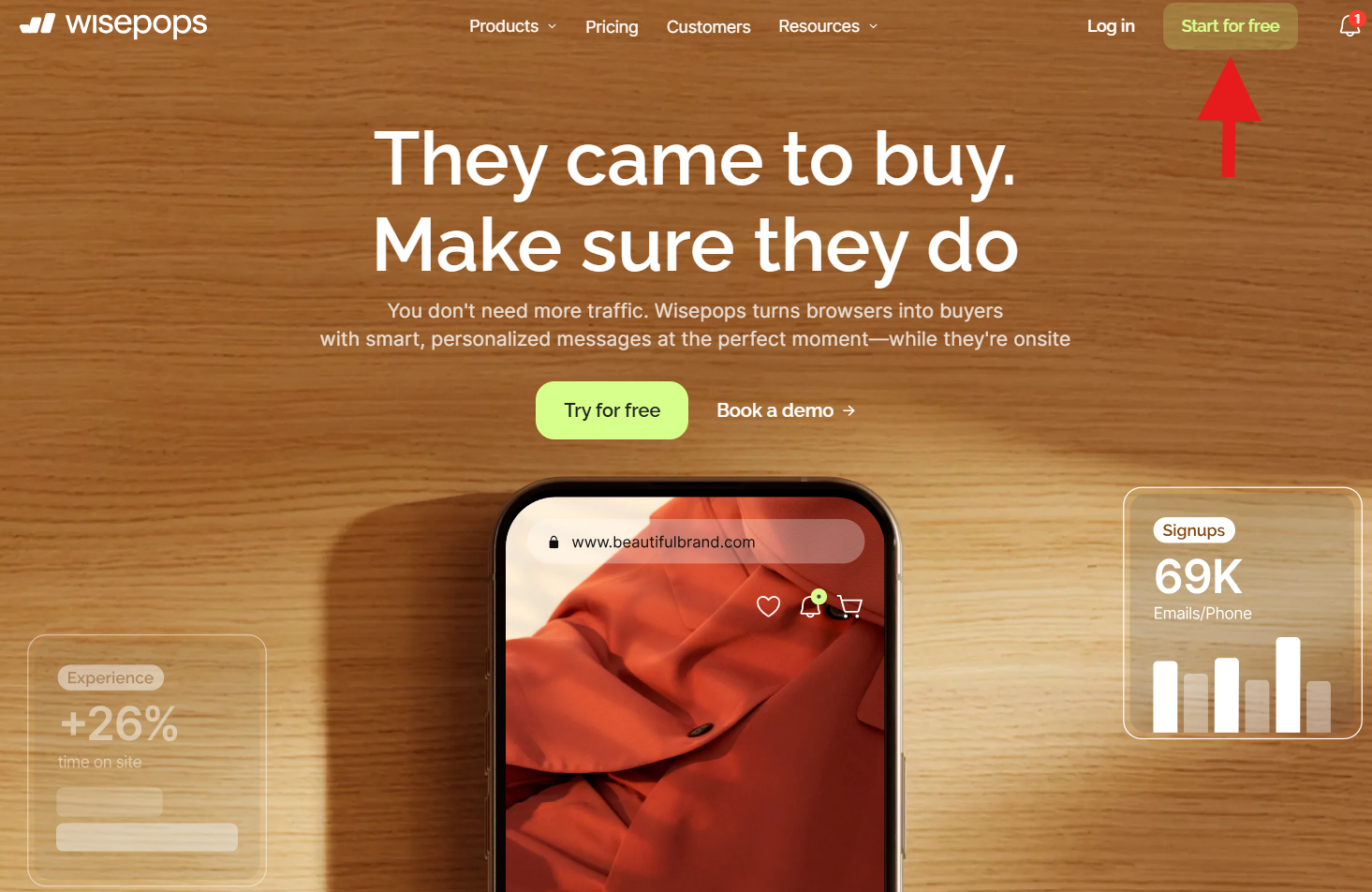
1. Go to the Wisepops website, then click (Start for free).
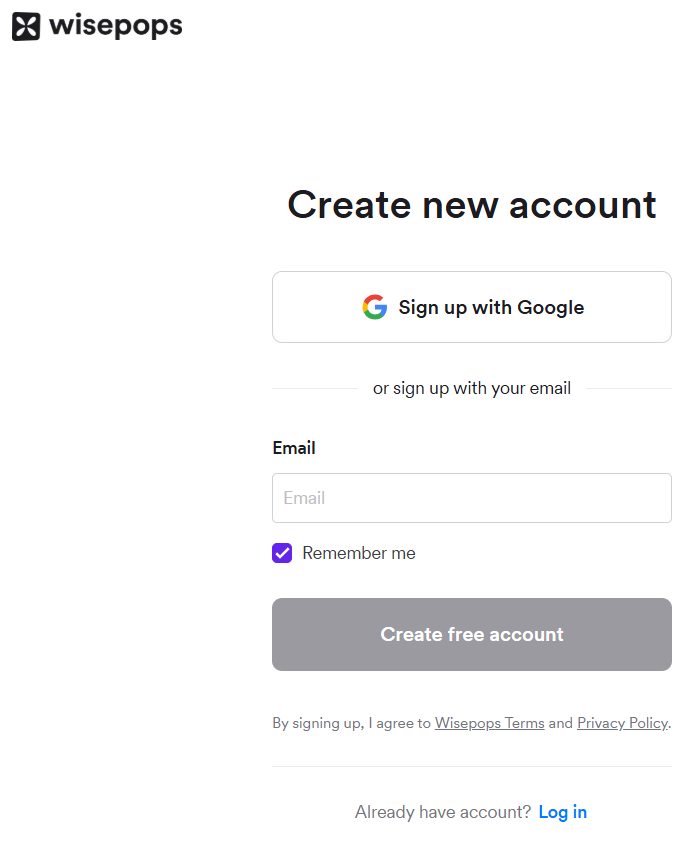
2. Enter the email address you want to register with.
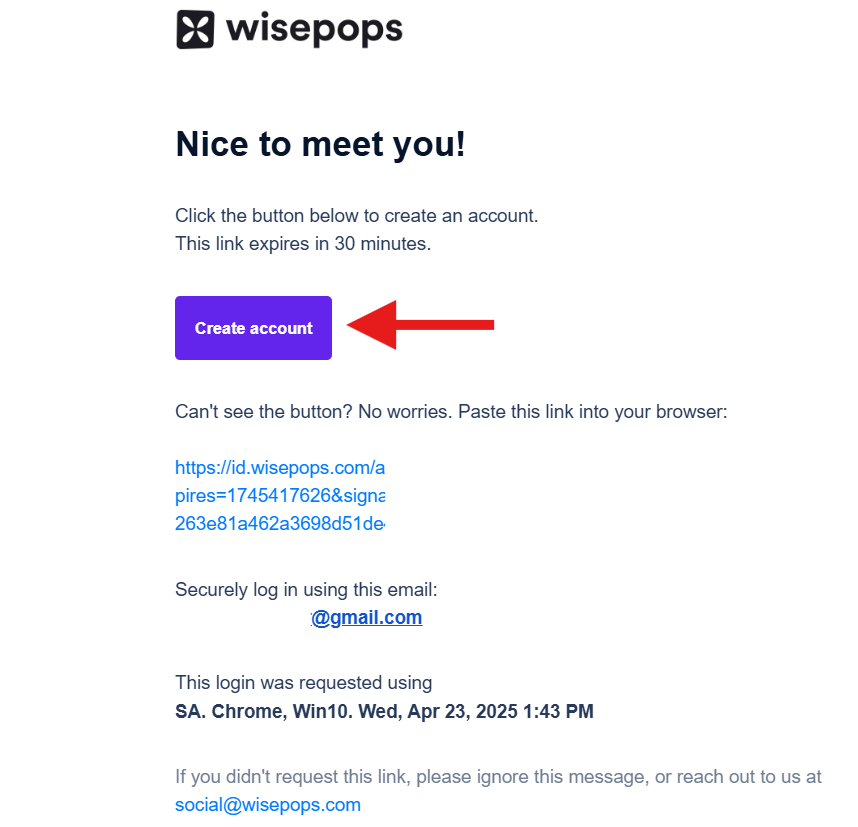
3. Open the message Wisepops sends to your inbox, then click (Create account).
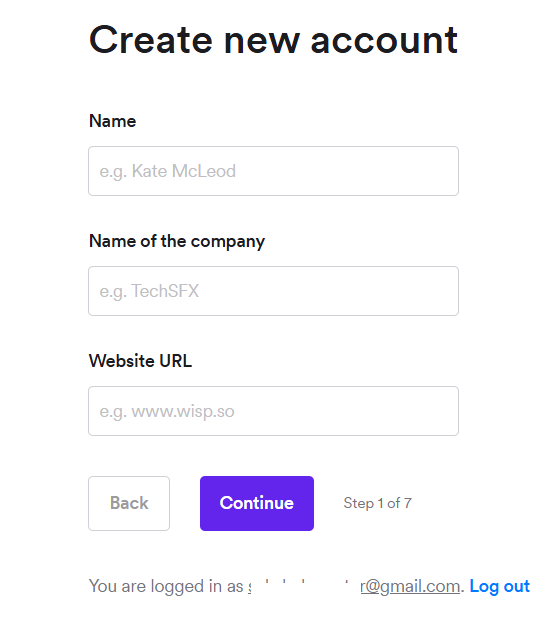
4. Enter your details and your store link to create the account, then click (Continue).
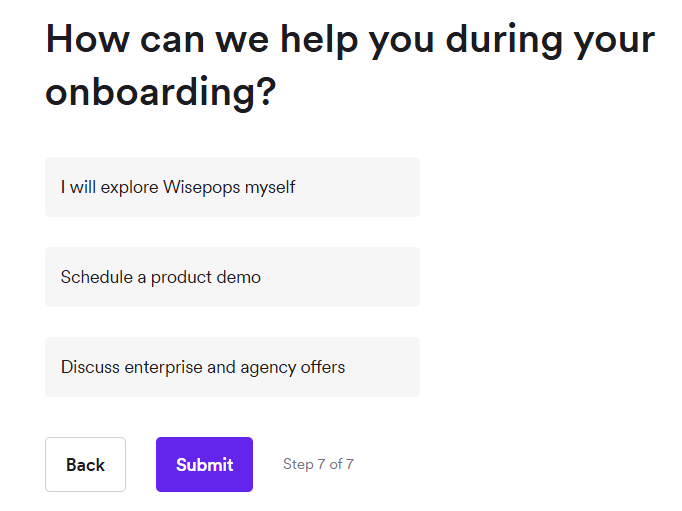
5. Complete the six-question survey, then click (Submit) on the last step.
🎉 Your account is ready.
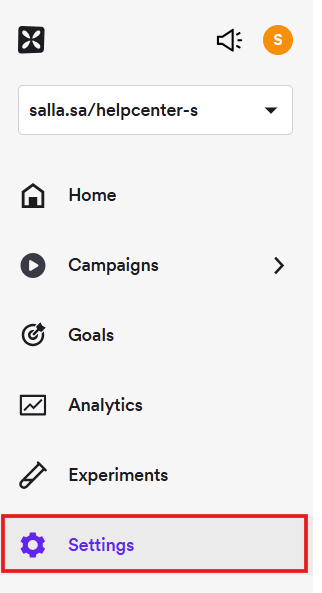
6. You land on the main Wisepops dashboard. From the side menu, click (Settings).
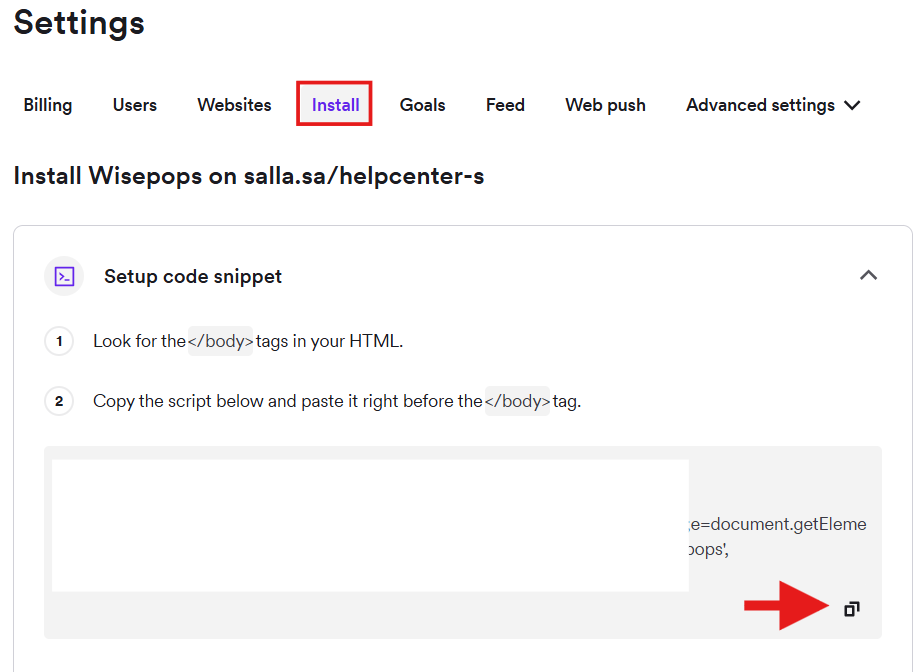
7. From the top bar, click (Install), then copy the code. You'll paste it into Salla in the next section.
🚀 How to install the Wisepops app on your Salla store
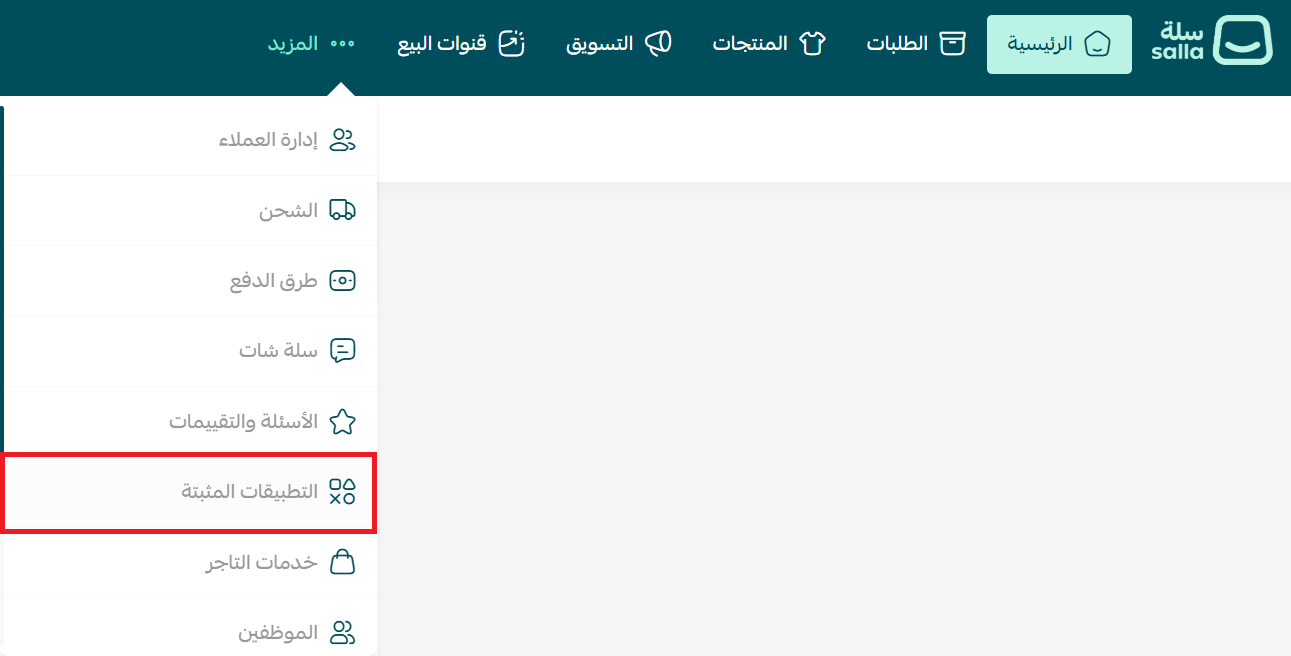
1. From the main menu, click the (More) tab, then click (Installed apps).
2. On the Salla App Store banner, click (Browse the Salla App Store).

3. On the Wisepops app page, click (Install).
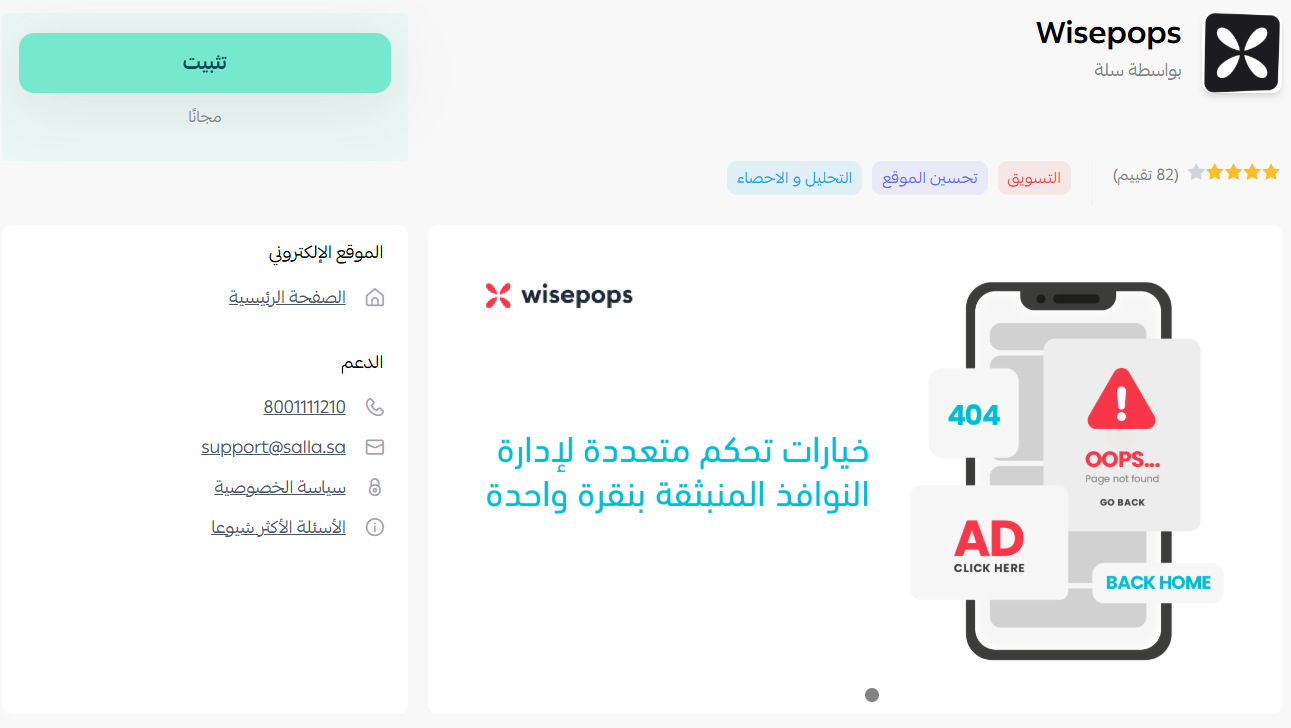
The Wisepops app is now installed on your store.
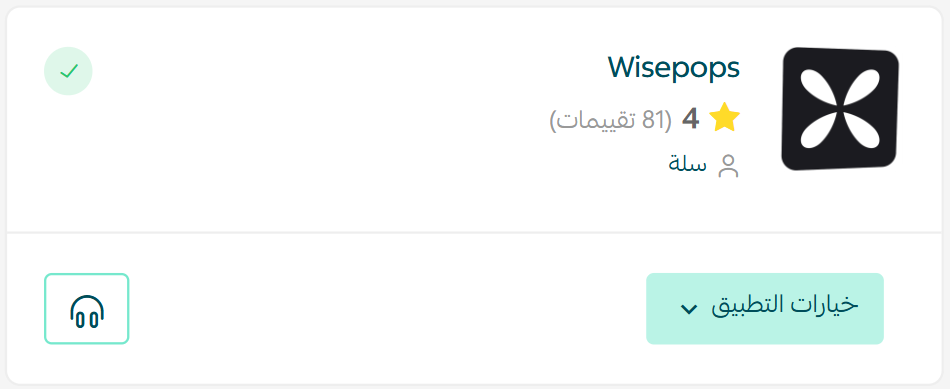
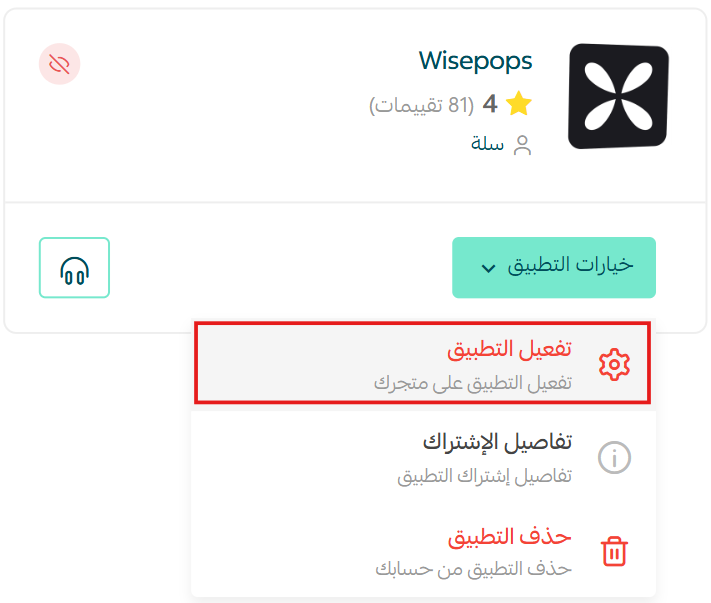
4. From the installed apps page, on the Wisepops card, click (App options), then click (Activate app).
5. Paste the code you copied in step (7) of the Wisepops setup, then click (Activate link).
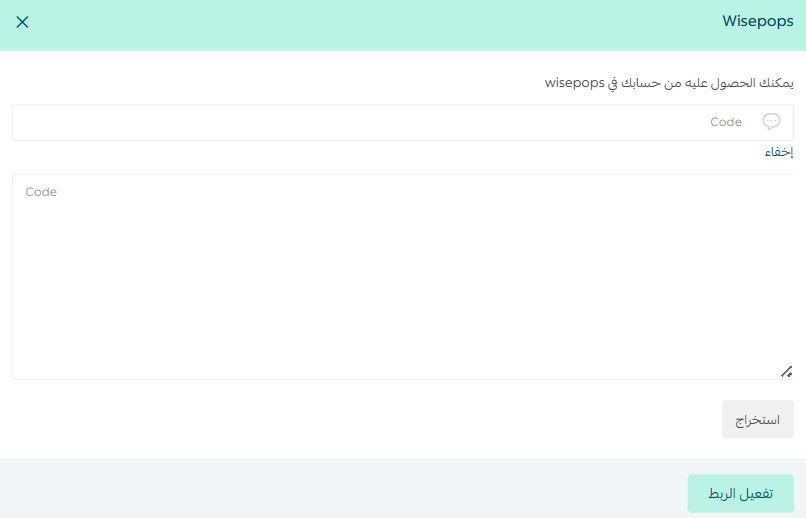
🎉 Wisepops is now active on your store.
❓ Frequently asked questions
Is Wisepops free?
Wisepops is a paid service sold in plans, with a 14-day free trial so you can test it first.
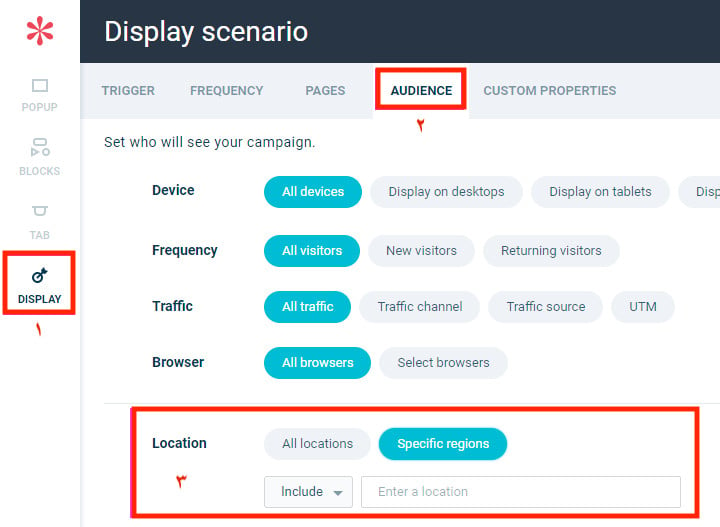
Can I target or exclude a specific country or city?
Yes, but only on the Wisepops Pro plan and above.
Can I run more than one popup on my store?
Yes. You can activate several popups, with one limit: only one popup can run on any single page.
Can I schedule a popup campaign?
Yes, on the Grow and Pro plans and above.
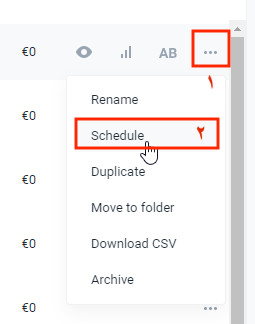
1. From the Dashboard page, choose the campaign you want to schedule.
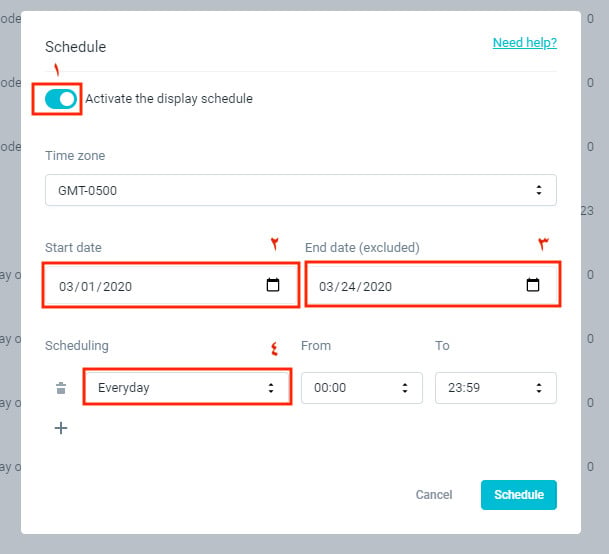
2. Turn on the scheduling option, set the campaign start and end dates, choose the scheduling duration, then click (Schedule).
Can I cancel my subscription at any time?
Yes. Go to Settings > Billing > Cancel subscription, then click (Request Cancel).
📝 Important notes
- Popups display in the browser only. They do not appear inside your store's mobile app.
- You can connect up to five stores to Wisepops at no extra cost.
Popups earn their place when they ask for something small at the right moment. Start with one campaign, one page, and one clear offer, then use the targeting and timing controls to widen it once you can see what shoppers respond to.