The Wathiq Theme fully supports multiple languages and offers a variety of features, images, and product showcases, such as a full-screen main gallery that allows you to highlight your store identity with clarity and focus, along with banner/feature galleries and many additional tools and features.
📌 Article overview
- Steps to install the Wathiq Theme on your store
- New elements added to the Wathiq Theme
- Design customization options
Steps to install the Wathiq Theme on your store
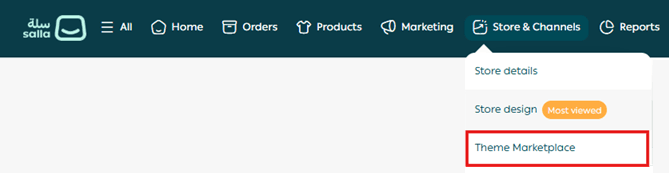
- From the main menu, click (Store & Channels), then select (Theme Store).
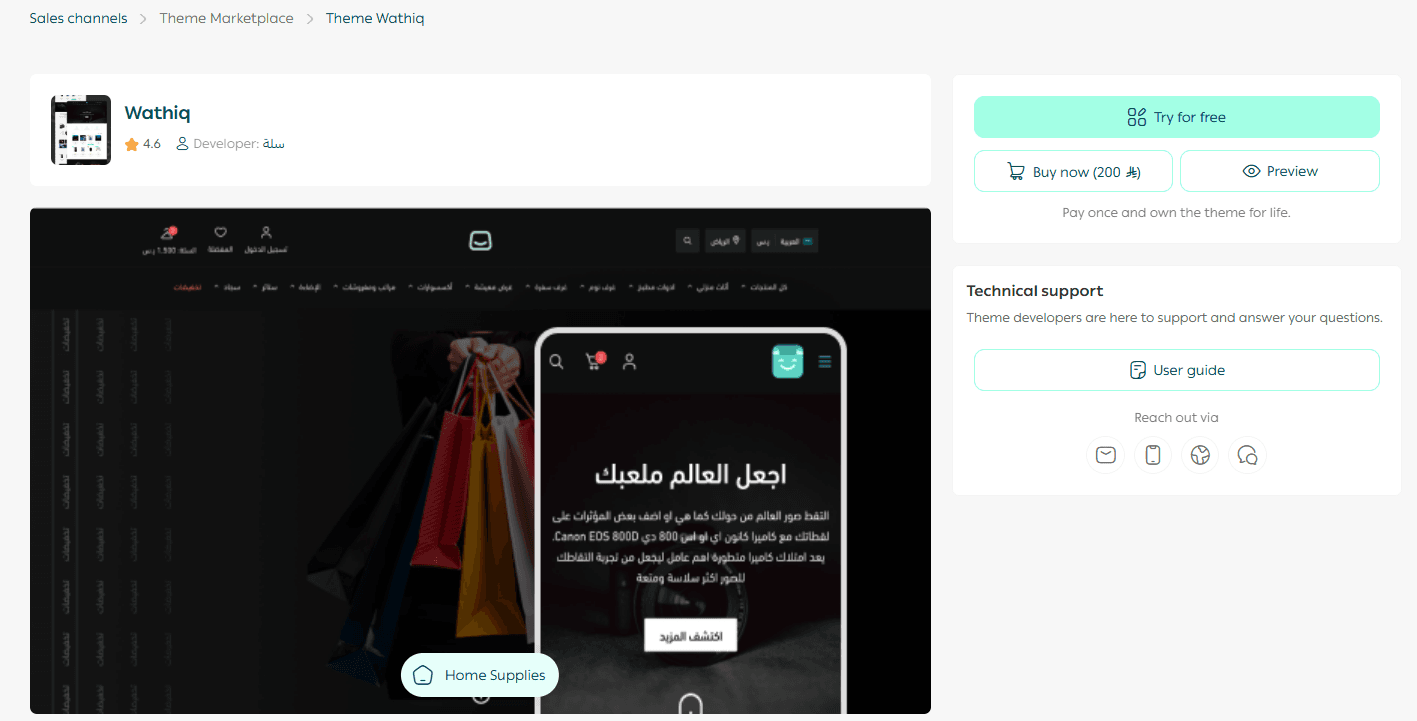
2. From the Store Design page, search for Wathiq Theme, then click on it from the results

3. On the theme details page, click (Purchase) and complete the payment process
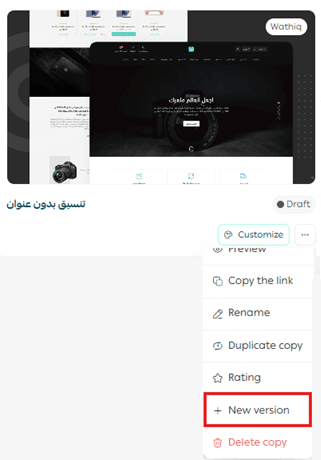
4. After installing the theme, go to the Store Design page, click on Wathiq Theme, then select (+ New Theme Copy from Default)
You can then customize the theme copy according to your preferences.
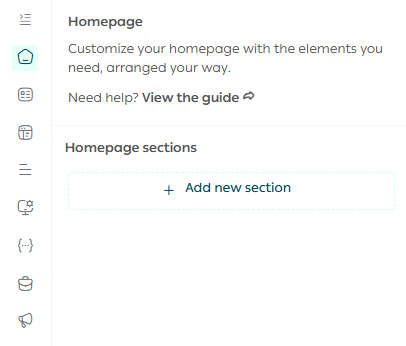
You can also preview how your store will look after applying the theme from the customization page.
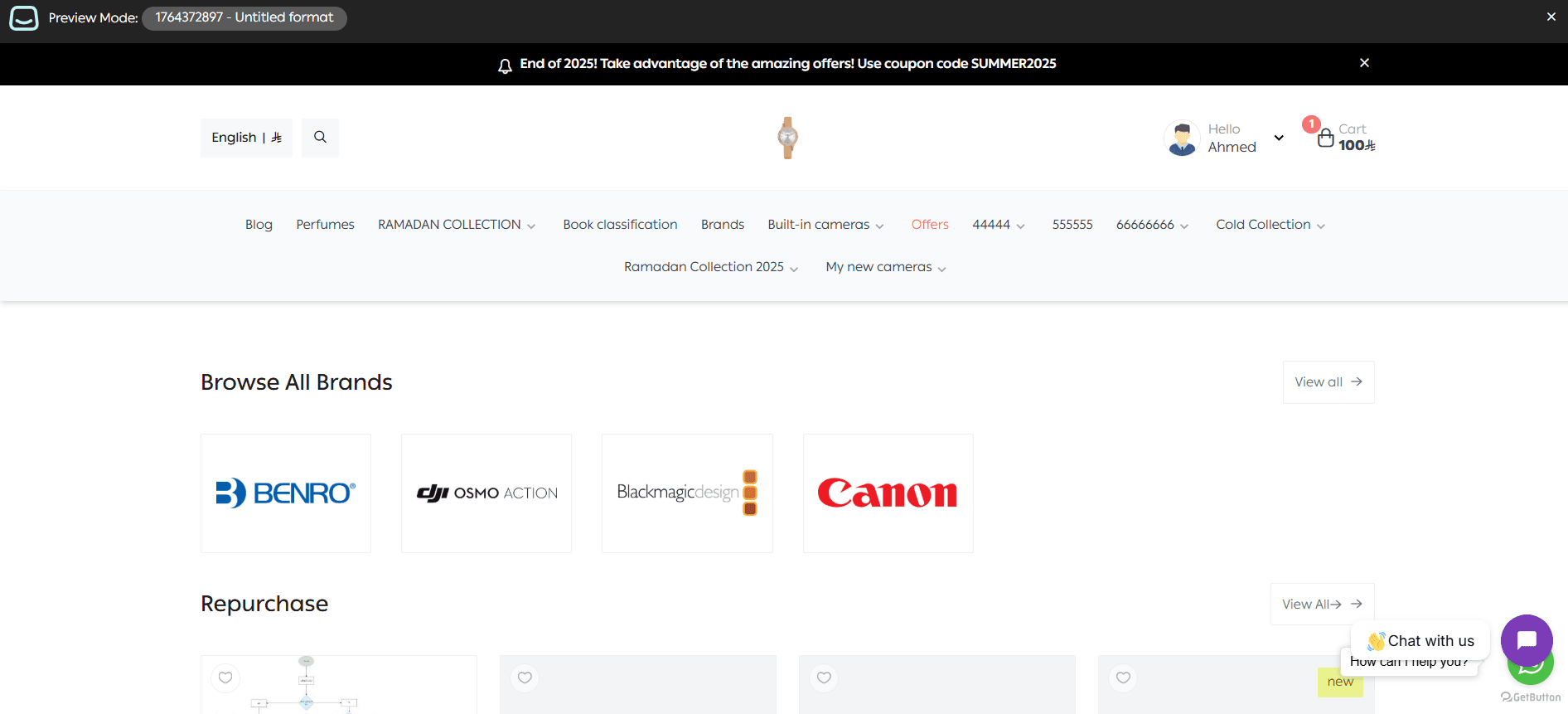
Preview a store using the Wathiq Theme
Make your store more attractive and professional, and provide a seamless shopping experience that increases customer loyalty and sales. Learn how to:
- Manage theme versions and schedule activation
- Customize and manage theme design
New elements added to the Wathiq Theme
The theme includes a set of new elements designed to enhance performance and speed.
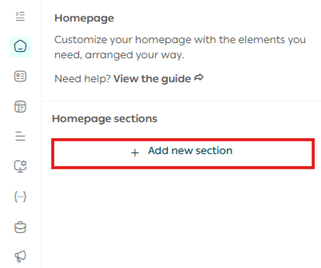
To add these elements to your store, go to the Wathiq Theme customization page and click (Page Elements).
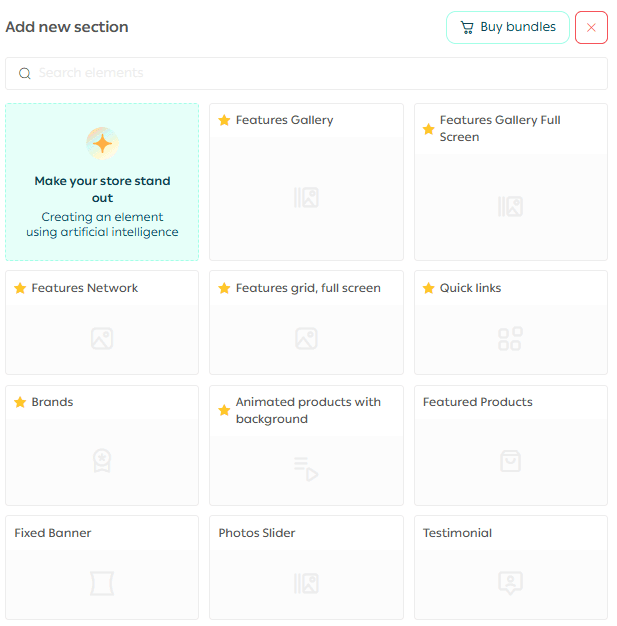
A list of elements you can add to your store will appear.
Note: New theme-specific elements are marked with a ⭐ symbol.
Make your store’s homepage more engaging and professional, and deliver a smoother shopping experience that increases successful order completion. Discover how to customize each element easily.
Design customization options
Product page customization
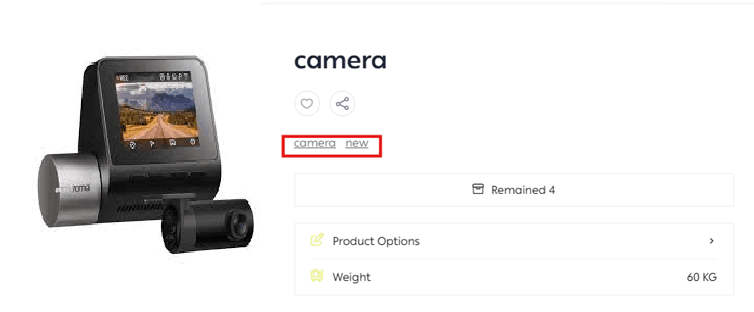
1. Show or hide tags
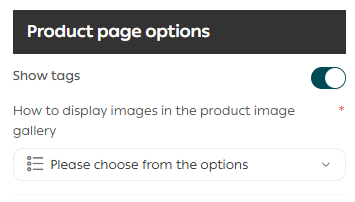
You can choose to display or hide product tags on the product page.
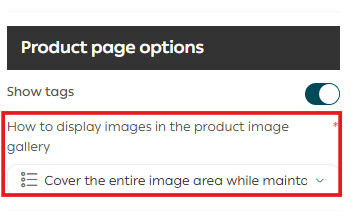
2. Display product images in a wider layout
This allows you to better highlight product images.
Product listing page options
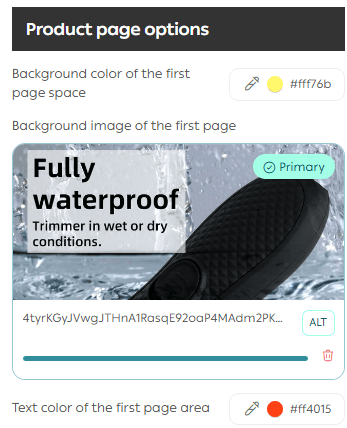
Customize the top section of the page
You can now:
- Add a custom background to the top section of the page
- Set a custom background color
- Choose custom text colors
Frequently asked questions
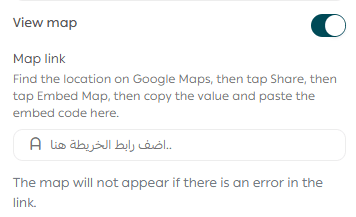
❓How can I display a map in my store?
From the footer options, enable the map display, then enter the map link in the designated field.
❓How to get the map link:
- Search for the location in Google Maps and click (Share)
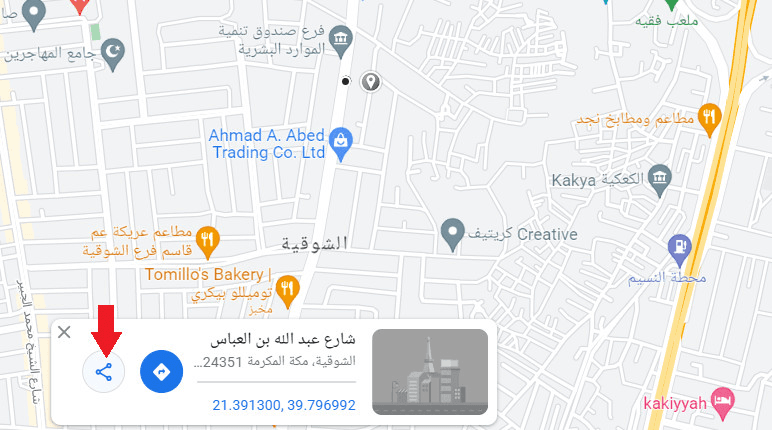
2. Click (Embed a map)
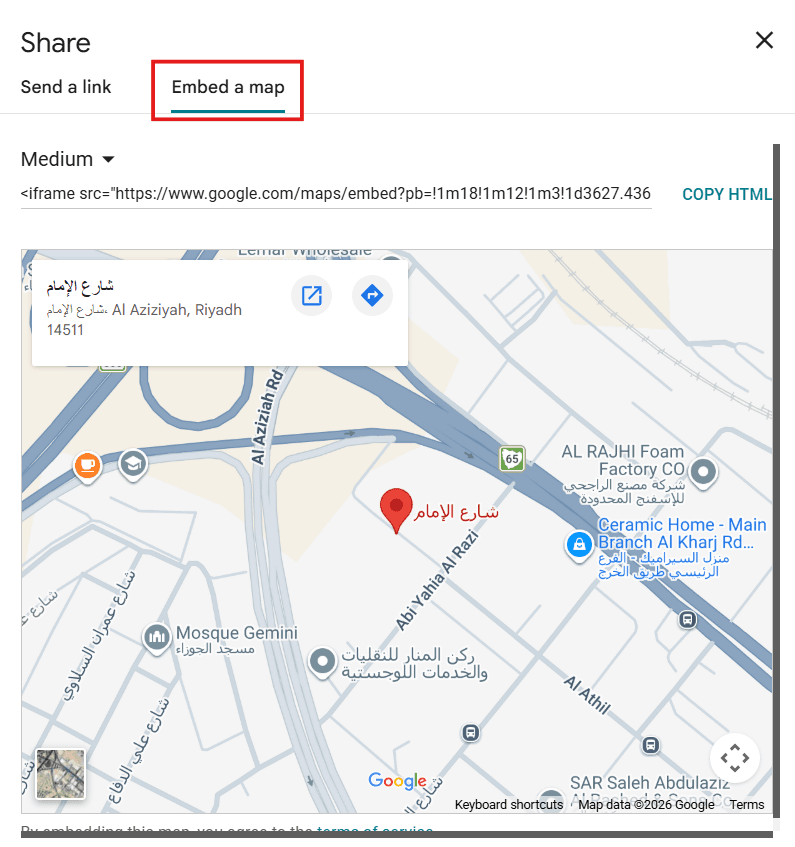
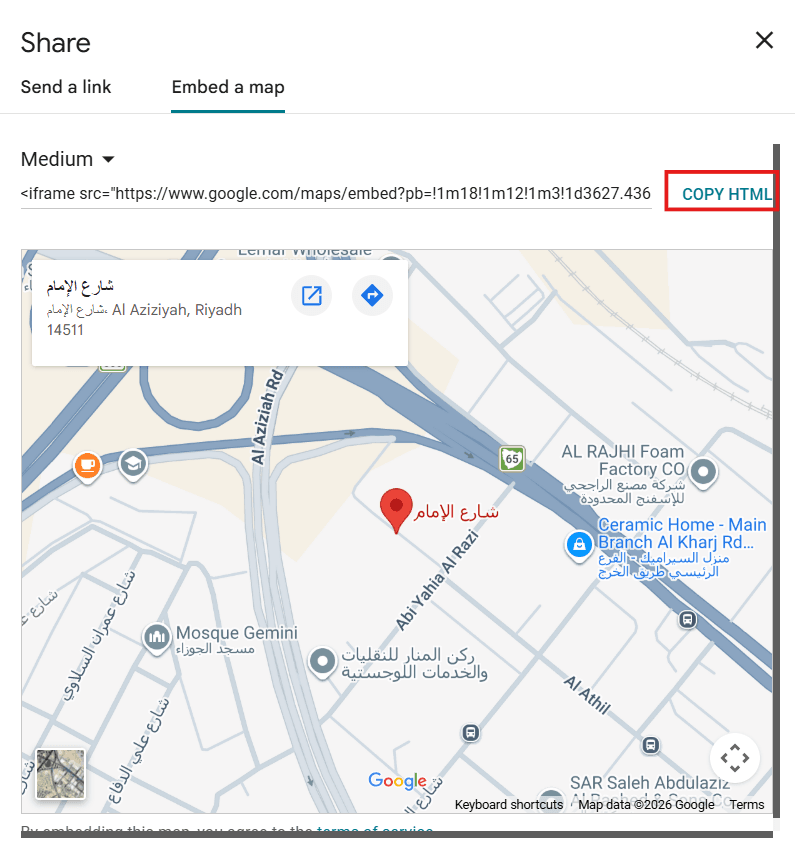
3. Click (Copy HTML) to copy the code
Paste the code into any text editor and copy the full value of the SRC attribute.
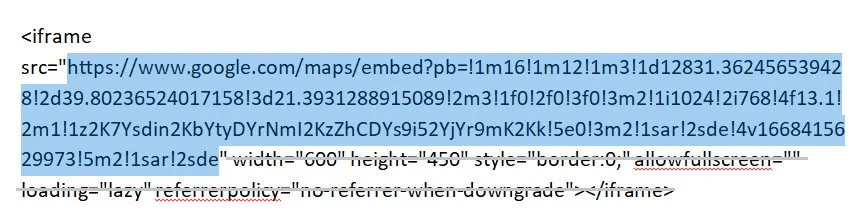
Then paste this link into the designated field in the Wathiq Theme customization page. The map will then appear in your store.

❓How can I enable the newsletter subscription?
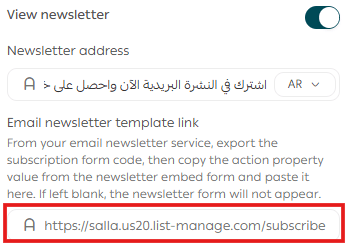
From the footer options, enable newsletter display, then enter:
- Newsletter title
- Newsletter form link
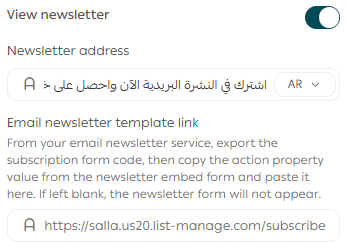
❓How to get a newsletter form link:
You need an account with a newsletter service provider such as Mailchimp or Zoho.
Example using Mailchimp:
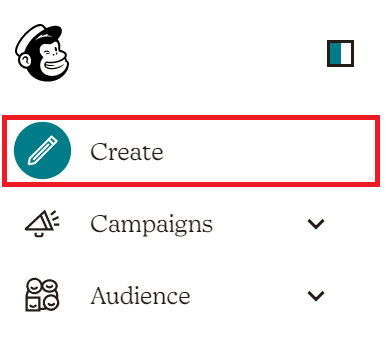
- Go to your Mailchimp dashboard and click (Create) from the side menu
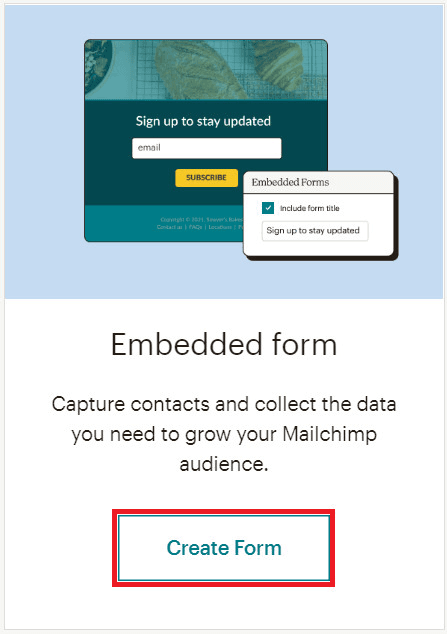
2. From the creation page, under Embedded form, click (Create form)
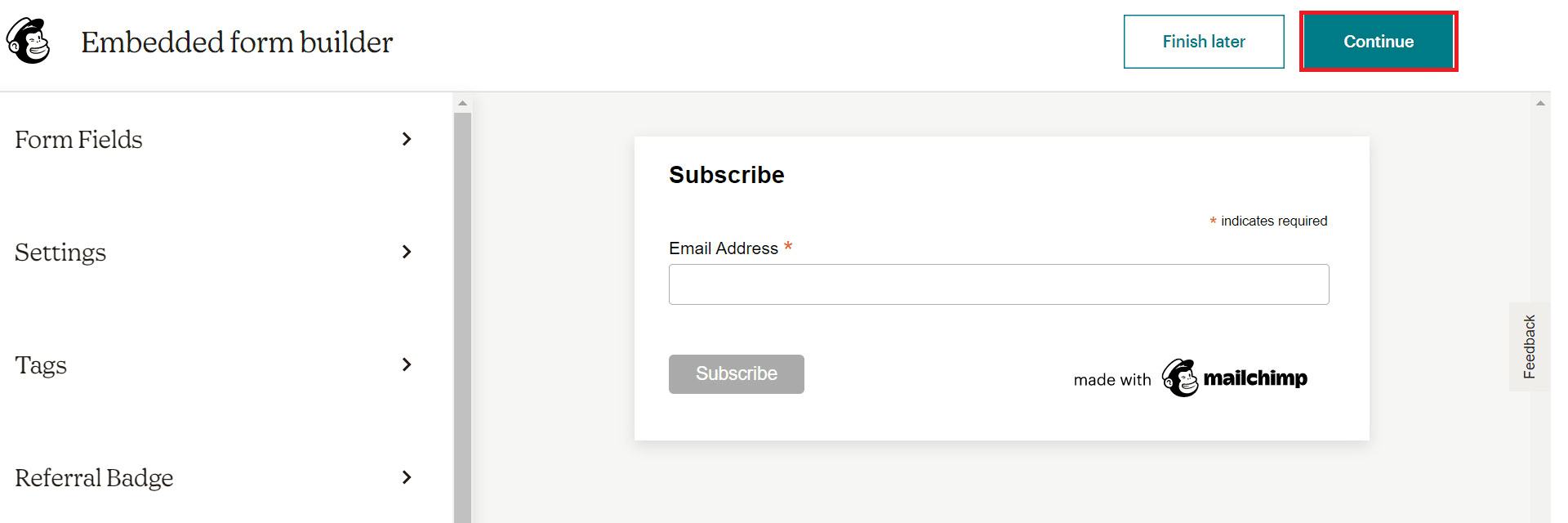
3. Customize the form as needed, then click (Continue)
4. From the “Your form is ready” page, copy only the Form action value
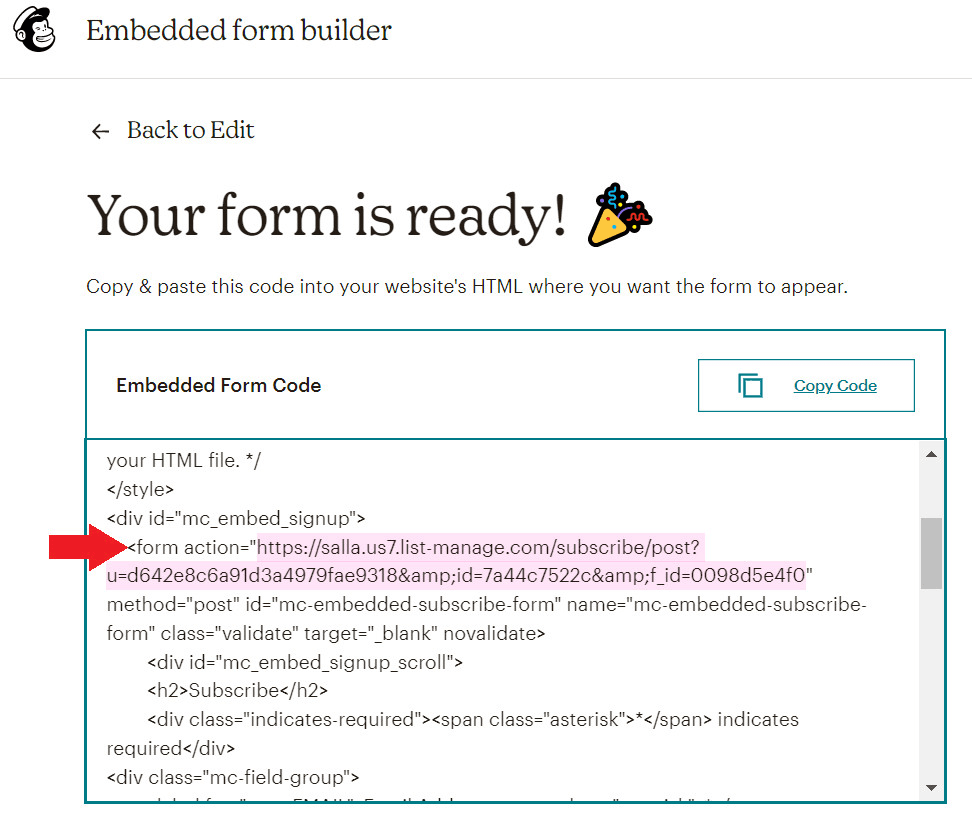
Finally, paste the Form action link into the newsletter field in the Wathiq Theme settings.
🌟 Give your store a modern and professional look with the Wathiq Theme, and elevate your customer experience to increase sales and build loyalty with ease.