How much would you pay to have your own customers bring you the next one?
Referrals and cashback both work for the same reason: the reward lands where the customer can see it. Wallet Plus runs both programs inside your Salla store and settles the rewards straight into the customer's wallet, so nothing has to be tracked by hand. In this guide, you'll learn what Wallet Plus does, how to install it on your store, and how to upgrade, customize, or remove it later.
Wallet Plus is an in-store system for running referral and cashback programs automatically. It connects to the customer wallet, follows the orders that qualify, and calculates the reward for each one without manual work, while leaving you flexible controls over how the programs run in your store.
📌 Article overview
- How to install Wallet Plus on your store
- How to manage Wallet Plus
- Frequently asked questions
👣 How to install Wallet Plus on your store
1. From the main menu, click (All), then under the helper tools section, click (App Store).

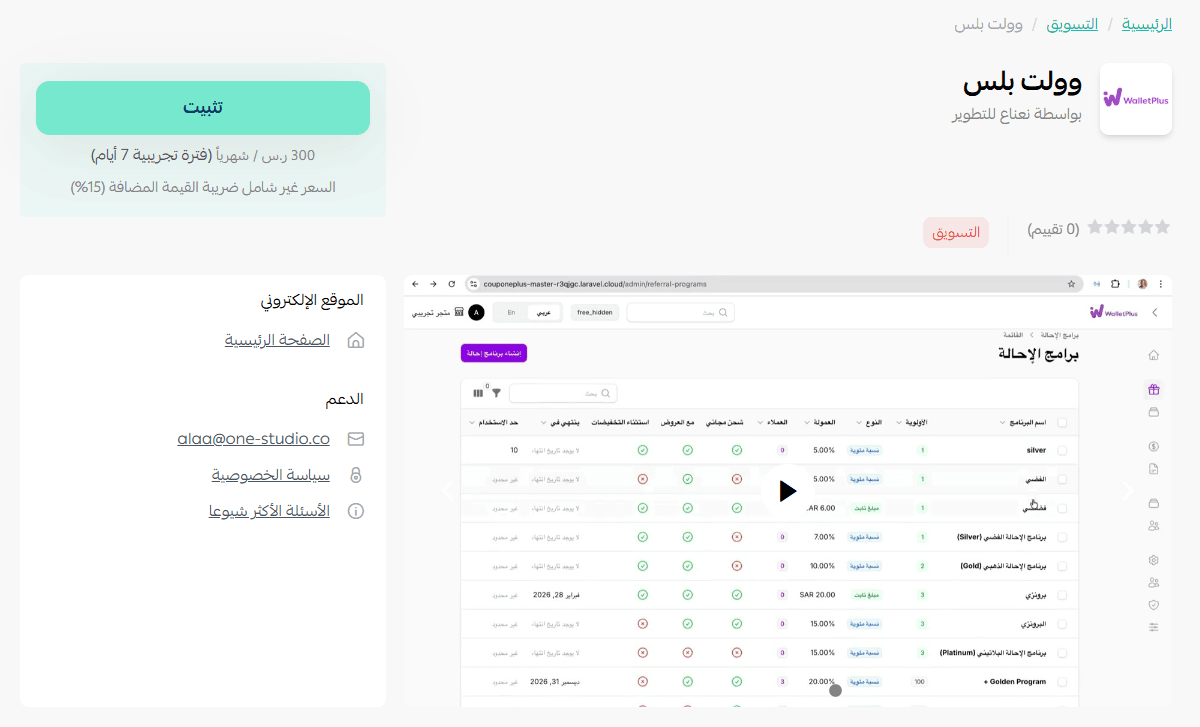
2. On the Wallet Plus app page, click (Install).
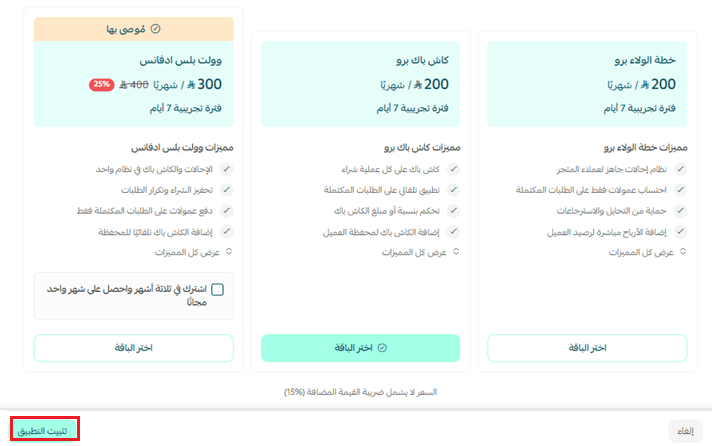
3. Choose the plan that fits your store, then click (Install app).
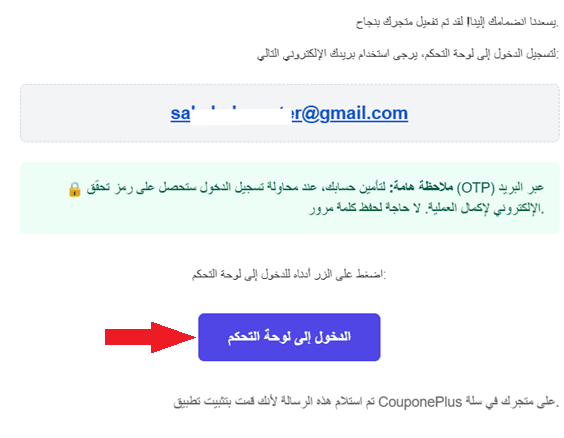
4. Open the email you receive with your login details, then click (Go to the dashboard).
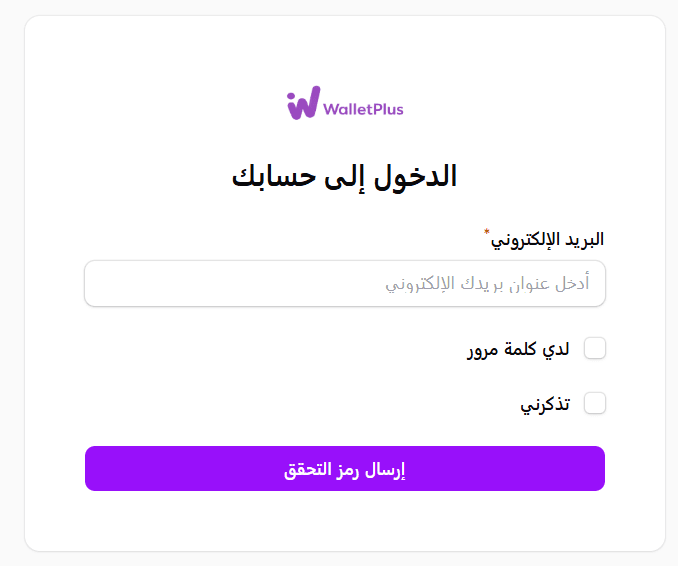
5. Enter your email address, then click (Send verification code).
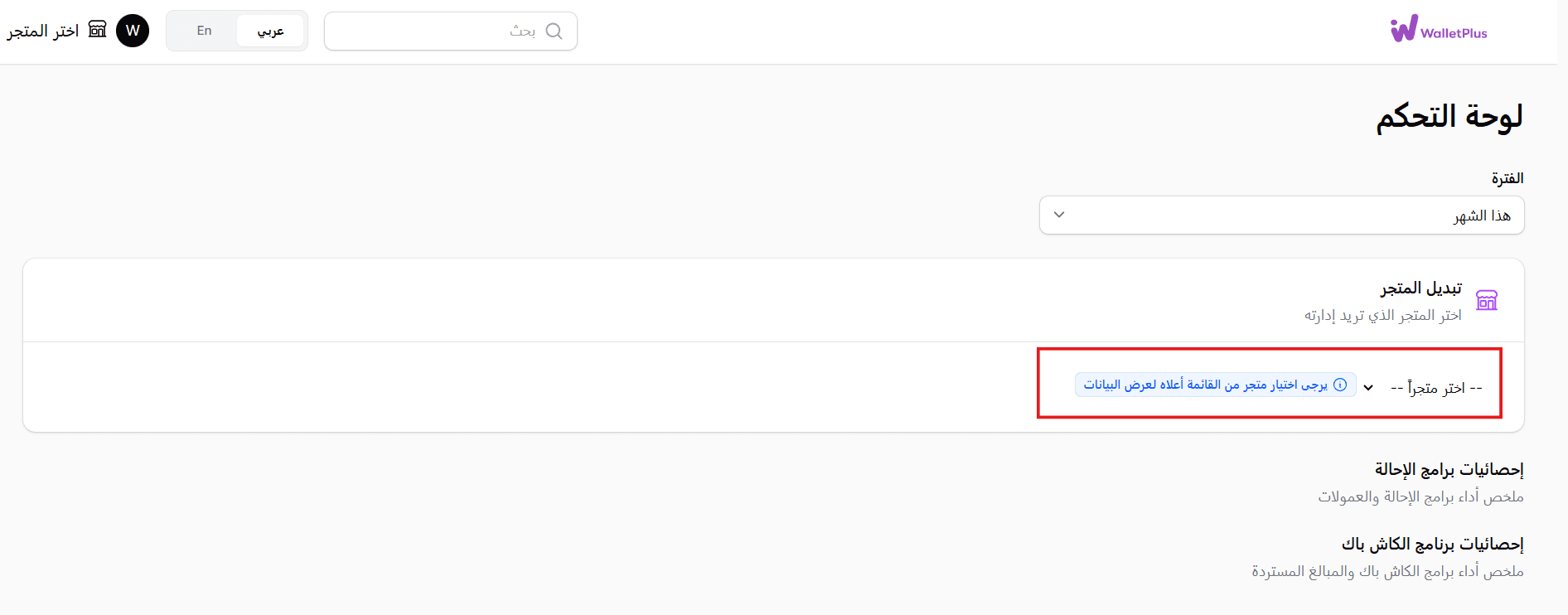
6. Enter the verification code. The Wallet Plus home page opens, where you choose the store whose data you want to view.
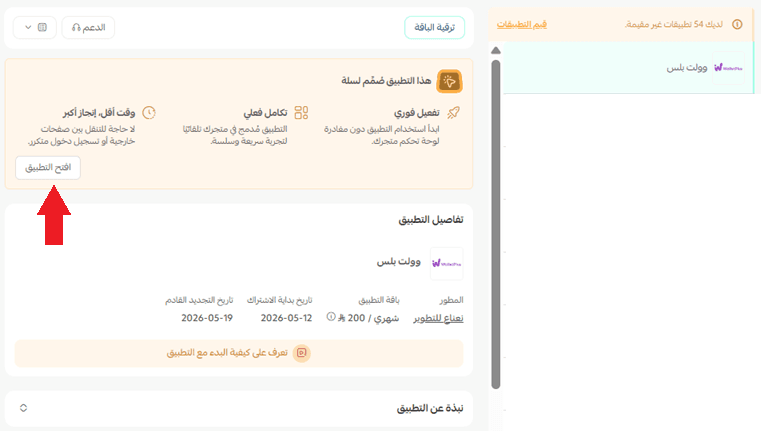
7. You can also reach it from the app page under My apps by clicking (Open app).
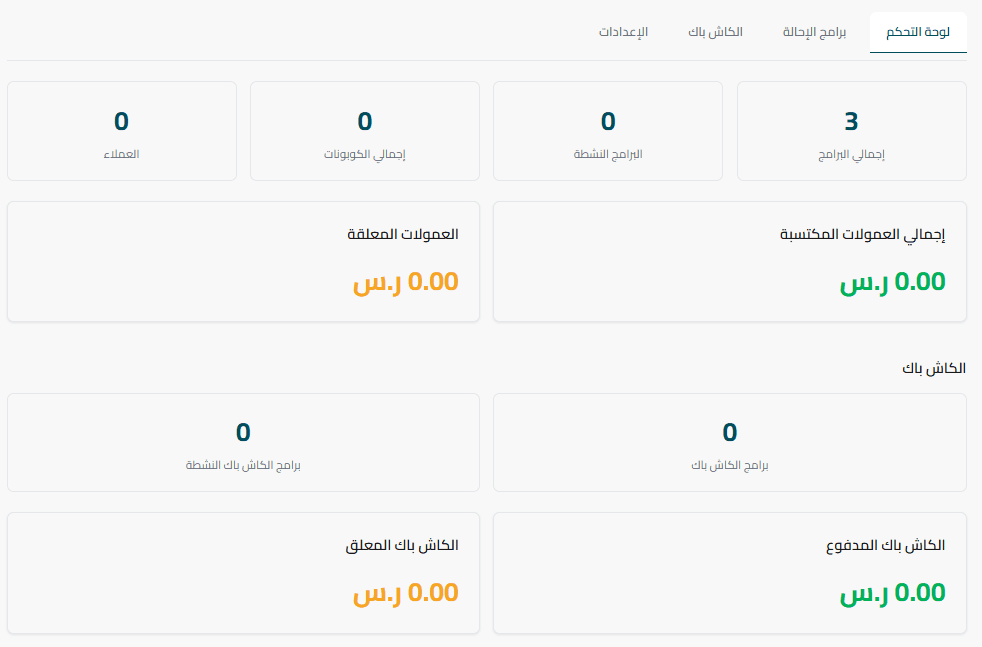
8. The statistics for your referral and cashback programs are displayed there.
🚀 How to manage Wallet Plus
Upgrade your plan
1. On the app details page in your store, click (Upgrade plan).

2. Choose the plan you want, then click (Go to payment).

3. Fill in your payment details, then click (Confirm) to complete the upgrade.

Customize the app
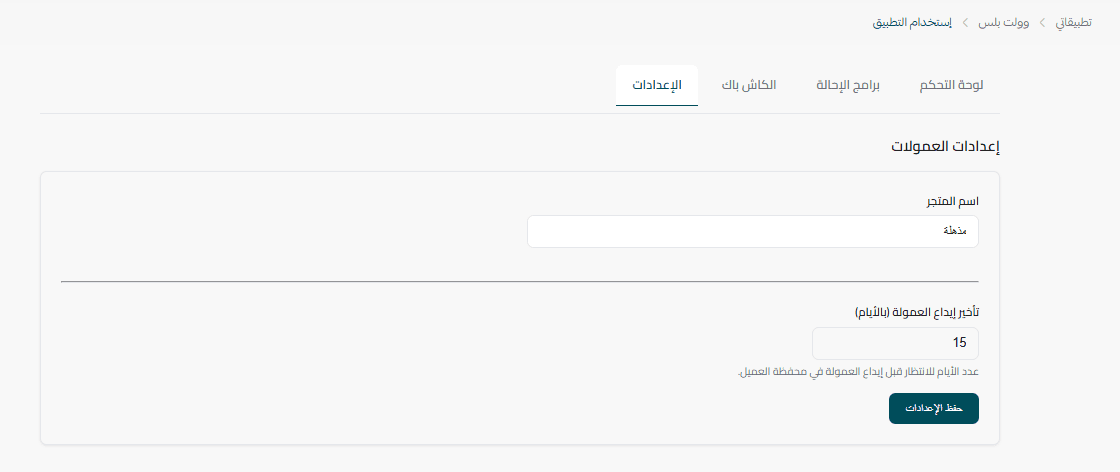
🎯 You can manage the app from its page inside your store.
Delete the app
1. From the app options menu, click (Cancel subscription), then choose a cancellation reason.

2. From the app options menu, click (Delete app), then choose a deletion reason.

3. On the Deleted apps page, open the app options menu and click (Delete app permanently) to remove it from your store for good.

📝 Important notes
Canceling the subscription and deleting the app are two separate actions, and neither removes the app permanently until you delete it from the Deleted apps page.
For more details about the app, visit the Wallet Plus page.
❓ Frequently asked questions
What does Wallet Plus actually run for my store?
Two connected programs: referrals, where existing customers bring in new ones, and cashback, where part of what a customer spends comes back to them. Both are tied to the customer wallet, and the app tracks the qualifying orders and calculates the rewards for you.
Do I have to calculate rewards myself?
No. Order tracking and reward calculation run automatically, and you keep flexible controls over how each program behaves.
Where do I see how the programs are performing?
Open the app from the My apps page and click (Open app). The Wallet Plus dashboard shows the statistics for your referral and cashback programs.
Do I need a separate account to use Wallet Plus?
Yes. After installation you receive an email with login details, and you sign in with your email address plus a verification code. Once inside, choose the store whose data you want to view.
Can I change my plan after installing the app?
Yes. Open the app details page in your store, click (Upgrade plan), pick a new plan, and complete the payment.
Referral and cashback programs only pay off when the rewards are reliable. Let Wallet Plus handle the tracking, and spend your attention on how generous the offer should be.