Are your customers checking out with just one product in the cart?
Every order is a chance to sell a little more. A customer who is already buying is the easiest person in your store to sell to, and the right suggestion at the right moment turns a single item into a bundle. WafraX Upsell handles that moment for you: it watches what a shopper adds to the cart and automatically offers matching products alongside it, so your average order value grows without extra marketing spend. In this guide, you'll learn how to install the app, connect it to your store, build your first campaign, upgrade your plan, and remove the app if you no longer need it.
WafraX Upsell is a Salla app that automatically recommends related products while a customer is buying. Install it from the Salla App Store, create an account on the WafraX site, link it to your store, then build a campaign that pairs a main product with recommended add-ons.
📌 Article overview
- How to connect the WafraX Upsell app to your store
- How to activate and manage the WafraX Upsell app
- Frequently asked questions
👣 How to connect the WafraX Upsell app to your store
1. From the main menu, click (All), then under helper tools click (App Store).

2. Search for the app using the search field.

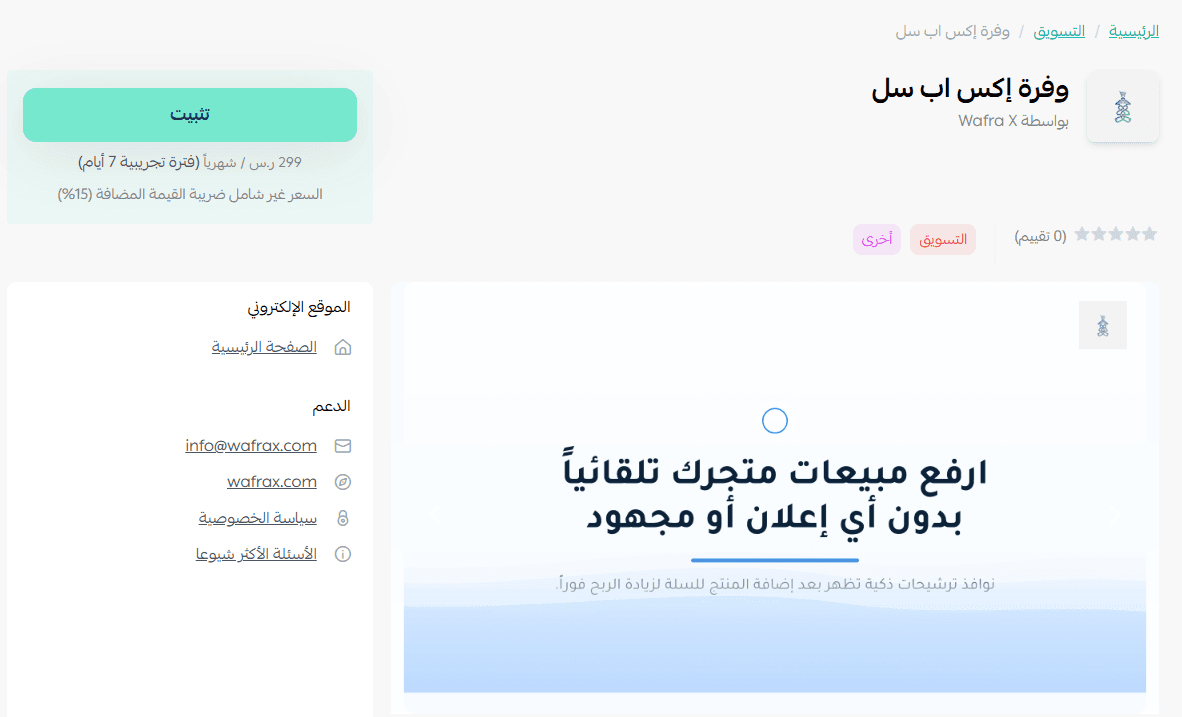
3. On the WafraX app page, click (Install).
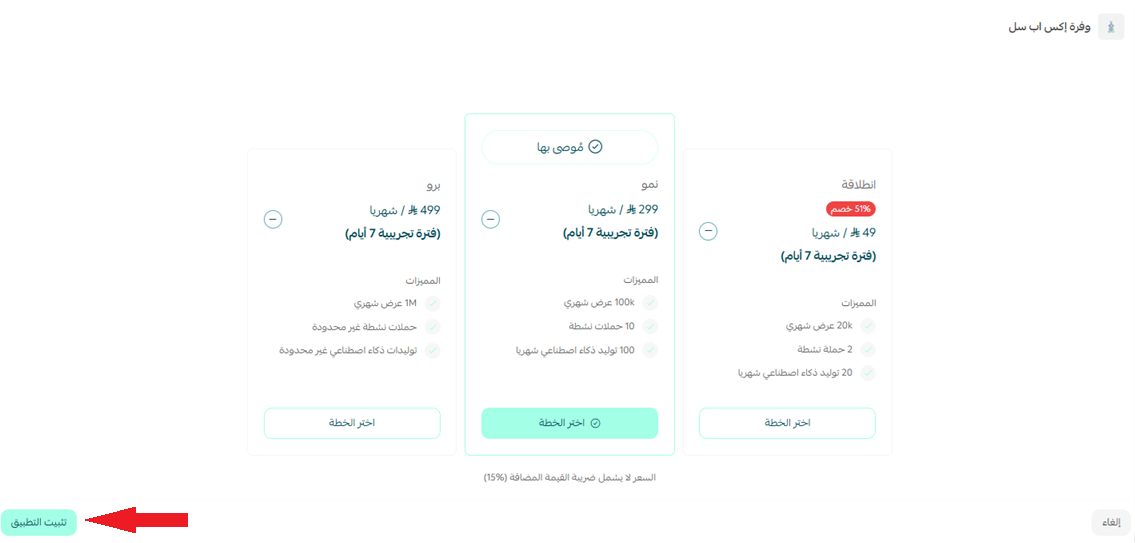
4. Choose the plan that suits you, then click (Install app).
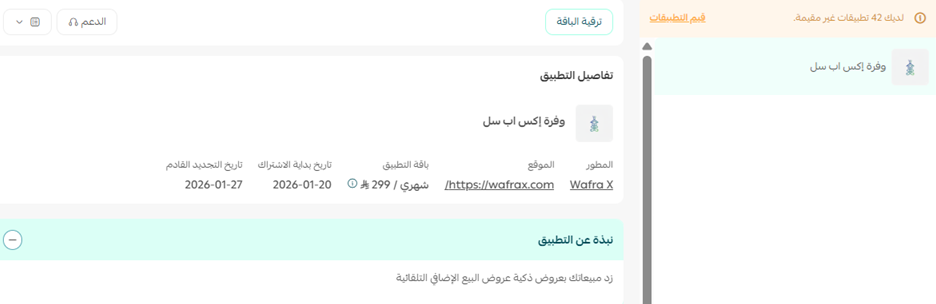
5. The app then appears under (My apps).
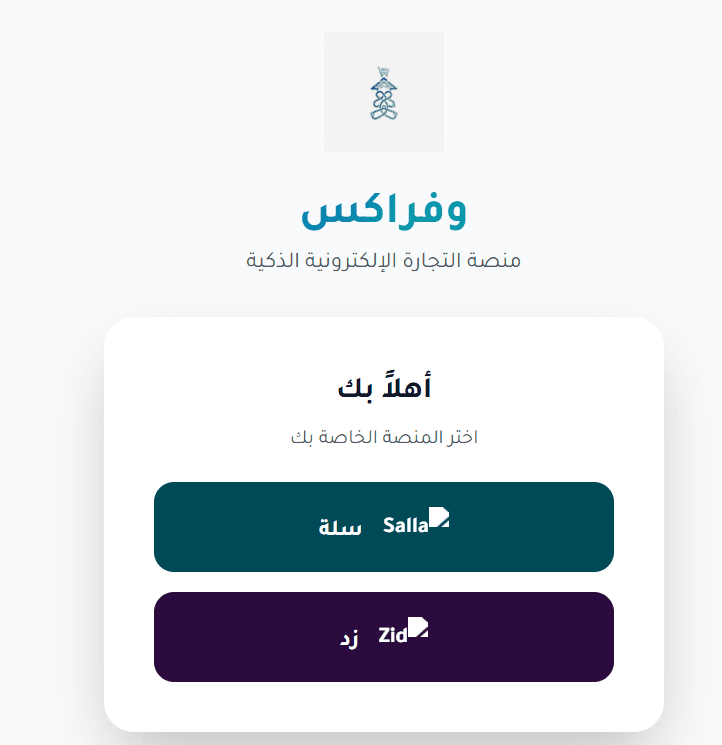
6. On the WafraX homepage, create an account by clicking (Start now for free).

7. Choose to connect with Salla.
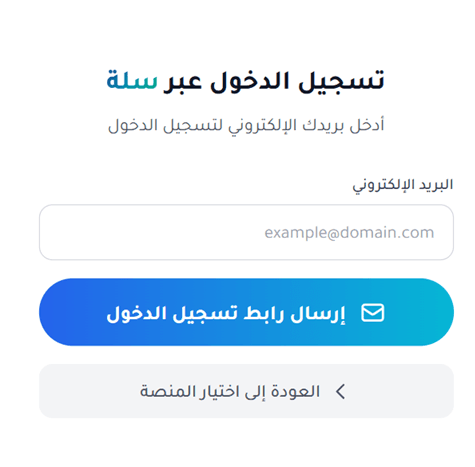
8. Enter the email address linked to your Salla store, then click (Send login link).
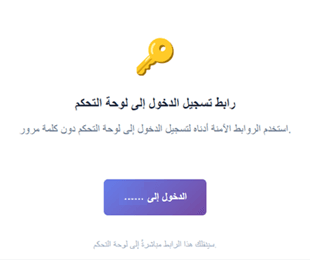
9. Open the email you receive and click (Log in to ...) to finish signing in. You land straight in your WafraX account.
📝 Important notes
Your own store name appears in place of the dots shown in the screenshot above.
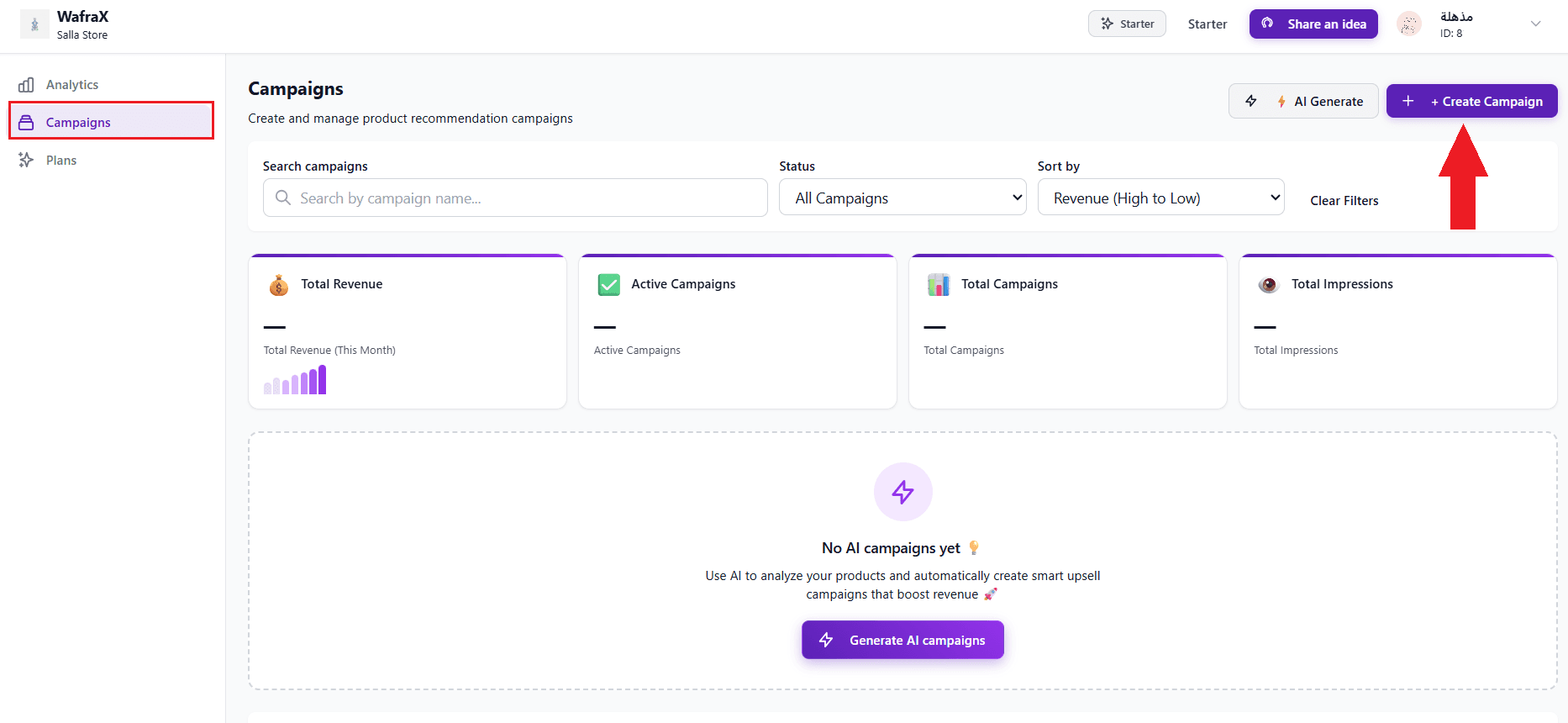
10. Open the (Campaign) tab in the main menu, then click (Create Campaign).
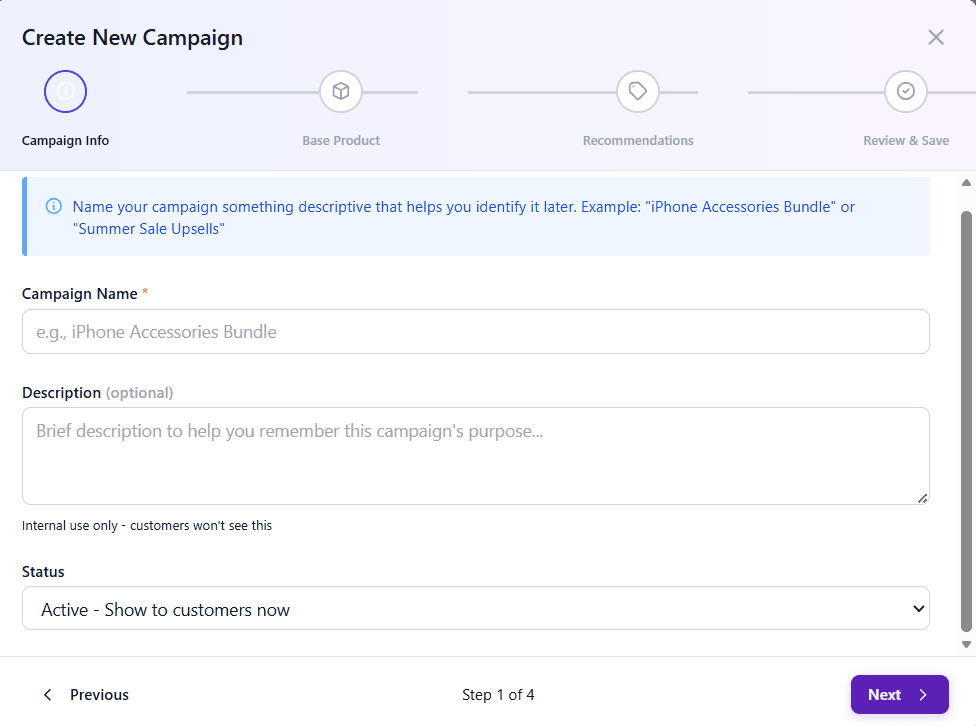
11. Fill in the campaign basics (name, description, and launch date), then click (Next).
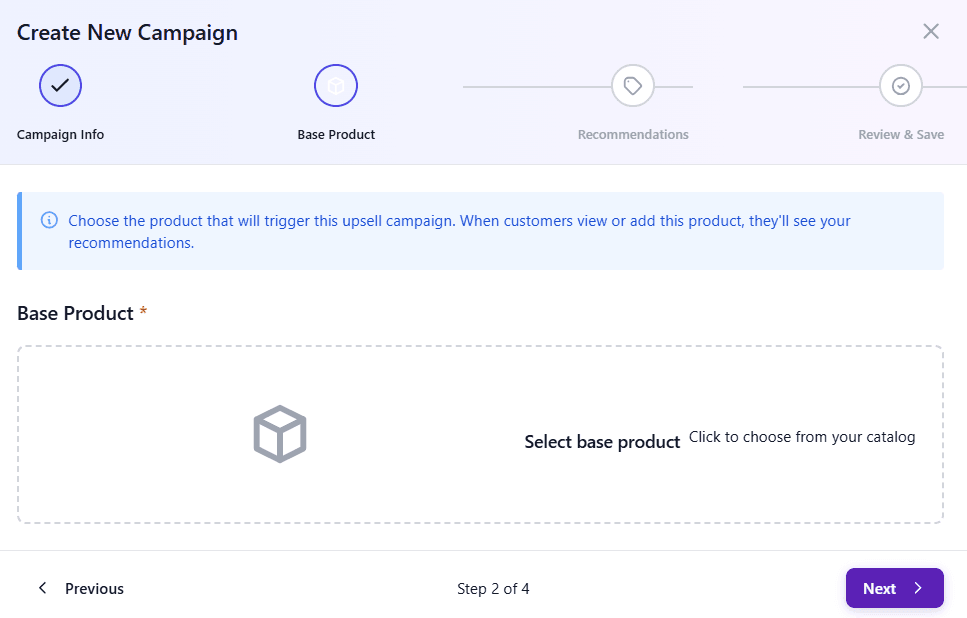
12. Add the main product the campaign applies to, then click (Next).
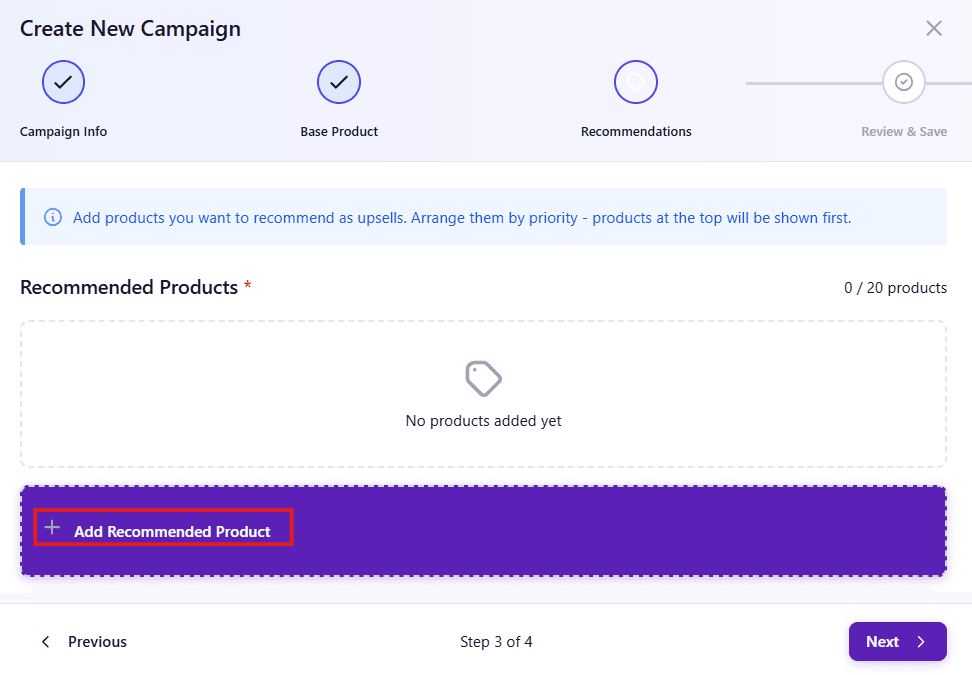
13. Add the products you want recommended alongside it, then click (Next).
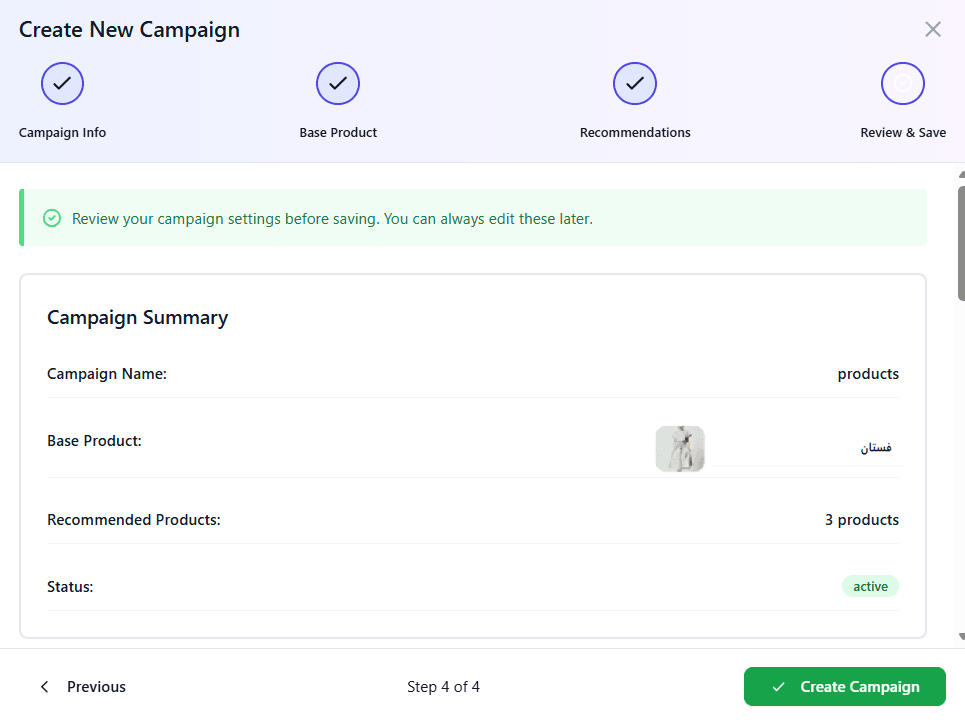
14. Click (Create Campaign) to finish.
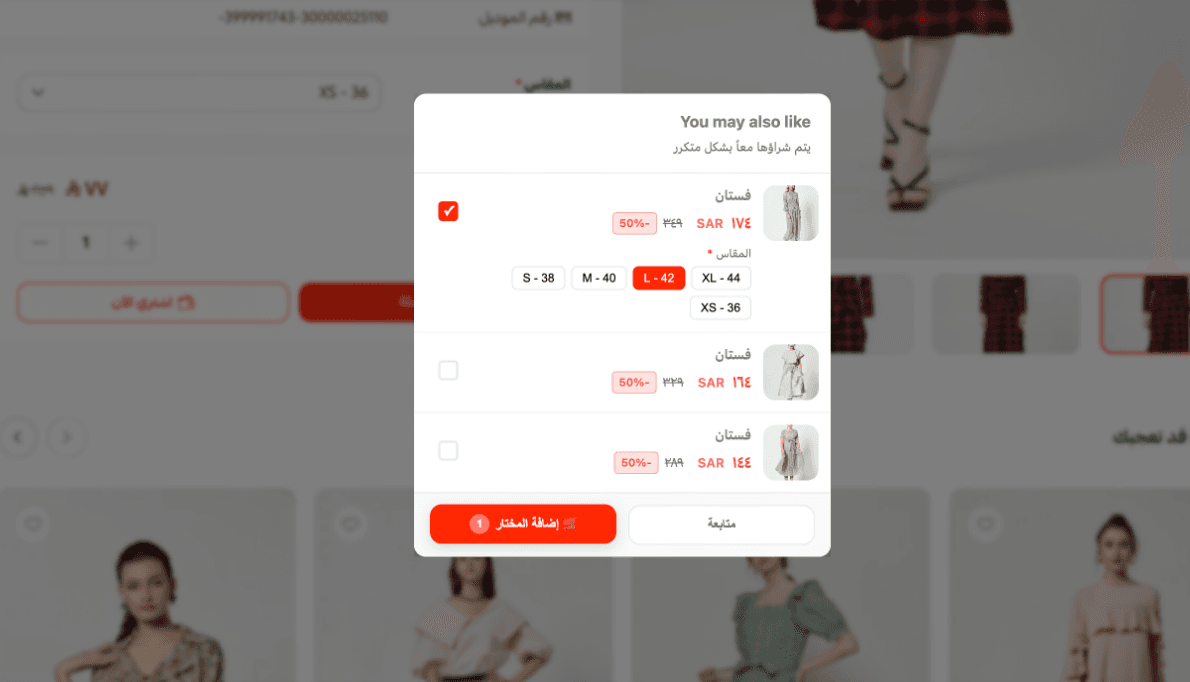
15. From then on, the recommended products appear to the shopper as soon as the main product is added to the cart.
🚀 How to activate and manage the WafraX Upsell app
Upgrade your plan
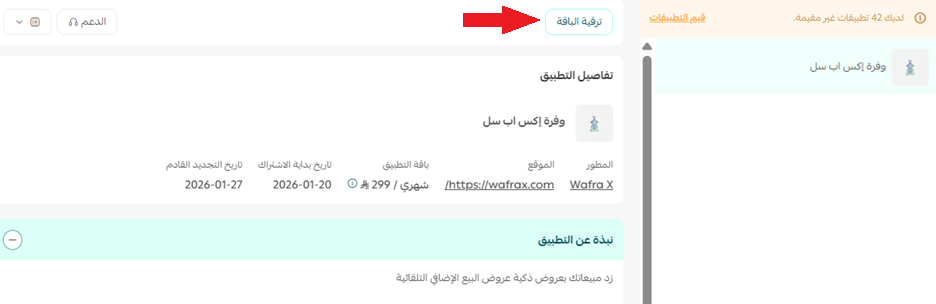
1. Open the app details page in your store, then click (Upgrade plan).
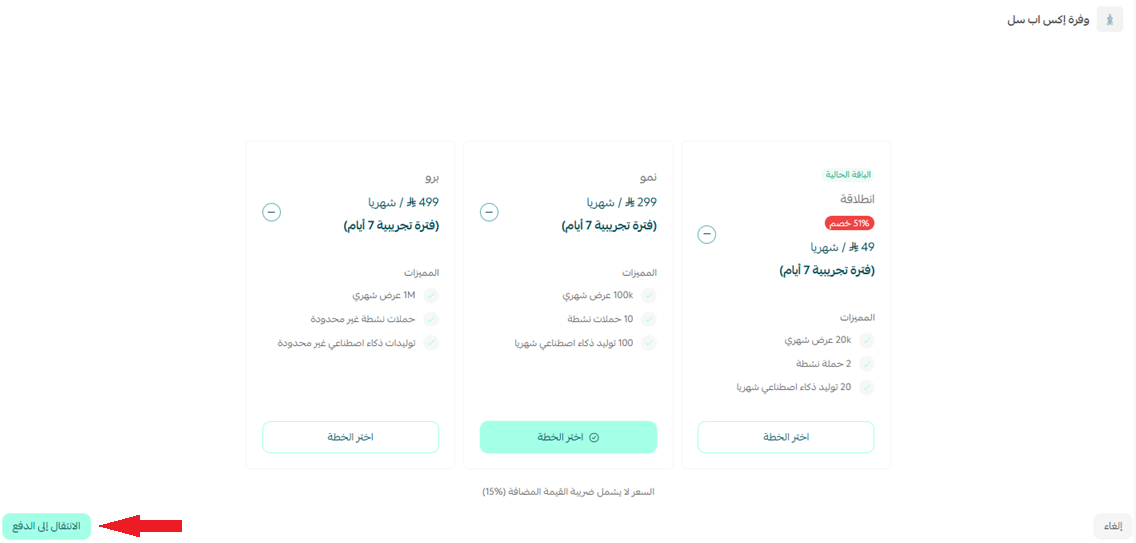
2. Select the plan you want, then click (Go to payment).
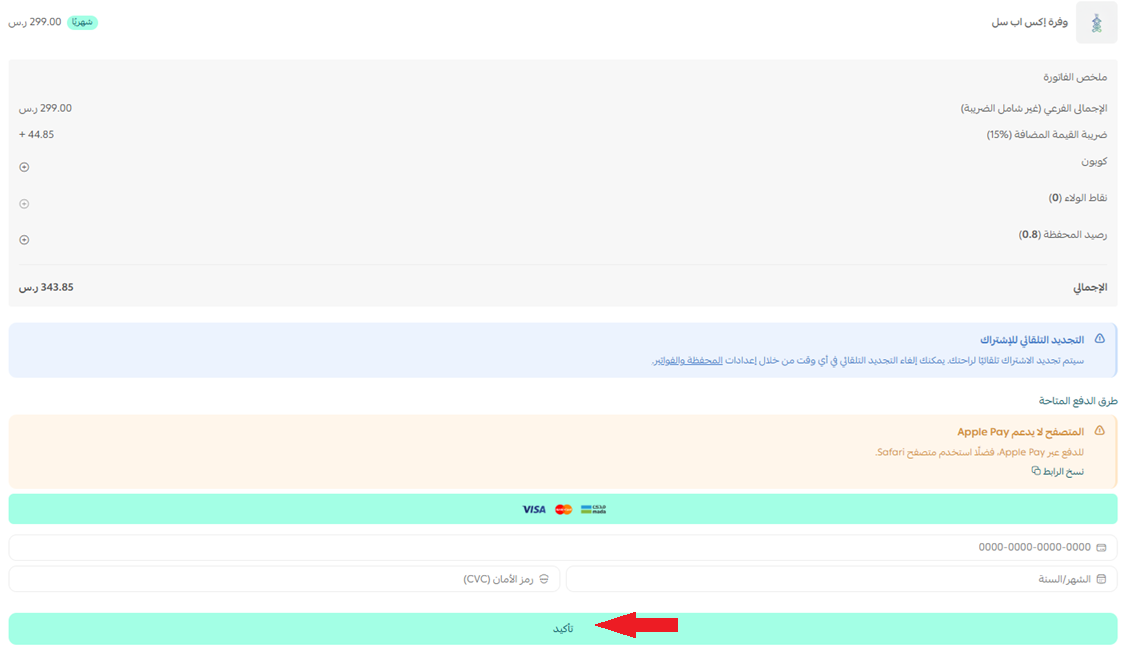
3. Complete the payment details and click (Confirm) to finish the upgrade.
Customize the app
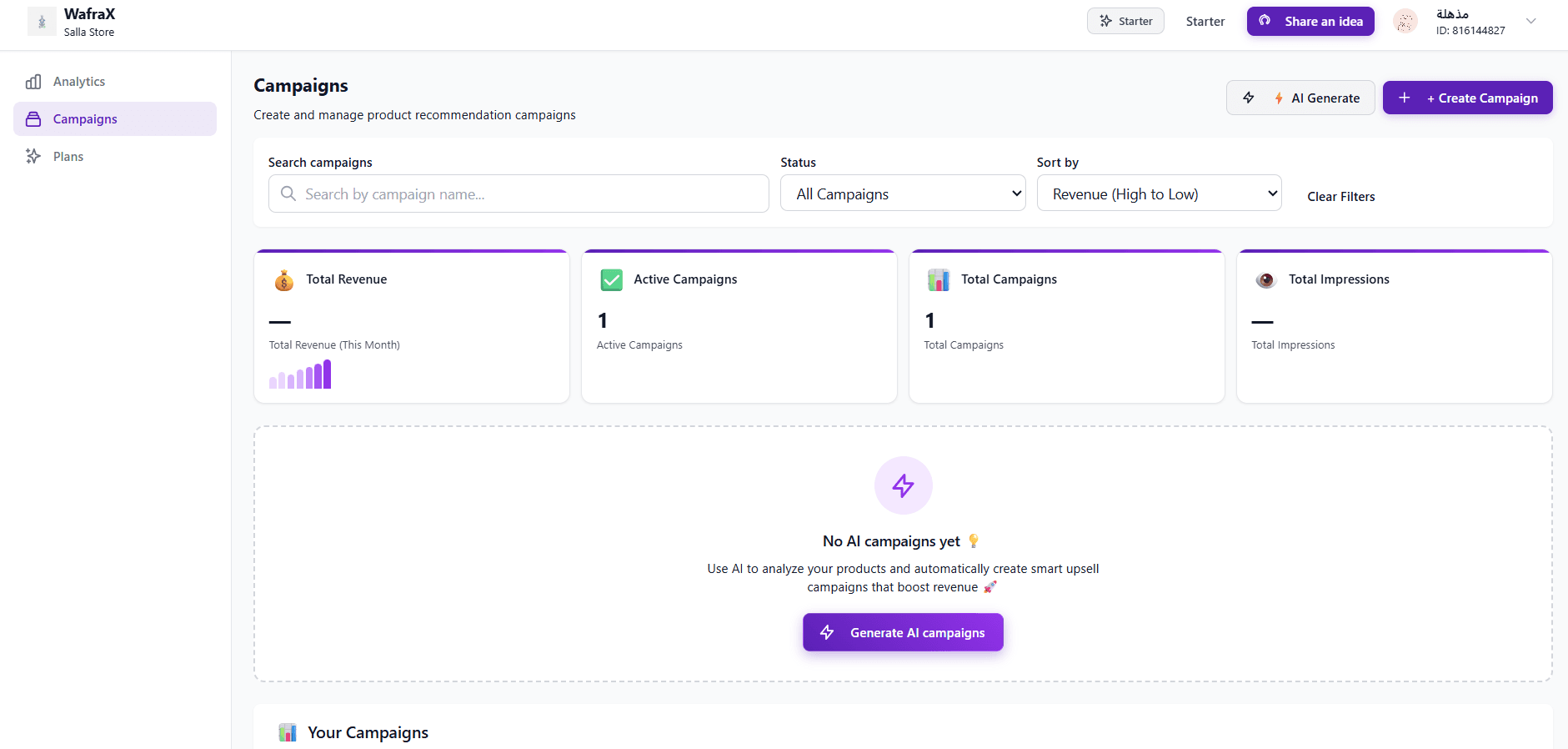
Everything else happens outside your Salla dashboard. Build campaigns, edit them, and follow their performance from the control panel of your account on the WafraX site.
Remove the app
1. From the app options menu, click (Cancel subscription) and pick a reason.

2. From the same options menu, click (Delete app) and pick a reason.

3. Open the Deleted apps page, then from the app options menu click (Delete app permanently) to remove it from your store for good.

❓ Frequently asked questions
Do I need a separate WafraX account?
Yes. Installing the app in your store is only half the setup. You also create an account on the WafraX site using the email address linked to your Salla store, and sign in through the login link sent to that address.
Where do I build and track my campaigns?
In the WafraX dashboard, not in your Salla dashboard. Campaign creation, editing, and performance statistics all live there.
When do shoppers actually see the recommendations?
As soon as they add the campaign's main product to the cart. The recommended products you selected in step 13 appear alongside it.
Can I change my plan after installing?
Yes. Open the app details page in your store, click (Upgrade plan), choose a new plan, and complete the payment.
What is the difference between canceling and deleting the app?
Canceling the subscription ends your paid plan. Deleting the app moves it to the Deleted apps page, where you can still restore it until you choose (Delete app permanently).
Upselling works best when the suggestion feels obvious to the shopper. Start with one campaign around a strong seller, pair it with two or three genuine companions, and let the reports tell you what to build next. For more details, see the WafraX app page.