How many visitors leave your store without buying anything, or leaving you a way to reach them?
Discounts alone rarely hold attention. Venofy takes a different angle: it adds interactive marketing tools to your storefront, so a visit becomes something a shopper takes part in rather than scrolls past. Spin-the-wheel games, interactive stories, and coupon offers all give the shopper a reason to engage and give you a reason to capture their details. In this guide, you'll learn how to install Venofy from the Salla App Store, sign in to the Venofy dashboard, create your first tool, and remove the app.
Venofy is an engagement platform for online stores. It gives you more than 30 interactive and marketing tools, such as spin the wheel, interactive stories, and discount coupons, that you can add to your storefront to lift sales, increase engagement, and collect customer data.
📌 Article overview
- How to install the Venofy app
- Activate and manage Venofy
- Frequently asked questions
🚀 How to install the Venofy app
1. From the main menu, click (All), then under the helper tools section, click (App Store).

2. Search for the app using the search field.

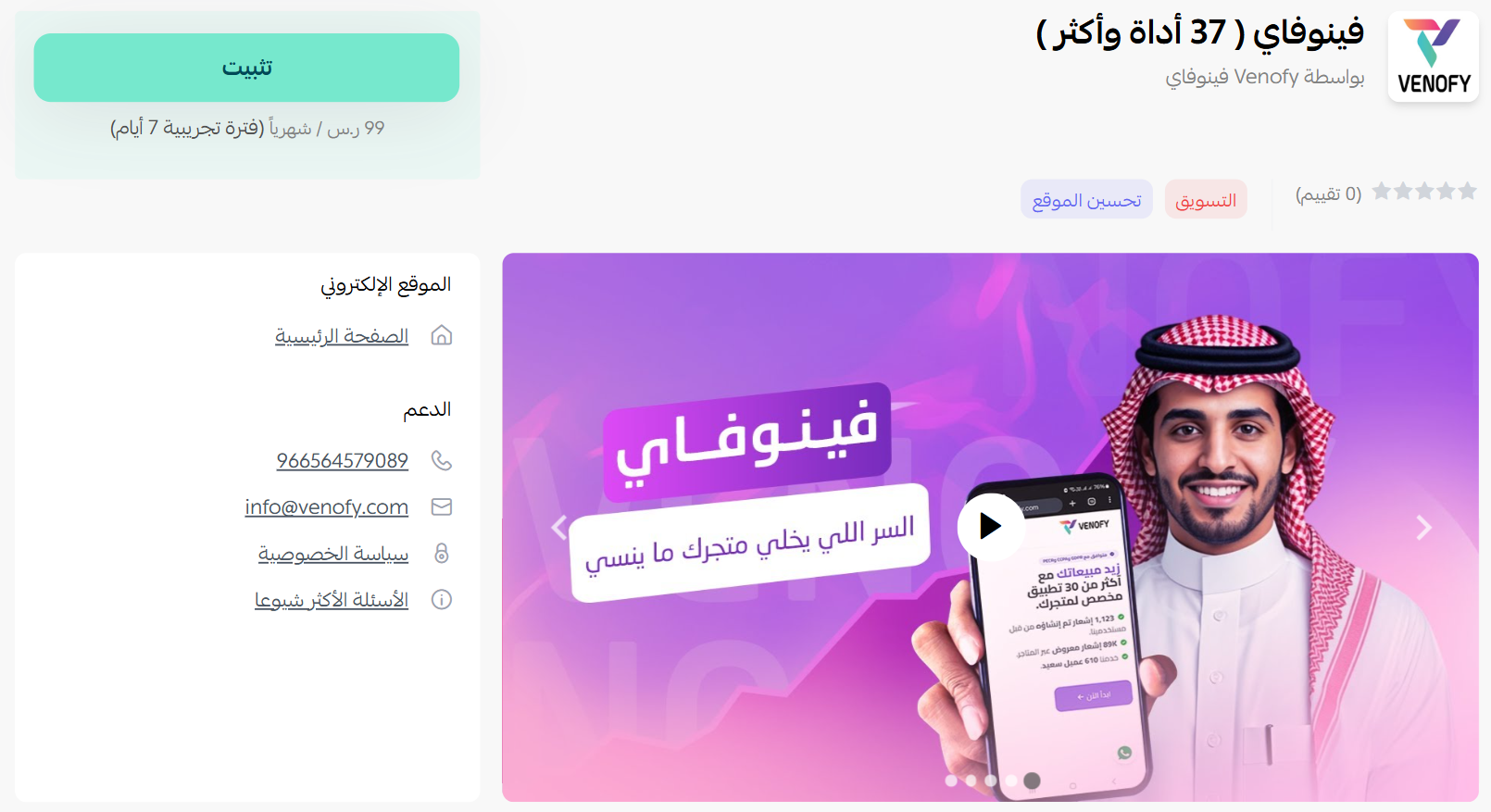
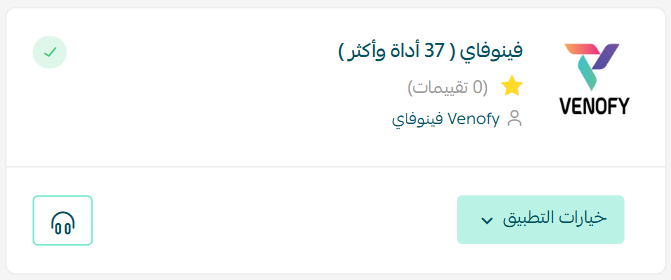
3. On the Venofy app page, click (Install).
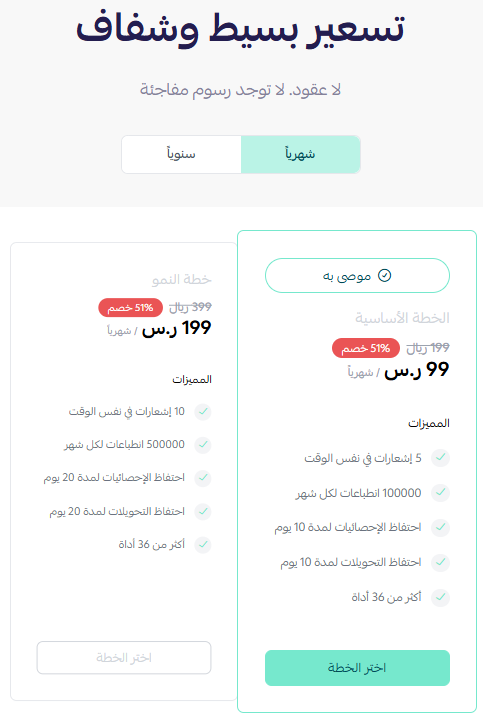
4. Choose the plan that suits your business to continue with the installation.
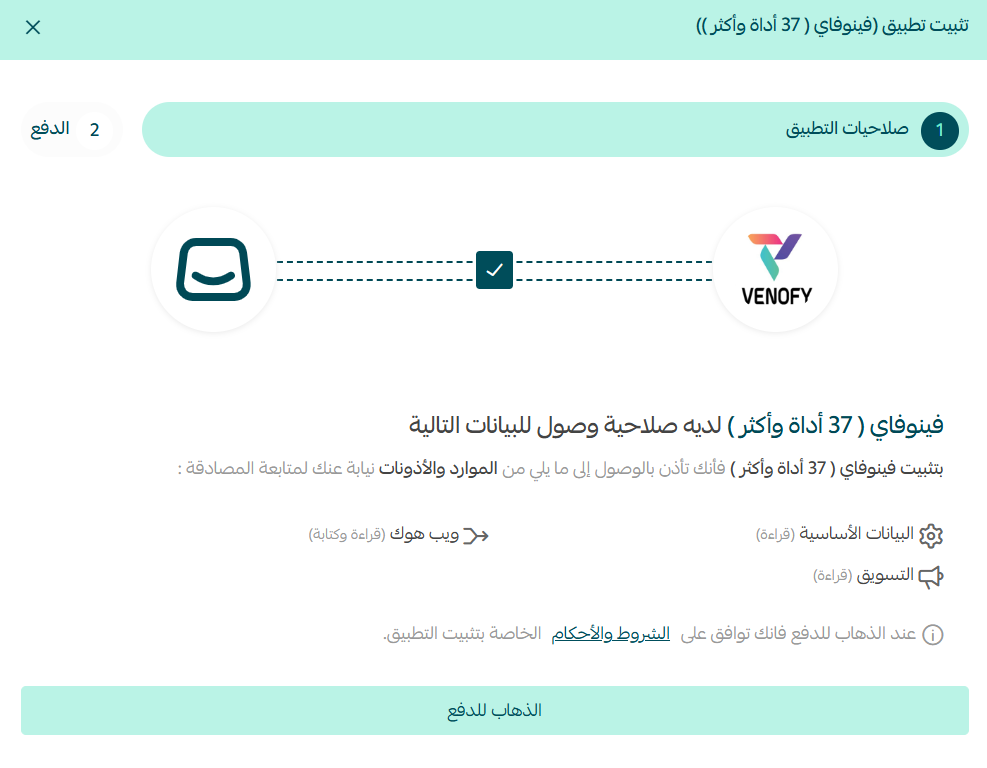
5. Review the permissions the app requests, then click (Go to payment).
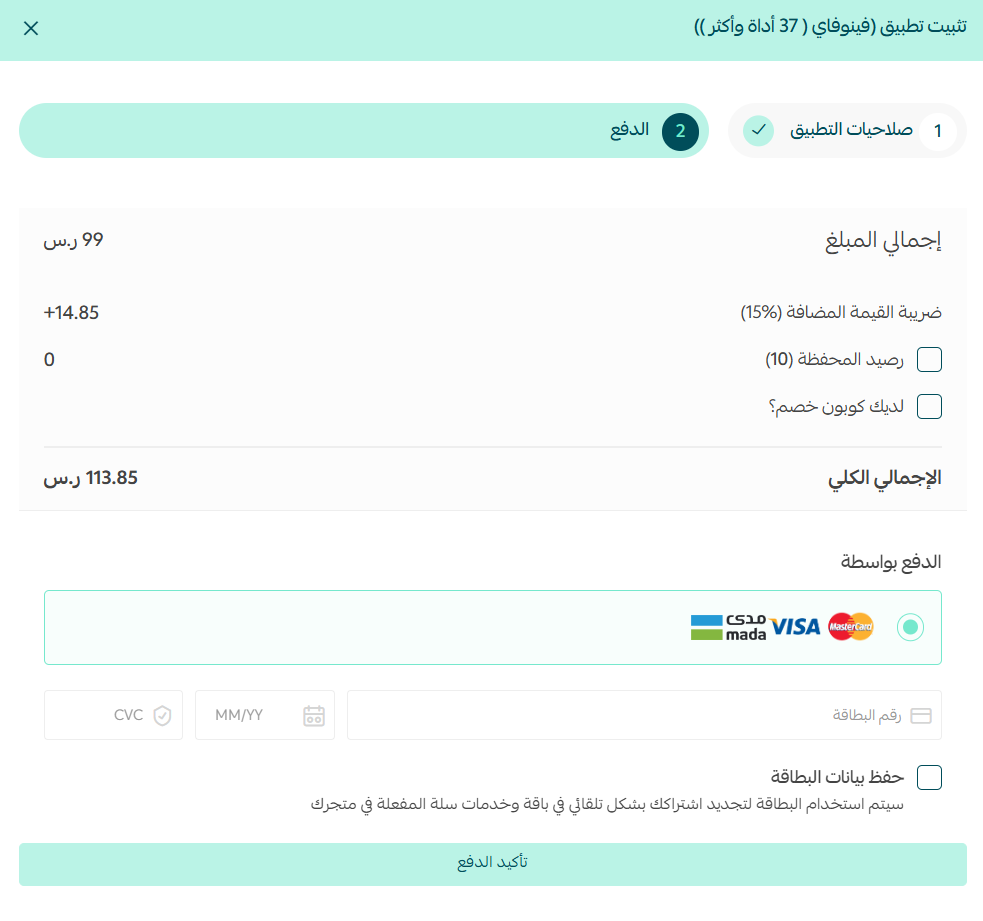
Complete the payment to unlock the app's features.
The Venofy app is now installed on your store.
For more details, see managing your store's apps.
🚀 Activate and manage Venofy
Sign in to the Venofy platform
1. After installing the app, you receive an email. Click (Sign in to your dashboard).
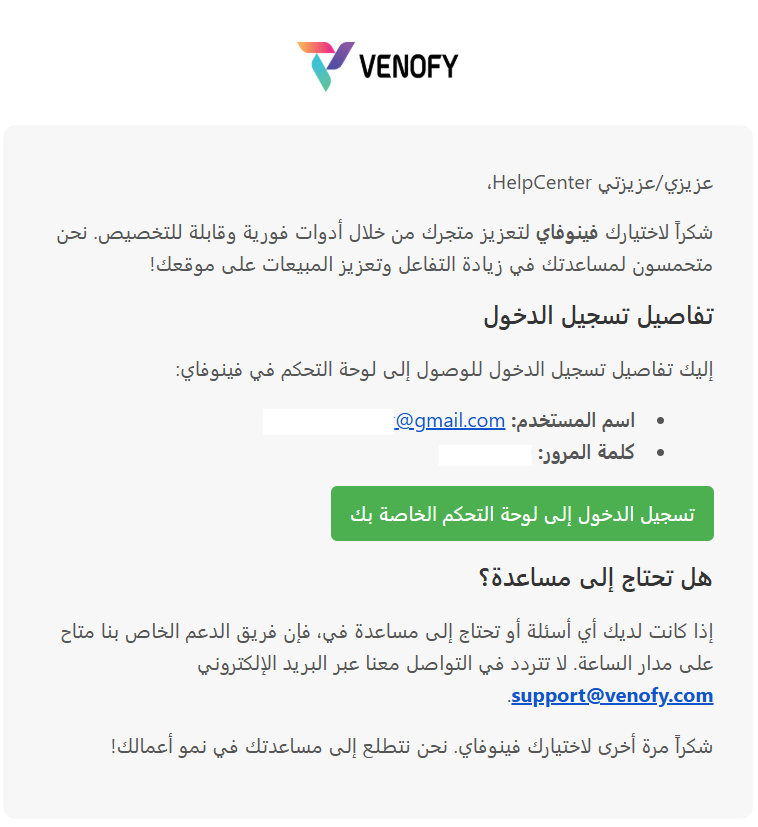
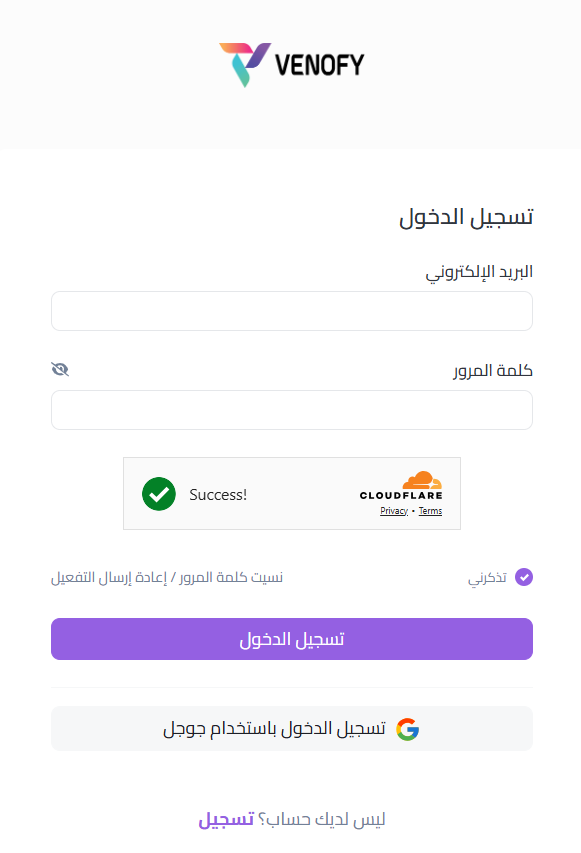
2. Sign in to Venofy with the credentials in that email.
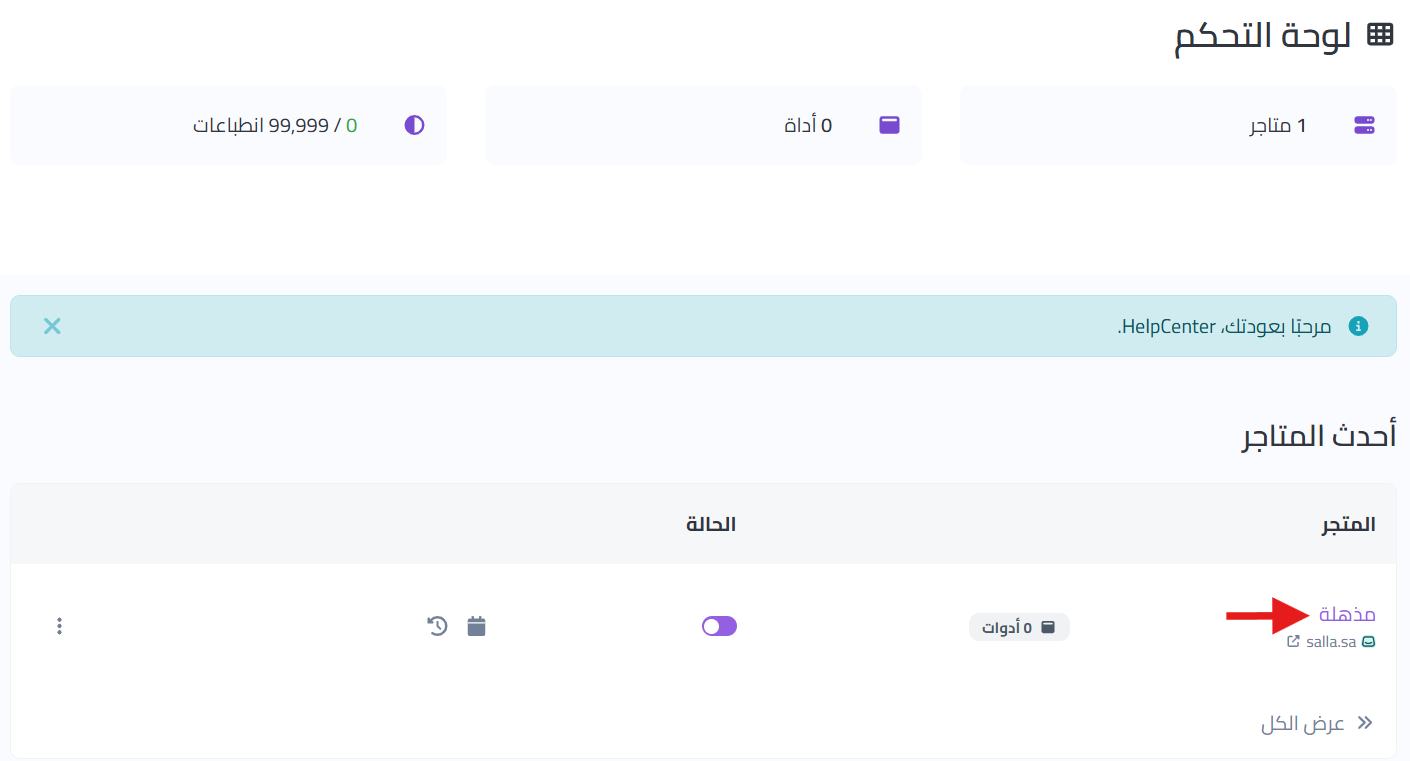
3. On the main dashboard, click your store name to start adding tools to it.
4. On the store page, click (Create tool).
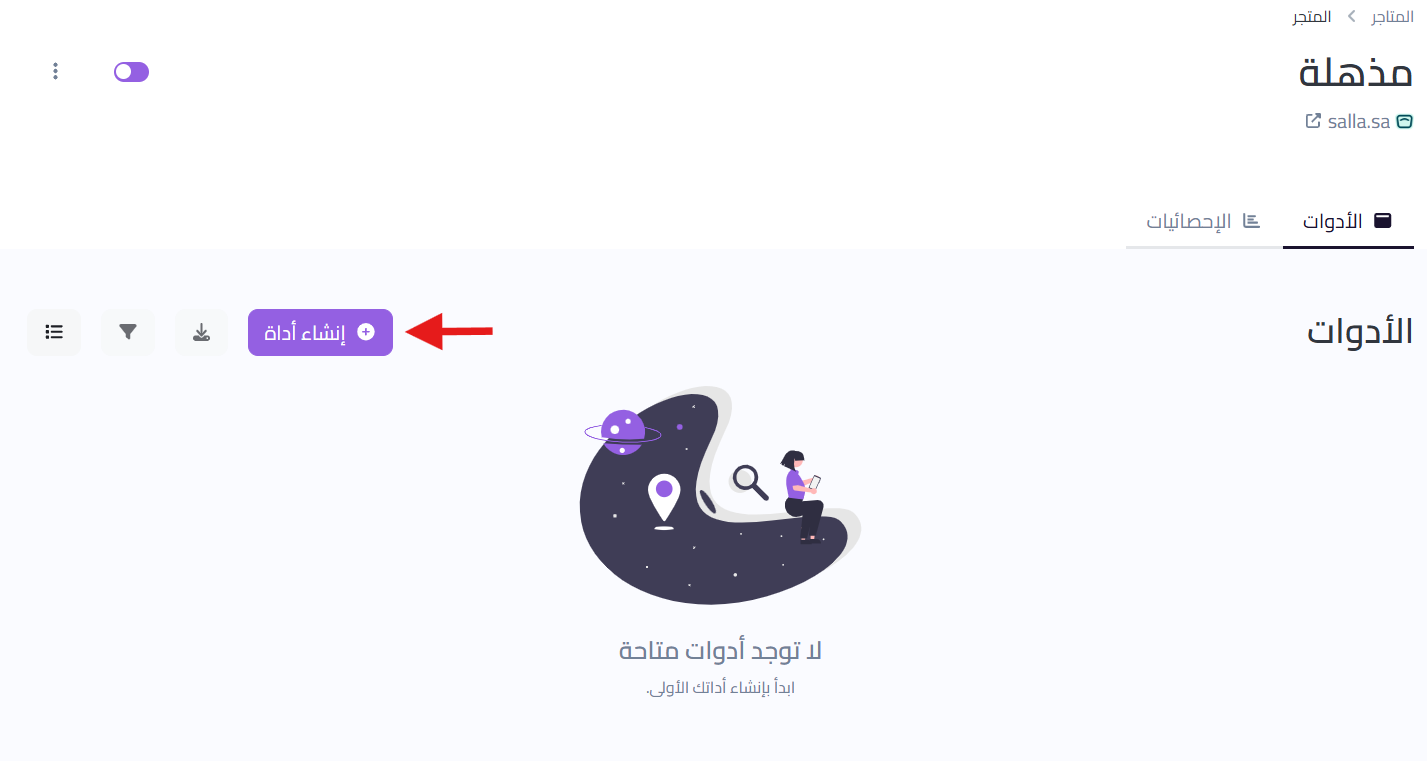
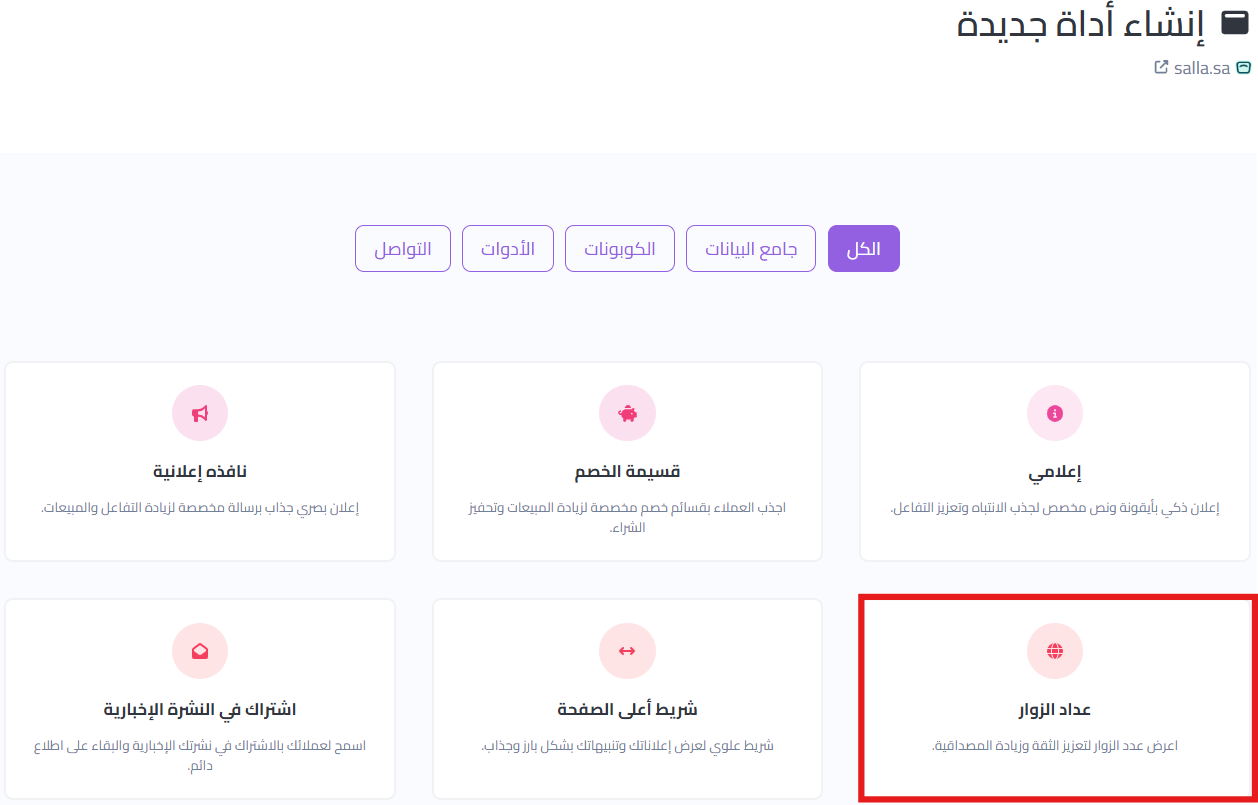
5. Choose the tool you want to add to your store.
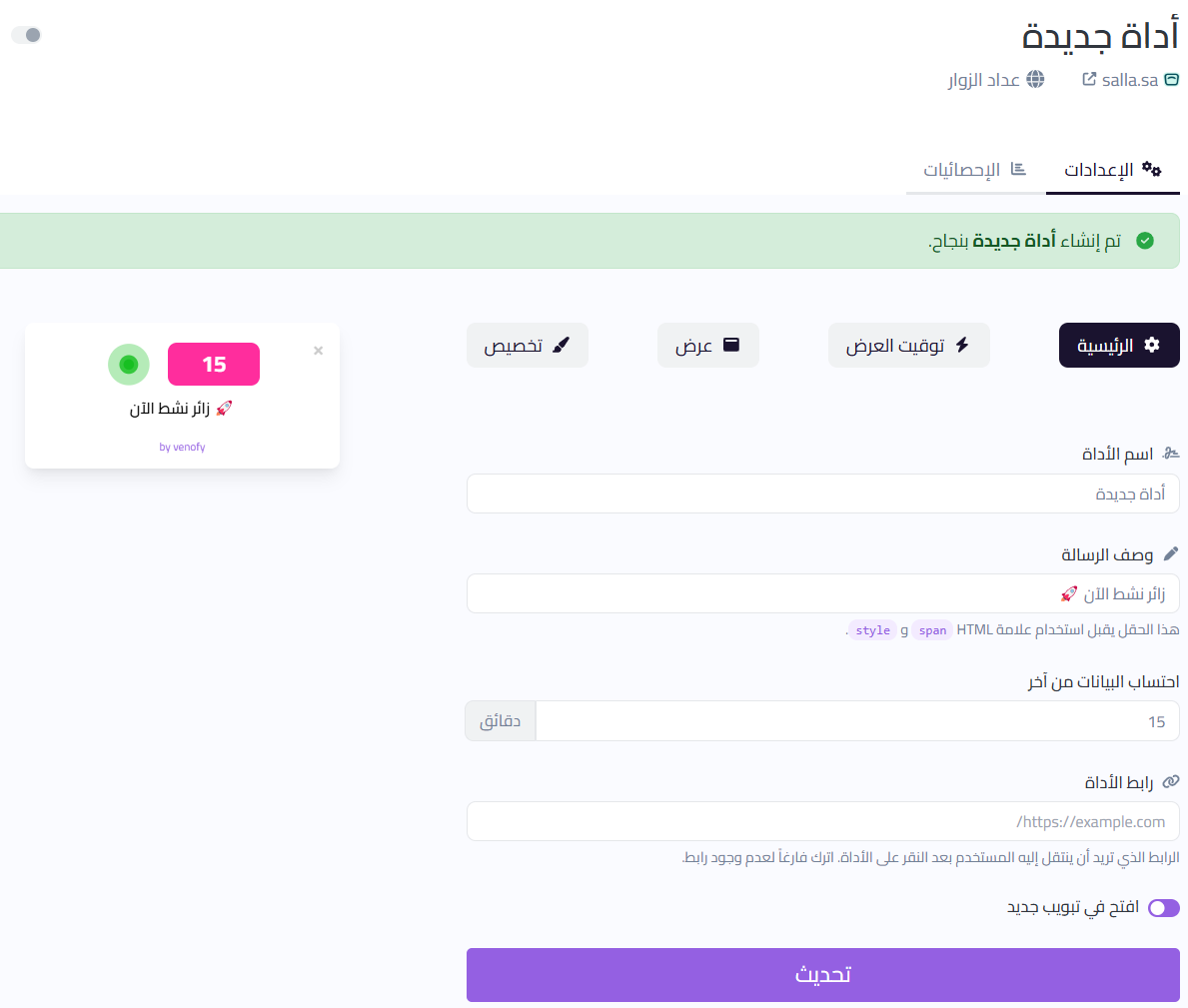
6. Your tool is live. Customize it to fit your store, then click (Update).
📝 Important notes
- Venofy is a paid app. You choose a plan during installation and complete payment before the app is activated.
- Tools are built and customized in the Venofy dashboard, not in your Salla dashboard.
Delete the app
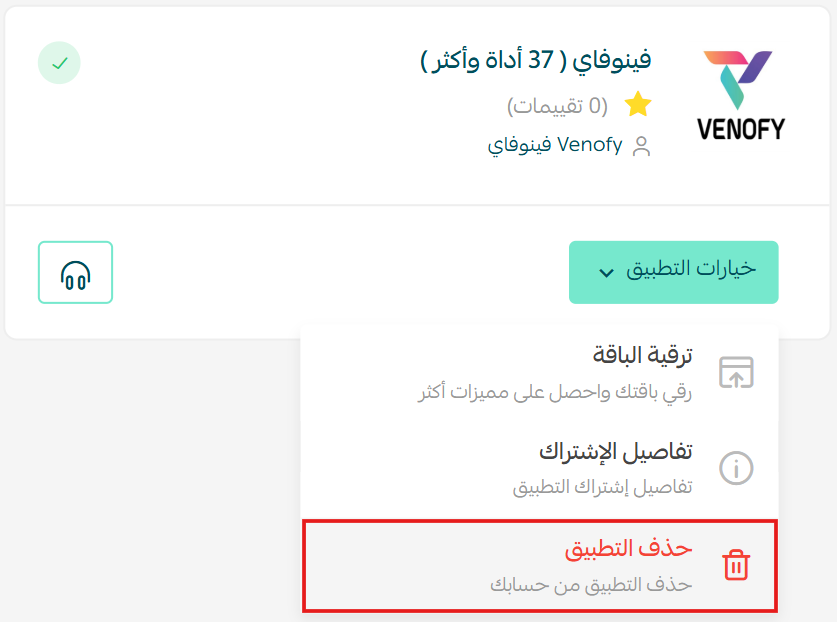
From the Venofy app, click (App options), then click (Delete app).
For more details, see the Venofy FAQ.
❓ Frequently asked questions
What kind of tools does Venofy offer?
More than 30 interactive and marketing tools, including spin the wheel, interactive stories, and discount coupons.
Where do I create and customize a tool?
In the Venofy dashboard. Select your store, click (Create tool), pick a tool, customize it, then click (Update).
How do I get my Venofy sign-in details?
They arrive by email once the app is installed on your store.
Can I change a tool after adding it?
Yes. Open the tool in the Venofy dashboard, adjust the settings, and click (Update).
How do I remove Venofy from my store?
Open the app, click (App options), then click (Delete app).
Interactive campaigns earn their keep twice: once in the extra order they trigger, and again in the contact details they collect for the campaign after that.