Showing every product photo at once can overwhelm a shopper, especially when the product comes in several colors.
The Variant Image Display app fixes that: it shows only the images tied to the option the customer picked, so browsing stays clear and looks deliberate.
You get smarter presentation, a smoother experience, and a connection that takes no technical skill to set up.
Variant Image Display lets you show product images based on the color a customer selects. Instead of every photo appearing side by side, only the photos for the chosen color are visible, and the gallery swaps automatically the moment the customer picks a different color. In this guide, you'll learn how the app displays product images by color, how to install it, and how to prepare your products so it works.
Variant Image Display is a Salla App Store app that filters a product's gallery by the color option a shopper selects. Install it, set your thumbnail count and gallery direction, then add each color value to the Alt field of the matching images. The gallery then updates instantly whenever the shopper changes color.
📌 Article overview
- What the app gives you
- An example of the app in action
- How to install the app
- How to prepare your products
- Frequently asked questions
🧲 What the app gives you
- Images matching the customer's chosen color appear automatically.
- A simple connection to your store, with no technical experience needed.
- Support for an unlimited number of images per color.
💡 An example of the app in action
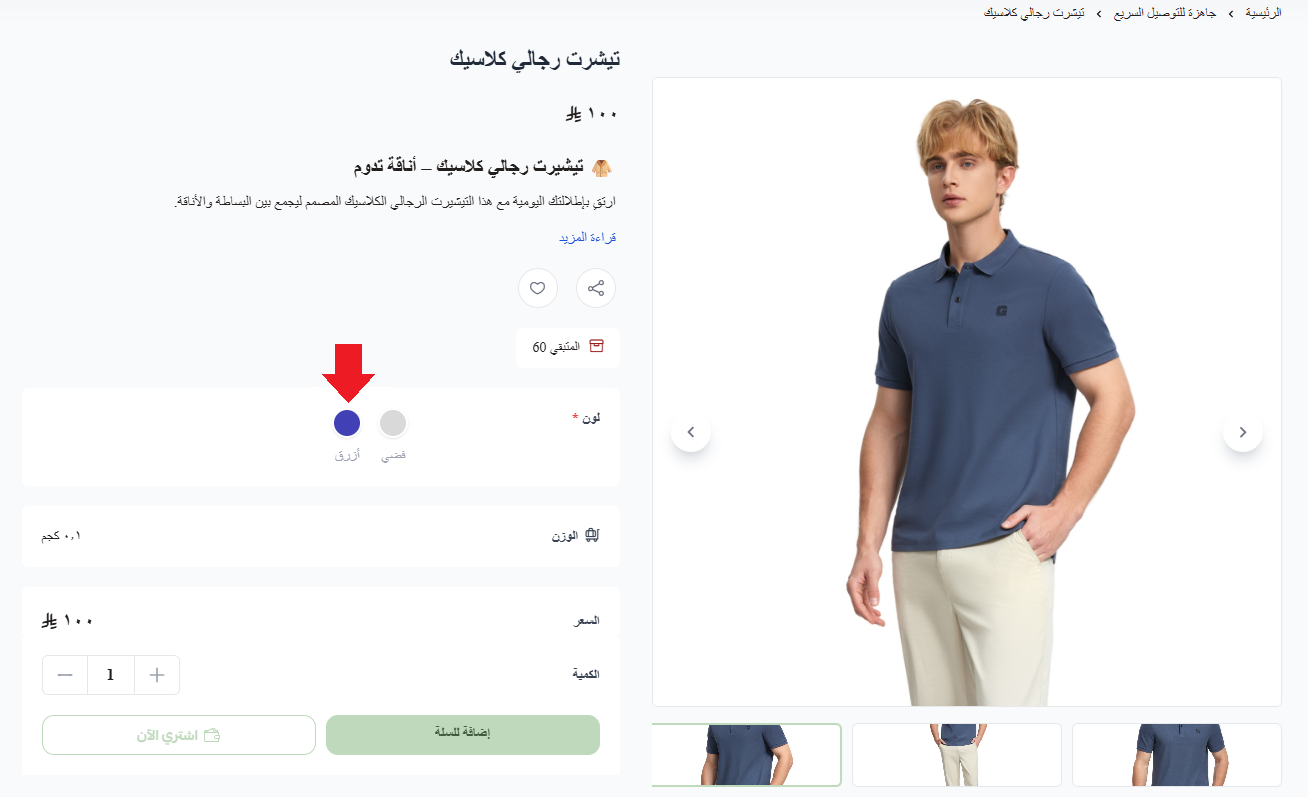
Say your store carries a product with several images uploaded across two color options, silver and blue.
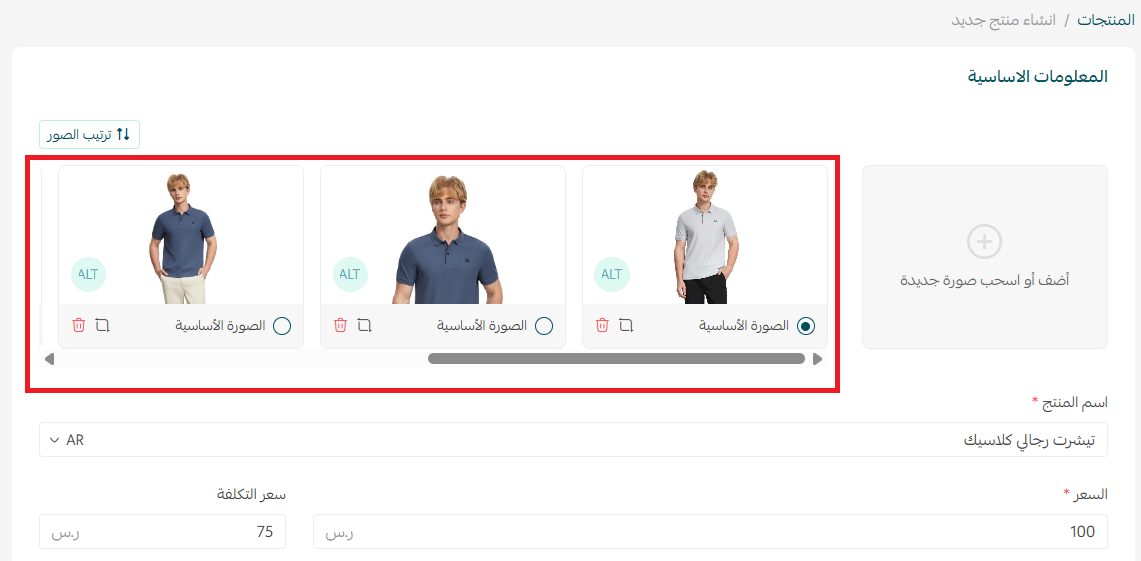
When a customer opens the product page and selects silver, only the silver images appear.
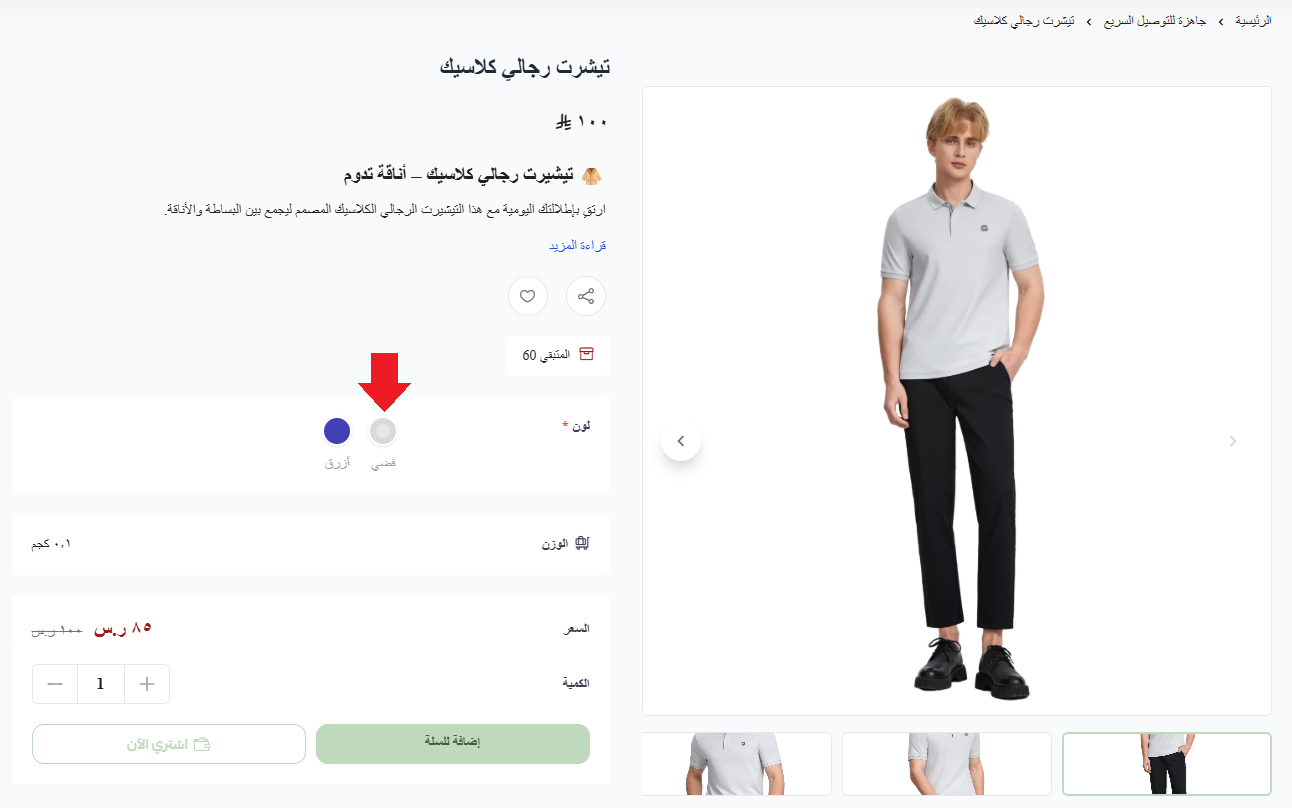
Select blue instead, and the gallery switches to the blue images only.
🚀 How to install the Variant Image Display app
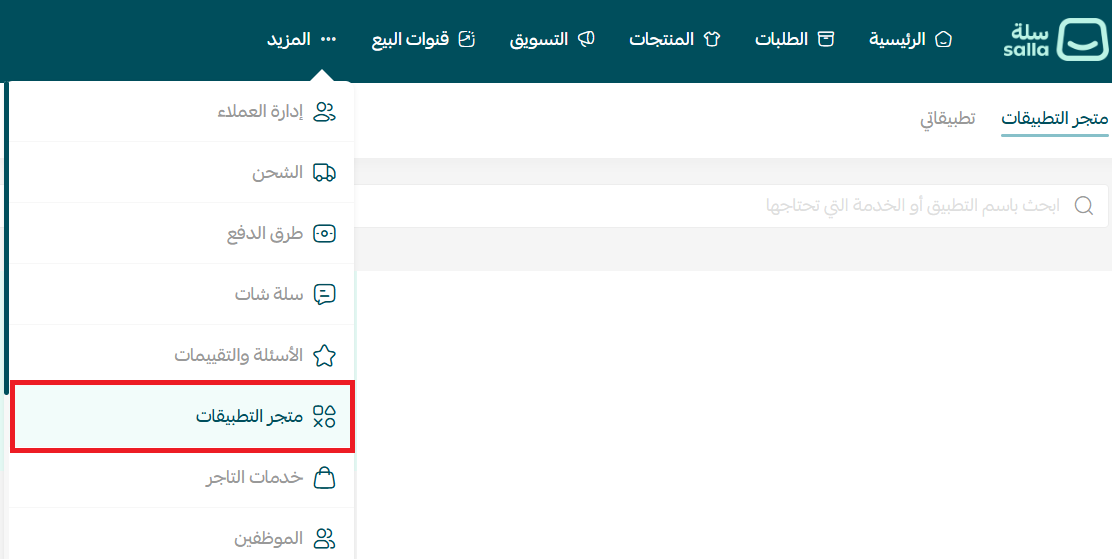
1. From the main menu, click the (More) tab, then click (App Store).
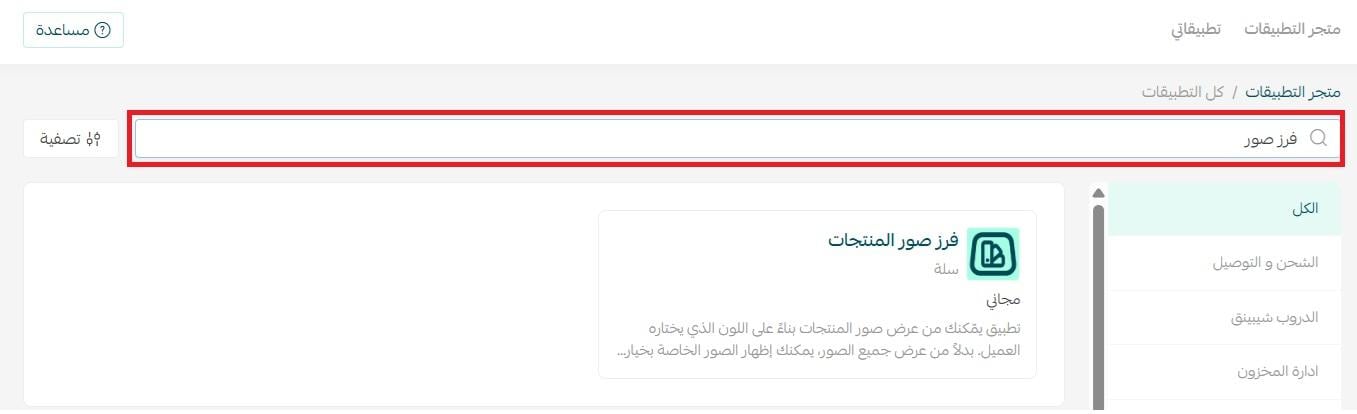
2. Use the search field to find the Variant Image Display app.
3. On the Variant Image Display app page, click (Install).
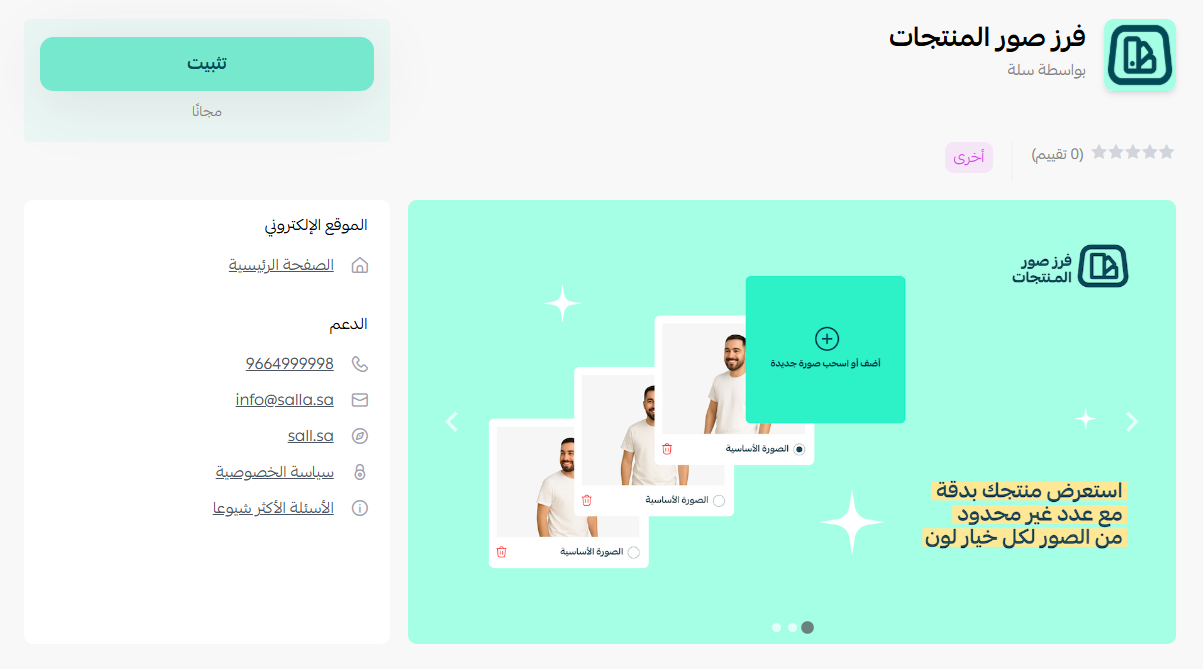
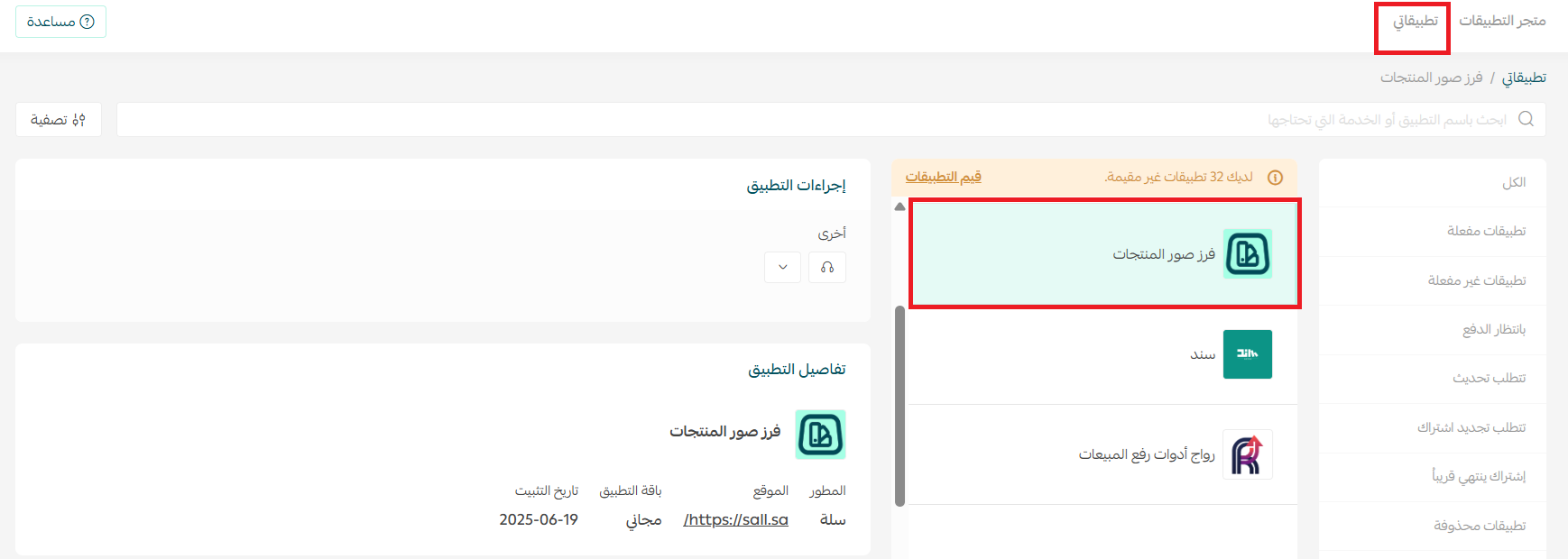
The app is now installed.

It appears in your My apps tab like this:
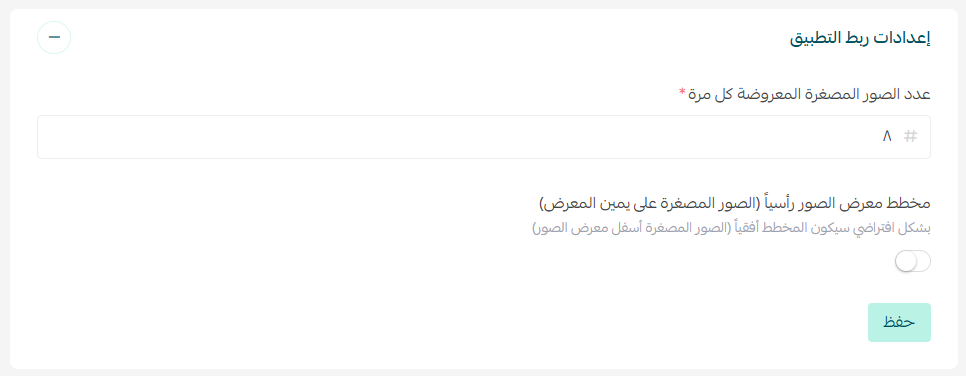
4. From the (My apps) tab, open the app details and set how many thumbnails to show at a time, and whether the gallery runs vertically or horizontally.
💡 Example:
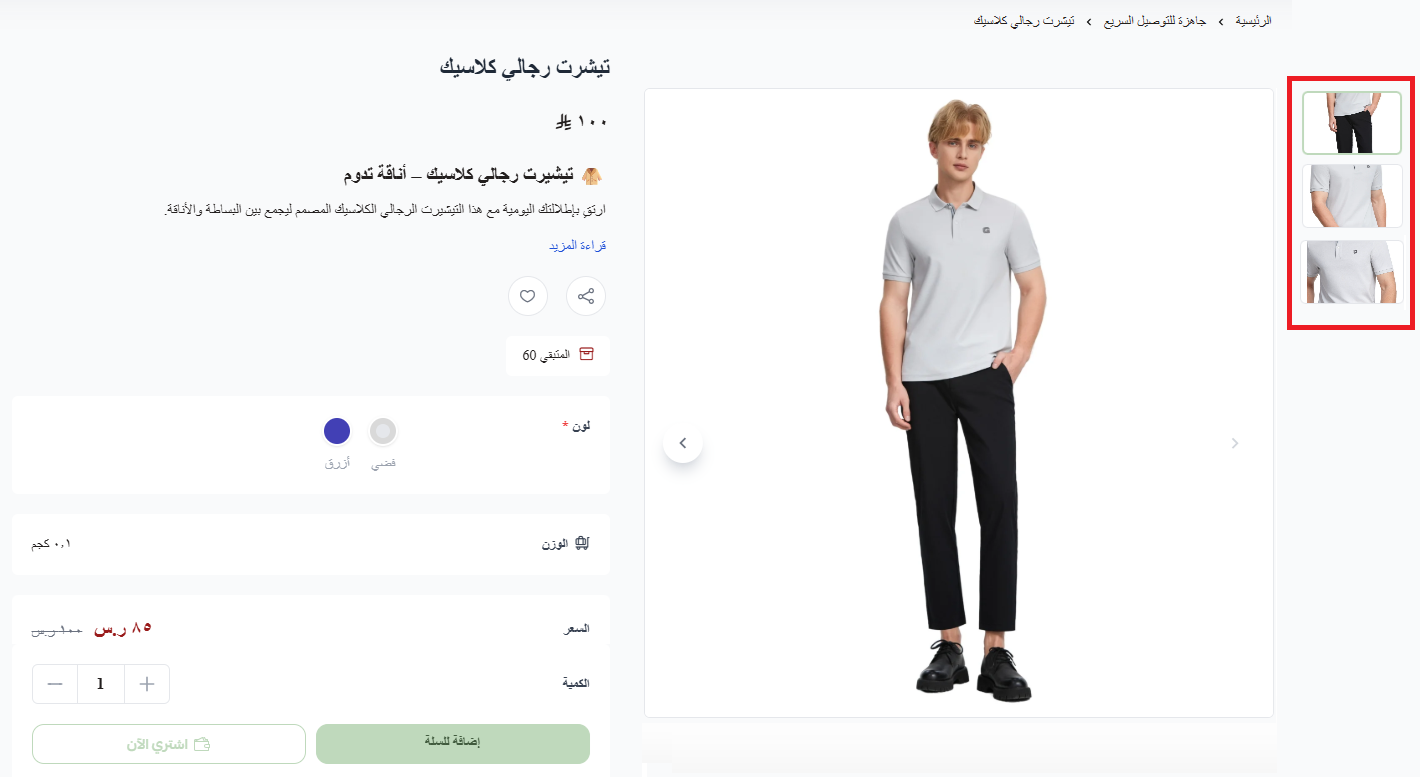
- Three thumbnails, vertical gallery.
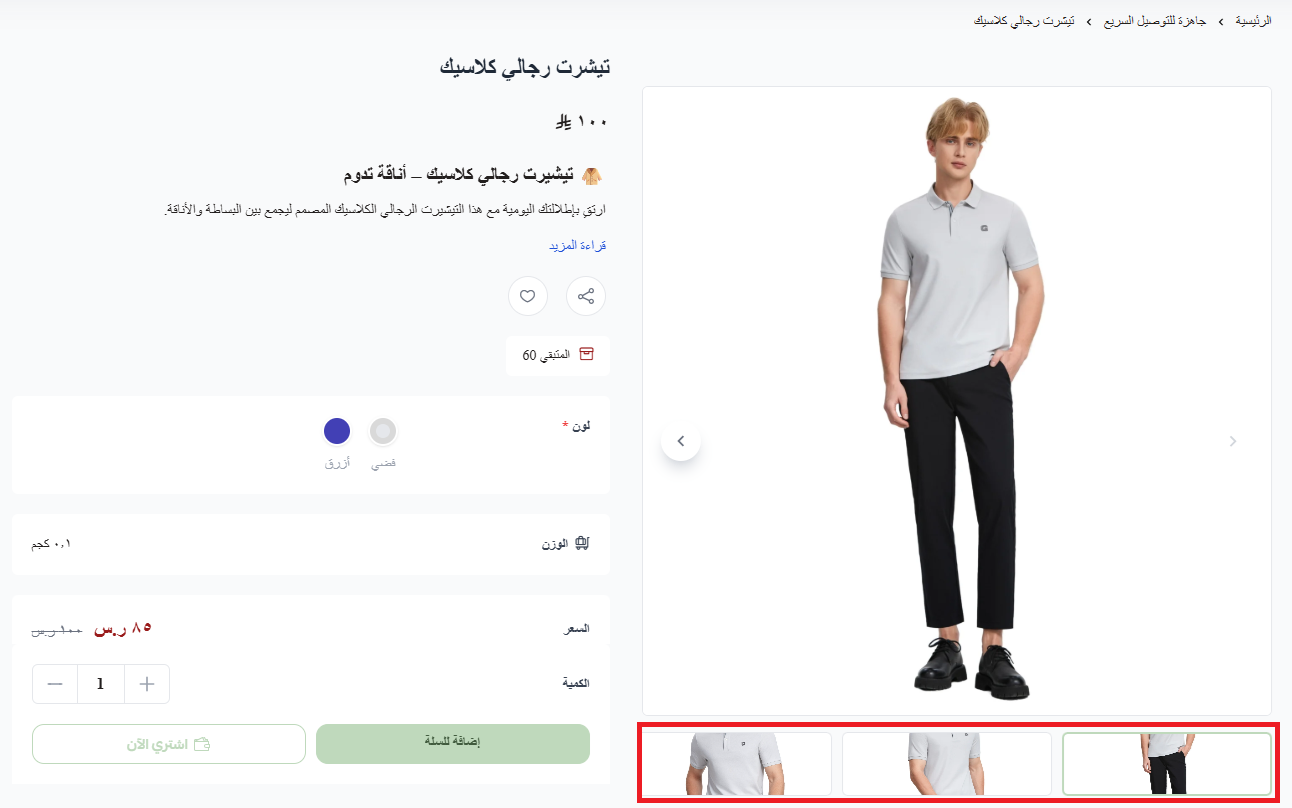
- Three thumbnails, horizontal gallery.
🧑🍳 How to prepare your products
Whether you are creating a new product or editing an existing one, the product record needs all three of the following.
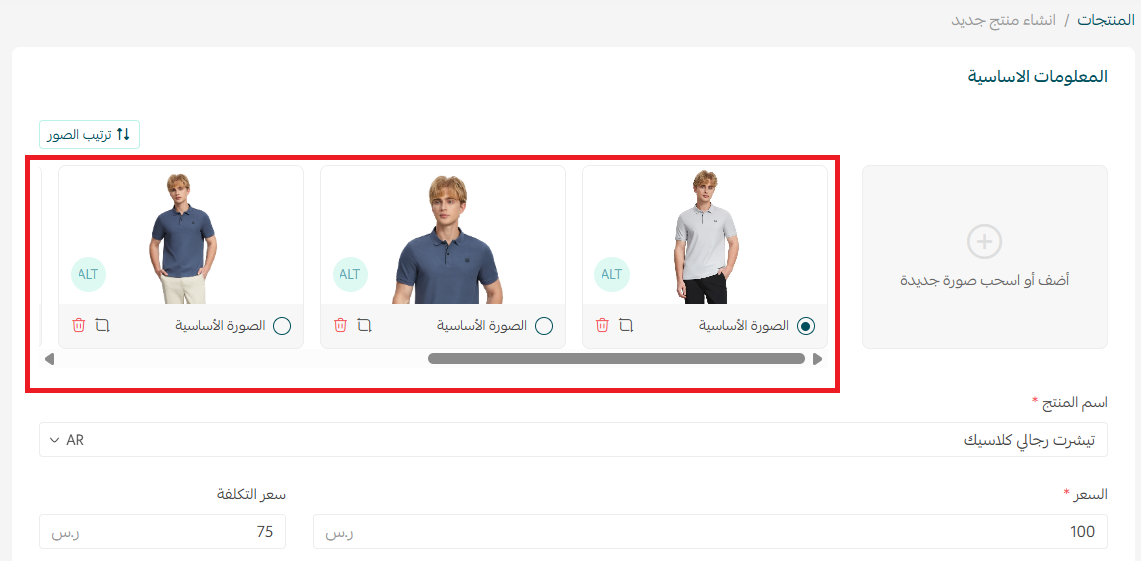
First: upload every image for every option
🌟 A striking photo is the first impression customers remember. Learn how to present your products so they sell themselves.
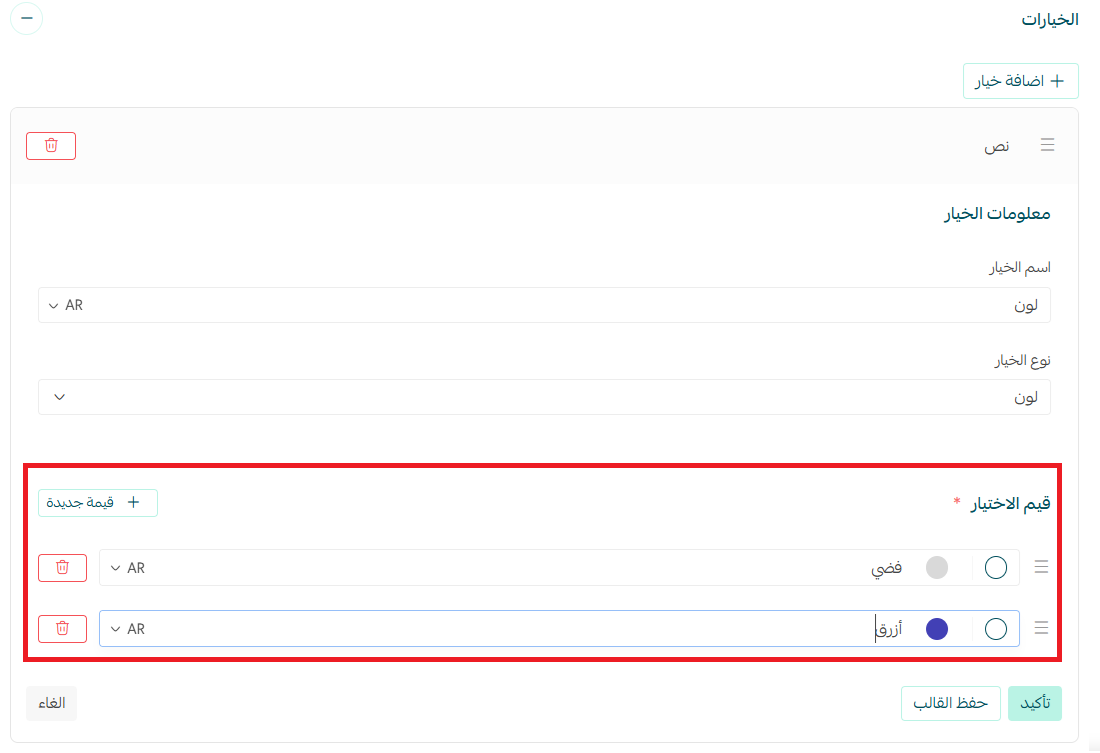
Second: add the product options
💡 Example: add a color option with the values silver and blue, along with the other details each option needs, such as quantity and price.
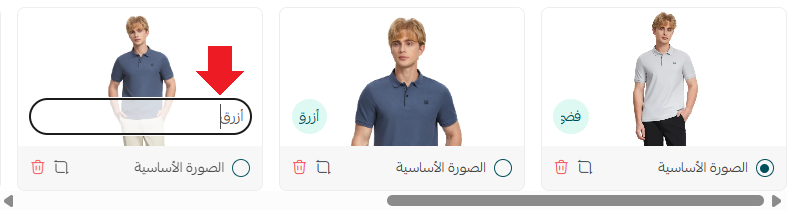
Third: write the option value into each image's Alt field
⚠️ Do not skip this step.
Putting the option value, such as the color or the size, into an image's Alt field is not a technical nicety. It is what tells the app which image belongs to which option. Merchants often overlook it and then find images showing up under the wrong color, and no other setting can compensate for it. Get this one right and the rest works.
🧩 Offering a range of options on your products is straightforward. This article shows you how.
❓ Frequently asked questions
❓ Can I use the app on products that have no color option?
No. The app needs an option, such as color, to sort the images against. If a product has no options, all of its images display normally with no filtering.
❓ Does the app slow down the product page?
No. It runs efficiently and has no noticeable effect on page load speed, as long as your images are compressed and sized sensibly.
❓ Does it support options other than color, such as size or material?
Not at the moment. The app currently sorts images by the color option only. Support for other options may arrive in a future update.
❓ I build themes. How do I support the app in my theme?
Add this line:

Then confirm that data-caption matches this:

❓ Can one image be linked to more than one color?
Yes. Enter more than one value in the image's Alt field and the image appears whenever any of those options is selected.
❓ How do I remove the app?
From the (App actions) section, click (Other), then click (Delete app).

Once the app is running, expect visitors to hesitate less and stay longer on the product page. Images organized by color make the options easier to understand, and a customer who understands the options is a customer who buys.
🚀 Make browsing sharper and smoother. Activate the Variant Image Display app and give your customers a gallery that reflects their choice instantly.