Want one place to access the main tools for managing your catalog?
The Services menu on Salla's Products page brings together category and filter settings, brands, bulk editing, inventory, synchronization, imports, exports, product ordering, and catalog deletion.
Open Products and click Services to manage product categories, storefront filters, brands, bulk product details and quantities, product order, inventory, and supported inventory synchronization. The same menu provides product import and export operations and the option to delete every product, which should be used only after careful review.
📌 Article overview
- Open the Services menu
- Manage catalog structure and brands
- Edit, order, and count products
- Synchronize and import product data
- Export or delete products
- Frequently asked questions
Related Salla resources
- (product category management)
- (import product quantities and prices)
- (export template customization)
- (restore deleted products and orders)
How to open the Services menu
1. From the dashboard menu, click Products.

2. On the Products page, click Services.
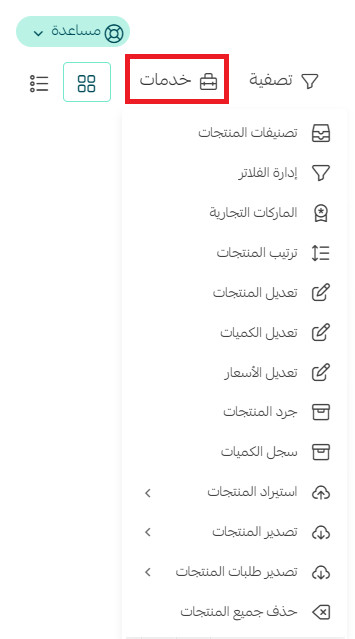
Manage categories, filters, and brands
Choose Product categories.

Use the category page to add, delete, nest, and reorder product categories.

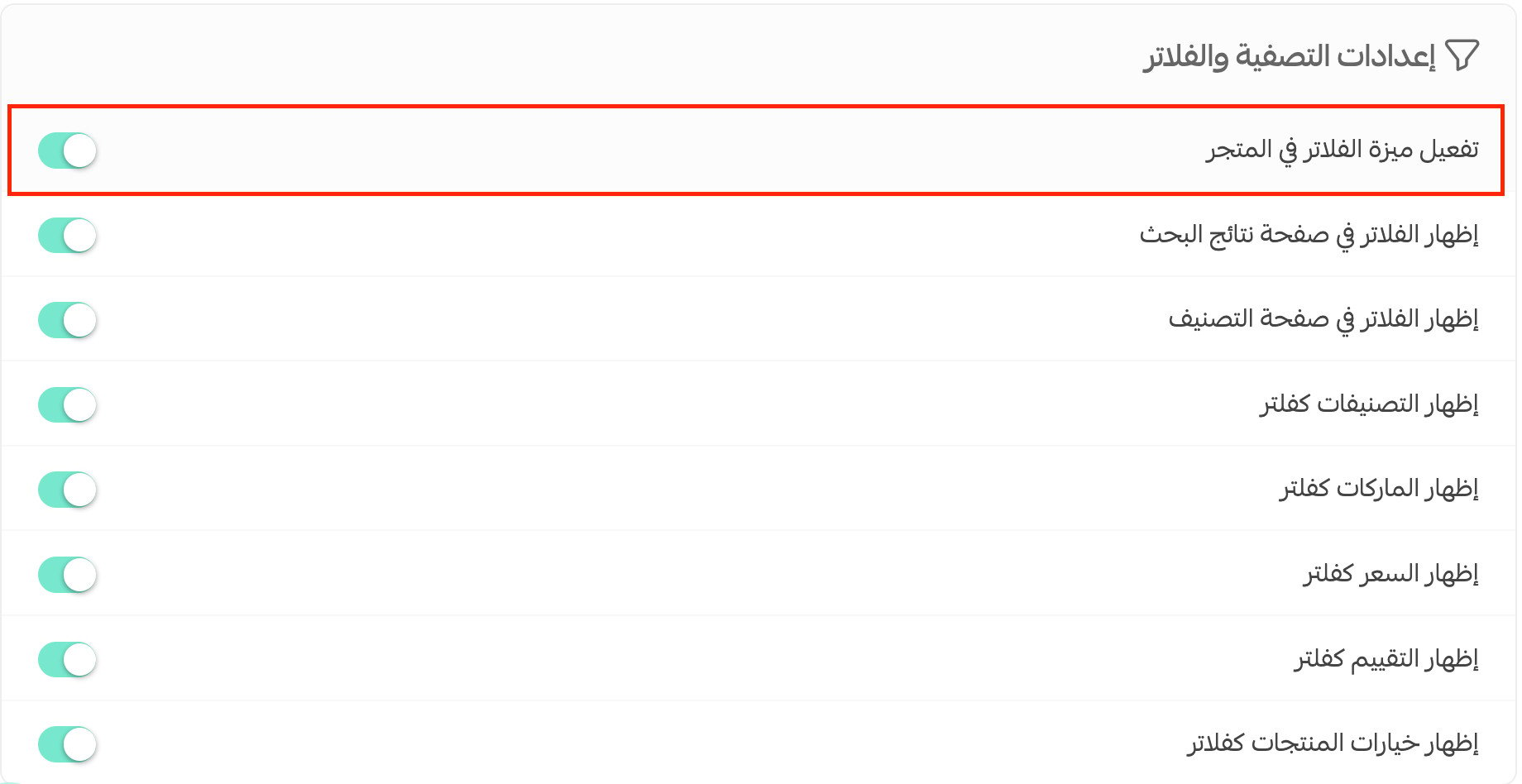
Choose Manage filters.

Use the filter settings to configure storefront product filters.
Choose Brands.

Use the brand page to add, delete, or hide store brands.

Bulk edit product data and quantities
Choose Edit products.

Edit multiple product records in a spreadsheet-style table.
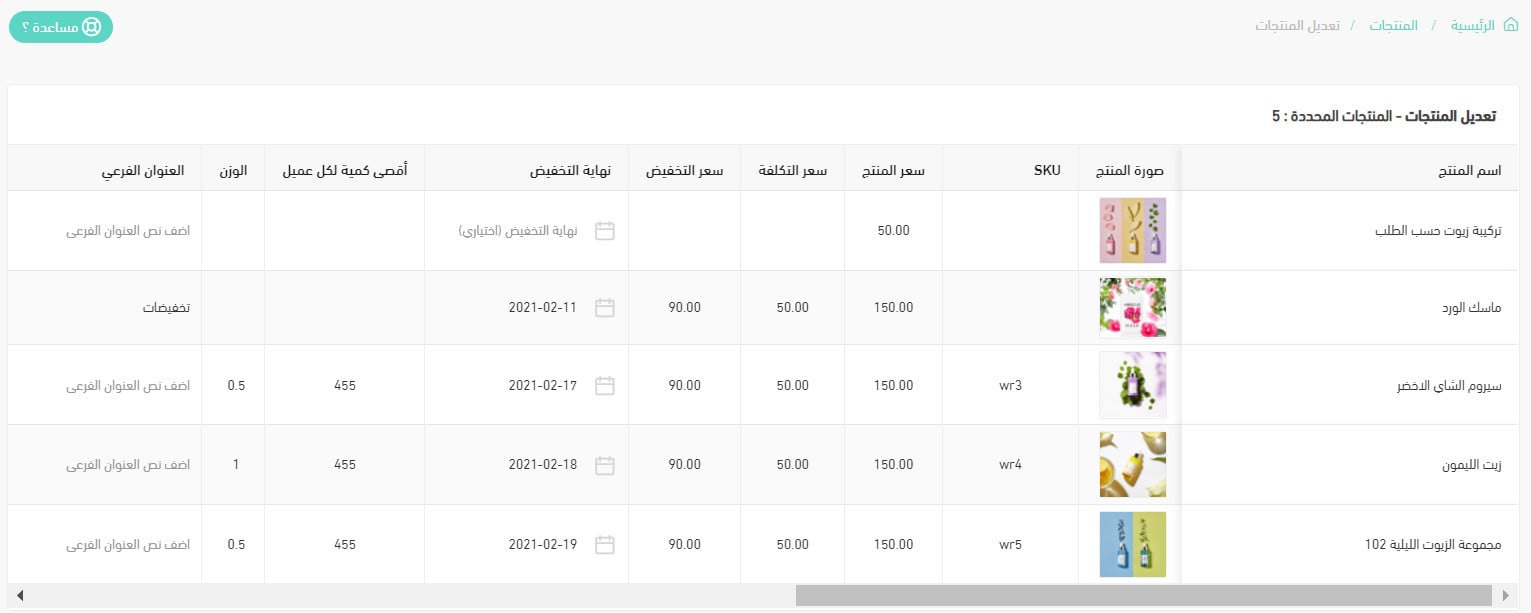
Choose Edit quantities.

Update product quantities through the spreadsheet-style quantity table.

Reorder products and review inventory
Choose Product order.

Set the order in which products appear to storefront customers.

Choose Product inventory to open the inventory view.

Synchronize products with inventory
Choose Synchronize products with inventory.

Select the required company. The source says this list varies according to connected shipping companies and whether they support synchronization.

Import product data
The import area includes product import, quantity import, product SEO import, price import, and Harmonized System code import.
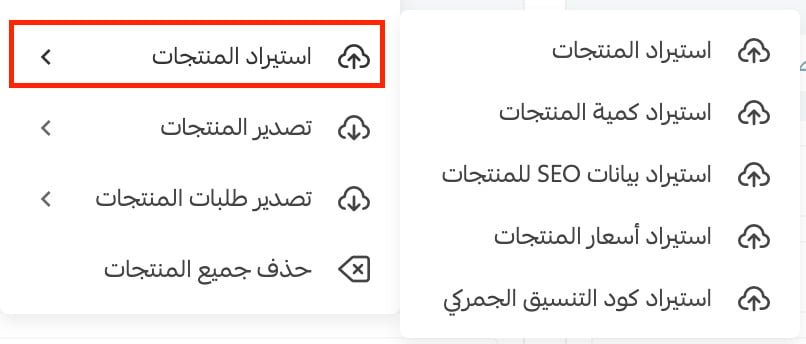
Choose Import products.

Download Salla's product template, complete the product data, and import the file so Salla can read and save the records.

Export products
Choose the required product export type.
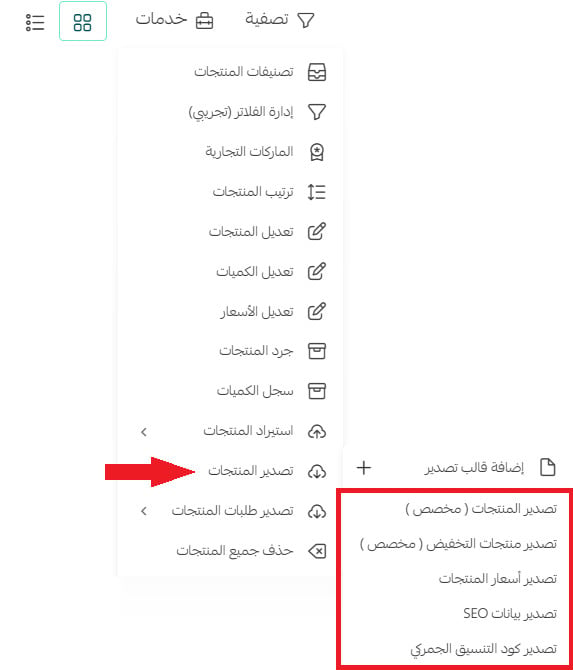
The source says Salla sends the product export file to the store email address.

Delete all products
Choose Delete all products only after reviewing the impact. This removes every product from the store.

Use the related recovery guide if products need to be restored within its documented recovery rules.
Frequently asked questions
What can I manage from the Services menu?
Categories, filters, brands, bulk product fields and quantities, ordering, inventory, synchronization, imports, exports, and deletion.
Can I edit several products at once?
Yes. The source documents spreadsheet-style tables for product data and quantities.
Which product data can I import?
The source lists products, quantities, product SEO data, prices, and Harmonized System codes.
Where does Salla send product exports?
To the store email address, according to the source.
Does Delete all products remove the complete catalog?
Yes. Review this action carefully and consult the linked recovery guidance when needed.