Need to change many existing products without editing each product page?
The update products with Excel workflow lets you export current Salla products, edit their data in bulk, and upload the same workbook to apply the changes.
To update products with Excel on Salla, export the current product-update template from Store settings and Import data, edit the workbook without changing the first-column product numbers, then upload it from the Update current products tab. Wait for processing to finish, and review the completion log for any errors.
📌 Article overview
- Export the current product-update template
- Edit the product workbook safely
- Upload the updated Excel file
- Review processing results and errors
- Frequently asked questions
How to update products with Excel on Salla
Export the current product-update template
1. From the dashboard side menu, click Store settings.

2. From Store settings, click Import data.

3. Select Import or update product list.

Click Start import.

4. Open the Update current products tab, then click Export product update template.

Salla exports the current product list as an Excel file and sends it to the store's email address.

Open the file to review the exported product rows.
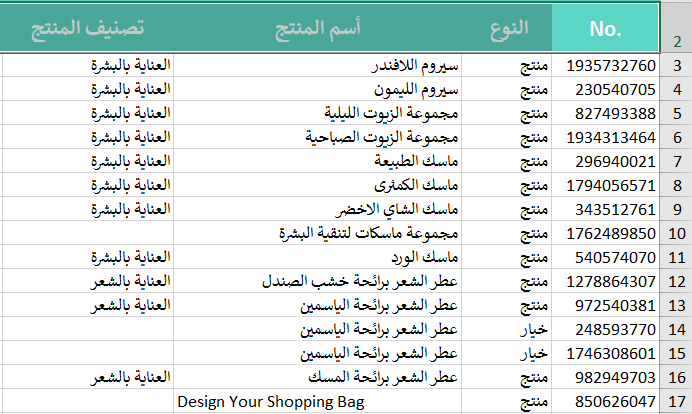
5. Edit the required product data, then save the workbook.
📝 Important note: Do not change the product numbers in the first column. Salla uses those values to identify and update the correct products.
Upload the updated product file
1. From the Update current products tab, click Choose product file.

2. Attach the Excel file you edited and saved, then click Update.

3. Wait while Salla processes the product updates.

A completion message appears when processing finishes.

You can then open the import log and review any reported errors.

Product-update limits and options
The source states that one update file can contain up to 3,500 rows. You can use Excel features such as copy, paste, and repeated values to enter or change product options across the workbook.
If you need help preparing product data, you can request the product-entry service from Salla's merchant services.

Frequently asked questions
Can I update all product options through the Excel file?
Yes. The source says you can enter or edit product options in the workbook and use Excel functions such as copy and paste.
How many rows can one product-update file contain?
The documented maximum is 3,500 rows per file.
Where will I receive the exported product template?
Salla sends the exported Excel file to the email address associated with your store.
Can I review errors after the update finishes?
Yes. After processing completes, open the operation log to review its results and any reported errors.
Keep the first-column product numbers unchanged, verify your edits before upload, and use the completion log to confirm that Salla processed the intended updates.