Universal Tracking Pixel App:
A comprehensive app to activate and track your store events on Salla and automatically link them with popular analytics and advertising platforms, such as Facebook, TikTok, Snapchat, Twitter (X), and Google Analytics without any complex technical settings.
📌 Main topics of the article:
- Steps to connect with the Universal Tracking Pixel app
- Manage the Universal Tracking Pixel app
Steps to connect with the Universal Tracking Pixel app
1. From the main menu, click (All), then from the Utilities section, click (App Store).

2. From the Universal Tracking Pixel app page, click (Install).
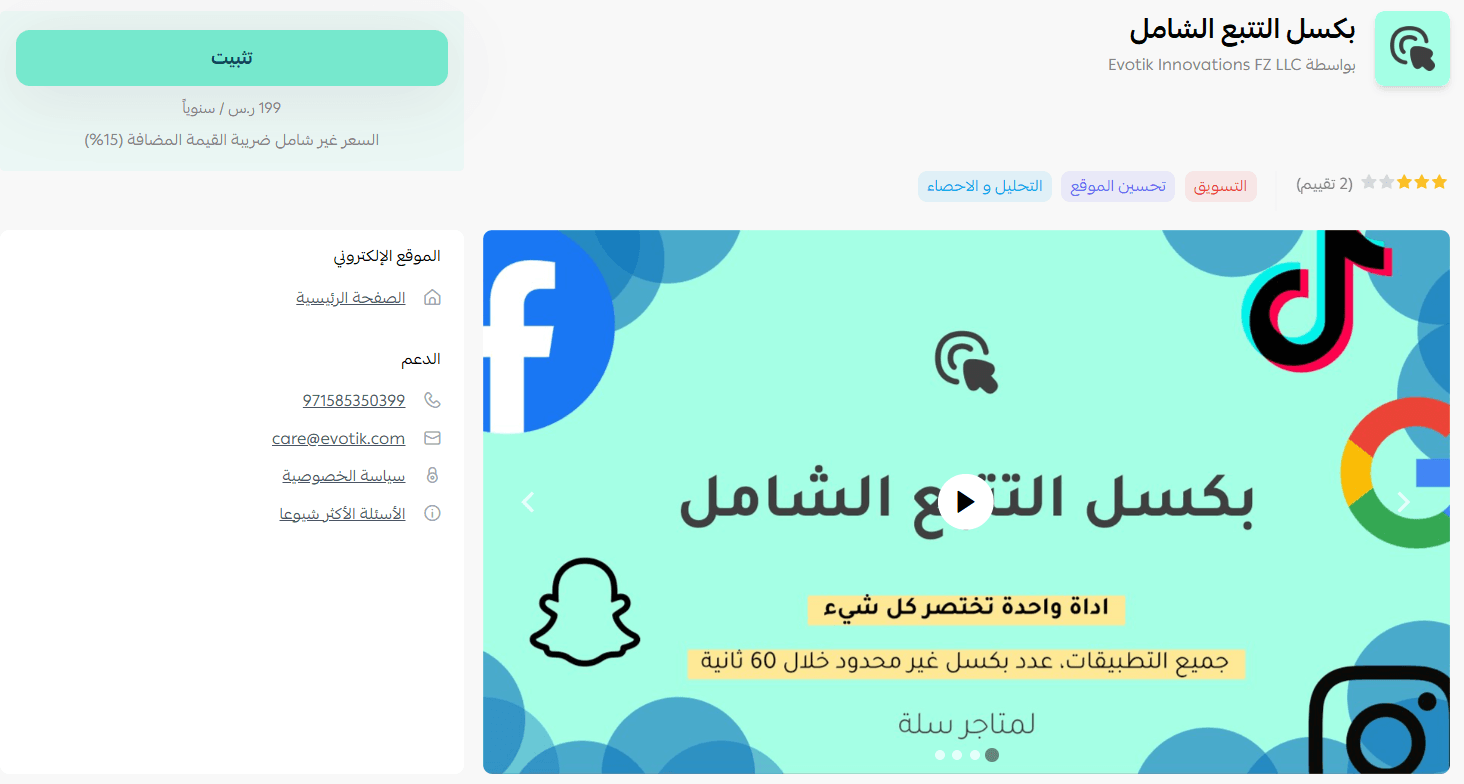
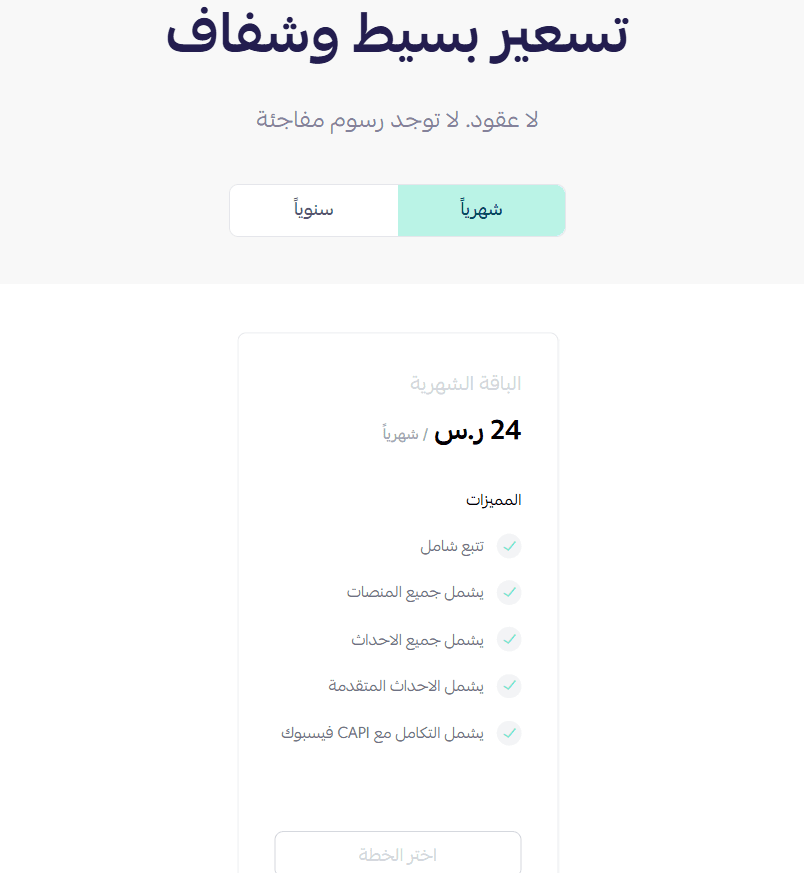
3. Choose the package to continue installing the app.
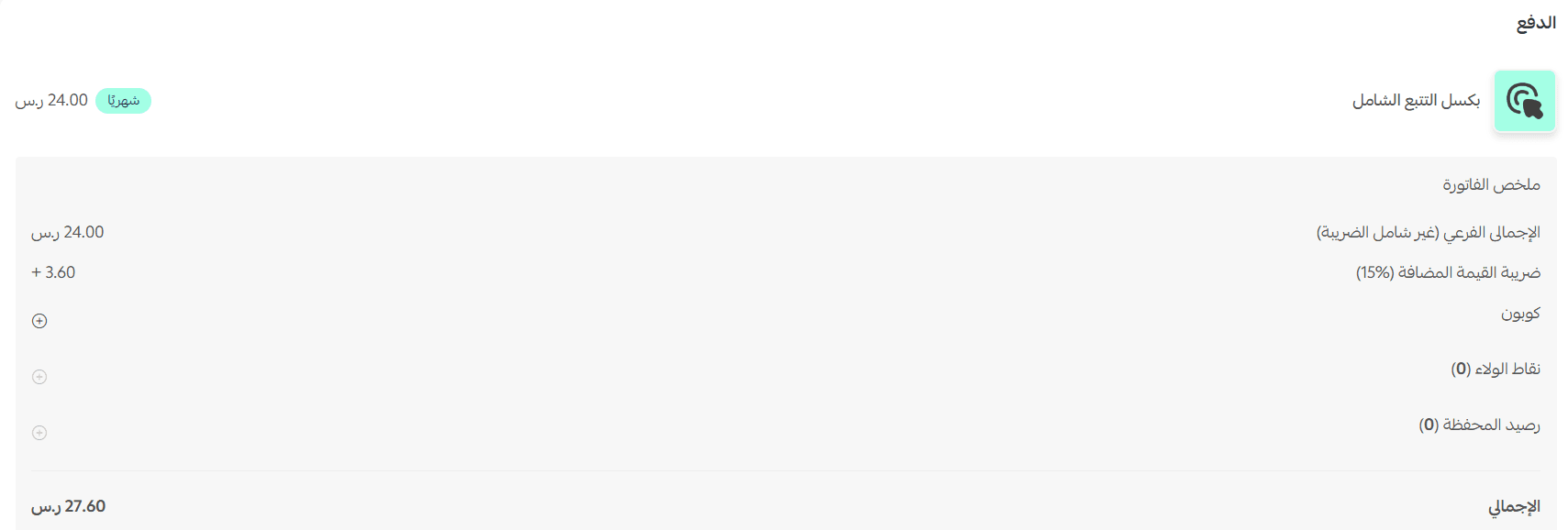
4. Complete the payment process, then click (Confirm).
🎉 Congratulations! The app has been successfully installed.
Manage the Universal Tracking Pixel app
- Account management
1. After installing the app, you will receive an email with your login details.
2. Enter your username and password to complete the login process.
3. After a successful login, you will see the control panel for the Daqiq app.
- Upgrade package
1. From the app details page in your store, click (Upgrade Package).

2. Choose the appropriate plan, then click (Proceed to Payment).

3. Complete the payment details and click (Confirm) to complete the package upgrade.

- Delete the app
1. From the app options menu, click (Unsubscribe), and choose the reason for cancellation.

2. From the app options menu, click (Delete App), and choose the reason for deletion.

3. From the Deleted Apps page, from the app options menu, click (Permanently Delete App) to remove the app completely from the store.

For more details about Universal Tracking Pixel.