How many WhatsApp messages does your store leave unanswered overnight?
Customers ask about sizes, stock and delivery at all hours, and every hour a question sits unread is an order at risk. Trigz connects WhatsApp Business to your Salla store and puts an AI agent behind that number. The agent answers in Arabic using your own store content and uploaded files, updates itself when your content changes, and keeps every conversation in a single channel. In this guide, you'll learn how to install Trigz, upgrade your plan, customize the agent, and delete the app.
Trigz is a Salla app that links WhatsApp Business to your store so an AI agent can answer customer questions from your product content and files. Install it from the App Store, choose a plan, then use the login details emailed to you to sign in and book a setup session with the Trigz team.
📌 Article overview
- What Trigz does for your store
- How to install the Trigz app
- How to manage the Trigz app
- Frequently asked questions
🎯 What Trigz does for your store
Trigz turns your WhatsApp Business number into a smart assistant that works from your own content rather than generic scripts.
- Connects WhatsApp Business directly to your Salla store.
- Answers customer questions with an AI agent trained on your files and store content.
- Replies automatically in Arabic.
- Updates its answers as soon as your content changes.
- Keeps all conversations in one channel instead of scattered across devices.
🚀 How to install the Trigz app
1. From the main menu, click (All), then under helper tools, click (App Store).
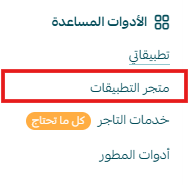
2. Search for the app using the search field.

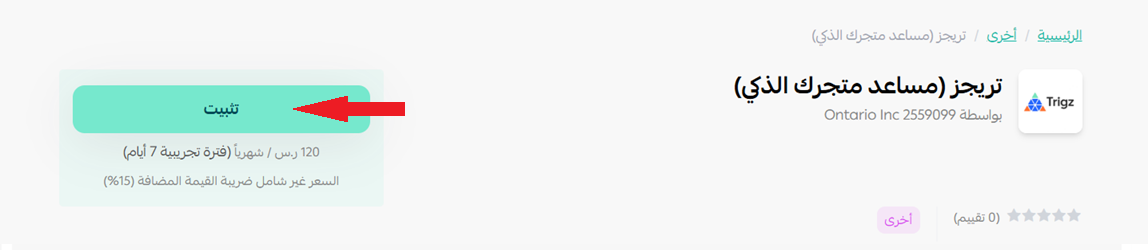
3. On the Trigz app page, click (Install).
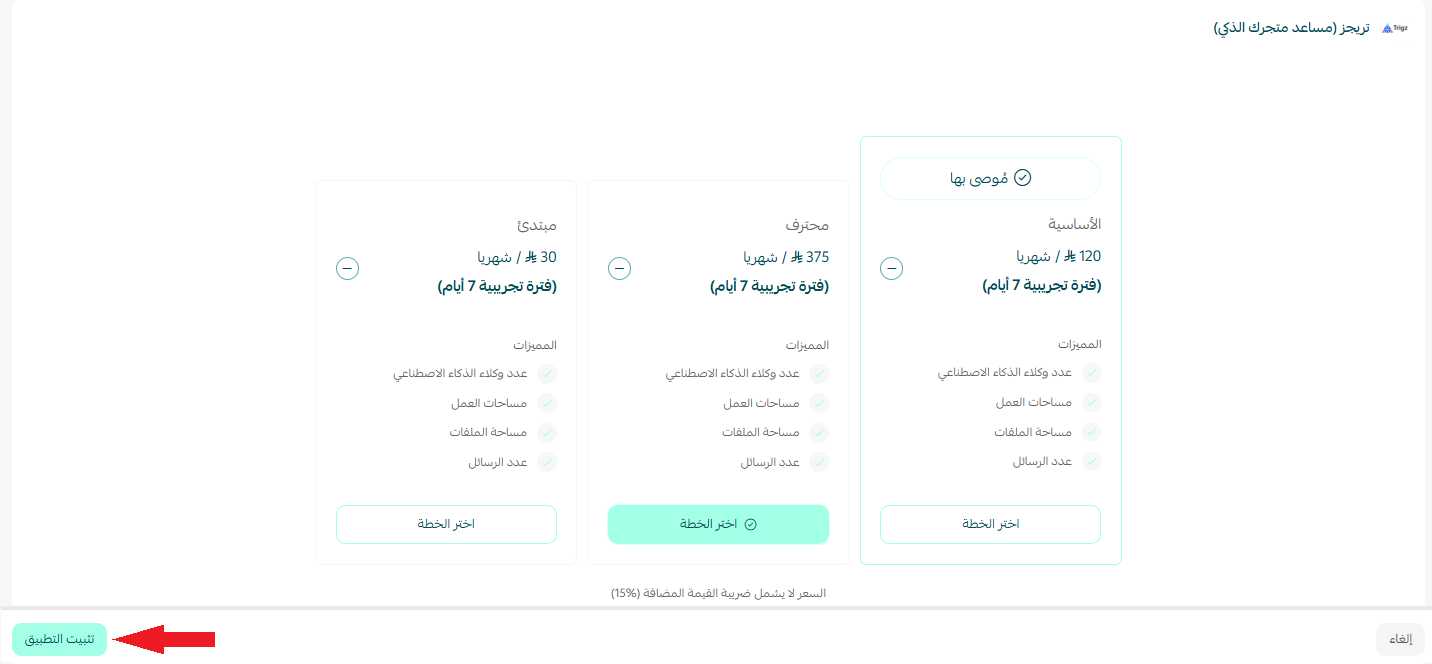
4. Choose the plan that suits you, then click (Install app) to finish adding it to your store.
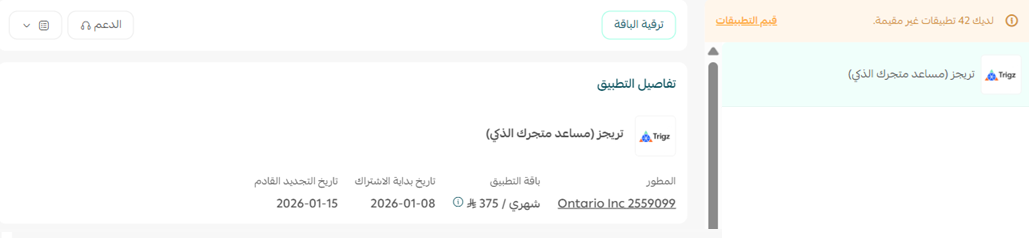
5. The app now appears under (My apps).
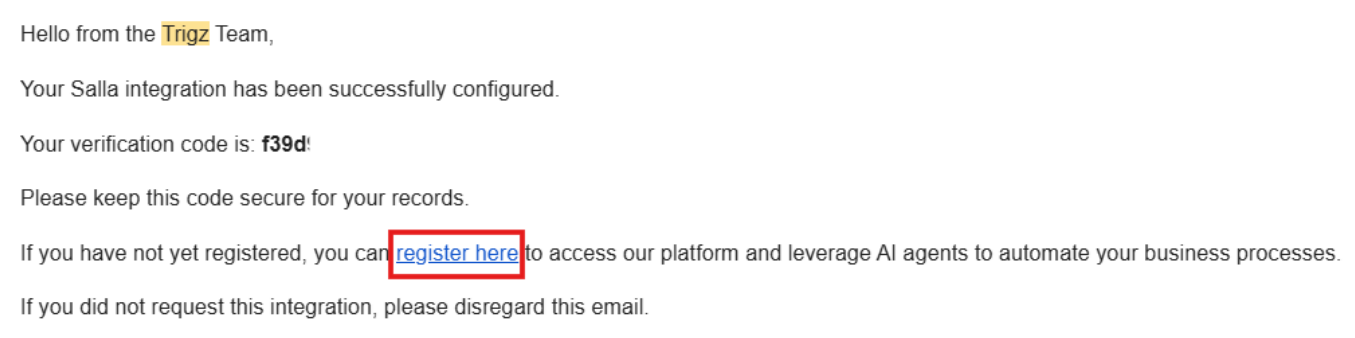
6. Open the email you receive with your login details and click (Register here) to sign in or create an account.
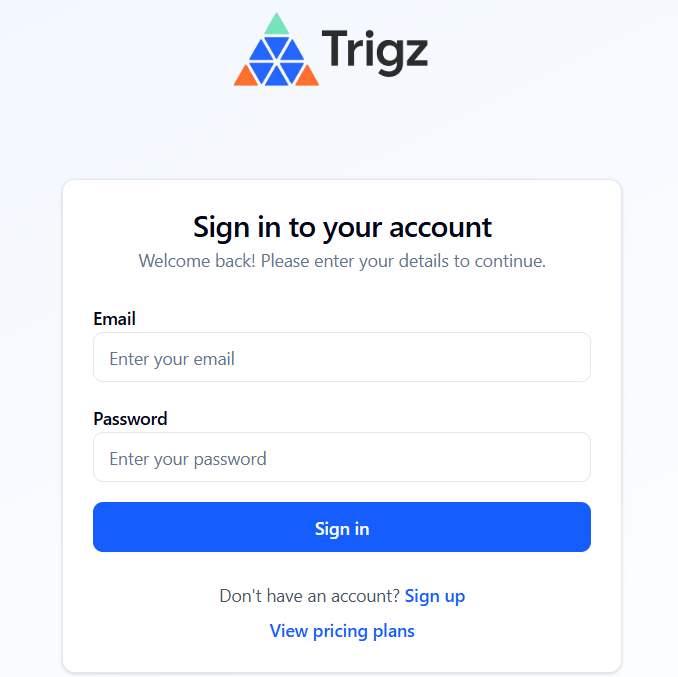
7. Enter your account details to sign in.
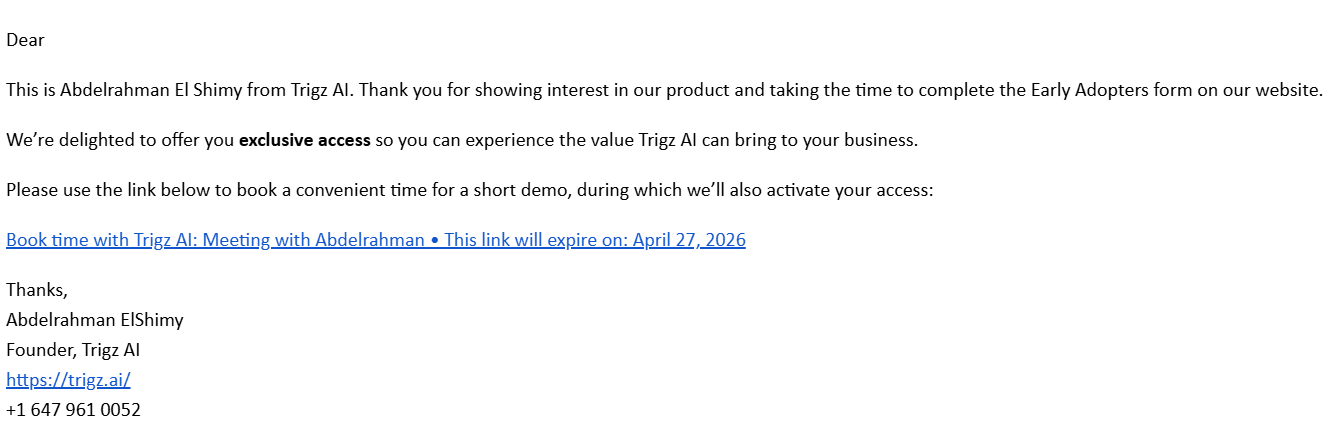
8. Check your inbox again. After you register, Trigz emails you to book a session with their team, who complete the connection with you.
🚀 How to manage the Trigz app
Upgrade your plan
1. From the app details page in your store, click (Upgrade plan).

2. Choose the plan that suits you, then click (Go to payment).

3. Complete your payment details and click (Confirm) to finish the upgrade.

Customize the app
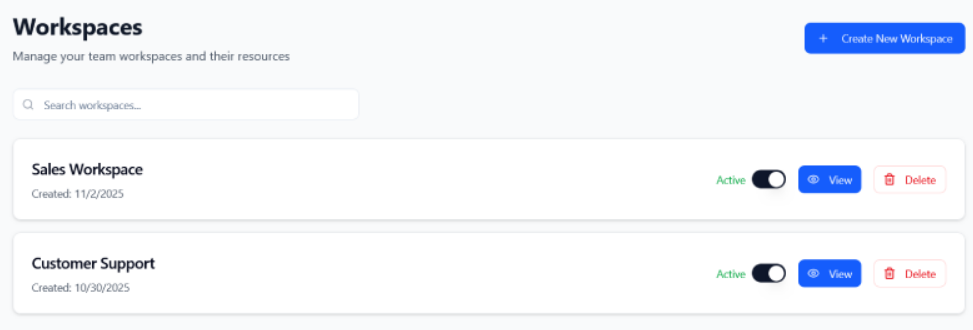
🎯 Manage the agent and its settings from the dashboard on the Trigz website.
Delete the app
1. From the app options menu, click (Cancel subscription) and select a reason for cancelling.

2. From the same menu, click (Delete app) and select a reason for deleting it.

3. Open the deleted apps page, and from the app options menu click (Delete app permanently) to remove it from your store for good.

📝 Important notes
- Installing the app is not the last step. The connection is completed with the Trigz team in the session you book by email.
- Deleting the app is a two-stage process: delete it first, then delete it permanently from the deleted apps page.
❓ Frequently asked questions
What does the Trigz agent use to answer customers?
It answers from your own files and your store content, and its answers update as that content changes.
Do I finish the setup on my own?
No. After you register, Trigz emails you to schedule a session with their team, and the connection is completed there.
Where do I change the agent's settings?
In the Trigz dashboard on the Trigz website, not in your Salla dashboard.
Does cancelling the subscription remove the app?
No. Cancelling stops the subscription. To remove the app you also need to delete it, then delete it permanently from the deleted apps page.
An AI agent on WhatsApp does not replace your team — it answers the repetitive questions instantly so your team can spend its time on the ones that actually need a person.
For more details about Trigz.