Selling in more than one place is good for revenue and hard on your stock count.
The moment the same product sits on two channels, someone has to keep both honest, and that someone is usually you at the end of a long day. The SyncMe app takes that job off your hands by syncing inventory and orders across your sales channels from one dashboard. In this guide, you will learn how to connect SyncMe to your Salla store, set up your account, upgrade your plan, and remove the app if you need to.
SyncMe is a Salla app that keeps inventory, orders, and product listings in sync across multiple sales channels from a single dashboard. It cuts manual data entry and the operational errors that come with it, and gives you one place to manage selling across different platforms instead of updating each one separately.
📌 Article overview
- How to connect the SyncMe app
- How to manage the SyncMe app
- Frequently asked questions
👣 How to connect the SyncMe app
1. From the main menu, click (All), then under helper tools click (App Store).

2. Search for the app using the search field.

3. On the SyncMe app page, click (Install).
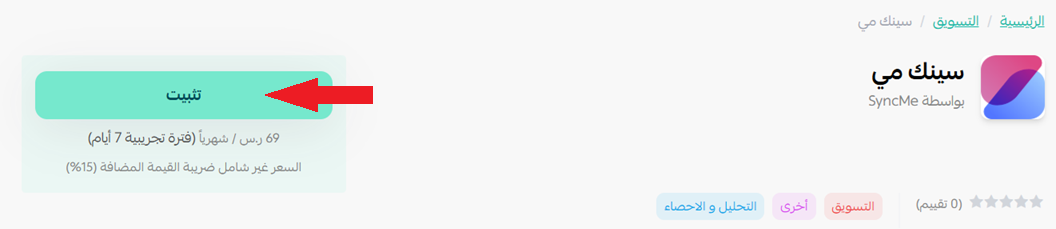
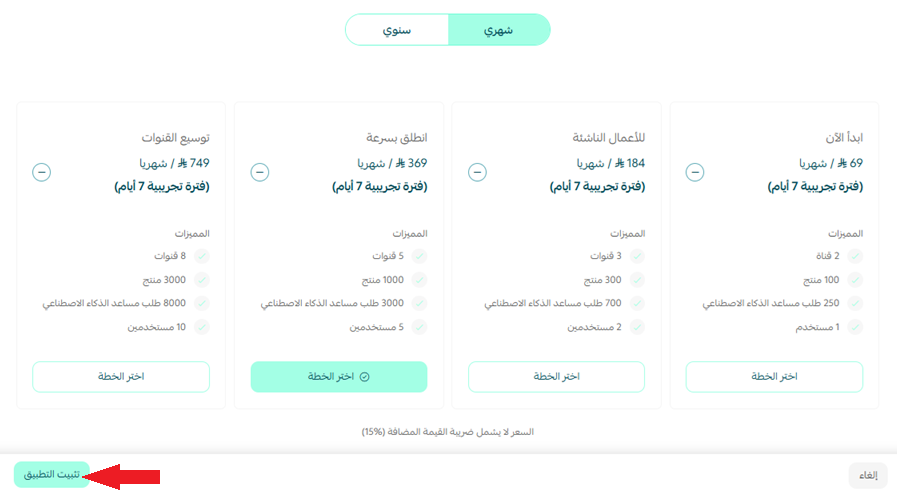
4. Choose the plan that fits you, then click (Install app).
5. Enter the email address that matches your SyncMe account, then click (Save).
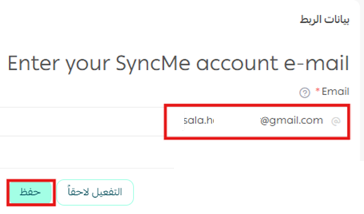
⚠️ Do not have a SyncMe account yet? Enter the email address you plan to use, and create the account with it later.
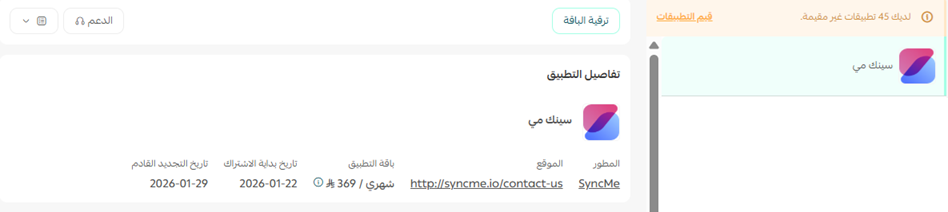
6. The app now appears on your (My apps) page.
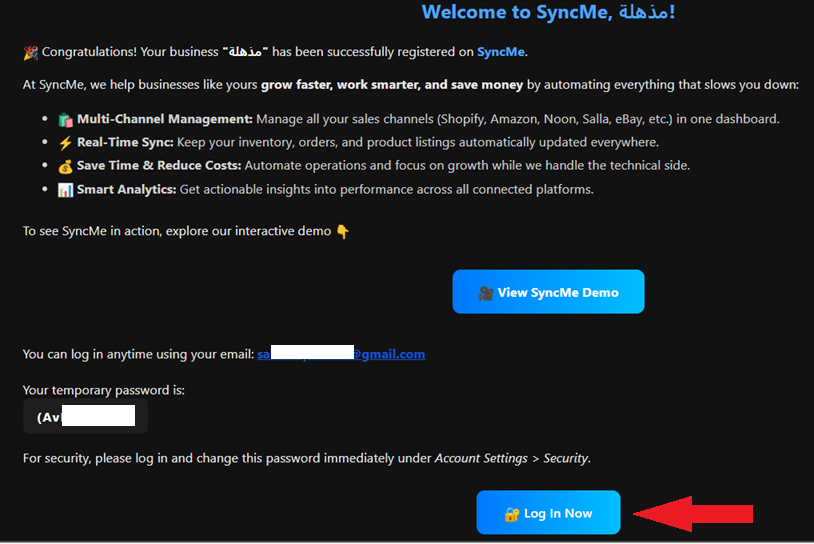
7. Check your inbox for an email with your temporary SyncMe login details. Copy them, then click (Log in Now).
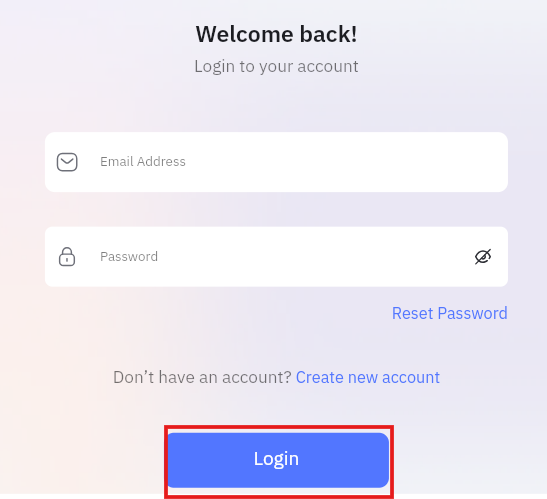
8. Paste the temporary credentials, then click (Login).
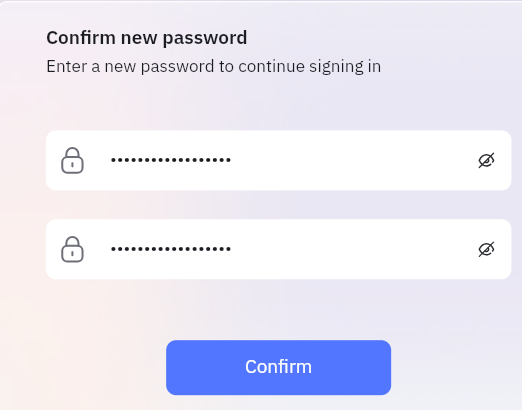
9. Set a new password of your own, then click (Confirm).
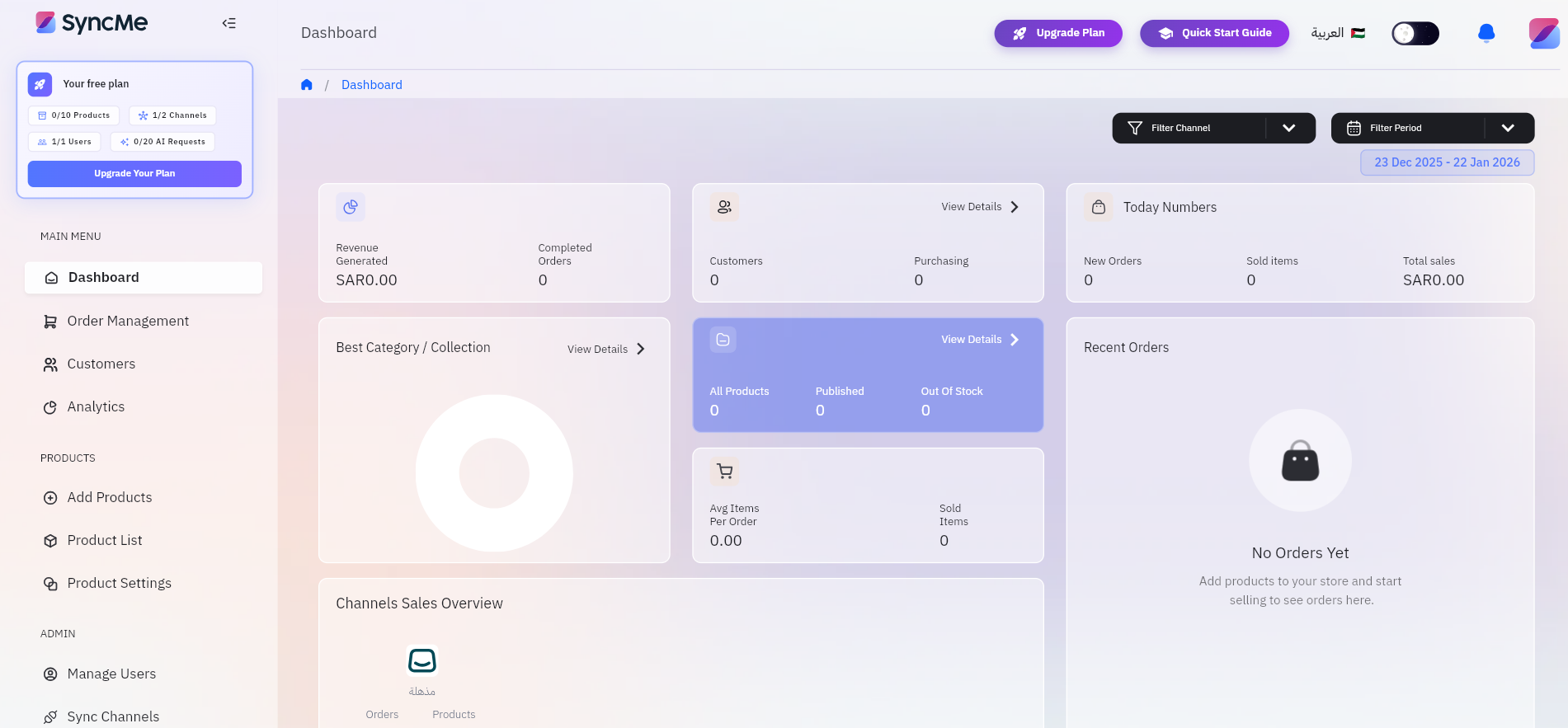
🎉 The SyncMe dashboard opens, and you can manage your products and orders from there.
🚀 How to manage the SyncMe app
Upgrade your plan
1. From the app details page in your store, click (Upgrade plan).

2. Choose the plan you want, then click (Go to payment).

3. Complete your payment details and click (Confirm) to finish the upgrade.

Customize the app
🎯 Track and manage your stock from the SyncMe dashboard.
Delete the app
1. From the app options menu, click (Cancel subscription) and choose a reason.

2. From the same menu, click (Delete app) and choose a reason.

3. Open the Deleted apps page, then from the app options menu click (Delete app permanently) to remove it from your store for good.

📝 Important notes
The temporary credentials in the welcome email are meant to be replaced. Set your own password at step 9 before you start working in the dashboard.
Frequently asked questions
❓ What if I do not have a SyncMe account yet?
Enter any email address you intend to use. You can create your SyncMe account with that address afterwards.
❓ Where do my SyncMe login details come from?
SyncMe emails you temporary credentials once the app is installed. You use them once, then set a password of your own.
❓ Where do I manage stock, in Salla or in SyncMe?
In the SyncMe dashboard. That is where inventory, orders, and product listings across your channels are controlled.
❓ How do I remove SyncMe completely?
Cancel the subscription, delete the app, then open the Deleted apps page and click (Delete app permanently).
Multi-channel selling only pays off when the stock numbers behind it can be trusted. For more details, see the SyncMe app page.