Have you ever wanted to change the color of one element in your store, or restyle it entirely?
Maybe the font that matches your brand is not offered by any of the themes. CSS is how you take control of your store's design and change the look of almost any element on the page. This guide keeps the explanation as simple as it can be: what CSS is, how its code is built, which properties matter first, and clear worked examples. In this guide, you'll learn how to start styling your Salla store with CSS.
CSS, short for Cascading Style Sheets, is the language that controls how a site looks. On Salla you write it from your store design page: open the theme you want, go to (Customize theme), click (Customize with CSS), paste your code, and save. Anything from text color to fonts, spacing, and backgrounds is fair game.
📌 Article overview
- What do I need to change my store design with CSS?
- How do I open the CSS editor?
- How is CSS code built?
- Which properties can I control as a CSS beginner?
- How do I find the name of the element I want to change?
- A worked example
- Which code snippets are used most in Salla stores?
- Frequently asked questions
🎯 What is CSS?
CSS stands for Cascading Style Sheets. It is a design language that makes a site more appealing, and it deals with how the site looks and feels. You use it to control text color, font style, the spacing between paragraphs, background images and colors, how the layout adapts to different devices and screen sizes, and a long list of other effects.
When you think about how your site looks, you are thinking about CSS.
✅ What do I need to change my store design with CSS?
- Permission to access store design.
- A store on the Pro or Special plan.
- A custom domain for your store.
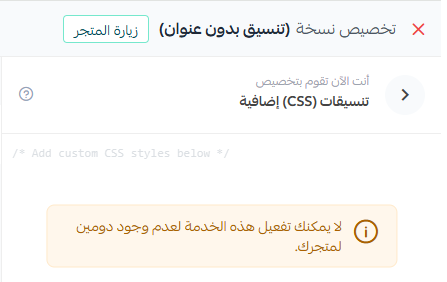
For more details, see managing your Salla store domain.
👣 How do I open the CSS editor?
1. From the side menu of your dashboard, click (Store design).

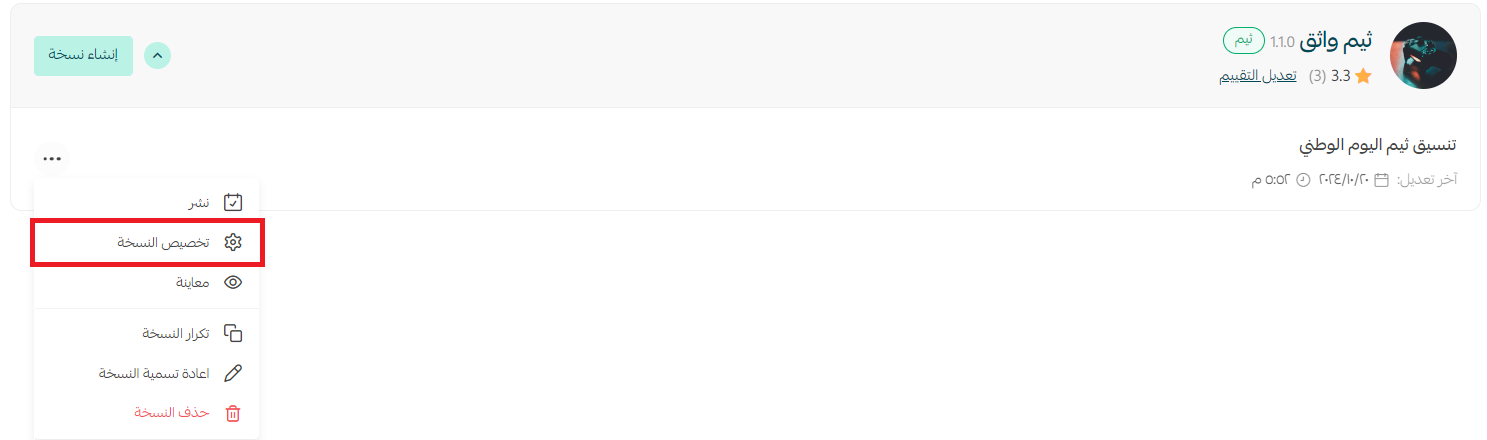
2. On the store design page, find the theme you want to customize, click (...), then click (Customize version).
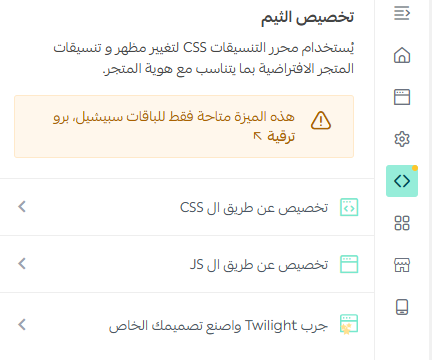
3. On the customize version page, click the (Customize theme) tab, then click (Customize with CSS).
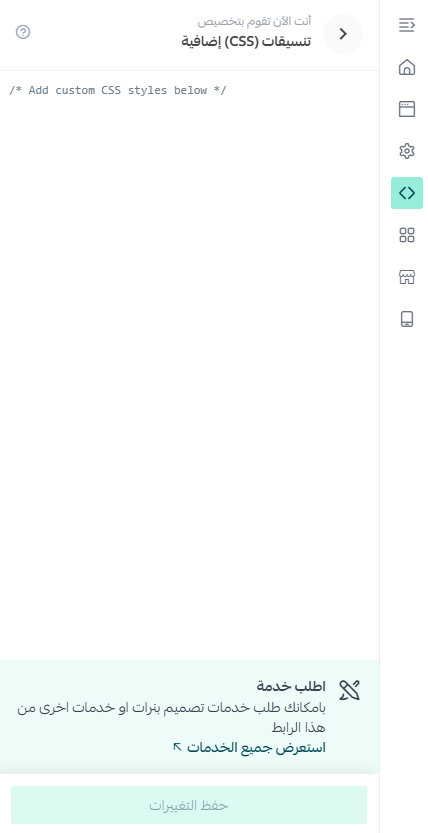
4. Paste or type the CSS you want, then click (Save changes).
Then preview your store to make sure the result is what you wanted.
📝 Important notes
You can copy any of the code snippets in this guide from here.
🧩 How is CSS code built?

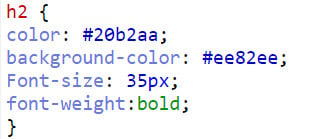
Selector — the element, or group of elements, you want to style.
Property — the property you want to change.
Value — the value you want to give that property.
📝 Important notes
You can write the code in the structure above or as a single line. As a beginner, write it out in full with each declaration on its own line — it is far easier to spot mistakes and to adjust properties later.
💡 Example:

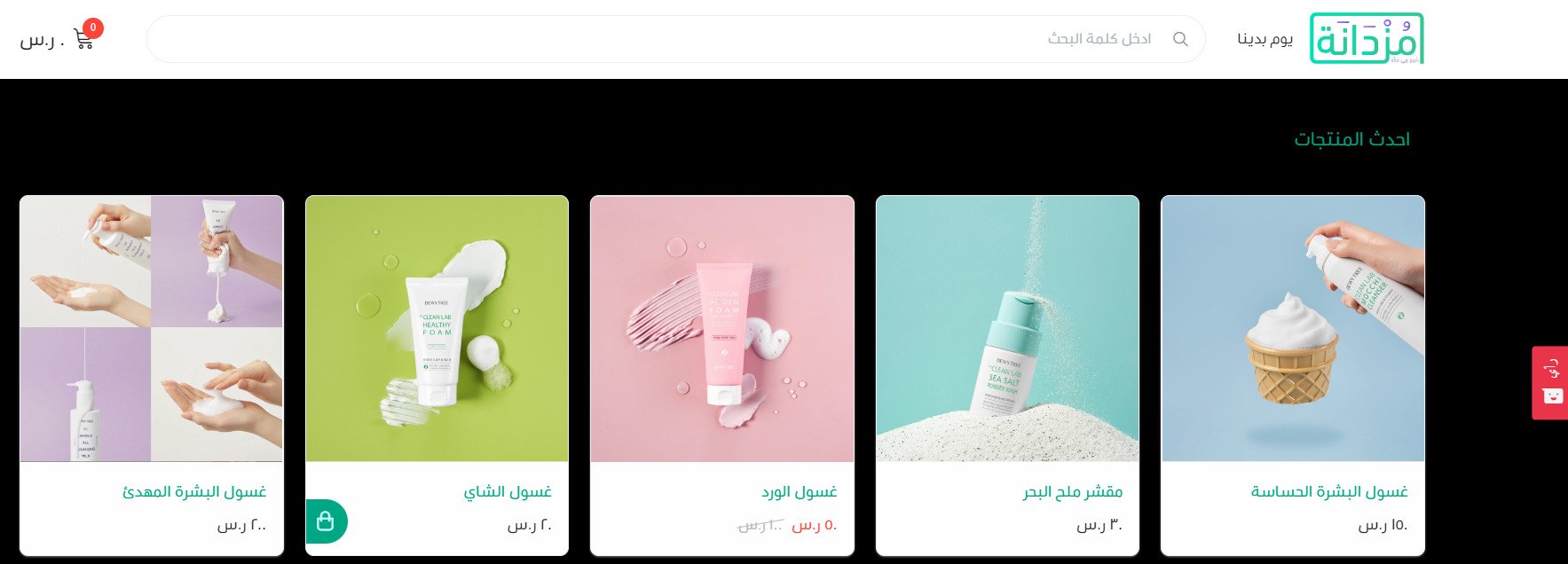
This is CSS that changes the store background to black. Click here to copy the code.
Before the code is applied:

After the code is added:
🎨 Which properties can I control as a CSS beginner?
There is a long list, and these are the ones worth starting with.
Colors
- color — the color.
- opacity — the degree of transparency.
Backgrounds
- background — the background color.
- background-color — sets the background color of an element.
- box-shadow — adds a shadow to an element.
Borders
- border — a shorthand property that sets the values controlling an element's border all at once: border-color, border-style, and border-width.
- border-bottom-color — sets the color of the element's bottom border.
- border-bottom-width — sets the width of the element's bottom border.
Rounded corners
- border-bottom-left-radius — rounds the bottom-left corner of the element.
- border-bottom-right-radius — rounds the bottom-right corner of the element.
- border-top-left-radius — rounds the top-left corner of the element.
- border-top-right-radius — rounds the top-right corner of the element.
Fonts
- font — a shorthand property that sets values such as font-style and font-size together.
- font-family — sets a list of one or more specific or generic font families to apply to the element.
For more properties, see the CSS reference on Hsoub Academy.
🔍 How do I find the name of the element I want to change?
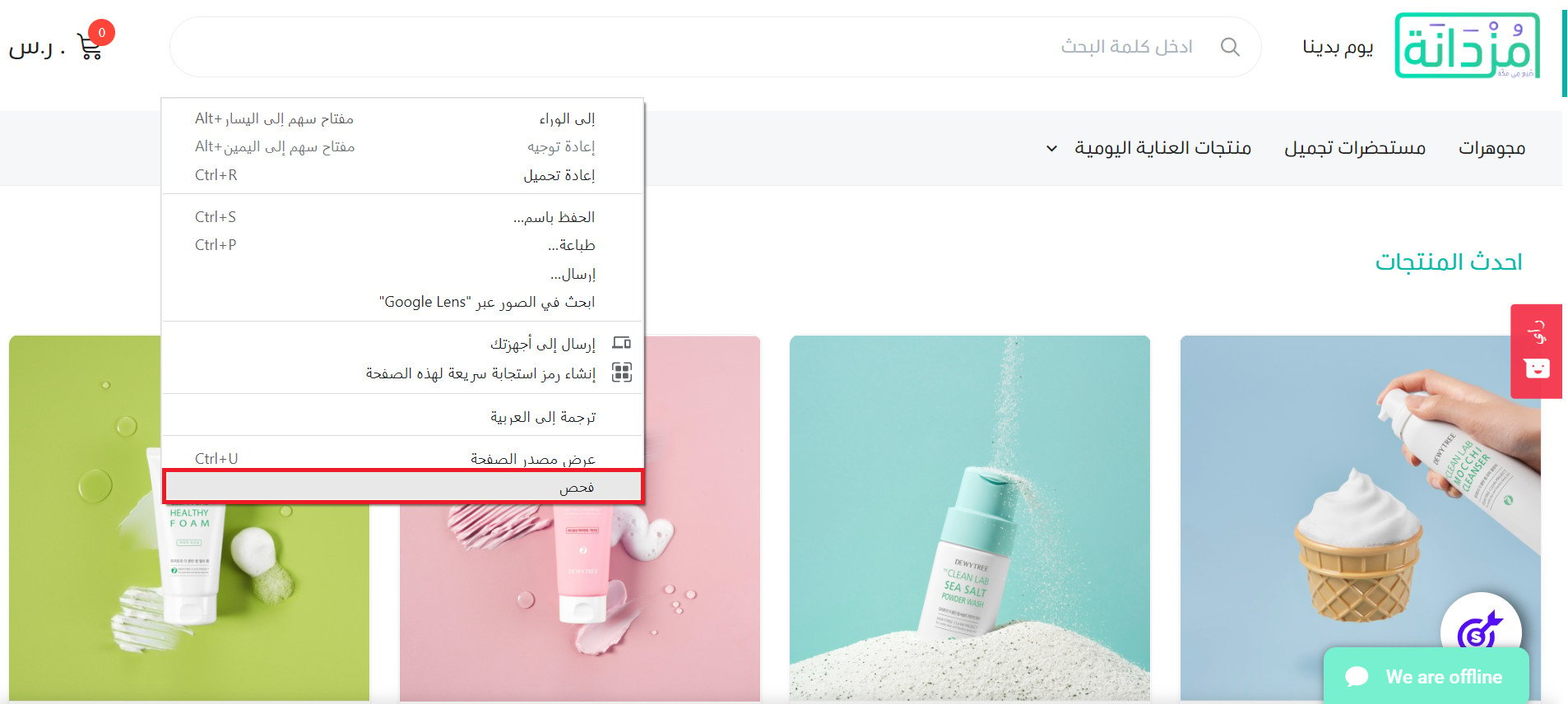
1. From your store dashboard, click (Visit store), then right-click anywhere in the store and choose (Inspect) from the menu.
2. In the inspector, click (Select an element).
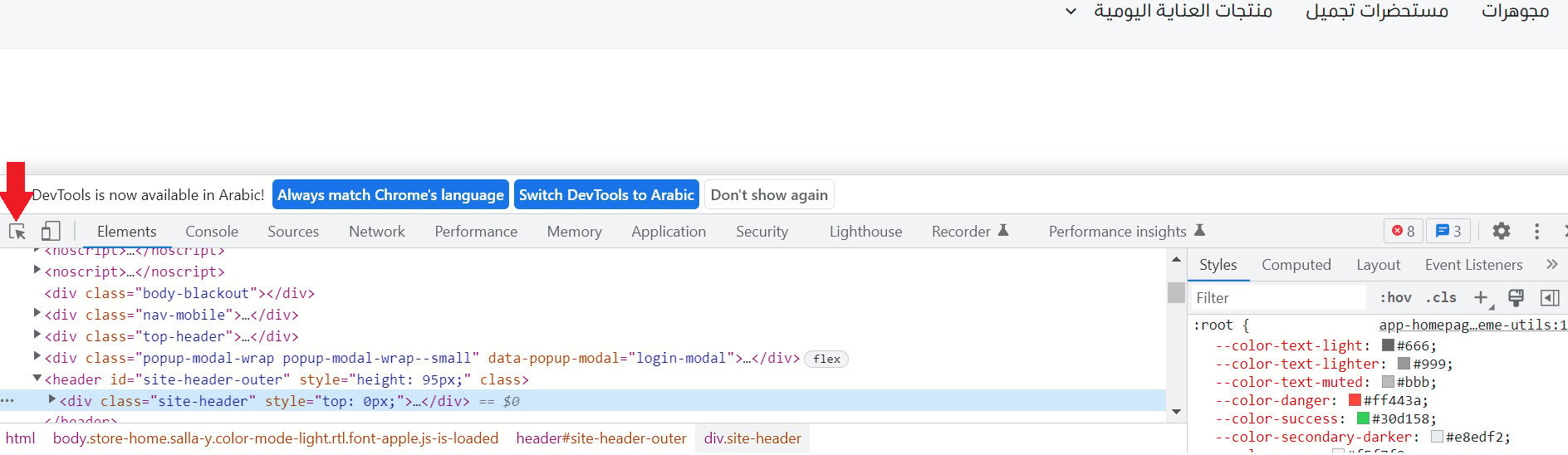
3. Hover over the element you want to restyle, and the properties you can change appear.
💡 Example: hovering over the main menu bar shows that you can change its color and the size and style of its font.

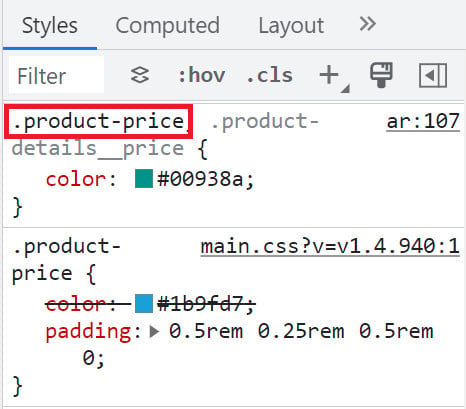
4. Click the element you want to change — say the product price — then open the (Styles) tab.
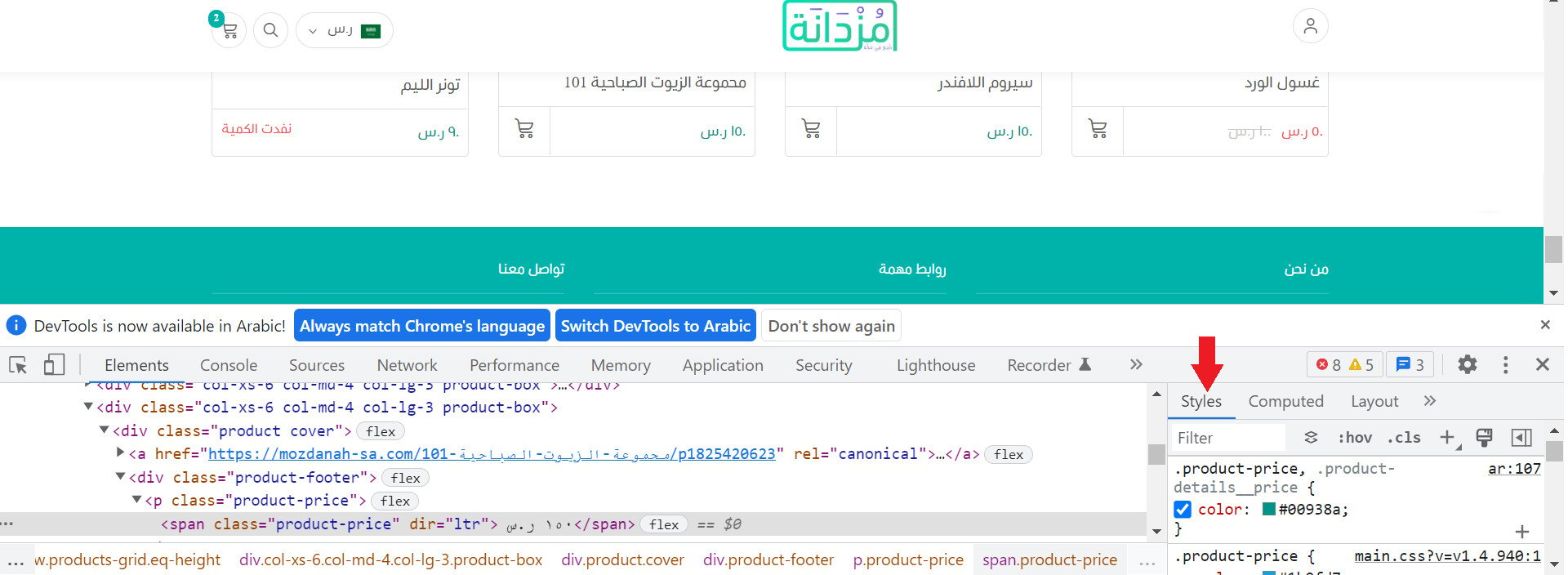
The element name appears along with the properties you can change and their current values.
👣 A worked example
Here are two examples in full: changing the product price color, and changing the cart icon.
Example 1: change the product price color
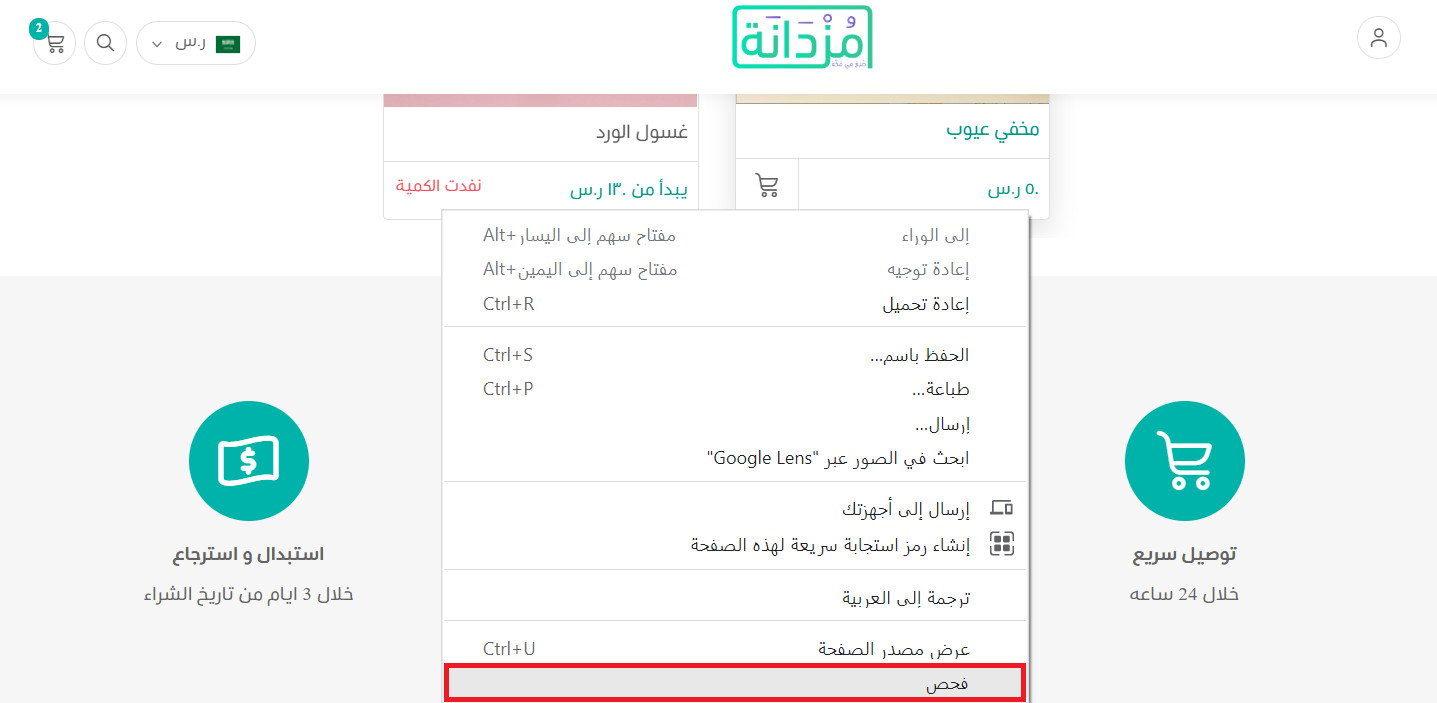
1. On your store page, right-click the product price and choose (Inspect) from the menu.
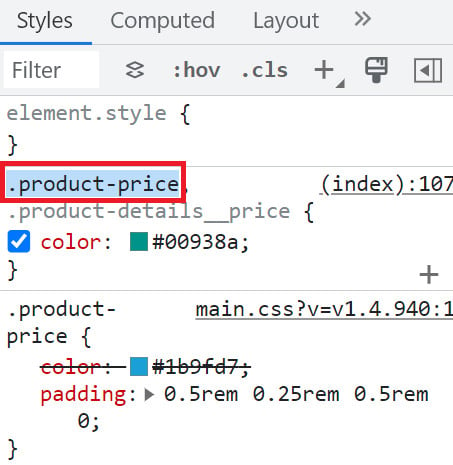
2. In the (Styles) tab, copy the element name — in this example, .product-price.
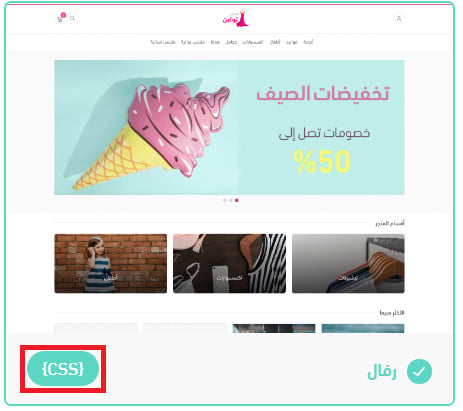
3. From your store dashboard, open your theme and click (CSS).
4. Paste the element name you copied in step 2, add a pair of braces {}, and inside them write the property you want to change, a colon, and the value.
Click here to copy the code.
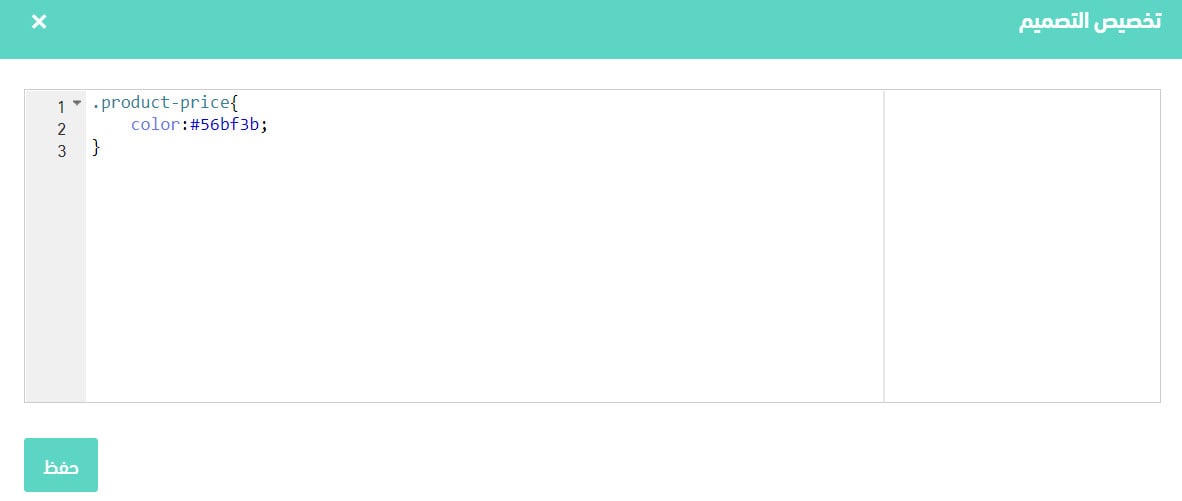
For more on color codes, see the frequently asked questions below.
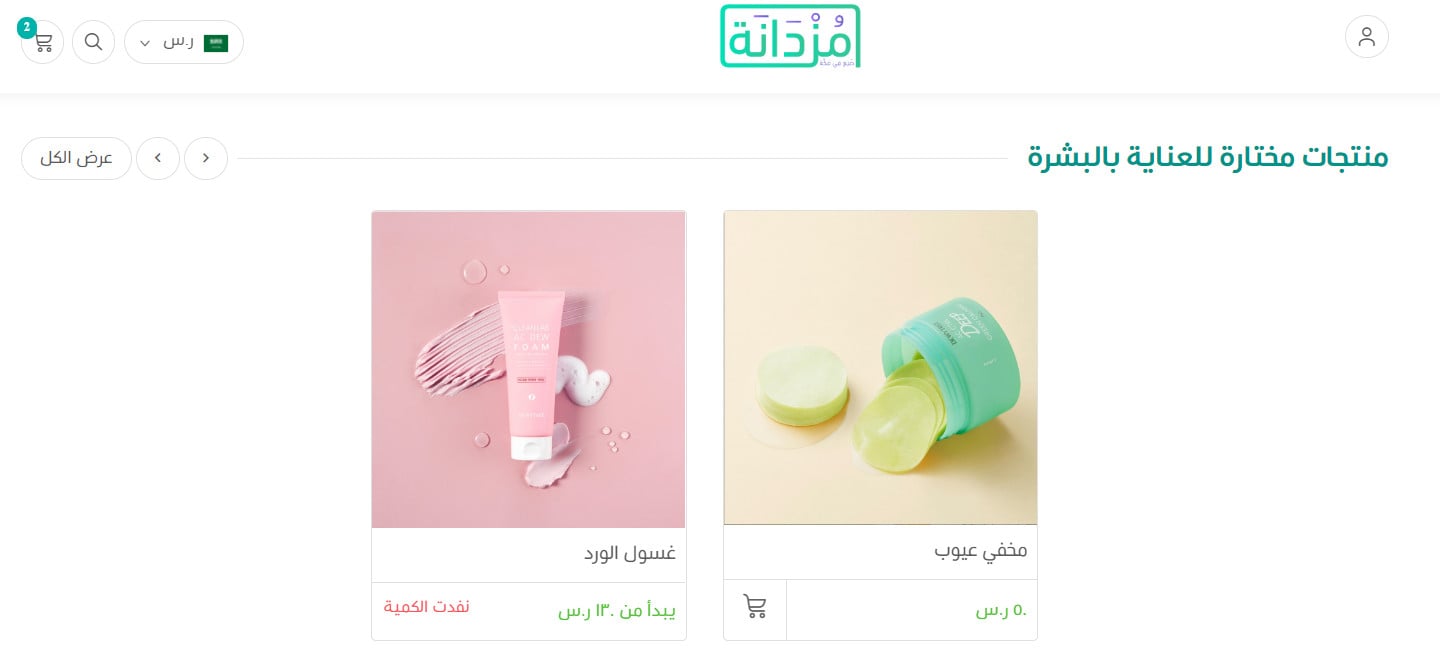
5. Click (Save), then preview your store and check that the price has changed to the color you wanted.
Example 2: change the cart icon
1. On your store page, right-click the cart icon and choose (Inspect) from the menu. [Verify: the Arabic step says to right-click the product price, which appears to be copied from example 1.]
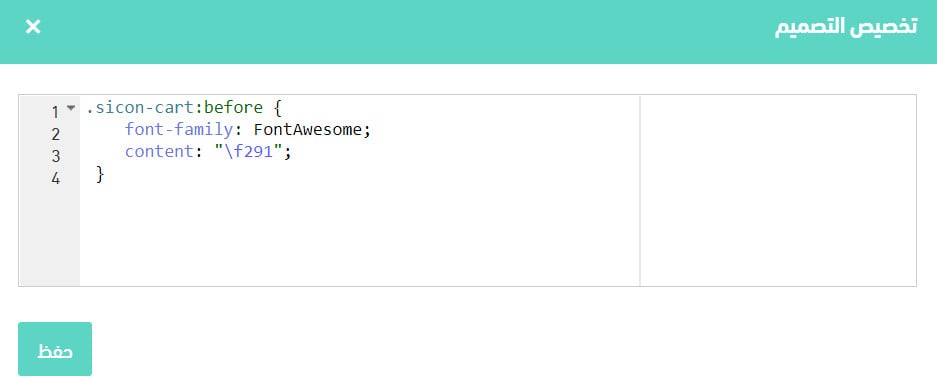
2. In the (Styles) tab, copy the element name — in this example, .sicon-cart:before.

3. From your store dashboard, click (Store design), then click (CSS) for your theme. Paste the element name, add a pair of braces {}, and inside them write the property you want to change, a colon, and the value.
Click here to copy the code.
📝 Important notes
Add (font-family: FontAwesome;) so the style engine knows the icon code comes from FontAwesome.
For more on how to get icon codes, see the frequently asked questions below.
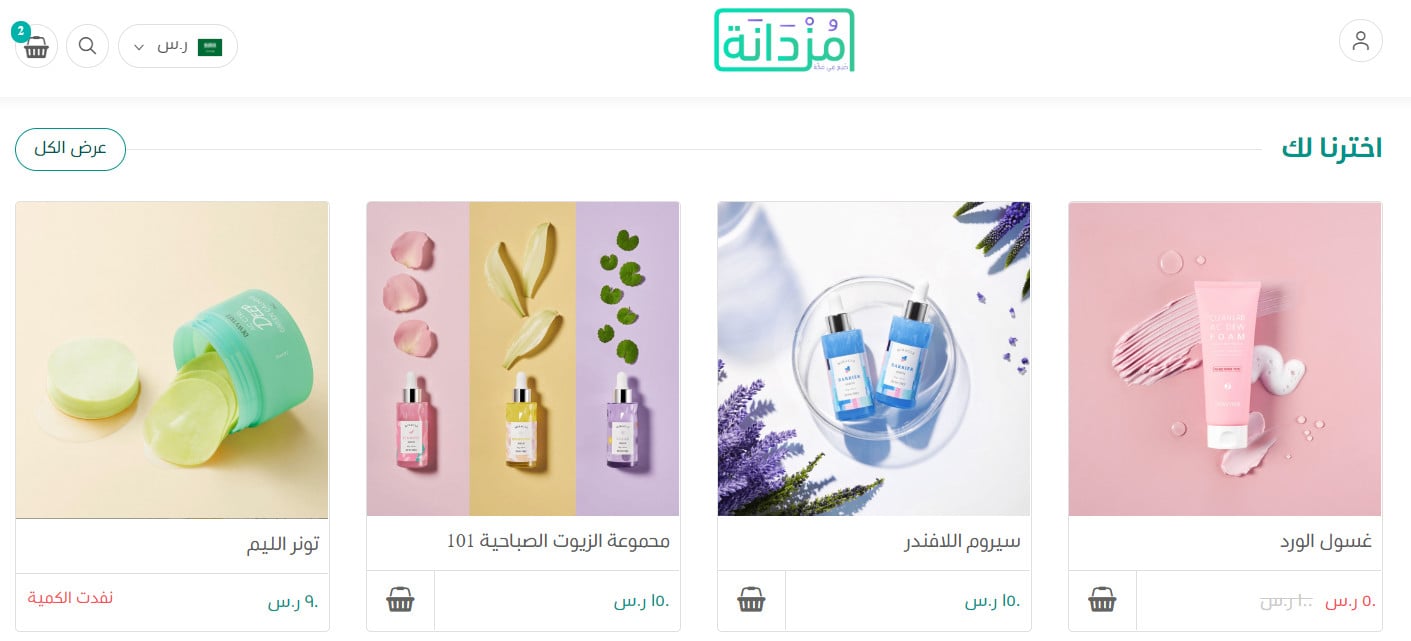
4. Click (Save), then preview your store and check that the icon has changed.
🚀 Which code snippets are used most in Salla stores?
The code merchants use to restyle a Salla store falls into three groups.
1. The header
Logo size
To control the size of your logo, use this code. Click here to copy it.

Set the logo height to whatever suits your store. In this example the height is 100 points, and this is how it looks in the store:

Background color

Icons
Click here to copy the code.
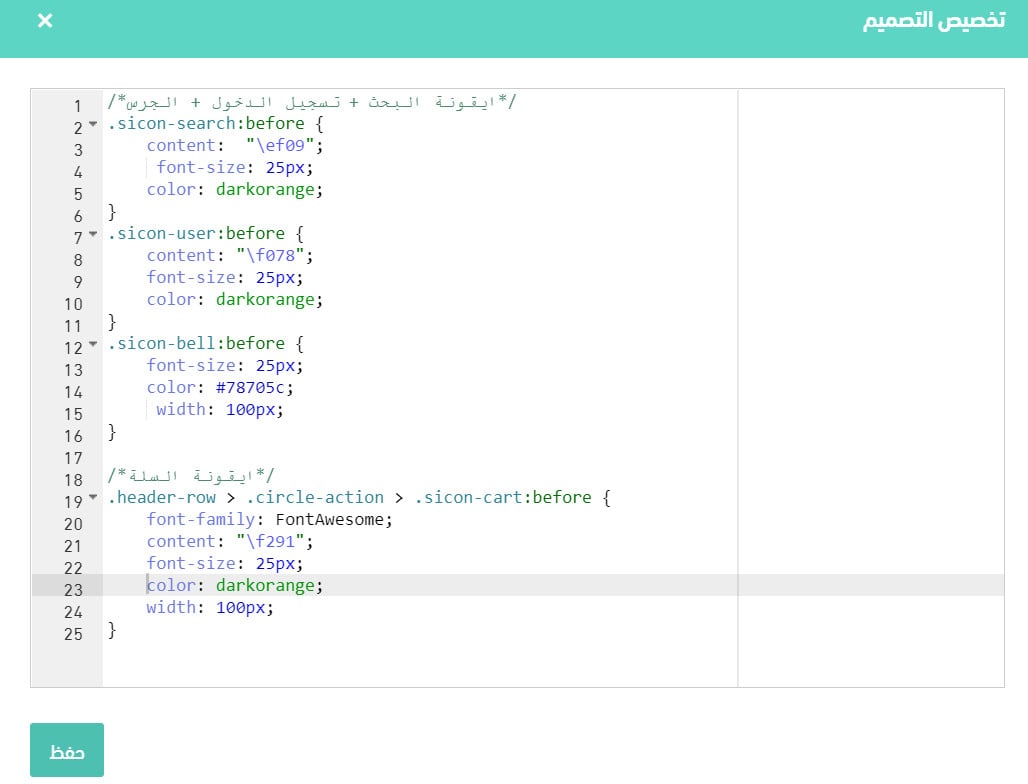
The icons and the cart icon then look like this:

For more icon codes, see the frequently asked questions below.
2. The nav section
Font size
There are many elements on a store page, so try them one at a time. Click here to copy the code.

Restyle the (Add to cart) button
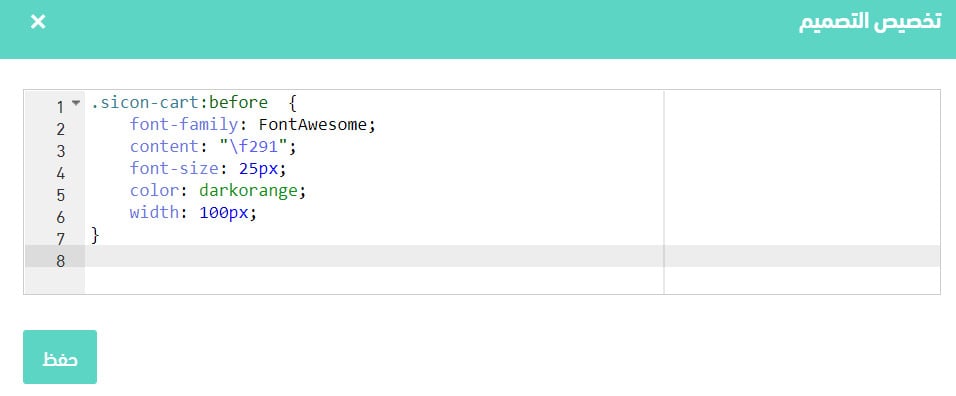
Click here to copy the code.
The result looks like this:

Store features
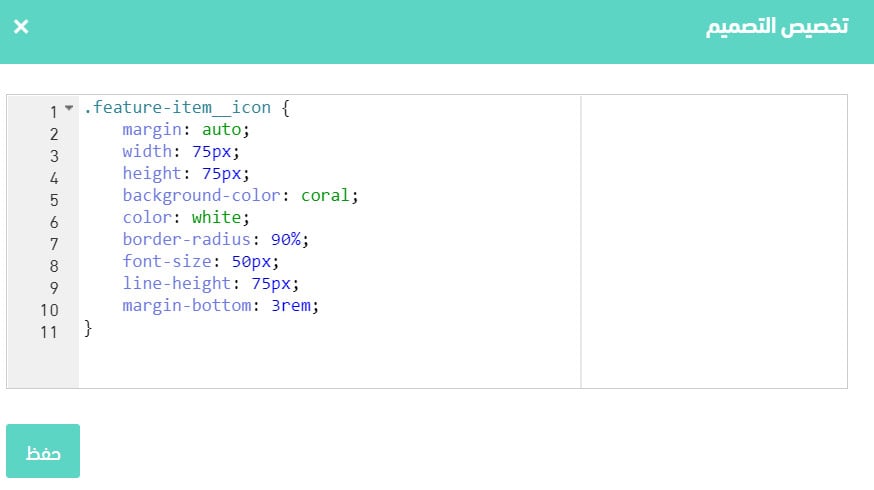
Click here to copy the code.
Your store features then appear like this:

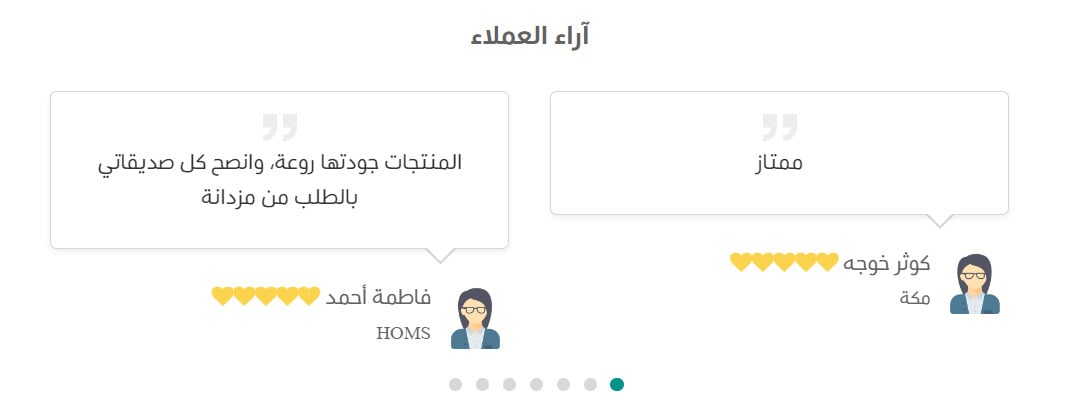
The star shape in store and product ratings
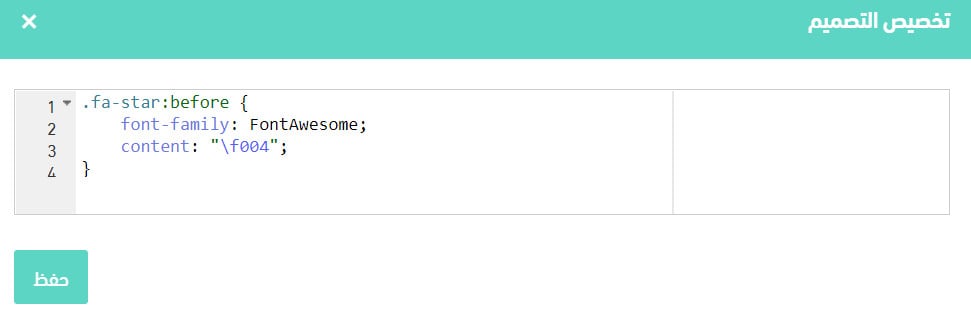
Click here to copy the code.
The rating then looks like this:
3. The footer
Font and colors

Click here to copy the code.
The result looks like this:

Bottom bar color
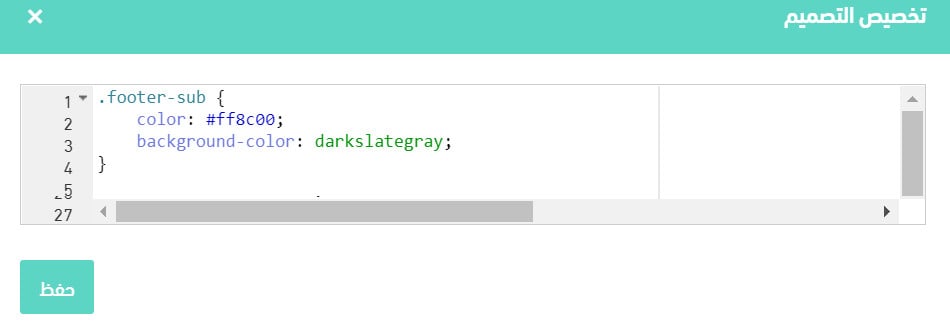
Click here to copy the code.
The bottom bar then looks like this:

You can copy any of the snippets above from here.
❓ Frequently asked questions
These are the questions merchants ask most:
- What are the advantages and benefits of CSS?
- Can I add notes to myself in the code?
- Which color values can I use?
- What are the reserved words for icons and symbols?
- Can you show examples of Salla stores that use CSS well?
- What are the drawbacks of CSS?
- How do I find the properties of an element in a store whose design I like?
What are the advantages and benefits of CSS?
1. Faster page loading, because it uses less code.
2. A better user experience, because the page layout is clear and easy to use.
3. Styling is easy to change.
4. Faster development time — you write the CSS rules once and they apply across every page.
5. A store design that is responsive on every device.
Can I add notes to myself in the code?
Yes. Write your notes inside these markers: /* */

📝 Important notes
Every declaration line must end with a semicolon (;).
Which color values can I use?
Color name |
Hex code |
Preview |
black |
#000000 |
|
silver |
#c0c0c0 |
|
gray |
#808080 |
|
white |
#ffffff |
|
maroon |
#800000 |
|
red |
#ff0000 |
|
purple |
#800080 |
|
fuchsia |
#ff00ff |
|
green |
#008000 |
|
lime |
#00ff00 |
|
yellow |
#ffff00 |
|
navy |
#000080 |
|
blue |
#0000ff |
|
teal |
#008080 |
|
orange |
#ffa500 |
|
aliceblue |
#f0f8ff |
|
antiquewhite |
#faebd7 |
|
aquamarine |
#7fffd4 |
|
bisque |
#ffe4c4 |
|
cadetblue |
#5f9ea0 |
|
coral |
#ff7f50 |
|
crimson |
#dc143c |
|
darkcyan |
#008b8b |
|
darkkhaki |
#bdb76b |
|
darkorange |
#ff8c00 |
|
darkslategrey |
#2f4f4f |
|
darkturquoise |
#00ced1 |
|
deeppink |
#ff1493 |
|
gold |
#ffd700 |
|
khaki |
#f0e68c |
|
palevioletred |
#db7093 |
|
whitesmoke |
#f5f5f5 |
For more details, see the reserved keywords for color codes.
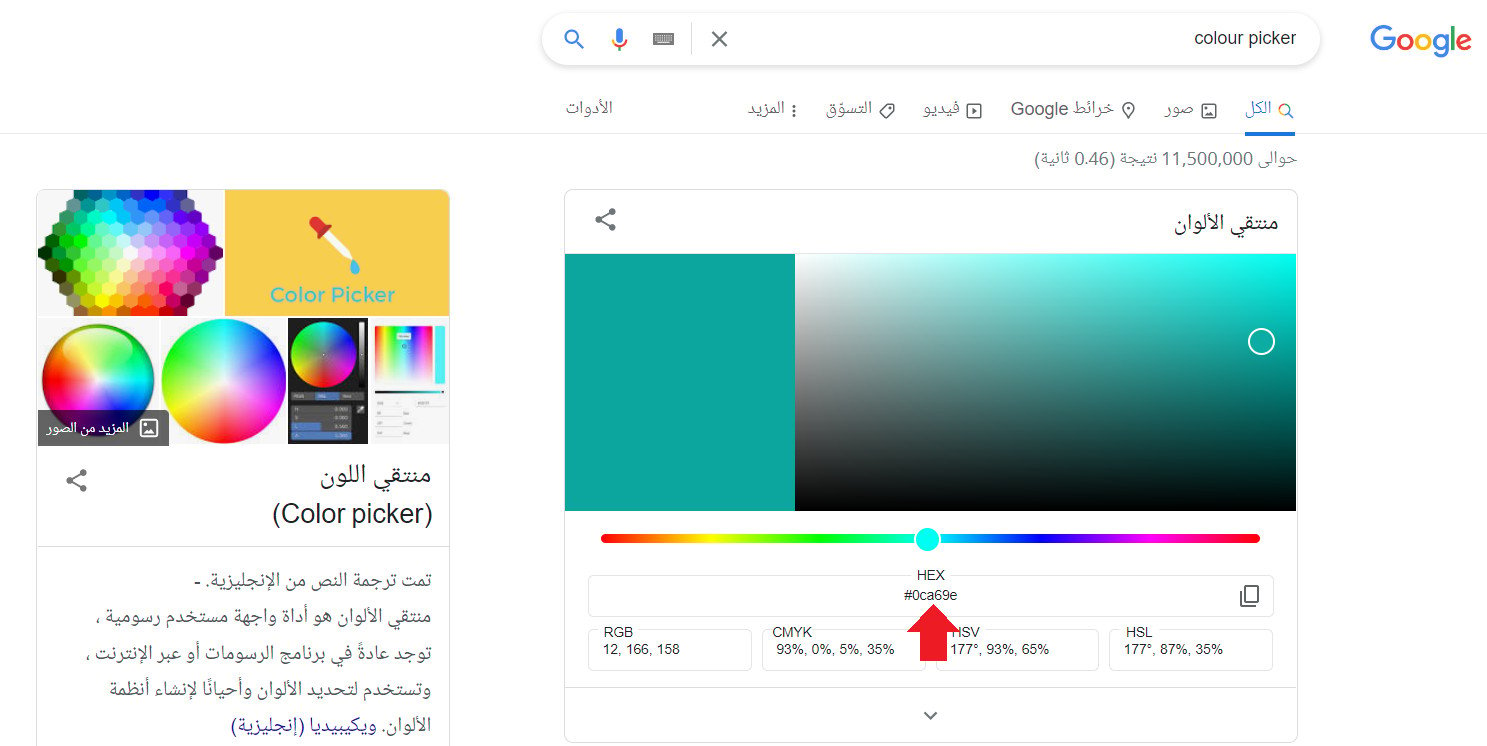
Or search your browser for a "colour picker", choose the shade you want, and copy its color code.
What are the reserved words for icons and symbols?
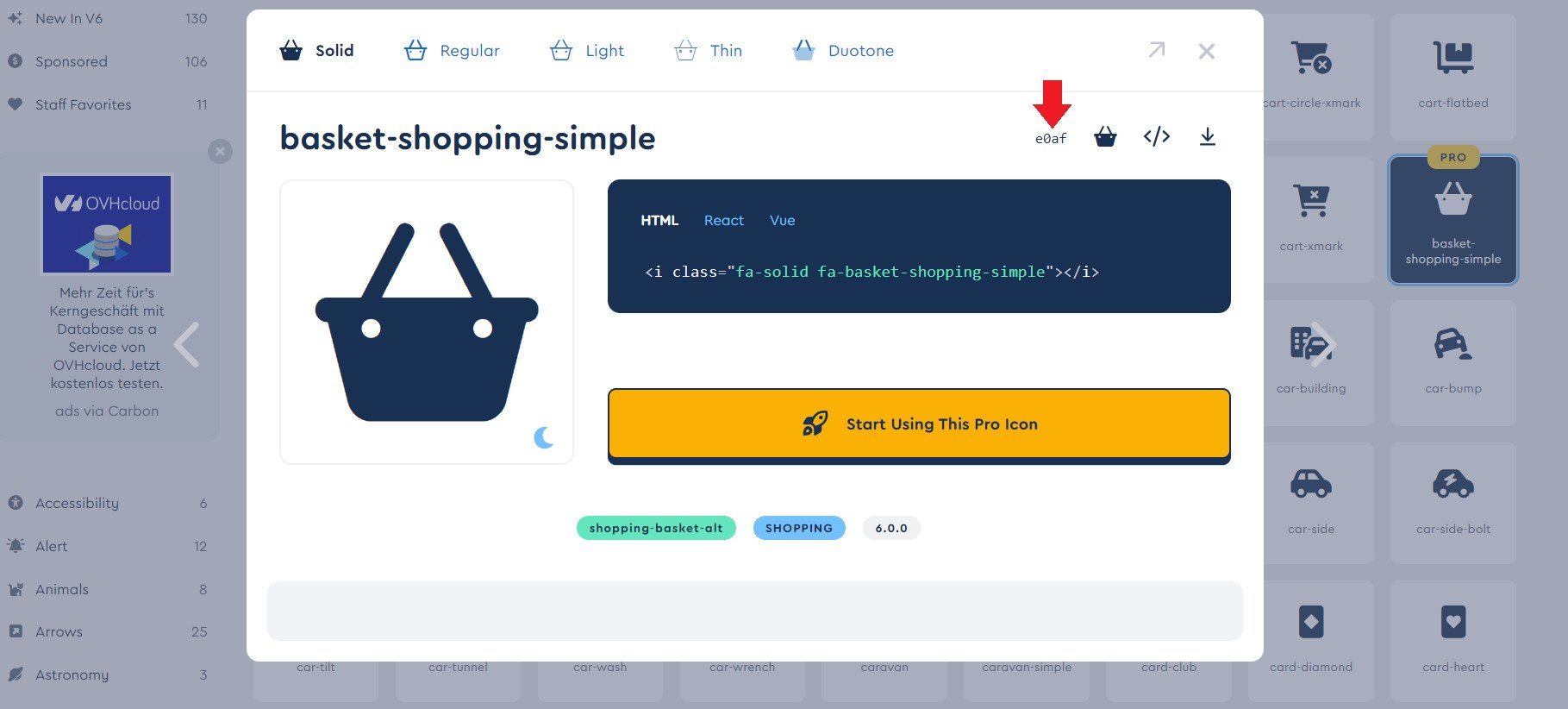
Several sites give you icon codes, among them Font Awesome.
Can you show examples of Salla stores that use CSS well?
There are many. A few to look at:
1. Mhatat
2. Zyros
What are the drawbacks of CSS?
You need to test compatibility and run your store across several browsers. What works in one browser does not always work in another.
How do I find the properties of an element in a store whose design I like?
On that store's page, right-click the element and choose (Inspect) from the menu. Look at the properties you can change, then apply them to your own store.