Thinking about selling in more than one language, but not sure what it costs or how much work it is?
Adding store languages on Salla is one of the fastest ways to reach shoppers who don't read Arabic, and most of the questions merchants ask are about the same handful of things: what it costs, how the two translation methods differ, how to make a new language visible to customers, and how translation credit is counted. In this guide, you'll learn the answers to all of them.
The languages feature is free, and you can turn it on once your store uses a theme that supports it. You can translate your store two ways: instant translation, a paid automatic service, or manual translation, which is free. Translation credit is one million characters shared across every language, tracked in the translation log.
📌 Article overview
- Translation options and what they cost
- Adding a language and showing it to customers
- Tracking what has been translated
- Translation credit, billing, and refunds
- Themes and the store app
🎯 Translation options and what they cost
❓ Is the languages feature free?
Yes. The languages feature is free, and you can turn it on as soon as your store uses a theme that supports it — Nomow or Raed.
From there, you choose between the two translation methods Salla offers, or combine them:
- Instant translation, an automatic translation service charged at a small fee.
- Manual translation, completely free.
❓ What translation options does Salla offer my store?
You have two, and you can use either one or both.
1. Instant translation.
Turn instant translation on and your whole store is translated automatically at the click of a button.

For more details on translating your store with instant translation.
2. Manual translation.
Manual translation lets you control the wording of any text or section yourself, so your store keeps its own voice.
One of your store staff, or an outside party you contract with, can translate your store content by hand through a dedicated text editor.

For more details on manual translation using the text editor.
❓ Can I combine automatic and manual translation?
Yes. A common approach is to start with instant translation to get the bulk of the work done, then turn instant translation off and polish the wording by hand for a more professional finish.
Important note: if you don't turn instant translation off, it stays active and can overwrite what you translated manually. Disable instant translation before you start working by hand.
🚀 Adding a language and showing it to customers
❓ Why does a language appear disabled after I add it?
So you can choose the translation method — instant or manual — and get your store ready in the new language before customers ever see it.
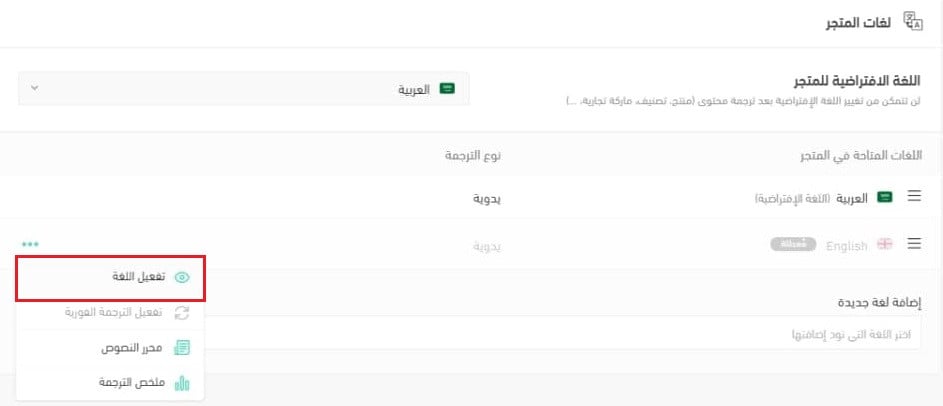
❓ How do I make a language visible to my customers?
To activate a disabled language and show it to customers, click (...) next to the disabled language, then click (Activate language).
🔍 Tracking what has been translated
❓ How do I see how much of my store has been translated?
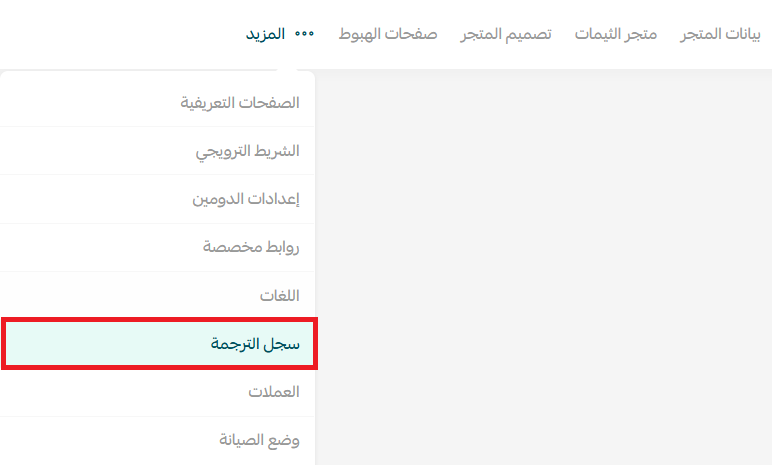
From the store page, click (More), then click (Translation log).
The translation log shows your current, used, and remaining credit, along with which part of the store each deduction came from.
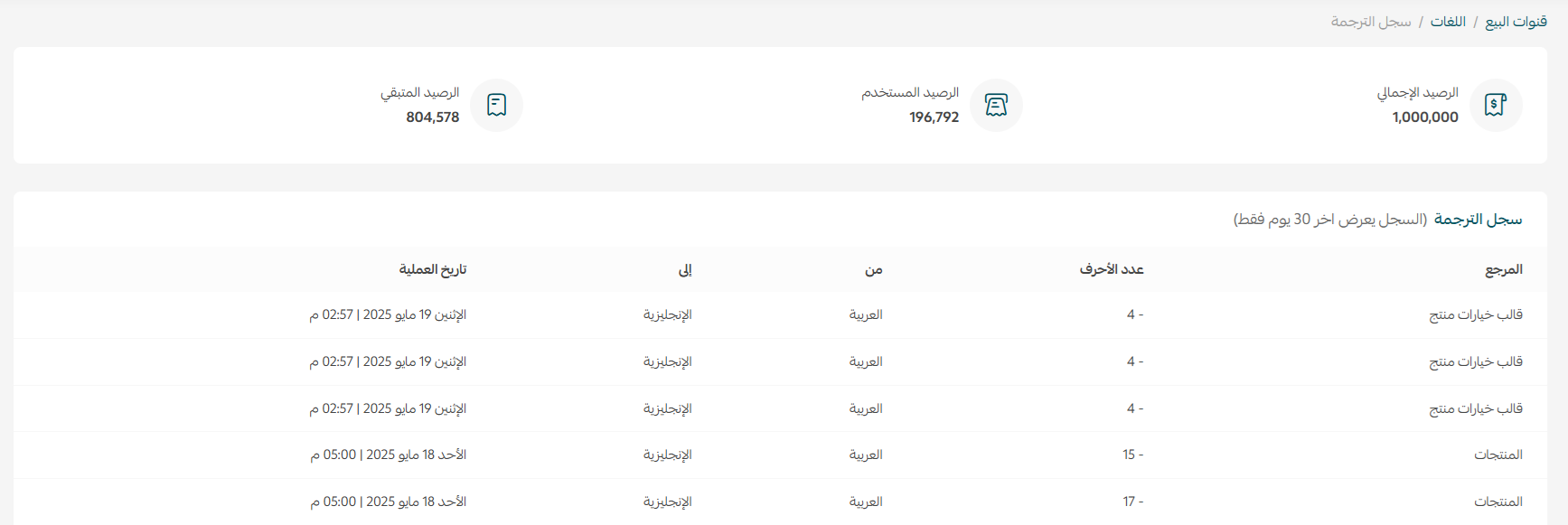
Note: the character count column shows how many characters were deducted from your translation credit for that entry.
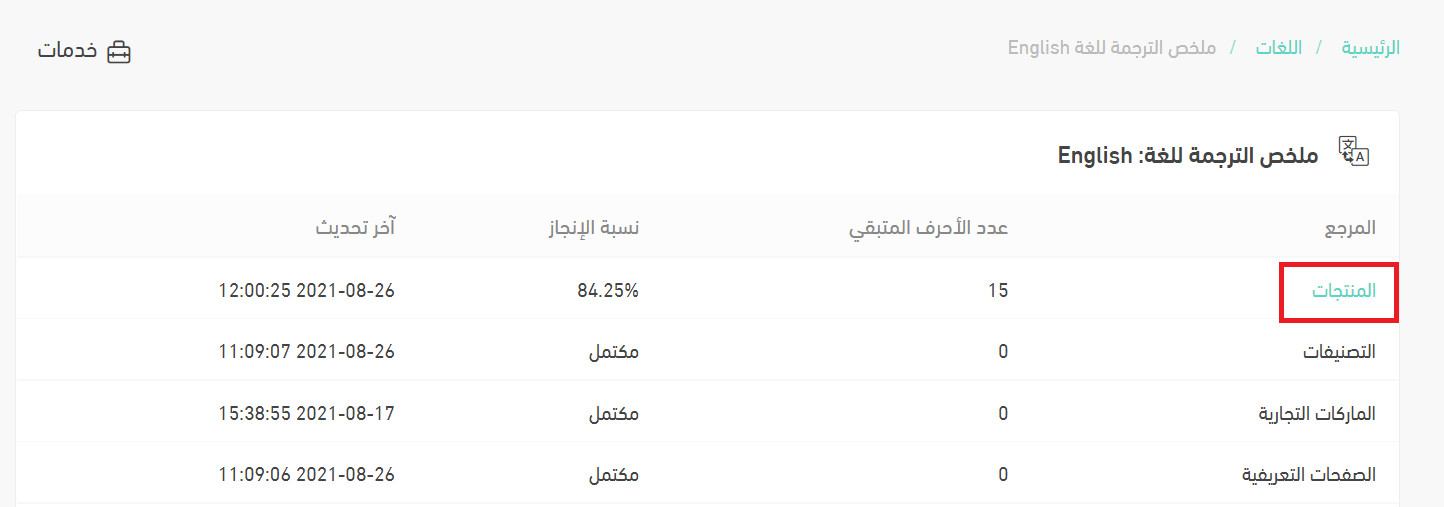
❓ How do I confirm my store is fully translated?
Open the translation summary for the language you want to check.
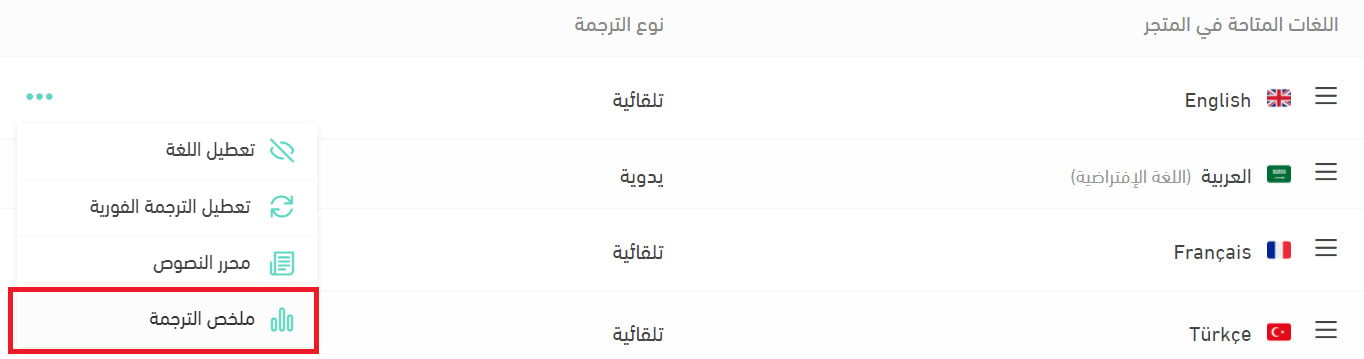
It shows a completion percentage for every part of your store. To finish a section that isn't complete, click the section name — for example, click (Products) to finish translating them.
💳 Translation credit, billing, and refunds
❓ Do I have to top up credit for each language separately?
No. Translation credit is topped up as one million characters and used across all languages once instant translation is on. Translated characters are deducted from that balance automatically.
❓ Does used translation credit show up in wallet reports and invoices?
No. Used translation credit appears only in the translation log. The one-million-character top-up itself is the only part that shows in your wallet and invoices.
❓ Can I get a refund if I change my mind?
No. Translation credit cannot be refunded, either after you top it up or after you use it.
📱 Themes and the store app
❓ Can I use multiple languages on themes other than Nomow?
Not on every theme. Nomow and Raed are currently the only two themes that support languages; the other 6 themes do not.
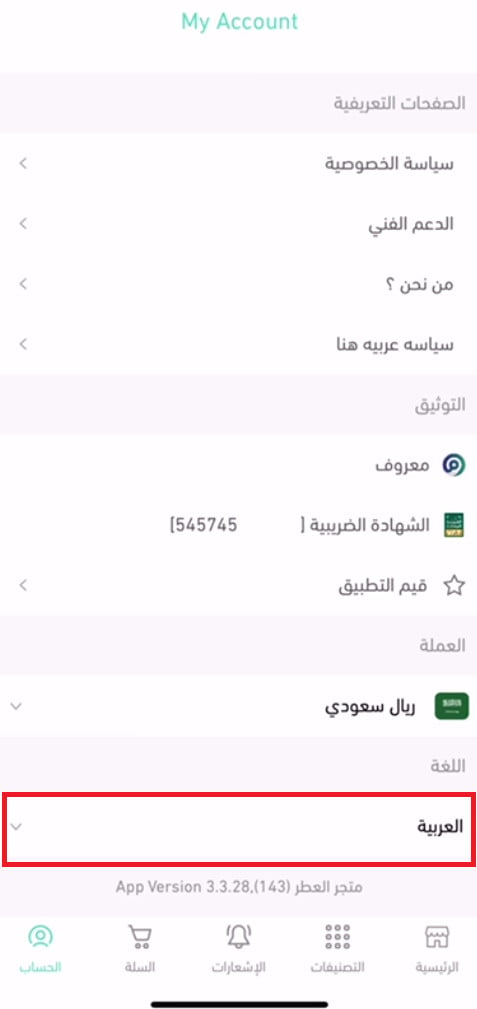
❓ How can a customer browse the app in their preferred language?
Customers can now browse your app in the language they prefer.
The customer changes the app language from the account page, then picks the language they want from the list of languages available in your store.
Conditions for the feature to appear:
1. The app is updated to the latest version.
2. The languages feature is enabled in your store and your store content is translated. For more details on enabling multiple languages in your store.
3. The translation is entered manually in the app builder design. For more details on how to enter content in different languages.
📝 Important notes
Turn instant translation off before you begin manual edits, or automatic translation may overwrite your work.
Translation credit is shared across languages and is not refundable, so check your translation summary before topping up again.
Multiple languages pay off when the translation reads well, not just when it exists. Use instant translation to cover ground quickly, then spend your manual effort on the pages that sell — products, checkout, and policies.