Your store’s success starts with a strong visual identity. Every color, font, and logo shapes your customer’s experience and forms their first impression. In this guide, we walk you step by step through how to easily customize your store identity from the Store Design section.
📌 Article overview
- Store identity customization
- Adding a store logo
- Customizing store colors
- Customizing store fonts
- Customizing social media channels
- Uploading a business certificate
- Customizing customer support channels
- Displaying the verification number in the store footer
🚀 Store Identity Customization
You can customize the appearance of your store’s homepage to match your brand needs by following these steps:
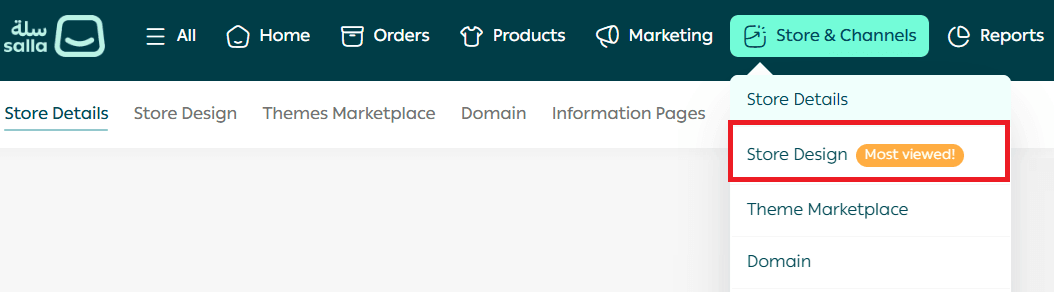
- From the main menu, go to Store & Channels, then click Store Design.
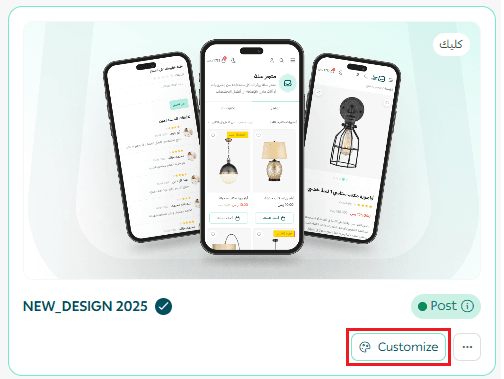
2. From the Store Design page, click Customize Version to edit your theme version.
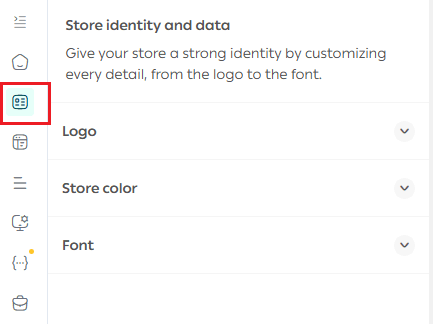
3. Open the Store Identity tab.
🖼️ Store Logo
Add your store name and store description, then upload your store logo image and browser tab icon (favicon).

Once added, the logo will appear in the preview section as shown.

🎨 Store Colors
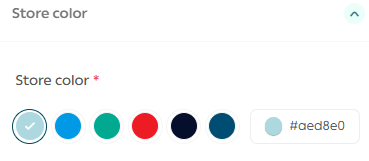
Choose the primary store color that best matches your brand identity and logo from the available color options. Consistent colors help strengthen brand recognition and improve visual harmony.
✍️ Store Font
Select a font that aligns with your brand identity. You can choose from the available font library or upload a custom font for a more unique look.
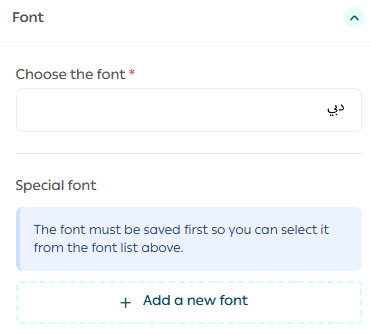
Adding a New Font
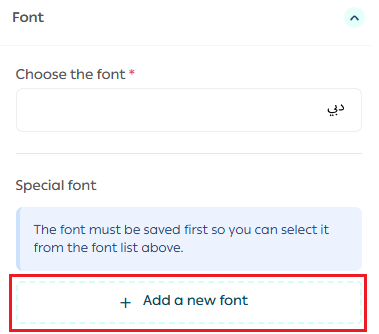
To add a custom font to your store, click Add New Font.
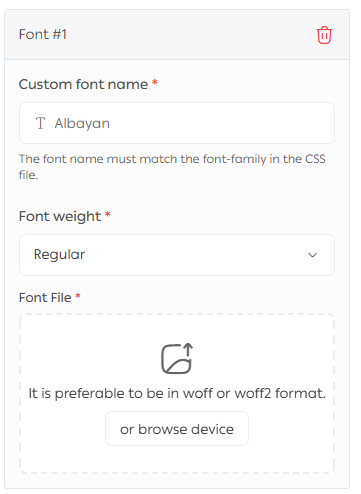
Then enter the required information and click Save Changes:
- Enter the font name.
- Select the font weight, such as Regular, Medium, or Bold.
- Upload the font file from your device.
To remove a font, simply click the delete icon.

🎉 Your custom font has now been added successfully.
For more details, refer to the guide on adding a custom font.
📄 Displaying the Verification Number in the Store Footer
Whether your store is verified with a commercial registration or a freelance certificate, the verification number is displayed automatically at the bottom of the store for all visitors.
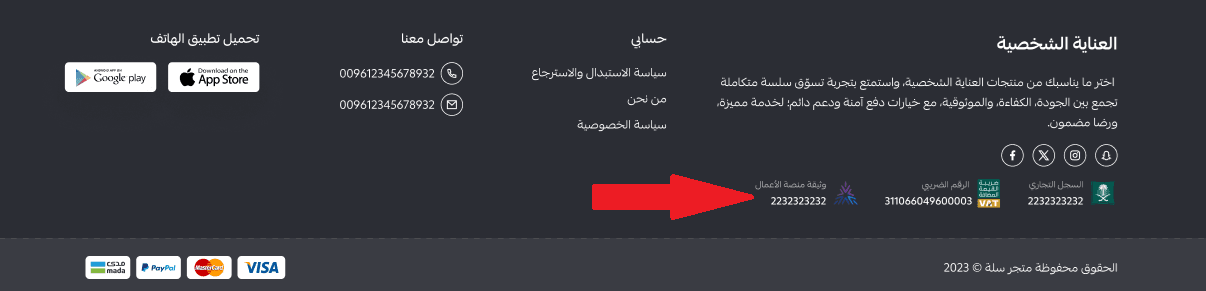
This display is mandatory and does not require any manual setup. It helps increase store credibility and builds customer trust.
✅ Discover how theme customization gives your store a competitive edge.
Learn more in this related article about setting up social media channels, uploading business certificates, and customizing customer support channels to strengthen trust and reflect your brand identity.
Frequently Asked Questions
Will store identity changes apply to all themes?
Yes. All updates are applied automatically to both current and future themes.
How can I add a new store logo?
From Store Design, go to Store Identity, upload the logo image, and save the changes. The logo will appear instantly in the preview.
How do I choose colors that match my store identity?
It is recommended to select colors that align with your logo and the nature of your business.
Can I revert to my previous font if the new one does not suit me?
Yes. You can reselect a font from Salla or Google Fonts at any time from the same list.
🚀 Merchant Services
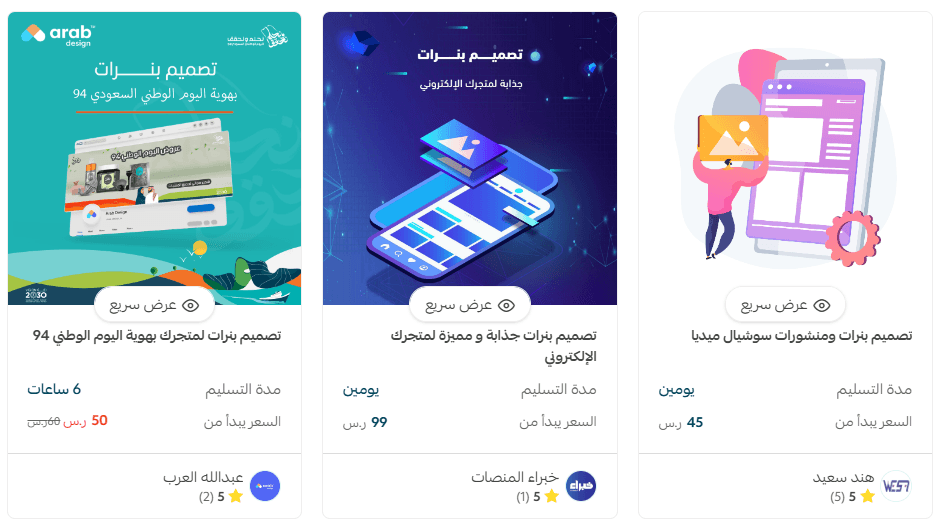
If you need professional help designing your store, you can use Merchant Services, which offer logo design, banner creation, separators, and color coordination through verified Salla service providers.