Want every visitor to see your latest offer the moment they land on your store?
An announcement bar is a banner that appears to customers as they browse your store. Use store announcements to highlight a specific activity, draw attention to selected offers, or share store news with your customers — right where they can't miss it. In this guide, you'll learn how to add an announcement, customize it, and control where it appears.
To add an announcement on Salla, open (Marketing tools) from the dashboard's side menu, click (Announcements), then (+ New announcement). Enter the icon, title, content, link, expiry date, display pages, and colors, click (Save), then turn on the announcement so it appears in your store.
📌 Article overview
- What announcements are
- How to add an announcement
- Frequently asked questions
🎯 What announcements are
Announcements are a banner strip shown to customers while they browse your store. They help you surface a specific activity, spotlight selected offers, or share store news with your customers.
👣 How to add an announcement
1. From the side menu of your dashboard, click (Marketing tools).

2. From the marketing tools page, click (Announcements).

3. Click (+ New announcement).
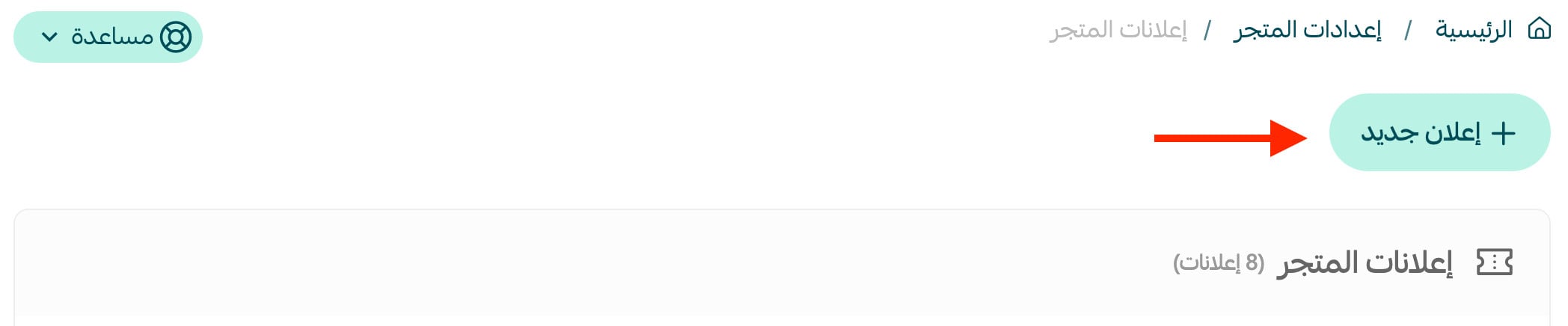
4. Enter the announcement details, then click (Save).
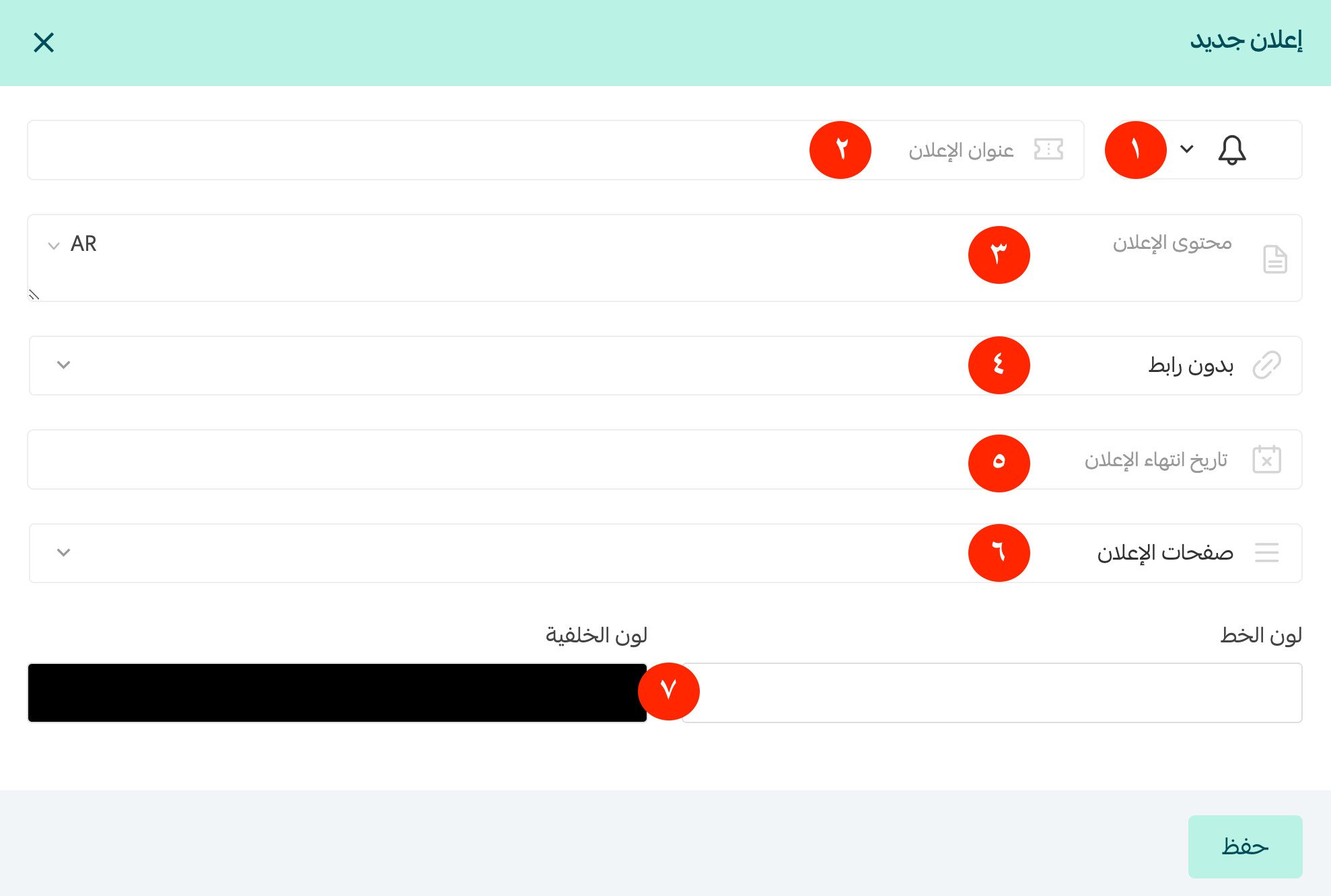
1. Pick an icon for the announcement from the list that appears when you click the icon.
2. Announcement title — keep it short and expressive.
3. Announcement content — write it clearly and specifically, in language that draws the customer in.
4. Set the announcement link (a product page, a specific category, an external page, and so on).
5. Set the announcement's expiry date.
6. Choose the pages where the announcement appears to customers.
7. Choose the announcement's background color and font color.
5. Turn on the announcement so it appears in your store, as shown here:

❓ Frequently asked questions
Where does the announcement bar appear in the store?
At the top of the pages you chose for it to appear on, as shown here:

Can I link the announcement to an external URL?
Yes. From the link list, choose (External link).
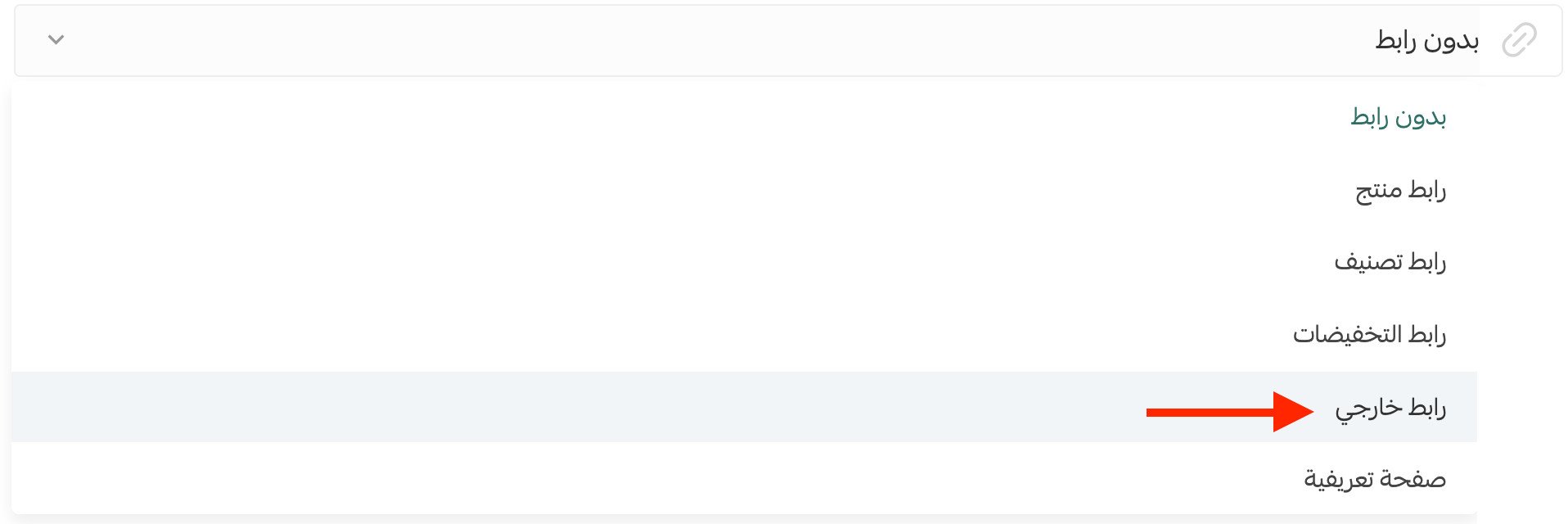
Then type or paste the external URL into the box provided:

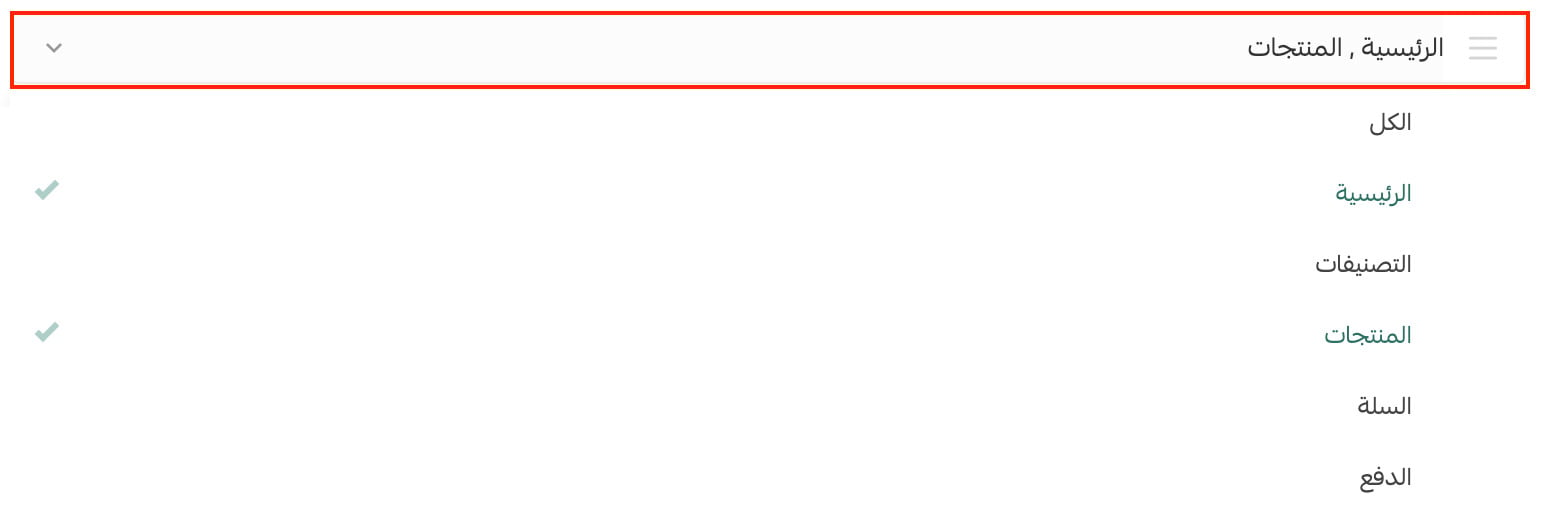
Can I choose which pages show the announcement to customers?
Yes. From the announcement page, click (Announcement pages), then click every page you want the announcement to appear on.
A well-timed announcement puts your best offer in front of every visitor — keep it short, link it somewhere useful, and refresh it whenever your store has news worth sharing.