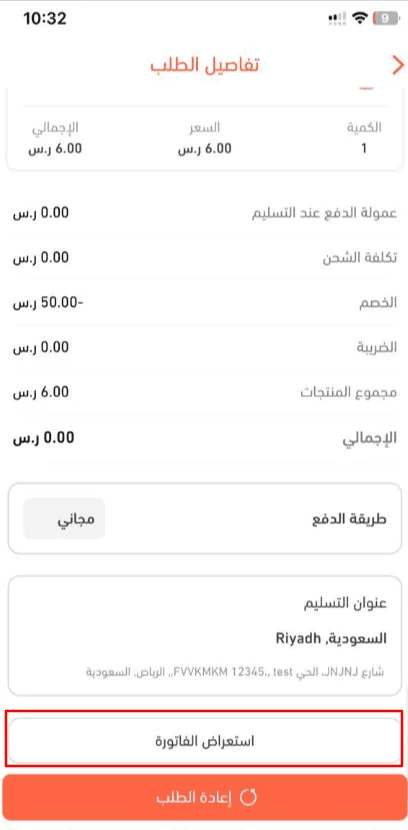
Many mobile apps look the same, making it easy for your brand to blend into the crowd. With Salla’s App Maker, you have flexible design tools that let you control buttons, images, layouts, and page details, or start from ready-made templates such as the Default or Menu templates.
The result?
A mobile app that reflects your brand identity, feels professional, and captures your customers’ attention from the very first interaction.
App Design

1. Access the App Maker
From the main menu, click Store & Channels, then select Mobile App.
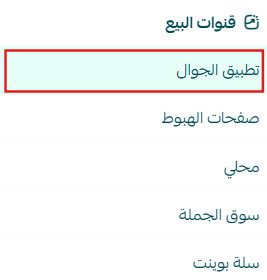
2. Choose a Template
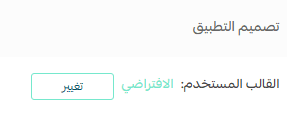
On the App Maker page, the Default Template is applied automatically.
To browse available templates, click Change.
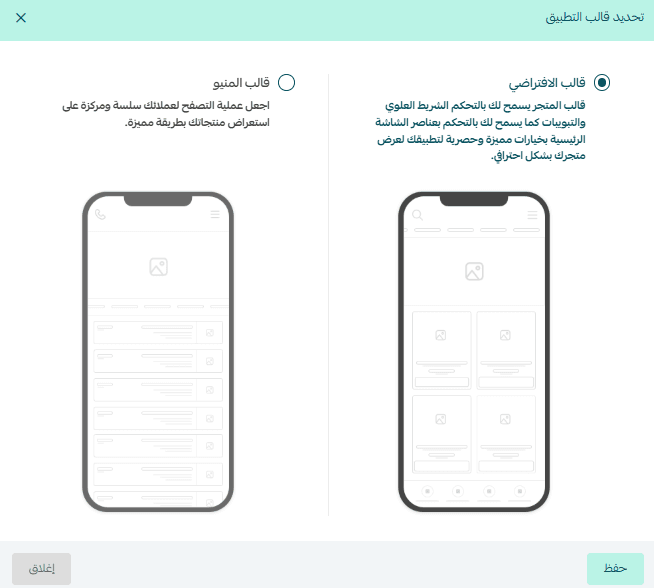
3. Select Your Template
Choose the template that best fits your business, then click Save.
App Design Sections
The App Design sections give you full control over the look, feel, and user experience of your store’s mobile app. You can customize every detail to match your brand and meet customer expectations.

Home Page
This is where you control what customers see when they open the app for the first time.
You can:
- Add, arrange, and customize Home Page elements
- Display animated images, menus, product sections, and store highlights
- Create a visually engaging experience that reflects your brand identity
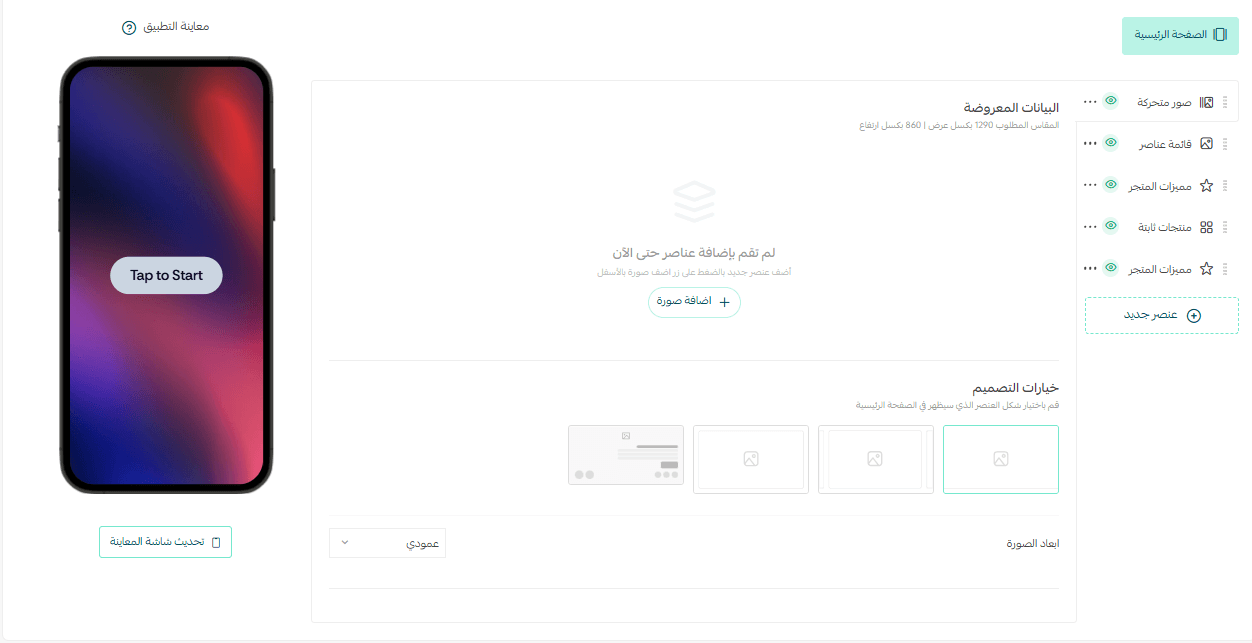
📖 Learn more: App Design Using the Default Template – Home Page
Categories
The Categories section controls how product categories are displayed inside the app.
Its purpose is to:
- Manage category layout and appearance
- Improve navigation and content organization
- Control how categories are presented to customers
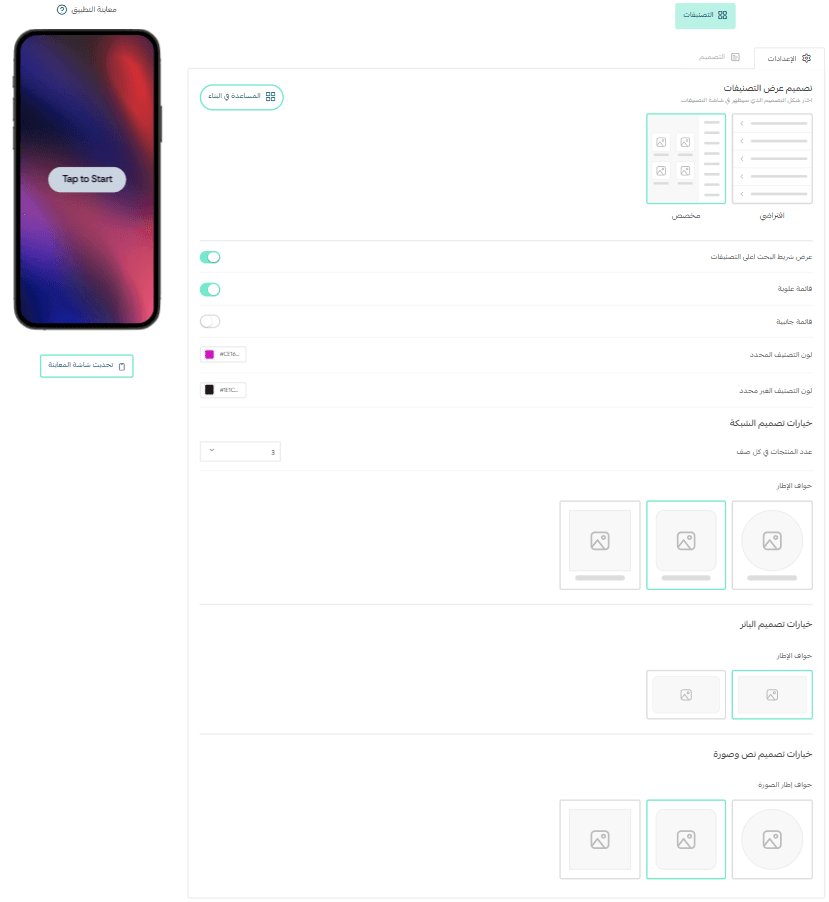
📖 Learn more: App Design Using the Default Template – Categories
Top Bar & Tabs
This section gives you full control over:
- The top bar and bottom navigation tabs
- Tab order, activation, icons, colors, and layout
- Real-time preview before saving
This ensures a consistent, intuitive, and visually appealing navigation experience.
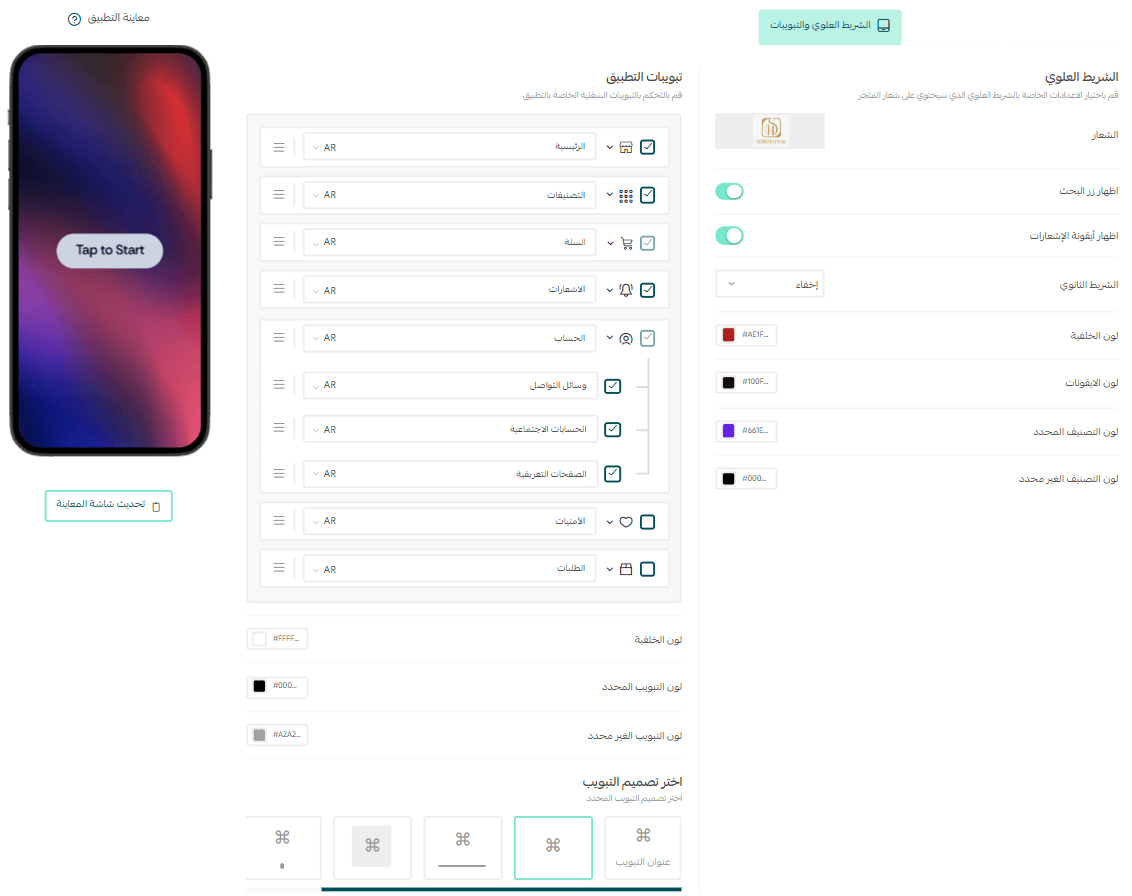
📖 Learn more: App Design Using the Default Template – Top Bar & Tabs
Splash & Onboarding Screens
This section lets you design your app’s first impression by adding images or videos, welcome text, colors, and alignment.
You can:
- Create an engaging welcome experience
- Preview changes instantly before publishing
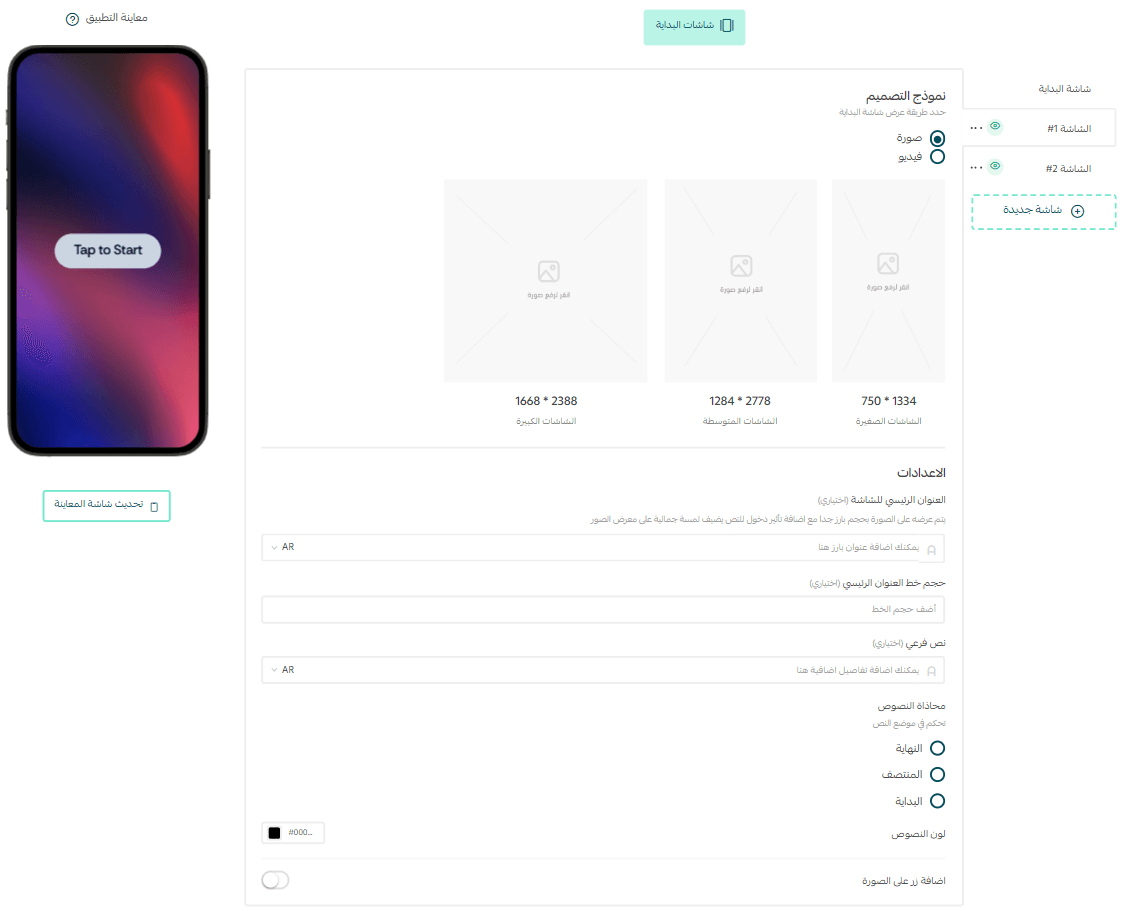
📖 Learn more: App Design Using the Default Template – Splash & Onboarding Screens
Product Details
This page allows you to customize how product details are presented in the app.
You can:
- Choose the visual layout
- Control titles, labels, and product options
- Preview changes instantly before publishing
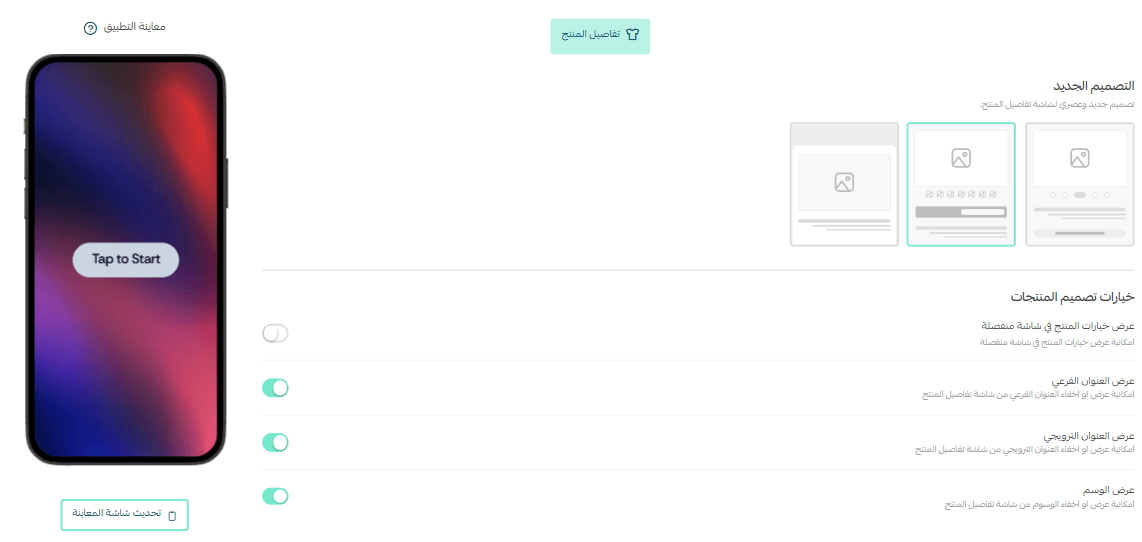
📖 Learn more: App Design Using the Default Template – Product Details Page
General Settings
The General Settings page allows you to customize:
- Product display styles
- Colors and fonts
- Image sizes and layouts
All with real-time preview, helping you reinforce your brand identity and improve customer experience.
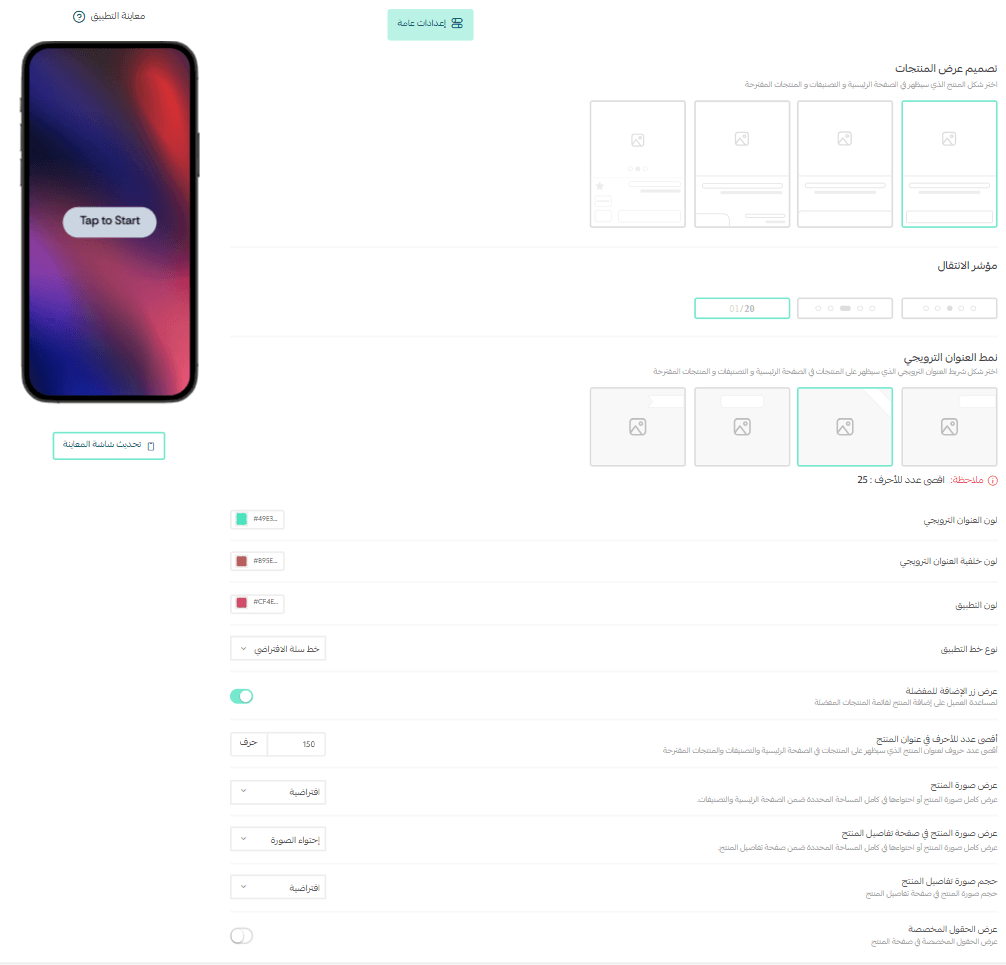
📖 Learn more: App Design Using the Default Template – General Settings
Important Notes
- Make sure to click Save Design frequently to apply your changes.
After saving, close and reopen the app to see updates.
- Some changes may take a few minutes to appear correctly.
If you update Splash or Onboarding Screens, you must delete and reinstall the app to preview them properly.
Frequently Asked Questions
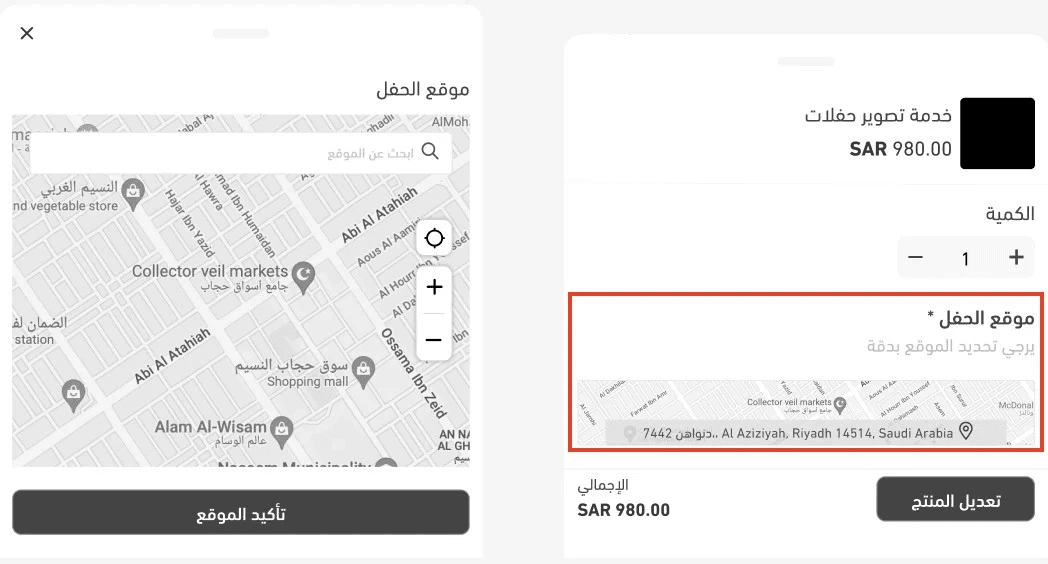
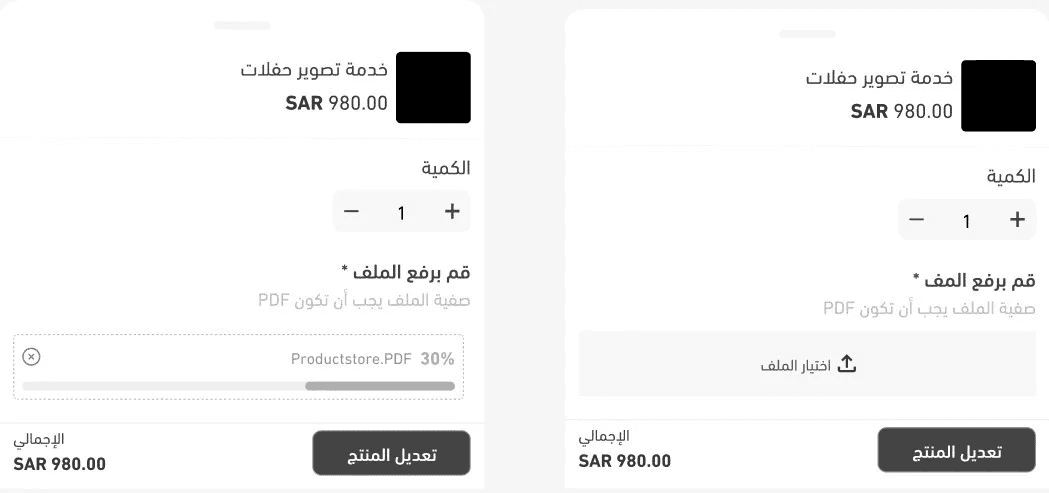
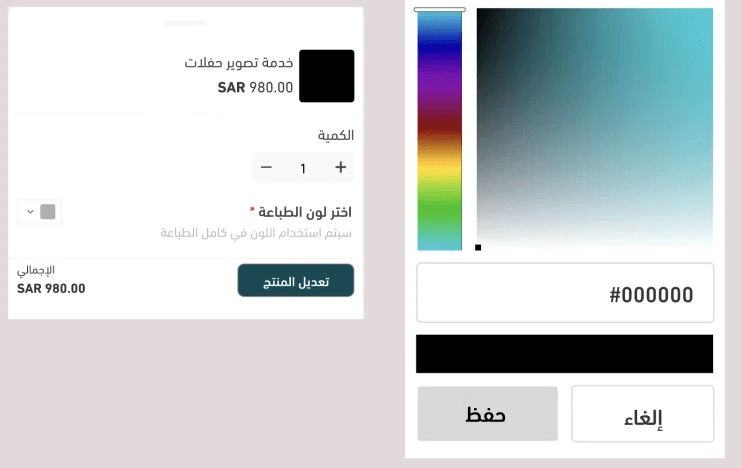
How will “Made-to-Order” product options appear in the app?
Customers can select custom options during checkout, such as:
- Location selection from a map
- File upload
- Color selection
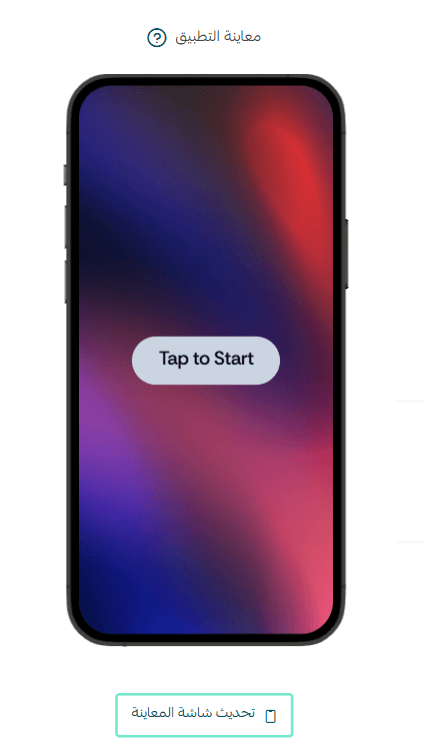
How can I preview design changes?
You can preview all additions and design changes using the Preview section in the App Maker.
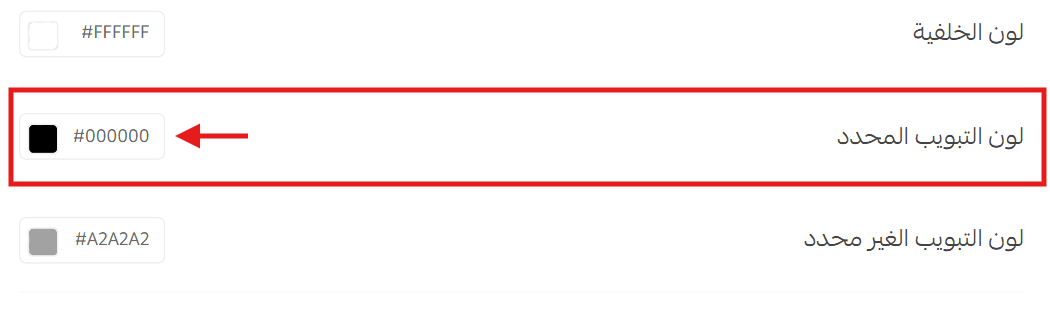
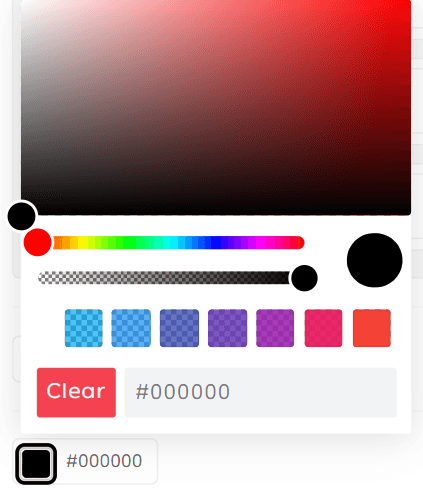
How do I choose colors for design elements?
Click the color box (for example, the selected tab color), then:
Choose a color visually
- Enter a HEX color code
Click Save to apply.
How can customers browse grouped products?
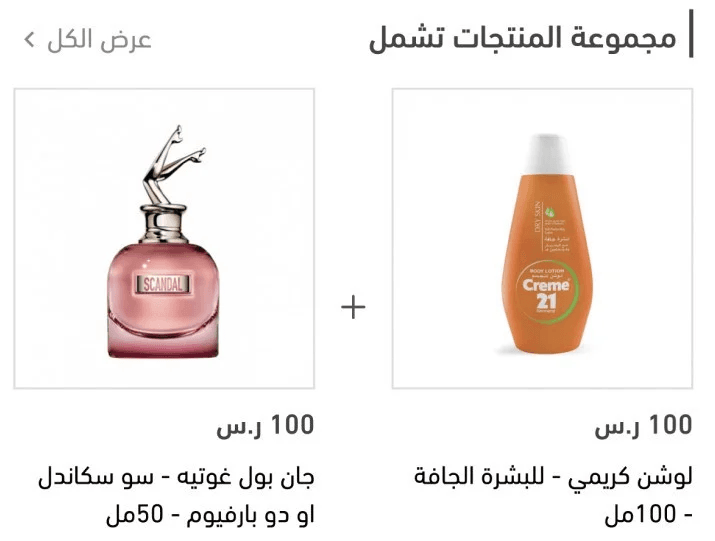
If a product is set as a Product Group, a new section called “This product includes” will appear on the Product Details page.
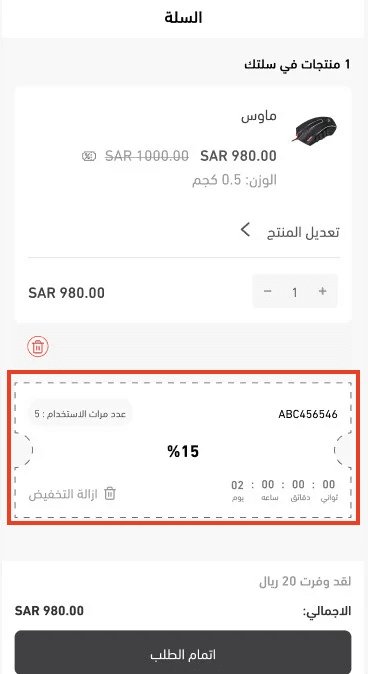
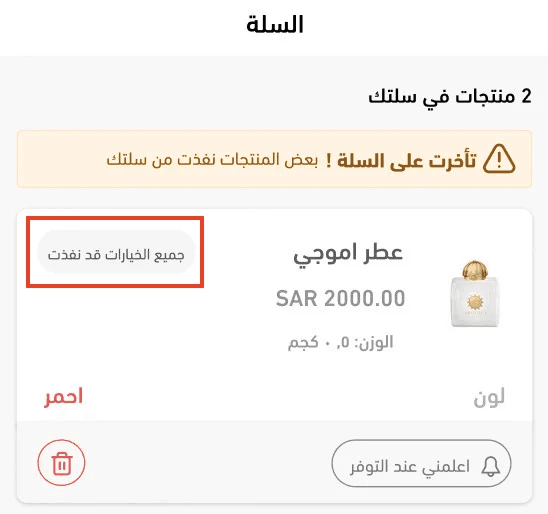
What cart notifications may appear to app users?
- Notification when a coupon is available
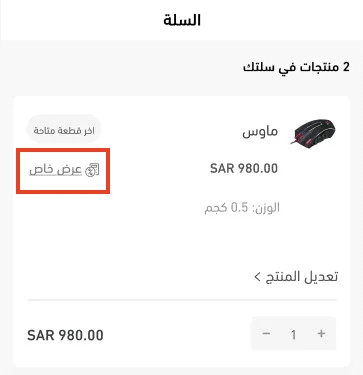
2. Notification for an active special offer
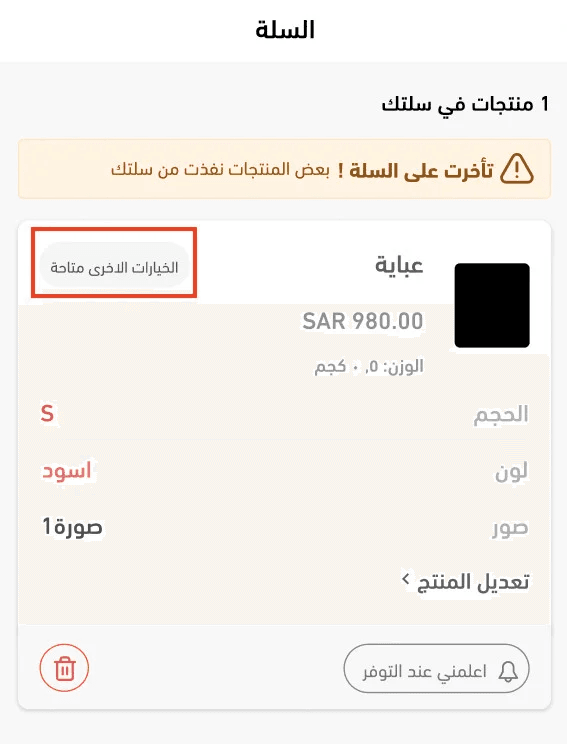
3. Notification when a product is out of stock but alternatives exist
4. Notification when a product and all its options are out of stock
Can customers download the app from email messages?
Yes. App download links can be included in customer emails such as:
- Order status updates
- Abandoned cart notifications
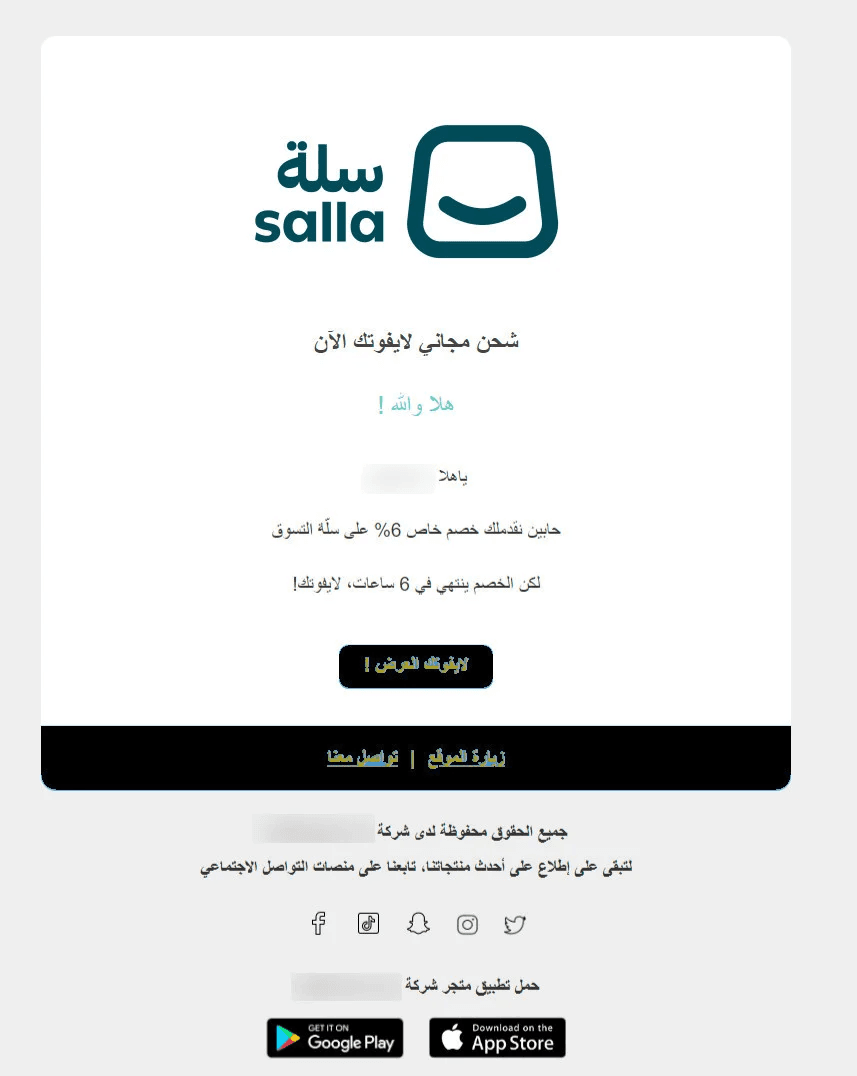
This helps increase app awareness and installs.
Can customers download invoices from the order details page?
Yes. A Download Invoice button is available on the Order Details page, allowing customers to:
- Download the invoice
- View it on their device
- Print it if needed