
Do your best-selling products show up first when customers browse your store?
The order your products appear in shapes what customers notice — and what they buy. With product sorting on Salla, you control the order products appear in within each category of your store. In this guide, you'll learn how to rearrange your products with a simple drag and drop.
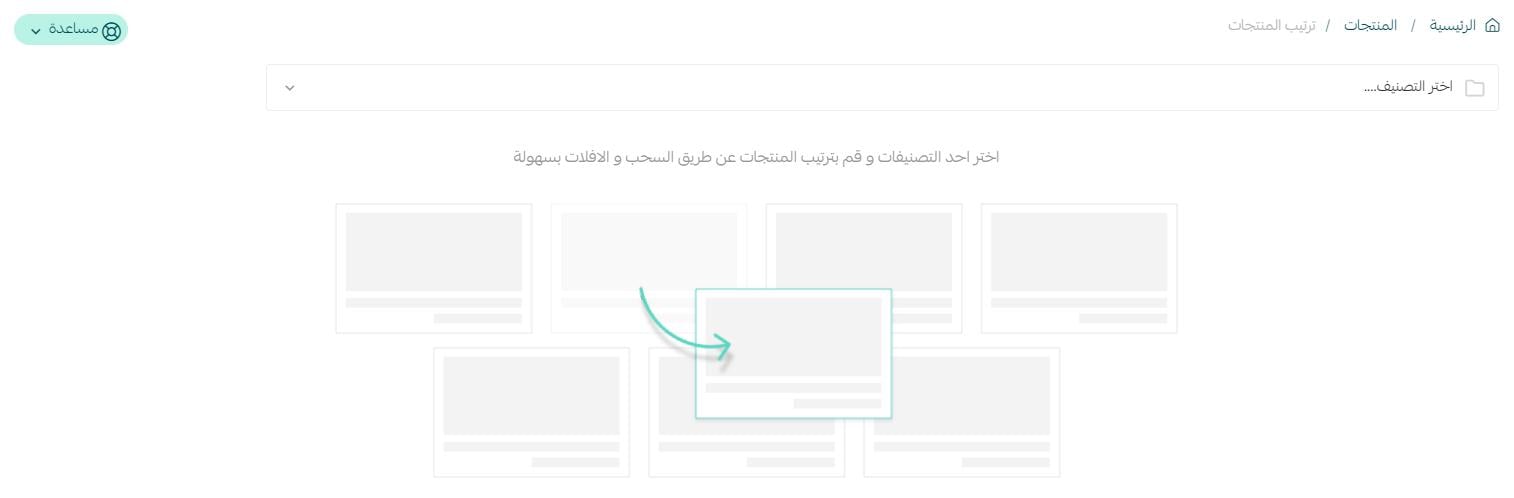
To sort products on Salla, open (Products) from the dashboard's side menu, click (Services) on the products page, and choose the sorting option. Select a category, then drag and drop products within it to set the exact order customers see in your store.
📌 Article overview
- How to sort products
- Frequently asked questions
👣 How to sort products
1. From the side menu of your dashboard, click (Products).

2. From the products page, click (Services). A services menu appears as shown below.
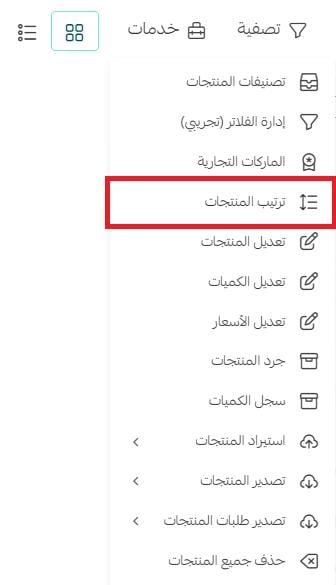
From here, you control the order in which products appear to customers in your store.
3. Choose the category, then drag and drop the products within it into the order you want.
❓ Frequently asked questions
Can I set a different product order for each category?
Yes. Product sorting works per category — choose a category first, then arrange the products inside it in the order you want.
How do I change the order of products?
Simply drag and drop. After choosing a category from the sorting screen, drag each product to its new position and the order updates for your storefront.
Why should I sort my products manually?
Manual sorting lets you put best sellers, new arrivals, or promoted items at the top of each category, guiding customers to the products you most want them to see.
A few minutes of sorting puts your strongest products in front of every visitor — small effort, real impact on what sells.