Are your sales, your stock, and your accounts living in three different places?
Retail runs on numbers that have to agree with each other. When the point of sale, the warehouse, and the accounting file are updated by hand, they drift apart, and by the end of the month nobody is sure which one is right. The SmartLife (SmartERP) app connects your Salla store to a full retail management system, so orders, stock, and invoices move on their own. In this guide, you'll learn what the app does, how to install and activate it, and how to manage or remove it.
SmartLife (SmartERP) is a retail management system that handles point of sale, sales, inventory, purchasing, and tax from one place. Installed from the Salla App Store, it syncs orders and stock with your store in real time and issues e-invoices automatically, so your books stay in step with what you actually sell.
📌 Article overview
- What the SmartLife app does
- How to install and activate the SmartLife app
- How to manage the SmartLife app
- Frequently asked questions
🎯 What the SmartLife app does
- Syncs orders and invoices, and issues e-invoices automatically.
- Keeps stock levels aligned between your store and your warehouses in real time.
- Handles returns, with stock and accounts updated automatically.
- Produces instant sales and profit reports for financial performance analysis.
- Shows financial statements, accounting records, and tax reports.
- Supports local tax requirements and connects to the Zakat, Tax and Customs Authority.
👣 How to install and activate the SmartLife app
1. From the main menu, click (All), then under helper tools click (App Store).

2. Search for the app using the search field.

3. On the SmartLife app page, click (Install).
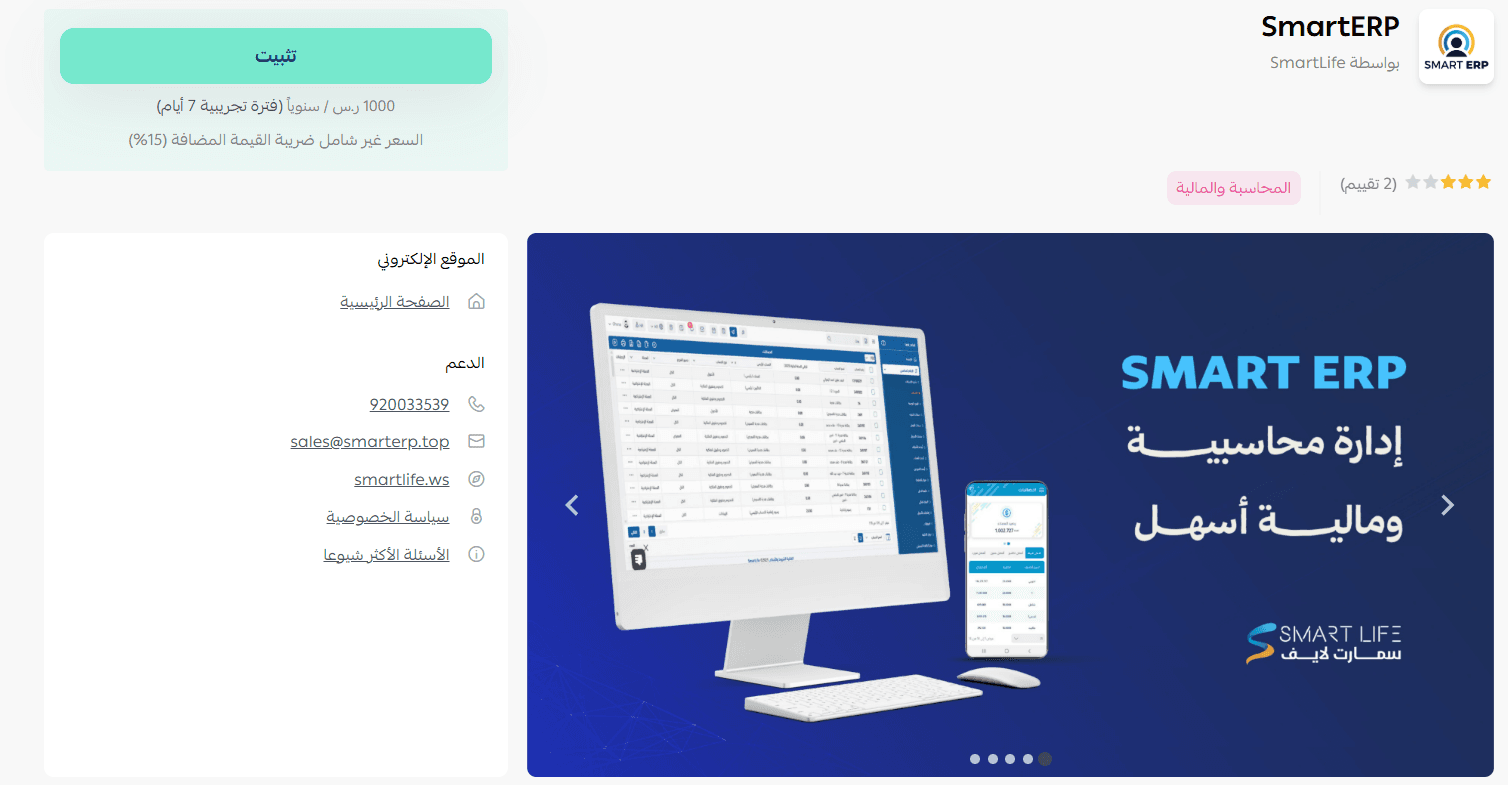
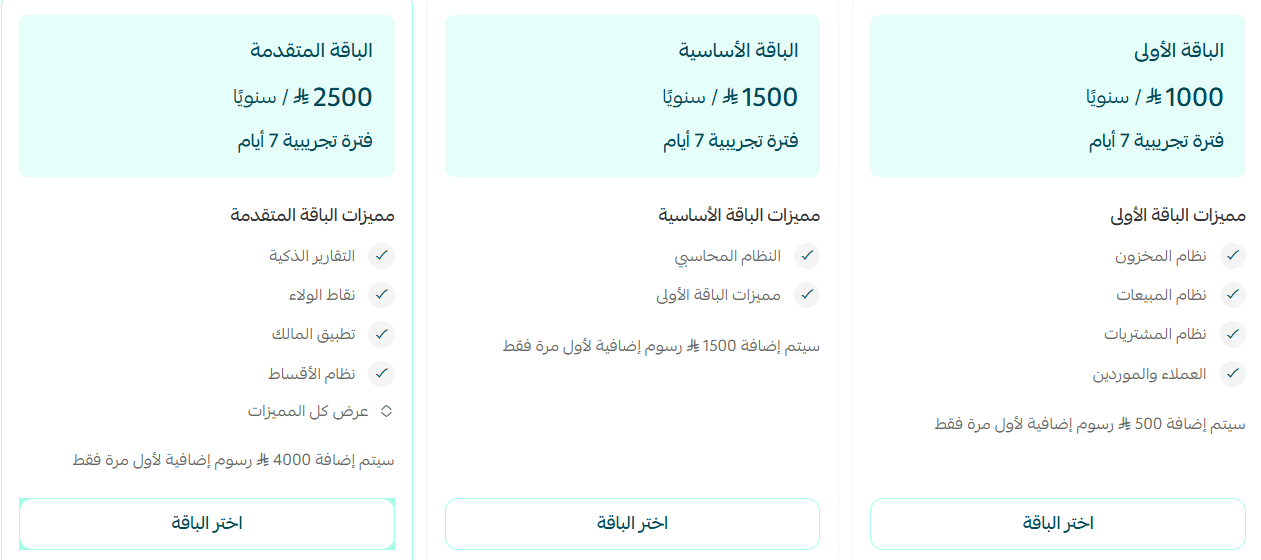
4. Choose the plan that fits your store, then complete the payment.
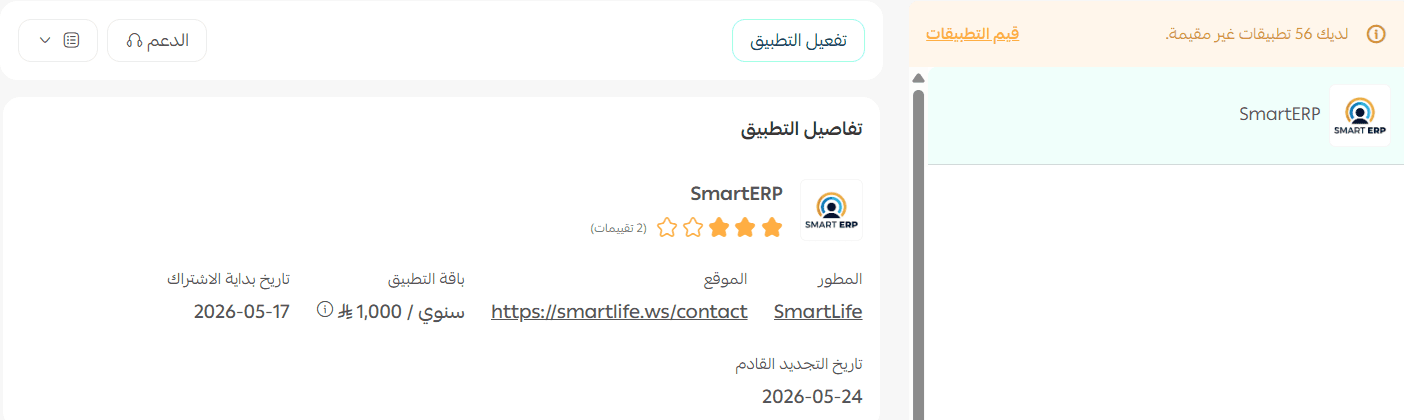
5. The SmartLife app is now installed on your store.
6. Check your inbox. Once installation is complete, you receive an email with the login details for your SmartLife account.
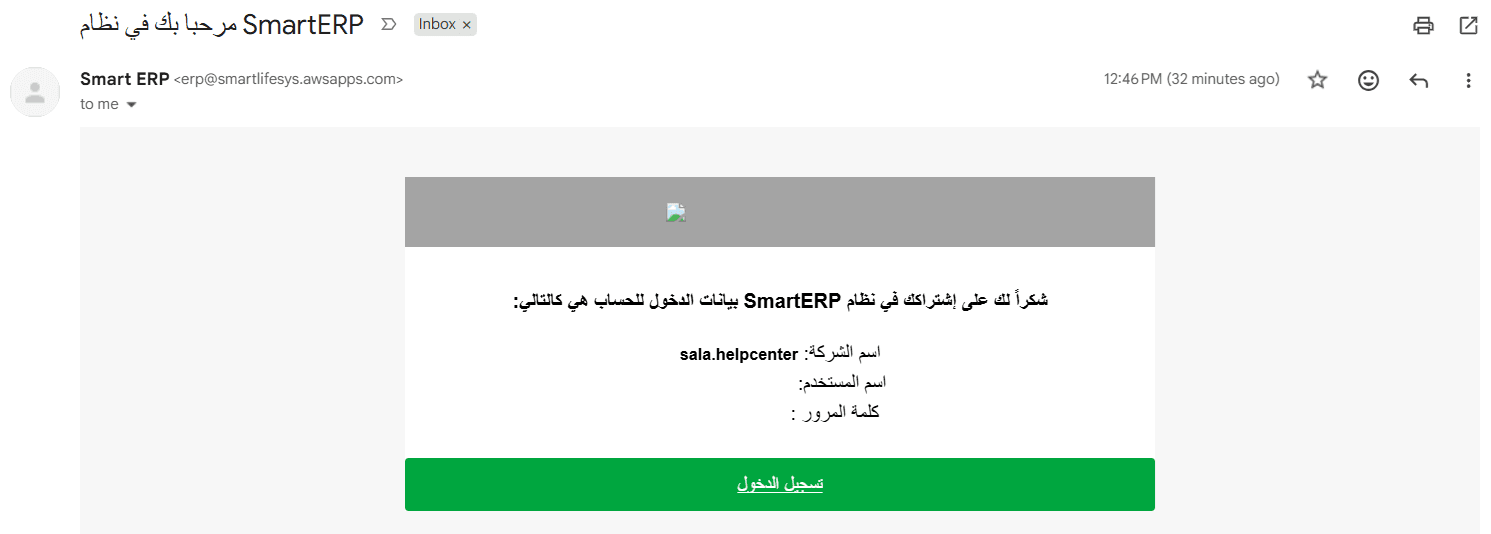
7. Log in using those account details.
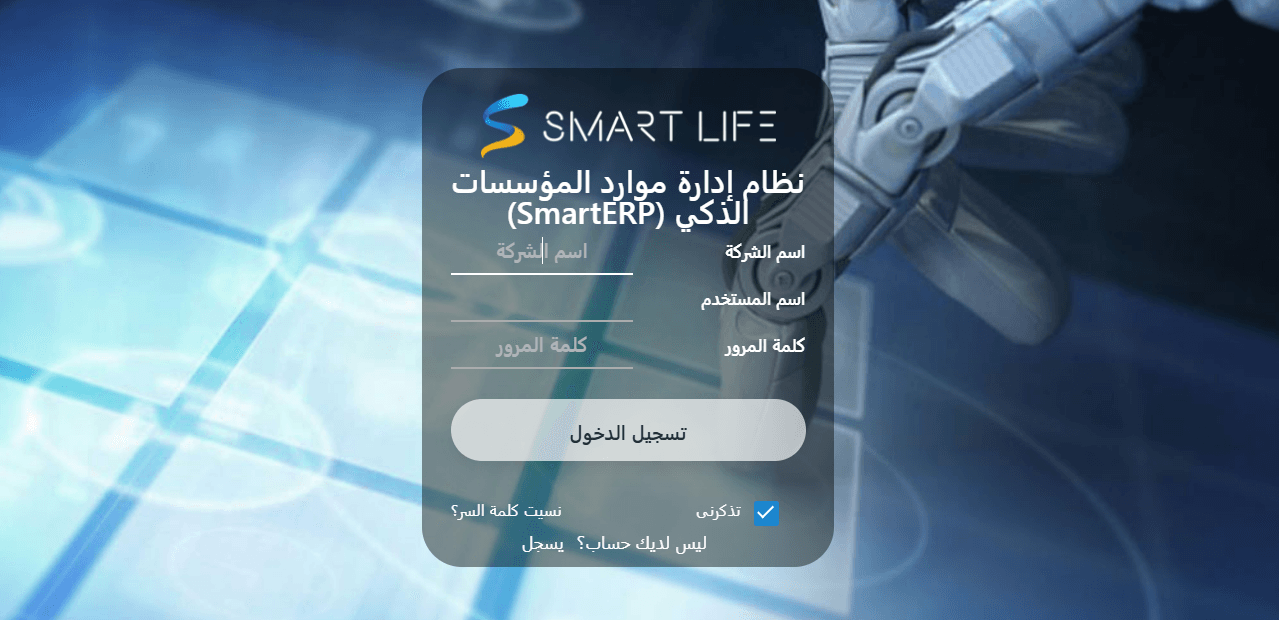
8. You land on the SmartLife dashboard home page, where sales, stock, and financial figures are shown together.
🚀 How to manage the SmartLife app
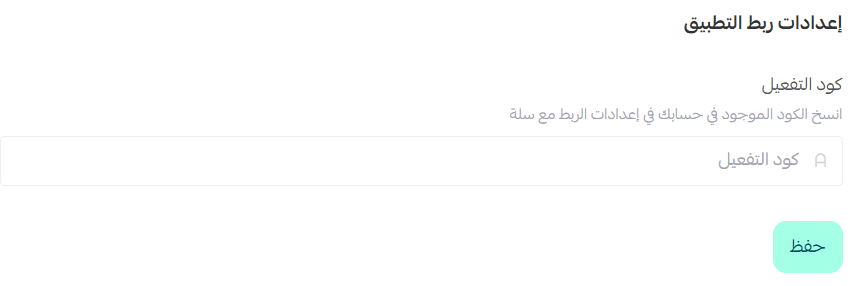
Activate the app
1. From the app actions menu, click (Upgrade plan). [Verify: the Arabic activation section sends merchants to the (Upgrade plan) action; confirm the button label used for activation.]

2. Enter the activation code. You'll find it in your account on the SmartLife website.
Remove the app
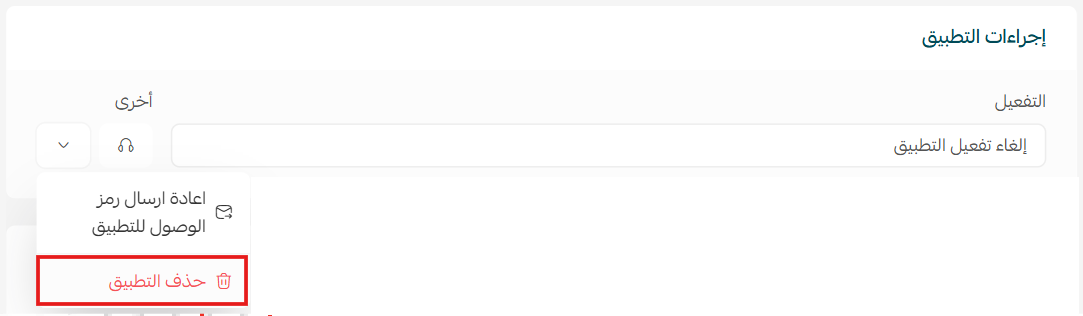
1. From the SmartLife app card, click ( ), then click (Cancel subscription).
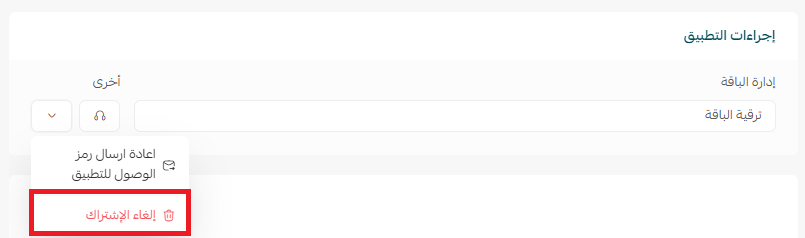
2. From the same menu, click (Delete app).
📝 Important notes
- The app is a paid subscription. Choose a plan and complete the payment during installation.
- Your SmartLife login details arrive by email, not in the Salla dashboard.
- Cancelling the subscription and deleting the app are two separate actions.
❓ Frequently asked questions
What does the SmartLife app sync with my store?
Orders, invoices, and stock levels. Returns are handled too, with stock and accounts updated automatically.
Does it issue e-invoices?
Yes. E-invoices are issued automatically, and the system connects to the Zakat, Tax and Customs Authority.
Where do I get my login details?
By email, sent once installation is complete. Use those details to sign in to the SmartLife dashboard.
Where do I find the activation code?
In your account on the SmartLife website. Enter it in the app to activate it.
How do I stop using the app?
Cancel the subscription from the app menu, then use (Delete app) from the same menu to remove it from your store.
For more details, visit the SmartLife website.