Want customers to find your tax details without leaving your storefront?
Your Salla VAT number and VAT certificate can appear in the store footer, giving customers direct access to your registered tax information. In this guide, you'll learn how to enable both details and manage how they appear.
To show your Salla VAT number, open Store settings, select VAT, and change the establishment’s tax settings. Enable the options to display the VAT number and certificate, enter the number, upload the certificate image, and save. Customers can then view them from your store footer.
📌 Article overview
- How to show your Salla VAT number
- What customers see in the store footer
- Frequently asked questions
👣 How to show your Salla VAT number
1. From the dashboard side menu, click (Store settings).

2. On the Store settings page, click (VAT).

3. Under the establishment VAT number, click (Change settings).
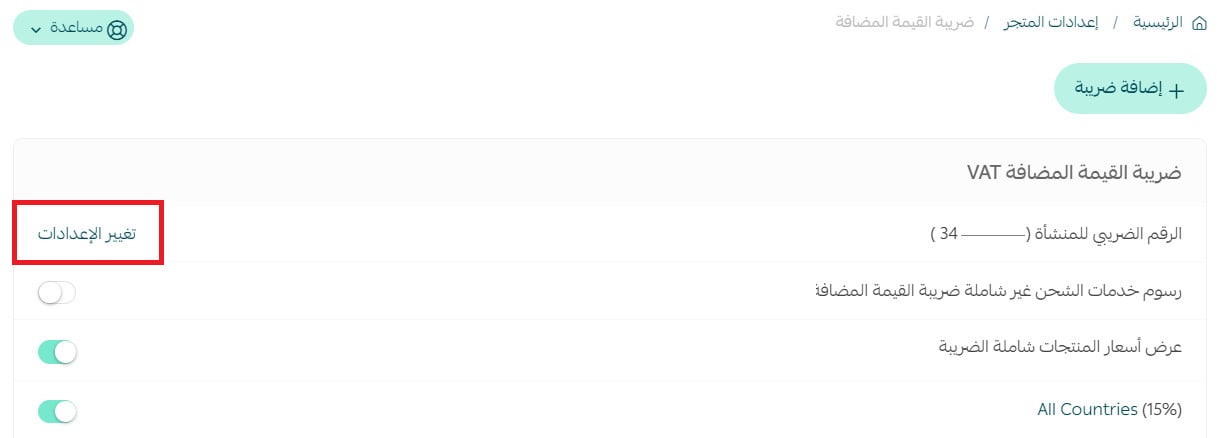
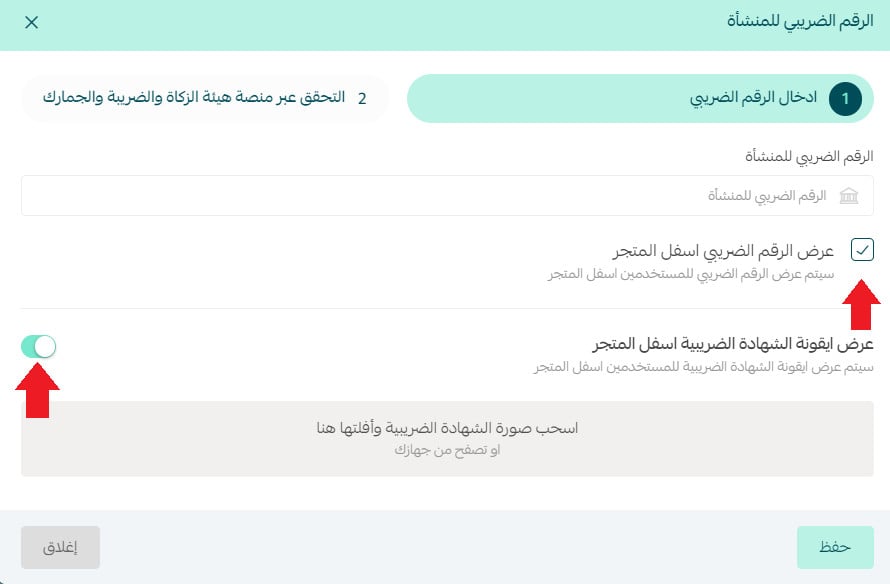
4. Enable the options to display the VAT number and the VAT certificate.
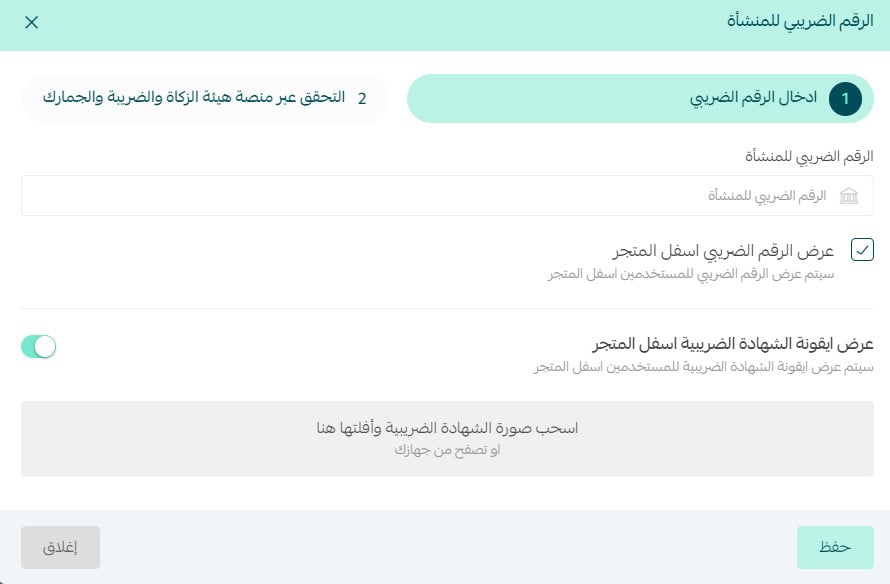
5. Enter the establishment VAT number in the designated field, then upload an image of the VAT certificate.
🎯 What customers see in the store footer
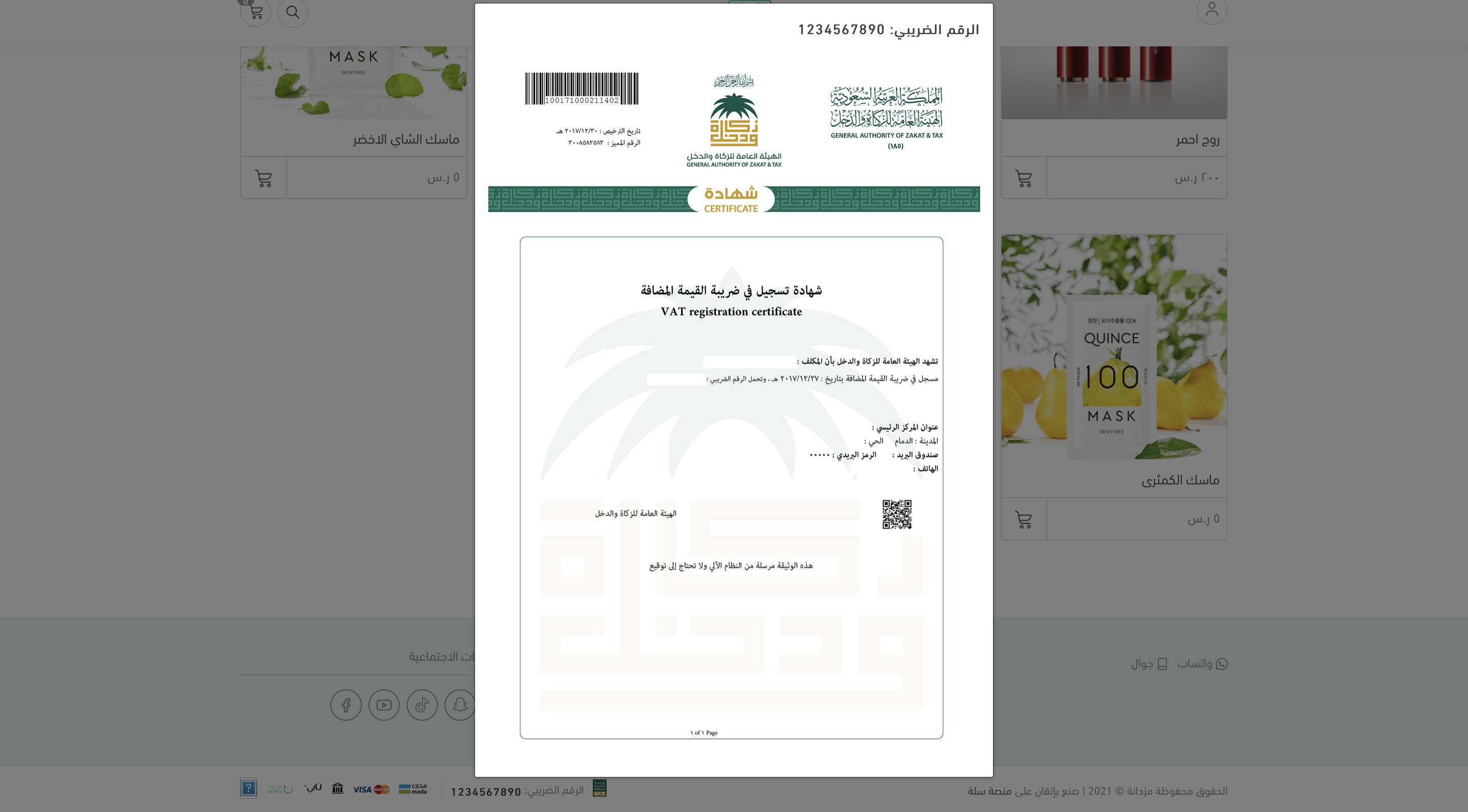
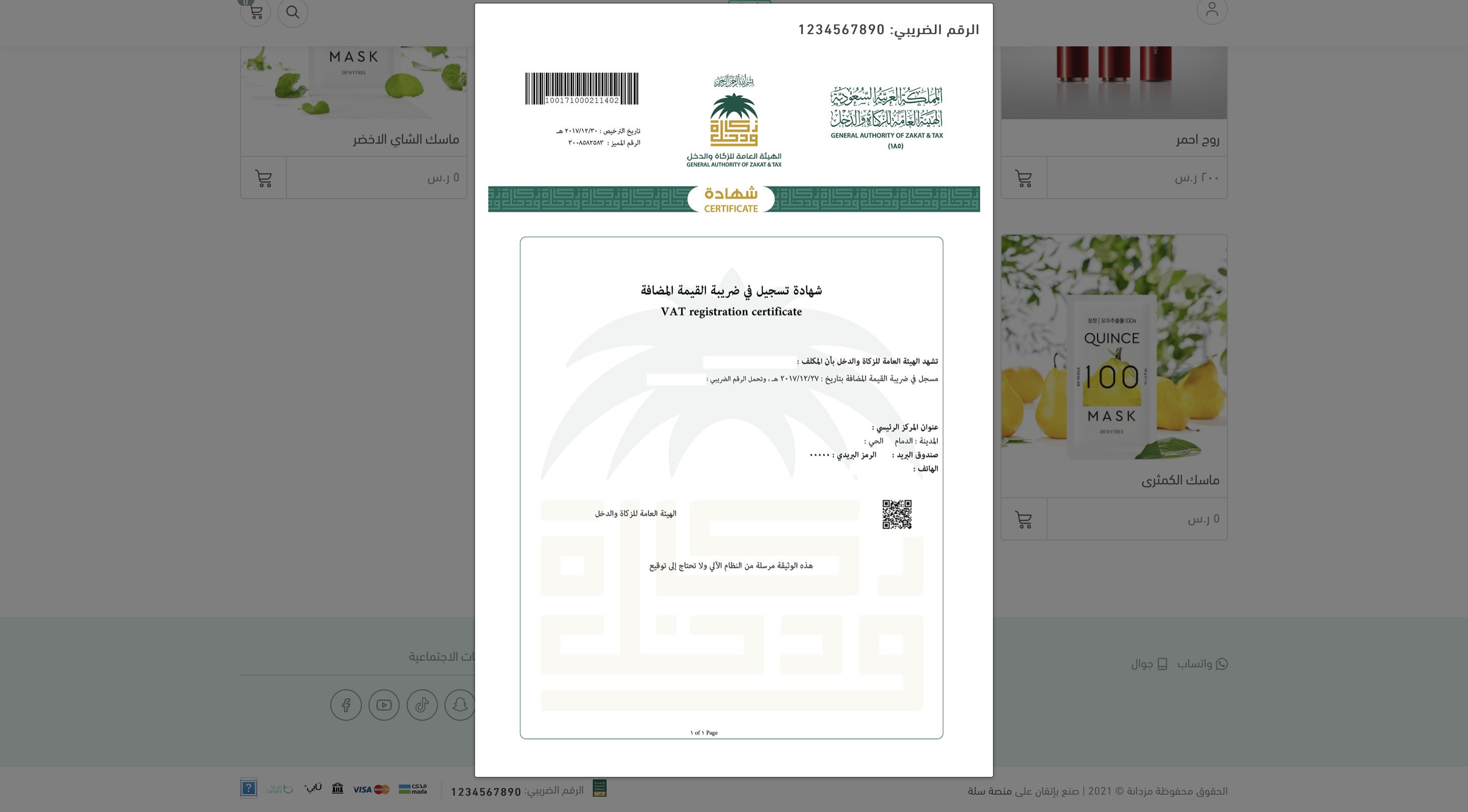
The VAT number appears in the store footer as shown below.

When a customer clicks the VAT number icon, the VAT certificate image opens.
Frequently asked questions
❓ When can a VAT number be rejected?
The source says the number may be rejected unless it contains 16 digits and starts and ends with 3. [Verify: confirm the required digit count before approval.]
❓ Can I stop displaying the VAT number and certificate?
Yes. In the tax settings, disable the options to display the VAT number and VAT certificate.
❓ Where does the VAT certificate appear?
The certificate appears on the tax settings page as shown below.
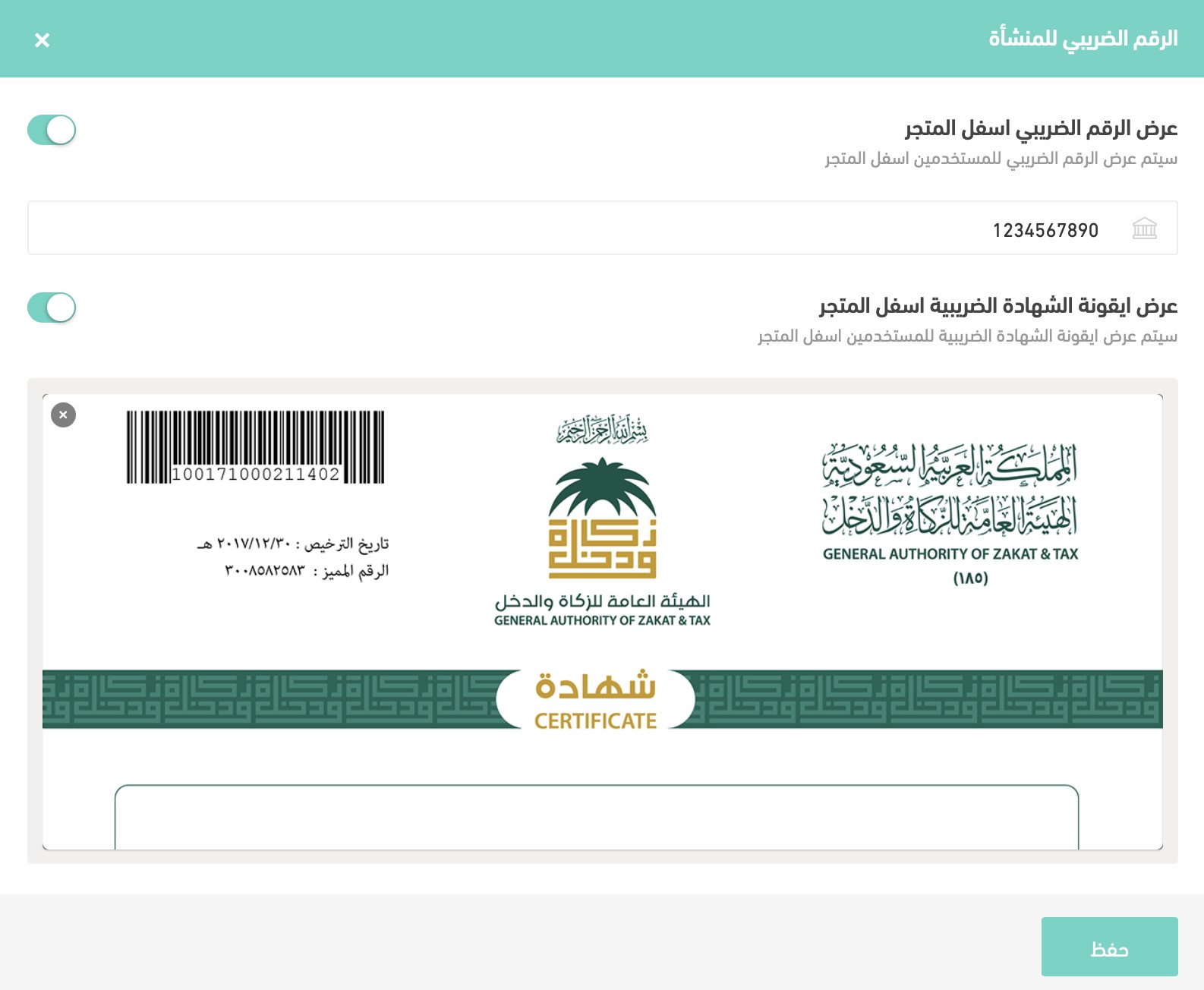
Customers can also open the certificate from the store footer.
❓ Which Salla plans support this setting?
The source states that displaying the VAT number is available on the Pro and Special plans. [Verify: confirm current plan availability before approval.]
📝 Important notes
Make sure the number and certificate image match your establishment's registered tax details.