Ever had a customer pick a shipping company that can't actually handle what's in their cart — a chilled product, an oversized parcel, or a destination the courier doesn't serve?
Shipping company restrictions let you control which shipping companies appear at checkout based on what's in the customer's cart, using (Within) and (Not within) conditions. That precision cuts costs, tailors your shipping options, and prevents the problems that come from pairing sensitive products with the wrong courier. In this guide, you'll learn how to set up shipping restrictions, see practical examples, and get answers to common questions.
To set shipping company restrictions on Salla, open (Store settings), click (Shipping company restrictions), then add a new restriction: name it, pick the shipping companies it applies to, and choose the restriction type and condition. A (Within) condition shows only the restricted company; (Not within) hides it and keeps the rest.
📌 Article overview
- Steps to set up shipping company restrictions
- Practical examples
- Frequently asked questions
👣 Steps to set up shipping company restrictions
1. From the main menu of your dashboard, click (Store settings).

2. From the store settings page, click (Shipping company restrictions).

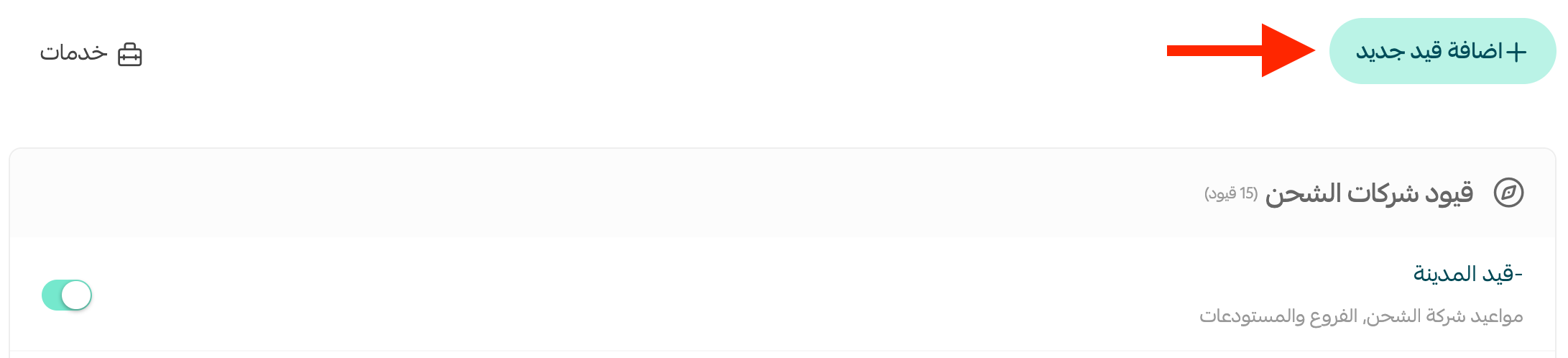
3. From the shipping company restrictions page, click (+ Add new restriction).
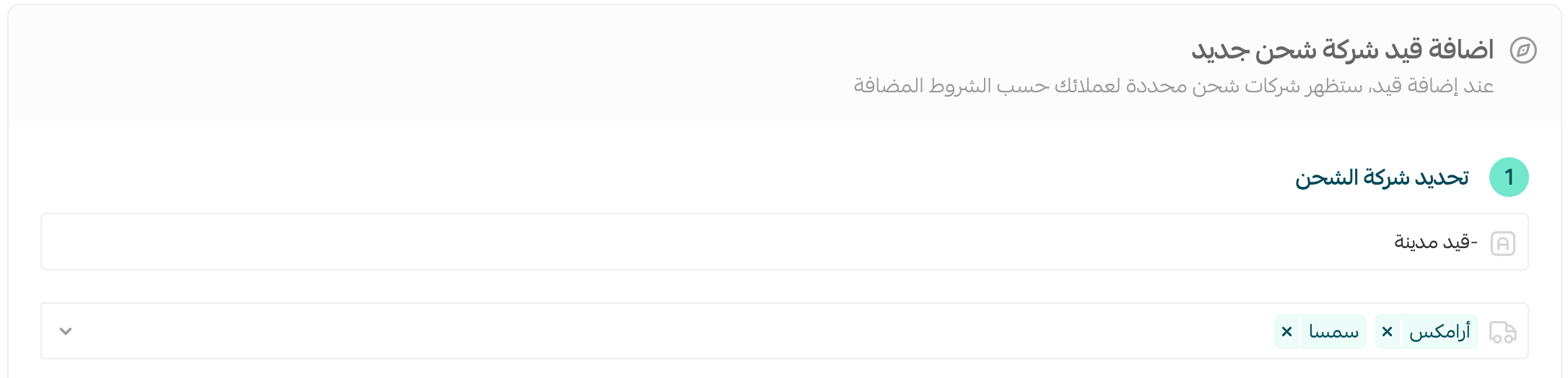
4. Select the shipping company.
Enter a title for the restriction — keep it short and descriptive of its conditions — then choose the shipping companies the restriction applies to, for example Aramex and SMSA.
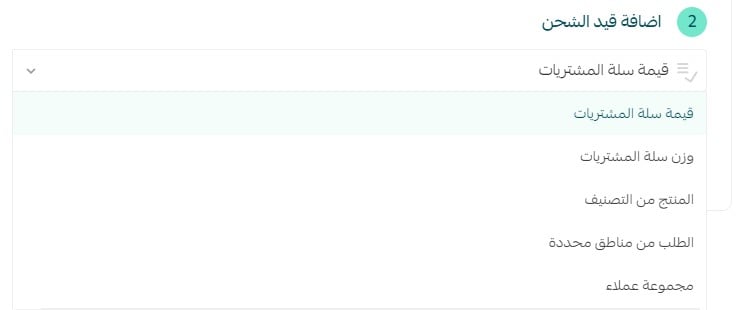
5. Add the restriction by choosing its type and condition.
💡 Example: if the cart total reaches SAR 200 and one of the products carries a (Not within) condition for certain shipping companies, those companies — say Aramex and SMSA — disappear from the shipping options while the rest remain available.

You can choose from the available restriction types:
⚙️ The additional condition
This mechanism works as an extra condition layered onto your shipping policy. It gives you more customization and flexibility, deciding whether a given shipping company should appear or disappear based on conditions you define to suit your business.

Within: when the restriction uses the (Within) condition, the restricted company is the only one shown as a shipping option.
Not within: when the restriction uses the (Not within) condition, that shipping company disappears from the options while the other companies remain available.
In short: (Within) shows only the restricted company; (Not within) hides the restricted company and shows the others.
💡 Practical examples
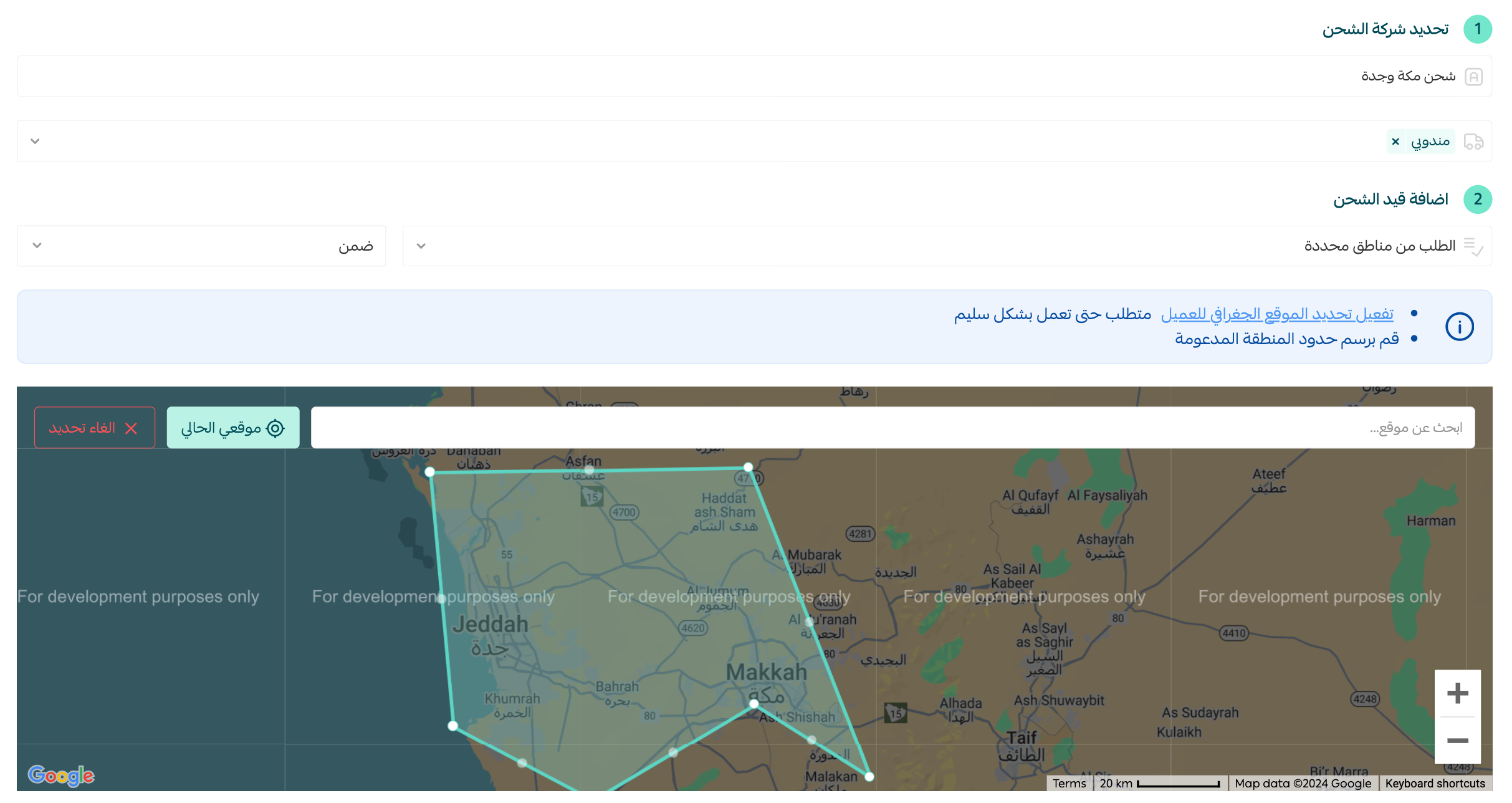
1. Dedicate a shipping method to customers in Makkah and Jeddah
When the customer is in the Makkah or Jeddah area and the restriction uses (Within), this becomes the only shipping method available to them.
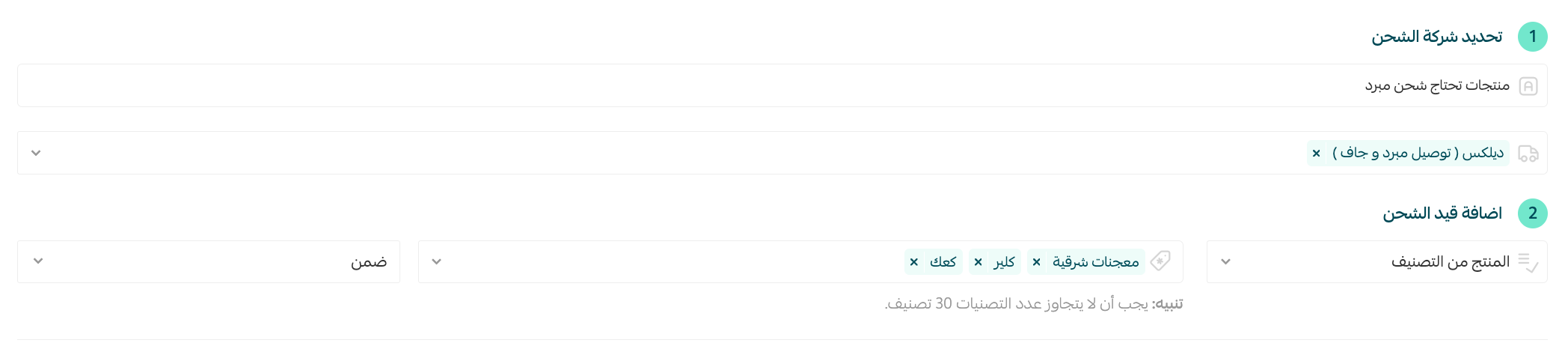
2. Show refrigerated shipping companies when the customer orders a product that needs cold shipping
When the customer orders a product from a specific category — pastries, cookies, cakes — with a (Within) condition, only the refrigerated shipping company you selected appears.
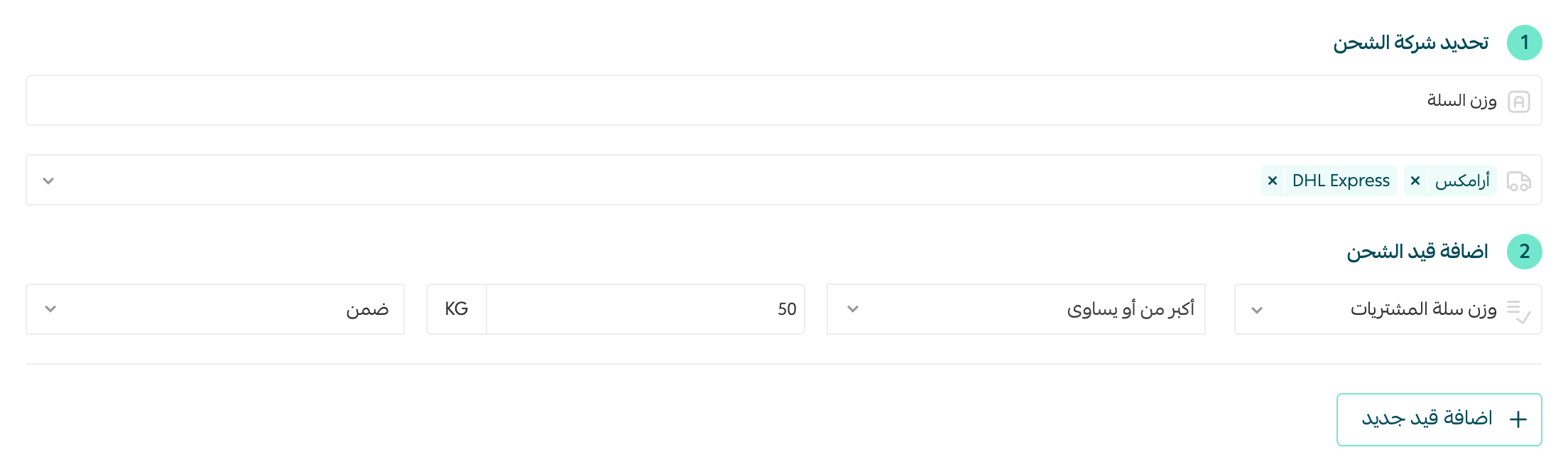
3. Show specific shipping companies when the shipment weighs more than 50 kg
When the shipment weight exceeds 50 kg with a (Within) condition, only the companies you selected appear — Aramex and DHL Express, for example.
❓ Frequently asked questions
How do I control which shipping companies appear at checkout?
Use the (Within) condition on a restriction to show only certain companies, or (Not within) to exclude specific companies from the shipping options in the cart. You can edit your restrictions at any time.
Can I add more than one restriction?
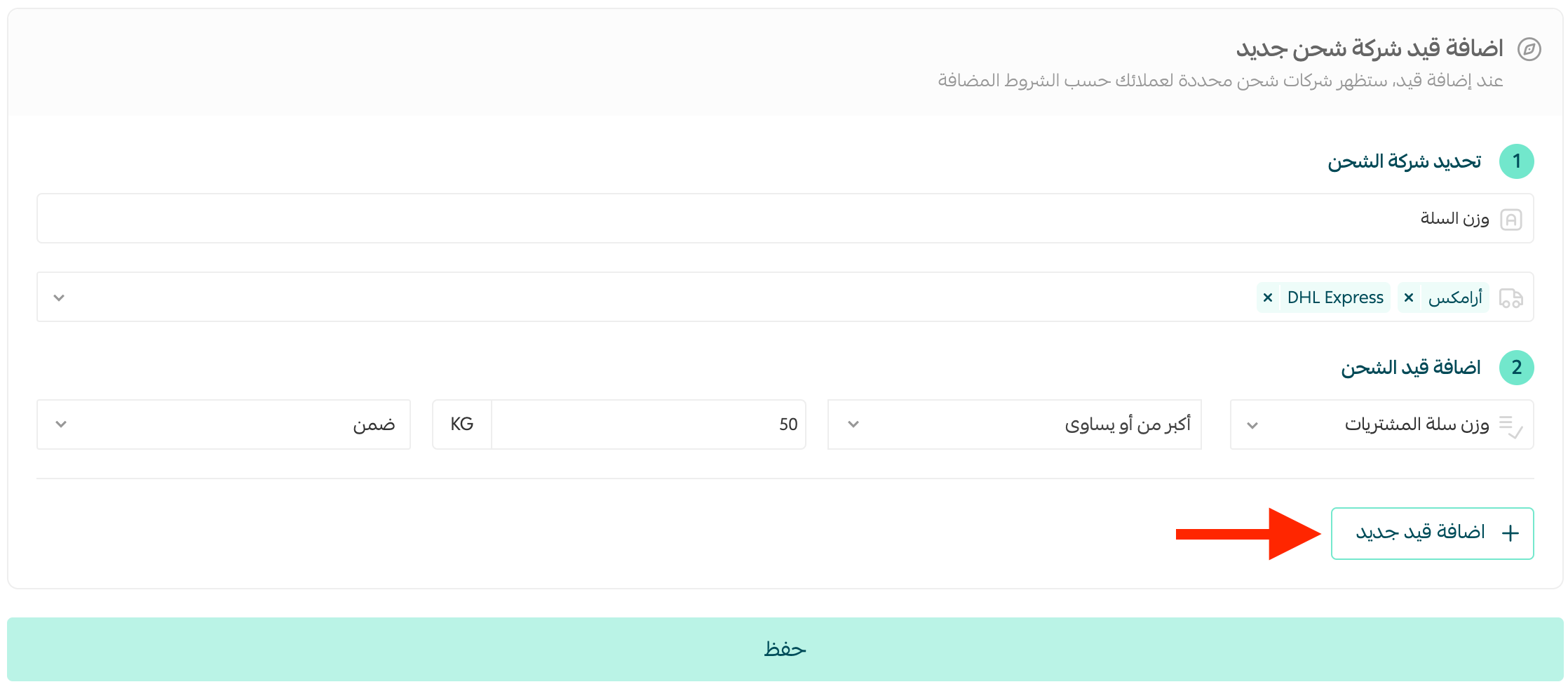
Yes. To add another restriction, click (+ Add new restriction).
How do I set a restriction based on cart weight?
Choose (Cart weight) as the restriction type, then set the condition.

How do I make a shipping company appear based on a product category?
Categories appear in the restriction settings only if your store has categories set up.

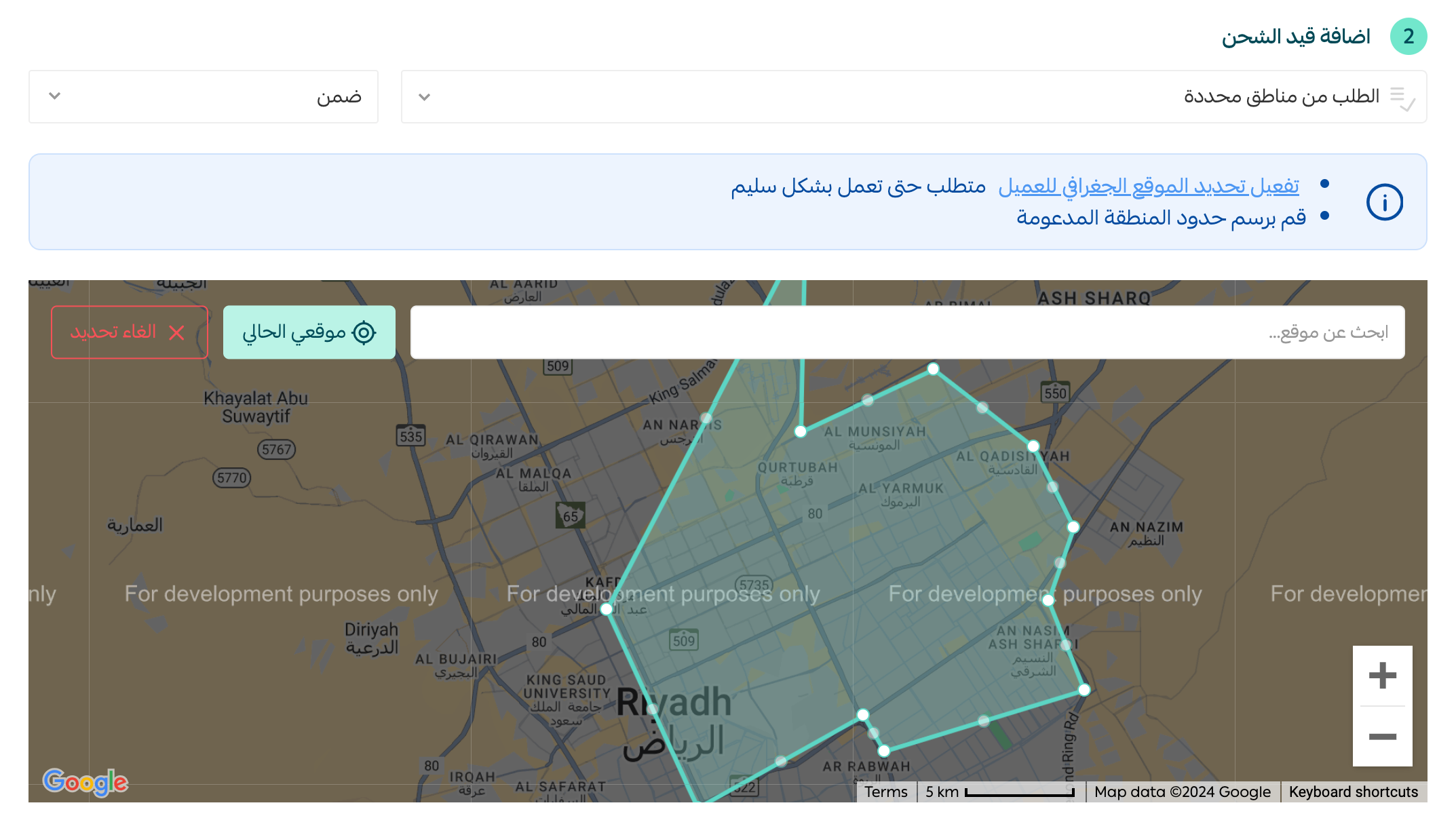
Can I draw a target area on a map using Google Maps?
Yes, provided customer geolocation is turned on in your store.
For more details, see pinpointing the customer's location on the map.
Choose (Orders from specific areas) as the restriction type, then draw the target area on the map.
Can I delete a restriction from a shipping company?
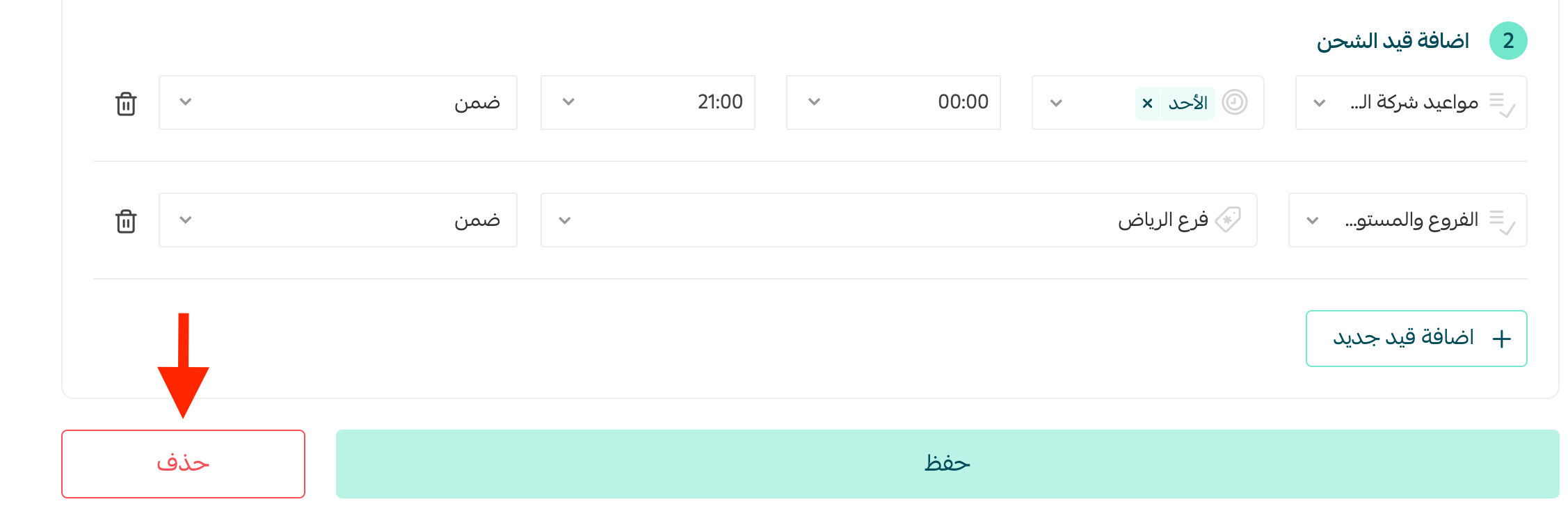
Yes. After saving, open the restriction and click (Delete) at the bottom of its details page.
Which plans include this feature?
The Pro and Special plans.

📚 Additional learning resources
We recommend browsing the shipping companies guide to help you choose the shipping company that best fits your business.