How many browser tabs does it take to answer one simple question: what do we actually have in stock?
Selling on your Salla store plus Amazon, Noon, or Shopify means the same products, the same stock pool, and the same orders spread across accounts that do not talk to each other. The Sellenvo app pulls all of it into one central dashboard, so inventory, orders, shipping, and product listings across every platform sit in a single view. In this guide, you'll learn what Sellenvo covers, how to install it on your store, and how to manage or remove it.
Sellenvo is a multichannel management app for Salla merchants. It gives you one central dashboard for inventory, orders, shipping, and product listings across all the platforms you sell on, including Amazon, Noon, and Shopify, so you no longer have to log in and out of separate seller accounts to keep everything aligned.
📌 Article overview
- What the Sellenvo app does
- How to install Sellenvo on your store
- How to manage and remove the app
- Frequently asked questions
🎯 What the Sellenvo app does
Sellenvo is a control panel that sits above your sales channels rather than inside any one of them. From a single dashboard you can:
- Manage inventory across every platform you sell on.
- Track and handle orders in one queue.
- Manage shipping for those orders.
- Manage your product listings on each marketplace.
Because everything runs from one place, you stop switching between multiple seller accounts to do the same job several times over.
👣 How to install Sellenvo on your store
1. From the main menu, click (All), then under the helper tools section, click (App Store).

2. On the Sellenvo app page, click (Install).
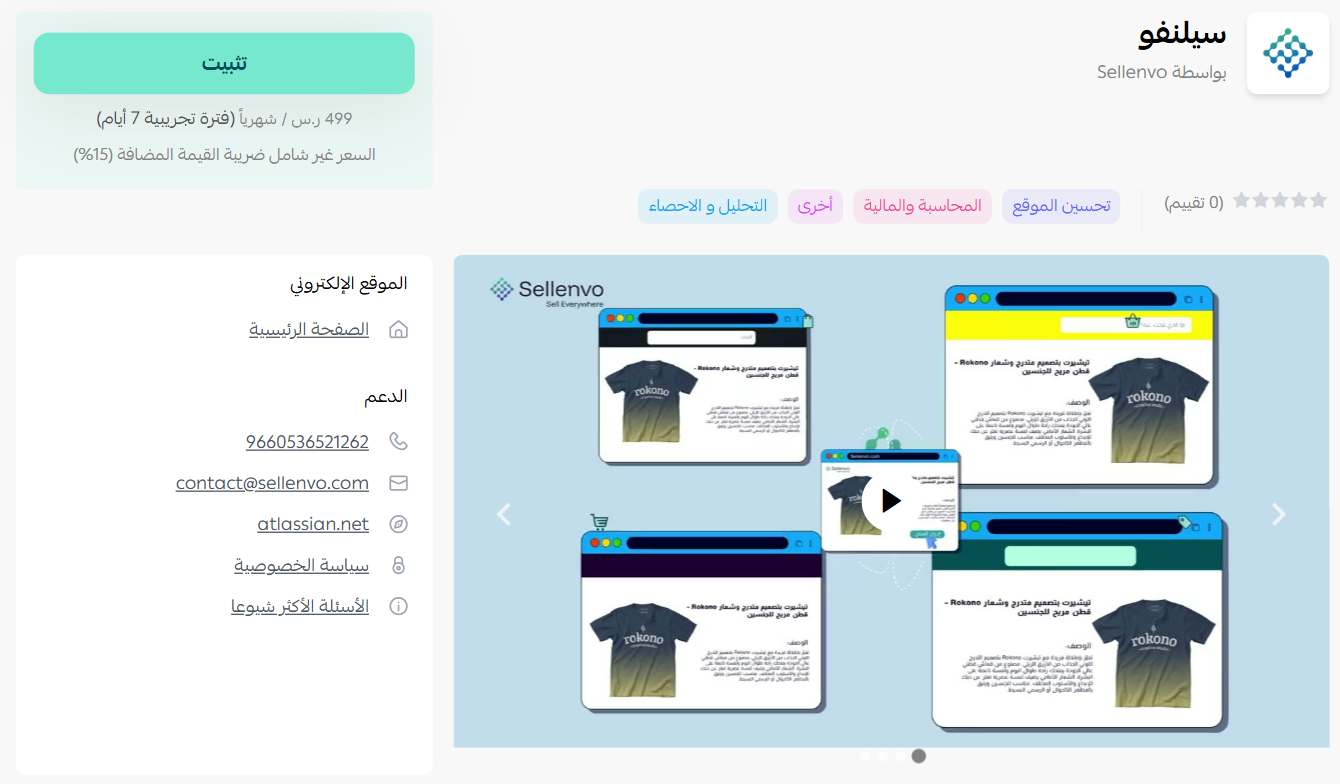
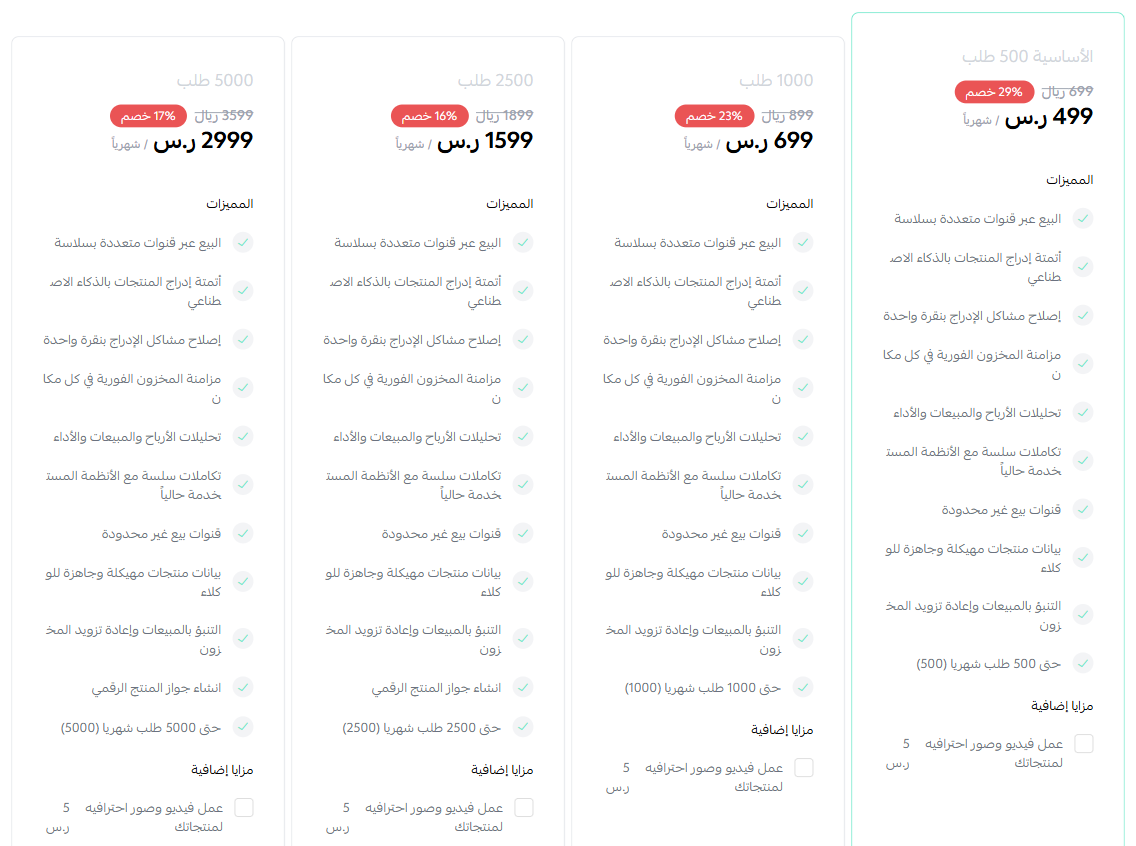
3. Choose the plan that fits your store, then click (Install app).
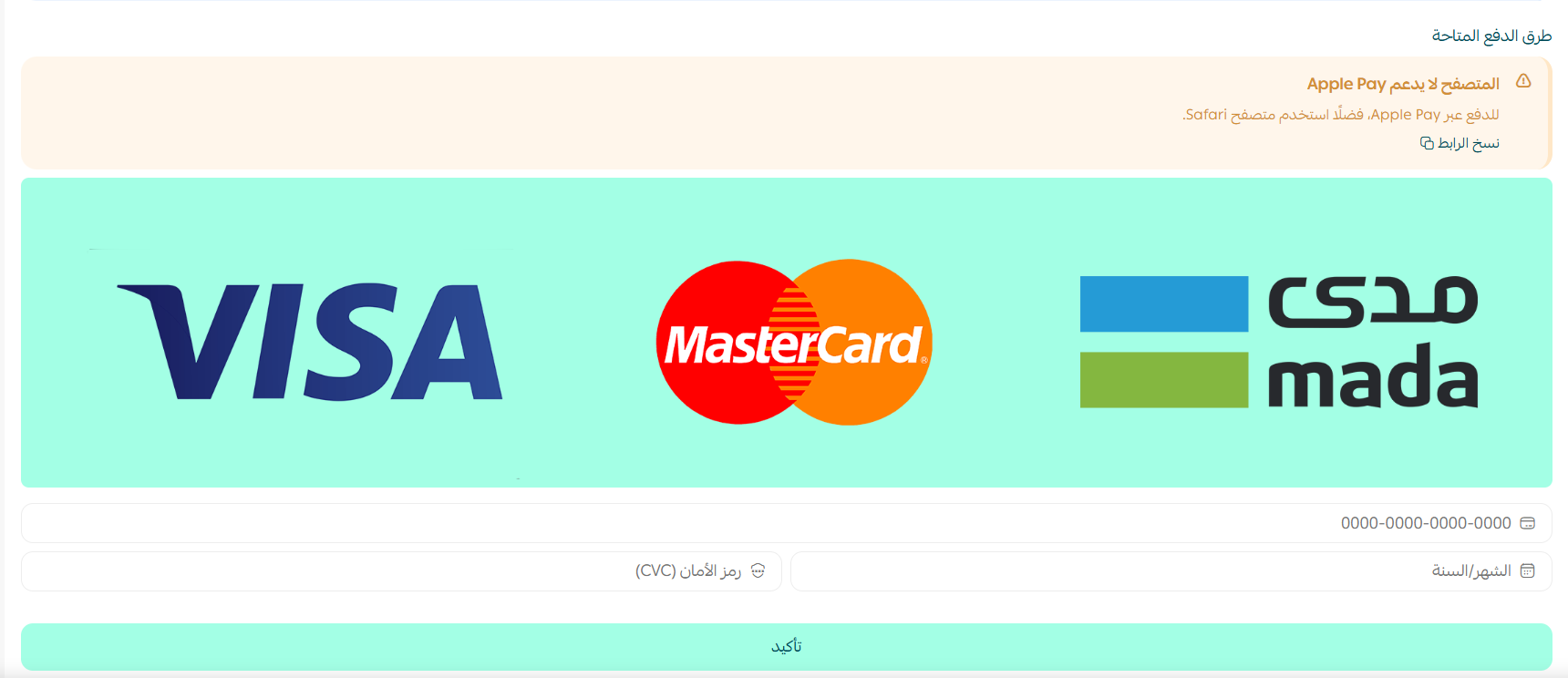
4. Complete the payment to activate the app's features.
Sellenvo is now installed on your store.
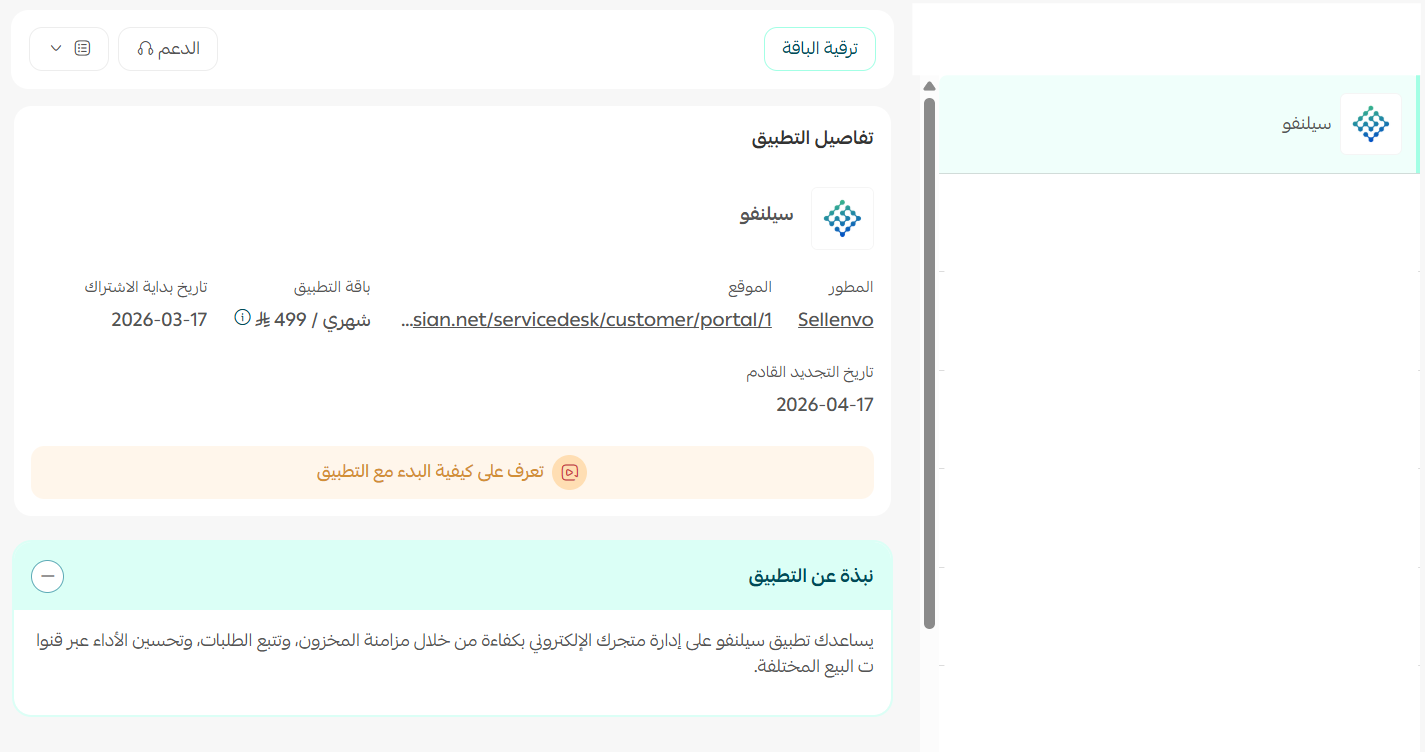
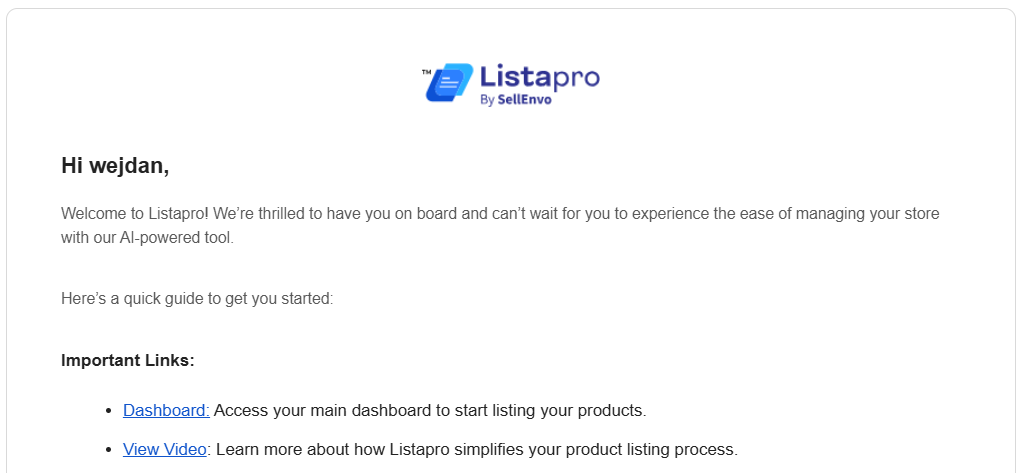
5. Open the Sellenvo dashboard using the link sent to your store's email address.
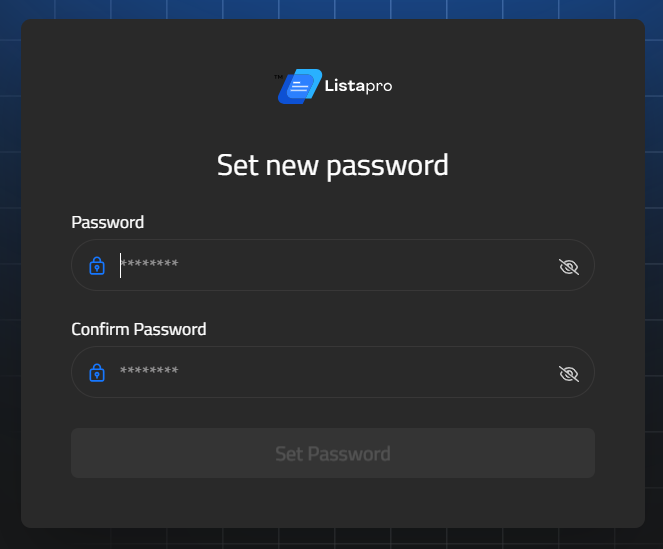
6. Set a password the first time you sign in to the dashboard.
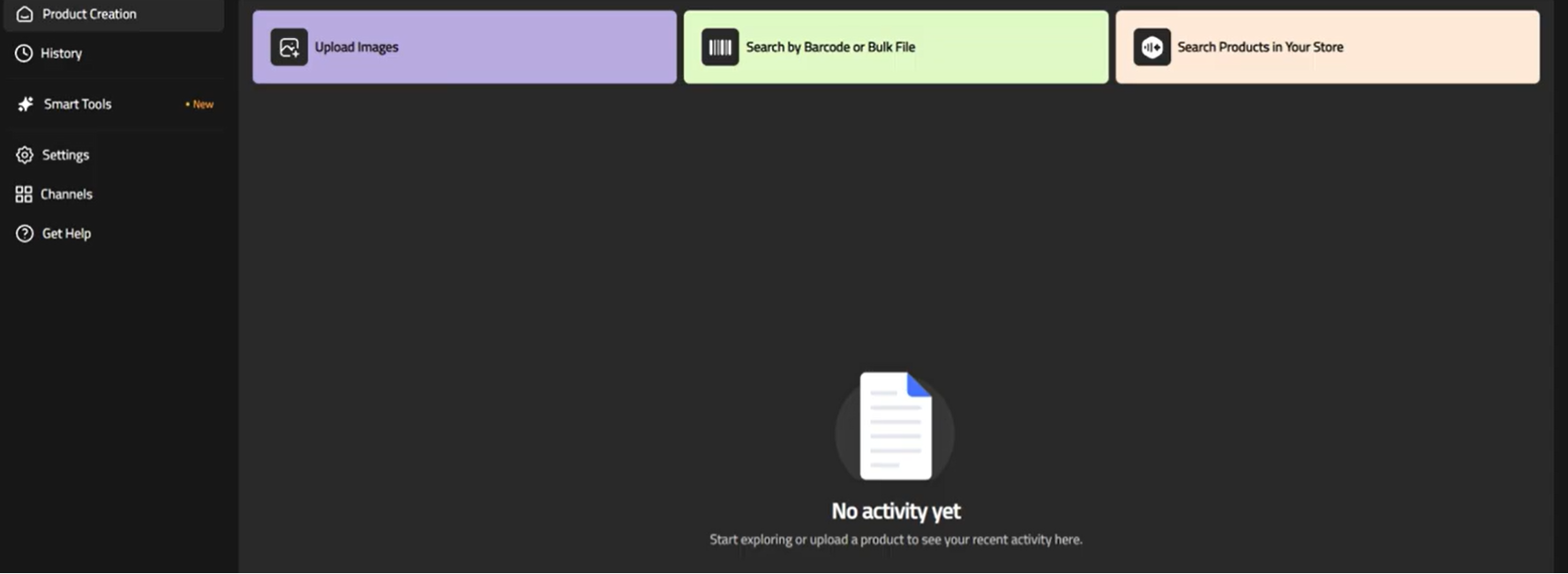
From here, the source article states that you can turn your product photos into ready-to-publish ad designs sized correctly for each platform, such as feed posts and stories. [Verify: this line and the screenshot below it look like they belong to a different app; confirm with the content owner whether Sellenvo includes ad-creative generation.]
🚀 Managing the Sellenvo app
Removing the app
1. From the app options menu, click (Cancel subscription) and choose your reason for cancelling.

2. From the app options menu, click (Delete app) and choose your reason for deleting it.

3. On the Deleted apps page, open the app options menu and click (Delete app permanently) to remove it from your store for good.

📝 Important notes
- Cancelling the subscription and deleting the app are two separate actions. Do both, then delete permanently if you want the app gone completely.
- The Sellenvo dashboard is a separate login from your Salla dashboard, so keep the invitation email.
For more details, see the Sellenvo help pages.
❓ Frequently asked questions
Which platforms can I manage from Sellenvo?
Sellenvo covers the platforms you sell on alongside Salla, including Amazon, Noon, and Shopify, from one central dashboard.
Is Sellenvo a shipping company?
No. Sellenvo is a management dashboard. Shipping is one of the areas you can handle from it, but the app does not deliver orders itself.
Where do I sign in to Sellenvo?
Use the link sent to your store's email address after installation. The first time you sign in, you will be asked to set a password.
Is Sellenvo free?
No. You pick a plan during installation and complete the payment before the app's features become available.
Selling in more places only pays off if you can still see one stock number and one order queue. A central dashboard is what keeps a multichannel setup from turning into multichannel guesswork.