Do you remember how good it felt to be handed a gift card for a store you love?
A gift card is store credit your customers buy and send to family and friends, and it lands as an invitation to shop with you. Gift cards give people something to buy when they cannot decide what someone else would want, and they bring a brand-new shopper to your store at the sender's expense rather than yours. In this guide, you'll learn how to build a gift card in your store, how customers buy one, how the recipient redeems it, and where to track the orders.
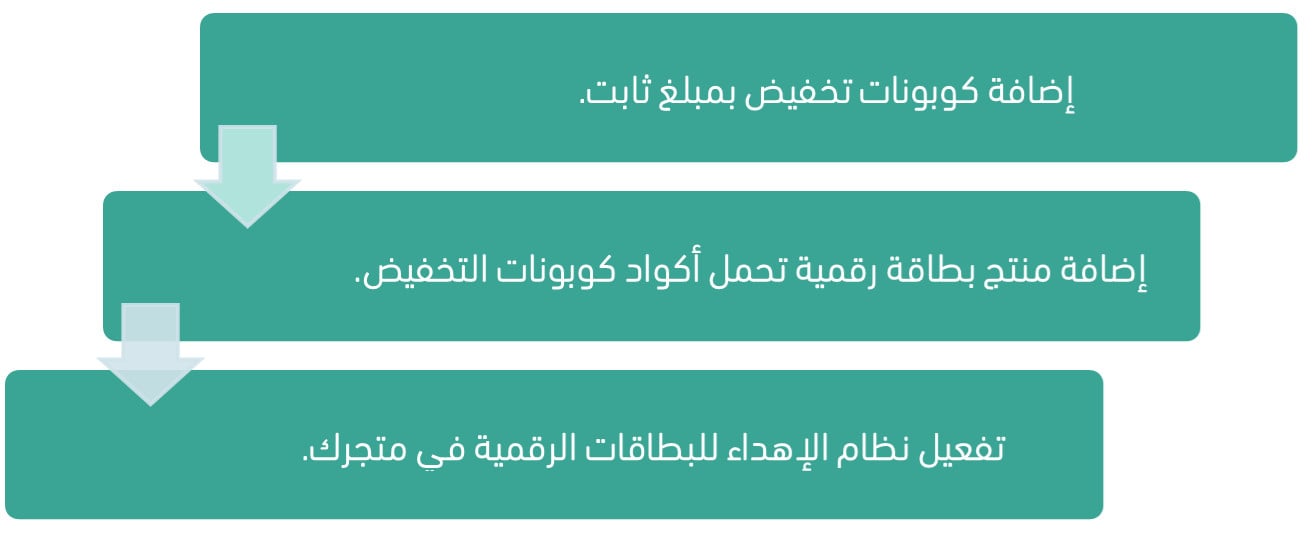
On Salla, a gift card is built from three pieces: fixed-amount coupons, a digital product that hands those coupon codes to the buyer, and the digital gifting app that delivers the card to the recipient. Set those up once and customers can buy and send gift cards on their own.
📌 Article overview
- Why sell gift cards
- Which stores can use gift cards
- How to set up gift cards in your store
- How customers buy a gift card
- How the recipient redeems a gift card
- Where to see gift card orders
- Frequently asked questions
🎯 Why sell gift cards?
1. They lift your purchase rate.
2. They give customers one more thing to buy, which grows your sales.
3. The person receiving the card becomes a new customer for your store.
🔍 Which stores can use gift cards?
Any store can offer a gift card and shape it around what it sells — beauty and personal care, fashion, electronics, and everything in between.
We recommend publishing your gift card terms and conditions on your storefront as an info page, linked from the homepage.
For more on creating a new info page.
🚀 How to set up gift cards in your store
Building a gift card takes three simple stages: create the coupons, wrap them in a digital product, then turn on digital gifting.
⚙️ 1. Add fixed-amount discount coupons
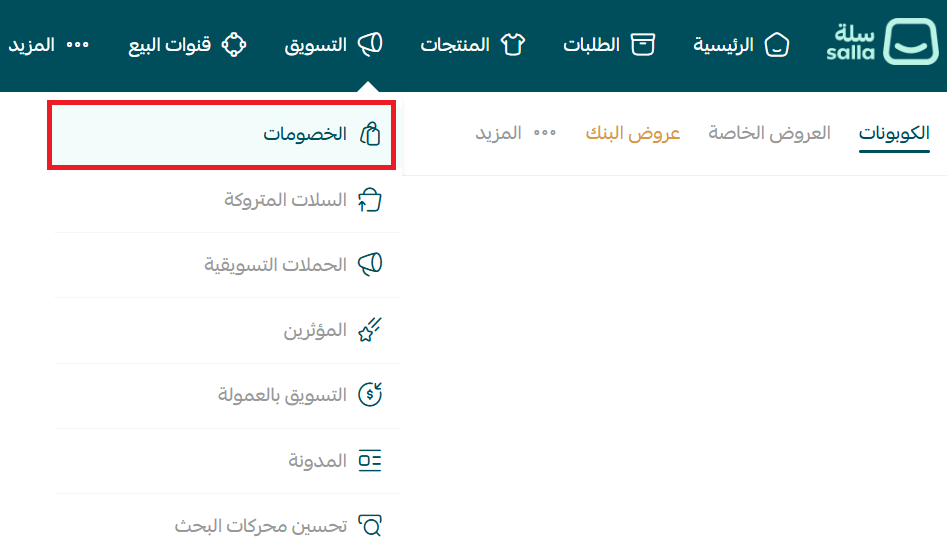
1. From the main menu, click (Marketing), then click (Discounts).
2. Open the (Coupons) tab.
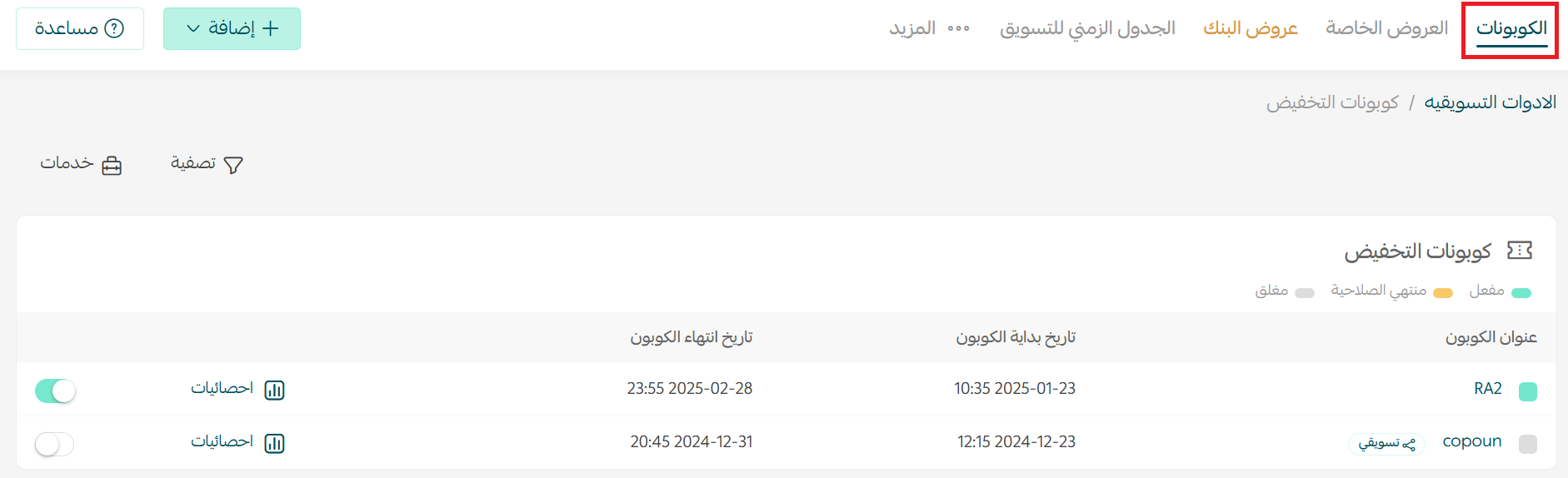
3. From the discounts page, click (Add), then (New coupon).

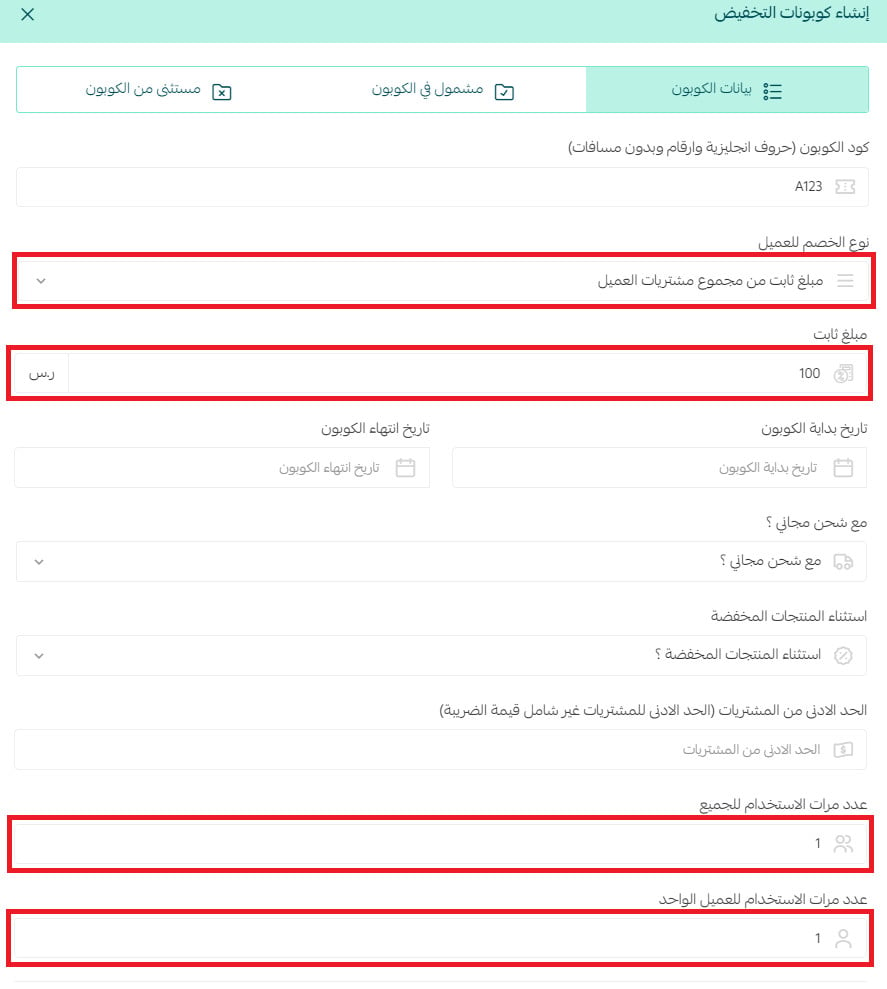
4. Fill in the fields on the (Coupon details) tab. Make sure the discount type is a fixed amount and the usage limit is 1.
For more on creating a new coupon.
To save yourself work later, create a coupon group now and add the whole group as codes on the digital card product.

2. Add a digital product that holds the coupon codes
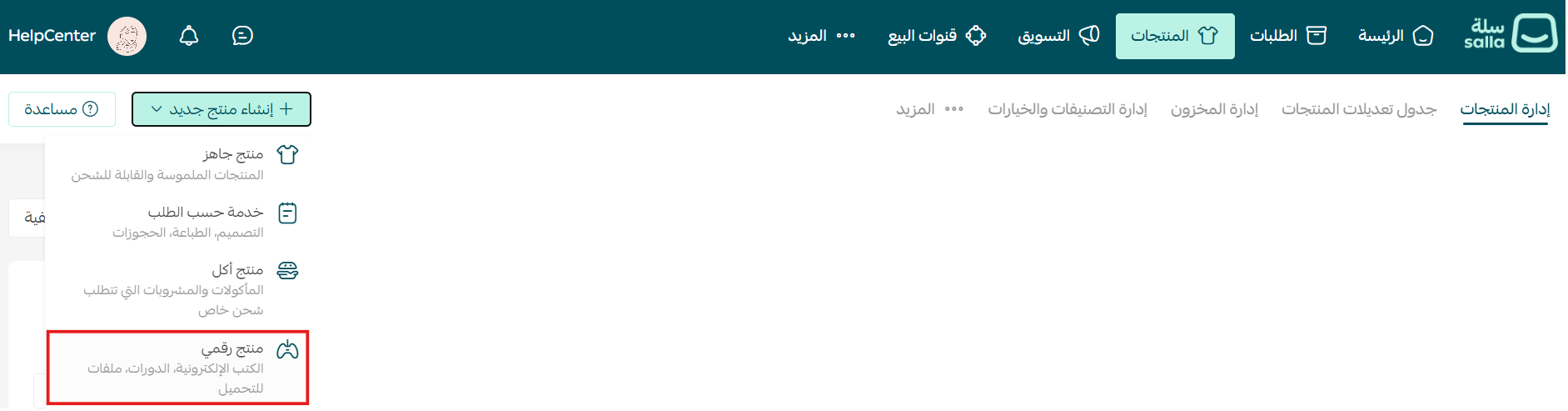
1. From the main menu, click (Products).

2. From the (+ Create new product) menu, click (Digital product).
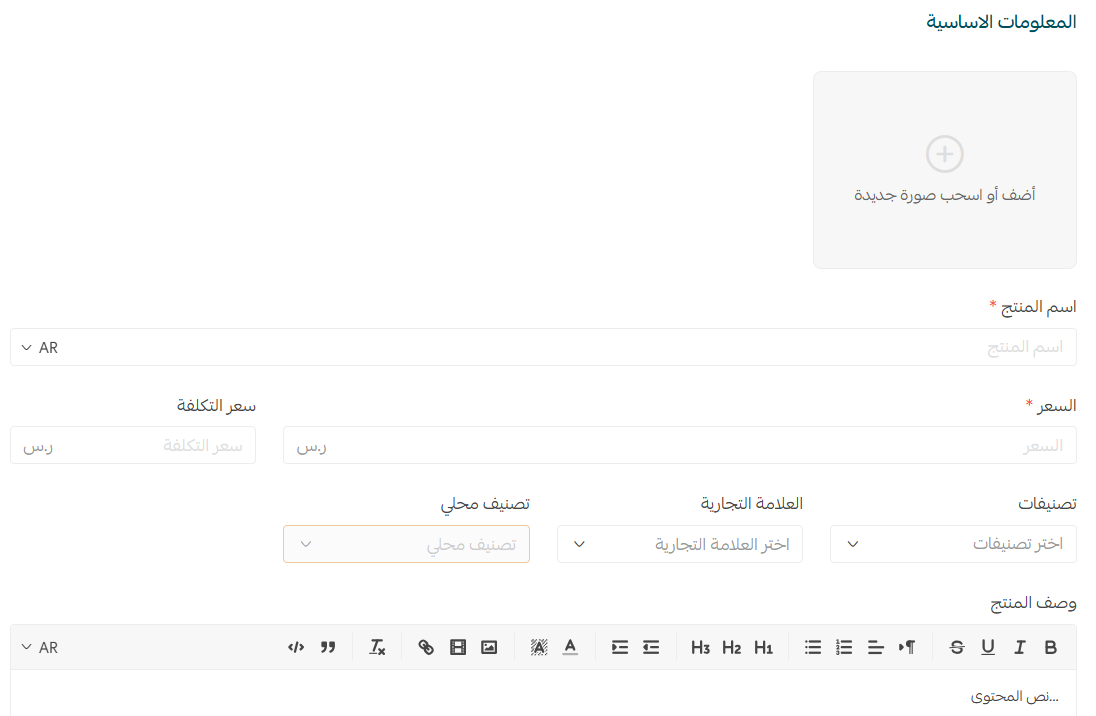
3. Enter the product's basic details, then click (Save).
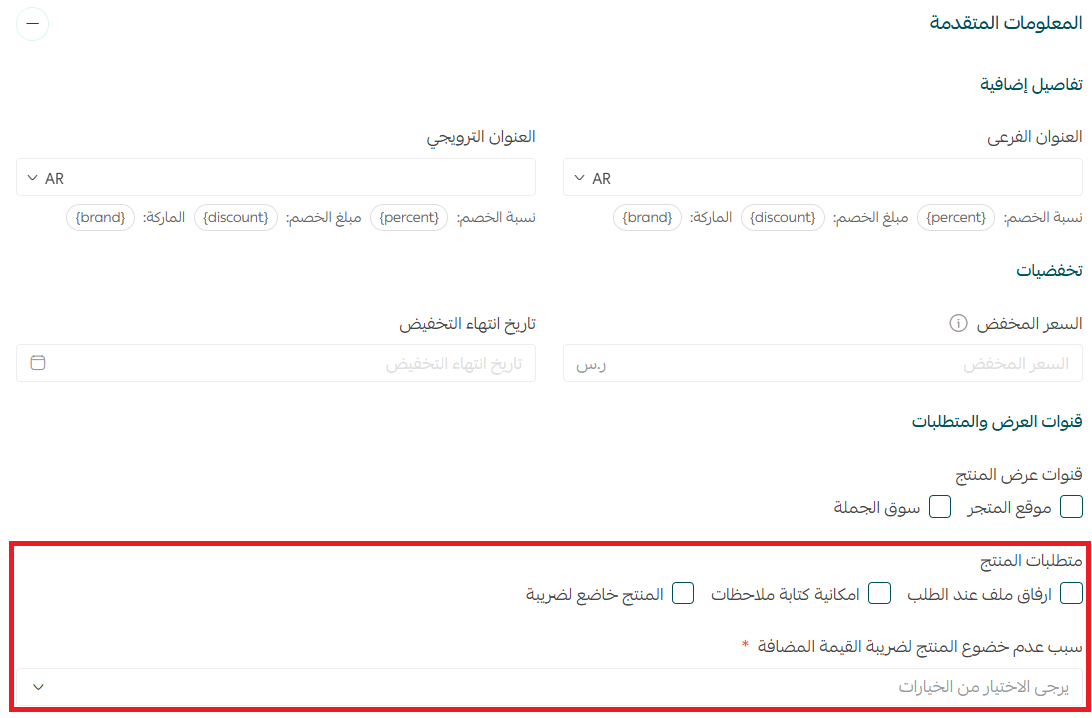
4. On the product card, open the (Advanced information) tab.
Set the product as not taxable. Tax is charged later, on the products the recipient buys with the card.
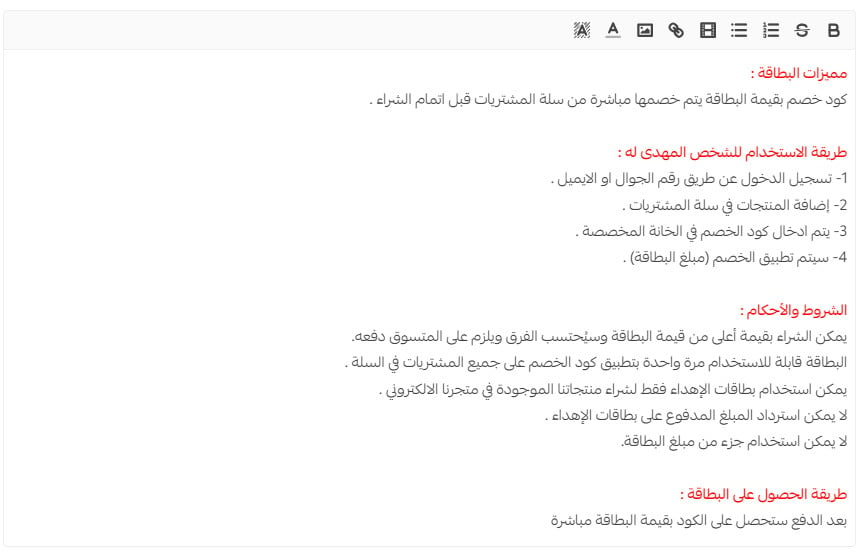
Write a precise product description. We suggest it covers:
- What the card gives the recipient.
- How the recipient uses it.
- The terms and conditions.
- How to get the card.
Then, from the (Available codes) tab, enter the discount coupon codes you created in the first stage.
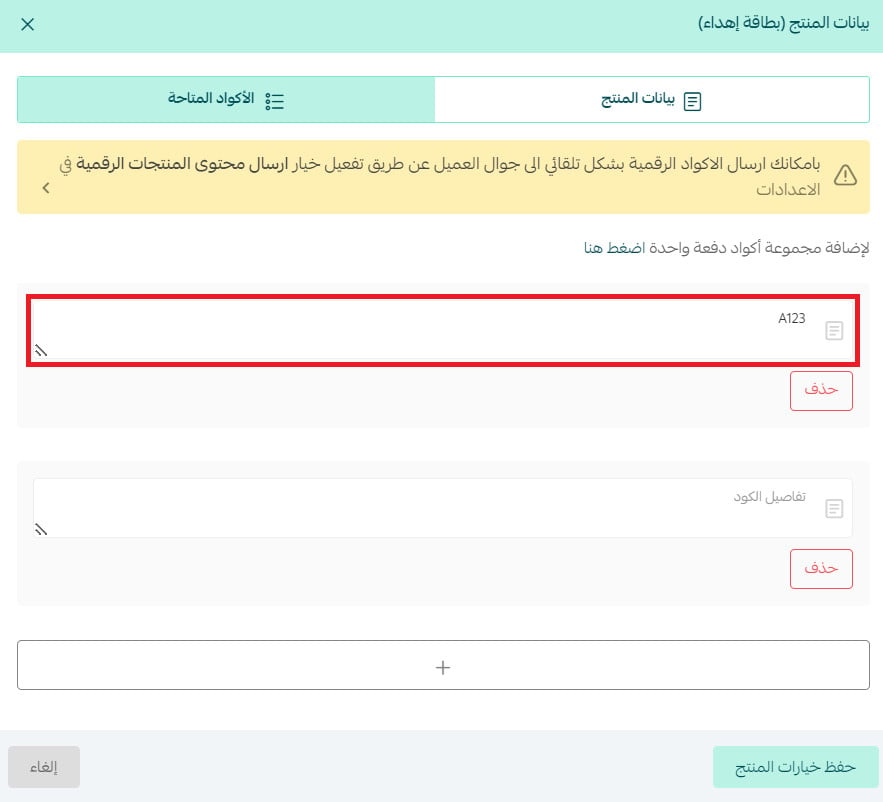
You can add the coupons one code at a time, or insert them as a group of codes — the quicker route if you already built them as a coupon group in the first stage.
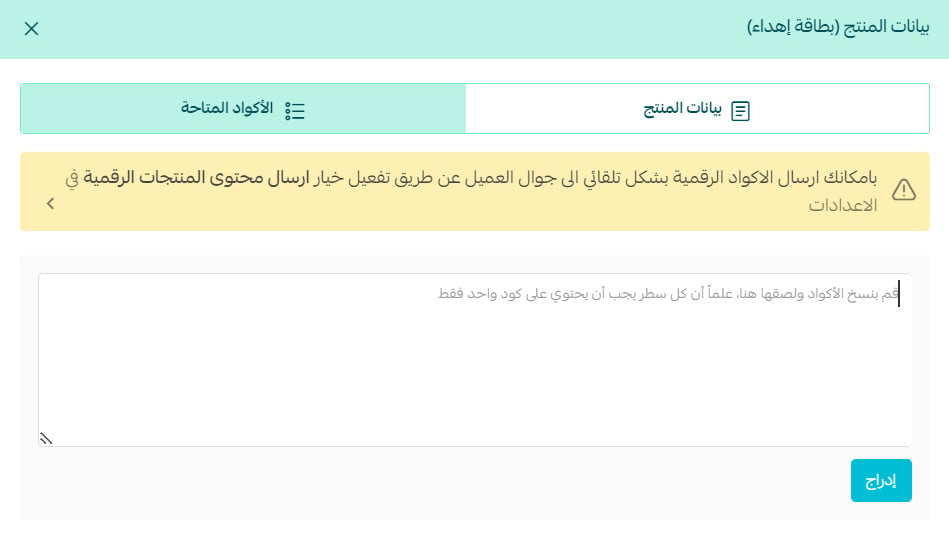
For more on adding a digital product.
For more on creating a coupon group.
3. Turn on digital gifting in your store
1. Open the Digital gift cards app and click (Install).
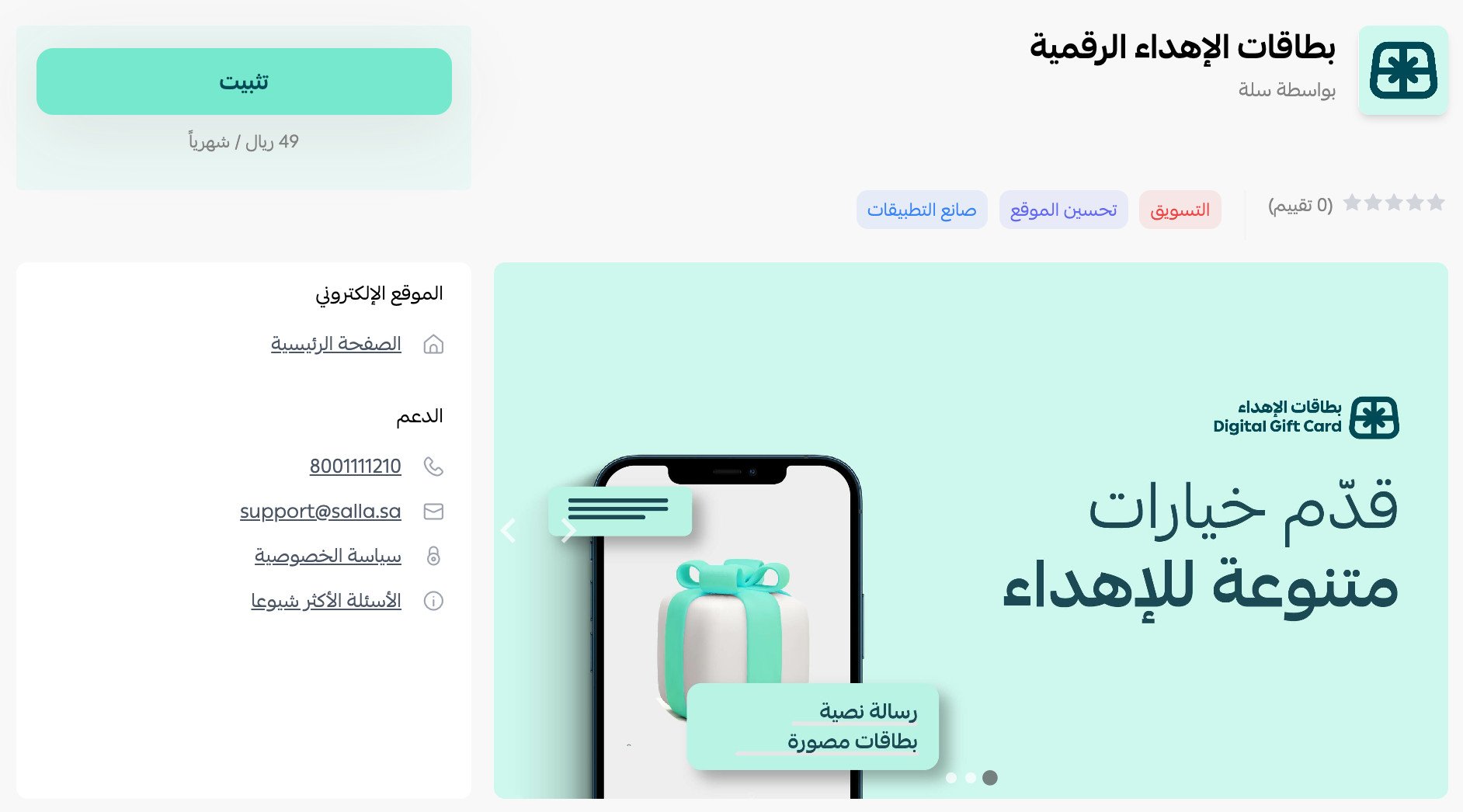
Work through the installation until the digital gift cards system is ready to switch on.
From the digital gifting page, click (Activate digital gifting).
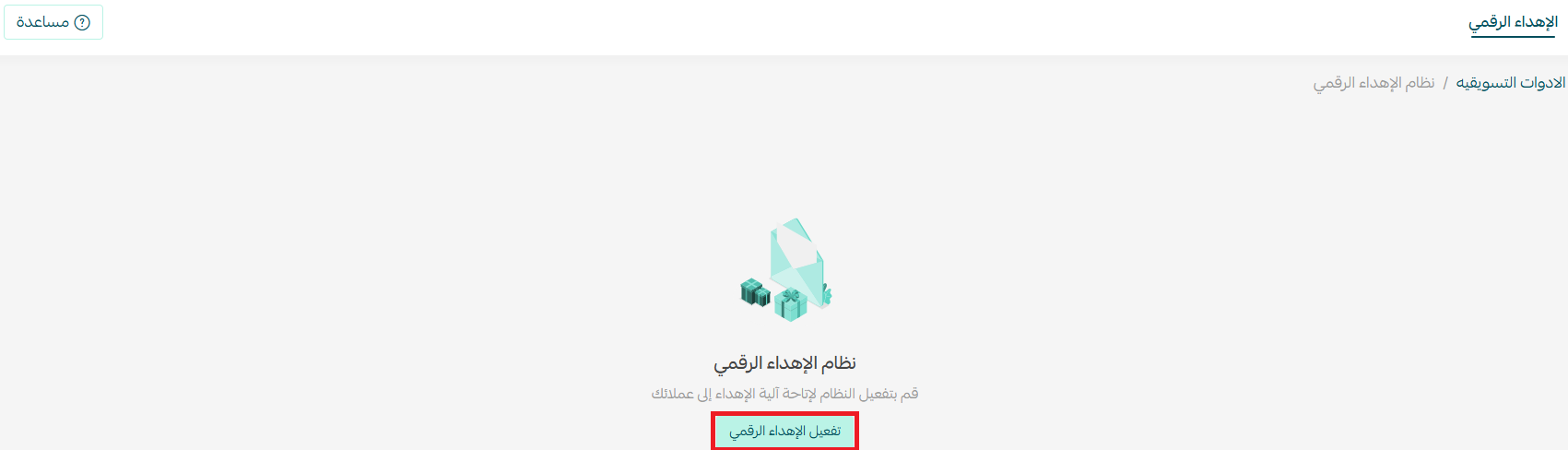
The digital gifting settings page then looks like this:
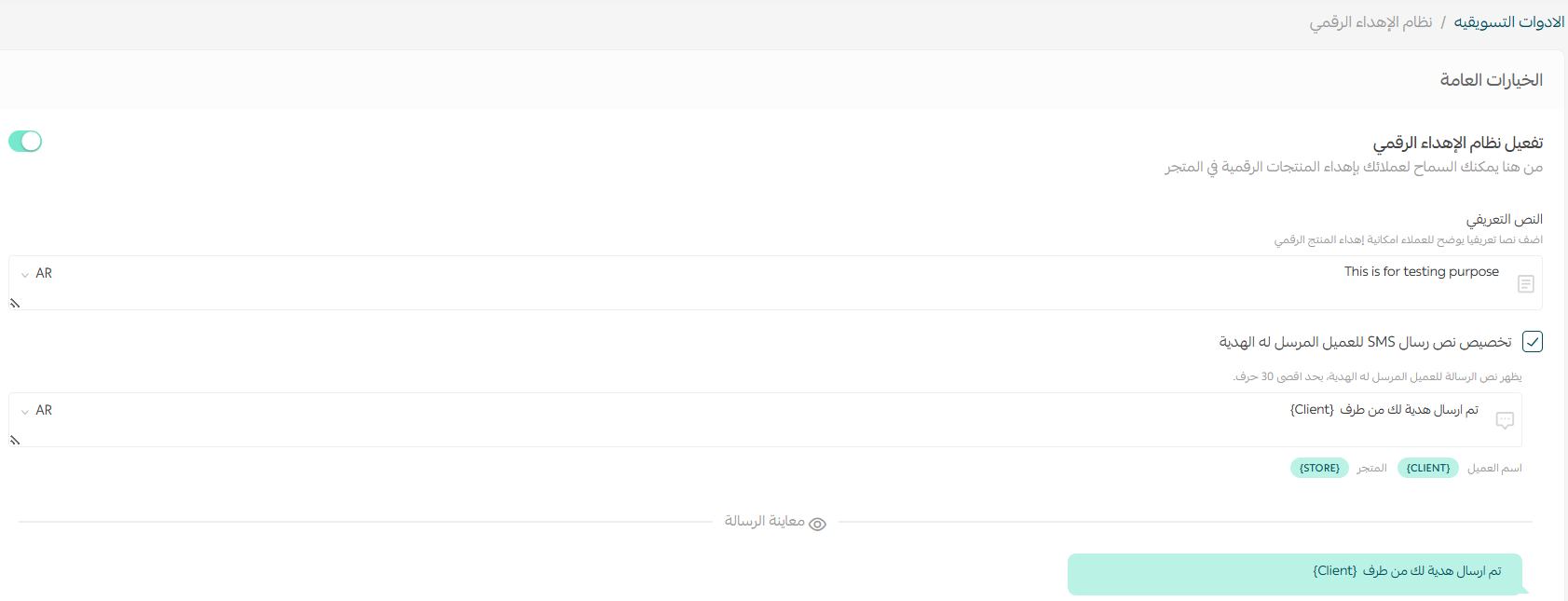
For more on digital gift cards.
💰 How customers buy a gift card
A customer can search for the product.

Or come across it directly, depending on how your store is designed. The gift card page opens like this:
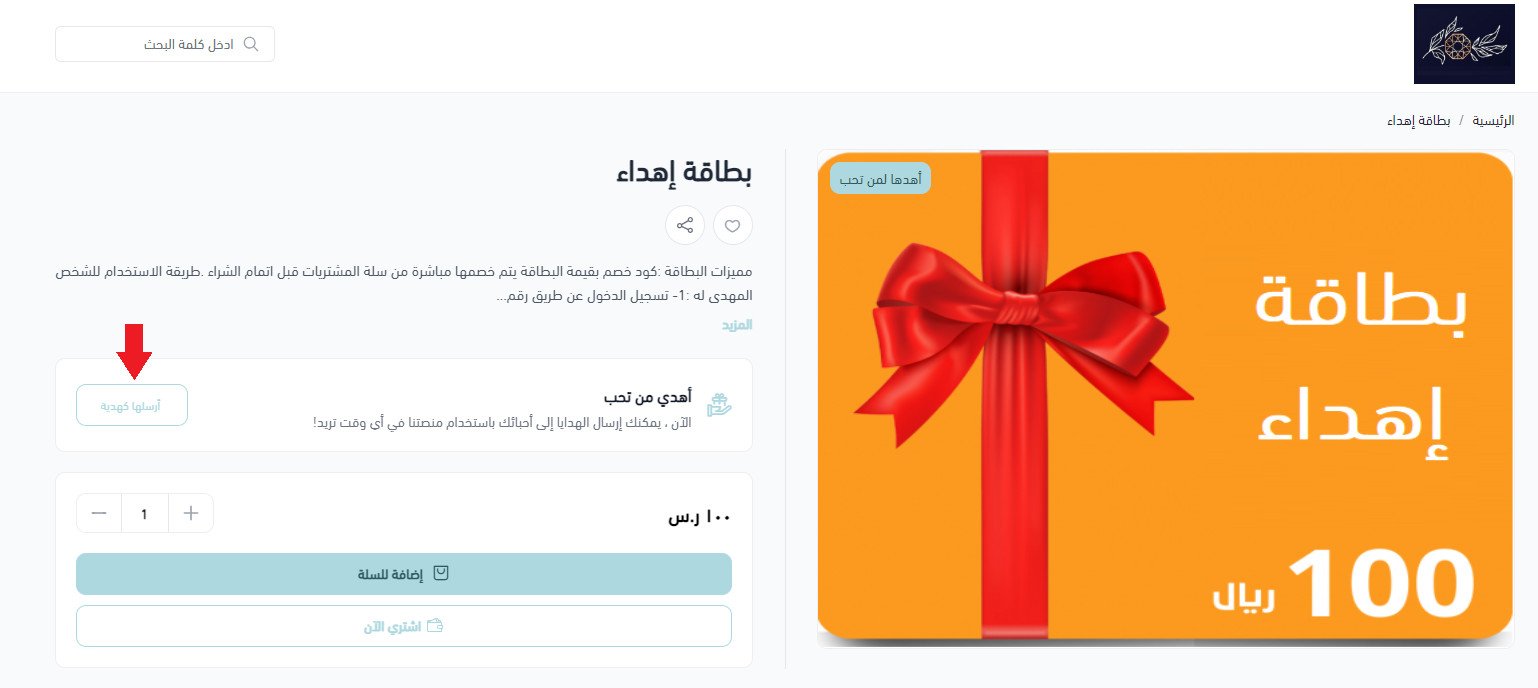
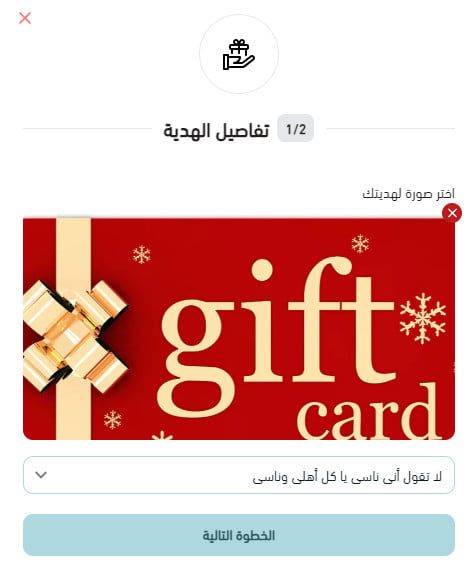
They click (Send as a gift), pick the card design and the message that goes with it, then enter the recipient's details.
We recommend creating a category for your gift card products and showing it in your store menus or among your homepage components.
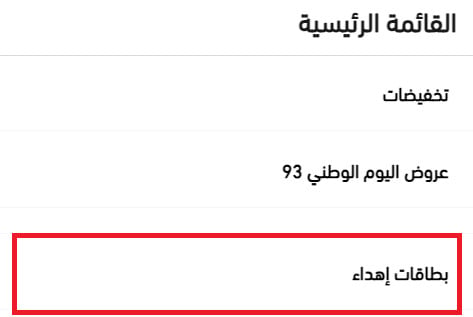
For more on customizing the homepage.
🎁 How the recipient redeems a gift card
The gift message the buyer chose arrives on the recipient's mobile, sent to the details the buyer entered, together with the gift link.
The digital gift card page carries four things: the card itself, the gift message, the product name, and the discount coupon code.

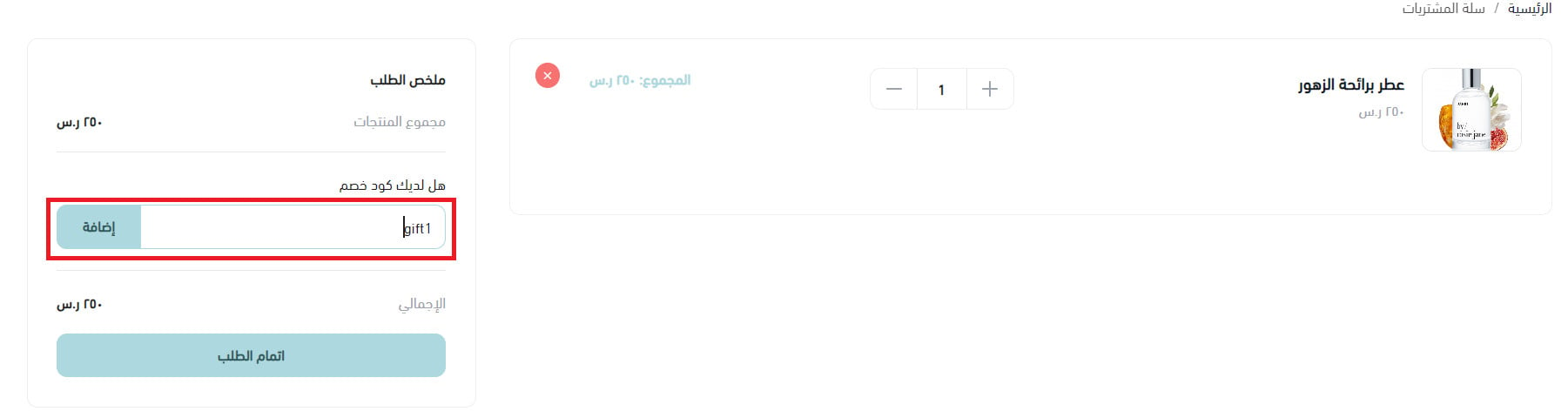
The recipient adds products to the cart in your store and applies the coupon at checkout.
📊 Where to see gift card orders
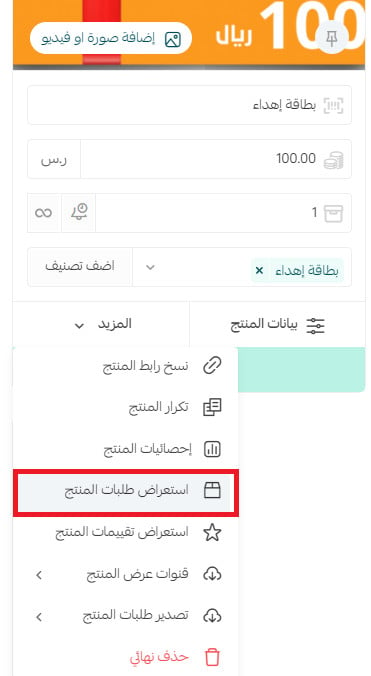
Open the (More) menu on the product card, then click (View product orders).
You can also read the numbers from a sales-by-category report, based on the categories you use in your store.
📝 Important notes
- Set the discount type to a fixed amount and the usage limit to 1, so each card is redeemed once.
- Keep the gift card product non-taxable. Tax belongs on the products the recipient buys with it.
- Publish the card's terms and conditions as an info page, so buyers and recipients both know how it works.
❓ Frequently asked questions
Do I need an app to sell gift cards?
The coupons and the digital product are built in your dashboard, but delivering the card to a recipient runs on the Digital gift cards app. Install it and activate digital gifting before you promote the card.
Should the gift card product be taxable?
No. Set it as not taxable. The recipient pays tax on the products they buy with the card, so taxing the card as well would charge twice.
How many times can one gift card be used?
Once, as long as you set the coupon's usage limit to 1 when you create it.
Do I have to enter coupon codes one by one?
No. Create the coupons as a group first, then add the whole group to the (Available codes) tab on the digital product.
Where will customers find the gift card in my store?
Through search, or wherever your theme places it. Give the cards their own category and show that category in your menus or on the homepage so it is easy to reach.