Would your customers buy faster if they could see your product in 3D before ordering?
Photos only tell part of the story. ScanAR is a Salla app that scans a real product with an iPhone or iPad and turns it into a 3D and augmented reality model, then publishes it straight to your store. Shoppers can spin the item, view it from every side, and place it in their own space before they decide — and you don't need any 3D software or technical background to do it. In this guide, you'll learn how to install ScanAR, activate it on your device, capture your first product, and remove the app if you no longer need it.
ScanAR is a Salla app that scans physical products with an iPhone or iPad and converts them into 3D and augmented reality models you can publish directly to your store. Install it from the App Store, choose a plan, complete the payment, then scan the QR code shown for your store to start capturing products.
📌 Article overview
- How to install ScanAR on your store
- How to activate ScanAR and capture a product
- Managing the ScanAR app
- Frequently asked questions
🚀 How to install ScanAR on your store
1. From the main menu, click (All), then under helpful tools, click (App Store).

2. Search for the app using the search field.

3. On the ScanAR app page, click (Install).
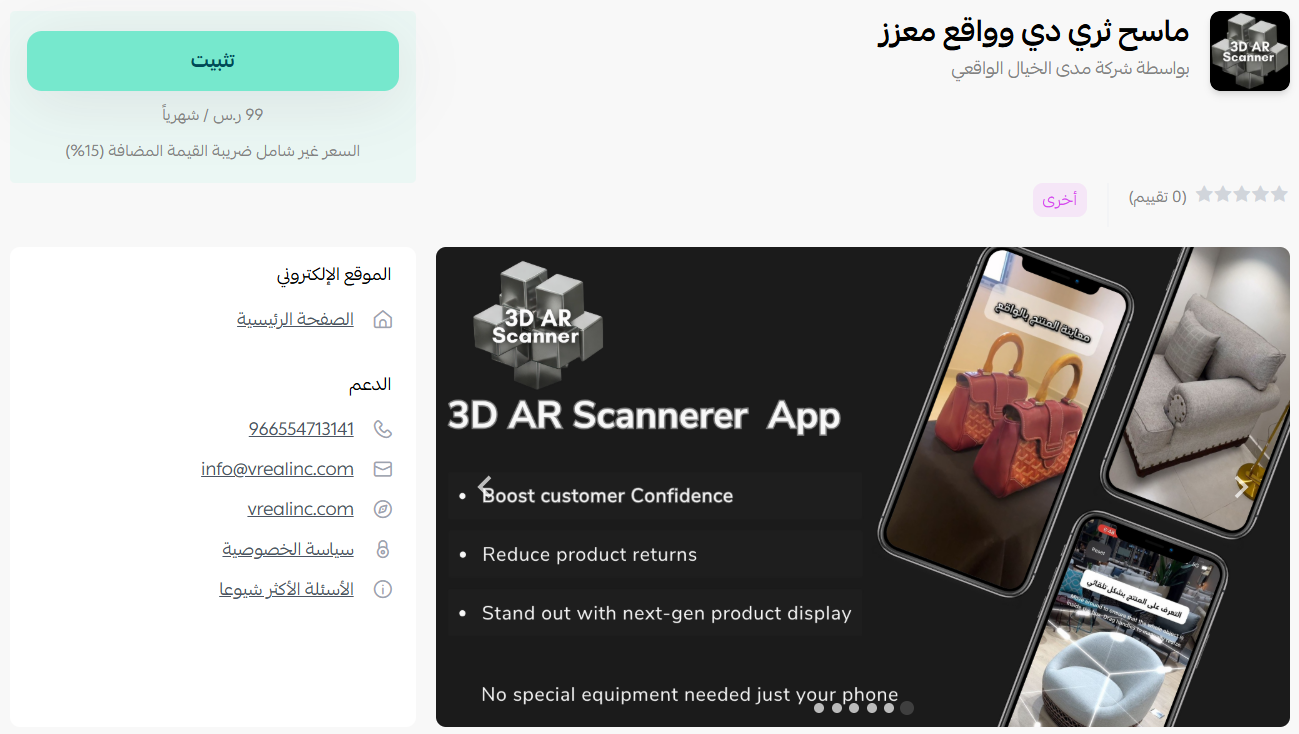
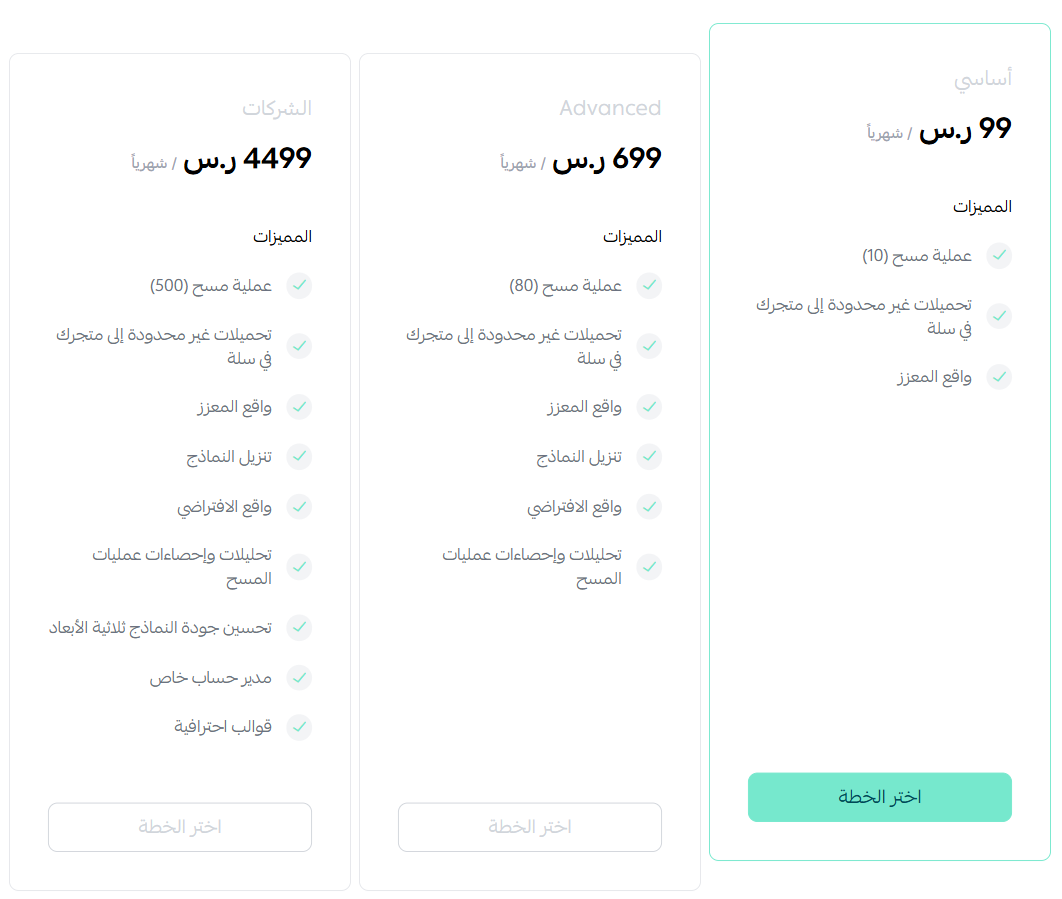
4. Choose the plan that suits your business to continue with the installation.
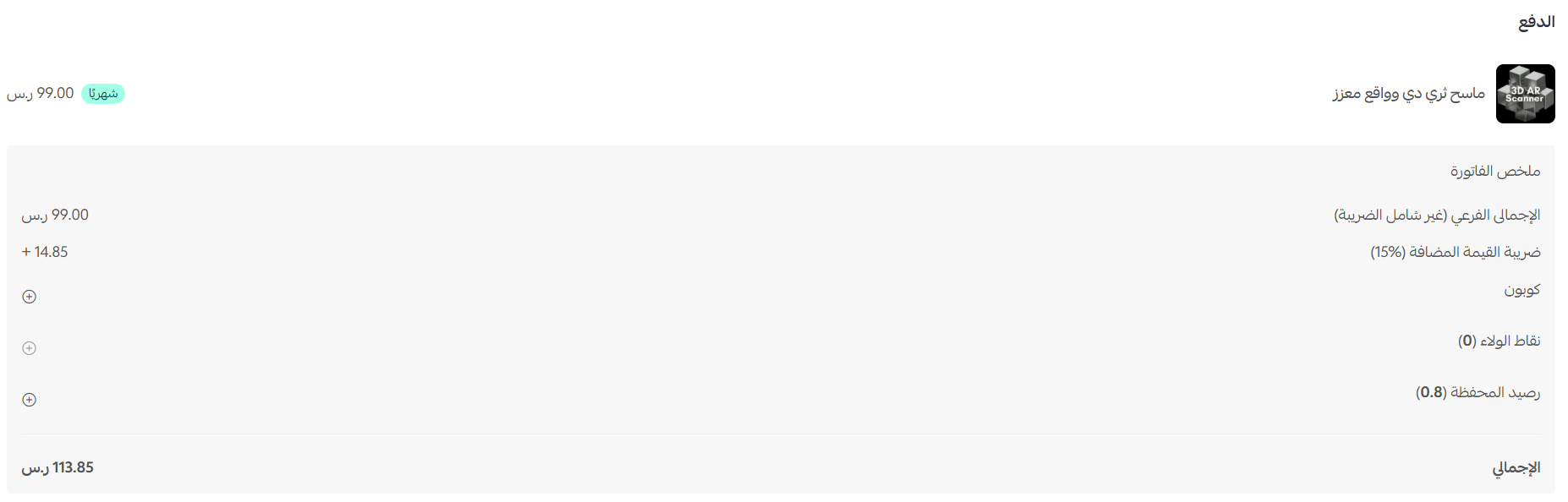
5. Complete the payment to unlock the app's features.
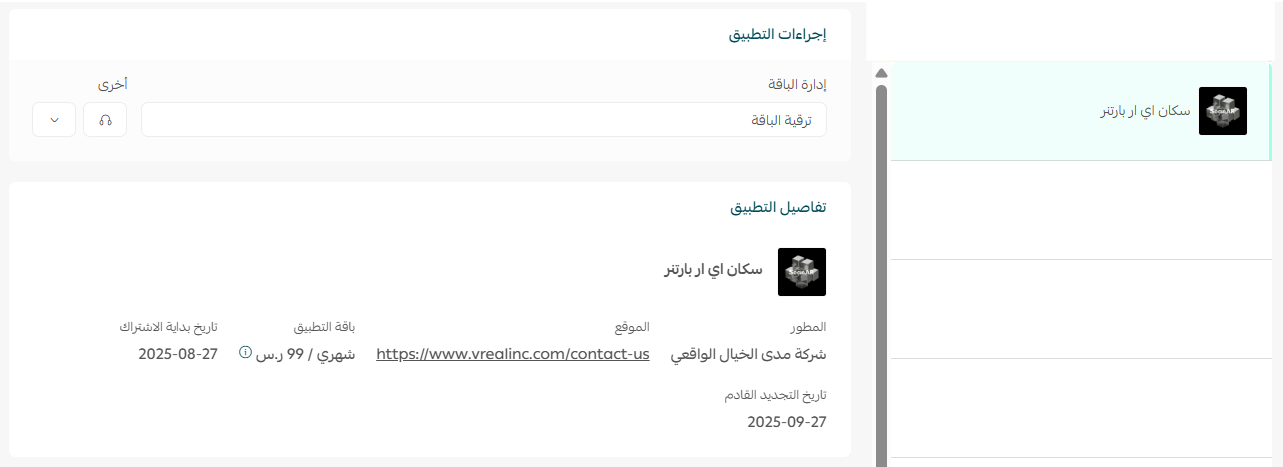
ScanAR is now installed on your store.
👣 How to activate ScanAR and capture a product
Right after the installation, an activation page opens with the steps that connect the app to your store.
1. Click (Download the app) to install ScanAR on your iPhone or iPad.
2. Open your camera and scan the QR code shown for your store.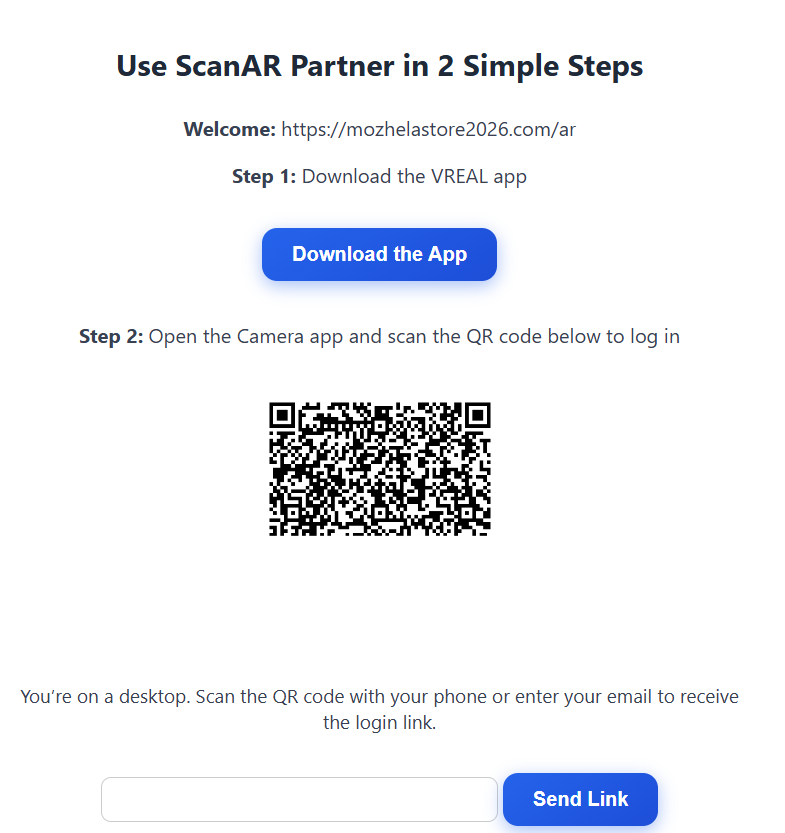
3. Scanning the code signs you in to your store inside the app. Click (View Products).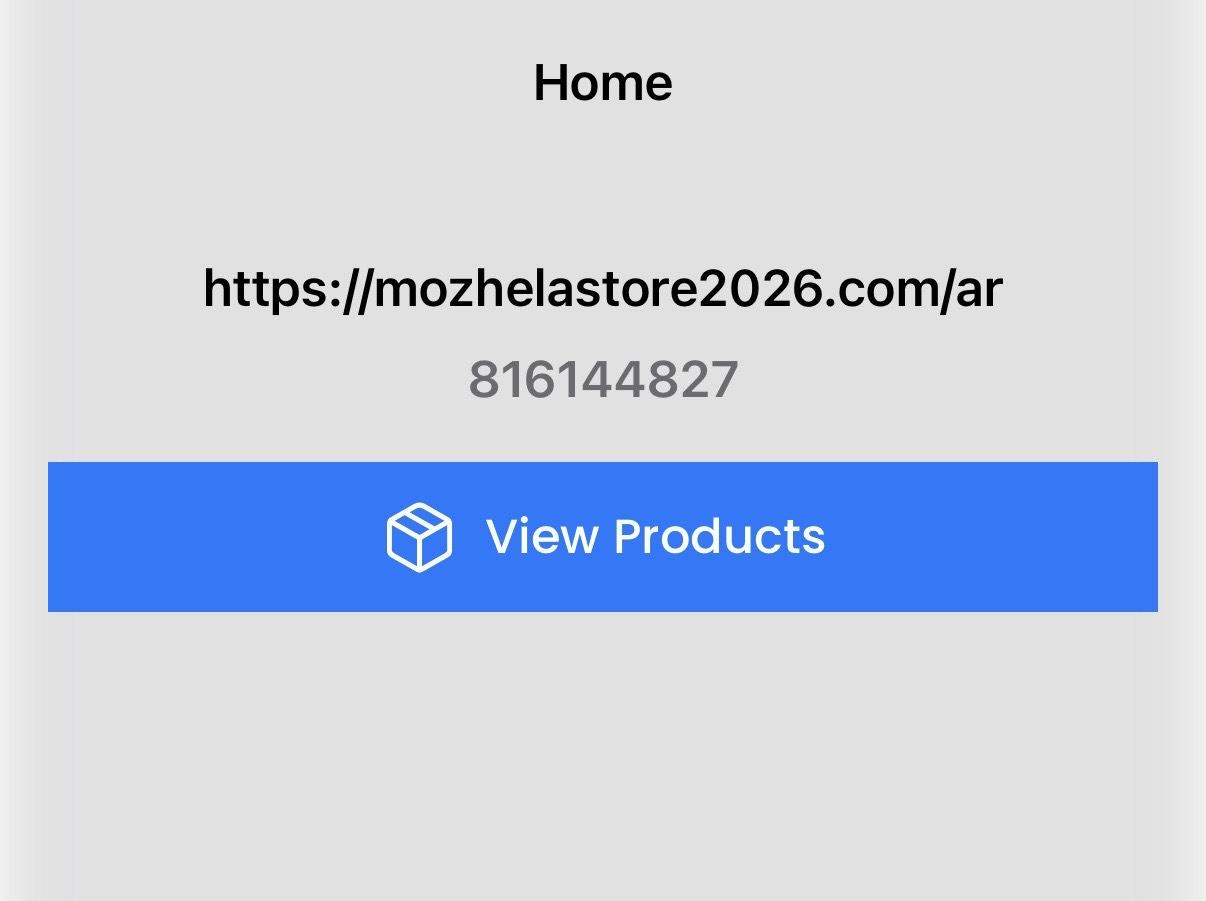
4. Your store's product list opens.
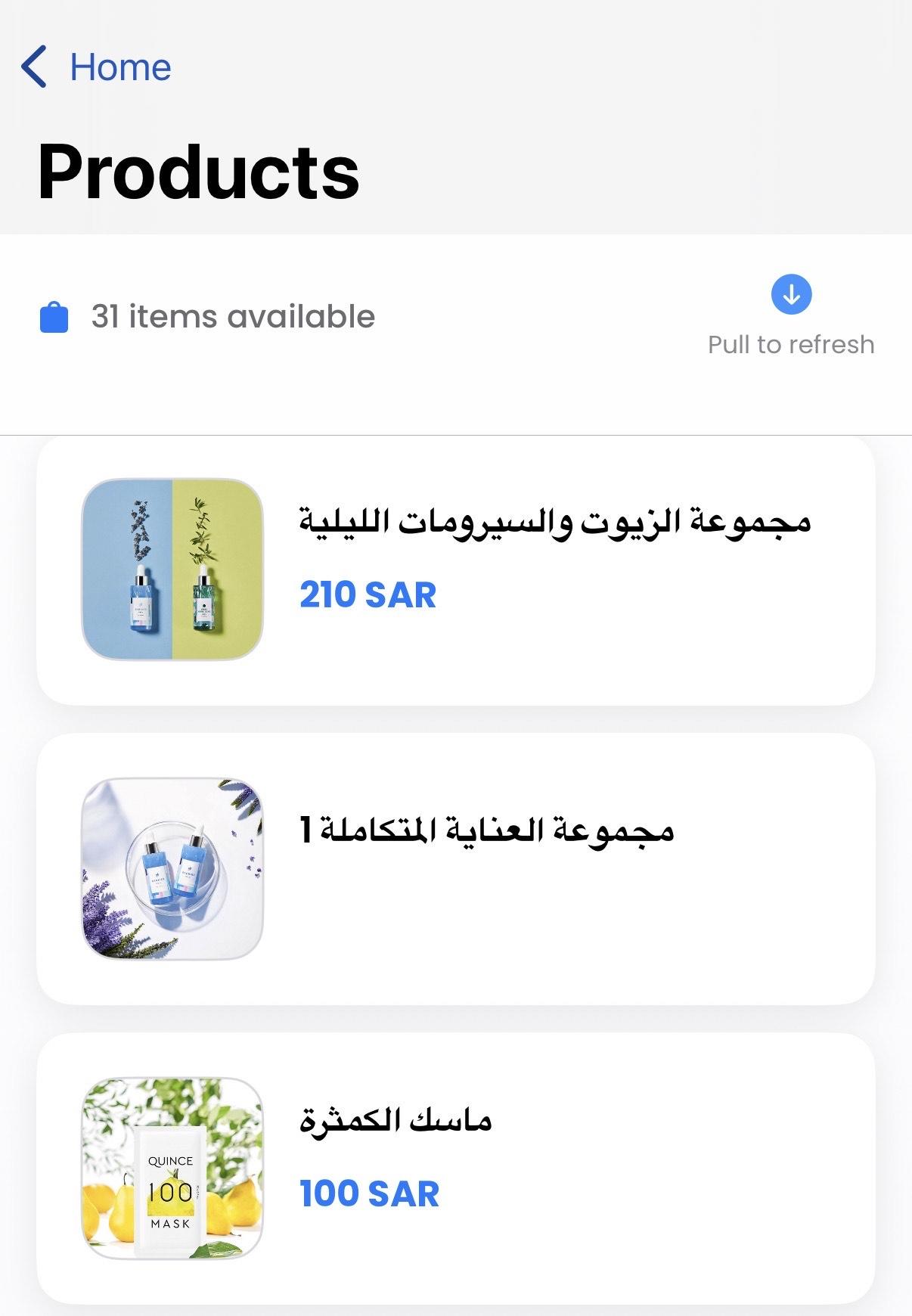
5. Choose the product you want to capture, then click (Capture Model).
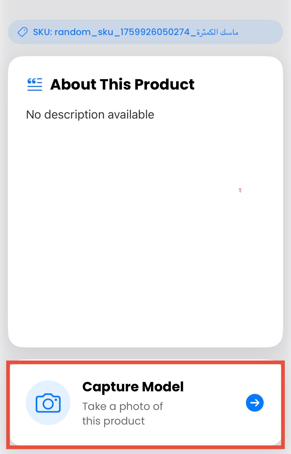
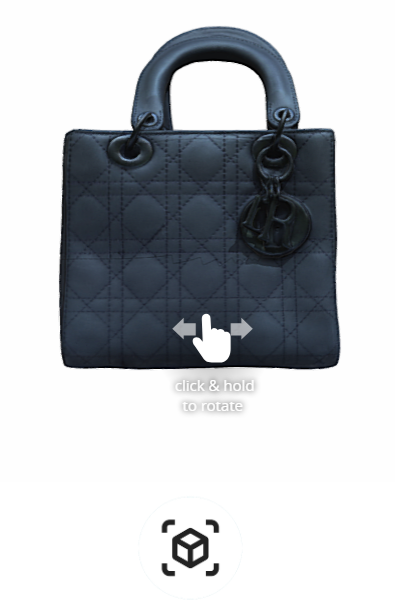
6. Capture clear shots of the product from every side.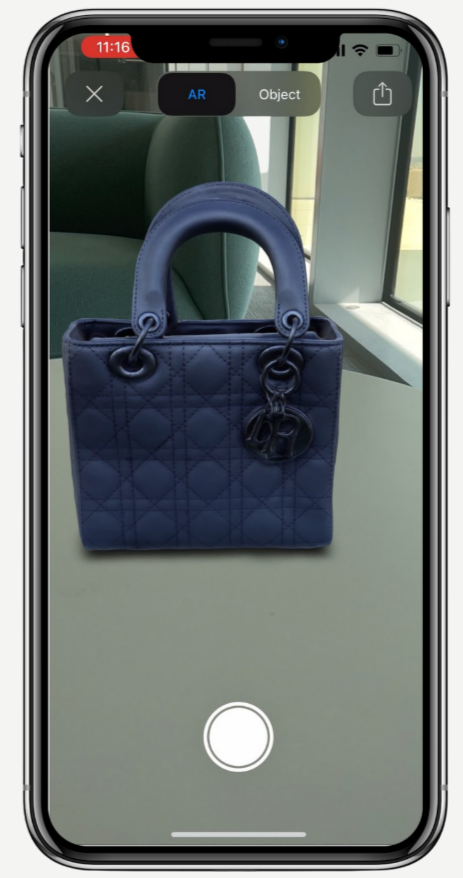 The app then builds the item as a 3D model.
📝 Important notes
Scanning is done on an iPhone or iPad, so keep the device with you when you photograph a product.
Good, even lighting and shots from every angle give you a cleaner model, so it is worth taking the extra few seconds.
Managing the ScanAR app
- Delete the app
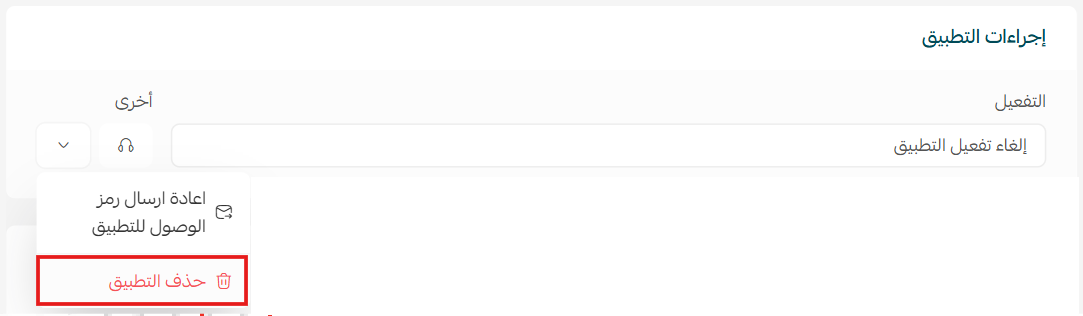
Open ScanAR from your installed apps, then from the app options menu click (Delete app).
Frequently asked questions
❓ What do I need to scan a product?
An iPhone or iPad with the ScanAR app installed. No 3D software and no specialist skills are involved.
❓ How do I sign in to ScanAR on my device?
You don't type anything. Scan the QR code shown for your store and the app opens straight into your store's products.
❓ Where does the 3D model go after I capture it?
It is uploaded to your Salla store, so the product can be shown interactively instead of as a flat photo.
❓ Is ScanAR free?
No. You pick a plan while installing the app and complete the payment before its features become available.
❓ How do I remove the app?
Open ScanAR from your installed apps and click (Delete app) in the app options menu.
A 3D model answers the questions a product photo leaves open — size, depth, and how the item actually looks in the room. Capture your best sellers first and let the models do the convincing.
For more details, see the ScanAR FAQ.