How many shoppers leave your product page because one small question went unanswered?
The Sallni app adds a WhatsApp contact button to the product pages of your Salla store, so a customer with a question about size, material, or availability can ask it in one tap instead of giving up. You control the message they send and how the button looks, which keeps it consistent with the rest of your storefront. In this guide, you'll learn how to install Sallni, get the button live on your product pages, upgrade your plan, and remove the app.
Sallni is a Salla App Store app that puts a WhatsApp contact button on your product pages so customers can send product questions directly. Both the inquiry message and the button's appearance can be customized to suit your store. You install it, add the required details, and click (Save).
📌 Article overview
- How to install and connect Sallni
- How to manage Sallni: upgrade, customize, and remove
- Frequently asked questions
👣 How to install and connect Sallni
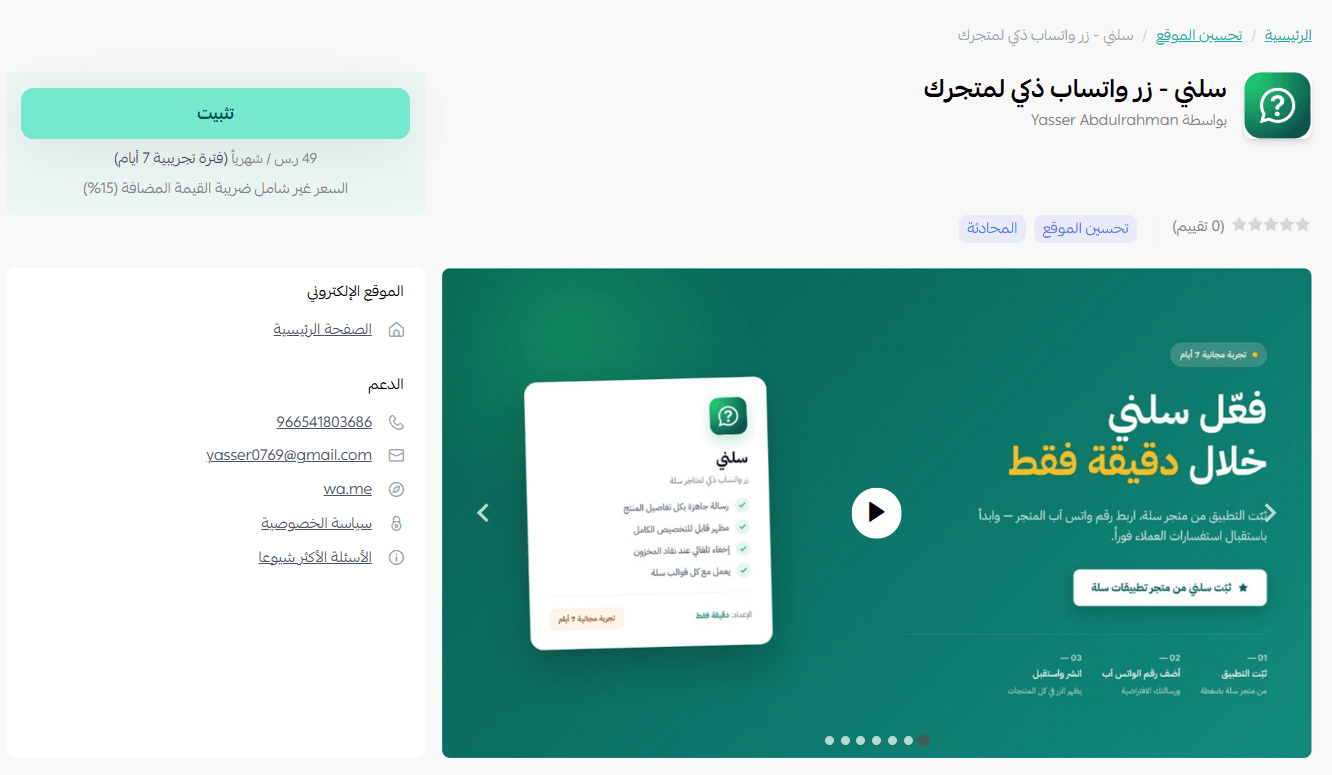
1. From the main menu, click (All), then under helper tools, click (App Store).

2. On the Sallni app page, click (Install).
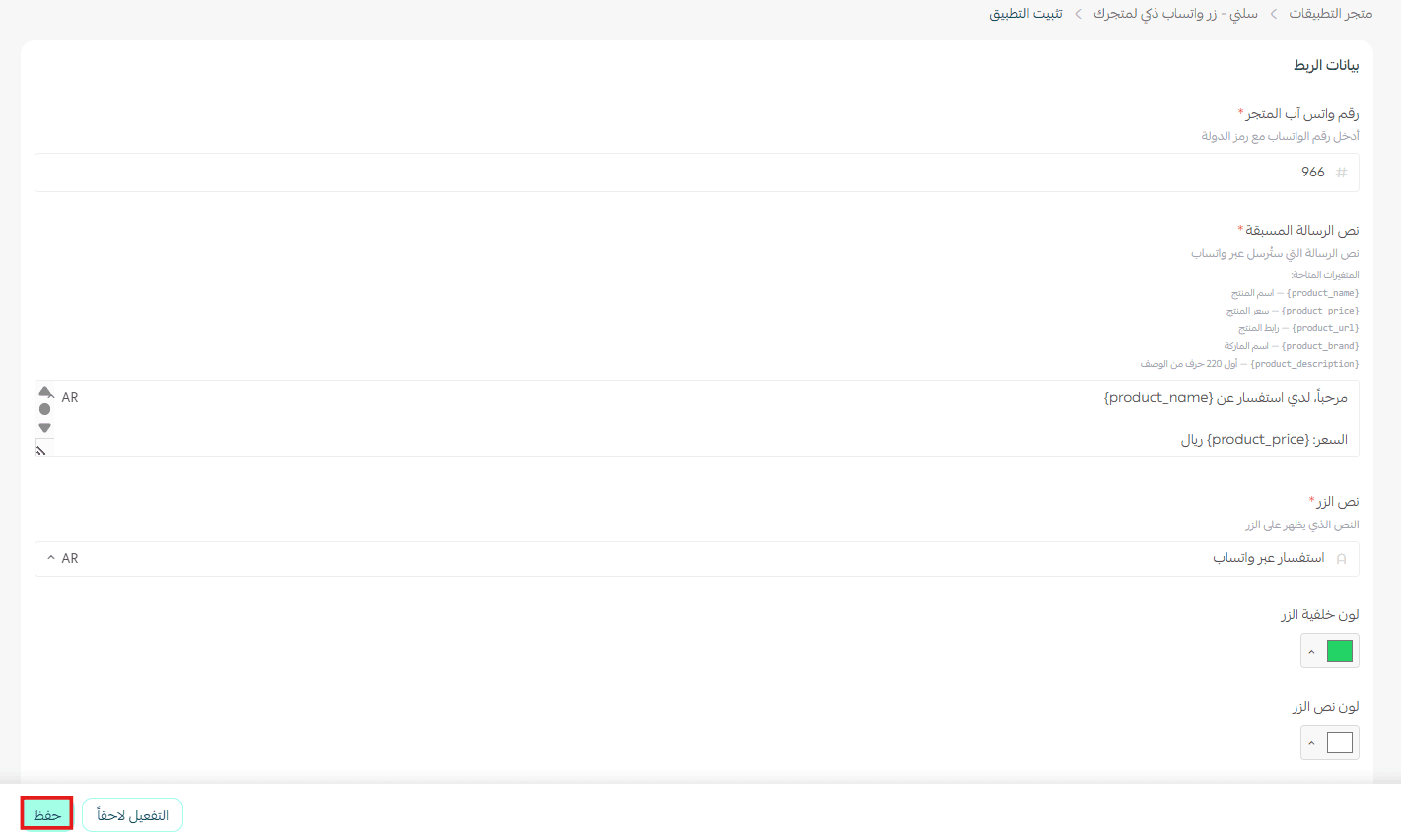
3. Add the required details, then click (Save).
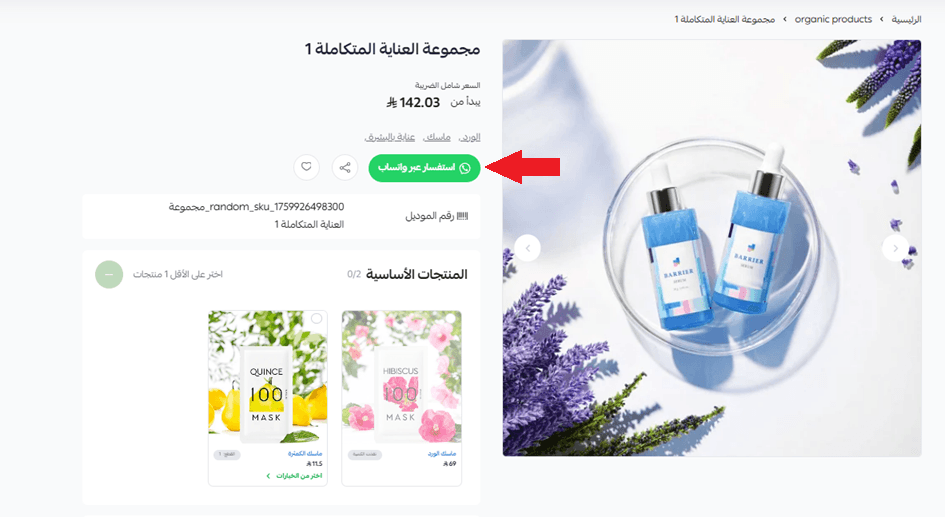
4. The WhatsApp button now appears on the product page in your store.
🚀 How to manage the Sallni app
Upgrade your plan
1. On the app details page in your store, click (Upgrade plan).

2. Choose the plan you want, then click (Go to payment).

3. Complete your payment details, then click (Confirm) to finish the upgrade.

Customize the app
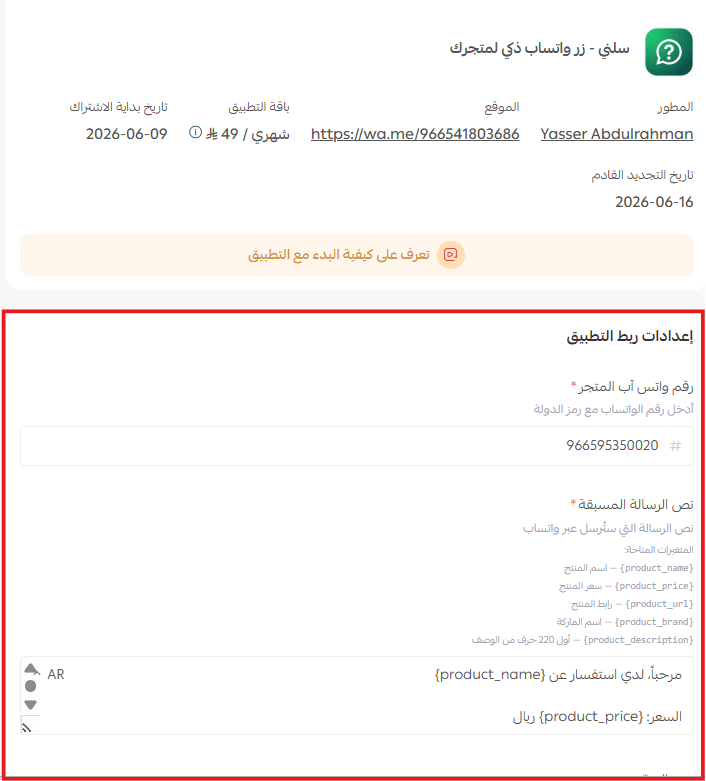
🎯 You manage the app from its details page in your store, on the My apps page. That is where you edit the inquiry message and the button's appearance.
Remove the app
1. From the app options list, click (Cancel subscription), then choose your reason for cancelling.

2. From the app options list, click (Delete app), then choose your reason for deleting.

3. On the Deleted apps page, open the app options list and click (Delete app permanently) to remove it from your store for good.

📝 Important notes
- The button only appears on product pages once you have added the required details and clicked (Save).
- Removing the app takes two stages: it moves to the deleted apps page first, and is only gone for good after (Delete app permanently).
- For more, see the Sallni app page.
❓ Frequently asked questions
Where does the WhatsApp button appear?
On your product pages, so a customer can ask about the specific product they are looking at.
Can I change what the message says?
Yes. Both the inquiry message and the button's appearance can be customized to suit your store.
Where do I manage the app after installing it?
On the app details page in your store, reached from the My apps page.
How do I move to a bigger plan later?
Open the app details page, click (Upgrade plan), choose the plan, click (Go to payment), then confirm your payment details.
A question a customer cannot ask becomes an order you never see. Sallni puts the answer one tap away, right where they are deciding.