Do shoppers leave your store because nothing on the page tells them other people are buying?
Trust is what turns a browsing visitor into a paying customer. Sales Turboo is a marketing app in the Salla App Store that shows small popup notifications of real store activity — a recent purchase, a new customer review — while visitors browse. Those live signals act as social proof, reduce hesitation, and push undecided shoppers toward checkout. In this guide, you'll learn how to install Sales Turboo, subscribe to a plan, access your Turboo dashboard, and remove the app if you no longer need it.
Sales Turboo is a Salla app that displays live popup notifications of real store activity — recent purchases and customer reviews — to visitors browsing your store. This social proof builds trust and encourages hesitant shoppers to complete their orders. Install it from the Salla App Store, choose a plan, then manage notifications from the Turboo dashboard.
📌 Article overview
- How to install the Sales Turboo app
- How to subscribe to Sales Turboo
- How to manage the Sales Turboo app
- Frequently asked questions
🚀 How to install the Sales Turboo app
1. From the main menu, click (More), then click (Installed apps).
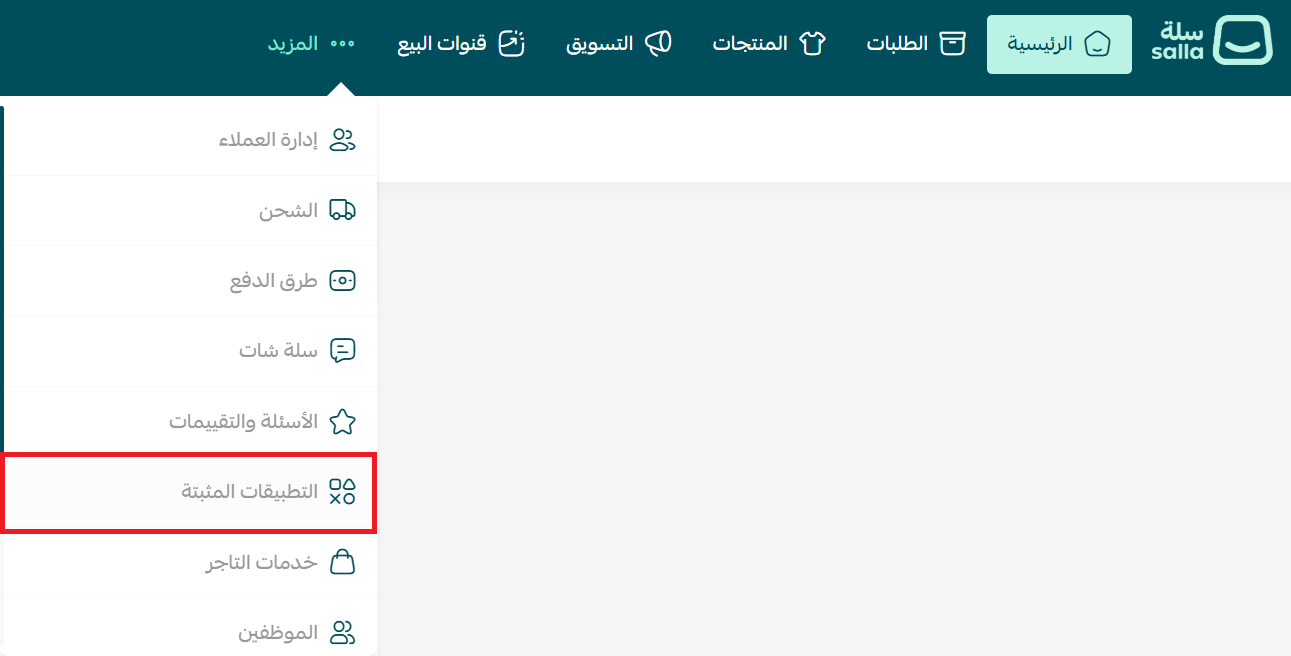
2. From the Salla App Store banner, click (Browse all categories).

3. Open the Sales Turboo app page, then click (Install).
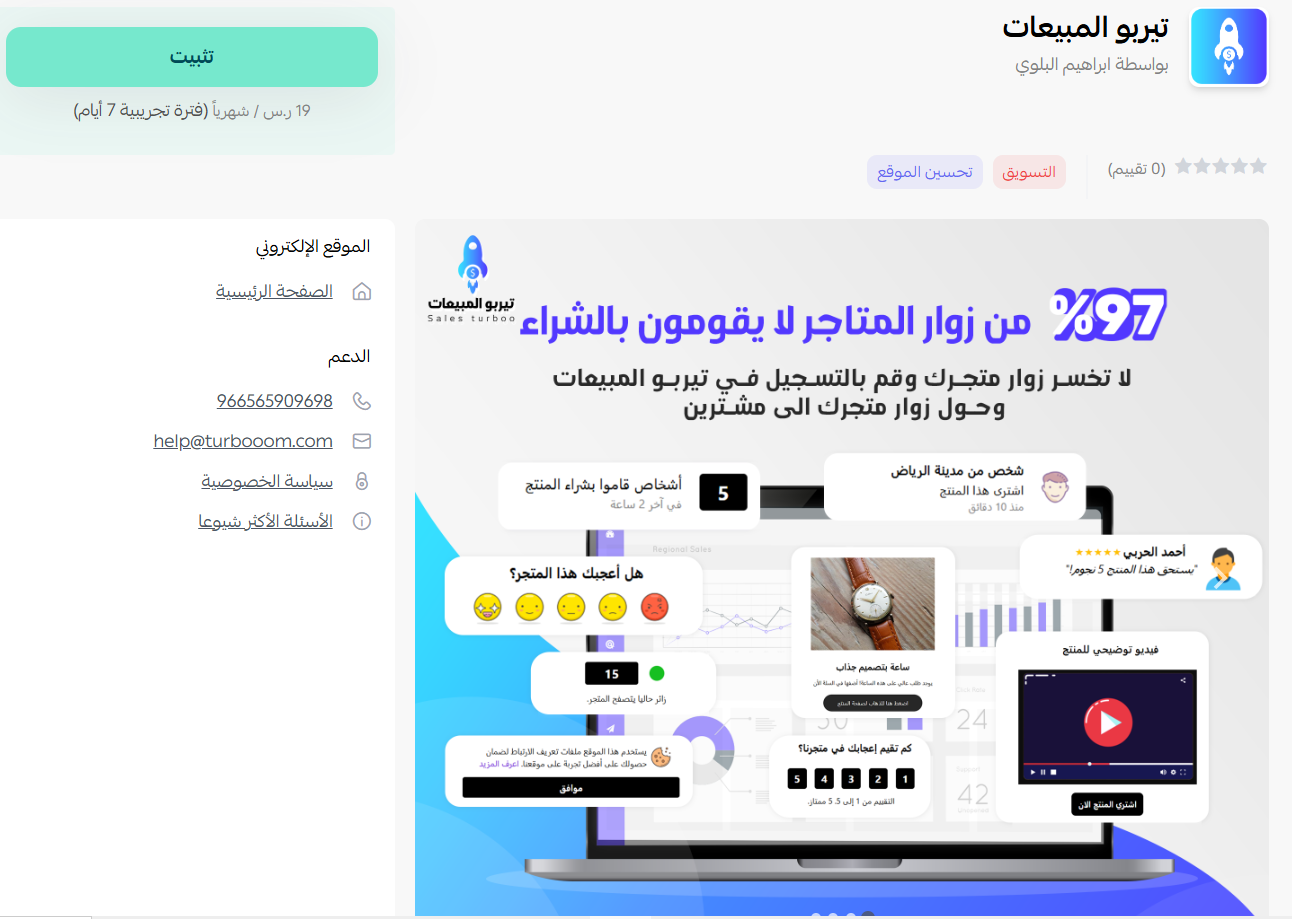
The app is now installed on your store.
🚀 How to subscribe to Sales Turboo
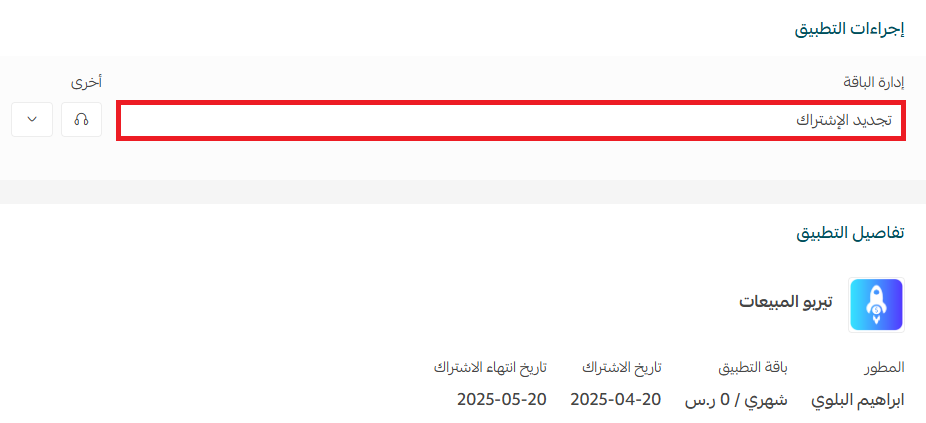
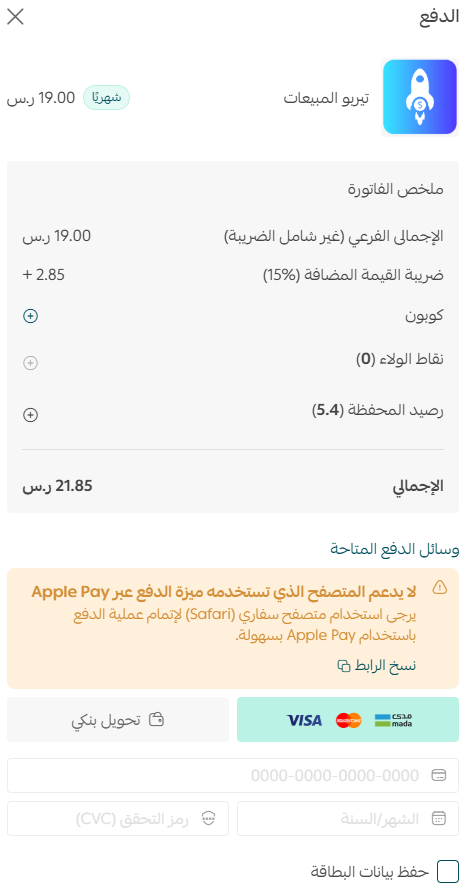
1. From the Installed apps page, under (App actions), click (Renew subscription).
2. Choose the plan that fits your store, then click (Continue to payment).
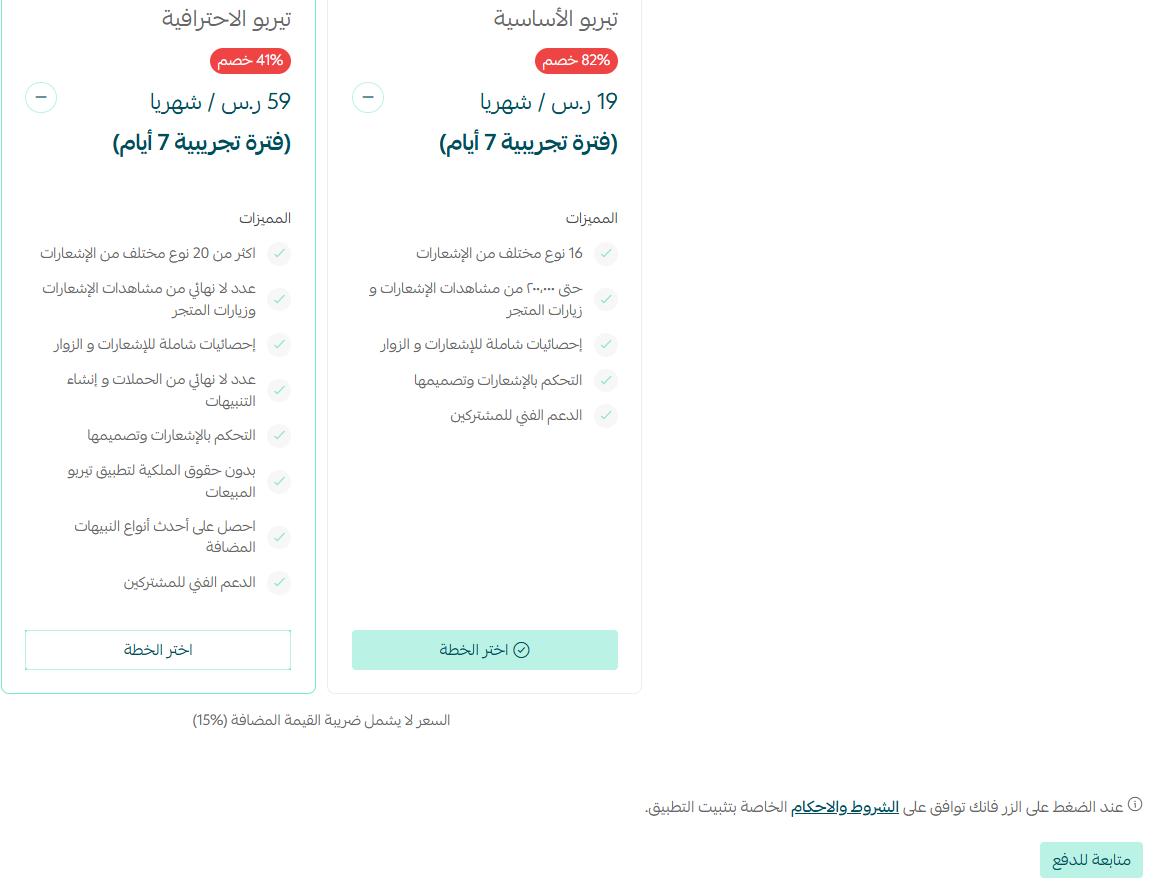
3. Complete the payment to activate the app's features.
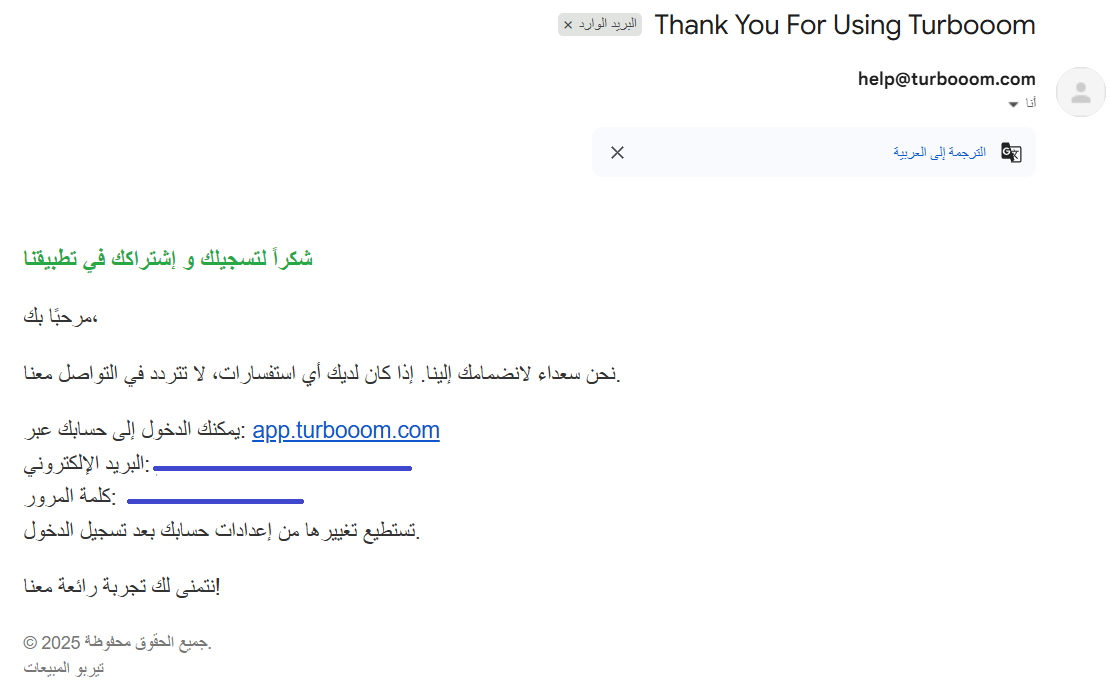
4. Check your inbox. Once the payment goes through, you'll receive an email with the login details for your Sales Turboo account.
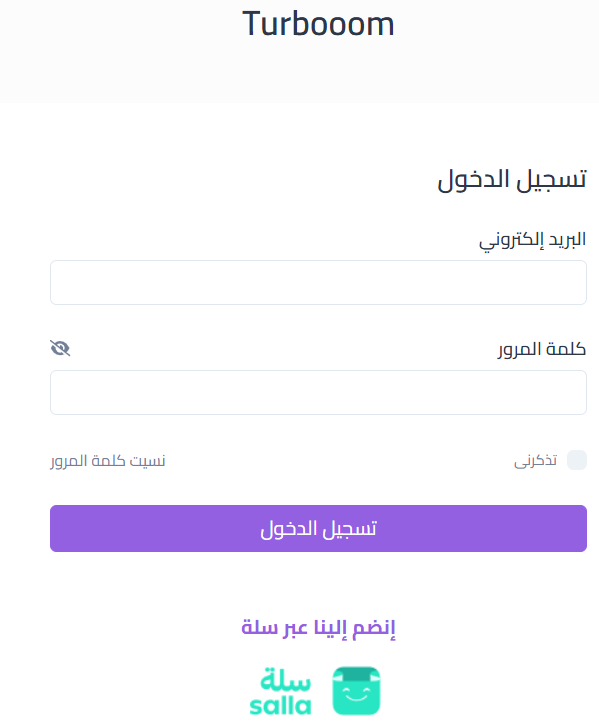
5. Sign in to your account on the Sales Turboo website.
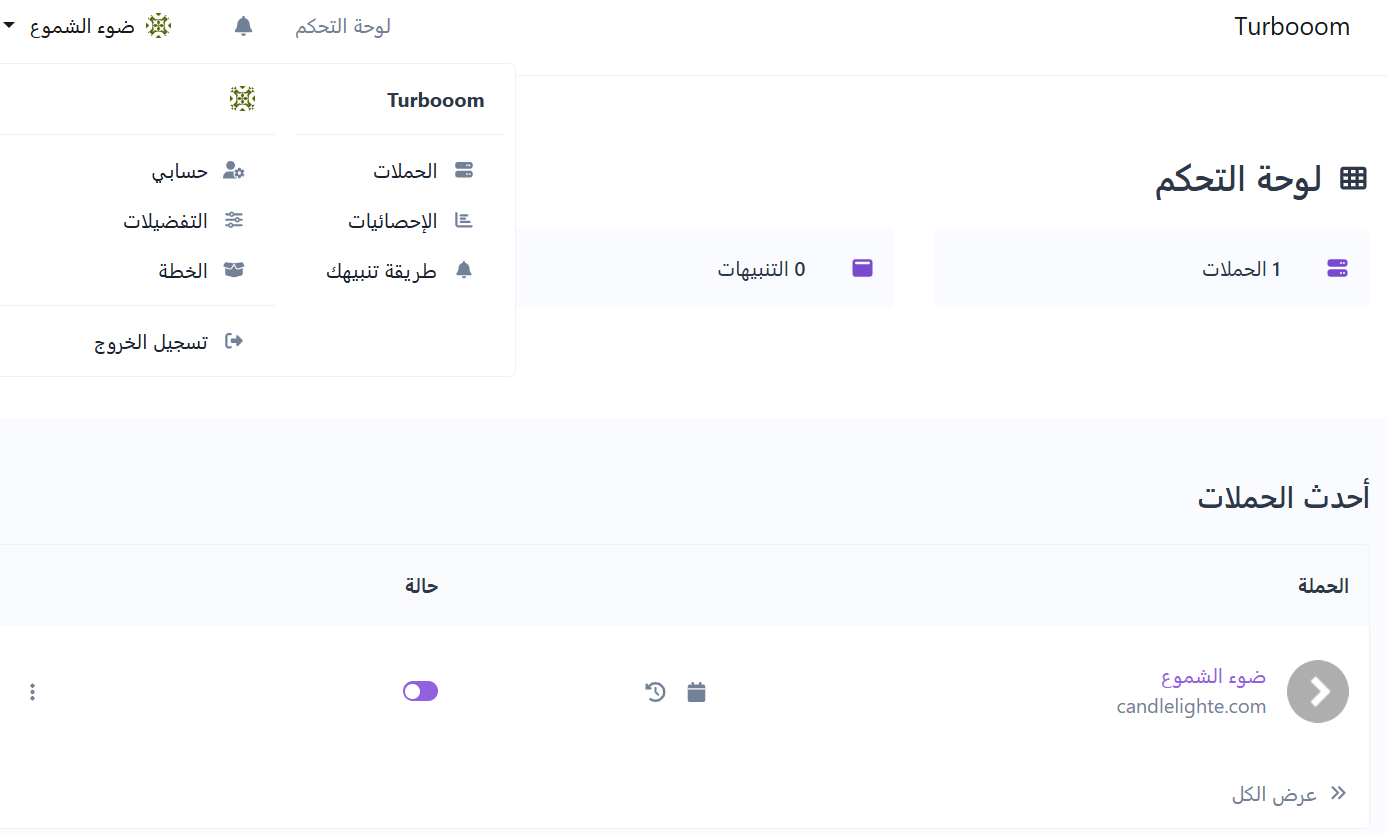
6. Your Sales Turboo dashboard opens. From here you can customize how notifications look, choose which activities to display, and track how visitors interact with them.
For more details on managing your account, visit the Sales Turboo website.
🚀 How to manage the Sales Turboo app
Remove the app
From the Installed apps page, under (App actions), click (Delete app).

📝 Important notes
- Sales Turboo notification settings live in the Turboo dashboard, not in your Salla dashboard.
- Your login details are sent by email after payment, so use the email address linked to your Salla account.
- Deleting the app stops the notifications from appearing in your store.
❓ Frequently asked questions
What do the Sales Turboo notifications show?
They show real customer activity in your store, such as a recent purchase or a new product review, displayed as a small popup to visitors browsing your pages.
Where do I get my Sales Turboo login details?
They arrive by email once your subscription payment is complete. Use them to sign in at app.turbooom.com.
Do I need a paid plan to use the app?
Yes. Choose a plan from the (Renew subscription) screen and complete the payment before the notifications go live.
Can I change how the notifications look?
Yes. The notifications are fully customizable from your Sales Turboo dashboard, which also tracks how visitors engage with them.
How do I remove Sales Turboo from my store?
From the Installed apps page, open (App actions) and click (Delete app).
Social proof works because shoppers trust other shoppers. Keep the notifications relevant and lightweight, and they'll do the persuading for you while you focus on the products.