Are your product photos doing your products justice?
Strong visuals and clean, search-friendly product pages both sell — but producing them takes time most merchants do not have. The Saleem AI app pulls a set of AI tools built specifically for Salla stores into one place, so you can improve product photos, create new visuals, and sharpen your product SEO from a single dashboard. In this guide, you will learn how to install Saleem AI, log in to its platform, and remove the app if you no longer need it.
Saleem AI is an app store tool for Salla merchants that enhances product images and uploads them straight to your store, generates and edits visuals with AI for designs, banners, and variants, and analyzes products to suggest SEO improvements. You install it from the Salla App Store and run it from the Saleem AI dashboard.
📌 Article overview
- What the Saleem AI app does
- How to install the Saleem AI app
- How to manage the Saleem AI app
- Frequently asked questions
✅ What the Saleem AI app does
- Enhances product images automatically and uploads them directly to your store.
- Generates and edits images with AI for designs, banners, and product variants.
- Analyzes your products and suggests SEO improvements that help visibility and sales.
- Saves time and raises content quality, in an experience built specifically for Salla stores.
🚀 How to install the Saleem AI app
1. From the main menu, click (All), then under helper tools click (App Store).
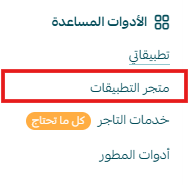
2. Search for the app using the search field.

3. On the Saleem AI app page, click (Install).
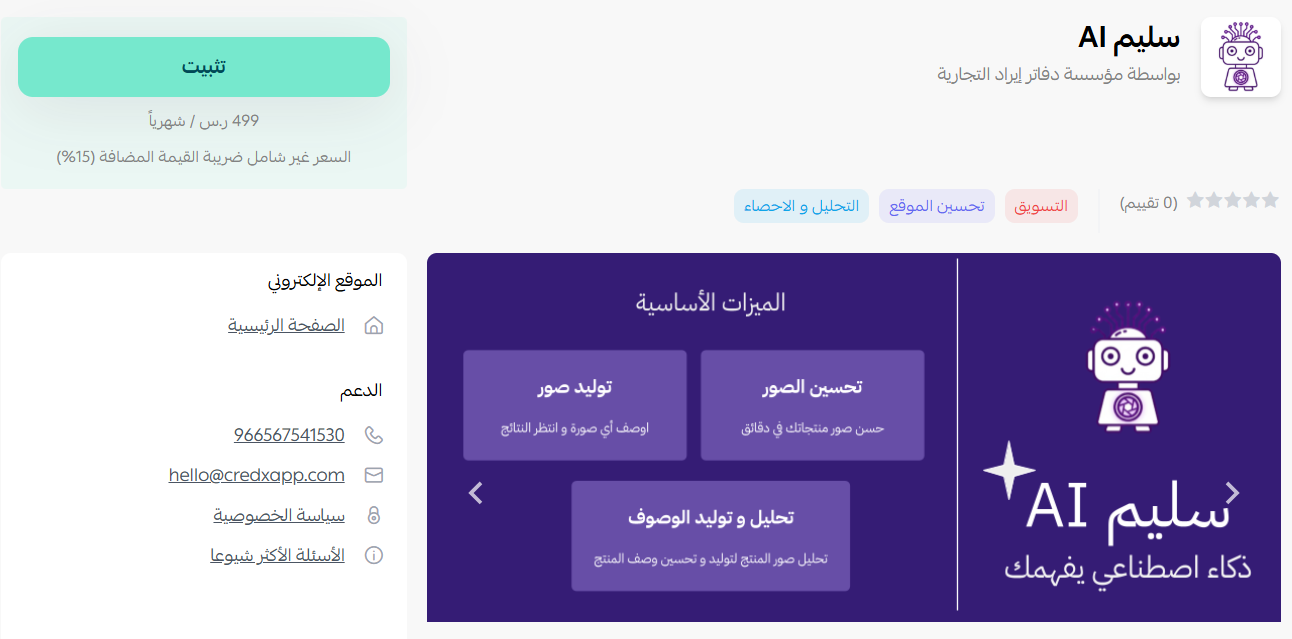
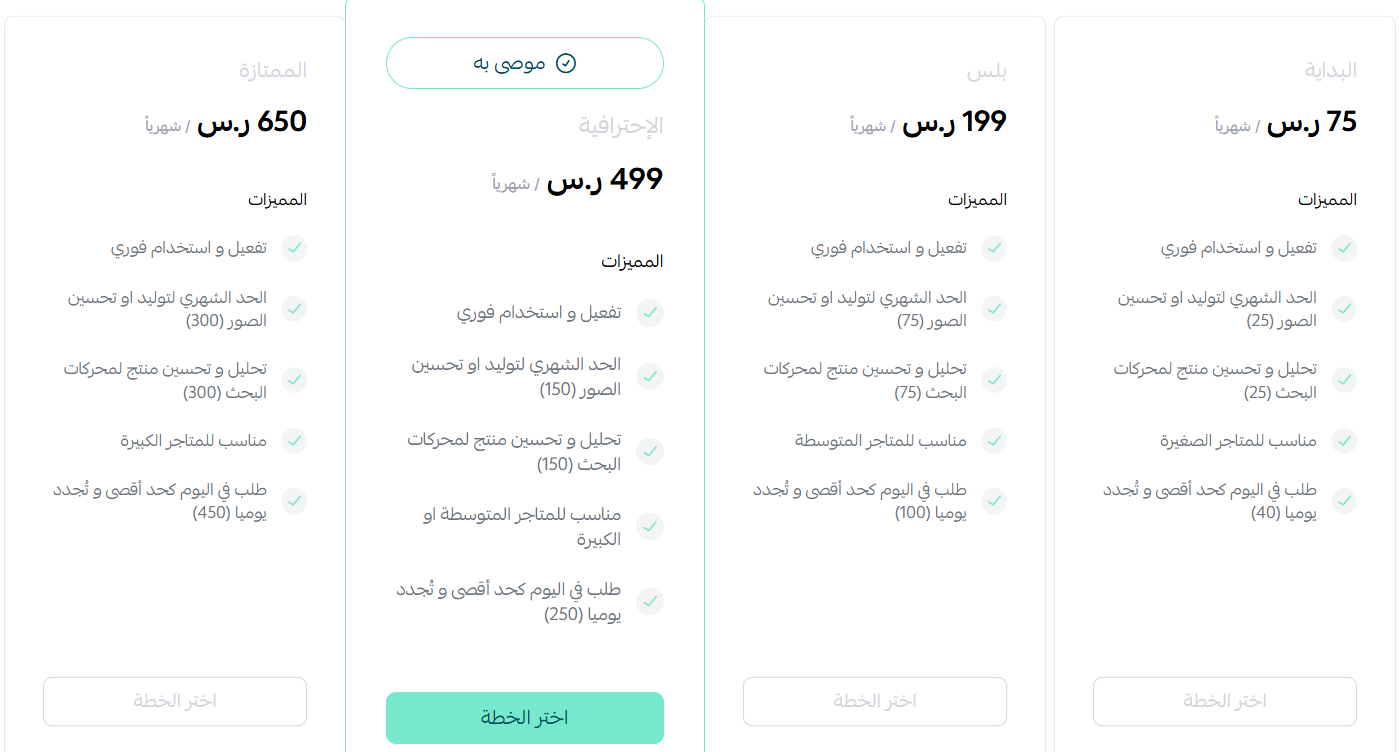
4. Choose the plan that fits your store, then click (Install app).
5. On the checkout page, enter your payment details and click (Confirm) to finish the installation.
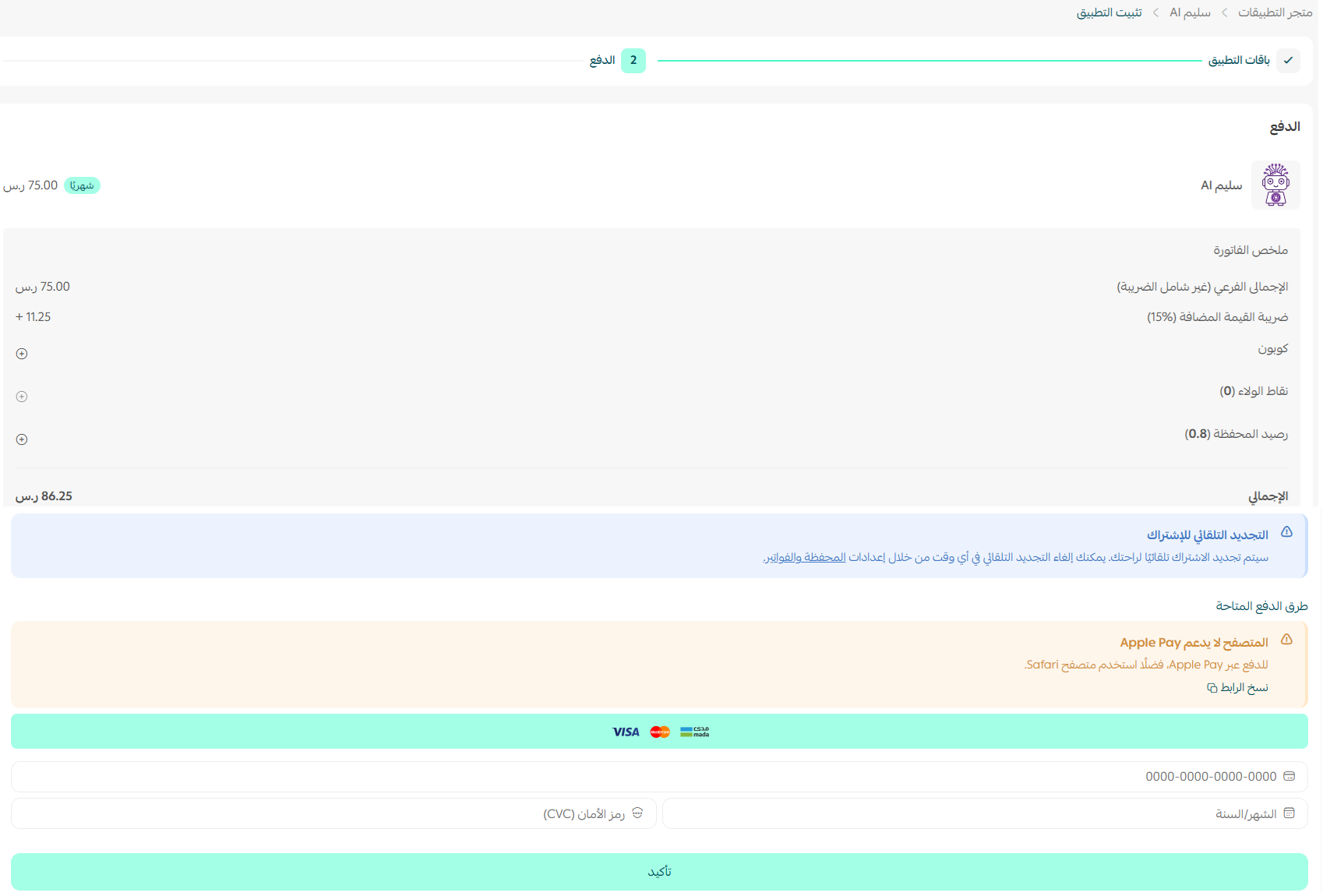
That is it. The app is now installed on your store.
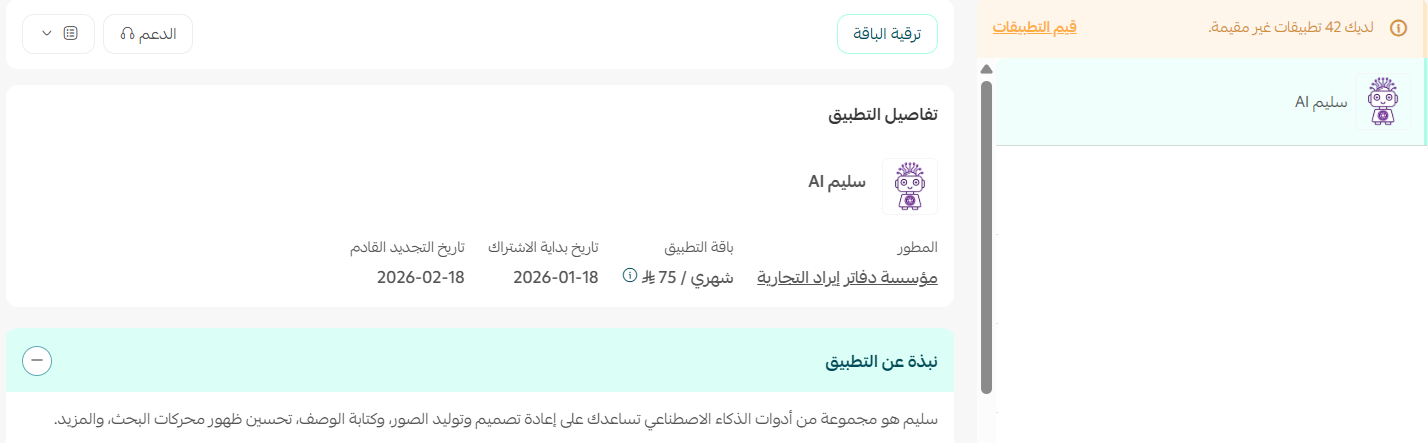
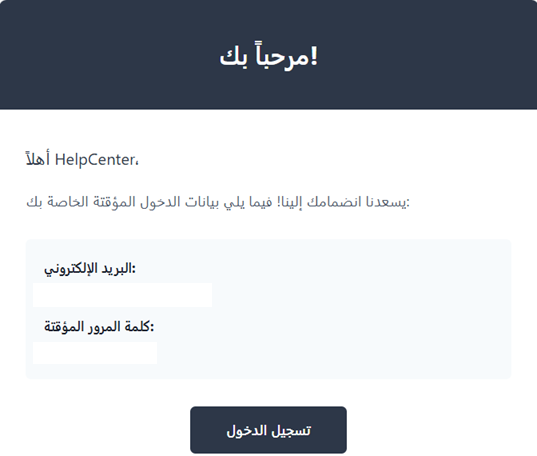
6. Once the installation is complete, you will receive an email with your login details for the Saleem AI platform.
Sign in to the Saleem AI platform with the credentials from that email, and you land on the dashboard home page.
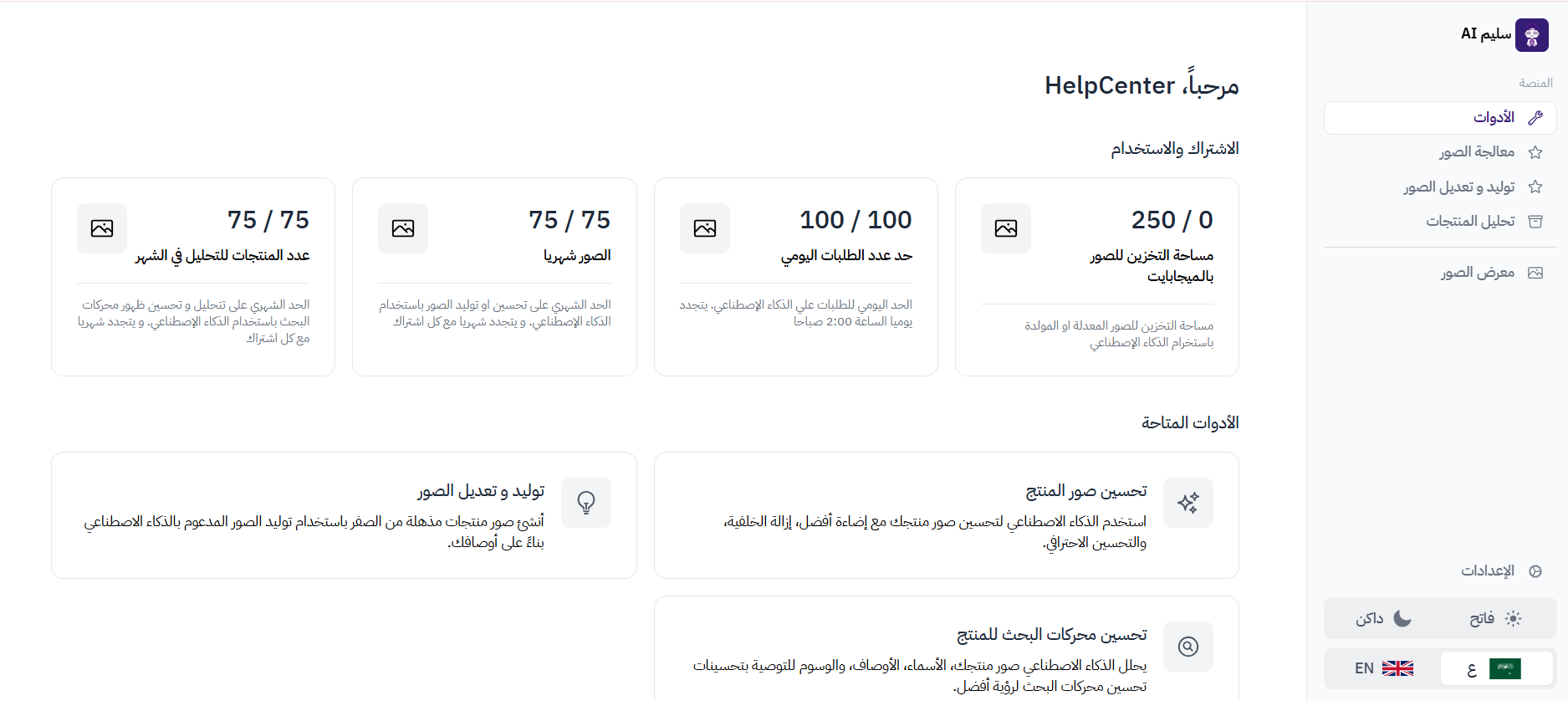
🚀 How to manage the Saleem AI app
Remove the app
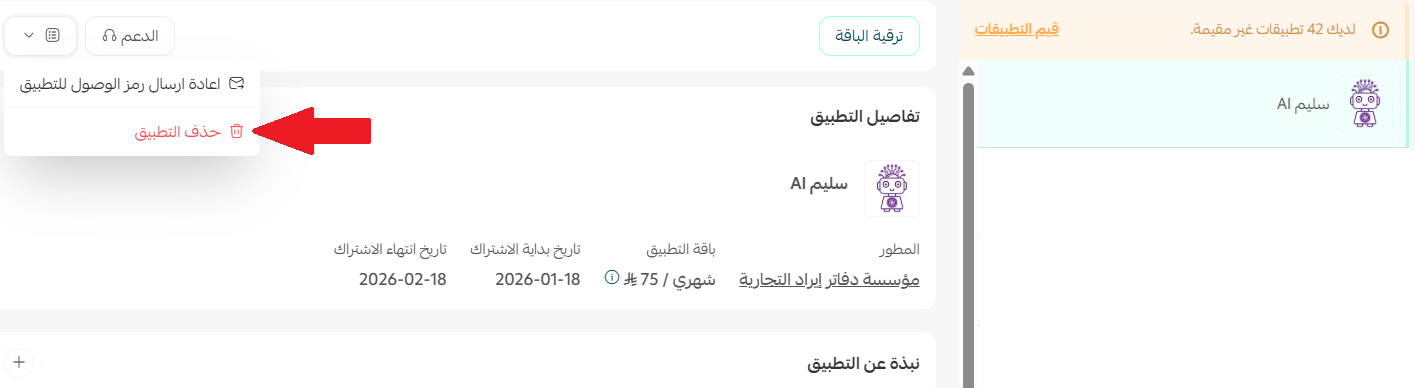
From the Saleem AI app card on your installed apps page, click ( ) and click (Cancel subscription).
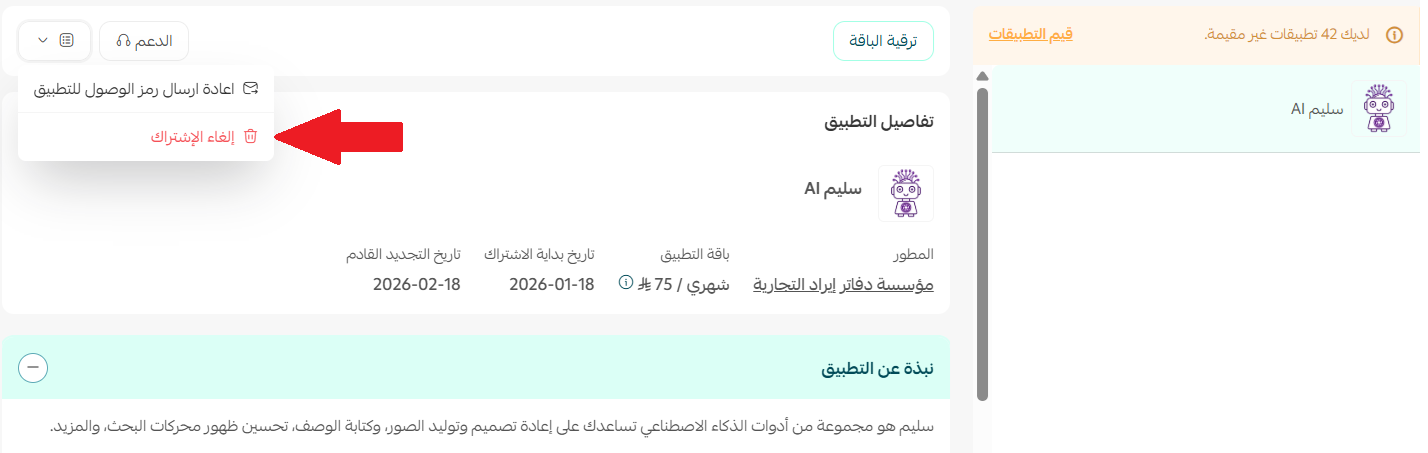
From the same menu, click (Delete app).
📝 Important notes
Cancel the subscription before you delete the app, so billing stops as well as access.
Frequently asked questions
❓ Where do I log in to Saleem AI?
On the Saleem AI platform, using the credentials emailed to you right after installation.
❓ Do I need a paid plan to use the app?
Yes. You choose a plan during installation and complete the payment before the app is activated on your store.
❓ Do enhanced images go back into my store automatically?
Yes. Saleem AI enhances product images and uploads them directly to your store, so you do not have to re-upload anything by hand.
❓ What happens to my store if I delete the app?
Your store keeps working normally. You lose access to the Saleem AI tools and to any new image or SEO work you have not already applied.
Better images and better-optimized product pages compound over time, and doing both by hand is what usually stalls. For more details, visit Saleem AI.