The reorder feature helps boost customer loyalty and encourages repeat purchases with ease. It allows previously purchased products to appear in a dedicated section on the homepage, enabling customers to reorder with just one click.
This feature is an effective way to increase repeat purchase rates and enhance the overall shopping experience in your store.
Feature objectives
- Reduce the steps required to reorder products
- Increase repeat purchase rates
- Improve customer experience and loyalty
- Boost sales by leveraging past customer behavior
📌 Article overview
- How to enable the reorder option
- FAQ
Enable reorder option
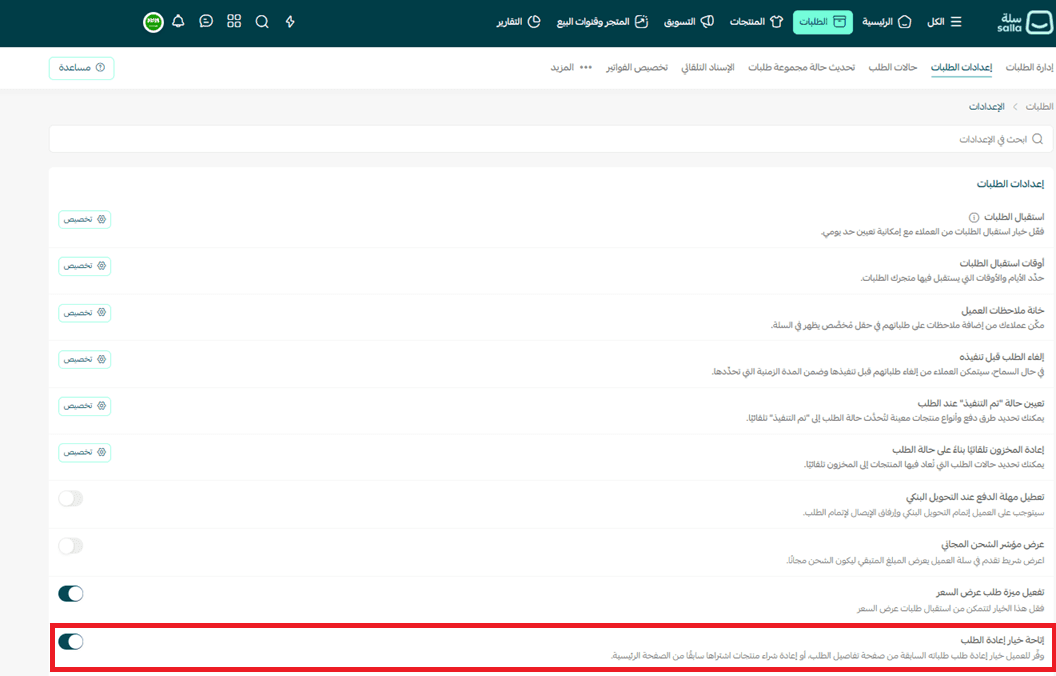
- From the main dashboard menu, click Orders

2. From the submenu, select Order settings

3. Enable the option Allow reorder
How it appears to customers
When the feature is enabled:

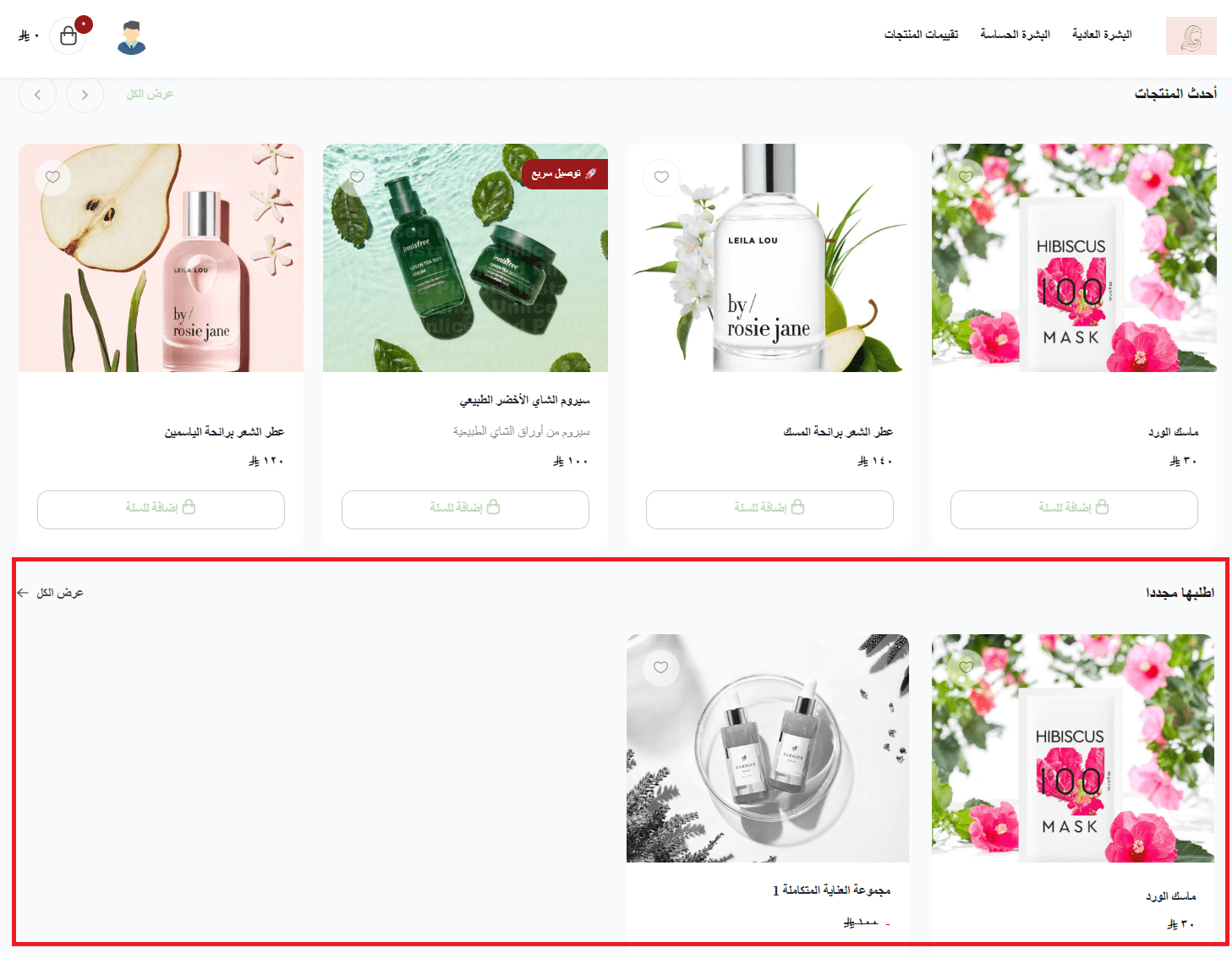
- A “Buy again” section appears on the homepage for logged-in customers who have previously placed orders
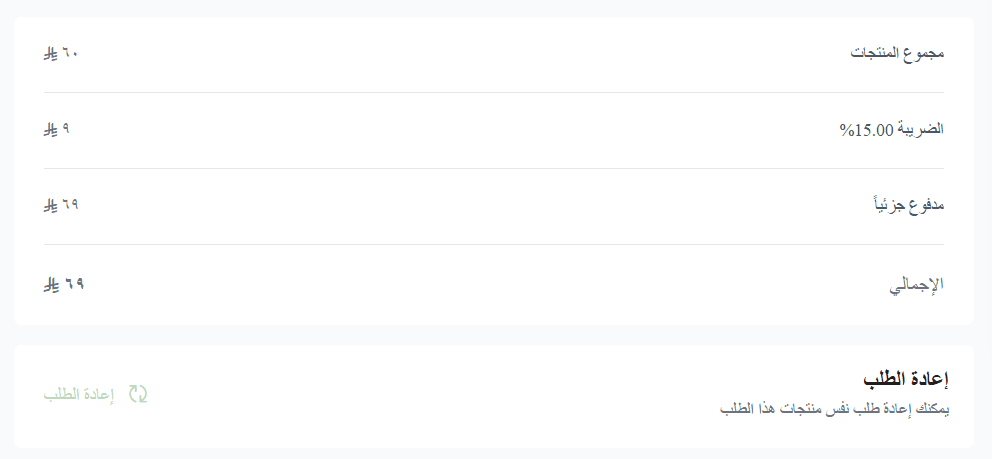
- A reorder section also appears at the bottom of order details pages
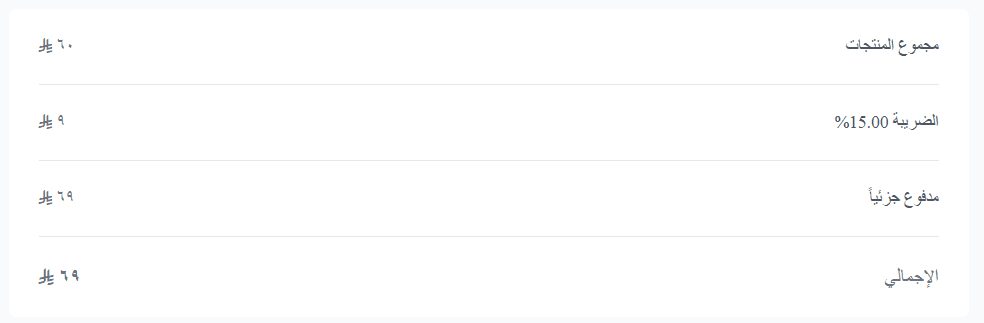
When the feature is disabled:

- The “Buy Again” section will not appear on the homepage
- The reorder option will not appear in order details
Frequently asked questions
Is the reorder feature available on all plans?
Yes, it is available across all plans.
Does the section appear for all visitors?
No, it only appears for logged-in customers who have made previous purchases.
Is the feature available for all product types?
It is available for all products except booking products.
Why don’t some previously purchased products appear in the reorder section?
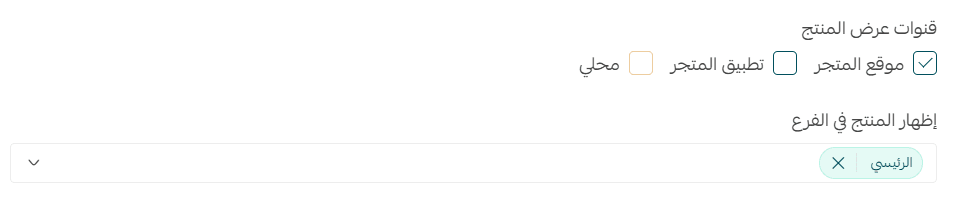
This usually happens due to different product display channels If a product is enabled only on the mobile app, it won’t appear for customers browsing the website.
Solution: Go to the product page → under advanced settings → enable the appropriate sales channels.
✨ Enable the reorder feature today to simplify repeat purchases and turn returning customers into consistent buyers.